

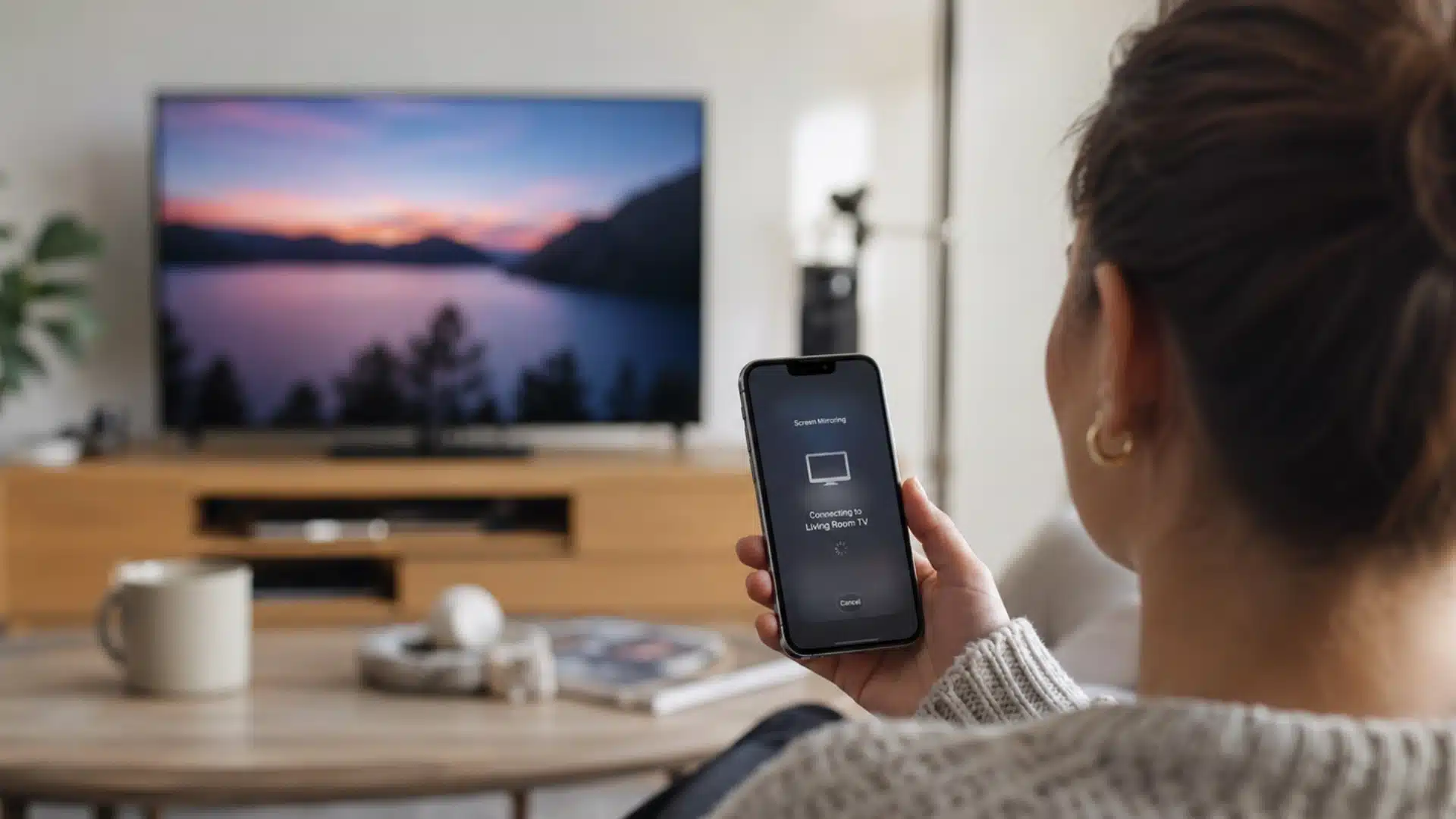
Watching videos or sharing photos feels better when everyone can enjoy them together on a much larger screen at home.
I usually prefer the simplest option that avoids extra setup, but the best method depends on the TV, available ports, and whether a wireless connection is stable.
If you are trying to learn how to connect an iPhone to a TV, you can use AirPlay, a compatible streaming device, or a wired adapter with an HDMI cable.
Each option works well in the right situation, though issues like Wi-Fi settings, input selection, or unsupported hardware can interrupt the connection.
Below, you will find clear steps for all three methods, along with practical fixes to help you get your iPhone displaying properly without wasting time.
What You Need Before Connecting Your iPhone to a TV
Before connecting your iPhone, take a moment to check which method matches your TV and phone. This helps you avoid setup problems and unnecessary troubleshooting later.
For wireless mirroring, both devices must use the same Wi-Fi network, and the TV needs built-in AirPlay 2 support or a compatible streaming device. A wired connection requires an HDMI cable and the correct adapter for your iPhone.
Older models usually need a Lightning Digital AV Adapter, while newer USB-C models require a USB-C to HDMI adapter. Casting a single video is slightly different because it works from inside a supported app.
Your iPhone and TV still need to share the same Wi-Fi network, while the app must show an AirPlay or cast icon. Checking these requirements first makes it easier to choose the method most likely to work.
How to Mirror an iPhone to a TV with AirPlay (Wireless)
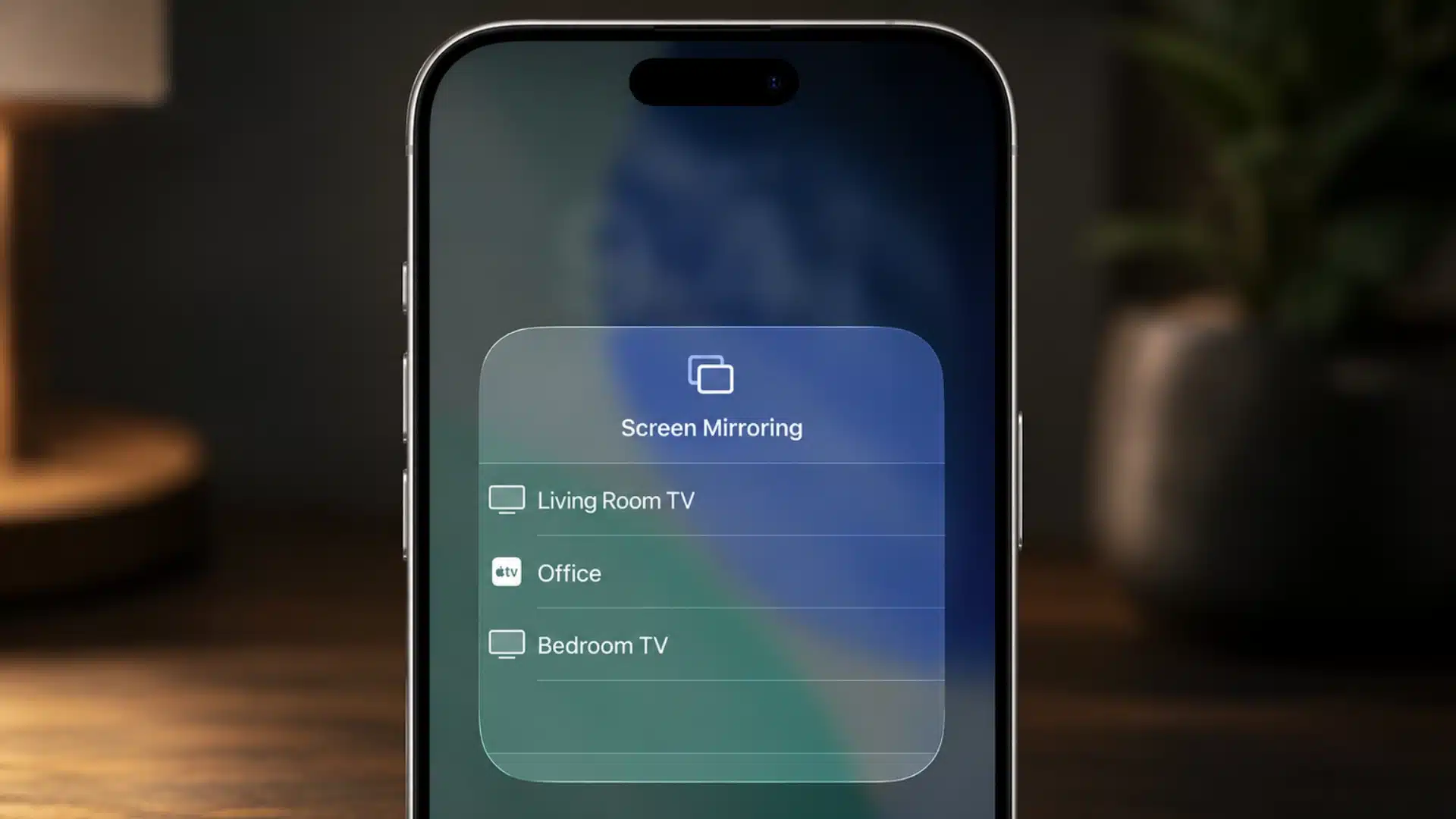
AirPlay is usually the fastest way to mirror your iPhone screen on a compatible TV without cables or extra setup.
- Connect your iPhone and TV to the same Wi-Fi network before opening any mirroring controls.
- Open Control Center by swiping down from the top-right corner of your iPhone screen.
- Tap the Screen Mirroring button, shown as two overlapping rectangles.
- Choose your TV from the list of nearby and available AirPlay devices.
- Enter the passcode displayed on the TV if your iPhone asks for verification.
- Wait a few seconds for your iPhone screen to appear on the larger display.
Many recent smart TVs from major brands include AirPlay 2, so you may not need extra hardware. Once connected, you can open videos, photos, apps, or presentations directly from your iPhone.
How to Connect an iPhone to a TV with an HDMI Cable (Wired)
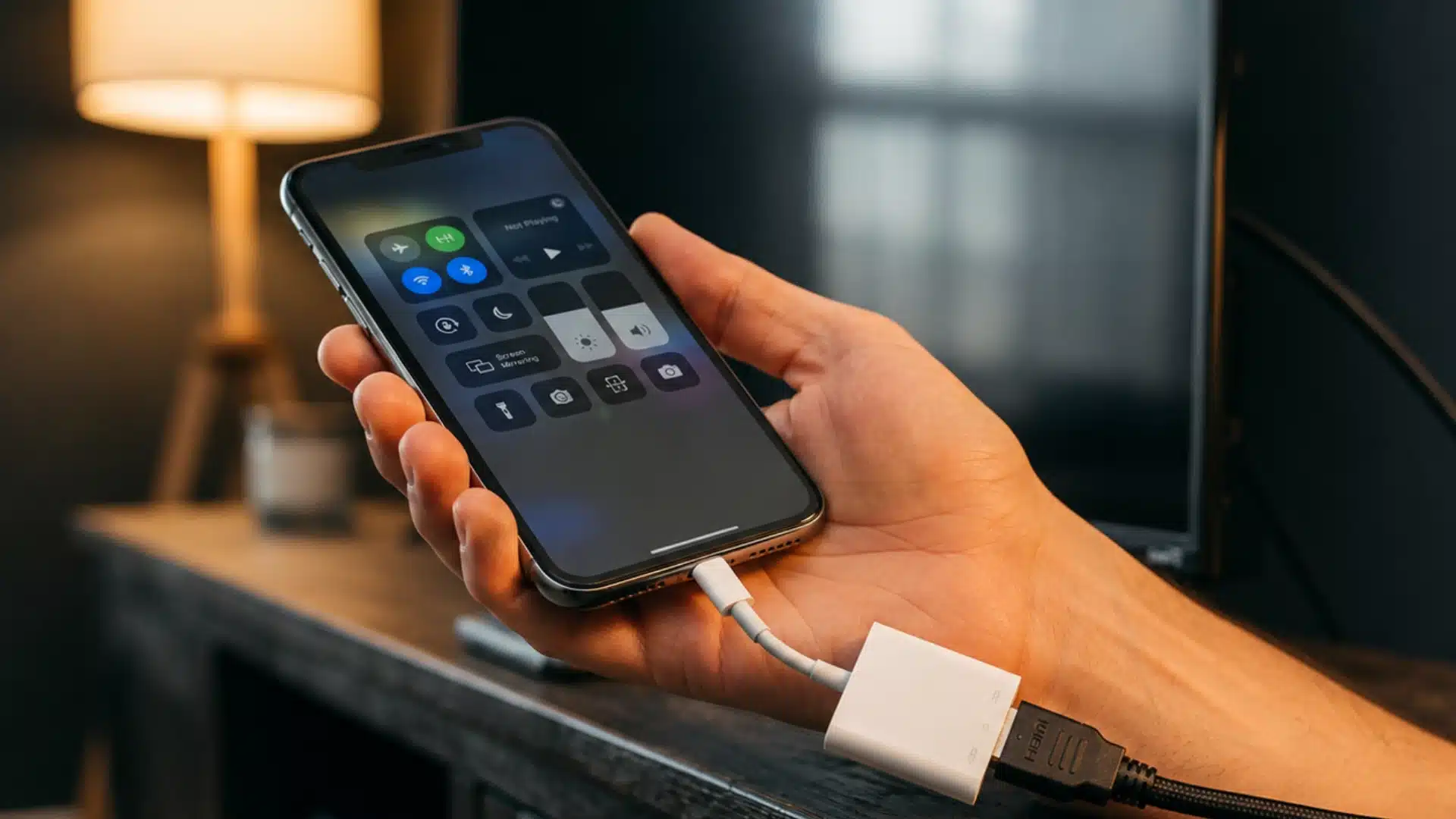
A wired HDMI connection is the most reliable option when Wi-Fi is weak, unavailable, or your TV does not support AirPlay.
- Check your iPhone port: Lightning models need an Apple Lightning Digital AV Adapter, while USB-C models require a compatible USB-C-to-HDMI adapter.
- Connect the adapter: Plug the correct adapter securely into the charging port on your iPhone.
- Attach the HDMI cable: Connect one end of a standard HDMI cable to the adapter.
- Connect the television: Insert the other end of the HDMI cable into an available HDMI port on your TV.
- Select the correct input: Use your TV remote to switch to the matching HDMI source.
- Wait for mirroring: Your iPhone screen should appear on the television within a few seconds.
This setup gives you a stable connection for videos, photos, presentations, and supported apps without relying on a wireless network.
How to Cast Just a Video Instead of Mirroring the Whole Screen
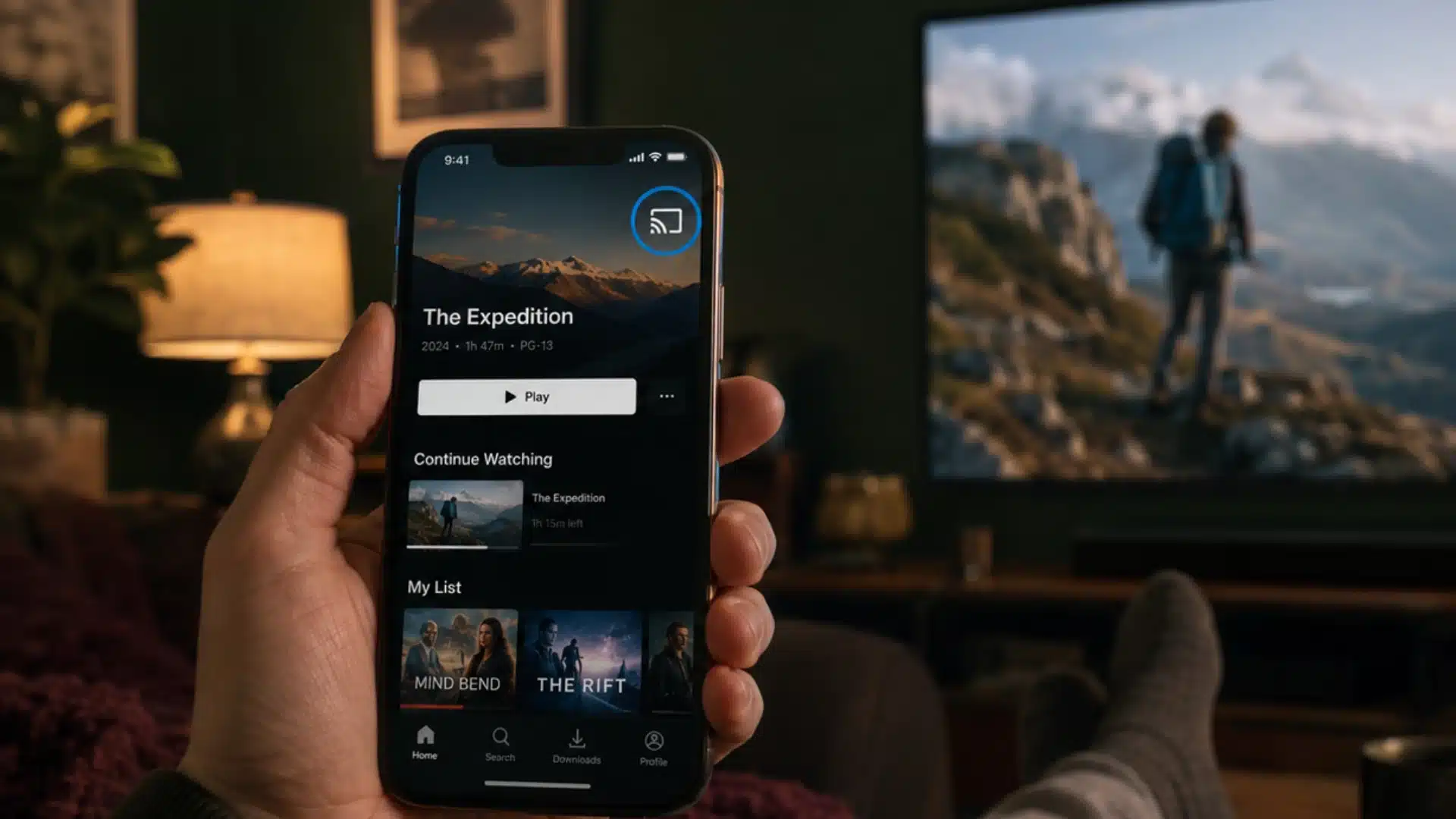
Casting is a good option when you only want to cast a video from your iPhone instead of displaying everything on your iPhone screen.
It keeps playback running on the larger display while leaving your phone available for messages, browsing, or other tasks.
1. Connect Both Devices to the Same Wi-Fi
Start by confirming that your iPhone and TV are connected to the same Wi-Fi network. Casting usually will not work when the devices use different networks or when one device is connected through mobile data.
Check the network name in your iPhone settings and compare it with the connection shown in your TV settings.
2. Open a Compatible Streaming App
Launch the streaming app containing the video you want to watch, such as YouTube, Netflix, or Kodi on a Firestick.
Not every app offers the same casting options, so look for built-in playback controls. Start the video or open its viewing page so the AirPlay or Cast button becomes available within the app.
3. Tap the AirPlay or Cast Icon
Find the AirPlay or Cast icon inside the video player and tap it. The AirPlay symbol usually looks like a screen with a triangle, while the Cast symbol resembles a screen with curved lines.
Depending on the app, these icons may appear at either the top or bottom of the video player during playback.
4. Select Your TV and Start Playback
Choose your television or streaming device from the list of available screens. The video should begin playing on the TV after a few seconds.
You can continue using your iPhone to pause, skip, adjust the volume, or select another video without mirroring personal notifications, apps, or the rest of your screen.
Casting gives you more privacy and flexibility than full-screen mirroring while keeping video playback easy to control from your iPhone.
Why the iPhone Won’t Connect and How to Fix It
When your TV does not appear in the Screen Mirroring list, check these common causes before changing any advanced settings.
- Confirm that your TV supports AirPlay 2, since some older or budget smart TVs rely on setting up a Chromecast device or another mirroring standard instead.
- Make sure your iPhone and TV are connected to the same Wi-Fi network, including the exact network name.
- Check whether one device is using a guest network, which may prevent devices from finding each other.
- Turn on Bluetooth on your iPhone, as some TVs use it with Wi-Fi during device discovery.
- Switch Wi-Fi off and back on for both devices to refresh the connection.
- Restart your iPhone, TV, and router if the TV still does not appear.
These checks solve most discovery problems and help your iPhone recognize the TV without requiring a full reset.
Conclusion
Getting your iPhone onto a larger screen is much easier once you choose the method that fits your TV.
I usually prefer AirPlay because it is quick, wireless, and keeps the setup clean when both devices support it.
Still, learning how to connect an iPhone to a TV also means knowing when another option makes more sense.
Which method worked best for your setup? Share your experience, connection issues, or useful fixes in the comments to help other readers.
Frequently Asked Questions
Does every smart TV support AirPlay?
No. Only TVs with AirPlay 2 built in, or connected to a device that supports it, can receive AirPlay mirroring. Many older smart TVs and some current budget models lack this feature entirely. Check your TV’s settings menu or manual for “AirPlay 2” support, or use an HDMI cable instead if it’s absent.
Can I connect an iPhone to a TV without Wi-Fi?
Yes. A wired connection using a Lightning or USB-C Digital AV Adapter and an HDMI cable works without any Wi-Fi network. Plug the adapter into your iPhone, connect the HDMI cable to the TV, then switch the TV’s input to match the port used.
What if my TV has no AirPlay and no free HDMI port?
A streaming device like an Apple TV, Roku, or Amazon Fire TV Stick plugs into any open HDMI port and adds AirPlay or casting support to a TV that otherwise lacks it, avoiding the need for a direct wired connection.
Why does my iPhone show a passcode when I try to AirPlay?
Some TVs display a one-time passcode as a security check before allowing a device to mirror or stream to them. This confirms the connection request came from someone actually near the TV. Simply type the code shown on the TV screen into the prompt on your iPhone to complete the pairing.





