Ever set up a Chromecast and stared at your TV, wondering why nothing happens? You’re not alone. Many people assume their phone streams everything, but Chromecast works differently.
It can either pull content directly from the internet while your phone acts as a remote, or mirror your device screen live, each with its own quirks.
From setting up the device correctly and connecting apps to troubleshooting missing Cast icons, there are a few key points that make everything click.
Once you get them right, sending videos, music, or even your phone screen to the TV becomes effortless.
What Chromecast Actually Does (Before You Plug It In)?
Chromecast is a small device that plugs into your TV’s HDMI port. It can either stream content on its own or show whatever is on your phone screen.
In casting mode, your phone acts like a remote: the TV pulls the video directly from the internet, and the phone can rest.
In mirroring mode, the phone continuously sends its screen to the TV, so what you see on the phone appears live on the screen.
Casting vs. Screen Mirroring
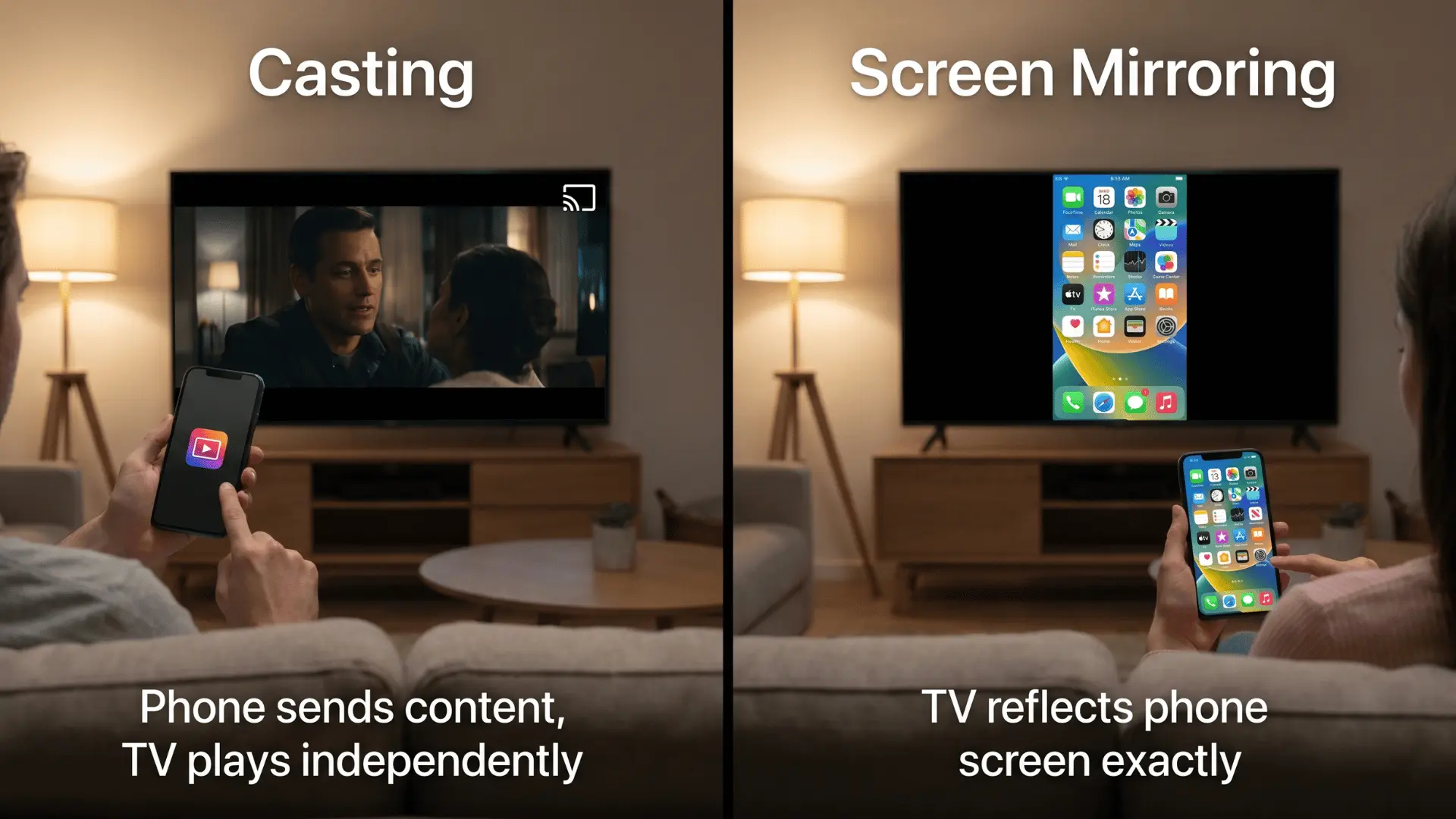
Casting is ideal for streaming apps because the TV handles the video itself. Your phone can take calls, run other apps, or even lock the screen without interrupting playback.
Mirroring is used when you want the exact phone screen displayed on the TV, but it can slow down the phone and drain its battery.
Chromecast Dongle vs. Chromecast With Google TV
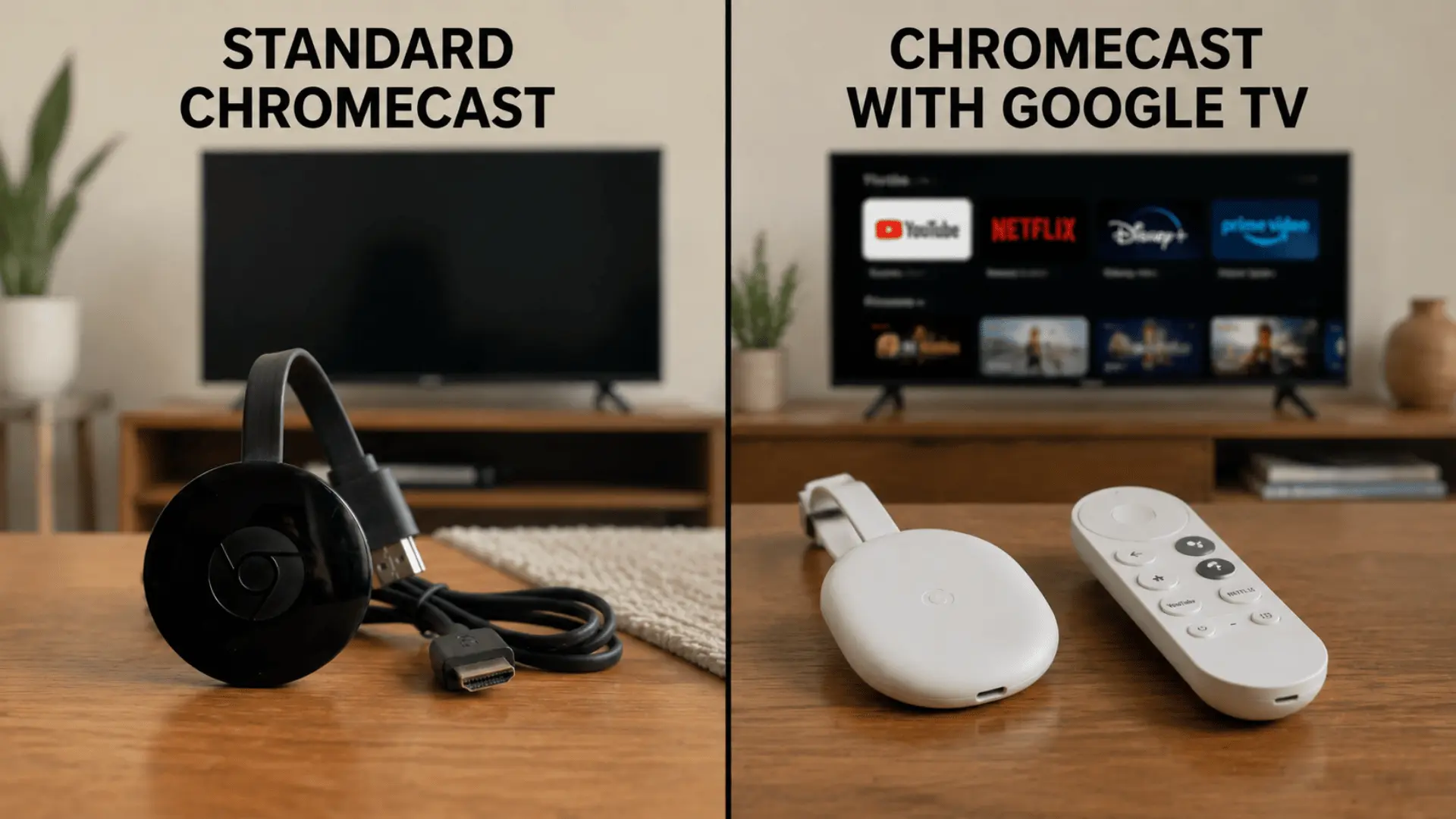
A standard Chromecast is just a receiver; it cannot run apps on its own.
Chromecast with Google TV, however, has its own interface and remote, letting you browse and launch apps directly from the TV.
Chromecast does not replace your phone or computer as a streaming source. Instead, it receives content and plays it independently.
Once you set it up, casting or mirroring is just a matter of sending signals from your device. This one-time setup gives you a foundation for everything else, from playing videos to showing photos.
How to Set Up Chromecast?
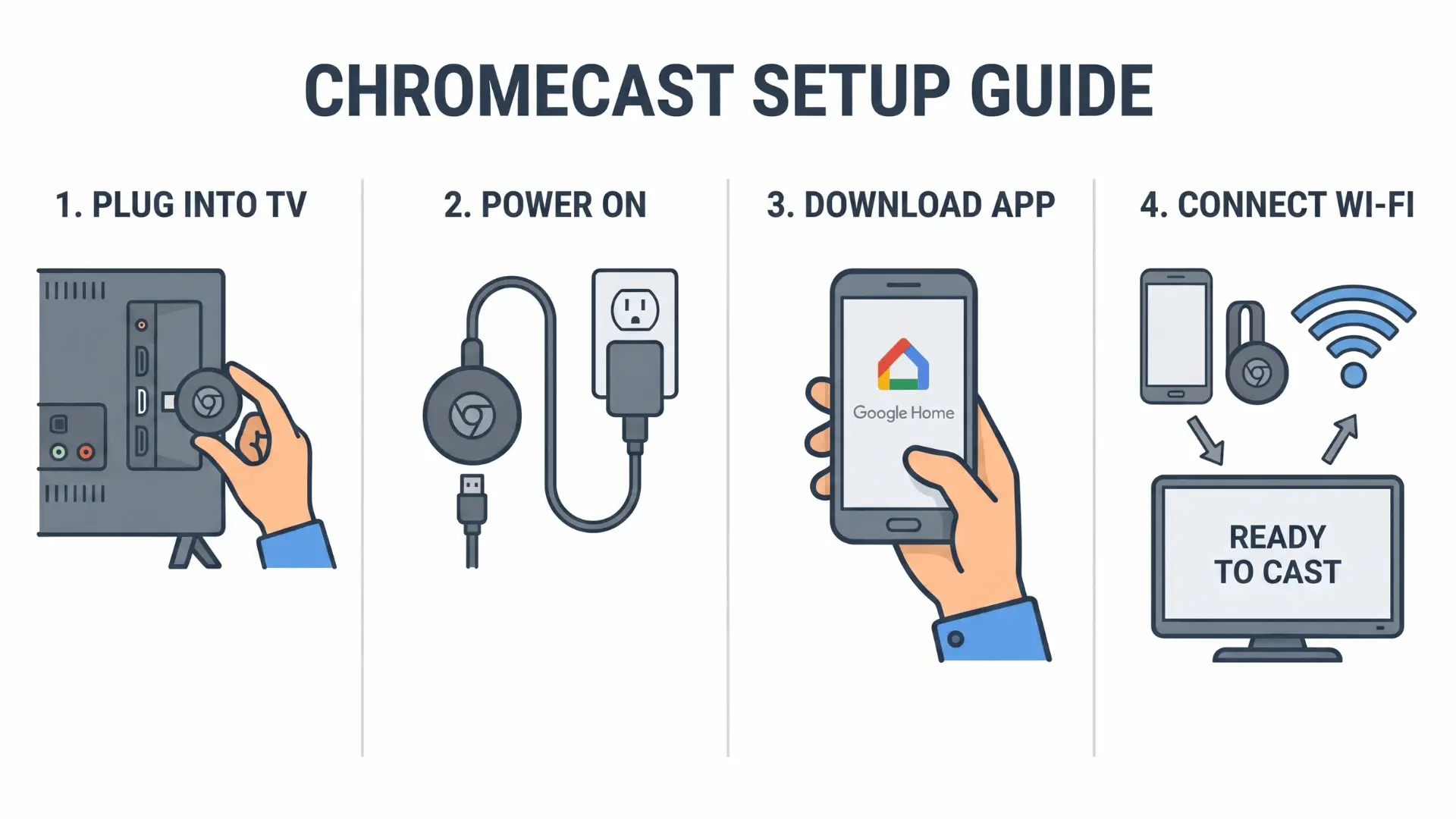
Setting up Chromecast is simple when you have the right devices and network ready, allowing your TV to stream content smoothly while your phone acts as a remote.
What You Need Before Setup
Before starting, gather all necessary equipment to ensure a smooth setup:
- HDMI-equipped TV: Chromecast plugs into this port; a free slot is required.
- Power source: Use the included USB cable and adapter; a TV’s USB port or a wall outlet also works.
- Smartphone with Google Home app: Preinstalled on Android; iOS users download it from the App Store.
- Wi-Fi network: Chromecast and your phone must share the same network. Older models may require 2.4 GHz.
Chromecast streams content directly from the internet, so both devices need to communicate on the same local network. Your phone only acts as a remote after the connection is established.
Step-by-Step Setup Guide
Once you have all the necessary equipment, you can start setting up your Chromecast step by step.
- Connect Chromecast: Plug it into your TV’s HDMI port and connect the USB power cable to a wall outlet or the TV’s USB port.
- Select TV Input: Switch your TV to the HDMI input connected to the Chromecast.
- Open Google Home: Launch the app on your phone to begin setup.
- Add Device: Tap Add Device, then follow theprompts to detect your Chromecast.
- Verify and Connect: Scan the QR code or follow on-screen instructions, confirm the matching code, and connect to your Wi-Fi network.
- Finish Setup: Wait for the confirmation screen. Once you see that, Chromecast is ready to use.
Once complete, your Chromecast is ready, and you can cast or mirror content from your devices.
Where Setup Fails and Why
- Device search loops: Usually caused by Wi-Fi mismatch or slow TV loading.
- Code mismatch: Wait for the full setup screen before confirming.
- Wrong HDMI input: Ensure the TV is set to the port connected to the Chromecast.
Once setup is complete, your Chromecast is ready to stream or mirror content seamlessly, letting you control playback from your device.
How to Cast from Your Phone?
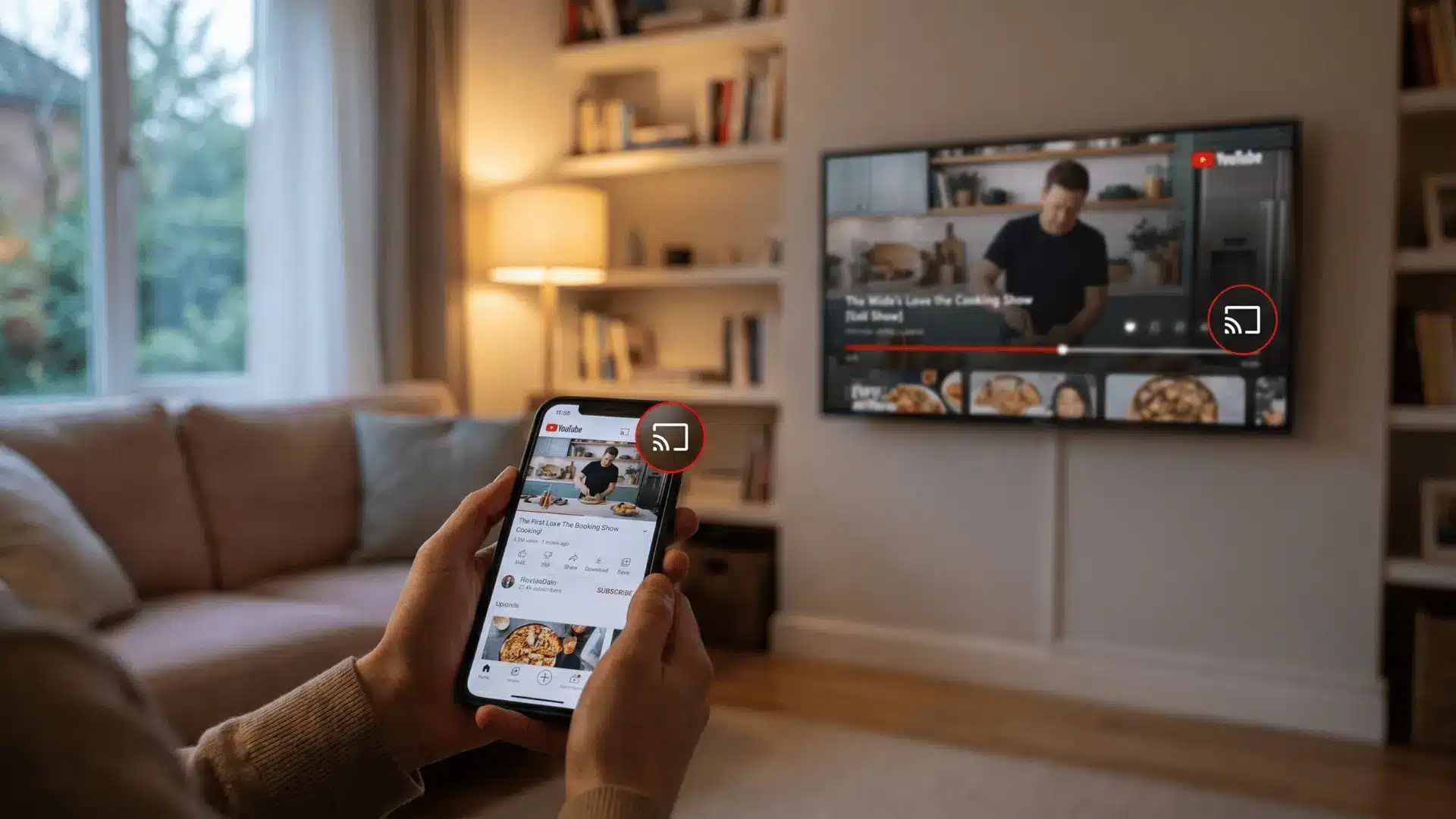
Casting from your phone to Chromecast lets your TV play content while your device serves as a remote. The process differs slightly depending on whether you are using Android or iOS.
Casting from an App (Android and iOS)
Most apps, such as YouTube, Netflix, and Spotify, support casting. To cast:
- Open the app and tap the Cast icon (usually in the top or bottom corner).
- Select your Chromecast from the list.
- The content will start playing on your TV while your phone can take calls, browse other apps, or lock the screen without interrupting playback.
If the Cast icon does not appear:
- The app may not support casting.
- Your phone and Chromecast may be on different Wi-Fi networks.
Mirroring Your Android Screen
For content not supported by casting, you can mirror your Android phone screen:
- Open the Google Home app and select Cast my screen.
- Your phone’s display will appear live on the TV.
- Mirroring uses more battery and requires the phone to remain active.
Device-Specific Setup: Scan the QR code and confirm the code in Google Home. The TV streams independently while your phone controls playback.
Mirroring on iPhone or iPad
iOS does not support native Chromecast mirroring. You need a third-party app from the App Store (search for “screen mirror to Chromecast”) to mirror your screen to Chromecast.
These apps stream everything live, including notifications, and require your phone to stay active.
Device-Specific Setup: Google Home is required. Screen mirroring on iOS requires a separate process.
Can You Screen Record FaceTime While Casting?
You cannot cast FaceTime directly to Chromecast on iPhone or iPad because iOS doesn’t support full-screen FaceTime mirroring. Screen recording while mirroring captures only your phone’s display, not what’s shown on the TV.
On Android, mirroring apps can display the phone screen on the TV, but recording calls is often limited by the device or app.
How to Cast from a Computer?
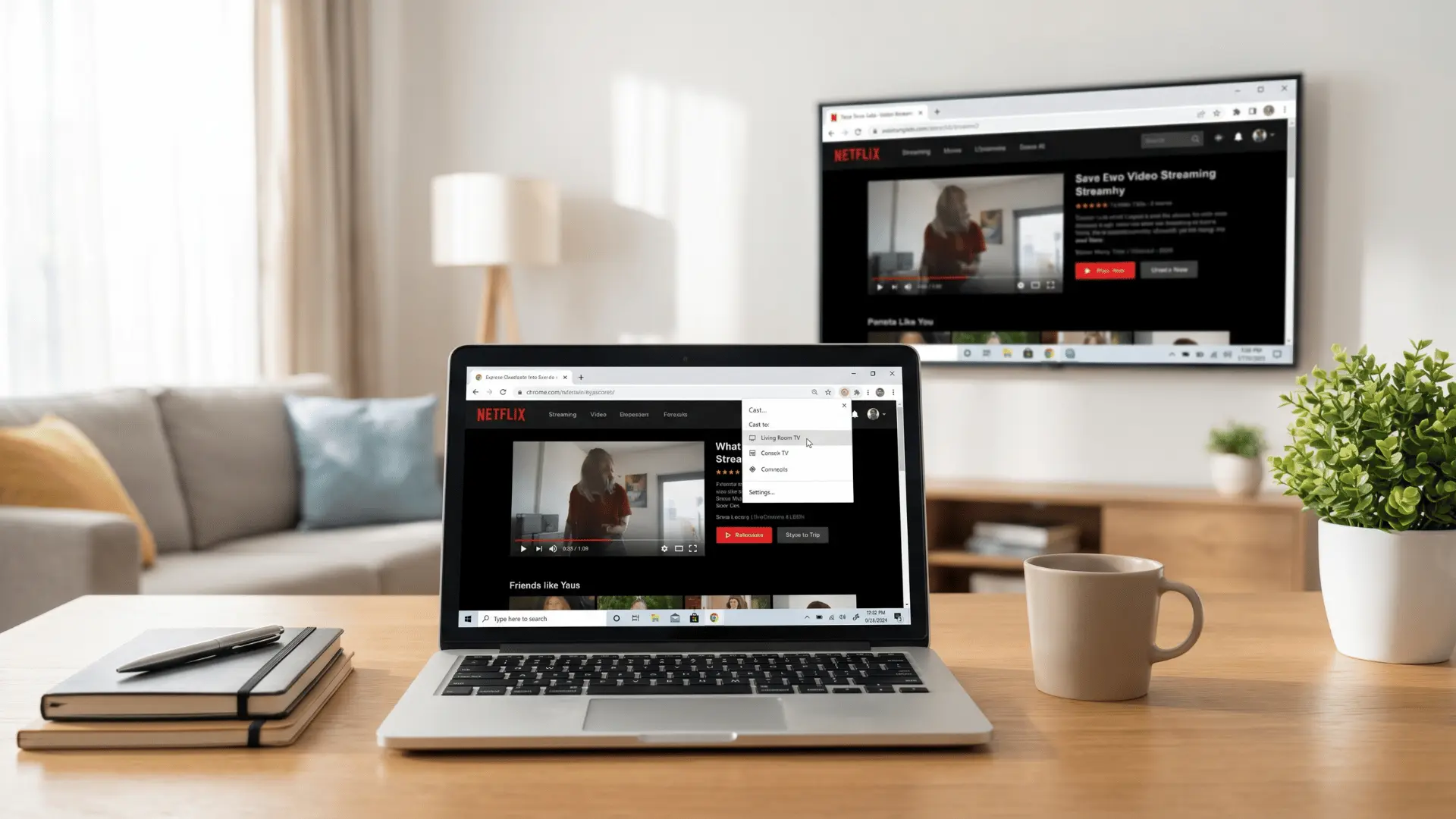
Casting from a computer uses Google Chrome to send content to your TV. By default, you can cast a single browser tab or choose to share your entire desktop.
Desktop casting shows everything on your screen, including all open windows and notifications, but the video quality may be lower than casting just a tab.
Casting a Browser Tab
- Open Google Chrome.
- Click the three-dot menu in the top-right corner.
- SelectCast and choose your Chromecast.
- The current tab will appear on your TV while your computer works normally.
Casting Your Entire Desktop
- Open the Cast menu in Chrome.
- Click Sources and choose Cast desktop.
- Select your Chromecast.
- Your full-screen display will appear on the TV, making it useful for presentations.
If your Chromecast doesn’t show up, check that both devices are connected to the same Wi-Fi network.
When Chromecast Isn’t Working?
Most Chromecast issues occur when the device and your phone are on different Wi-Fi networks. Casting, mirroring, and browser casting all rely on the same network, so a mismatch can prevent everything from working.
Before troubleshooting apps or reinstalling Google Home, check the network and power first.
| Problem | Possible Cause | Solution |
|---|---|---|
| Cast icon missing / device not found | Chromecast and phone on different Wi-Fi networks; device not powered or wrong HDMI input | Ensure both devices are on the same network, the Chromecast is powered on, and the TV is set to the correct HDMI input. Power cycle Chromecast and restart the app if needed. |
| Video buffering / poor quality | Weak Wi-Fi signal, network congestion, streaming 4K on non-4K Chromecast | Move closer to the router, reduce the number of simultaneous streams, or lower video quality. |
| Set up failures / persistent issues | Network mismatch, corrupted settings | Perform a factory reset via the Google Home app or hold the button on the Chromecast until the light flashes. |
Ensuring your Chromecast and devices share the same network and following basic troubleshooting steps keeps streaming smooth and reliable.
Wrapping Up
With the steps and tips here, sending videos, music, or your screen to the TV feels straightforward and reliable. You can now set up Chromecast, connect apps, and handle minor issues without second-guessing.
Remember, keeping devices on the same network and using the right casting method makes all the difference.
Find out more ways to make your streaming smoother and discover features you might not have tried yet. Check out our other blogs for more practical guides and smart tech tips.
Frequently Asked Questions
How do I connect my phone to Chromecast?
Ensure your phone and Chromecast are on the same Wi-Fi. Open a supported app and tap the Cast icon to start streaming to your TV.
Does Chromecast work without a phone?
Chromecast with Google TV can be used with its remote alone. Older Chromecast devices need a phone or computer to start playback.
How do I factory reset Chromecast?
Open the Google Home app, select your Chromecast, and choose Factory Reset. Or hold the device button for ~25 seconds until the light flashes.
Why can’t I see the Cast icon in my app?
The Cast icon only shows in apps that support Google Cast. If missing, confirm Wi-Fi connection and restart devices; unsupported apps never show it.