A small business IT setup ready for a routine hardware refresh.
Every small business has one. A closet, a bottom desk drawer, or a shelf in the server room where old laptops go to be forgotten. Nobody’s quite sure if they still have company data on them. Nobody wants to be the one who throws them out “wrong.” So they just sit there, gathering dust and quietly becoming a liability.
If that sounds familiar, you’re not alone, and you don’t need an enterprise IT department to fix it. You need a simple, repeatable process for retiring old tech, one that fits into the same automation mindset you probably already use for onboarding, invoicing, or project tracking. This guide walks through why the pile-up happens, how to automate the handoff, and what should happen to a laptop after it leaves your hands.
Why Old Company Tech Piles Up Faster Than You Think

Retired laptops often sit forgotten in storage instead of being processed or retired properly.
Hardware doesn’t retire itself, and most small teams don’t have a dedicated process for when it should. A laptop gets replaced because it’s slow, because an employee leaves, or because it simply ages out. Then it sits.
Two forces are speeding this up right now. First, Windows 10 reached the end of mainstream security support on October 14, 2025, which means any device that can’t run Windows 11 is no longer just “old” – it’s a security gap waiting to happen. Teams that held onto older machines are now facing a genuine retirement wave, not a maybe-someday upgrade.
Second, offboarding is messier than most founders assume. According to Deel’s 2025 research on remote offboarding, 71% of HR professionals report that at least one departing employee failed to return company equipment, and 25% of former employees retained some form of system access after leaving. That’s not a small gap. It’s a five-person startup’s worth of laptops floating around unaccounted for, each one a potential data exposure.
Leaving old devices sitting in a closet isn’t neutral, either. Every unwiped laptop is a risk sitting on a shelf, every unused device is capital you already spent that’s now losing resale value by the month, and every unlabeled pile makes the eventual cleanup job worse. Here’s what that looks like in practice: say a five-person startup just upgraded everyone to new laptops. Instead of guessing what to do with the five old ones now sitting in a supply closet, the IT lead schedules them for pickup through a company offering itad services, so each device gets wiped, tracked, and recycled through a documented process instead of quietly disappearing into storage. The fix isn’t complicated. It’s a workflow.
Automating the Offboarding and Device Refresh Workflow
The teams that don’t end up with a laptop graveyard tend to have one thing in common: they treat device retirement as a workflow, not a one-off task somebody remembers to do eventually. It usually looks something like this.
A trigger kicks things off, either an employee’s last day or a scheduled refresh cycle. That trigger flags the associated device in whatever system you’re already using to track equipment. The device gets backed up if needed, then wiped or locked remotely so it can’t be logged into. From there, it’s shipped out or handed off to a partner who handles what comes next.
This is where a lot of small teams get stuck, because “handed off to a partner” sounds vague until you’ve actually done it once. In practice, it means lining up a disposition partner ahead of time, so when the trigger fires, there’s already a scheduled pickup instead of a scramble to figure out where the devices should go. The devices get wiped, tracked, and recycled through a documented process instead of quietly disappearing into storage.
None of this requires custom software. Most teams already run on tools built for connecting your everyday work tools, so the trigger can live in whatever HRIS or ticketing system handles offboarding today. If you want a primer on how that kind of automating repetitive IT tasks actually works under the hood, it’s worth understanding before you build your first workflow.
What Happens After You Hand Off the Hardware
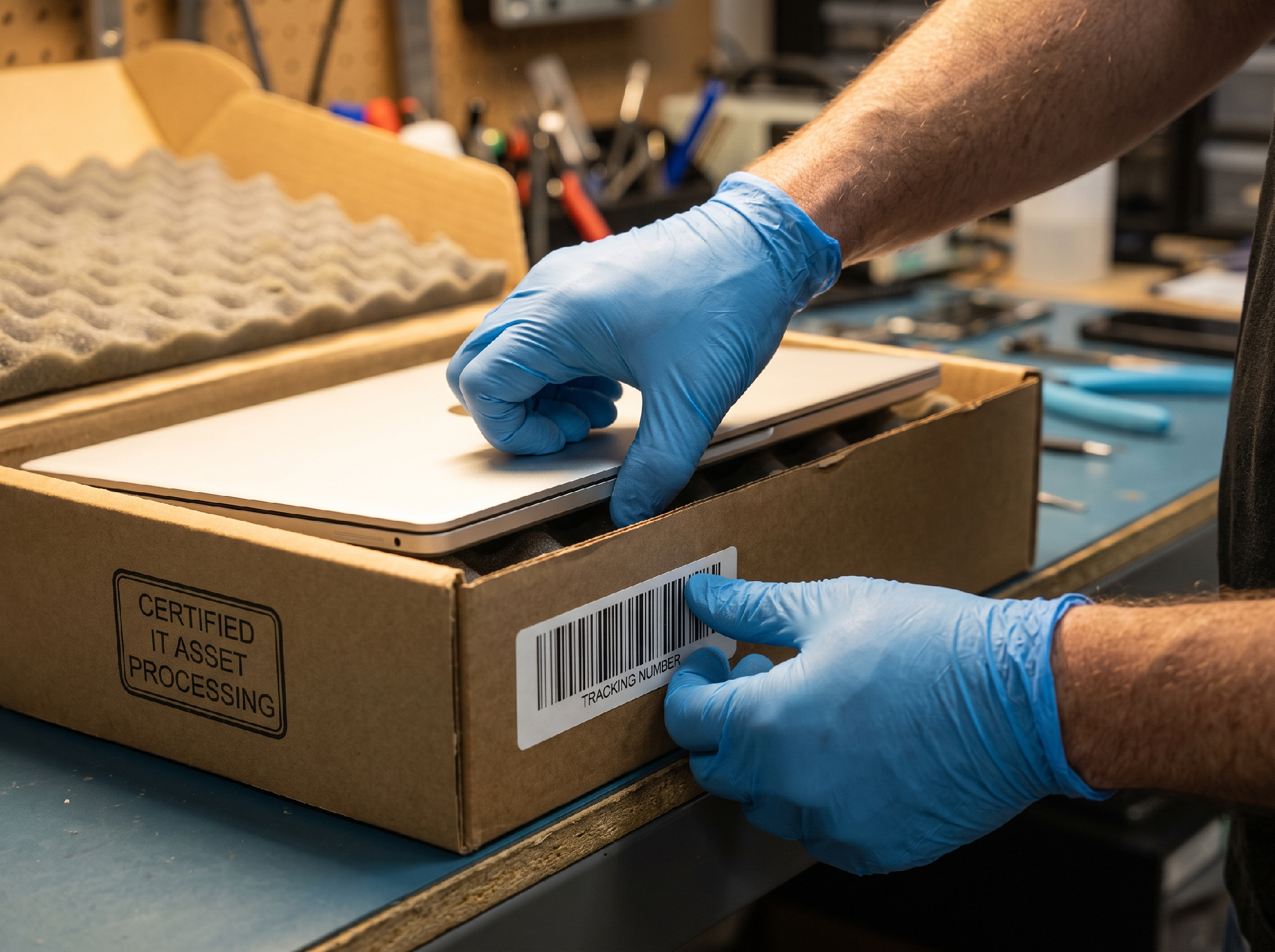
Properly retired devices should be tracked, wiped, and processed through a documented chain of custody.
Handing off a device isn’t the end of the story, it’s the start of a process that should be documented every step of the way. Reputable disposal partners follow data-sanitization standards like NIST Special Publication 800-88, the federal guideline for media sanitization that certified vendors use to make sure a wiped drive is actually, provably wiped. That matters more than most business owners realize. The average cost of a data breach recently reached $10.22 million, according to IBM’s Cost of a Data Breach Report as cited in 2026 industry reporting on IT asset disposal trends, and a chunk of those breaches trace back to retired hardware nobody properly sanitized.
Chain-of-custody documentation is the other half of the equation. A serial number, a wipe confirmation, and a disposal or resale record for every device means you’re never left guessing what happened to a laptop six months after it left the building.
There’s also an environmental cost to getting this wrong. Global e-waste reached 62 million tonnes in 2022 and is projected to climb 33% to 82 million tonnes by 2030, yet only 22.3% of it is documented as properly collected and recycled worldwide, according to the Global E-waste Monitor. Responsible recycling isn’t just a compliance checkbox, it’s genuinely one of the more fixable parts of a company’s environmental footprint. The U.S. EPA’s guidance on sustainable electronics management lays out why this matters at scale, and it’s a good reference if you need to explain the “why” to a skeptical stakeholder. It’s also part of why the ITAD market itself was valued near $28.3 billion in 2025 and is projected to hit $31.9 billion in 2026, growing at roughly 10.9% a year, according to 2025 market research from Persistence Market Research, as more businesses take disposal compliance seriously.
Building Your Own Beginner-Friendly Retirement Checklist
You don’t need a formal policy document to get started, just a checklist you actually follow. Here’s a simple version:
- Inventory what you have. Walk the office (or ask remote employees) and list every device that’s aging out, unassigned, or sitting unused.
- Back up and deauthorize accounts. Pull any needed files, then remove the device from company logins, VPNs, and shared drives.
- Wipe it or send it for certified destruction. Don’t trust a factory reset alone for anything that touched sensitive data.
- Document the chain of custody. Record serial numbers, wipe confirmations, and where the device ended up.
- Recycle or resell responsibly. Recover value where you can, and recycle the rest through a certified channel.
Skipping this isn’t just sloppy, it can be a legal problem. The FTC’s business guidance on disposing of consumer report information makes clear that businesses have an actual obligation to securely dispose of records and the devices that hold them, not just a best-practice suggestion.
Once you’ve got the checklist down, the workflow becomes something you can build once and reuse. It’s a natural extension of the same systems most small teams already lean on. If you haven’t looked into the best team productivity platforms available for tying HR, IT, and admin tasks together, that’s a solid next step once device retirement is handled.
The Takeaway
Retiring old company tech doesn’t have to be the thing nobody wants to deal with. A closet full of forgotten laptops isn’t a mystery, it’s just a workflow that never got built. Once you set up a simple trigger, a wipe-and-document step, and a responsible disposal channel, the whole problem stops being an annual scramble and turns into a routine five-minute task.
Start small. Pick one overdue device sitting in that drawer, run it through the checklist once, and you’ll already have a process you can repeat every time the next batch of laptops comes due.