


Casting from your iPhone to a TV sounds simple, but it often isn’t. Unlike Android, iPhones don’t natively support Chromecast, especially when setting up a Chromecast iPhone connection.
That means you need the right apps, the right settings, and a little know-how to make it work smoothly. If you want to stream YouTube, mirror your screen, or watch something from your personal library, there’s a way to do it.
This blog walks you through everything, step by step, so that you can get your content on the big screen without the frustration.
Prepare Your iPhone and Chromecast for Casting
Before you cast anything, both devices need to be properly set up. Skipping this step is the most common reason casting fails.
Make Sure Both Devices Are on the Same Wi-Fi Network
Your iPhone and Chromecast must be on the same Wi-Fi network, not just the same router.
- If your iPhone is on a 5GHz band and your Chromecast is on a 2.4GHz band (or vice versa), they may not see each other.
- Go toSettings → Wi-Fi on your iPhone and confirm the network name.
- On your TV, open the Google Home app or check Chromecast settings to verify its network.
If the networks don’t match, casting will silently fail, no error, just no device showing up.
Update iOS and Chromecast Firmware
Outdated software is a silent connection killer.
- On iPhone: Go to Settings → General → Software Update.
- On Chromecast/Google TV: Updates usually install automatically.
- You can also check via the Google Home app → Your Device → Settings.
Running old firmware can cause pairing errors, dropped connections, and failed streams.
Install the Google Home App
The Google Home app (free on the App Store) is essential for Chromecast from iPhone.
- It handles device discovery, setup, and permissions.
- Without it, your iPhone may not detect the Chromecast at all.
Download it, sign in with your Google account, and let it find your Chromecast.
Fix Local Network Access Issues
This one is easy to miss, but it blocks casting completely.
- Go to Settings → Privacy & Security → Local Network on your iPhone.
- Make sure Google Home (and any casting apps you use) are toggled on.
If an app doesn’t have local network access, it simply won’t find your Chromecast, even if everything else is correct.
Cast From Compatible Apps on iPhone

Some apps support Google Cast natively. These are the easiest ways to do a Google Cast from iPhone.
Which Apps Support Casting?
Apps like YouTube, Netflix, Disney+, Spotify, and Google Photos have a built-in Cast button.
- These apps send the stream directly to Chromecast; your iPhone just acts as a remote.
- Not all apps support this. Apps that don’t use the Google Cast SDK simply won’t have the option.
How to Cast Step by Step
Here’s how to cast from a compatible app:
- Open the app and select the video or photo you want to play.
- Tap the Cast icon, which looks like a small screen with a Wi-Fi symbol in the corner.
- Select your Chromecast or Google TV device from the list.
The media will start playing on your TV. Your iPhone becomes the remote; you can pause, skip, or adjust volume from the app.
When Casting Doesn’t Work
A few common failure points to check:
- No Cast icon visible: the app doesn’t support Google Cast. Try a different app or method.
- Device not showing up: Wi-Fi mismatch or local network access is off (see the setup section).
- Stream drops mid-play: usually a Wi-Fi signal issue. Move closer to the router or restart it.
Cast Using the Google TV App
The Google TV app is your best option for casting purchased movies, shows, or content tied to your Google account.
Why You Need This App
Streaming apps like YouTube handle their own casting. But if you’ve bought content on Google Play or want to browse your Google library, the Google TV app is what connects it to your Chromecast.
Download it from the App Store, sign in, and open your library.
How to Cast from the Google TV App
- Go to theLibrary inside the app.
- Select the movie or show you want to watch.
- Tap the Cast icon at the top of the screen.
- Choose your Chromecast or Google TV device.
The app streams the content directly through the Chromecast protocol, smooth and reliable when set up correctly.
Why It Might Not Work
- Device shows offline: restart the Chromecast and reopen the app.
- App version is old: update via the App Store.
- Media format unsupported: Some locally stored or downloaded files may not be compatible with the app’s casting feature.
Mirror Your iPhone Screen to Chromecast
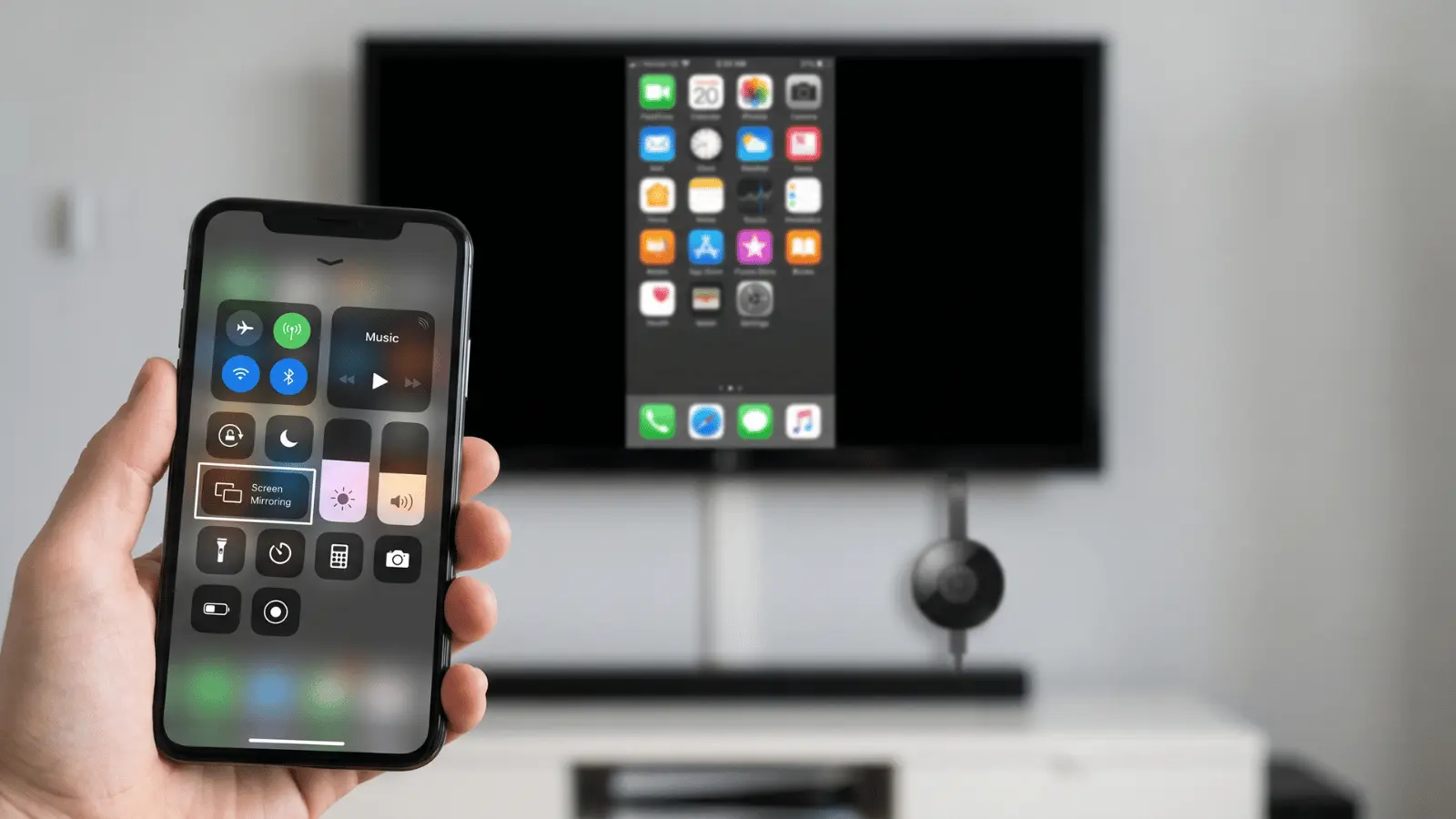
Screen mirroring lets you cast everything on your iPhone to the TV, not just specific apps.
Important: iPhones use AirPlay, which is not compatible with Chromecast. You’ll need a third-party app to bridge the gap.
Apps That Enable Screen Mirroring
Popular options include:
- AirScreen: free to start, easy setup
- DoCast: clean interface, good performance
- AirBeam TV: reliable with good reviews
These apps install a receiver on your Chromecast that accepts the iPhone’s screen signal.
How to Mirror Your Screen
Step 1: Install one of the apps above on your Chromecast or Google TV (via the Google TV app store on your TV).
Step 2: Open Control Centre on your iPhone → tap Screen Mirroring → select your device from the list.
Your full iPhone screen will now appear on the TV, including apps, photos, and anything else you do.
Common Issues With Screen Mirroring
Screen mirroring is more demanding than app casting. Expect occasional hiccups.
- Lag or delay: usually caused by Wi-Fi congestion. Switch to a less crowded channel or use a 5GHz band.
- Audio out of sync: a known limitation of some third-party apps. Try restarting the mirror session.
- Device not appearing in Screen Mirroring list: check that the receiver app is running on the TV and that Google Home has local network access on your iPhone.
Troubleshoot Common Casting Issues
Here’s a focused fix guide for the most frequent problems with Chromecast iPhone casting.
- Device not showing up in any app: Check Wi-Fi network match, confirm local network permissions, and make sure Google Home is installed and signed in.
- App casting fails silently: Verify the app supports Google Cast. If there’s no Cast icon, the app doesn’t support it, and no workaround exists within that app.
- Screen mirroring lag or audio/video out of sync: This is usually Wi-Fi congestion or an app limitation. Reduce network load by disconnecting other devices or switching mirroring apps.
- Nothing works after trying everything: Restart all three: your iPhone, your Chromecast, and your router. Re-open Google Home and let it rediscover the device. This fixes most stubborn connection issues.
Final Thoughts
Getting your iPhone to work with Chromecast isn’t complicated, once you know the steps. The right app, the right network, and the right settings are all it takes.
Now that you’ve got the full picture, pick the method that fits your needs and give it a try. If it’s casting from an app or mirroring your screen, it all works smoothly when set up right.
One last tip: keep your Google Home app updated. It makes a bigger difference than most people think.
Want to get more out of your devices? Check out other blogs for more easy how-to guides.
Frequently Asked Questions
Does Chromecast work with an iPhone without Wi-Fi?
No. Both devices must be on the same Wi-Fi network. Chromecast doesn’t support mobile data or Bluetooth-only connections.
What iOS version is needed for Chromecast?
Your iPhone should run iOS 16 or later for the best compatibility with the Google Home app and casting features.
Can I cast Amazon Prime Video from an iPhone to Chromecast?
Yes. The Amazon Prime Video app supports Google Cast. Just tap the Cast icon inside the app and select your Chromecast device.
Can multiple iPhones cast to the same Chromecast?
Yes, but only one device can control the Chromecast at a time. Others on the same network can take over by tapping the Cast icon in their app.





