


A device that worked perfectly yesterday can suddenly refuse to connect, freeze, or lose an important feature. Before blaming the hardware, check its driver.
Drivers help Windows communicate with your keyboard, graphics card, printer, Wi-Fi adapter, and other hardware.
When they become outdated or cause compatibility issues, updating them may fix the problem. I’ve found that driver updates can sound more technical than they really are, especially when Windows gives you several ways to handle them.
Knowing how to update drivers can help you fix hardware problems without relying on random software or guessing which file to install.
The right method depends on your device, Windows version, and the problem you’re facing.
When Should You Update Drivers?
You don’t need to update every driver on a fixed schedule. Windows Update handles many driver updates automatically, so leave stable hardware alone unless there’s a reason to make a change.
Check for an update if a device stops working properly, shows errors, loses a feature, or has compatibility problems after a Windows update. A manufacturer may also release a driver to fix certain types of software bugs, improve compatibility, or address a known security issue.
New hardware can need a driver when Windows cannot install a suitable one automatically. For stable devices, avoid updating just because a newer version exists, especially if you don’t need the changes it provides.
How to Update Drivers on Windows 11?
Keeping your drivers updated can help Windows 11 work properly with hardware such as Bluetooth devices, graphics cards, and other components.
You can handle most driver updates using tools already built into Windows.
Step 1: Open Windows Update
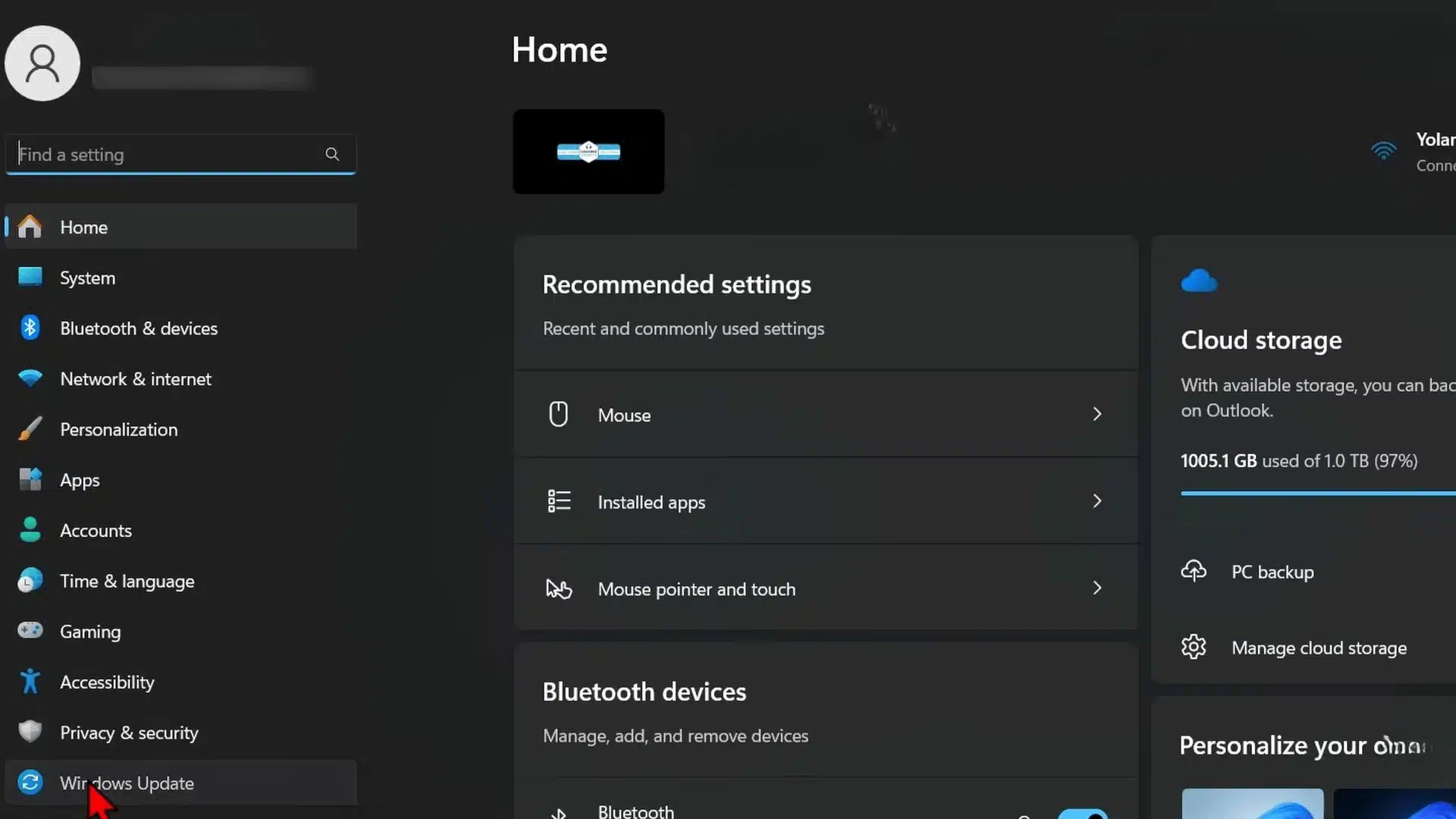
Right-click the Windows Start button on your taskbar, then select Settings. Once the Settings window opens, look at the menu on the left and click Windows Update.
Windows Update is a good place to start because regular Windows updates often include driver updates too. Starting here can save you from checking every device on your computer individually, especially if several drivers need updating.
Step 2: Check for Windows Updates
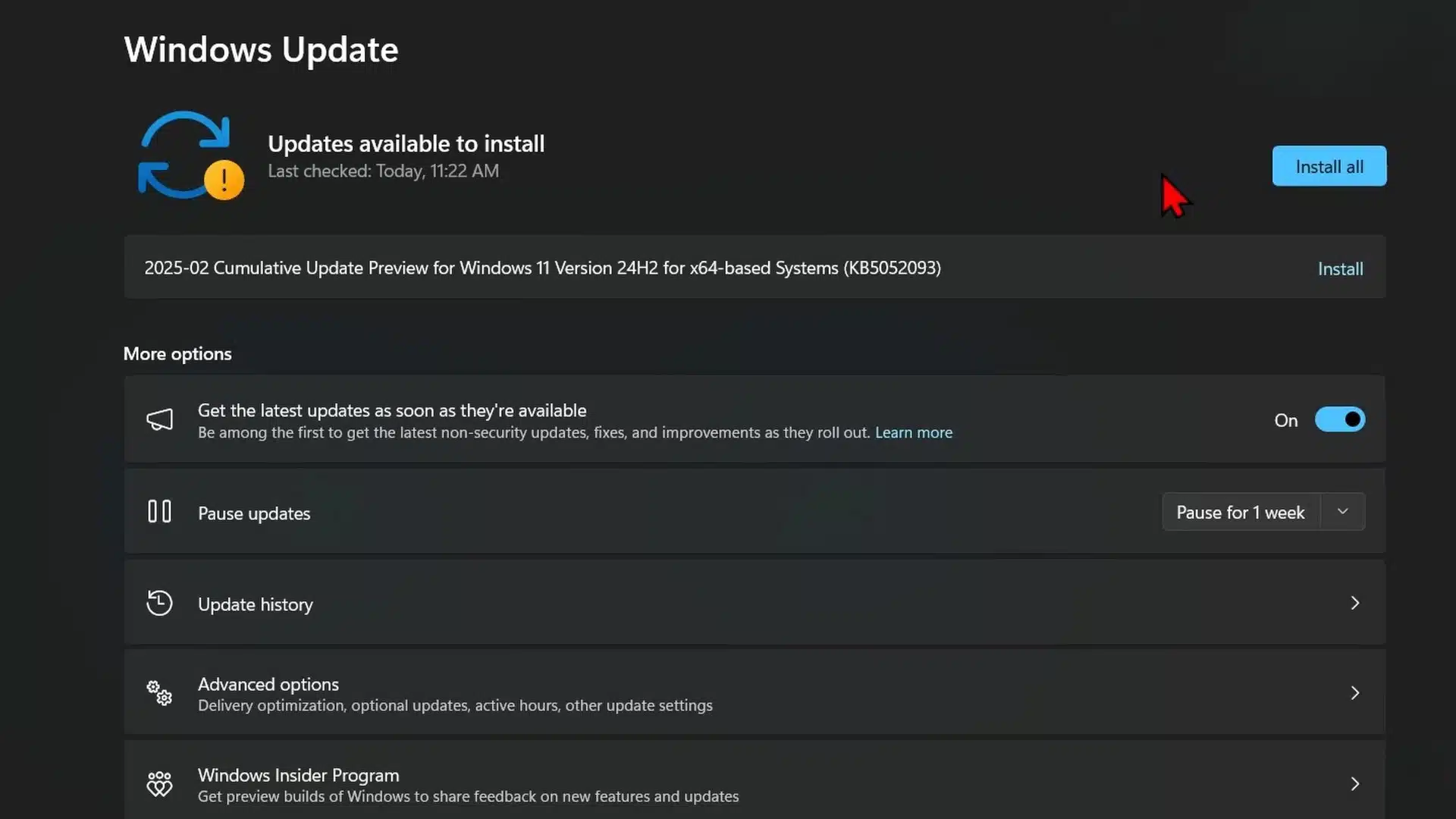
On the Windows Update page, click Check for updates. If Windows already shows available updates, download and install them before moving on to the next method.
Some of these updates may include newer drivers for hardware connected to your computer. Let Windows finish installing everything it finds.
Depending on the updates, Windows may also ask you to restart your PC before the changes are fully applied.
Step 3: Open Device Manager
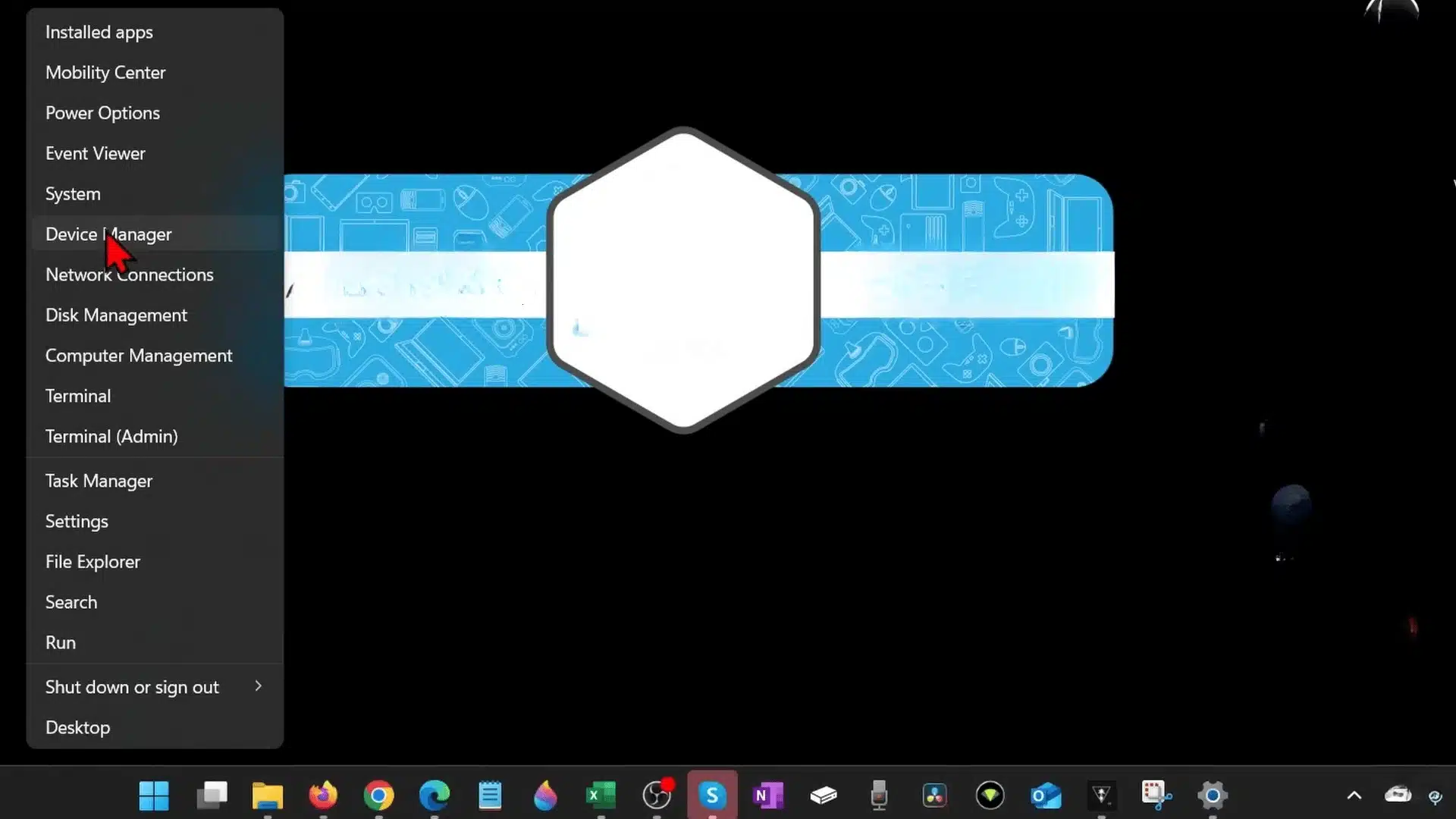
After Windows Update finishes, right-click the Windows Start button again. This time, select Device Manager from the menu that appears.
Device Manager shows the hardware installed on or connected to your computer. The devices are sorted into categories such as Bluetooth, display adapters, keyboards, and other hardware types.
Find the category that contains the device whose driver you want to check or update.
Step 4: Select the Device Driver
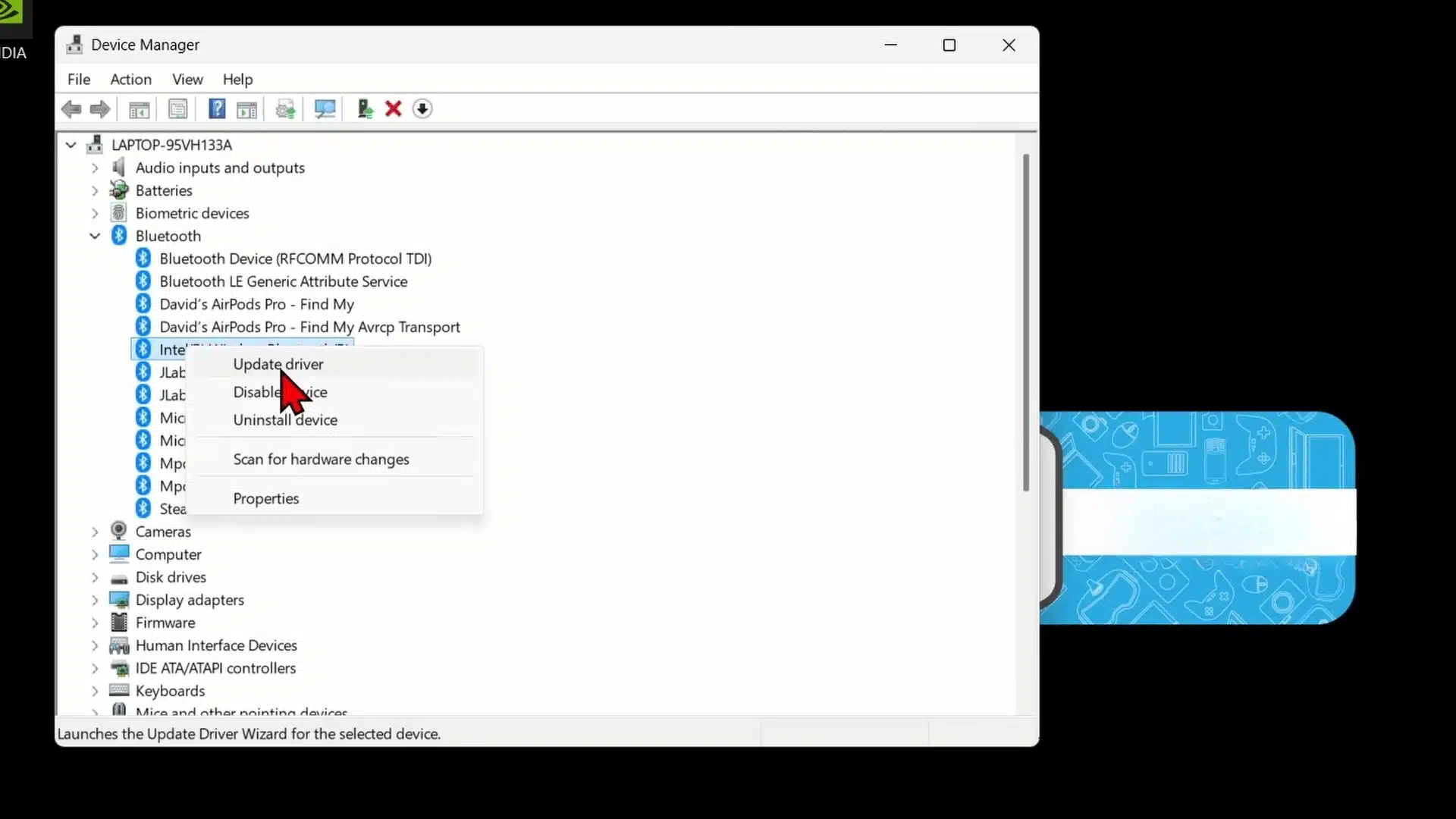
Click the arrow beside the relevant device category to see the hardware listed underneath it. For example, if you want to update a Bluetooth driver, expand the Bluetooth section.
Find the specific device you want to update, then right-click its name. Select Update driver from the menu. Windows will then ask you how you want it to look for and install an updated driver.
Step 5: Search Automatically for Drivers
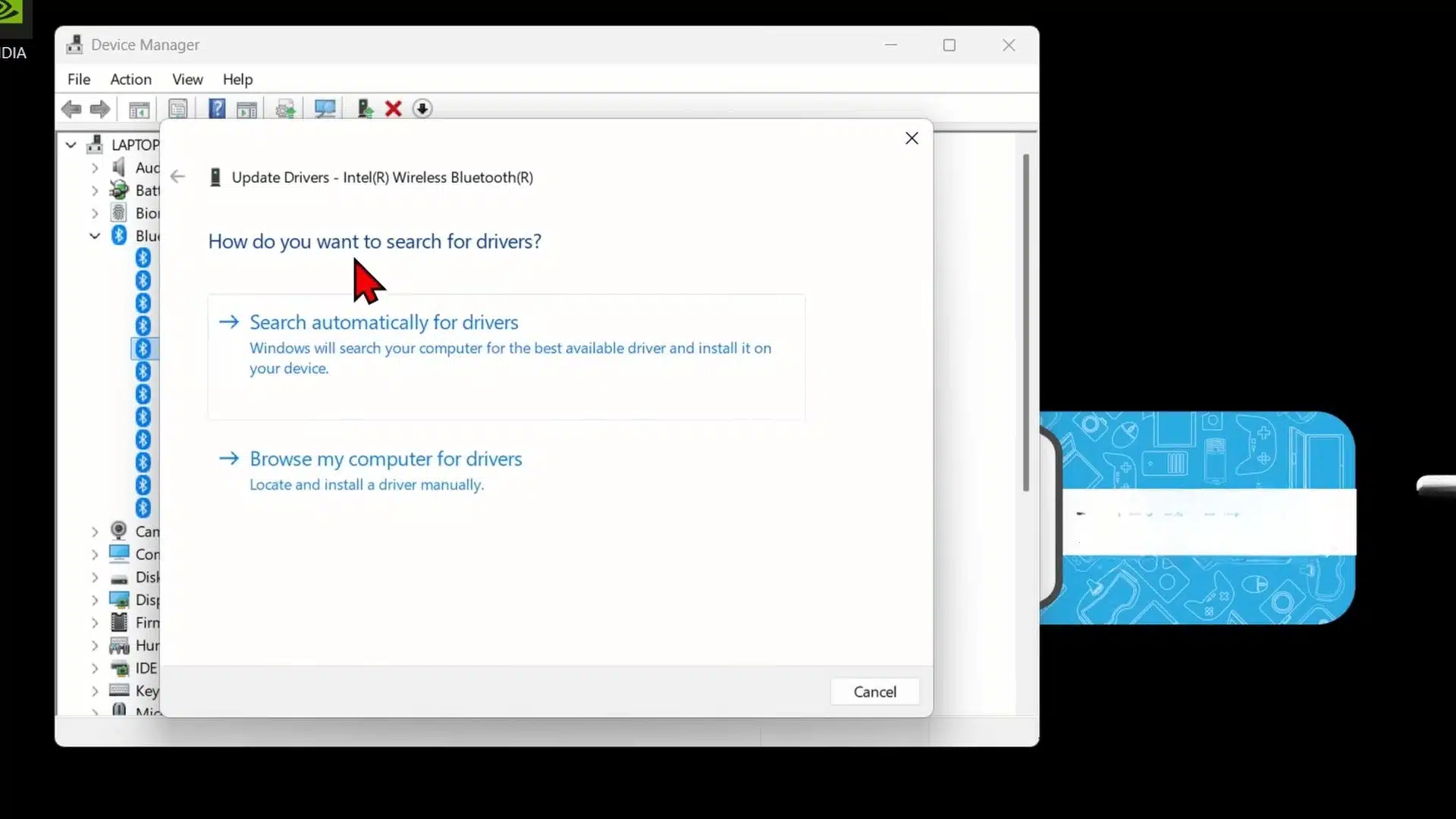
Choose Search automatically for drivers when Windows asks how you want to update the selected device. Windows will check for a compatible driver and install it if a newer version is available.
If Windows cannot find anything newer, it will tell you that the best drivers are already installed. You can repeat these steps for other devices in Device Manager if you want to check several hardware drivers.
Step 6: Update Your Graphics Driver
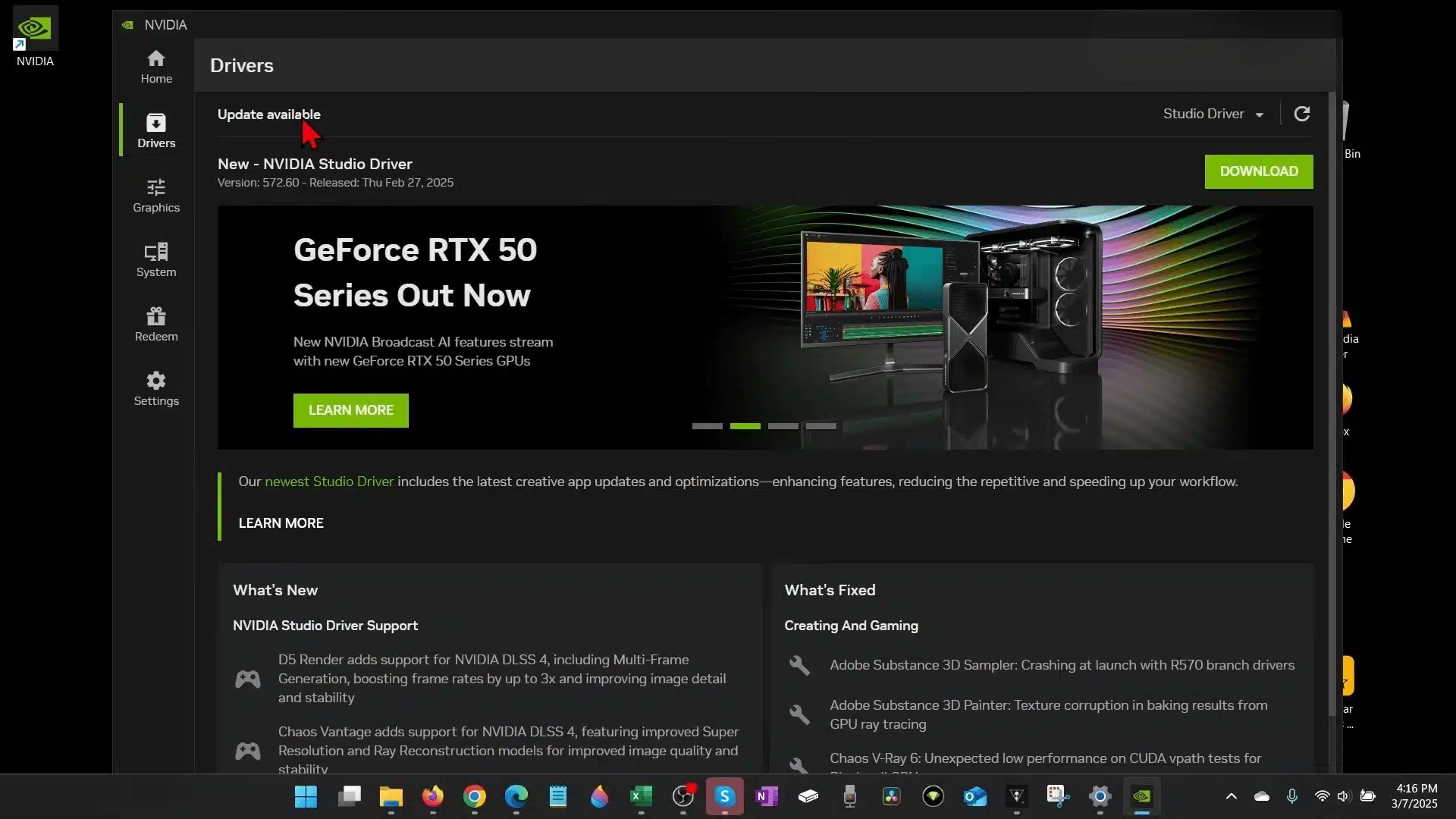
Graphics drivers can also be updated through software provided for your graphics card. If you have an NVIDIA graphics card, open the NVIDIA app from its taskbar icon.
Inside the NVIDIA app, select Drivers from the left-hand menu. If a newer graphics driver is available, you can download and install it from there.
The exact process may differ if your computer uses another type of graphics card.
For a complete walkthrough of the process, check out the video tutorial below:
How to Update Drivers From the Manufacturer’s Website
When Windows Update doesn’t provide the driver you need, check the manufacturer’s official website. Choose a driver that matches your exact device and Windows version, especially for laptops and branded PCs.
1. Find Your Exact Device Model
Start by identifying the exact model of your PC or hardware. For a laptop or desktop, check the manufacturer’s support page using the model number, service tag, or serial number when available.
For individual components, check Device Manager or the hardware itself for its model name.
Choosing the exact model helps you find drivers designed for your system instead of downloading an incompatible package, the same way capturing a screenshot on Dell laptops requires knowing your exact model first.
2. Download and Install the Correct Driver
Once you find your device on the manufacturer’s website, select the driver that matches your hardware and Windows version.
Check the driver description and release information before downloading it. Then open the downloaded file and follow the manufacturer’s installation instructions.
Some drivers may require administrator permission or a restart after installation. For laptop and desktop PCs, prefer drivers listed for your exact model rather than a generic package when the manufacturer provides one.
3. Use the Manufacturer’s Update Software
Some manufacturers provide software that can scan your PC and find available driver updates. For example, Dell’s SupportAssist can scan supported Dell PCs and install available driver updates, while NVIDIA provides automatic driver updates through the NVIDIA App.
AMD Software: Adrenalin Edition also provides driver updates for supported Radeon hardware. These tools can save time, but always use the software provided by the manufacturer for your device.
Avoid Third-Party Driver Updater Apps
Third-party driver updater apps may seem convenient, but you usually do not need them.
Microsoft recommends using Windows Update for most driver updates and getting drivers directly from the hardware manufacturer’s official website when necessary.
This also makes it easier to confirm that the driver matches your device and Windows version.
Avoid downloading drivers from random websites, as Microsoft specifically recommends using the manufacturer’s official site instead.
For graphics cards and other hardware, the manufacturer’s own software can also help you find compatible driver updates. Sticking with these sources gives you a simpler and more reliable way to manage your drivers.
How to Verify and Roll Back a Driver Update?
After updating a driver, test the device to make sure it works properly.
To check the installed driver, open Device Manager, right-click the device, select Properties, and open the Driver tab. You can view details such as the driver provider, date, and version there.
If a problem started after the update, you can try Roll Back Driver from the same tab.
Microsoft recommends restarting the device if prompted after the rollback. Keep in mind that the rollback option may be unavailable if Windows does not have a previous driver to restore.
Final Thoughts
Updating a driver doesn’t have to feel risky. Windows already gives you several ways to handle it, from Windows Update and Device Manager to official manufacturer websites and update tools.
I recommend starting with Windows Update, then checking Device Manager or the manufacturer’s support page when you need a specific driver.
If an update causes new problems, you can also roll back to the previous driver when that option is available.
Once you know how to update drivers, you can handle many common hardware issues with less guesswork. Have you fixed a hardware problem by updating a driver?
Share your experience in the comments and tell us what worked for you.
Frequently Asked Questions
Is it necessary to update drivers regularly?
No. Windows Update handles many driver updates automatically. Check for a driver update when hardware has problems, a manufacturer releases an important fix, or you need better compatibility.
Are third-party driver-updater apps safe to use?
You usually don’t need third-party driver-updater apps. Microsoft recommends using Windows Update or downloading drivers directly from the manufacturer’s official website instead of unknown sources.
How do I update graphics card drivers specifically?
Use Windows Update, Device Manager, or your GPU manufacturer’s official software. NVIDIA supports driver updates through the NVIDIA App, while AMD provides driver updates through AMD Software for supported Radeon hardware.
What should I do if a driver update causes problems?
Open Device Manager, right-click the affected device, select Properties, and open the Driver tab. Choose Roll Back Driver, confirm the reason, and restart if prompted.





