

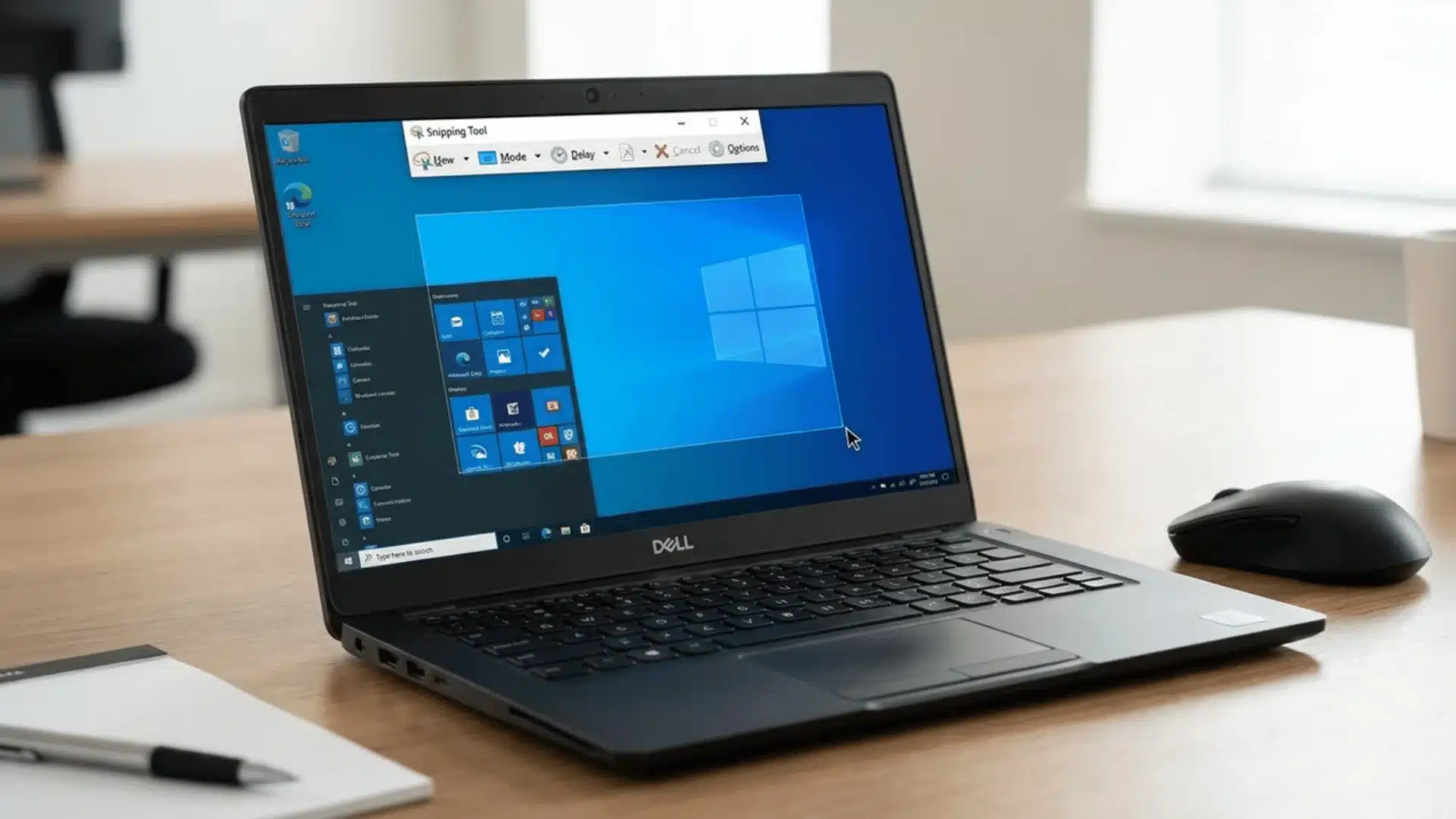
Taking a screenshot on a Dell laptop should be simple, but different keyboards and settings often make one shortcut work perfectly on one model and fail on another.
Some methods save files automatically, others copy silently to your clipboard instead, and knowing this difference saves you from wondering where your capture actually went afterward.
Fn Lock settings, tablet modes, and shared function keys all play a role, and understanding them upfront makes the whole troubleshooting process far less frustrating.
Ahead, you’ll find the exact shortcuts, fixes, and file locations you need to screenshot on a Dell laptop with total confidence every single time
What to Check Before You Take a Screenshot
Before you try any shortcut, it helps to know your Dell’s keyboard layout isn’t one-size-fits-all. A few quick checks now save you a lot of guesswork later.
- Dedicated PrtScn key: Some Dell laptops have a standalone PrtScn button, so shortcuts work exactly as listed without needing any extra key held down.
- Shared function-row key: Others place PrtScn on the function row, meaning you’ll need to hold Fn alongside it for the shortcut to actually register.
- 2-in-1 or tablet mode: If your Dell converts to tablet mode, standard keyboard shortcuts often won’t respond at all, regardless of Fn Lock settings.
So before typing any combo, glance at your keyboard and device type first. That one habit will save you from repeating shortcuts that were never going to work.
How Do You Take a Screenshot on a Dell Laptop?
Dell laptops actually offer several screenshot methods, each suited to a different need. Once you know which one fits your situation, capturing exactly what you want becomes quick and painless.
Windows + Shift + S (Snipping Tool snip)
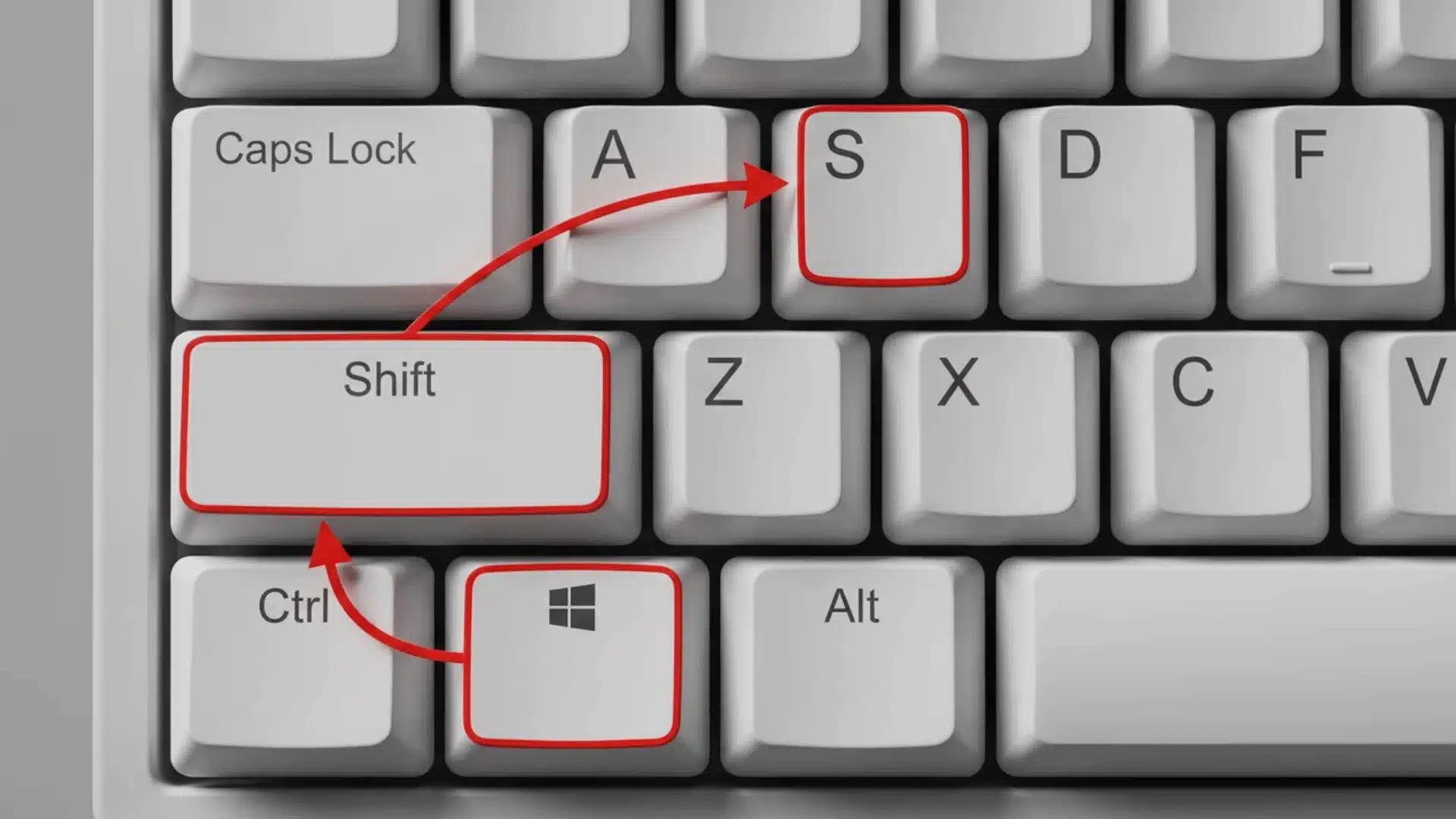
This is your most flexible option when you only need part of your screen. Press Windows, Shift, and S together, and your display dims while a small toolbar appears.
Drag your cursor to select the exact area you want captured. It copies straight to your clipboard, and a notification lets you crop, annotate, or save it directly.
Windows + PrtScn (auto-save)
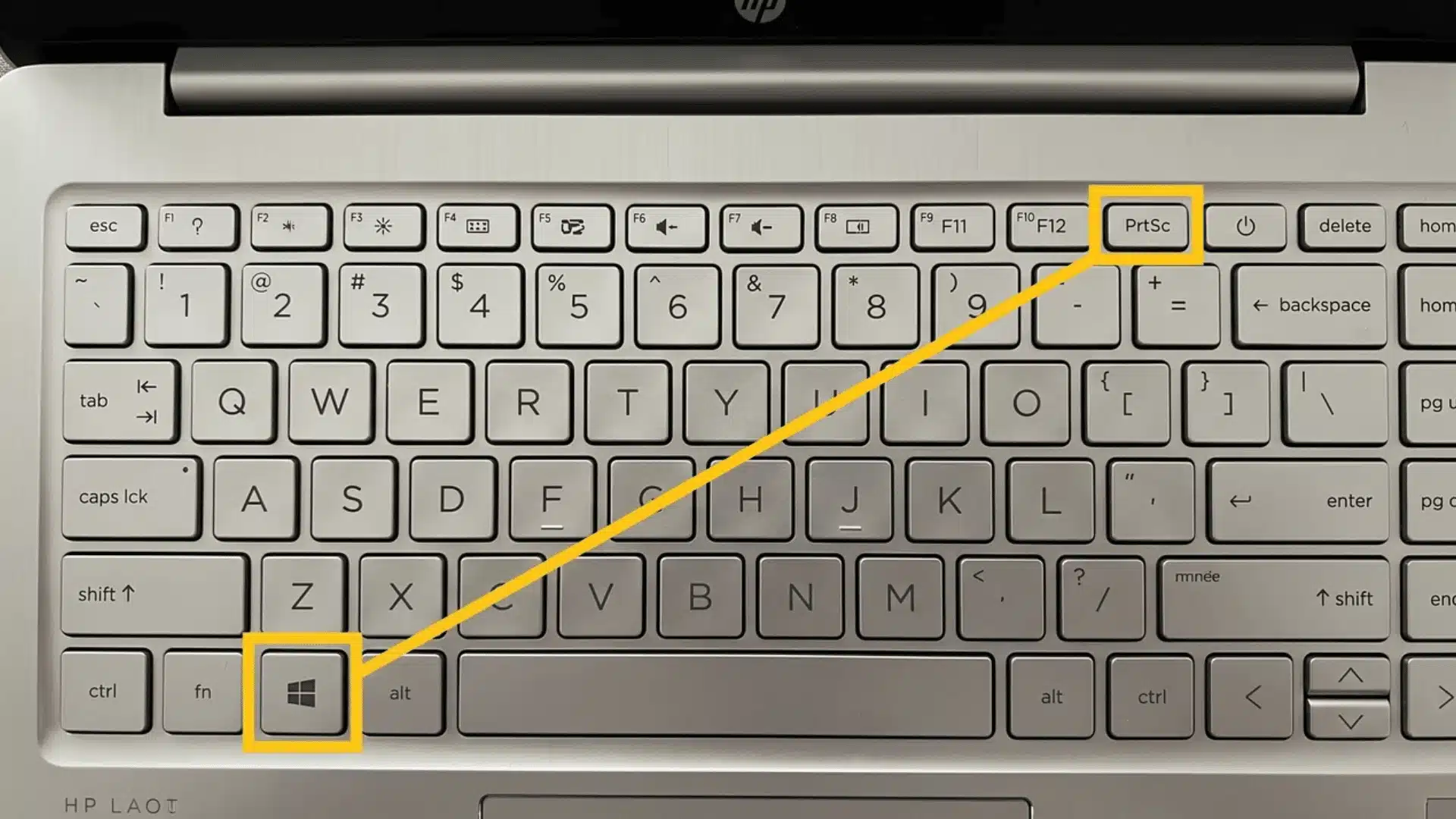
Want the whole screen without any extra steps afterward? Press Windows and PrtScn together, and you’ll notice a quick screen flash confirming the capture happened successfully.
Unlike other shortcuts, this one saves the file automatically for you. There’s no pasting required, since Windows creates and stores the image on its own.
PrtScn or Fn + PrtScn (clipboard copy)
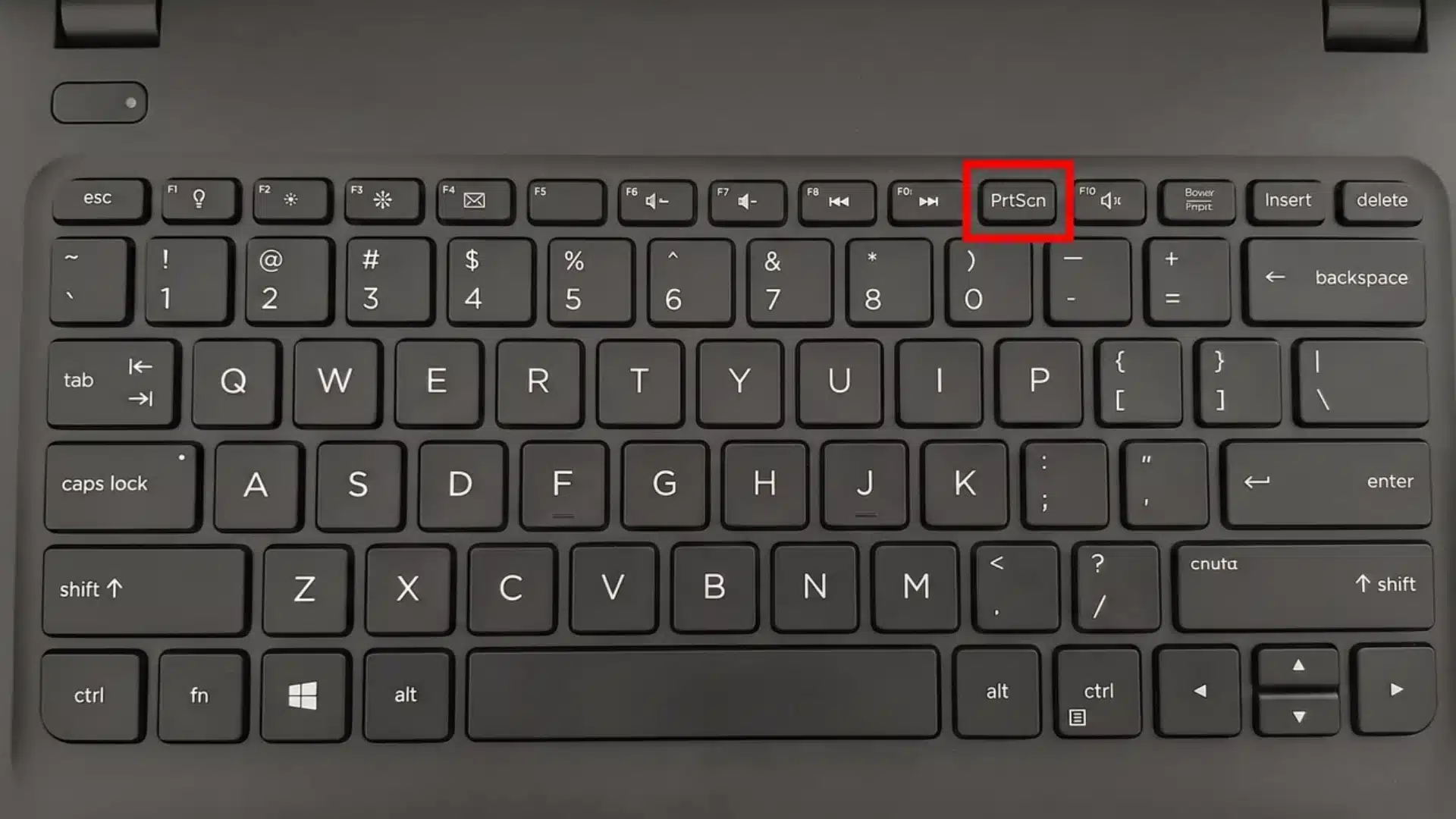
Pressing PrtScn alone, or Fn + PrtScn depending on your model, often feels like nothing happened. That’s completely normal behavior, not a sign your key is broken.
This method silently copies your full screen to the clipboard. Open Paint or any editor, then press Ctrl and V to paste and view your capture.
Alt + PrtScn (active window only)
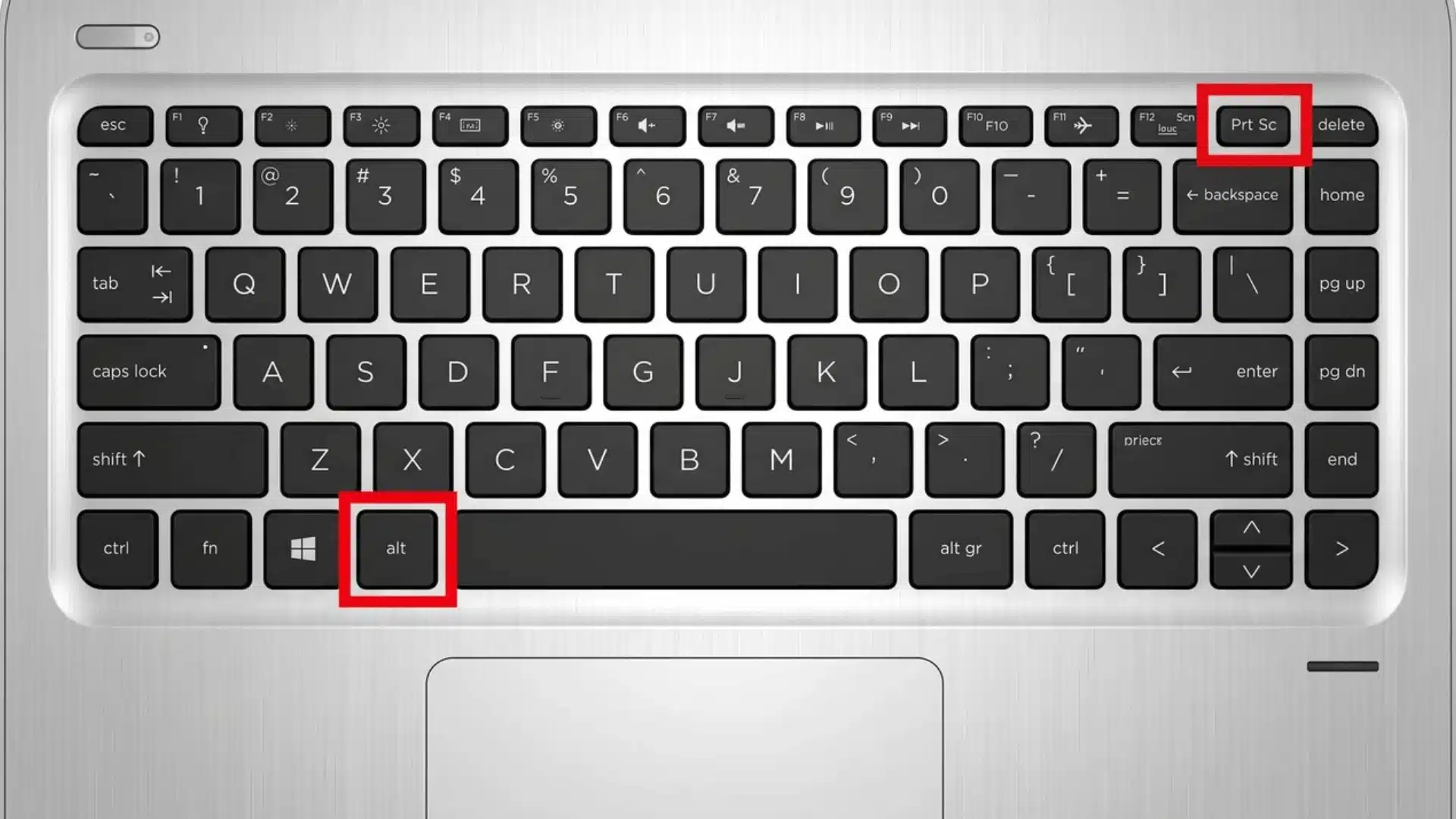
If you only want your current window instead of the whole desktop, press Alt and PrtScn together. Only that active window gets copied to your clipboard.
Just like plain PrtScn, you’ll still need to paste it into Paint or another editor using Ctrl and V before saving it anywhere.
Once you’re comfortable with these four methods, choosing the right one becomes second nature. Match the method to your need, and screenshotting on your Dell gets much easier.
Why Isn’t the Screenshot Working?
If your shortcut seems to do absolutely nothing, the real culprit is usually your Fn Lock setting, not a broken or faulty key on your Dell laptop.
This setting decides whether Fn needs to be held alongside PrtScn or not, and it varies across models. Checking it first saves you unnecessary troubleshooting later.
| Issue | Likely Cause | Quick Fix |
|---|---|---|
| Shortcut does nothing at all | Fn Lock setting mismatched with your model’s expected combo | Toggle Fn Lock in BIOS or keyboard settings, then retry the shortcut |
| Same combo works on one Dell but not another | Different Dell models require Fn held differently with PrtScn | Test both with and without Fn to see which one your device needs |
| Shortcuts don’t respond on 2-in-1 or tablet mode | Standard keyboard shortcuts often don’t apply in tablet configurations | Use the power button and volume-up button combo instead |
Once you’ve ruled out Fn Lock and confirmed your device type, most screenshot issues resolve quickly. It’s rarely your hardware, just a setting worth double-checking first.
How to Confirm and Find Your Screenshot
Once you’ve captured something, knowing where to look depends entirely on which method you used. Don’t assume every screenshot automatically ends up in the same place.
- Windows + PrtScn: Saves automatically to your Pictures folder, inside a Screenshots subfolder. Just open File Explorer and navigate there without doing anything extra.
- Clipboard methods (PrtScn, Fn + PrtScn, Alt + PrtScn): These don’t create a file on their own. Paste into Paint or another editor first, then save it manually.
- Snipping Tool captures: These need one more step too. After taking the snip, click save inside the small popup window, or it won’t persist anywhere.
Tip: Get in the habit of saving immediately after pasting. Clipboard contents get overwritten easily, and you don’t want to lose a capture you just took.
So before you panic thinking a screenshot vanished, check which method you used. Knowing where each one lands means you’ll never lose a capture again.
Conclusion
Knowing how to screenshot on a Dell laptop no longer needs to feel confusing once you understand which shortcut matches your specific keyboard and Fn Lock setup correctly.
You now know which combo saves your file automatically, which one only copies silently to the clipboard, and exactly where each captured image ends up.
Looking back, most screenshot problems on Dell laptops usually come down to a simple Fn Lock setting, not any real hardware fault on your device at all.
Grab your Dell laptop right now, try the shortcut that fits your specific keyboard setup, and capture your very next screenshot with zero guesswork today.
Frequently Asked Questions
Where do Dell laptop screenshots save?
It depends on the method. Windows + PrtScn saves automatically to Pictures > Screenshots. PrtScn, Fn + PrtScn, and Alt + PrtScn only copy to the clipboard, so nothing is saved until you paste the image into an app like Paint and save it manually.
Why does PrtScn not do anything on my Dell laptop?
It likely is working. PrtScn copies the screen to the clipboard silently, without opening a file or notification. Paste it into Paint with Ctrl + V to see it. If nothing copies at all, check your Fn Lock setting, since it can block the key entirely.
How do I screenshot on a Dell laptop without the Windows key?
Use PrtScn alone to copy the full screen to your clipboard, then paste it into Paint or another image editor with Ctrl + V. Alt + PrtScn works the same way but captures only your active window instead of the entire screen.
Does the Fn key affect screenshot shortcuts on Dell laptops?
Yes. Whether you need to hold Fn alongside PrtScn depends on your Dell’s Fn Lock setting. If shortcuts described elsewhere for your model don’t respond, try adding or removing Fn from the combination before assuming the key itself is broken.





