

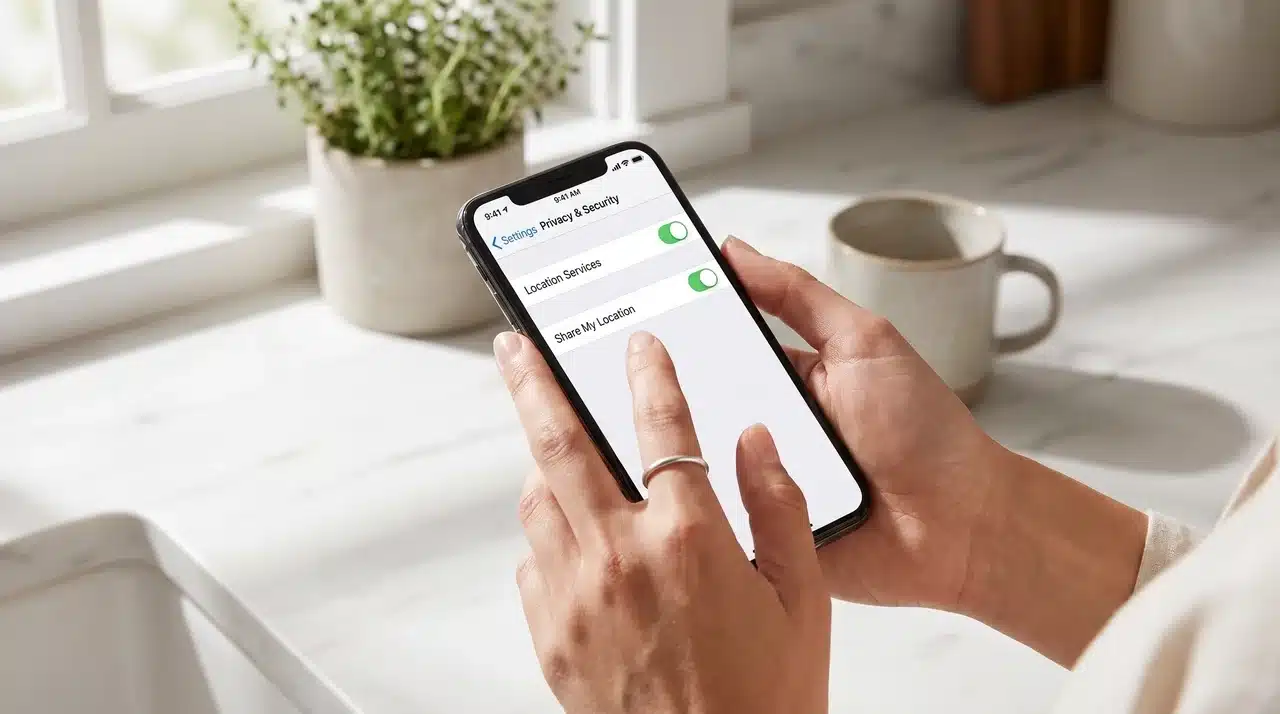
Need to send your location fast but not sure which iPhone option to use? It can be frustrating when Find My, Messages, Apple Maps, and Google Maps all seem to do the same thing.
If you are searching for the best way to share location iPhone users can manage easily, the right choice depends on who needs your location and for how long.
I use different methods for quick meetups, live tracking, and Android users because each option has a different purpose.
Here, you can learn how each method works, when to use it, how to stop sharing, and what to check if location sharing is not working.
What Type of Location Do You Need to Share?
Before opening an app, decide what the other person actually needs.
A current location shows one place at the time it is sent. This works well for a restaurant, parking spot, pickup point, or meeting address. Your position does not keep updating after you leave.
An ongoing location changes as you move. It makes more sense during travel, a long drive, or when a trusted family member needs to check where you are. This kind of continuous tracking depends on a stable connection, so if updates seem stuck, it’s worth checking iCloud sync problems before assuming the app is broken.
The recipient matters too. Find My works best between Apple users, while Google Maps is more useful when an Android phone is involved.
Choosing the right type first keeps the process simpler and limits unnecessary location access.
How to Share Location on iPhone Using Find My
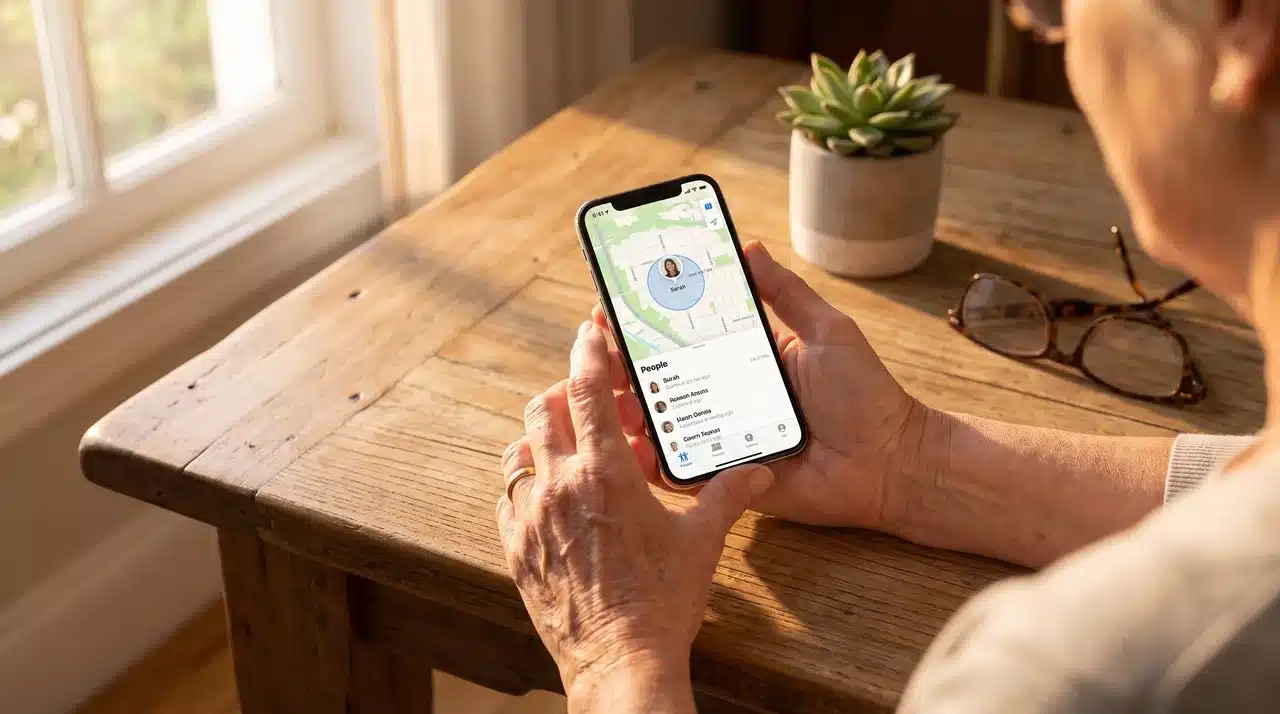
Find My is the main Apple option for sharing your position continuously with another person. It is best suited to trusted contacts who need more than a single map pin.
First, confirm location sharing is active:
- Open Find My.
- Tap Me at the bottom.
- Turn on Share My Location if it is disabled.
- Check the device listed beside Sharing From.
Next, add the person:
- Tap People.
- Tap the Add (+) button.
- Select Share My Location.
- Choose or enter the contact.
- Tap Send.
- Pick the sharing period shown on your screen.
Apple commonly provides options such as one hour, until the end of the day, or indefinite sharing. If you’ve ever handed someone a phone that wouldn’t unlock to set this up, it’s worth knowing how the access a locked device before you’re stuck mid-setup.
Find My makes the most sense when the recipient uses an Apple device and needs updated location information rather than one fixed place.
How to Share Location Through Messages on iPhone
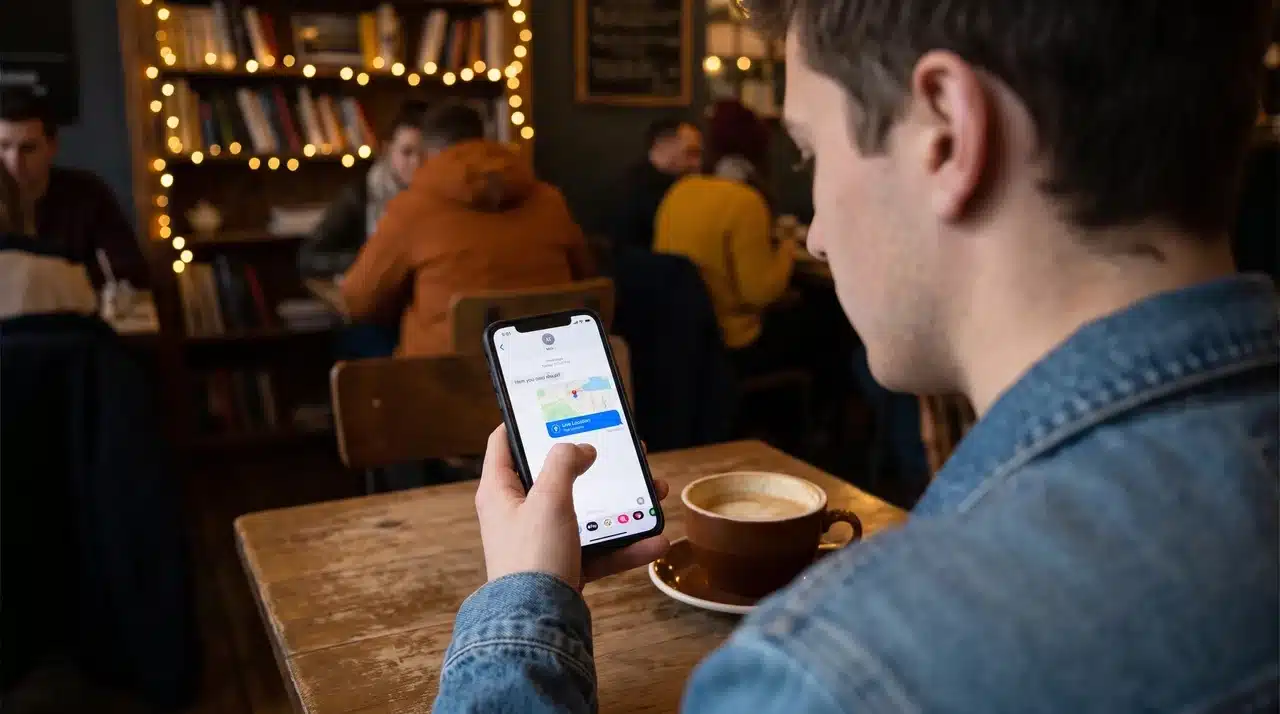
Messages is useful when location sharing is part of an existing conversation. You do not need to leave the chat, search for the person again, or open a separate contact list.
To send a location:
- Open Messages.
- Select the conversation.
- Tap the Plus (+) button beside the text field.
- Choose Location.
- Select the location option available.
- Send it in the conversation.
This approach works well when someone texts, “Where are you?” or needs a location while arranging a pickup.
Some iPhone versions also provide ongoing location options inside Messages. If one appears, check the duration before sending it.
Messages is mainly about convenience. It works well when location is already part of a conversation and the recipient doesn’t need a separate Find My setup.
How to Send a Location With Apple Maps
Apple Maps is a better choice when the other person needs a place, not access to your movements.
Open Maps and select the location you want to send. That could be your present position, a searched address, a business, or a dropped pin.
Open the place card, tap the Share option, and choose the app or contact you want to use.
Apple Maps is useful for locations such as:
- A restaurant entrance.
- A parking area.
- A hotel.
- A trailhead.
- A pickup point.
- A business address.
The main advantage is control. You are sending a destination rather than giving someone continued access to where your phone goes afterward.
For simple meetups, this is often the least complicated option.
How to Share Location From iPhone to Android
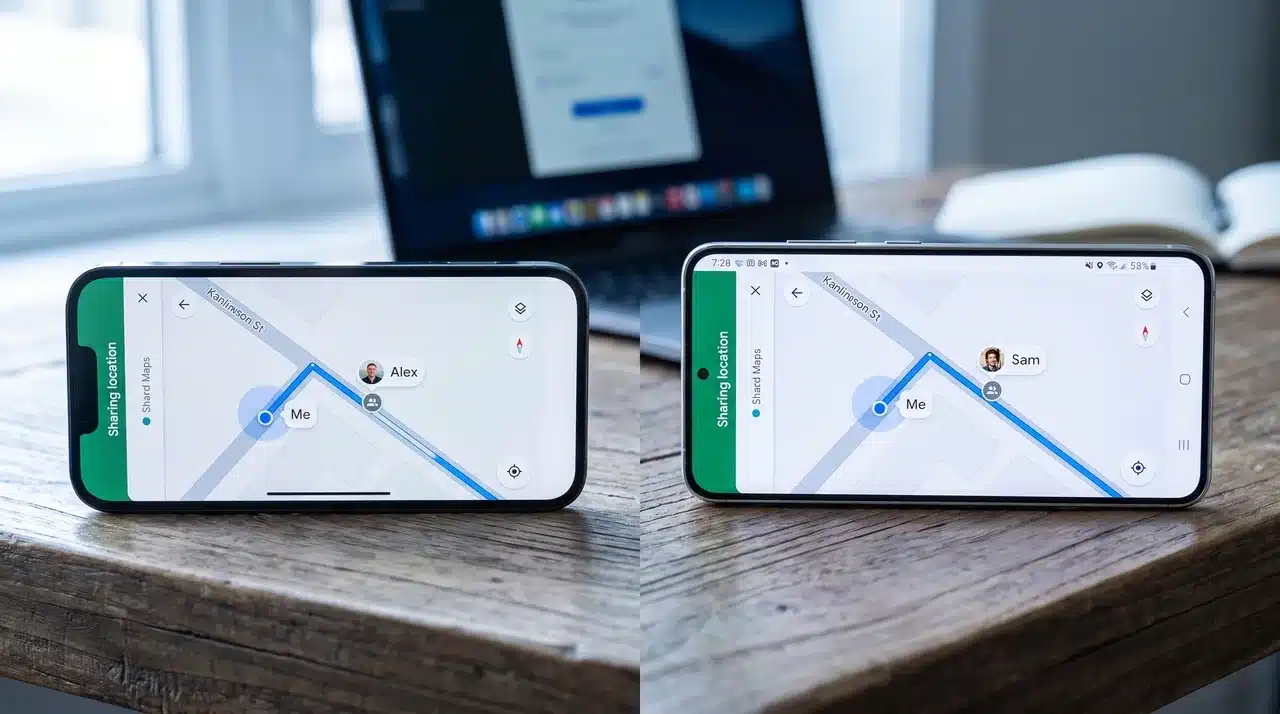
Apple’s Find My system is built mainly around Apple devices. When the recipient has Android, Google Maps provides a more practical cross-platform option.
Open Google Maps, then:
- Tap your profile photo or account icon.
- Select Location sharing.
- Start a new location share.
- Choose the duration.
- Select a contact or create a sharing link.
- Send the link through your preferred messaging app.
The recipient can open the shared location in Google Maps or via the link.
For a single address, continuous access may not be necessary. A normal Google Maps location link can handle a restaurant, meeting point, shop, or pickup location without keeping live sharing active.
Google Maps is therefore the stronger choice when different phone platforms are involved.
How to Share Location on iPhone Indefinitely
Long-term sharing is intended for people who need regular access, such as close family members or another trusted contact.
The indefinite option appears when you start sharing your location through Find My.
Open Find My, go to People, select the person you want to add, and start sharing your location. When the duration choices appear, choose the indefinite option.
Unlike a one-hour or end-of-day share, this setting stays active until you remove it manually.
That makes it useful for ongoing arrangements, but it also deserves more thought before you enable it. A friend meeting you for lunch probably does not need permanent access afterward.
Reserve indefinite sharing for relationships where continuous location visibility serves a clear purpose.
How to Stop Sharing Your Location With Someone
If one person no longer needs access, remove only that contact instead of disabling location features across the entire phone.
Use these steps:
- Open Find My.
- Tap People.
- Select the person’s name.
- Scroll to the sharing controls.
- Tap Stop Sharing My Location.
This removes that person’s access while leaving other Find My contacts unchanged.
If you want to pause broader person-to-person sharing, open the Me tab in Find My and review the Share My Location control.
App permissions are handled separately under: Settings → Privacy & Security → Location Services
That menu controls which apps can request location data. It is not the same as removing an individual from your Find My People list.
Why Can’t I Share My Location on iPhone?
If the location option is missing, unavailable, or not updating correctly, check the phone settings before repeating the process.
- Location Services: Go to Privacy & Security and confirm Location Services is enabled.
- Find My Setting: Open Find My and check that Share My Location is active.
- Internet Access: Confirm the iPhone has working Wi-Fi or cellular data.
- Sharing Device: If several Apple devices use the same account, check which one appears beside Sharing From.
- Account Status: Make sure the correct Apple Account is signed in.
- Screen Time Restrictions: Review restrictions if you can’t change location settings.
- Temporary Software Issue: Restart the iPhone if the feature was working earlier but suddenly stopped responding.
Check one item at a time. That makes it easier to identify the real cause instead of changing several unrelated settings.
Find My vs Messages and Maps: Which One Should You Use?
Each location method solves a different problem. This comparison makes the differences easier to see before choosing an app.
| Method | Best Use | Ongoing Updates | Works Well With Android | Typical Access |
|---|---|---|---|---|
| Find My | Trusted Apple contacts | Yes | No | Temporary or long-term |
| Messages | Fast sharing during a conversation | Can | Limited | Short-term |
| Apple Maps | Sending a fixed place | No | Link dependent | One location |
| Google Maps | Cross-platform sharing | Yes | Yes | Custom duration |
Find My is strongest for ongoing Apple-to-Apple sharing. Apple Maps is better for a one-time destination, while Google Maps handles cross-platform situations more easily.
Location Sharing Privacy Tips
Location information can reveal daily routines as well as your current position, so access deserves the same attention as other personal phone permissions.
- Limit Duration: Pick a short sharing period when access is needed only for a temporary plan.
- Review Contacts: Check the Find My People list from time to time and remove contacts who no longer need access.
- Check App Permissions: Open Location Services and review apps with continuous or precise location access.
- Use Fixed Locations: Send a map pin when someone only needs an address or meeting point.
- Keep Long-Term Sharing Selective: Reserve indefinite access for people who genuinely need it.
A small permission check can prevent temporary location sharing from becoming a setting that stays active much longer than intended.
Final Thoughts
Sharing your location is much easier once you know which option fits the situation.
Find My works well for ongoing sharing with trusted Apple users, Messages is useful during quick conversations, Apple Maps handles fixed places, and Google Maps helps when Android users are involved.
I also recommend checking the sharing duration and reviewing access from time to time so you stay in control.
Knowing how to share location iPhone settings properly can save time during meetups, trips, pickups, and family check-ins without giving someone more access than needed.
Try the method that matches your situation, review your privacy settings, and check out related iPhone tips for more practical help.
Frequently Asked Questions
Does sharing my location use cellular data?
Sending and updating location information normally needs an internet connection. Cellular data may be used when Wi-Fi is unavailable, although the amount depends on the app and how often location information updates.
Can I send my location without giving someone live access?
Yes. Apple Maps, Google Maps, and supported Messages options can send a fixed location. The recipient gets the selected place without continuously following your movement afterward.
Can I share a business location instead of my current position?
Yes. Search for the business in Apple Maps or Google Maps, open its place card, and use the Share option. This is useful when several people are meeting at the same destination.
Why does Find My show the wrong device as my location?
People who use several Apple devices may have a different device selected as the location source. Open Find My, tap Me, and check the device shown beside Sharing From.
Does someone need my phone number to receive a location?
Not always. The required contact information depends on the app. Map links can often be sent through text, email, or another messaging service without relying on Find My contact sharing.
Can I change from temporary sharing to indefinite sharing later?
Yes. If ongoing access becomes necessary, you can adjust location sharing settings through Find My. Check the contact’s current access first to avoid unnecessary duplicate sharing.





