


A locked Android phone feels like a dead end. It isn’t.
There are three reliable ways to factory reset a locked Android phone: Recovery Mode, Google Find My Device, and Samsung’s SmartThings Find. Each one works under different conditions, so the right method depends on your specific setup.
One thing worth knowing before you start: a factory reset does not guarantee immediate access. Android’s Factory Reset Protection kicks in after any unexpected wipe and requires the previously linked Google account before setup can complete. That detail catches most people off guard.
What follows covers each method step by step, including the conditions where they fail and exactly what to do when they do.
What Happens When You Reset a Locked Android Phone
A factory reset wipes everything on your phone. Apps, photos, contacts, and settings, all of it is removed. The screen lock gets erased too.
But here’s what most people don’t expect: the phone may still ask for a Google account after the reset. This is called Factory Reset Protection (FRP).
It’s Android’s built-in theft-prevention system. If a phone is wiped without the owner signing out first, Android requires the previous Google account to verify ownership.
There’s an important difference between three things:
- Removing the screen lock: the reset does this
- Restoring full access: requires the Google account credentials
- Bypassing Google verification: outside the scope of this guide
A factory reset brings the phone back to its original state. It does not remove Google’s ownership protection. It also cannot recover a forgotten Google password.
Before You Reset the Phone
Before picking a method, check a few things first. This prevents wasted time and failed attempts.
Here’s what to verify about your phone:
- Does it have an active internet connection?
- Is it linked to a Google account?
- Was Find My Device enabled before the lockout?
- Is it a Samsung with a Samsung account set up?
These conditions decide which method will actually work for you.
Also check:
- The battery is above 50%, and a reset that cuts off midway can cause bigger problems
- Remove the SD card if you want to keep the data stored on it
Some locked phones can’t be powered off normally from the lock screen. In that case, hold the power button for 10–15 seconds to force a full shutdown.
Know these failure cases before you start:
- Find My Device won’t work if the phone is offline, the location is turned off, or the Google account was removed before lockout
- Samsung’s remote tools won’t work if a Samsung account was never configured on the device
How to Factory Reset Phone when Locked Out: Using Recovery Mode on Android
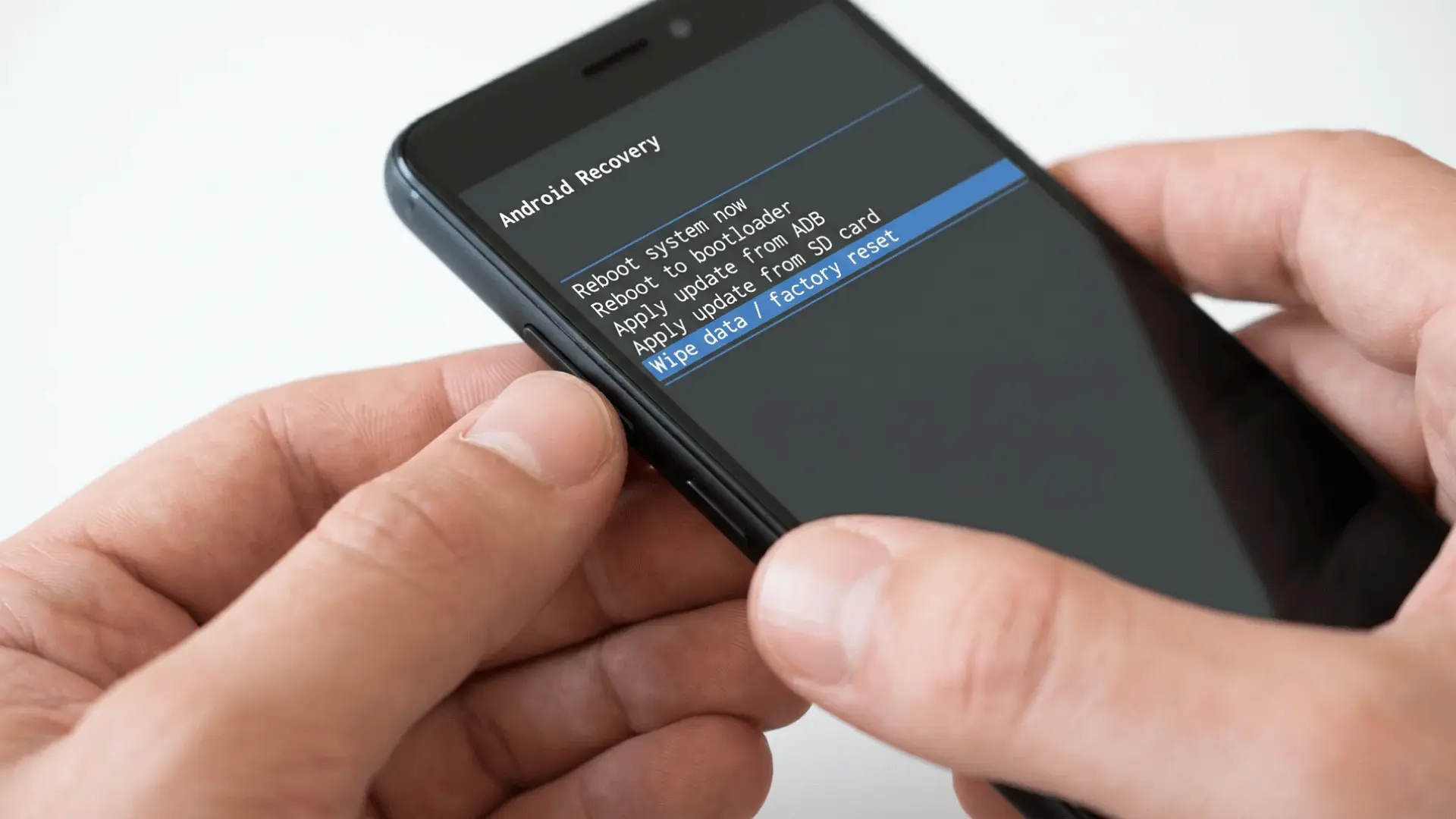
This is the most widely used method which works without internet and requires no account access. Follow these steps carefully:
Step 1: Turn Off the Phone
The phone needs to be fully powered off before recovery mode can be accessed.
If the screen responds, hold the power button and tap Power Off.
If the phone is frozen, hold the power button for 10–15 seconds until it shuts down completely.
Step 2: Enter Android Recovery Mode
With the phone off, use the right button combination to boot into recovery mode.
Common combinations by device:
- Most Android phones: Power + Volume Down
- Some Android phones: Power + Volume Up
- Older Samsung (with Home button): Power + Volume Up + Home
- Newer Samsung (with Bixby button): Power + Volume Up + Bixby
Hold the buttons together for 5–10 seconds. Start pressing them right as the screen goes dark after shutdown; timing is everything here.
Recovery mode is not the same as the bootloader. Recovery is where you wipe data. The bootloader handles system-level operations and won’t help with a reset.
If recovery mode isn’t loading:
- You may be releasing the buttons too soon
- Your specific model may use a different combination. Check the manufacturer’s website
- Some devices need a USB cable connected to a computer to trigger recovery
Step 3: Select “Wipe Data / Factory Reset”
Once inside recovery mode, use the volume keys to scroll up and down. Use the power button to select.
Highlight “Wipe Data / Factory Reset” and confirm the action. The phone will delete all user data, including the screen lock.
Different phones may use slightly different labels. Look for words like “wipe,” “reset,” or “erase” if the exact phrase isn’t visible.
Step 4: Reboot the Device
When the wipe is complete, select “Reboot System Now.” The first boot takes longer than usual, anywhere from 5 to 10 minutes.
The phone runs through its initial setup process again from the beginning. At some point in setup, it will ask you to sign in to a Google account. That’s the FRP activating.
A completed reset doesn’t guarantee instant access; the linked Google credentials are still required to move past this screen.
How to Reset the Phone Remotely With Google Find My Device
This method works from any browser or any other device. It’s simpler than button combinations, but it only works under specific conditions.
When This Method Works
The locked phone must meet all three of these conditions:
- Turned on and connected to the internet
- Signed into a Google account
- Had Find My Device enabled before the lockout
Google’s servers send the erase command to the device. If the phone is offline, the reset is queued and triggers the next time the phone connects.
Steps to Erase the Device Remotely
- Open a browser and go to android.com/find
- Sign in with the same Google account that’s linked to the locked phone
- Select the correct device from the list
- Click “Erase Device” and confirm
Double-check that you’re selecting the right device. If multiple accounts or devices are listed, it’s easy to pick the wrong one.
What Happens After the Remote Reset
The phone resets automatically once it receives Google’s signal. FRP remains active after this, just like with recovery mode.
This method is a good option if the phone’s volume buttons are damaged or if button combinations feel risky. The main risk is accidentally selecting the wrong device, so confirm carefully before proceeding.
How Samsung Phones Can Be Reset Using SmartThings Find
Samsung has its own remote management tool: Find My Mobile. It works separately from Google’s system and offers one unique advantage.
Unlike Google’s remote erase, Samsung’s tool can sometimes remotely unlock the screen without wiping the phone. That’s a significant difference if keeping your data matters.
How to use it:
- Go to smartthingsfind.samsung.com (Samsung’s current portal — Find My Mobile has been fully integrated into SmartThings Find)
- Sign in with your Samsung account
- Select your device
- Choose “Unlock” or “Erase Data”
This only works if a Samsung account was linked before the lockout, the remote controls were turned on, and the phone has internet access.
The remote unlock feature has been restricted or removed on some newer Android versions. If it’s not available, the erase option still functions as a full reset.
Why the Phone Still Asks for a Google Account After Reset
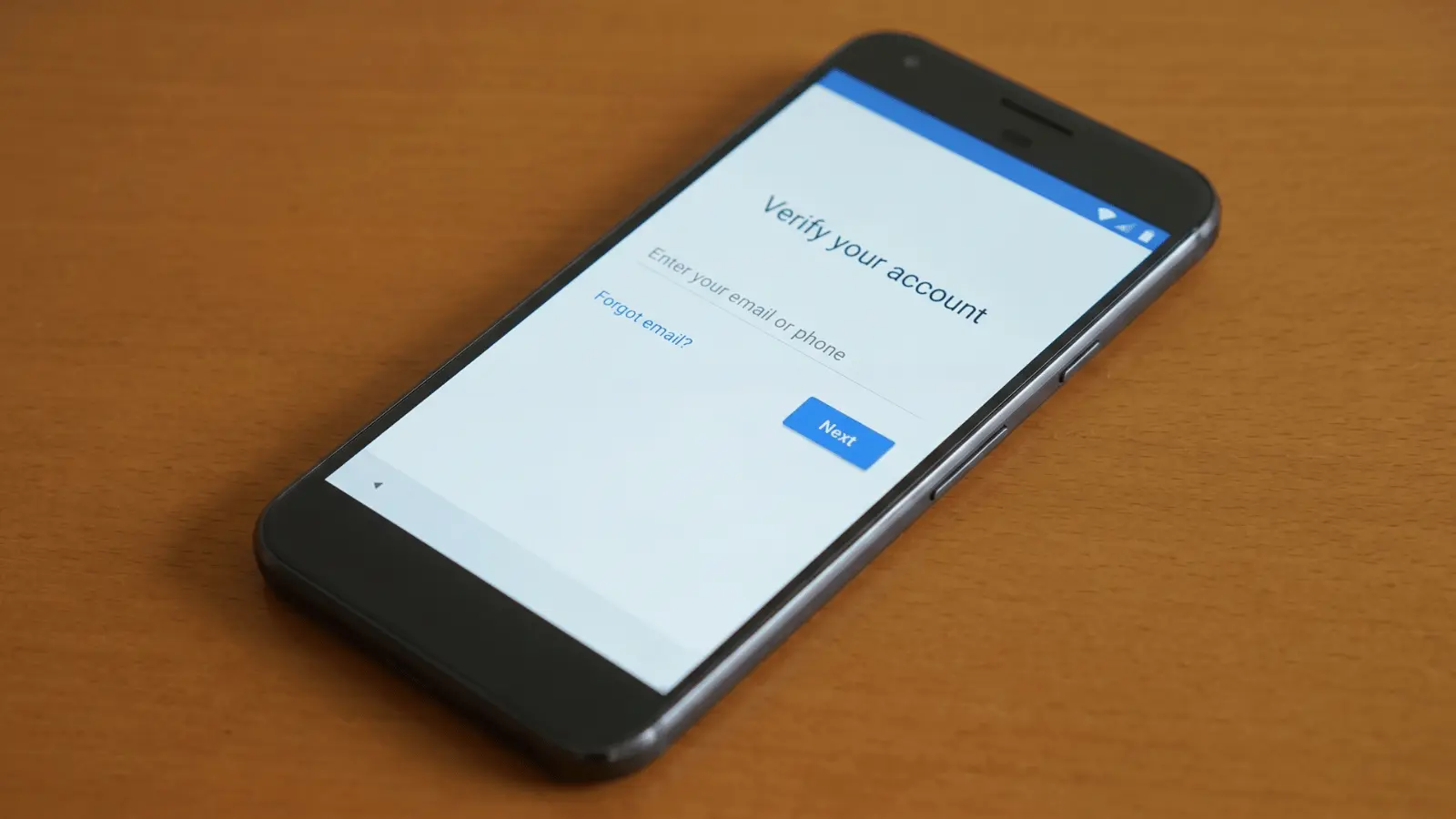
Factory Reset Protection (FRP) is intentional. When Android detects an unexpected wipe, one done without signing out first, it assumes the phone may have been stolen.
To verify legitimate ownership, it requires the last active Google account on the device.
How to Unlock Your Android Phone After the Reset
The unlock screen isn’t a malfunction; it’s FRP doing exactly what it’s designed to do. Getting past it requires the credentials from the account that was active on the phone before the wipe.
What Android accepts as proof of ownership:
- The exact Google account email linked to the phone before the reset
- The correct, current password for that account
One detail that trips people up: if the Google account password was changed recently, there’s a 72-hour waiting period before the new password works on a reset device. The old password won’t work during that window either. There is no workaround through standard means, the waiting period is enforced at Google’s end.
If you’ve forgotten the credentials entirely, Google’s account recovery tool at myaccount.google.com is the only standard path forward. Have your recovery email, backup phone number, or security questions ready before you start, recovery without at least one of these on file is unlikely to succeed.
Common Problems During a Locked Phone Reset
Most of these have a simple fix but only if you know what’s actually causing them.
1. Recovery Mode Will Not Open
Most of the time, it’s a timing or combination issue, not a hardware fault.
Hold the buttons for a full 5–10 seconds and keep holding until the recovery screen appears. Don’t let go the moment the phone vibrates.
If it still won’t load, check the manufacturer’s support page for your exact model. Some devices also require a USB cable connected to a computer before recovery mode becomes accessible.
2. Phone Keeps Restarting Normally
Fast Boot is skipping the full shutdown cycle, which blocks recovery mode from loading.
Disable it before trying again.
On Samsung: Settings → Advanced Features → turn off Fast Boot.
On most other Android phones: Settings → Battery → turn off Fast Boot.
Once it’s off, power the phone down normally, then attempt the button combination again.
3. Reset Option is Missing
The option exists, it’s just labeled differently depending on the manufacturer.
If “Wipe Data / Factory Reset” isn’t visible, look for “Erase All Data,” “Wipe Device,” or anything using the words “erase” or “wipe.“
Use the volume keys to scroll through the full menu; the option is sometimes lower in the list than expected.
4. Phone is Stuck After Reset
A corrupted system partition won’t be fixed by the wipe, the firmware needs to be reinstalled.
Use the manufacturer’s recovery tool to reflash the device.
Samsung’s tool is Odin, Motorola uses Rescue and Smart Assistant, and most other brands offer a device-specific flasher on their support site.
Search your exact model number plus “firmware flash tool” to find the right one.
Conclusion
Knowing how to reset a phone that is locked can save you a lot of panic. If you used Recovery Mode, Google Find My Device, or Samsung’s SmartThings Find, you now have a clear path forward.
The most important thing to remember? A reset wipes your phone, but FRP still requires your Google credentials. So keep your account details somewhere safe.
If you run into trouble, Google’s account recovery tool is your next best option. Stay calm, and good luck!
Frequently Asked Questions
What’s the difference between a soft reset and a hard reset?
A soft reset is simply restarting the phone; it changes nothing. A hard reset wipes all data and takes the phone back to factory settings.
Will a factory reset remove a virus or malware from my Android phone?
Yes, in most cases. A factory reset removes all installed apps and files, which eliminates most malware. However, deeply embedded system-level threats may survive the reset in rare cases.
Can I reset my Android phone without a computer?
Yes. Recovery Mode and Google Find My Device both work without a computer. You only need a computer if you’re reinstalling firmware for a corrupted device.
What should I do if I don’t know the Google account linked to my phone?
Visit myaccount.google.com from another device and check which account is active. If you’ve completely forgotten the credentials, Google’s account recovery process is the only standard option available.





One Response