

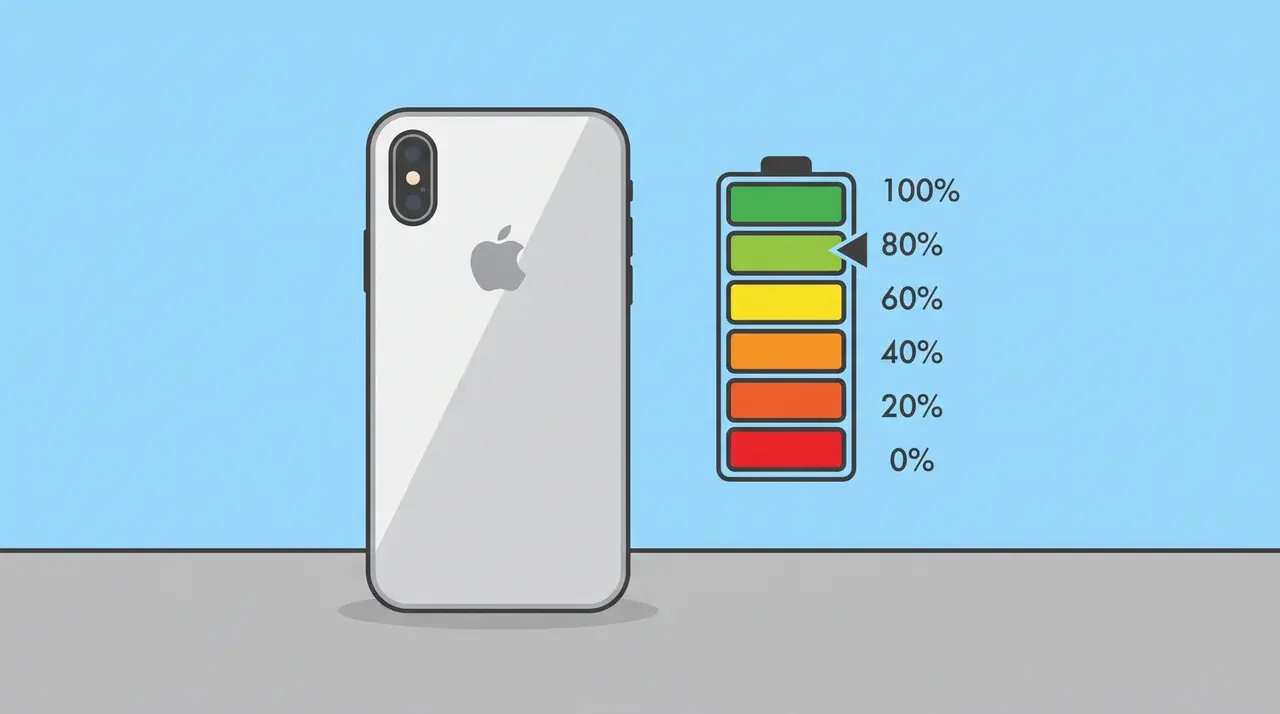
Your iPhone’s battery health percentage looks straightforward, but it is easy to misread. The number can change slightly depending on when you check it again.
Battery history matters too. Heat, charging habits, age, and everyday use can affect the reading and how quickly maximum capacity drops over time in practice.
A quick iPhone battery health check takes only seconds, but understanding the percentage properly helps you avoid worrying about normal changes or harmless daily fluctuations.
I’ve seen people panic over harmless readings and ignore numbers that mattered. Knowing what to look for helps you decide when to relax or act.
How to Check Battery Health on iPhone
You don’t need any apps, accounts, or a data connection for this. It’s all built into your iPhone’s Settings.
Every model starts the same way: open Settings, then tap Battery. From there, the last step depends on which iPhone you have, so it’s worth knowing your model before you start.
For iPhone 15 and later
- Open Settings
- Tap Battery
- Tap Battery Health
- Check your Maximum Capacity percentage
You’ll also see a Cycle Count on this screen. That’s the total number of times your battery has used an amount equal to a full charge, whether that happened in one sitting or added up across several partial charges.
For iPhone 14 and earlier
- Open Settings
- Tap Battery
- Tap Battery Health & Charging
- Check your Maximum Capacity percentage
That’s the full path. No extra taps, no hidden menus.
Why Your Battery Health Percentage Might Be Misleading

That percentage isn’t a live reading of your battery’s actual condition. It’s an estimate, built from your charge history and a calibration process running quietly in the background.
I’ve had people show me a fresh battery health number and ask why it moved slightly the next day. Nothing broke. The estimate just settled.
A few things can throw the number off. Charging fast right before you check, or using your phone somewhere very hot or very cold, can temporarily skew it either way.
New iPhones are especially prone to this. It’s normal to see a reading sit just above 100%, or bounce around a bit in the first few weeks.
That’s not a fault. The battery hasn’t been through enough charge cycles yet for the estimate to lock in.
So if you check twice and get two slightly different numbers, don’t panic. Check again in a day or two, ideally at a normal charge level and normal temperature. That’s when the number actually means something.
How to Verify and Interpret Your Battery Health Reading
Checking under normal conditions is what makes your reading worth trusting. That means a normal charge level, room temperature, and no fast charge in the last hour or so.
Once you’ve got a reading you trust, here’s what it means:
- 100% means your battery is performing as new
- 80–99% is normal wear for a phone with regular use; most people won’t notice a difference in daily runtime at this range
- Below 80% is Apple’s service threshold; below this point, shorter battery life and occasional shutdowns that leave the phone unresponsive become more likely
What Your Cycle Count Reveals
If you’re on an iPhone 15 or later, don’t stop at the percentage. Check your Cycle Count too.
A newer phone with a lower percentage but a low cycle count tells a different story than an older phone with the same percentage and hundreds of cycles behind it.
The first suggests a battery that wore down faster than expected. Frequent fast charging, repeated heat exposure, or a manufacturing variance can all push wear ahead of the normal timeline. The second is just normal aging.
Older iPhones don’t show Cycle Count, so the percentage is the only number you’ve got. That’s fine. Just make sure you’re checking it under the right conditions first, since a rushed reading can nudge that percentage in either direction.
Apple designs iPhone batteries to retain 80% of their original capacity after 500 complete charge cycles under ideal conditions, though iPhone 15 models are rated for 1,000 cycles. A battery dropping below that mark well before 500 cycles is the real warning sign, not the percentage alone.
Performance Management
iOS has a built-in Performance Management feature that can dial back peak performance to prevent those shutdowns. You can check its status, and turn it off, from the same Battery Health screen.
In practice, that throttling shows up as sluggish app launches and reduced sustained performance during demanding tasks. Turning it off restores full performance but also brings back the risk of a sudden shutdown when the battery can’t deliver the power a heavy load demands.
How to Keep Your Battery Healthier Longer
You can’t reverse capacity that’s already lost, but a few habits slow the drop noticeably over time.
- Heat: More damaging than most people expect. A hot car, charging under a pillow, or direct sunlight all push the battery beyond the temperatures it handles well long-term, and short exposures add up.
- Optimized Battery Charging: Handles most of this automatically. Confirm it’s ON under Settings > Battery > Charging. It learns your overnight routine and stops at 80% until shortly before you wake up, so the battery isn’t sitting at full charge for hours longer than necessary.
- Depth of discharge: Running to zero regularly is harder on lithium cells than staying in the mid-range. Plugging in around 20% rather than waiting for a shutdown is better for long-term health, even if it doesn’t feel significant day to day.
None of these require a major change to how you use your phone. Heat avoidance and Optimized Charging together are enough to meaningfully slow the wear that accumulates across hundreds of cycles.
Conclusion
An iPhone battery health check is only useful when you read it correctly. The percentage matters, but timing can influence what that number shows today.
Cycle count adds helpful context, especially on newer iPhones. A single reading never tells the complete story about battery condition, age, or recent use patterns.
A battery dropping faster than its cycle count would predict is the more meaningful signal to watch for.
Once you know the real number, you can judge whether your battery is fine, worth monitoring, or ready for replacement without unnecessary worry or guesswork.
Frequently Asked Questions
Is 85% battery health good after 2 years?
Yes. 85% after two years of typical use is a normal result and sits comfortably above Apple’s 80% service threshold. Most people won’t notice a difference in daily performance at this level, though heavy users may see slightly shorter time between charges compared to when the phone was new.
What’s a good battery health percentage for an iPhone?
90% or above is considered excellent, and 80–89% is still normal for a phone that’s a year or more old. Apple sets 80% as the point where it recommends service, since capacity below that can mean shorter runtime and, in some cases, unexpected shutdowns under heavier use.
Is 70% iPhone battery health bad?
70% is below Apple’s recommended service threshold and usually brings noticeably shorter battery life along with a higher chance of sudden shutdowns during demanding tasks. It doesn’t mean the phone is unusable, but replacement is worth considering if the shorter runtime is affecting daily use.
What are signs of a bad iPhone battery?
Common signs include the phone dying well before the display shows 0%, unexpected shutdowns even at higher charge levels, noticeably slower performance under heavy use, and the device running warmer than usual during normal tasks. Several of these appearing together with a low Battery Health percentage points to replacement as the next step.





