


If you’ve noticed your iPhone slowing down or running low on storage, it might be time to clear your app cache. This temporary data, while designed to help apps load faster, can accumulate over time and impact your phone’s performance.
Today, I’ll tell you why app cache matters, how it affects your iPhone, and easy ways to clear it.
Whether it’s using the Offload App feature, in-app settings, or even clearing Safari’s cache, I’ve got you covered with simple steps to restore your device’s speed and storage.
Let’s optimize your iPhone.
What is App Cache and Why Should You Clear It?
App cache is temporary data saved by apps to make things run faster. When you open Instagram or YouTube, the app saves images, videos, and other files locally. Next time you open it, it loads faster because that data is already there.
But this cached data grows over time. It can take up more space than you’d expect; social media apps like Instagram and TikTok commonly accumulate 500MB to 2GB of cached data through regular use.
Here’s when clearing cache makes sense:
- An app is freezing or taking much longer than usual to load.
- Your iPhone storage is almost full, and you’re not sure why.
- Content in an app looks outdated even after refreshing.
- Reinstalling hasn’t fixed a persistent app glitch.
iOS doesn’t offer a built-in “clear cache” button for all apps. Apple designed iOS to manage memory automatically, but that doesn’t mean you’re stuck. There are still effective ways to do it manually.
How to Clear App Cache Using Offload App
The best way to clear app cache on iPhone without deleting the app is by using the Offload App feature. It removes the app and its temporary files, including cache, but keeps all your personal data and documents saved.
Here’s how to use it:
- Open Settings on your iPhone
- Tap General, then tap iPhone Storage
- Scroll through the list and tap the app you want to clear
- Tap Offload App
- Confirm by tapping Offload App again in the pop-up
- Once offloaded, tap Reinstall App to get the app back
When the app reinstalls, it comes back fresh, without the old cache, but with all your saved data still intact.
To see the process in action, check out the complete video tutorial below:
Why Offloading Works
When you offload an app, iOS removes the app’s executable files and temporary data, including cache. It does not affect your documents, settings, or login information associated with the app.
Think of it like emptying a bag and refilling it with just the essentials. The junk (cache) is gone, but your important stuff stays.
When Offloading May Not Help
There are a few cases where this method has limits:
- Some apps store data on external servers, so re-downloading the app doesn’t change much.
- If an app doesn’t support reinstallation from the App Store (rare), the process may not complete.
- Offloading works best for apps that store cache locally on your device.
How to Clear App Cache by Deleting and Reinstalling
Offloading is the gentler option; it keeps your saved data. But if an app is seriously glitchy, or you want to recover the maximum amount of storage, deleting the app entirely and reinstalling it from scratch is the more thorough route.
Here’s how to do it:
- Press and hold the app icon on your home screen
- Tap Remove App
- Tap Delete App, then confirm
- Open the App Store, search for the app, and reinstall it
What you lose: any data stored locally on your device; downloaded content, saved settings, and login credentials. You’ll need to sign back in after reinstalling.
What you gain: a completely clean slate. No cache, no leftover data, no corrupted files.
When to use this instead of offloading: Social media apps like Instagram and TikTok can rebuild gigabytes of cache quickly after reinstalling. If you’re reclaiming storage and the app still feels sluggish after offloading, a full delete and reinstall is the next step.
Streaming apps like Netflix and Spotify will also lose any offline downloads, so factor that in before you tap delete.
In-App Settings to Clear Cache (for Specific Apps)
Some popular apps include their own cache-clearing option inside the app itself. This can be quicker than offloading, especially if you just want to clear one app’s data fast.
Here are the apps that let you do this and how to use them:
TikTok
- Open TikTok and go to your Profile
- Tap the three-line menu (top right)
- Go to Settings and Privacy
- Tap Free Up Space
- Tap Clear next to Cache
- Open Instagram and go to your Profile
- Tap the three-line menu, then Settings and Activity
- Go to Account, then Storage and Data
- Tap Clear Cache under Storage Usage (available on newer versions)
Google Chrome
- Open Chrome and tap the three-dot menu
- Go to History, then Clear Browsing Data
- Select Cached Images and Files
- Tap Clear Browsing Data
These in-app options are handy, but they may not clear all temporary files. Some apps only remove part of their stored data through these settings.
For a deeper clean, offloading the app (as described above) is more thorough.
Additional Methods to Clear Cache on iPhone
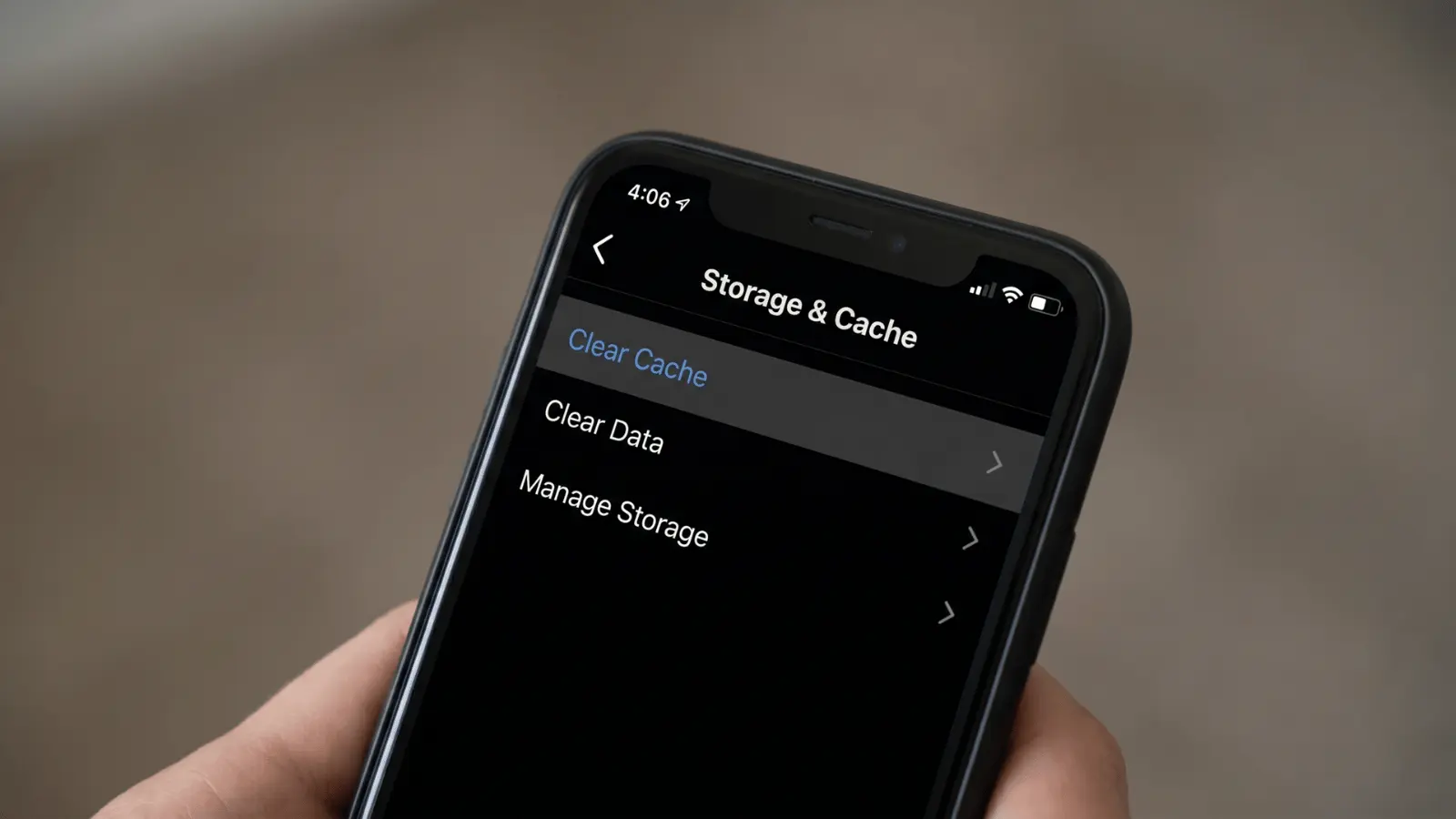
Beyond offloading and in-app settings, a few other options can help reduce cache and free up space.
Clear Safari Cache
Safari stores browsing history, cookies, and cached website data. Over time, this can take up significant storage.
To clear it:
- Open Settings
- Scroll down and tap Safari
- Tap Clear History and Website Data
- Confirm by tapping Clear History and Data
This removes your browsing history and cached web data across all your Apple devices signed into iCloud.
Restart Your iPhone
A simple restart clears certain temporary system files and can improve app performance.
To restart:
- OniPhone X or later: Press and hold the side button + volume button, then slide to power off
- On older iPhones: Press and hold the top or side button, then slide to power off
After the phone restarts, turn it back on.
To be clear: a restart does not clear app cache or Safari data stored on your device. It flushes temporary memory that apps were actively using, useful for minor performance hiccups, but not a substitute for the offload or delete methods above.
This won’t delete app cache permanently, but it can help with minor slowdowns.
What About Force Quitting Apps?
Many people think force-quitting apps (swiping them away in the app switcher) clears the cache. It doesn’t. Force quitting only stops the app from running in the background. The cached data stays on your device.
Apple itself has confirmed that force-quitting apps doesn’t save battery or storage. It can actually slow things down because the app has to reload from scratch the next time you open it.
Wrapping Up
App cache builds up silently, but now you know exactly how to deal with it. Use the Offload App feature for the deepest clean, try in-app settings for a quick fix, or clear your Safari data when your browser feels slow.
The right method depends on what’s slowing you down, but any of them will make a real difference.
One small tip: make it a habit to check your iPhone Storage every few months.
It takes two minutes and keeps things running smoothly. If this helped, you’ll love other posts on iPhone storage tips and performance tricks. Go check them out!
Frequently Asked Questions
Will clearing the App Cache on iPhone delete my photos or Contacts?
No. Clearing app cache on iPhone only removes temporary files; it does not delete photos, contacts, messages, or any personal data. Your files stay completely intact regardless of which clearing method you use.
Can I clear all app cache on iPhone at once?
No. iPhone does not have a built-in option to clear all app cache at once. iOS requires you to clear the cache app by app, either through Offload App in Settings or through each app’s own in-app settings menu.
How Often Should I Clear App Cache on iPhone?
Clearing app cache on iPhone once a month is enough for most users. Clear it sooner if your phone feels slow, apps are glitching, or your storage is nearly full; those are the clearest signs that cache has built up.
Does iOS Automatically Clear App Cache on Its Own?
Yes, but only partially. iOS automatically clears some cached files when your storage gets critically low. It does not perform a full cache clear, and it does not clear it on a regular schedule. Clearing it manually gives you more control over when it happens and how much space you recover.




2 Responses