

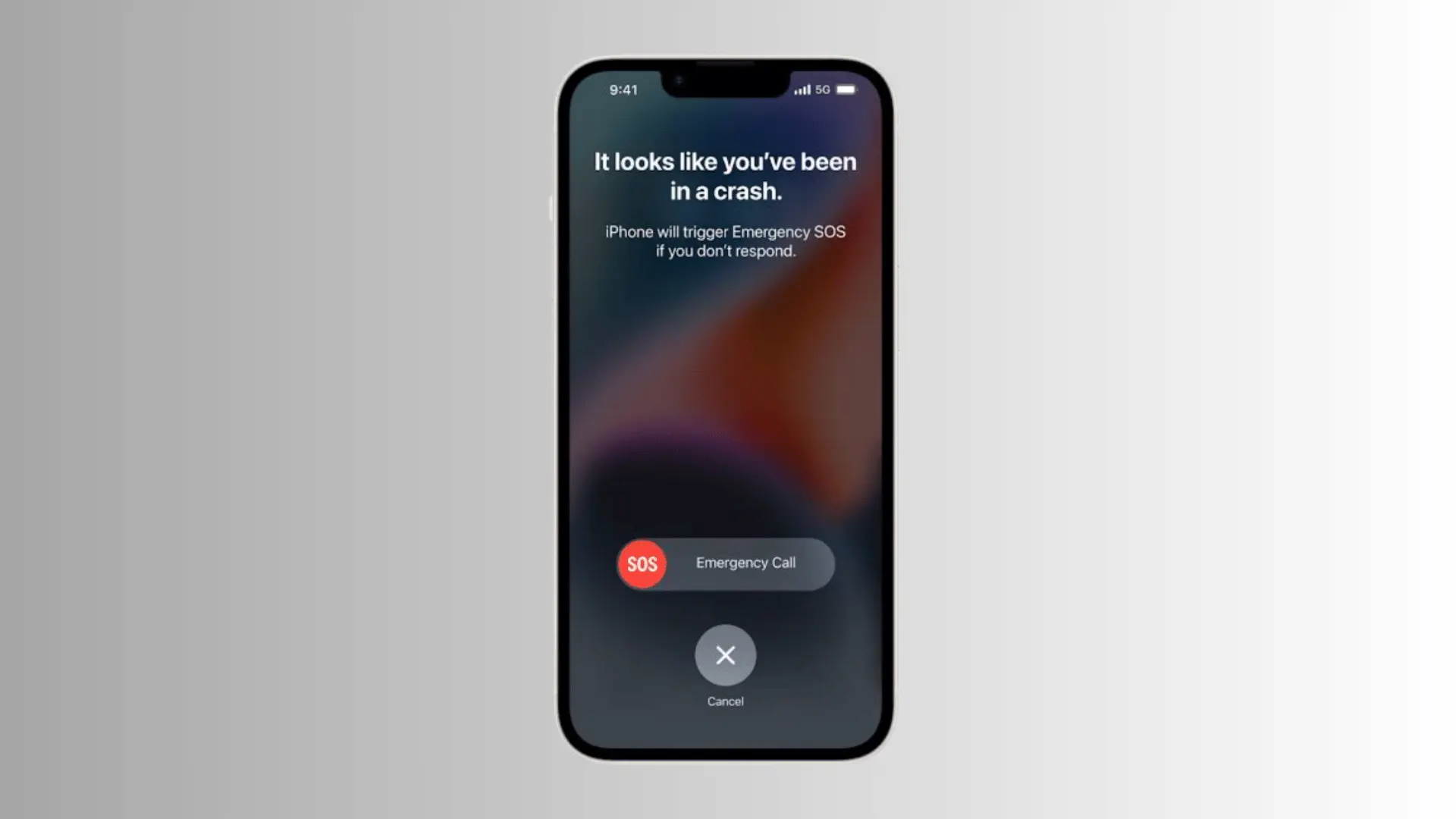
Seeing SOS at the top of your iPhone can make you wonder what went wrong. Your phone may still work normally on Wi-Fi, but calls, texts, and mobile data can suddenly stop.
So, what does SOS mean on iPhone? It usually means your iPhone cannot connect to your regular cellular carrier, though emergency calling may still be available through another network.
I’ll explain what causes this message and what you can do to restore your connection. From weak coverage and carrier outages to SIM or eSIM issues, knowing what to check can save you time and frustration.
What Does SOS Mean on iPhone?
Seeing SOS or SOS Only on an iPhone means it is not connected to your regular cellular carrier.
You may not be able to make normal calls, send standard SMS messages, or use cellular data, but emergency calls may still be possible through another available carrier network in supported regions.
This does not automatically mean your iPhone is damaged. Weak coverage, a carrier outage, or an issue with your SIM, eSIM, or cellular settings can cause the status to appear.
Wi-Fi can still work for internet access, iMessage, and FaceTime when you have a Wi-Fi connection. SOS is different from Emergency SOS via satellite, a separate feature available on supported iPhone models and in supported regions.
Why Does Your iPhone Say SOS?
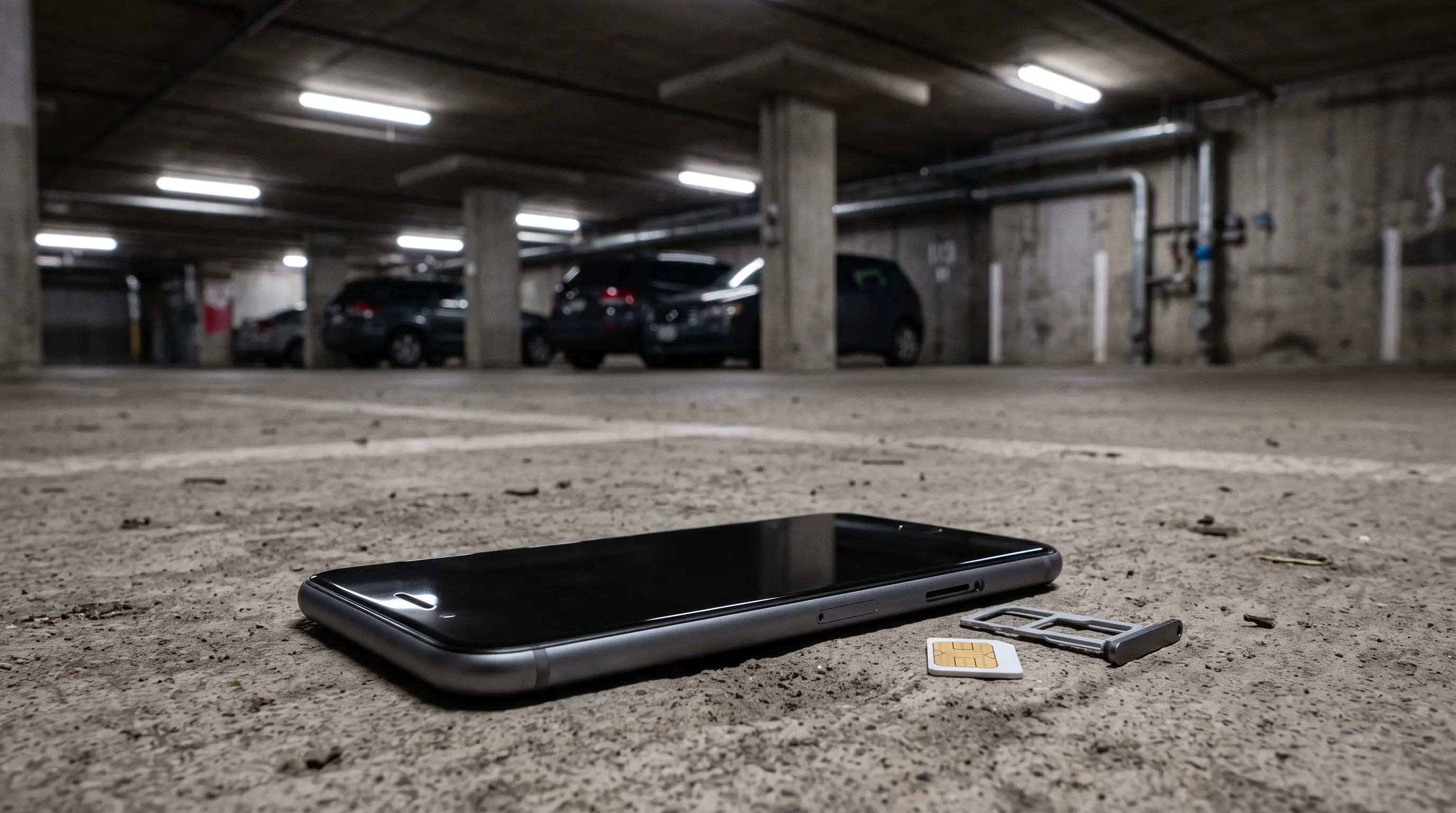
Your iPhone can show SOS when it cannot connect to your regular carrier network. Several issues can cause this, from weak coverage to a problem with your cellular line or account.
- Weak Coverage: Rural areas, tunnels, elevators, parking areas, and thick walls can weaken cellular signals. Move to an open area or closer to a window.
- Carrier Outage: A network outage can affect your service even in areas with normally strong coverage. Check your carrier’s service status or contact support.
- Cellular Line Settings: A disabled line can prevent your iPhone from connecting. Go to Settings > Cellular and make sure the affected line is turned on.
- SIM or eSIM Issue: A damaged, inactive, or improperly seated SIM can cause connection problems. An eSIM can also have activation or transfer issues.
- Carrier Account Issue: A suspended account, unpaid balance, or incomplete activation can stop cellular service. Check your account or contact your carrier.
If SOS continues to appear in places where you normally have coverage, move on to the troubleshooting steps below. This can help you determine if the issue is with your iPhone, SIM or eSIM, carrier, or account.
SOS vs. No Service on iPhone: What’s the Difference?
SOS or SOS Only means your iPhone is not connected to your regular carrier, but it may still make emergency calls through another available carrier network in supported regions.
No Service means the iPhone is not connected to a cellular network at all. Both statuses can stop regular calls and cellular data from working.
The main difference is that SOS indicates emergency calling may still be available through another network, while No Service indicates no cellular connection is available.
If either status appears unexpectedly, check your location, Airplane Mode, cellular line, SIM or eSIM, and carrier status before assuming there is a hardware problem.
How to Get Your iPhone Out of SOS Mode
Start with the simplest fixes and move to network settings if SOS continues. Apple recommends checking the connection, using Airplane Mode, restarting the iPhone, checking carrier settings, and contacting the carrier when needed.
1. Turn Airplane Mode On and Off
Open Settings or Control Center and turn on Airplane Mode. Leave it on for at least 15 seconds, then turn it off. This can refresh the cellular connection and help your iPhone reconnect to the carrier network.
Wait a moment after turning it off to see if the carrier name or signal returns. Apple lists this as an early step for SOS or No Service issues.
2. Restart Your iPhone
Restarting your iPhone can help clear a temporary connection problem and give the device another chance to connect to the cellular network.
It works on a similar principle to clearing accumulated app cache, refreshing background processes without deleting anything permanent.
Turn your iPhone off, wait briefly, and turn it back on. After it starts, give the cellular connection time to return. If SOS remains, move on to the next steps instead of repeatedly restarting the device.
3. Check Your Cellular Line
Go to Settings > Cellular and make sure the affected line is turned on. This is especially important if you use Dual SIM or an eSIM.
If the line is missing, inactive, or shows an activation issue, contact your carrier. If you use a physical SIM, check that it is properly inserted and not damaged before contacting your carrier.
4. Check for a Carrier Settings Update
Connect your iPhone to Wi-Fi, then go to Settings > General > About. If a carrier settings update is available, you will see an option to install it.
These updates can improve cellular connectivity and add support for features such as 5G or Wi-Fi Calling. A new SIM or eSIM may also require updated carrier settings.
5. Reset Network Settings
If SOS remains after the earlier steps, reset your network settings. Go to Settings > General > Transfer or Reset iPhone > Reset > Reset Network Settings.
This removes saved Wi-Fi networks and passwords, cellular settings, and VPN and APN settings, but does not erase your photos or apps, unlike a full factory reset, which wipes the device entirely.
Apple recommends using this option only after other solutions fail.
When Should You Contact Your Carrier or Apple?
The point at which you contact support depends largely on what the earlier checks have ruled out. If SOS remains across several locations with normally reliable coverage, the carrier should be your first contact.
I would start there because the carrier can check problems that cannot be diagnosed from the iPhone itself, including local outages, account restrictions, activation issues, and SIM or eSIM status.
Ask the carrier to check:
- Local Service: Whether an outage or coverage issue affects your area.
- Account Status: Whether the line has been suspended or has an unresolved billing or activation issue.
- SIM or eSIM: Whether the cellular line is active and correctly associated with your account.
- Network Access: Whether your plan and roaming settings support the location where you are using the iPhone.
Contact Apple after your carrier confirms that the network, account, and cellular line are working correctly. Apple can then investigate potential software or hardware problems.
An Apple inspection is particularly appropriate if SOS appeared after a significant drop, liquid exposure, or a previous repair. Avoid opening the iPhone yourself, as that can create additional hardware problems.
The Ending Note
Seeing SOS on your iPhone does not always mean something is wrong with the device itself. What does SOS mean on iPhone?
It means your phone cannot connect to its regular carrier, so normal calls and cellular data may not work. Start by checking your signal, turning Airplane Mode on and off, restarting the phone, and checking your cellular line.
If SOS stays on, your carrier may need to check your account or network. I hope these steps help you restore your service without unnecessary hassle.
Have you dealt with SOS on your iPhone? Share what fixed it in the comments.
Frequently Asked Questions
Can I Use Wi-Fi When My iPhone Says SOS?
Yes. Wi-Fi can still provide internet access for apps, websites, iMessage, and FaceTime even when your iPhone has lost its regular cellular connection.
Can I Receive Calls When My iPhone Shows SOS?
Usually not through your regular cellular network. However, incoming calls may work through Wi-Fi Calling if your carrier supports it and the feature is enabled.
Does SOS Mean My iPhone Is Broken?
No. SOS usually indicates a cellular connection problem rather than hardware damage. Weak coverage, carrier issues, SIM problems, or account restrictions can cause it.
Why Does My iPhone Say SOS After Traveling?
International travel can cause SOS when your iPhone cannot connect to a roaming partner. Check your roaming settings, cellular line, and carrier support for your destination.





