


That “Syncing with iCloud Paused” message has a way of showing up at the worst moment and saying almost nothing about why.
The frustrating part isn’t the pause. It’s that your device knows exactly what triggered it, it just buries the reason in the message variant most people skim past.
Once you know how to read it, the fix usually takes under a minute. Here’s what each pause message actually means, how to clear it, and why some devices keep hitting this problem no matter what.
Why iCloud Pauses Syncing (and What It Actually Means)
“Syncing with iCloud Paused” means your device has temporarily stopped syncing. Nothing is broken. No data is lost.
iCloud does this on its own when it spots conditions that make syncing a bad idea; low battery, Low Power Mode, Low Data Mode, a full storage limit, or a weak network connection. It’s protecting your device, not flagging an error.
The message you see tells you exactly what triggered it. These are the variants you’ll encounter:
- “Paused until connected to power” means battery is low or Low Power Mode is on.
- “Paused to reduce data usage” means Low Data Mode is active.
- “Paused” with a storage warning means your iCloud storage is full.
- “Poor Network Connection” means your Wi-Fi signal is too unstable to sync reliably.
- “[Device] Needs to Cool Down” means syncing paused to prevent overheating. Wait a few minutes, then tap Sync Now if it appears.
Each message points to a different cause and a different fix.
How to Fix “Syncing with iCloud Paused”
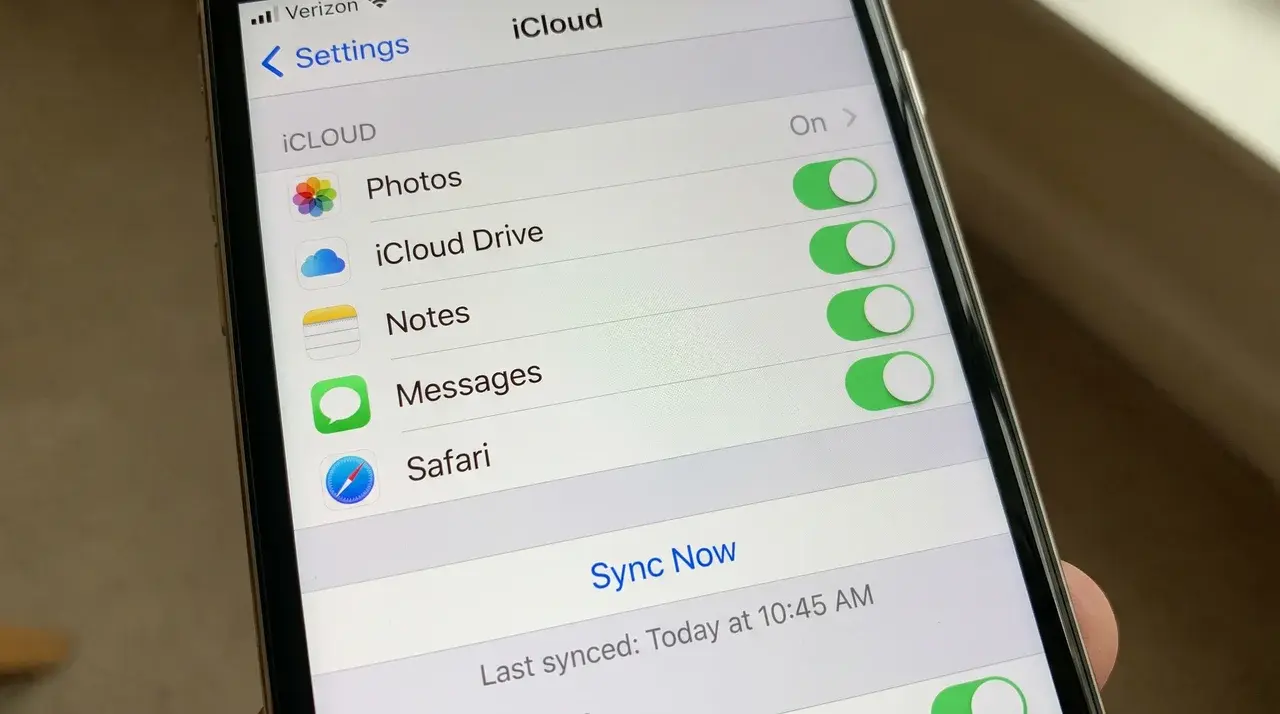
The right fix depends on what triggered the pause. Find the message you saw and follow the steps for that cause only.
1. The Device Is on Low Battery or Low Power Mode
When the battery drops low, iCloud stops syncing in the background to save power. Low Power Mode does the same, even when the battery isn’t critically low.
Plug in first. Then go to Settings > Battery and confirm Low Power Mode is off. Once both are cleared, syncing resumes on its own, typically within two to three minutes.
If it doesn’t restart, go to Settings > [Your Name] > iCloud > Show All, tap the paused app, and hit Sync Now.
2. Connected to Mobile Data with Low Data Mode On
Low Data Mode tells your iPhone to cut background activity. iCloud sync counts as background activity, so it stops. If you’re on cellular and haven’t noticed this setting before, it’s easy to miss.
Go to Settings > Cellular > Cellular Data Options and turn off Low Data Mode. On Wi-Fi, go to Settings > Wi-Fi, tap your network name, and look for the same toggle.
Turn it off, and iCloud picks back up on its own.
3. Poor or Unstable Wi-Fi Connection
iCloud needs a stable connection to sync in the background. A weak or dropping signal causes iCloud to pause rather than attempt a partial sync.
Check your signal indicator. If it’s low, move closer to the router or switch networks. You can also toggle Wi-Fi off and back on in Settings to force a clean reconnect.
One thing worth knowing: if you’re on a network that requires a login page like a hotel Wi-Fi, airport hotspots, or public networks, iCloud won’t sync at all until your device has full internet access, not just a Wi-Fi connection.
Once you’re on a stable network, syncing resumes automatically. Or restart it manually via Settings > [Your Name] > iCloud > Show All.
4. iCloud Storage Is Full or Nearly Full
This is the most common cause. When iCloud storage hits its limit, syncing stops and Sync Now grays out entirely.
Go to Settings > [Your Name] > iCloud. The storage bar at the top shows what’s using space. Backups and Photos are almost always the biggest consumers.
To free space quickly, go to Manage Account Storage and delete old device backups you no longer need. Once you drop below the limit, syncing restarts.
Still grayed out after freeing space? Toggle the app off and back on under iCloud > Show All.
5. The App Toggle Is Off or Needs a Manual Sync
Sometimes the fix is simpler than it looks. The toggle for Messages or Photos got switched off, or the app just needs a nudge to get going again.
Go to Settings > [Your Name] > iCloud > Show All. Tap the app showing as paused, then hit Sync Now. For Messages, this screen also shows whether Messages in iCloud is enabled.
If you’re seeing syncing with icloud paused, imessage specifically, confirm that Messages in iCloud is turned on and that you have enough iCloud storage available.
If Sync Now doesn’t appear or is grayed out, this step won’t work yet. Resolve the underlying condition related to storage, battery, or data mode first, then come back here.
If the Pause Keeps Coming Back
If iCloud keeps pausing after you’ve applied the right fix, the original condition wasn’t fully cleared; it was just reduced temporarily.
Two causes account for most recurring pauses:
Storage sitting near capacity: A storage bar that’s just under the limit will cause pauses to return. Free enough space so there’s a visible buffer; not just barely under the ceiling.
Degraded battery health: When battery health drops below 80%, iOS can activate Low Power Mode automatically, even when the battery reads 50% or higher. That immediately pauses background syncing.
Check Settings > Battery > Battery Health & Charging. If health is below 80%, the pauses will keep returning until the battery is replaced.
If recurring pauses persist after addressing both, sign out of iCloud, restart your device, and sign back in through Settings. That clears most edge cases that the individual fixes won’t touch.
Wrapping Up
Most people run through every fix in order and land on the right one by chance. The message already tells you where to start if you know how to read it.
Fix the condition, not just the symptom. If it keeps coming back, something isn’t fully resolved: storage headroom, battery health, or a network setting re-engaging on its own.
Check those first. If none of them explain it, the Apple ID sign-out is your next move, and usually your last one.
Frequently Asked Questions
How do I unpause iCloud syncing immediately?
Go to Settings > [Your Name] > iCloud > Show All, tap the paused app, then hit Sync Now. If Sync Now is grayed out, resolve the underlying condition first. Charge the device, free iCloud storage, or turn off Low Data Mode, and then return to this screen.
Is “Syncing with iCloud Paused” a sign that something is wrong with my account?
No. iCloud paused deliberately to protect battery life, conserve mobile data, or respond to a full storage limit. Your data is not lost or corrupted. Once the triggering condition is cleared, syncing resumes automatically or can be restarted manually via Sync Now.
Why does iCloud keep pausing even after I fix it?
The underlying condition wasn’t fully resolved. Make sure your iCloud storage has a real buffer — not just barely under the limit. If Low Power Mode keeps re-engaging on its own, battery health is likely the real issue. Check Settings > Battery > Battery Health & Charging.
Does iCloud sync pause on Mac the same way it does on iPhone?
Mac pauses usually point to full iCloud storage or an expired sign-in session. Low Power Mode and Low Data Mode behave differently on macOS, so the iPhone-specific fixes for those two causes don’t apply directly.





