

I used to think blocking a website on my iPhone would take a special app or some complicated setup hidden deep in the settings. It turned out to be much simpler than I expected.
Apple already includes tools that let you control which websites can open, and they only take a few minutes to set up.
Once I found the right options, blocking distracting or unwanted websites became quick and easy.
If you’re looking for how to block websites on iPhone, knowing where to find these settings makes the whole process much less confusing and helps you stay in control of your browsing experience.
Use Screen Time to Block Websites on iPhone
I used to think blocking a website meant downloading some extra app. Turns out I already had everything I needed, sitting right in Settings.
Apple includes Screen Time on modern versions of iOS, so you don’t need to download another app or pay for a subscription. The exact menu names may vary slightly depending on your iPhone’s software version.
The catch is it takes a few taps to set up right the first time. Once it’s on, though, adding or removing a blocked site takes seconds.
Before you start, make sure you know your Screen Time passcode. If you’re setting up Screen Time for the first time, you’ll be asked to create one during the setup process.
How to Block Websites on iPhone
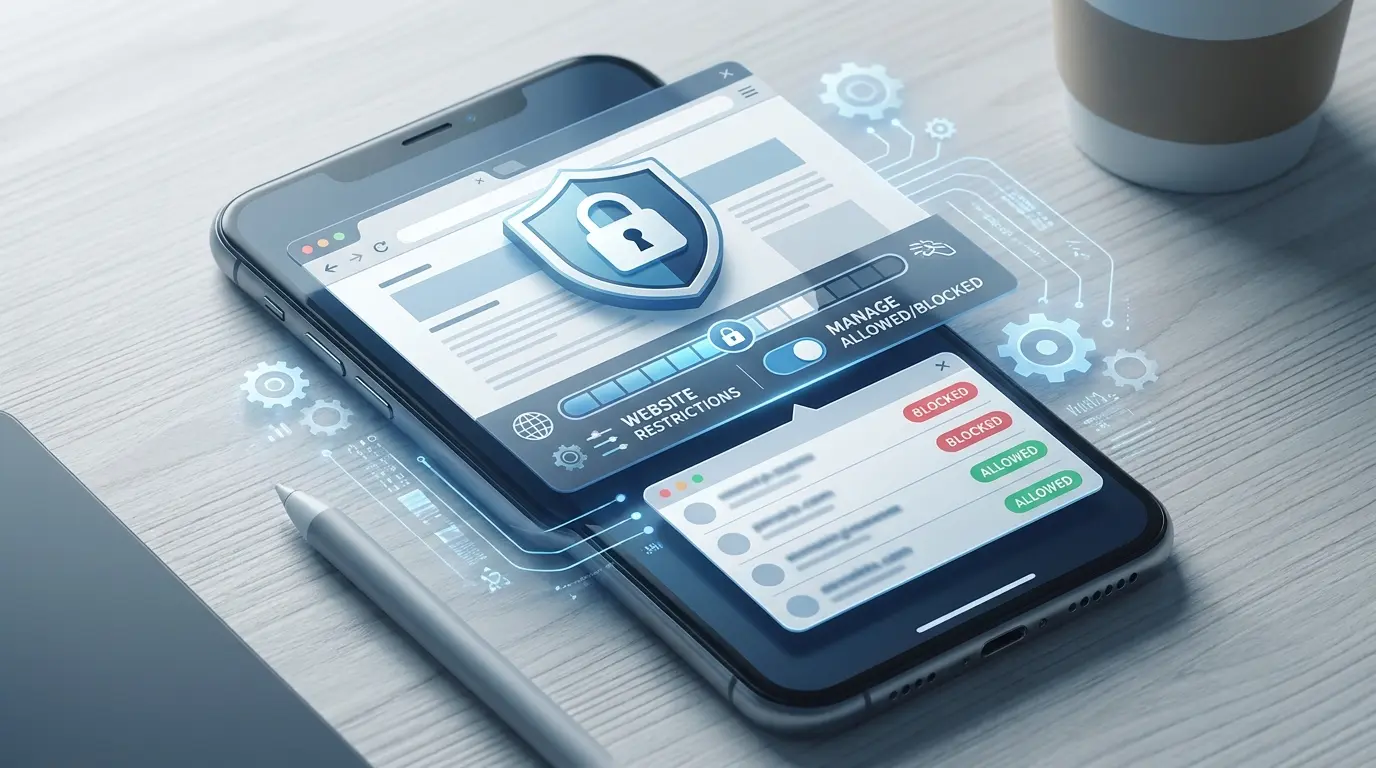
Here’s how to block websites on iPhone, step by step:
- Open Settings, tap Screen Time, then Turn On Screen Time
- Set a Screen Time passcode when prompted
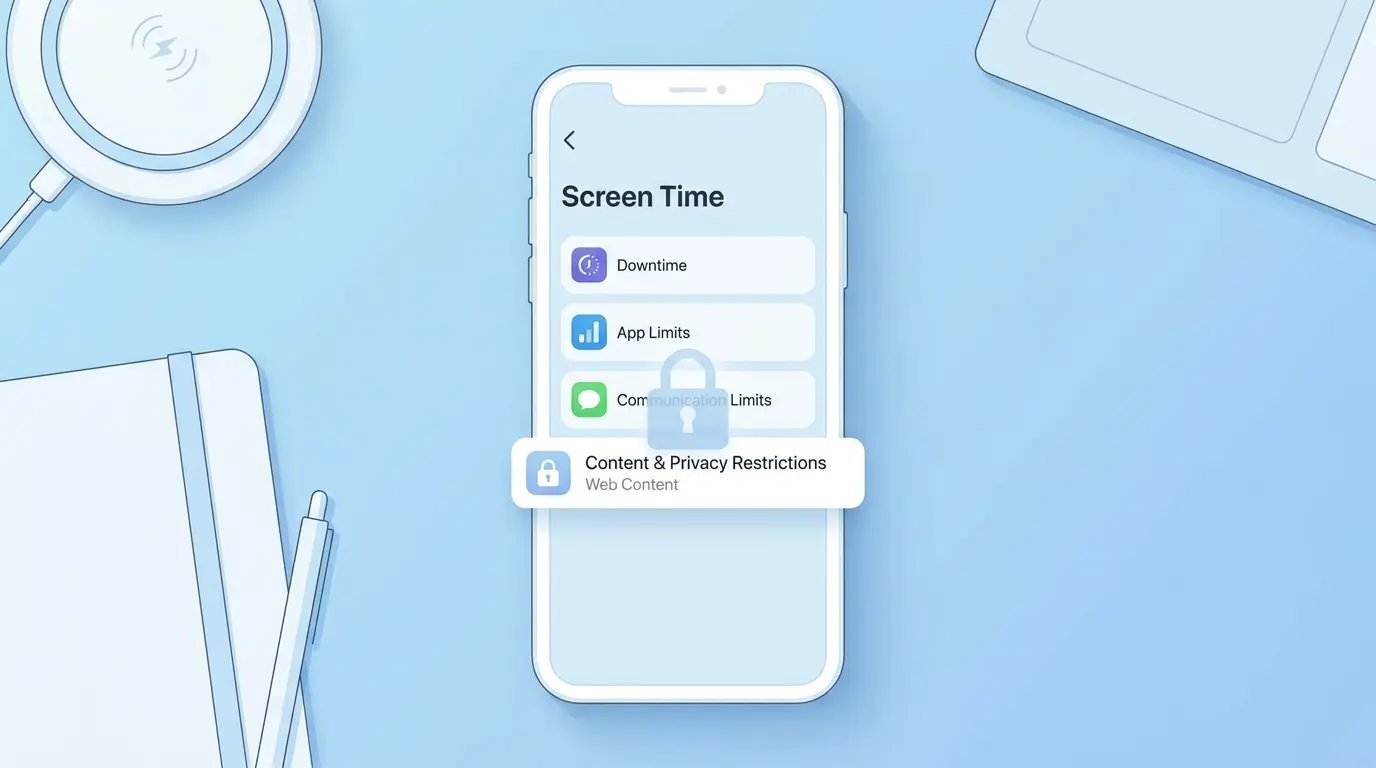
- Tap Content & Privacy Restrictions and switch it on
- Go to Content & Privacy Restrictions, then tap Web Content. On newer versions of iOS, you may first need to tap App Store, Media, Web & Games.
- Choose Limit Adult Websites to block specific sites while allowing the rest
- Or choose Allowed Websites Only to block everything except your approved list
- Tap Add Website and enter the exact URL you want blocked
- If the website has a mobile version (such as m.reddit.com), add that too for a more complete block
That’s the whole process. Once you’ve added your sites, test one to make sure it’s really blocked.
How to Turn On Screen Time and Set a Screen Time Passcode
Before you can block a single website, Screen Time needs to be turned on. You can create a separate Screen Time passcode that’s different from your iPhone’s lock screen passcode.
That passcode is what actually protects the block. Without it, anyone with your phone could open Settings and turn the restriction right back off. Here’s how to set it up:
- Open Settings and tap Screen Time
- Tap Turn On Screen Time, then follow the prompts
- Create a Screen Time passcode when prompted
- Tap Content & Privacy Restrictions and switch it on
Once that’s done, you’re ready to start blocking specific sites, and the same Content & Privacy Restrictions menu also covers restricting specific apps if distracting apps are the bigger problem.
If you’ve already set up Screen Time before, skip straight to the next step.
How to Block Specific Websites Using Screen Time
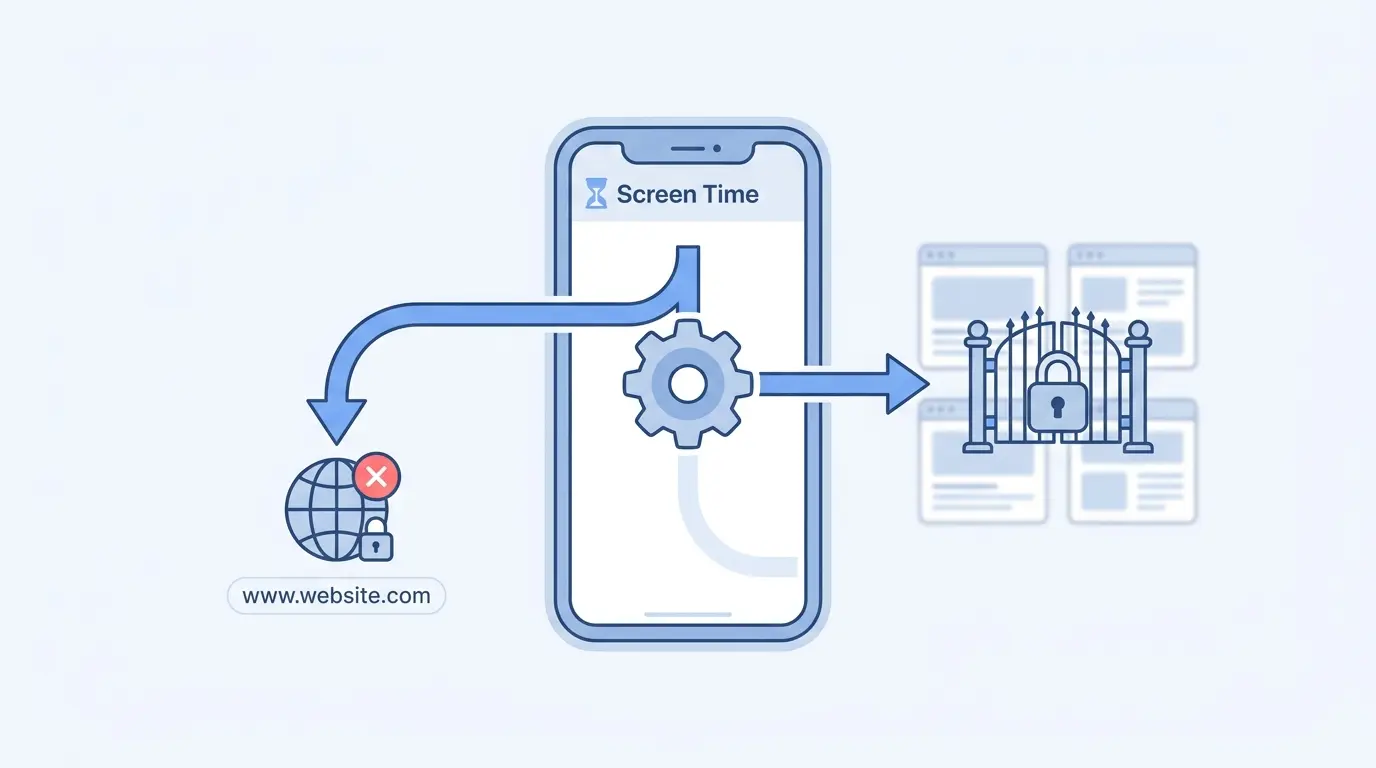
Screen Time gives you two ways to block websites, working in opposite directions. Both are available in the Web Content settings in Screen Time.
Blocking a handful of sites calls for one option. Locking the phone down to a short list calls for the other.
Limit Adult Websites
This mode blocks explicit content automatically. It also lets you manually block any other specific site you choose. It’s the better option if you mostly want everyday browsing to stay normal. You’re only restricting the handful of sites that actually bother you.
To add a site, tap Add Website under the “Never Allow” section. Type the exact URL, not just the site’s name. You can add as many sites as you want here. There’s no real limit to how long that list gets.
Allowed Websites Only
This is the strict option. It blocks every website except a short, pre-approved list.
I’d only recommend this for a shared or kid’s device, since it locks things down heavily. Regular browsing gets a lot more limited here.
Only sites you manually add under Add Website will load. Everything else gets blocked by default, including sites you haven’t thought to restrict yet. That last part catches people off guard.
Even harmless, everyday sites won’t load unless you’ve added them yourself.
Why a Blocked Website Might Still Load
A blocked site reappearing is one of the most common complaints people run into. Usually, the block did work; it just didn’t cover everything it needed to. In a few cases the page is loading from data stored locally, so clearing app cache on iPhone before retesting rules that out.
Screen Time blocks the websites you add to the “Never Allow” list, but some websites use alternate subdomains that may also need to be added separately.
For example, a mobile version like m.reddit.com may need to be blocked in addition to the main website.
That’s why blocking reddit.com alone can still leave the mobile version open. I’ve seen this trip people up constantly, because it looks like the setting simply isn’t working.
The fix is straightforward:
- Add the standard URL under Never Allow
- Add the mobile version (like m.reddit.com) too
This works in Safari and other supported browsers. If a website still loads, double-check that you’ve added all relevant versions of the website, including any alternate subdomains if needed.
How to Verify a Website Is Actually Blocked
After adding a website to your Screen Time restrictions, it’s worth checking that the block is working correctly.
Open Safari or another supported browser and try visiting the exact website you added to the block list. If everything is set up correctly, you should see a Screen Time restriction message instead of the webpage.
If the site still opens, go back to the Web Content settings in Screen Time and confirm the website is listed under Never Allow.
Also check that you’ve blocked anymobile or alternate versions of the website, such as m.example.com, if they exist.
Conclusion
Now you know how to block websites on iPhone using Apple’s built-in Screen Time settings.
After everything is set up, managing blocked websites only takes a few taps, and you can update your restrictions whenever needed.
If a website still opens, checking for alternate versions of the address is often enough to fix the problem.
Taking a few minutes to set everything up can help reduce distractions or limit access to websites you don’t want available. Have you tried blocking websites on your iPhone, or did you run into any issues?
Leave a comment below and share your experience or questions.
Frequently Asked Questions
Can I block a specific website on my iPhone?
Yes. Turn on Screen Time, set a Screen Time passcode, then open the Web Content settings in Screen Time. Choose Limit Adult Websites and add the website under “Never Allow.” This blocks that specific website while leaving other websites accessible.
Can I permanently block a website in Safari?
Yes, as long as the restrictions passcode stays private. Once a URL is added under Never Allow in Screen Time, it stays blocked across Safari and most browsers until manually removed. Add both the standard and mobile version of the URL for a more complete block.
Why is a website still loading after I blocked it?
This usually happens because only one version of the site’s URL was blocked. Sites often have a mobile subdomain, like m.reddit.com, separate from the main one. Each needs to be added individually under Never Allow for the block to hold consistently.
How do I block websites on iPhone without Screen Time?
Screen Time is Apple’s built-in way to block websites on an iPhone. If you don’t want to use it, you’ll need a third-party parental control, DNS filtering, or productivity app that offers website blocking features.





