

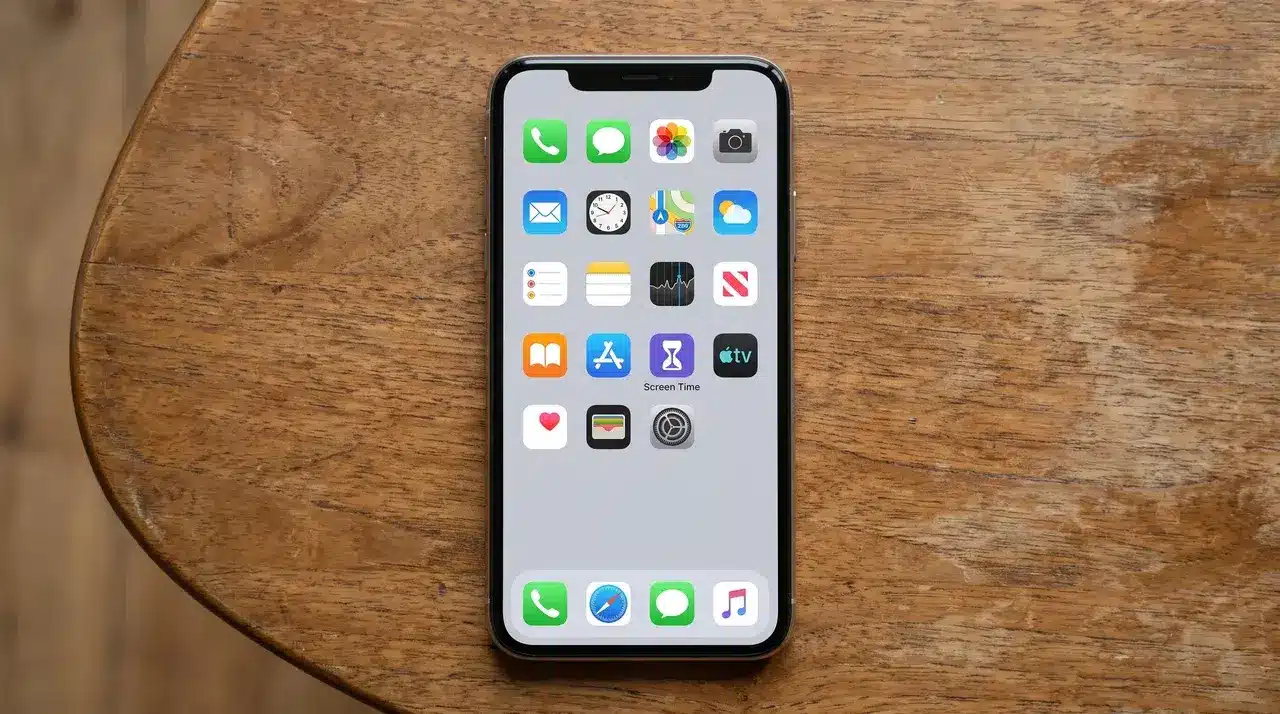
Folks don’t realize their iPhone already has everything needed to block apps. You don’t need another app or download anything. The tools are already inside your settings.
Learning how to block apps on iPhone starts with choosing the right option. Apple gives you three different tools, and each one solves a different problem.
One option slows your usage down with limits. Another blocks apps completely. The third creates a schedule that works automatically without daily effort.
The hard part isn’t turning these settings on. It’s choosing the one that actually works for your situation and helps you stay consistent.
What to Decide Before You Block an App
The method you pick depends on one thing: do you want a temporary limit or a permanent block?
Screen Time gives you three tools, and they’re not interchangeable. App Limits sets a time budget. Allowed Apps & Features removes access completely. Downtime restricts everything on a schedule.
I’ve watched people set an App Limit expecting it to lock an app away for good, then get frustrated when a button lets them bypass it in two taps. That’s not a bug, App Limits was built to be flexible, not final.
None of these hold up without a Screen Time passcode. Skip it, and any block is just a suggestion.
One more thing to sort out first: are you blocking your own phone, or a child’s? On your own device, a passcode is usually enough. On a child’s device, you’ll want Family Sharing in the mix too, since a passcode alone won’t stop a reinstall.
How to Block Apps on Iphone With Screen Time
Once you know which method fits, the setup itself is quick. Each one lives inside Screen Time, but they work in different ways.
Here’s how to set up each one.
1. Blocking With App Limits (Soft, Overridable)
This is the fastest way to cut down time on an app. It won’t lock the app away completely, so treat it as a nudge, not a wall.
- Go to Settings and tap Screen Time
- Tap App Limits, then Add Limit
- Choose a category, or tap the arrow next to it to pick specific apps
- Set the timer to 0 hours, 0 minutes, then tap Add
- Go back to the main Screen Time menu, tap Use Screen Time Passcode, and set a 4-digit PIN
Once the limit hits zero, the app shows a locked screen instead of opening. Without a passcode, though, anyone can tap through it in seconds.
2. Removing an App With Allowed Apps & Features (Hard, No Override)
If you want an app gone with no way around it, this is the setting to use. There’s no “ignore limit” button here. Once it’s off, it’s off.
- Go to Settings > Screen Time > Content & Privacy Restrictions
- Turn on Content & Privacy Restrictions
- Tap Allowed Apps & Features
- Toggle off the specific app or apps you want to remove access to
I’d reach for this over App Limits any time the goal is to actually stop use, not just slow it down. App Limits bends. This doesn’t.
3. Scheduling Blocks With Downtime
Downtime is built for recurring windows, like bedtime or study hours, where you want most apps off-limits automatically.
- Go to Settings > Screen Time > Downtime
- Turn on Downtime
- Set a start and end time
- Choose whether it runs every day or on specific days
- Pick any apps you want to stay available under Always Allowed
During Downtime, blocked apps show the same locked screen as an App Limit. The difference is it switches on and off by schedule, not by a running timer.
Why a Blocked App Still Shows an Override Option
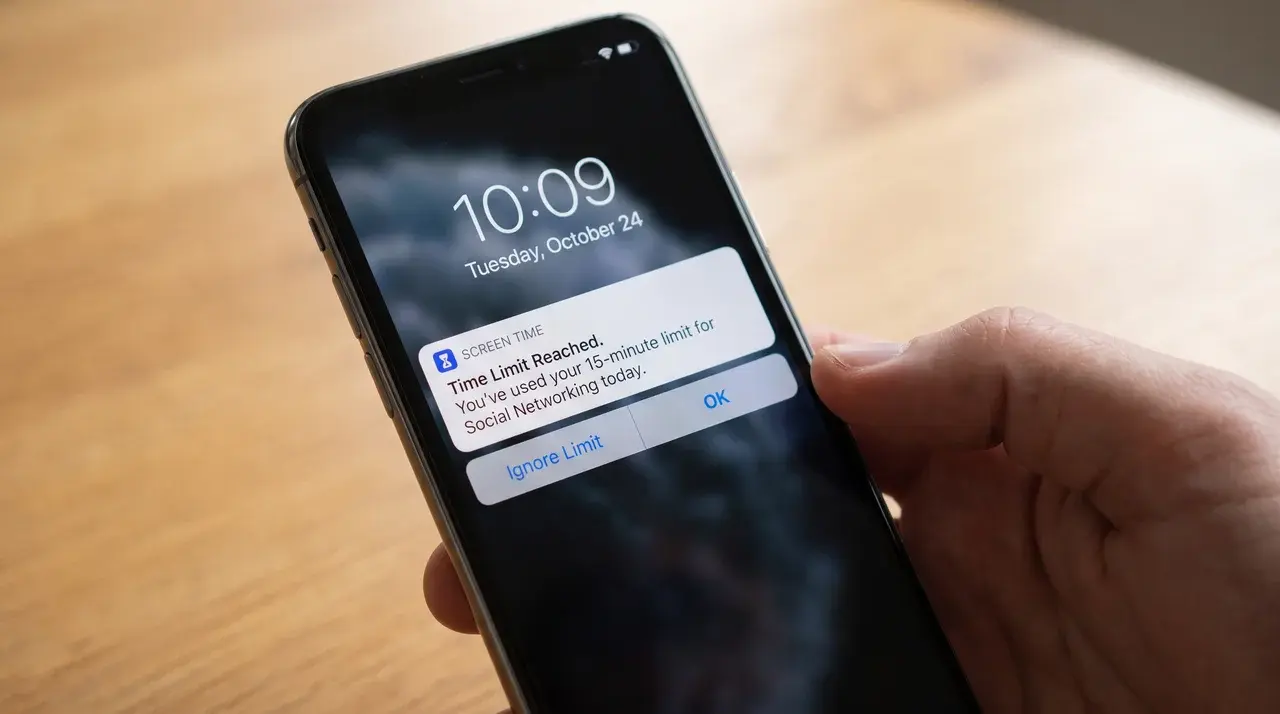
Set an App Limit, watch someone tap right through it, that’s the moment most people realize App Limits isn’t really a block. It’s a nudge with a snooze button.
That “Ignore Limit” option is built in on purpose. Apple designed App Limits to slow usage, not seal it off. Tapping it grants extra time, no passcode needed, unless you’ve locked one in.
Here’s what actually closes that gap. Go to Settings > Screen Time > Use Screen Time Passcode and set a PIN. Once it’s on, changing or ignoring any limit requires that code.
For a full stop, pair it with Content & Privacy Restrictions. This is what removes the override entirely, rather than just guarding it behind a passcode.
Kids’ devices add another layer to think about. A passcode stops your child from ignoring the limit on their own. It doesn’t stop them from deleting the app and reinstalling it, or picking up an old tablet with no restrictions at all.
That’s where Family Sharing matters. It lets you manage Screen Time settings from your own phone, so the block holds even if they find a workaround on the device itself.
How to Confirm the Block Is Actually Working
Don’t just trust the setup screen. Open the app yourself and see what happens.
A working block shows the Screen Time limit screen the moment you tap the app icon. If it opens like normal, something didn’t save.
Check the Screen Time report too. The app should show as blocked, or sitting at zero time remaining for the day.
Last check: try to change or remove the limit without the passcode. If it lets you through with no PIN, the block isn’t actually locked in yet.
Blocking Apps From Being Downloaded or Installed
This is a different setting from anything covered so far. It stops new apps from being installed at all, rather than restricting one already on the phone.
- Go to Settings > Screen Time > Content & Privacy Restrictions
- Turn on Content & Privacy Restrictions
- Tap iTunes & App Store Purchases
- Tap Installing Apps
- Select Don’t Allow
Once this is set, the App Store won’t let any new app install, no matter where the request comes from.
If you also want to block in-app purchases, tap In-app Purchases in the same menu and set that to Don’t Allow too.
Conclusion
Blocking an app on your iPhone isn’t about finding one perfect setting. Each tool works differently. App Limits reduces use, while Allowed Apps blocks access completely.
Downtime helps create a schedule by controlling when apps are available. The right choice depends on what you want to stop and why.
Adding a Screen Time passcode makes these settings harder to bypass. Without it, even strong restrictions can become easy to ignore.
Once you know how to block apps on iPhone properly, the process becomes simple. Set it up once, test it, and let it work.
Frequently Asked Questions
Can you block a specific app on an iPhone?
Yes. Screen Time’s App Limits feature lets you select individual apps or entire categories and set a time limit of zero hours and zero minutes, which prevents the app from opening once the limit is reached, as long as a Screen Time passcode is set to lock the setting.
How do I permanently block an app on iPhone?
For a permanent block with no override, use Content & Privacy Restrictions instead of App Limits. Go to Settings > Screen Time > Content & Privacy Restrictions, turn it on, open Allowed Apps & Features, and toggle the app off, then lock changes with a passcode.
How do I block apps on my child’s iPhone?
Set up their device through Family Sharing so you control the Screen Time passcode remotely, then apply App Limits or Allowed Apps & Features from your own phone. This prevents them from removing the block, reinstalling the app, or changing settings without your passcode.
Can you block an app from being installed?
Yes. Go to Settings > Screen Time > Content & Privacy Restrictions > iTunes & App Store Purchases, then set Installing Apps to Don’t Allow. This is separate from blocking an already-installed app and stops new downloads instead.





