

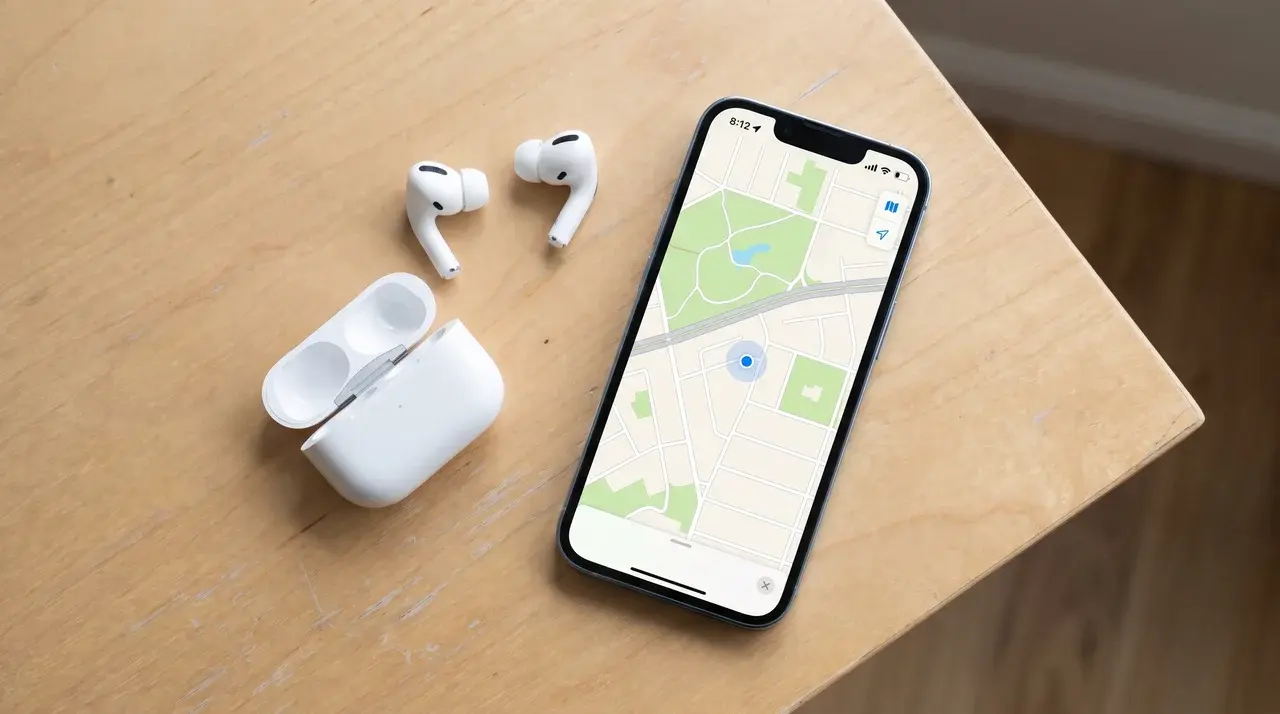
I used to think pairing my AirPods with my iPhone was all it took to keep track of them.
Then one day, I opened the Find My app and realized they weren’t showing up the way I expected. That small surprise sent me searching through settings for an answer.
Knowing how to add AirPods to Find My iPhone can save you time and frustration if they ever go missing.
A few quick checks and the right settings can make a big difference when you’re trying to find your AirPods instead of searching every room.
What You Need Before Adding AirPods to Find My
Three things have to be true before Find My will track your AirPods. Your AirPods need to be paired and connected. Your iPhone needs to be signed into the right Apple ID, and your setup needs to actually support the feature.
Miss any one of these, and the toggle either won’t show up or won’t stick. Your AirPods should already be connected over Bluetooth, separate from whatever charging cable connector types your case happens to use.
If they’re not showing up as connected, Find My won’t have anything to track yet.
Your iPhone also needs to be signed into iCloud with the same Apple ID you use for tracking. This is easy to overlook if you’ve switched accounts recently or share a device.
Also make sure Find My is enabled on your iPhone by going to Settings > Apple Account > Find My > Find My iPhone. If it’s turned off, your AirPods won’t be able to use Find My correctly.
Finally, check your AirPods model. Not every pair of AirPods supports the full Find My Network experience, so it’s important to confirm your model before continuing.
Which AirPods Support Find My Network?
Not every pair of AirPods can join the Find My network. Apple only built this feature into select models: AirPods 3, AirPods 4 with Active Noise Cancellation, AirPods Pro across all generations, and AirPods Max.
If you own AirPods (1st or 2nd generation), you won’t see the full Find My Network option because those models only support limited location features.
That’s a hardware limit, not a software bug, so updating iOS or your AirPods firmware won’t add the option.
These older models will still connect over Bluetooth and appear in your device list, and if you’re weighing true wireless earbud replacements, this tracking gap is worth factoring in, since Apple’s crowdsourced network won’t report their location once they’re out of range.
How to Add AirPods to Find My iPhone: Step by Step
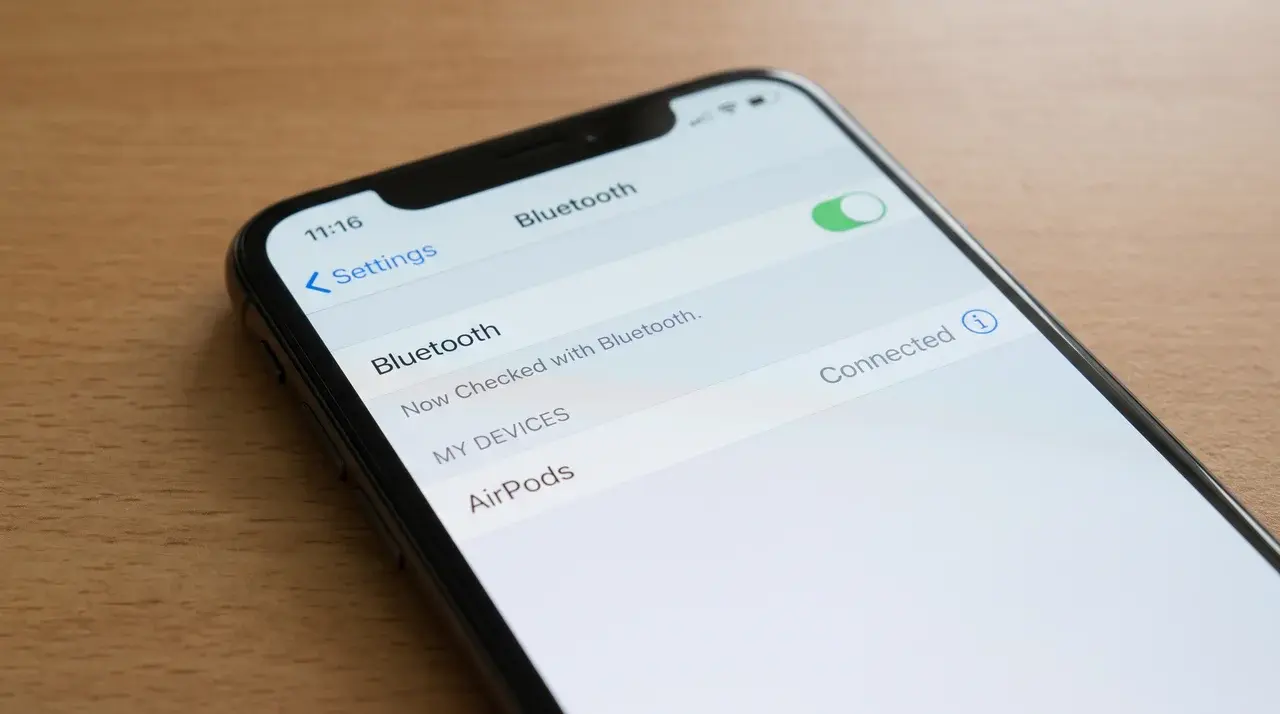
Here’s the exact path from Bluetooth settings to a working Find My toggle.
Follow these steps in order:
- Open Settings and tap Bluetooth.
- Find your AirPods in the device list and tap the info icon next to them.
- Scroll down and turn on Find My network.
- Open the Find My app and check the Devices tab.
Your AirPods should already be listed there.That’s because they show up automatically once paired; you’re not adding a new device, you’re just switching on tracking for one that’s already there.
Once you see your AirPods under Devices with a location or status showing, the toggle worked.
Why AirPods Don’t Show Up in Find My
A missing toggle or a stale location almost always comes down to firmware, iCloud, or proximity. It’s rarely a broken AirPods unit.
Missing or Grayed-Out Find My Toggle
If the toggle is missing or grayed out, first confirm your AirPods model qualifies, since only AirPods 3, AirPods 4 with ANC, AirPods Pro, and AirPods Max support Find My network.
Next, check for pending updates, since your iPhone needs current iOS and your AirPods need current firmware, which updates only in the case, near your iPhone, and connected to power.
Also confirm you’re signed into the right Apple ID, since a mismatch blocks the option.
AirPods Show as Offline or Not Updating Location
Find My doesn’t track AirPods using GPS. It relies on nearby Apple devices detecting them over Bluetooth.
So if your AirPods haven’t been near an iPhone, iPad, or Mac recently, Find My has nothing new to report. You’ll see a last-known location instead of a live one. This isn’t a malfunction. It’s how the network is built to work.
How to Confirm Your AirPods Are Being Tracked
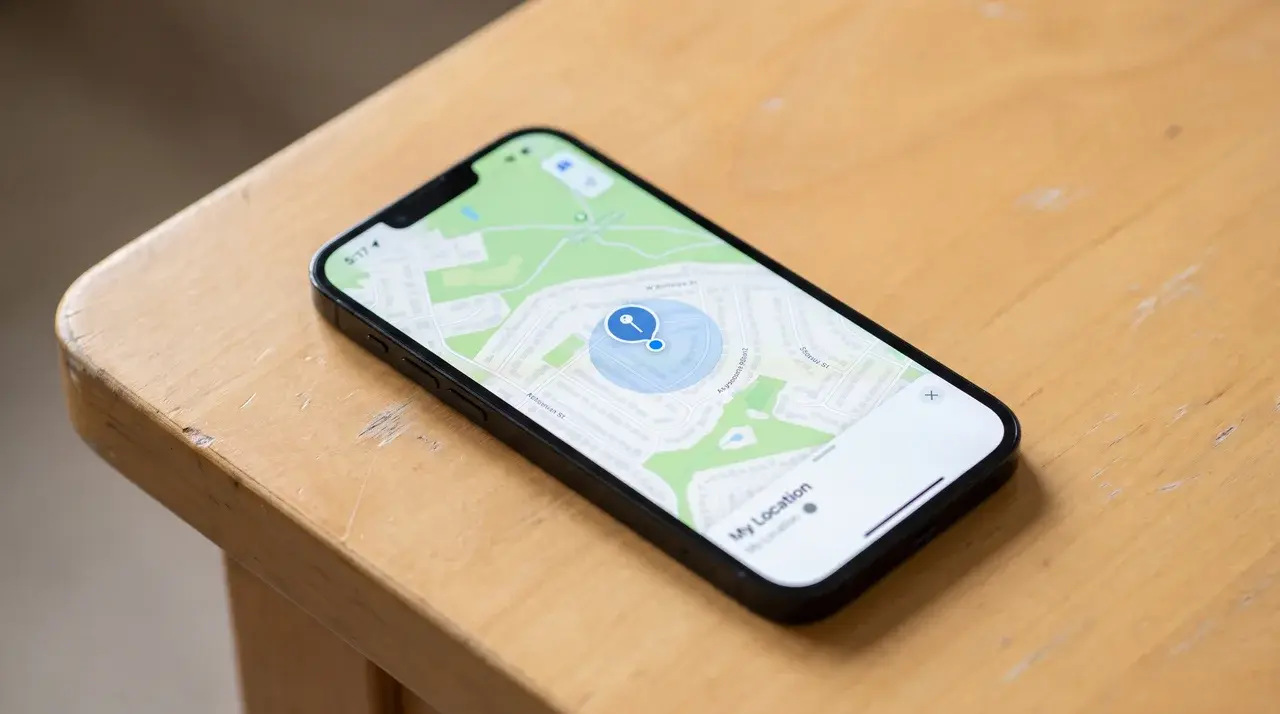
Confirmation is simple: open Find My and check for a location. If it says “no location found” or shows a delay, that’s usually normal, not a failure.
Remember, this isn’t GPS tracking. Your AirPods rely on nearby Apple devices to report their position.
So if you see a last-known location instead of a live one, it just means no Apple device has been close to them recently. Once one is, the location updates.
If you’re on Android, or you only use a Mac without an iPhone or iPad, this setup won’t work the same way for you. Find My network configuration needs an iPhone or iPad to enable it. Without one, you won’t have this option at all.
The Ending Note
Knowing how to add AirPods to Find My iPhone gives you a better chance of finding them before they disappear for good.
Once I understood how Find My works, checking my settings became part of setting up every new pair of AirPods. If something doesn’t look right, a few simple troubleshooting steps can usually get everything working again.
Taking a couple of minutes now can save a lot of stress later. Did these tips help you, or did you find another solution? Share your experience or questions in the comments below!
Frequently Asked Questions
Can I Manually Add My AirPods to Find My?
No manual add button exists. AirPods are automatically added to your iCloud account and appear in Find My once they’re paired with your iPhone.
How Do I Fix a “Mismatched AirPods” Alert?
This alert usually means one AirPod belongs to a different charging case or another set of AirPods. Make sure both AirPods are the same model and generation, then reset and pair them again if the alert doesn’t go away.
How Do I Locate AirPods that are Offline or Have a Dead Battery?
Find My can’t show a live location when AirPods are offline. It shows the last known location instead, which is the best place to start searching.





