

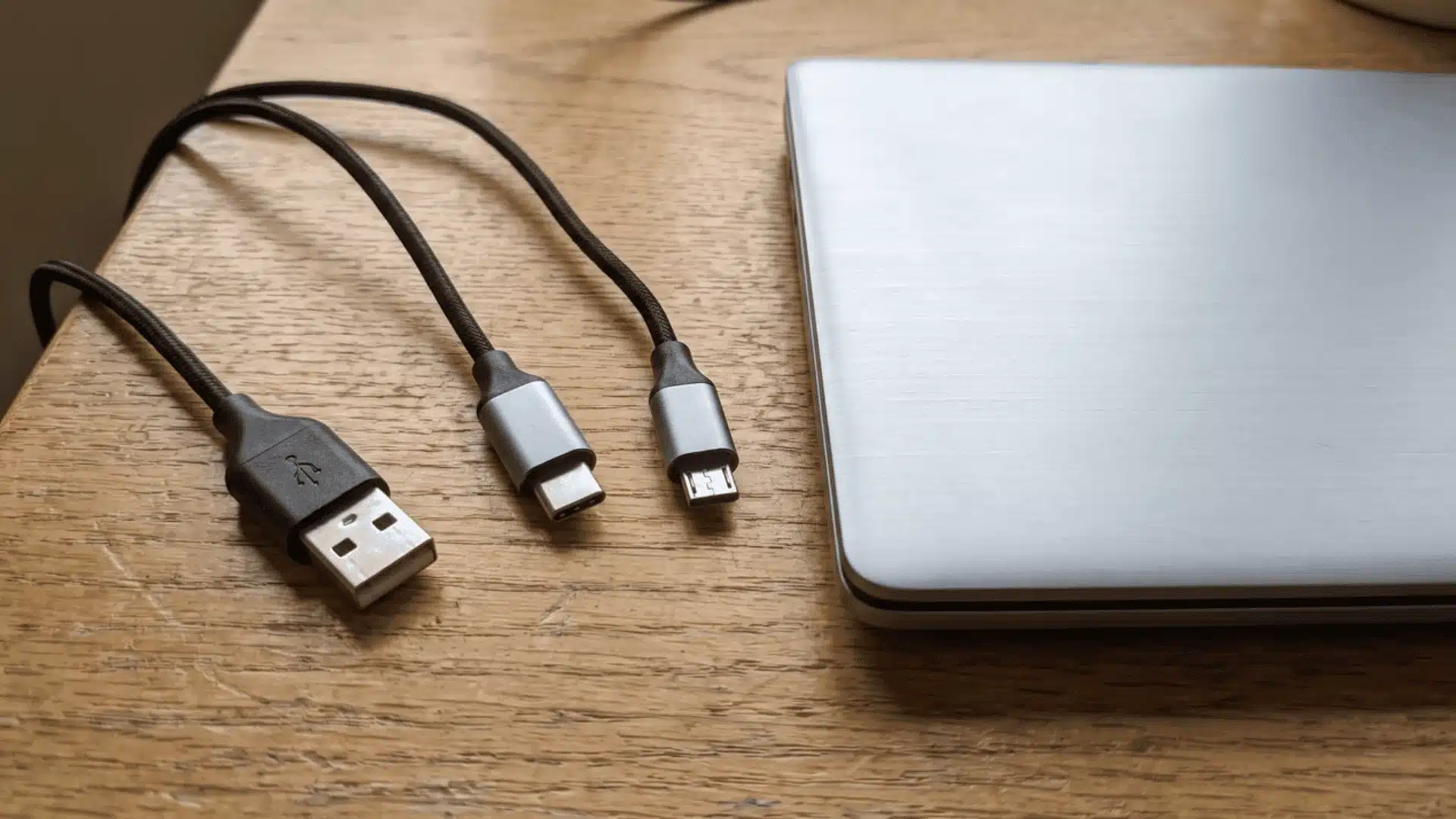
Cables tangled in a drawer rarely announce what they actually support. Comparing USB-A vs. USB-C, USB-C vs. Micro USB starts with recognizing the shape before anything else.
Each connector looks different for a reason, tied to when it was designed and what devices it was built to serve. Shape alone won’t tell you everything though.
Once you start looking closely at your own cables and ports, the differences become obvious fast, and choosing the right one gets a lot easier.
What Are USB-A, USB-C, and Micro-USB?
USB-A, USB-C, and Micro-USB are three different connector shapes, not speed levels. Understanding the shape first helps you avoid confusing appearance with performance later on.
USB-A is the flat, rectangular plug you’ve likely used for years. Found on older laptops, chargers, and hubs, it only fits one way, requiring the occasional flip.
USB-C looks completely different: small, oval, and fully reversible. It’s now standard on most modern phones, laptops, tablets, and accessories, with no wrong way to plug in.
Micro-USB is the connector most people are phasing out. Small and trapezoidal, it only fits one way and mainly appears on older or budget electronics like e-readers and speakers.
Once you can recognize these three by shape alone, you’re ready to understand why they behave so differently in speed and power.
Shape Isn’t the Same as Speed: Why USB-C Doesn’t Always Mean “Fast”?
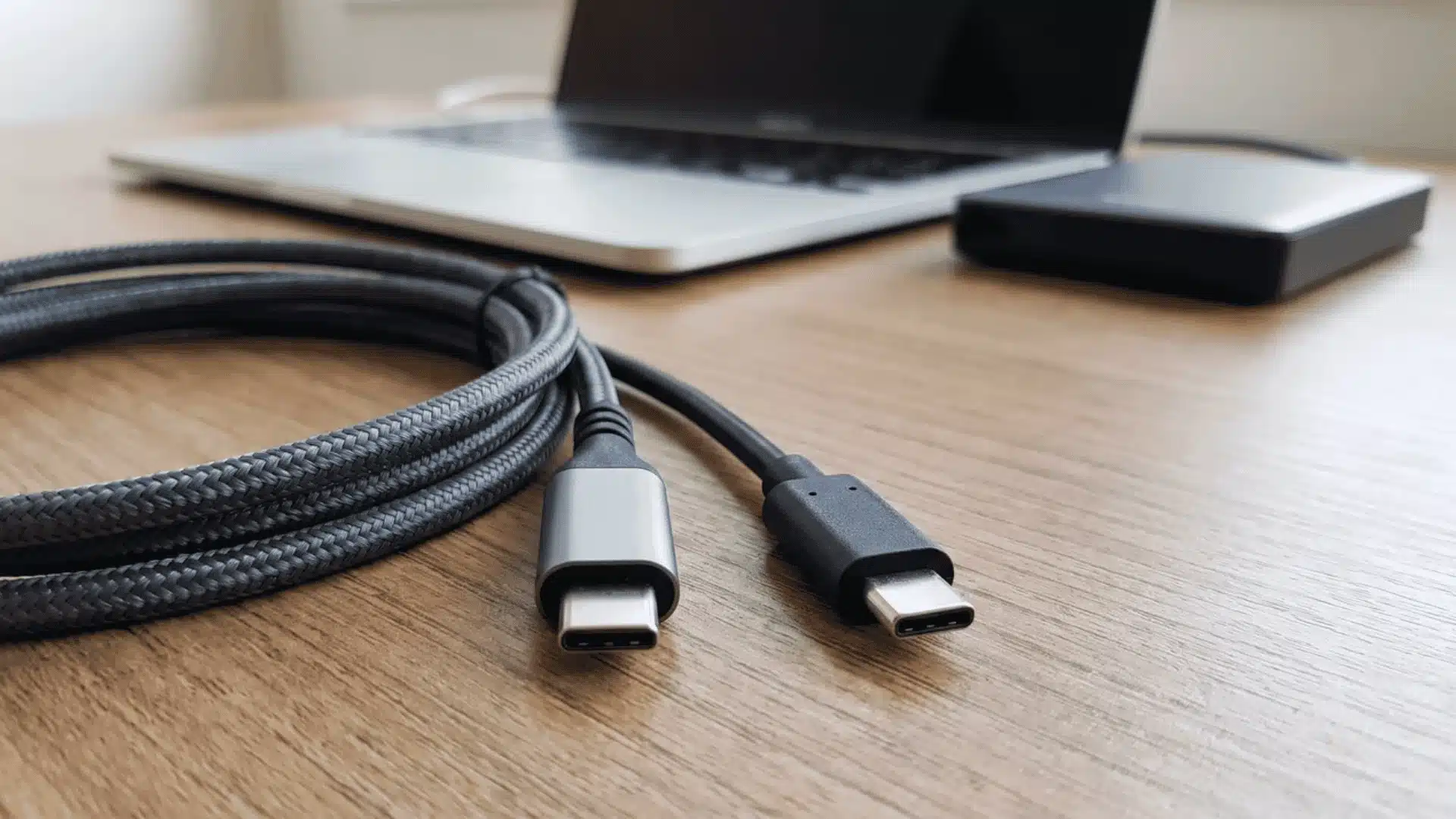
Here’s something that trips a lot of people up. A USB-C port doesn’t automatically mean fast charging or fast transfer. Shape and actual performance are two separate things entirely.
That’s because USB-C is just a connector shape, not a performance standard. Real speed and power depend on what’s built inside, whether USB 2.0, 3.2, or USB4. Two cables can look identical yet perform very differently.
How to Tell What Standard Your USB-C Cable Actually Supports?
You can’t always tell by looking, but there are useful clues. Check the packaging or cable itself for printed labels like “10Gbps” or “USB4.”
Thicker cables often support higher power delivery, since they need more internal wiring. Thin, cheap-looking cables are usually built for charging only, not fast transfers.
If you’re still unsure, test it. Plug it into a device you know supports high speeds and check the actual transfer rate or wattage shown.
So before assuming your cable is fast just because it fits, look closer. What’s printed on it, or how it performs, tells you more than shape ever will.
USB-C vs. USB-A vs. Micro-USB: Structural and Practical Differences
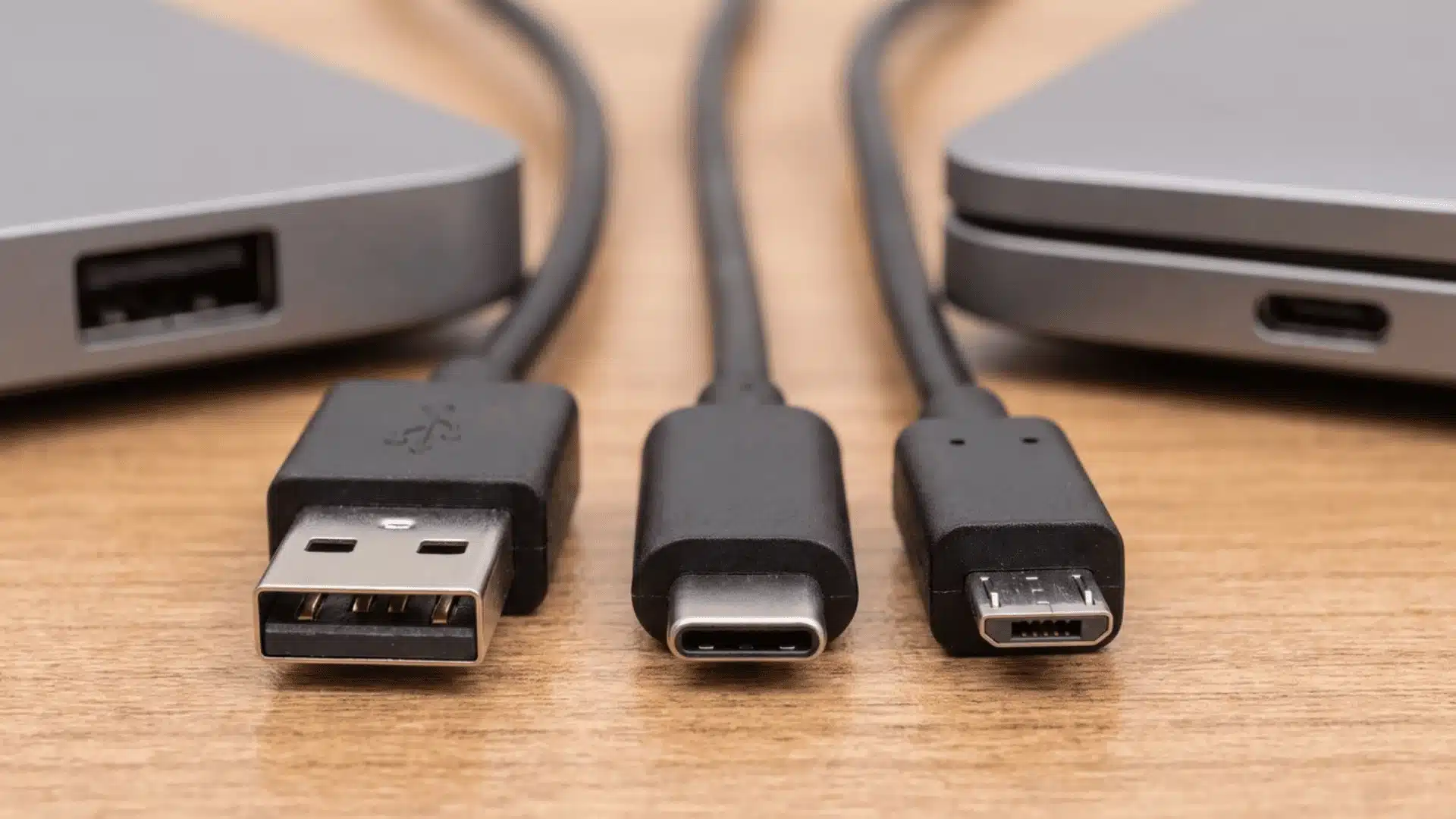
This comparison covers durability, power delivery, and data speed together, so you can see how all three connectors stack up side by side rather than piecing it together separately.
| Feature | USB-A | Micro-USB | USB-C |
|---|---|---|---|
| Reversible | No | No | Yes |
| Durability | Moderate | Low | High |
| Max Power | ~2.5–15W | ~5–18W | Up to 240W |
| Max Data Speed | Up to 5Gbps (3.2) | Up to 480Mbps (2.0) | Up to 40–80Gbps (USB4) |
| Video Output | No | No | Yes (Alt Mode) |
Durability and reversibility set these connectors apart. USB-C is reversible and built for years of daily use. USB-A fits only one way, while Micro-USB wears out fastest because of its fragile tab.
Put simply, USB-C wins on nearly every practical measure, but the real performance still depends on the standard built into your specific cable.
Which Connector Should You Use?
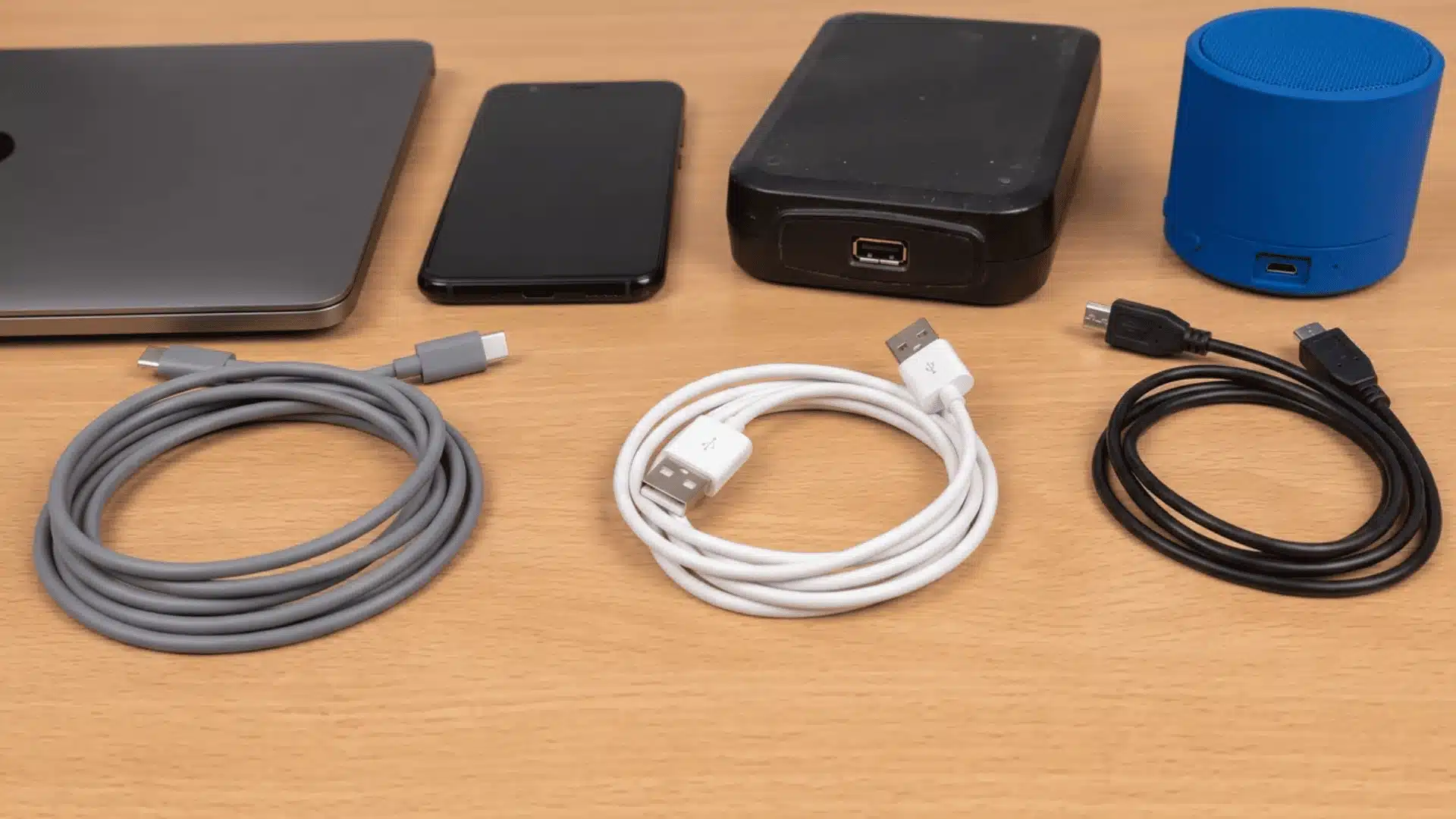
Honestly, the right connector depends on your device’s age and what you actually need it for, not personal preference or which one looks nicer to you.
- Go with USB-C if you’re buying something new. It’s the best pick for fast charging, video output, or high-speed data transfer on modern devices.
- Stick with USB-A if you’re dealing with legacy hardware or older peripherals. It’s still perfectly fine for simple charging where speed isn’t a priority.
- Treat Micro-USB as legacy-only. It’s being phased out steadily, so only replace with it if you’re stuck with an older device that requires it.
At the end of the day, match the connector to the device in front of you. Newer tech leans USB-C, older tech still leans on the other two, and that’s perfectly okay.
Conclusion
Choosing between USB A vs. USB C, or a Micro USB really comes down to matching the connector to your device’s age and actual needs.
USB-C now leads for speed, power, and durability, while USB-A and Micro-USB still serve specific legacy purposes without needing replacement everywhere.
Looking back, the real lesson isn’t which connector wins outright, but understanding that shape and performance are separate things entirely.
Next time you’re buying a cable, check the printed labels first. Your devices, and your patience, will genuinely thank you later.
Frequently Asked Questions
Is USB-C always better than USB-A?
USB-C generally outperforms USB-A in speed, power delivery, and durability, but “better” depends on your device. Older hardware without USB-C ports still requires USB-A, so the right choice depends on compatibility, not just raw performance specs.
Can I use a USB-C to Micro-USB adapter?
Yes, USB-C to Micro-USB adapters and cables exist and work for basic charging and data transfer. However, they’re limited by Micro-USB’s slower USB 2.0 speeds and lower power capacity, regardless of what the USB-C end supports.
Why do some USB-C cables charge slower than others?
USB-C cables vary internally based on the USB standard and wiring gauge used. A cable rated for USB 2.0 charges and transfers data slower than one built for USB4, even though both use the same USB-C connector shape.
Is Micro-USB completely obsolete now?
Micro-USB isn’t fully obsolete, but it’s being phased out steadily across new devices. It still appears on budget electronics, older peripherals, and some accessories, though manufacturers increasingly favor USB-C for its speed and durability advantages.





One Response