
Creating video from a still picture is now much easier than learning traditional animation. A free AI image-to-video generator can add camera movement, facial expressions, environmental effects, and object motion in a few minutes. This makes these tools useful for social media posts, product promotions, digital art, and personal projects. This guide compares five beginner-friendly options, which only require an image and a short text prompt.
1. Pollo AI

Pollo AI is a strong first choice for beginners who want more than a single animation tool. Its Marketing Studio and Creative Studio combine leading AI models, Pollo Agent, and tools for video, image, audio, and avatar creation. This setup helps marketers, creators, sellers, and brands move from an idea to content ready for publishing without changing platforms.
To start, go to Pollo AI image to video generator and upload a clear picture. Describe one simple motion. Try, “The camera slowly moves closer while the leaves sway gently.”
Review the face, edges, text, and background before downloading. Pollo AI is best for users who want one workspace for creating, refining, and preparing campaign content. Free access and credit limits can change, so check terms.
2. Pika AI
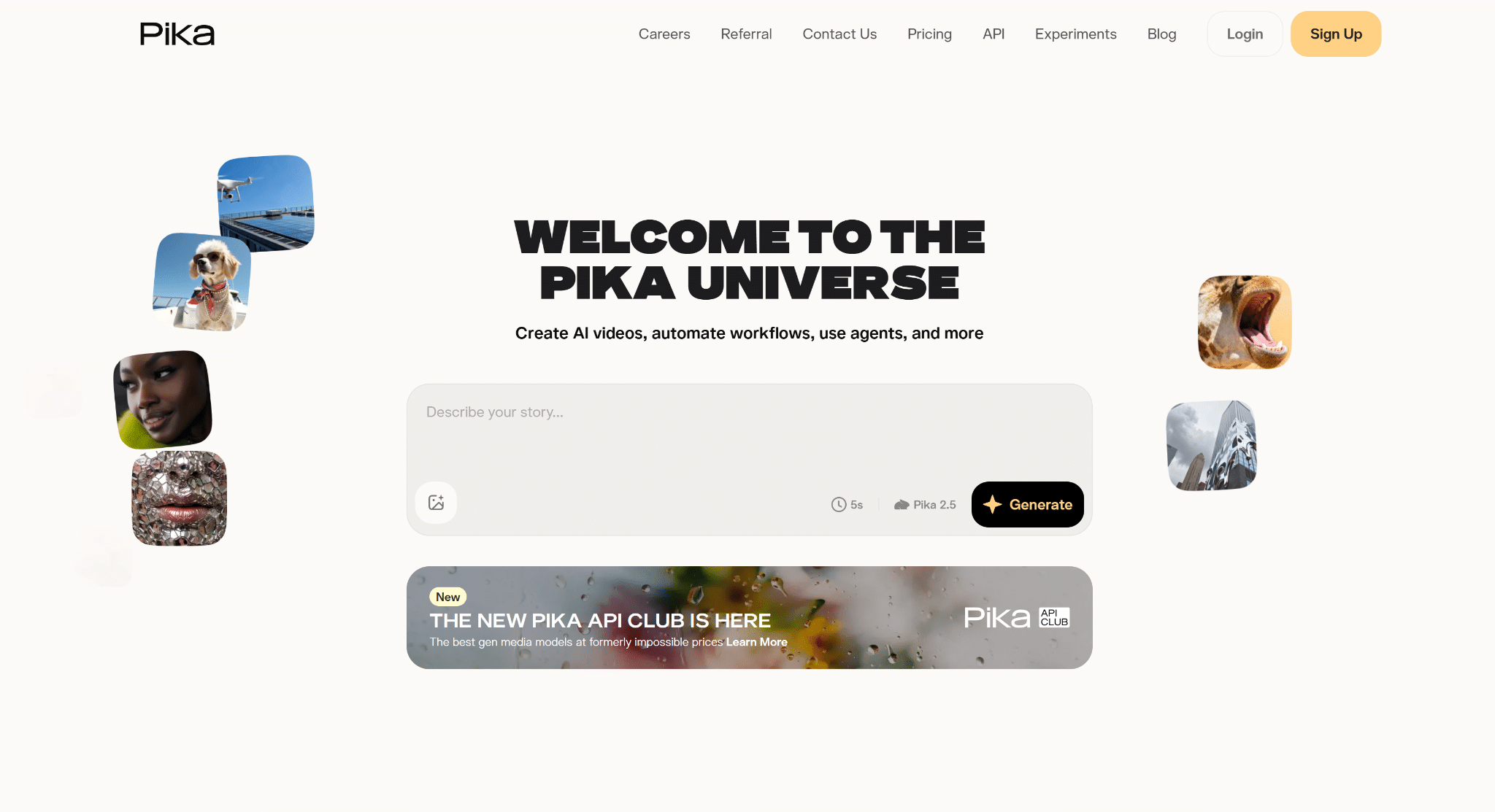
Pika AI is an approachable option for beginners who want quick, playful animations from still images. Its simple workflow suits social posts, concept tests, memes, and short promotional clips. Users can experiment with motion and visual effects without learning a traditional video editor, making it useful for fast creative practice.
Upload an image with one clear subject, then request a small action and a controlled camera move. Try, “The character blinks and smiles as the camera pans slowly right.”
Keep early tests short, because complex movement may distort faces or hands. Pika AI is best for creators making entertaining clips and testing several ideas quickly. Free usage may involve credits, queues, watermarks, or export limits, so review the latest plan.
3. Seedance
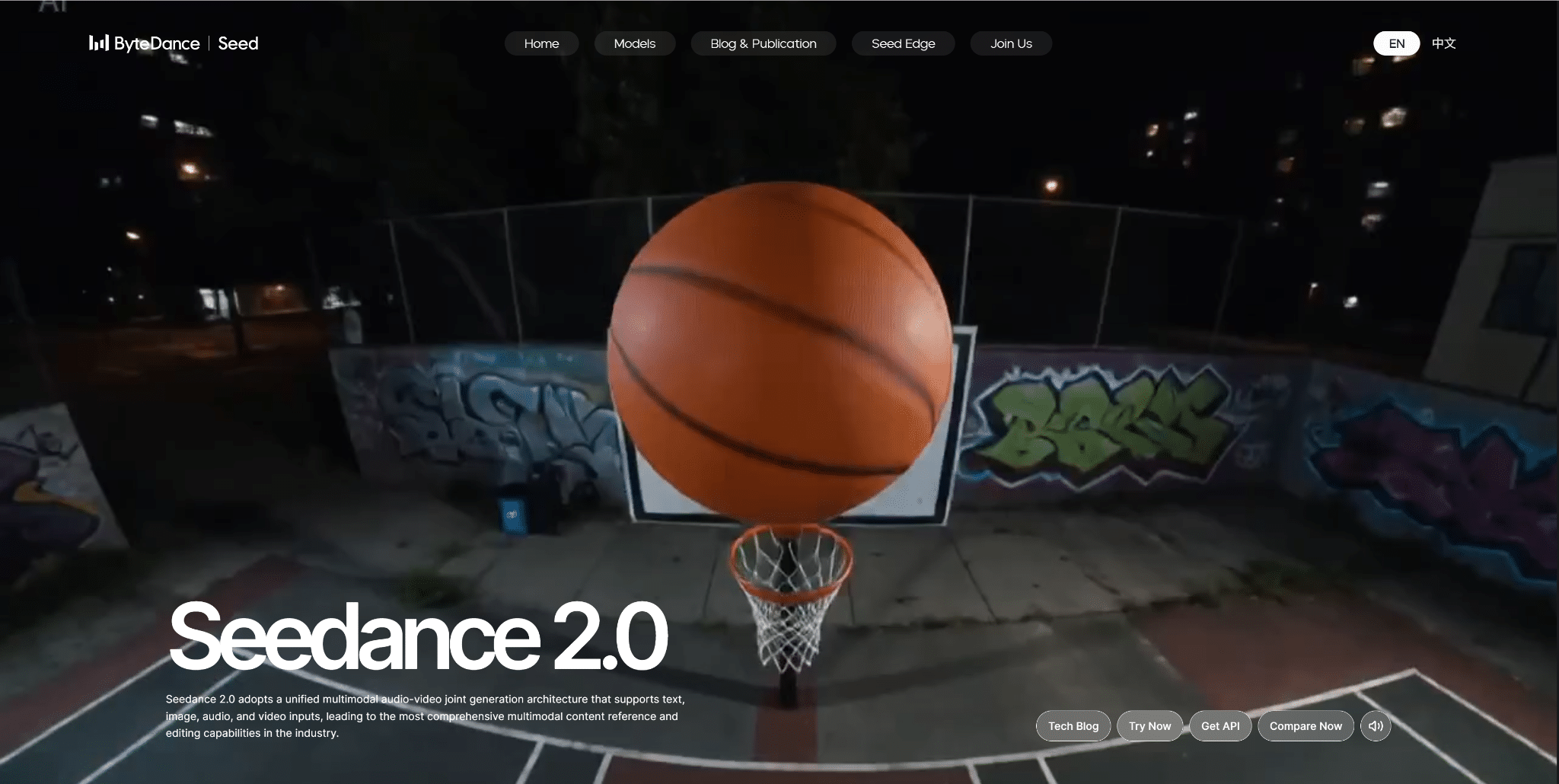
Seedance is useful for beginners who value smooth motion, clear scenes, and a more cinematic feel. It can help turn portraits, landscapes, product images, and illustrations into short videos with purposeful camera movement. The tool is especially relevant when visual consistency matters more than dramatic effects or novelty.
Begin with a sharp image that has space around the main subject. Describe timing as well as action. Try, “The boat moves forward slowly, water ripples naturally, and the camera follows from behind.”
Avoid adding several characters or unrelated events in one prompt. Seedance is best for scenic shots, story moments, and polished brand visuals. Availability may depend on your location or access point, and free generation rules may change over time.
4. Kling AI
Kling AI gives beginners useful control when converting detailed images into realistic moving scenes. It is often chosen for portraits, fashion visuals, product shots, and cinematic environments. The range of settings can require more attention than a basic generator, but careful prompting can produce controlled and convincing motion.
For your first test, use a simple composition and ask for gentle movement. Try, “The model turns slightly toward the window while fabric moves softly in the breeze.”
If the output changes facial details, reduce head motion and keep the camera steady. Kling AI is best for users seeking realistic motion and willing to adjust prompts carefully. Free access can include daily credits, slower queues, or limited modes, so verify current conditions.
5. Runway
Runway is a practical option for beginners who also want editing, creative controls, and production tools around AI video generation. It supports professional content workflows, making it suitable for advertisements, presentations, social campaigns, and visual experiments. Beginners may need more time to explore the interface, but the workflow can grow with their skills.
Start by uploading a clean source image and writing a direct motion prompt. Try, “Steam rises from the coffee, morning light shifts gently, and the camera pushes forward.”
Generate a short draft first, then compare variations before spending more credits. Runway is best for users who expect to combine generation with broader video production. Its free tier may limit credits, resolution, storage, or exports, so check details.
How to Get Better Image-to-Video Results
Whichever free AI image-to-video generator you choose, follow a simple production process:
- Use a clear source image. Select a sharp image with good lighting and one obvious subject.
- Choose one main action. Small movements usually look more natural than several complex actions.
- Describe camera motion. Use clear phrases such as “slow zoom in,” “gentle pan left,” or “steady orbit.”
- Keep early clips short. Test the idea before using more credits on longer or higher-quality videos.
- Check visual details. Look for distorted faces, hands, product shapes, text, and background objects.
- Add text afterward. AI-generated text can be inaccurate, so add prices, names, and captions during editing.
- Confirm usage rights. Make sure you can legally use the source image, music, logos, and generated output.
Which Tool Should You Choose?
Choose Pollo AI if you want an all-in-one creative platform with access to multiple AI models and tools. Pika AI is suitable for quick, playful content, while Seedance is helpful for smooth cinematic scenes. Kling AI works well for realistic motion, and Runway offers a broader production workflow.
For most beginners, Pollo AI is the best place to start because it supports the full process from idea to publish-ready content. Begin with a clear image and a simple motion prompt, then improve one detail at a time.