

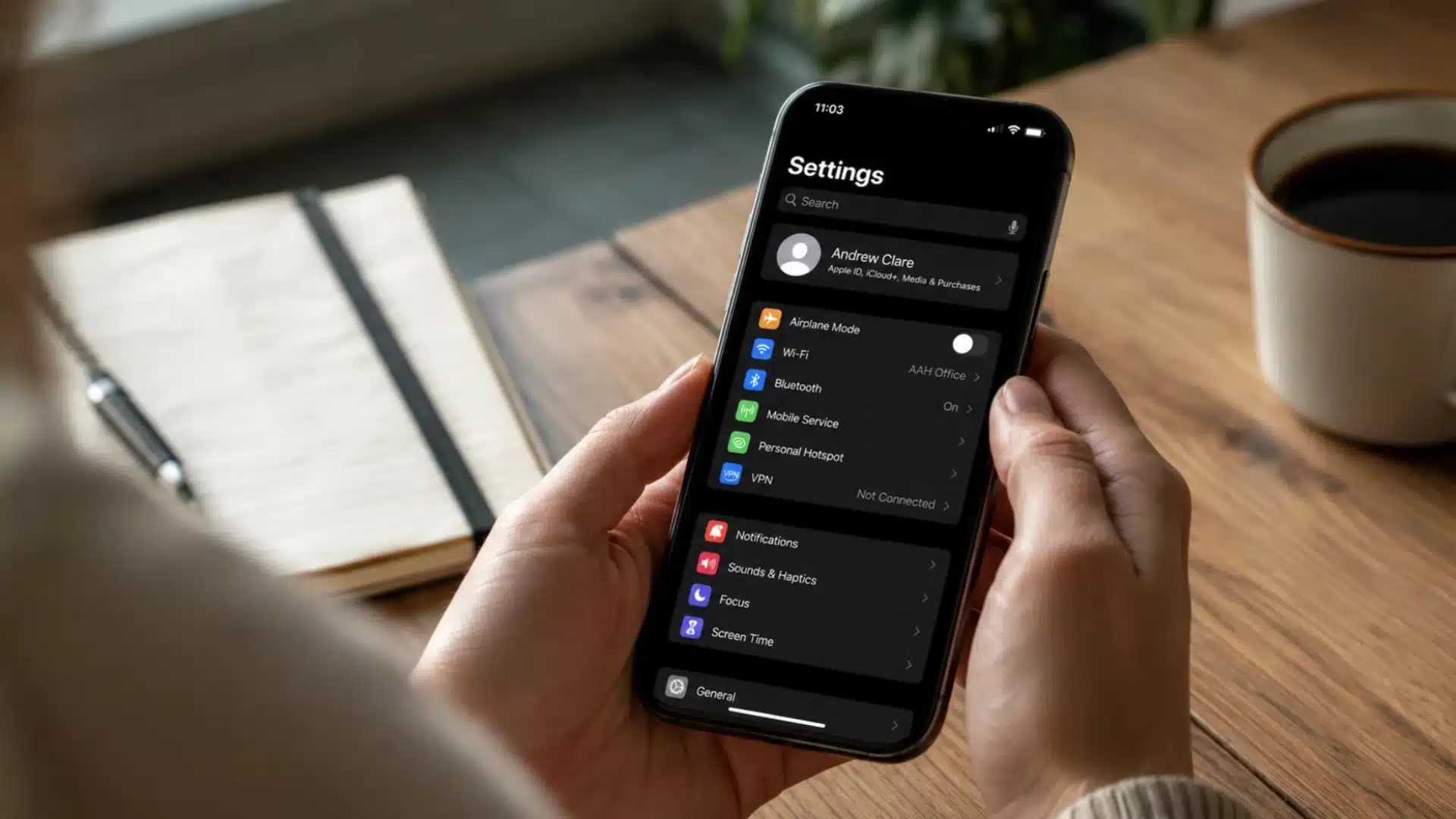
A factory reset iPhone can feel like a fresh start, but pressing the wrong button too soon can lead to lost data or account problems.
Before I erase an iPhone, I always check that important photos, messages, passwords, and other data are safely backed up or synced. The right method also depends on the phone’s condition.
An unlocked iPhone can usually be erased through Settings, while a locked or disabled iPhone may need a different reset method.
Knowing what to do before, during, and after the reset can make the process much easier. From preparing your data to checking the Hello screen, each step matters when resetting an iPhone.
What to Do Before You Factory Reset Your iPhone
Before resetting your iPhone, complete these checks so you do not lose important data or create activation problems later.
- Back Up Your iPhone First: Open Settings, tap your name, select iCloud, and tap iCloud Backup. Choose Back Up Now, fix a paused iCloud sync if needed, and keep the phone connected to Wi-Fi until the backup finishes.
- Decide What to Do with Your eSIM: Keep the eSIM if you plan to continue using the same iPhone and mobile number after the reset.
- Delete the eSIM Before Selling: If you’re selling, trading in, or giving away the iPhone, choose to delete the eSIM when prompted. You may need to contact your carrier to reactivate your cellular plan.
- Prepare Your Apple Account Password: You may need it to confirm the erase and turn off Find My and Activation Lock.
Once these steps are complete, your iPhone is ready for a factory reset. Make sure your backup is finished and your account details are available before you continue.
How to Reset iPhone to Factory Settings
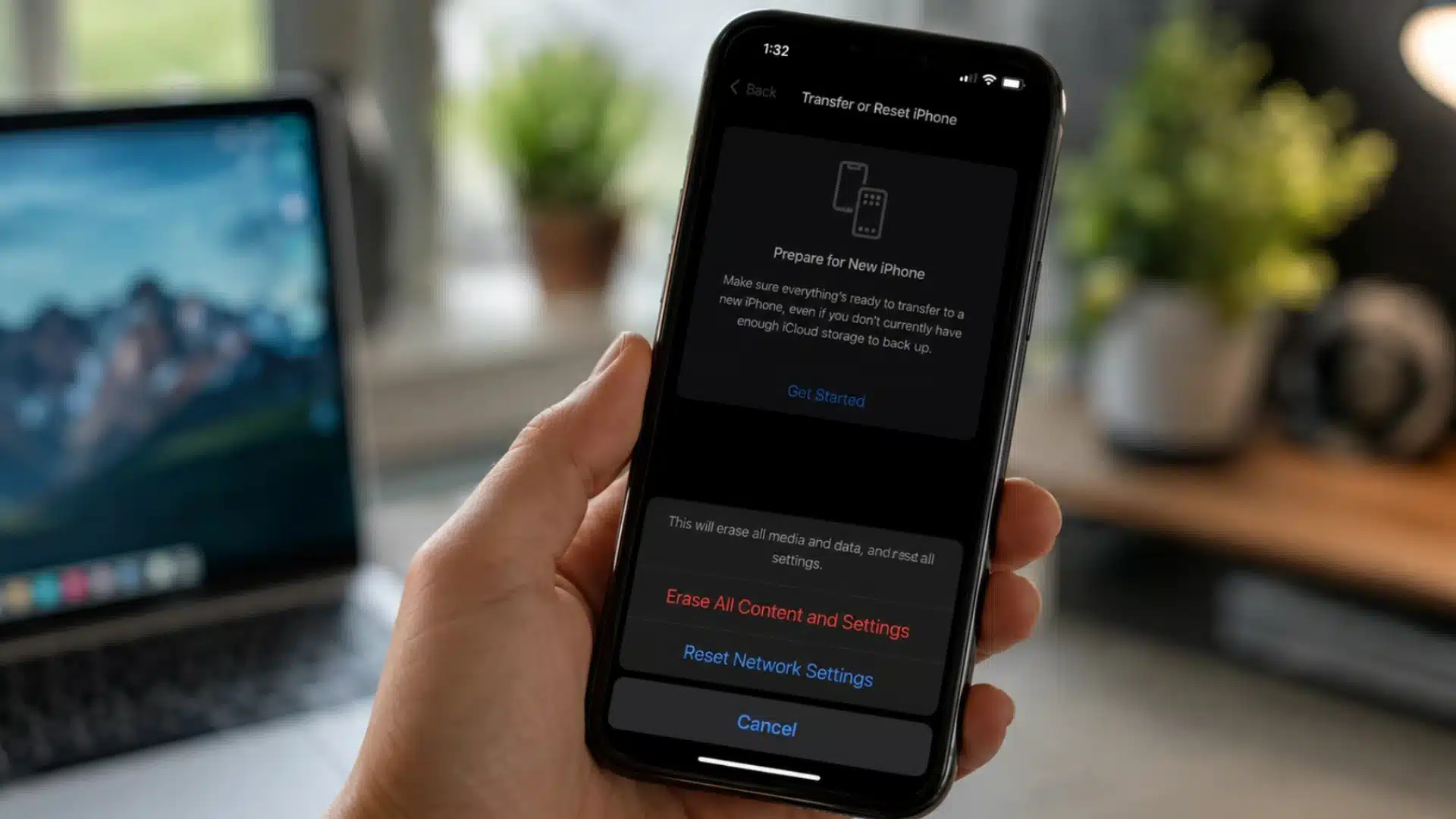
- Open Settings, tap your name if needed, select General, then scroll down and tap Transfer or Reset iPhone.
- Tap Erase All Content and Settings, then tap Continue after reviewing what will be removed.
- If prompted, allow the iPhone to create a final backup or choose to continue without one if your data is already saved.
- Enter your device passcode, then provide your Apple Account password when requested to disable Find My and remove Activation Lock.
- Tap the confirmation option to start erasing your iPhone. Keep the device connected to power until the process finishes.
- The iPhone will restart automatically and display the Hello screen once all content and settings have been removed.
How to Reset an iPhone That’s Locked, Disabled, or Passcode-Locked
When the iPhone is disabled or you forgot the passcode, you may be able to erase it directly from the device. If that option isn’t available, Recovery Mode lets you reset a locked phone using a computer.
- Connect the iPhone to a Mac or Windows computer with a compatible cable. Open Finder on a Mac running macOS Catalina or later, the Apple Devices app on Windows, or iTunes if you’re using an older version of macOS or Windows that doesn’t support Apple Devices.
- While the iPhone remains connected, use the correct button combination for your model to enter Recovery Mode. iPhone 8 and later, iPhone 7 series, and earlier models each use different button sequences.
- Keep holding the required button until the Recovery Mode screen appears. Do not release it when the Apple logo first shows.
- When the computer detects the iPhone, select Restore. It will download and reinstall iOS and erase the device. If the download takes over 15 minutes and the iPhone exits Recovery Mode, repeat the steps to enter Recovery Mode.
- After the reset, Activation Lock may require the previous owner’s Apple Account information during activation. If you’re giving the device to someone else, make sure it is no longer linked to your Apple Account before handing it over.
Once the restore is complete, you can set up the iPhone, restore a backup, or prepare it for a new owner if Activation Lock has been removed.
Factory Reset iPhone vs Hard Reset
A hard reset and a factory reset may sound similar, but they serve very different purposes. A hard reset simply restarts the iPhone, while a factory reset erases its content and settings.
| COMPARISON POINT | HARD RESET | FACTORY RESET |
|---|---|---|
| Main Purpose | Restarts an iPhone that is frozen, unresponsive, or not working correctly. | Erases the iPhone completely and returns it to its original setup state. |
| Data Removed | No photos, apps, accounts, messages, or settings are deleted. | All personal files, apps, accounts, passwords, and settings are removed. |
| When to Use It | Use it when the screen freezes, apps stop responding, or the phone becomes slow. | Use it before selling, trading in, giving away, or fully restoring the device. |
| How It Works | Perform a force restart using the button sequence for your specific iPhone model. | Open Settings, select Transfer or Reset iPhone, then choose Erase All Content and Settings. |
Try a hard reset first for performance or freezing problems. Use a factory reset only when you intend to remove everything from the iPhone permanently.
How to Confirm the Reset Worked
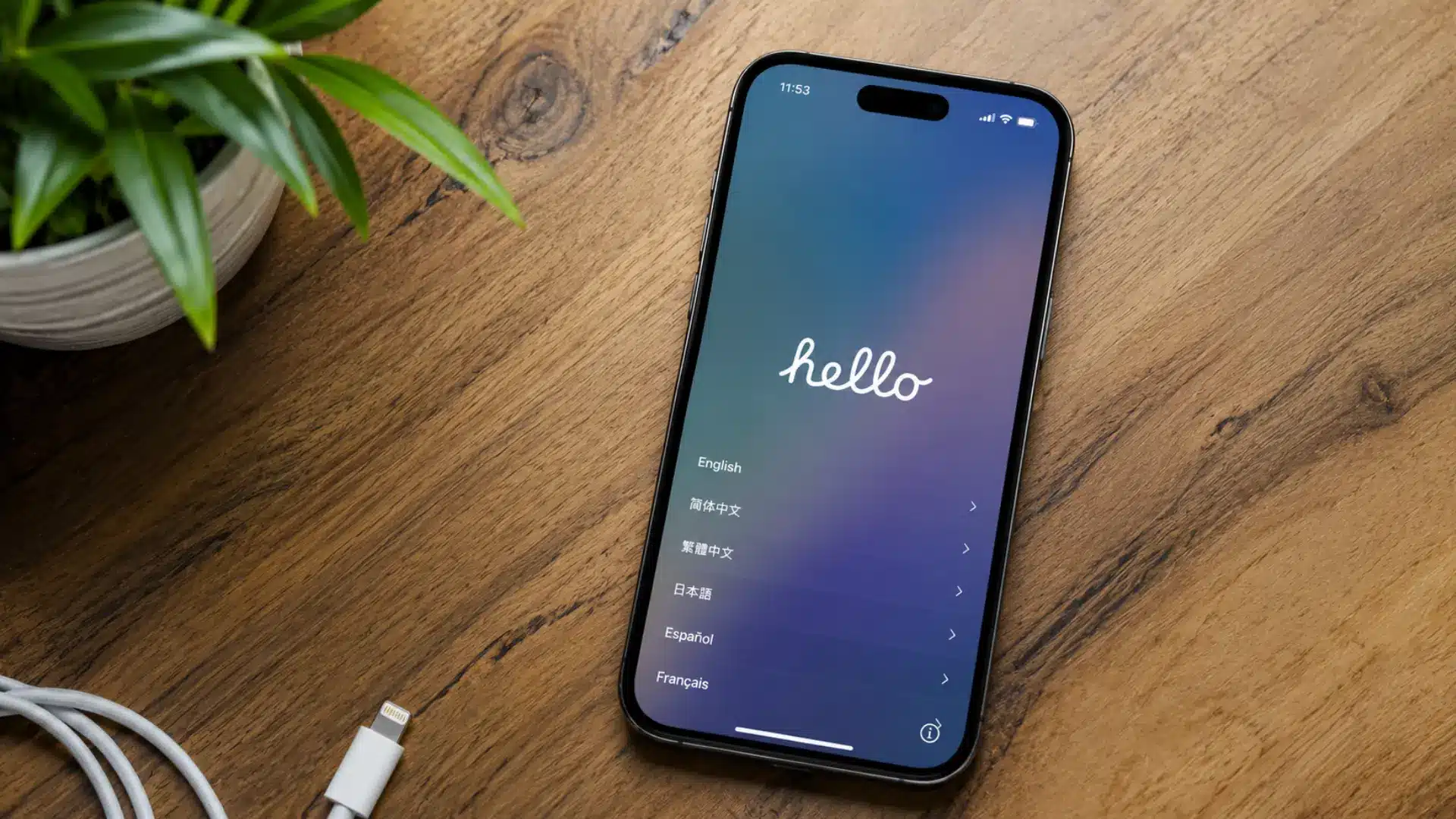
Once the erase process is complete, the iPhone should restart automatically and display the “Hello” screen.
This confirms that the device has been wiped and is ready for a fresh setup, whether you plan to keep it, sell it, or give it to someone else.
From this screen, you can choose a language, connect to Wi-Fi, and restore a backup if needed. However, if the phone asks for the previous owner’s Apple Account password, Activation Lock is still enabled.
That means the iPhone remains linked to the original account, even though the data has been erased.
If Activation Lock appears during setup, the iPhone is still linked to an Apple Account and must be removed from that account before another person can activate it.
If you are preparing the phone for another person, make sure the setup screen appears without any account verification prompt before handing it over.
What to Do If Your iPhone Gets Stuck During a Factory Reset
An iPhone reset can occasionally stall or fail, but the next step depends on what appears on the screen.
- If the progress bar stops moving, wait several minutes before taking action. Devices with large amounts of storage may need extra time to erase everything.
- Avoid unplugging the iPhone or forcing a restart too early. Interrupting the erase process can cause software issues and make recovery more difficult.
- If the iPhone remains stuck and the progress bar does not move for an extended period, connect it to a computer and use Recovery Mode to restore it.
- If the iPhone returns to the lock screen instead of showing the “Hello” screen, repeat the reset through Settings or use Recovery Mode.
- Keep the iPhone connected to power during the reset whenever possible to avoid interruptions.
Once the “Hello” screen appears, the reset has finished successfully, all personal data has been removed, and the iPhone is ready for a fresh setup or new owner.
Final Thoughts
The iPhone factory reset process does not have to feel complicated when you prepare first and use the right method. Backing up your data, checking your Apple Account details, and handling your eSIM carefully can help prevent common problems.
I also recommend checking the Hello screen after the reset to confirm that the device has been erased successfully.
If the iPhone is locked or disabled, Recovery Mode can provide another way to restore it when needed. Taking a few extra minutes before erasing everything can save you trouble later.
Have you reset an iPhone before? Share your experience or any helpful tips in the comments below!
Frequently Asked Questions
Can I factory reset an iPhone without the passcode?
Yes. Depending on your iOS version and available options, you may be able to erase the iPhone directly from the Lock Screen. If that option isn’t available, you can use Recovery Mode with a Mac or Windows computer. This erases the device without needing the passcode, though you’ll still need the Apple Account password afterward to clear Activation Lock.
Does a factory reset remove Find My and Activation Lock?
Yes. When you properly erase an iPhone through Settings and complete the required Apple Account authentication, Find My and Activation Lock are turned off. If Activation Lock still appears during setup, the iPhone remains linked to an Apple Account.
Should I keep or delete the eSIM before resetting?
Keep the eSIM if you’re continuing to use the iPhone and your cellular plan. If you’re selling, trading in, or giving it away, choose to delete the eSIM when prompted. You may need to contact your carrier to reactivate your plan.
What happens to my data after a factory reset?
All content and settings stored on the iPhone are erased. Content already stored in iCloud isn’t deleted when you erase the device. If you backed up your iPhone beforehand, you can restore your data during setup.




One Response