

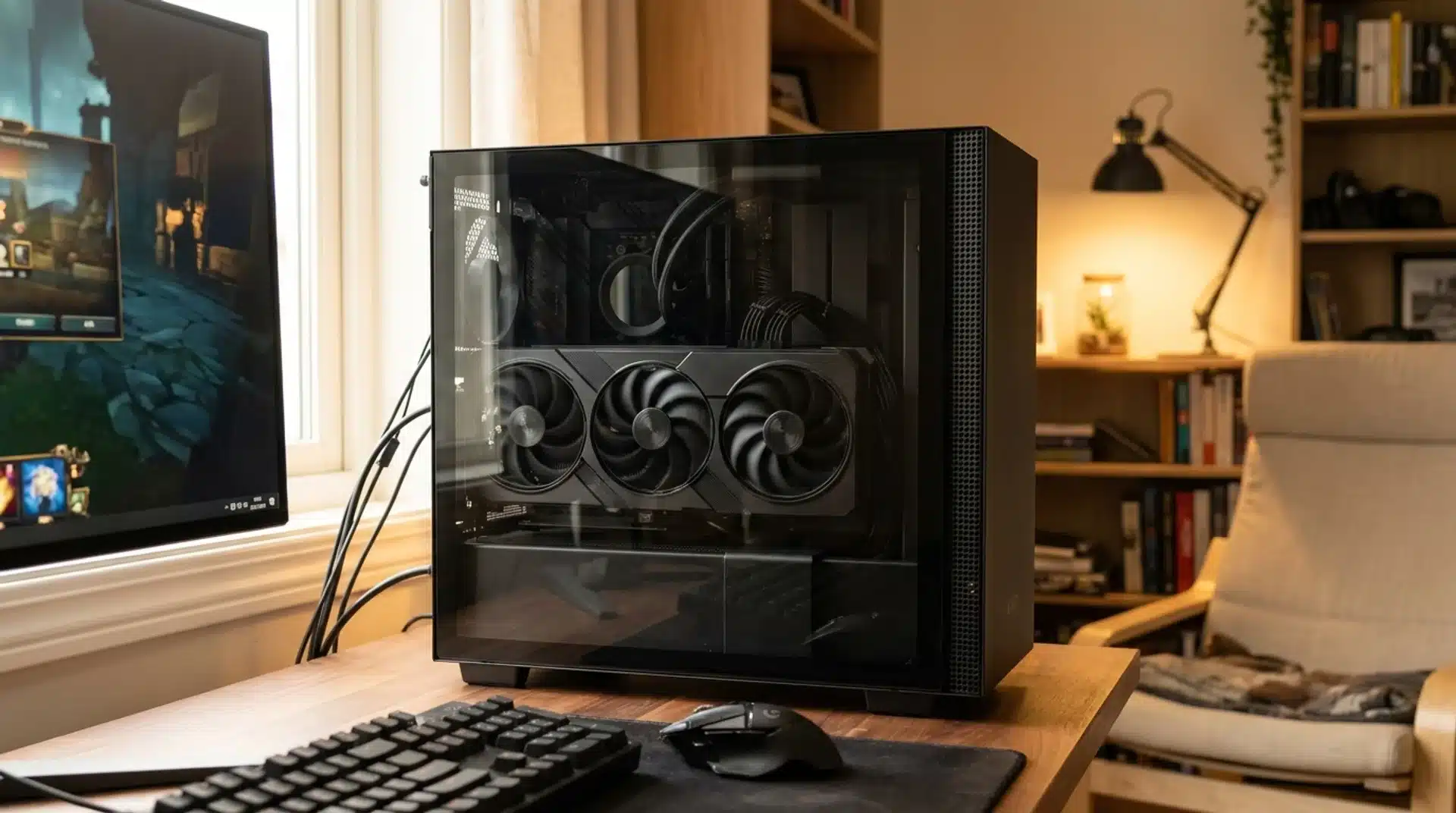
You check your GPU temperature during a game and suddenly see 80°C. Is that a normal GPU temp, or should you start worrying about your graphics card?
I know how easy it is to panic when the number looks higher than expected. But GPU temperatures can vary a lot depending on the card, game, cooling system, and room temperature.
A reading that looks high on one GPU may be perfectly fine on another. Understanding the usual temperature ranges can help you judge your readings without guessing.
From idle temperatures to heavy gaming loads, you’ll see what numbers are generally fine and when it’s worth checking your cooling.
What is a Normal GPU Temperature Range?
A normal GPU temperature range depends on the workload, cooling setup, and graphics card model.
As a general reference, many desktop GPUs sit around 30°C to 50°C at idle and about 65°C to 85°C while gaming. These numbers are guidelines, not fixed limits for every card.
A GPU can run warmer or cooler depending on room temperature, case airflow, fan settings, and how demanding the game is.
Your card’s manufacturer specifications are the best source for its maximum operating temperature.
For example, NVIDIA lists a maximum GPU temperature of 90°C for the RTX 5090, showing why one temperature should not be treated as a universal limit.
Why Do Normal GPU Temperatures Vary So Much?
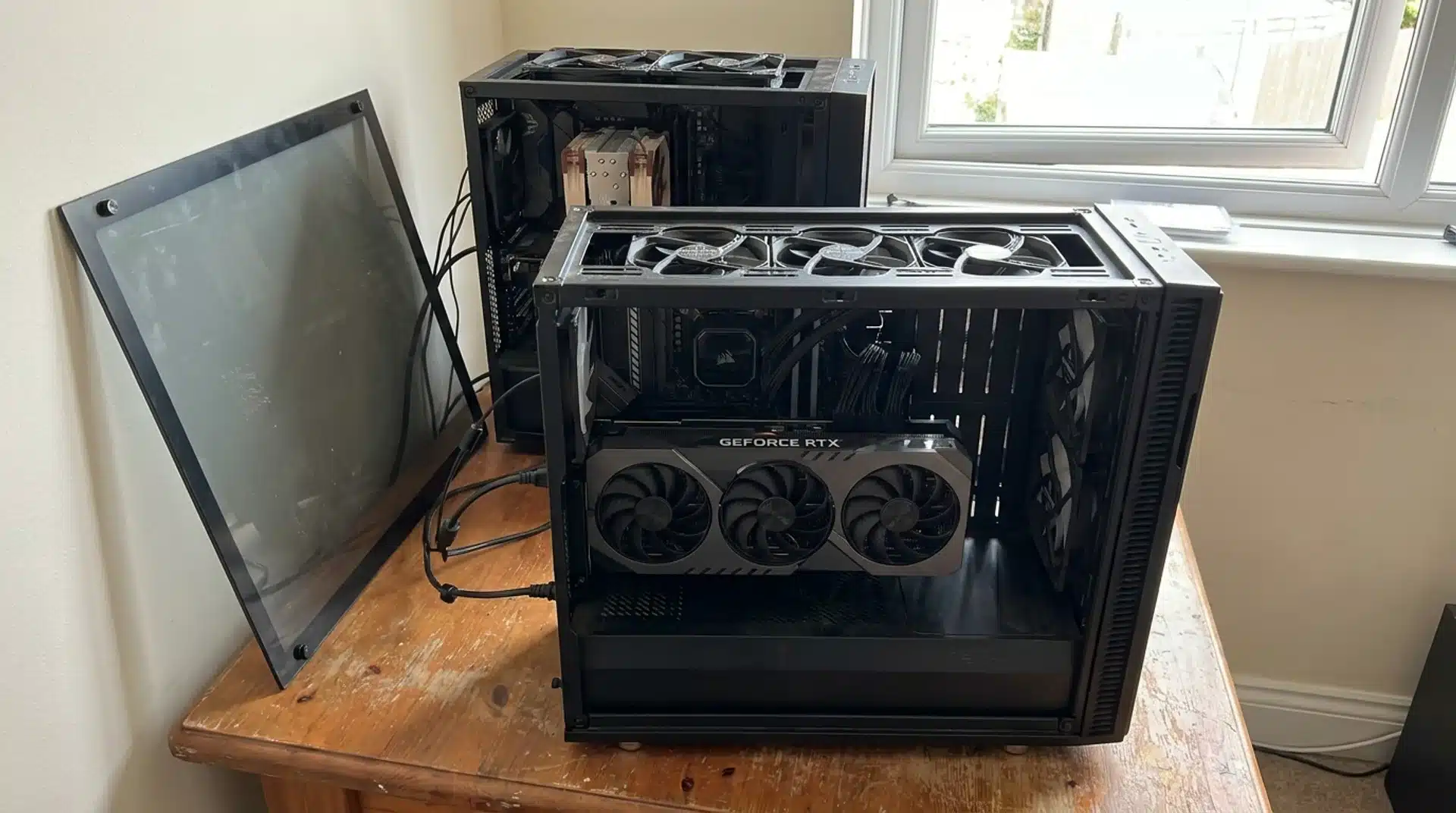
Normal GPU temperatures can differ even between two systems using the same graphics card.
Room temperature, case airflow, cooler design, fan settings, GPU power draw, and workload all affect how much heat the card produces and how quickly it can remove it.
A demanding game or resource-heavy editing software can push temperatures much higher than browsing or watching videos.
Zero-RPM fan modes can also let some GPUs warm up before their fans start spinning; ASUS, for example, lists fan-start temperatures above 55°C on several RTX models. GPU models also have different thermal limits and cooling designs.
That means a temperature that is normal for one card may be less suitable for another, so always compare your reading with the specifications for your specific GPU.
How to Tell If Your GPU Temperature is Actually Fine
A single temperature reading does not tell the whole story. Check what sensor is reporting the number, what the GPU is doing, and how the reading compares with your card’s specifications.
Core, hotspot, and memory temperatures can all tell you something different about how your GPU is handling heat.
GPU Core Temperature vs. Hotspot Temperature
The GPU core temperature shows the general temperature of the graphics processor, while the hotspot or junction temperature measures the hottest monitored area on the chip.
Hotspot readings are normally higher than core readings, so some difference is expected. What matters is how close each reading gets to your GPU’s rated thermal limit.
Always check the specifications for your exact model before judging a hotspot temperature.
Check VRAM Temperature Too
Some graphics cards also report a separate VRAM or memory-junction temperature.
This reading shows how hot the graphics memory is running and can be different from both the core and hotspot temperatures. Not every GPU exposes a memory temperature sensor, so you may not see one in your monitoring software.
If your card reports it, compare the reading with the manufacturer’s stated memory or thermal limits.
What Is a Good GPU Temperature for Your Specific Card?
General temperature ranges are useful, but your specific GPU’s specifications matter more when judging a reading. Current NVIDIA models show why no single maximum temperature applies to every card.
For example, NVIDIA lists different maximum GPU temperatures for several RTX 50-series models.
| GPU | MAXIMUM GPU TEMPERATURE |
|---|---|
| NVIDIA GeForce RTX 5090 | 90°C |
| NVIDIA GeForce RTX 5080 | 88°C |
| NVIDIA GeForce RTX 5070 Ti | 88°C |
| NVIDIA GeForce RTX 5070 | 85°C |
These figures are maximum GPU temperatures listed by NVIDIA, not recommended gaming targets. Your normal gaming temperature can be well below the maximum.
Graphics card specifications can also vary by add-in-card manufacturer, so check the exact model when possible.
When a GPU Temperature Actually Requires Action
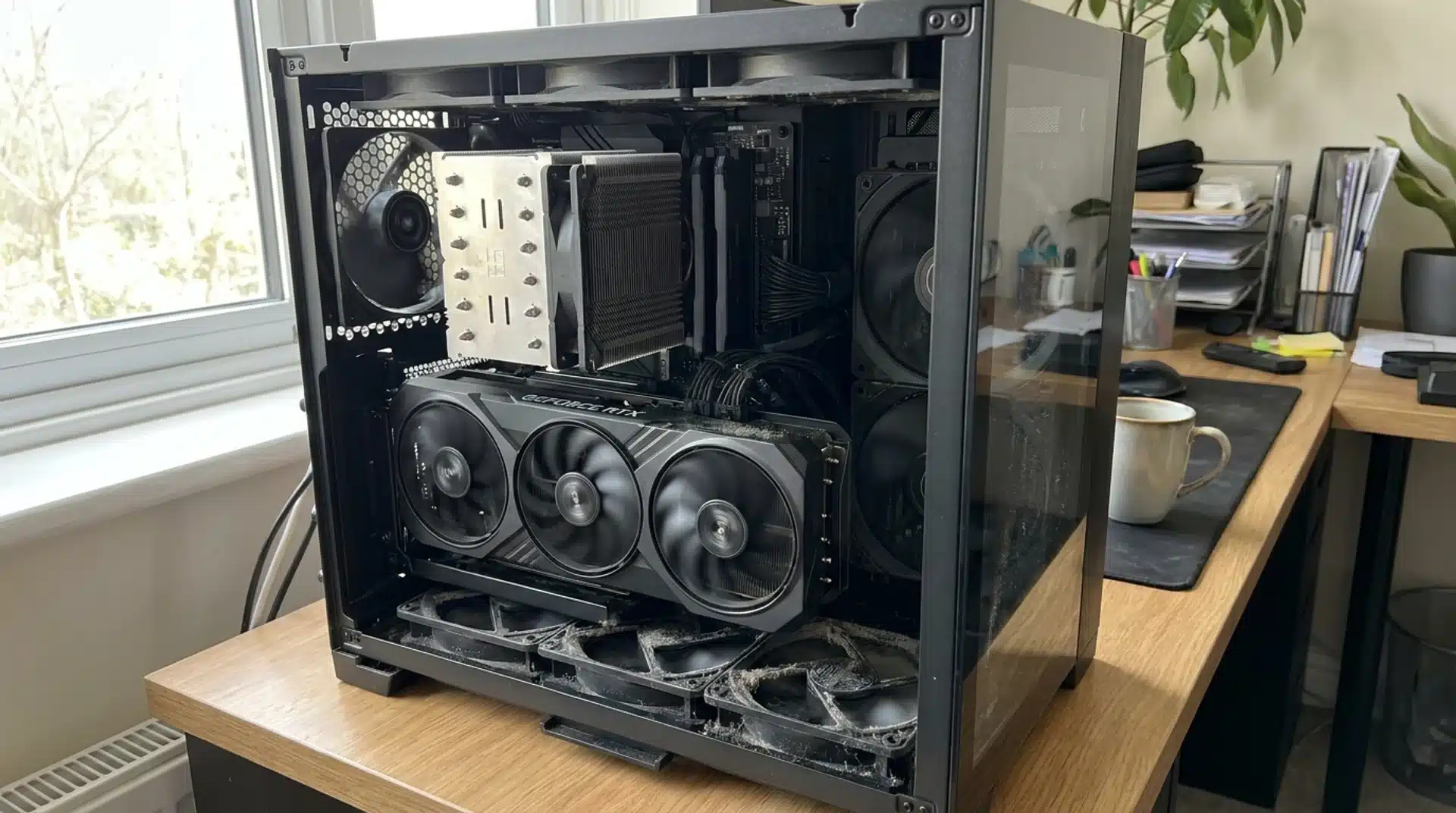
A warm GPU is not automatically a problem. Start paying attention when the temperature stays close to your card’s specified maximum, especially during sustained gaming.
If you also notice crashes, visual glitches, unexpected shutdowns, or lower clock speeds, check the cooling and airflow. GPU limits vary by model, so compare your readings with the manufacturer’s specifications rather than using one universal cutoff.
For example, NVIDIA lists maximum GPU temperatures of 90°C for the RTX 5090 and 88°C for the RTX 5080. Dust, blocked airflow, or a fan problem can also cause temperatures to rise over time.
How to Measure GPU Temperature?
You can check your GPU temperature with a monitoring app while your computer is idle or during a game. For a useful reading, watch the temperature during a demanding gaming session instead of checking it only after starting the game.
- MSI Afterburner: Shows GPU temperature and other readings while you play.
- GPU-Z: Provides detailed graphics card and sensor information.
- HWiNFO: Shows detailed hardware sensor readings, including supported GPU temperatures.
- Check Hotspot: Look for hotspot or junction temperature if your GPU and software report it.
- Watch the Peak: Note the highest reading, but also check how long the GPU stays near that temperature.
After testing, compare your readings with the specifications for your exact graphics card. This gives you a much better idea of whether your GPU is running normally or needs attention.
Closing Thoughts
Knowing your normal GPU temp makes it much easier to tell when your graphics card is running as expected.
A temperature in the 70s or 80s during gaming does not automatically mean something is wrong, while a reading near your card’s thermal limit deserves closer attention.
I recommend checking the core, hotspot, and memory temperatures when those readings are available, then comparing them with your GPU’s own specifications.
Cooling, airflow, workload, and room temperature can all affect the numbers you see. What GPU temperature do you usually get while gaming?
Share your temperature and GPU model in the comments so others can compare their results too.
Frequently Asked Questions
Is 50°C Too Hot for a GPU?
No. 50°C is generally a normal temperature for a desktop GPU during idle or light use, especially when zero-RPM fan mode is active, or the room is warm.
What Temperature Should My GPU Be While Browsing?
A GPU often stays around 30°C to 50°C during light desktop use, but background apps, video playback, multiple monitors, and room temperature can raise the reading.
Is 60°C Normal for a GPU?
Yes. 60°C is generally a comfortable temperature for a desktop GPU, particularly during light gaming or other workloads that place some demand on the graphics card.
Why Is My GPU Temperature High With Low Usage?
Background applications, video playback, browser hardware acceleration, multiple displays, fan settings, dust, or restricted airflow can raise GPU temperatures even when reported usage appears low.





