

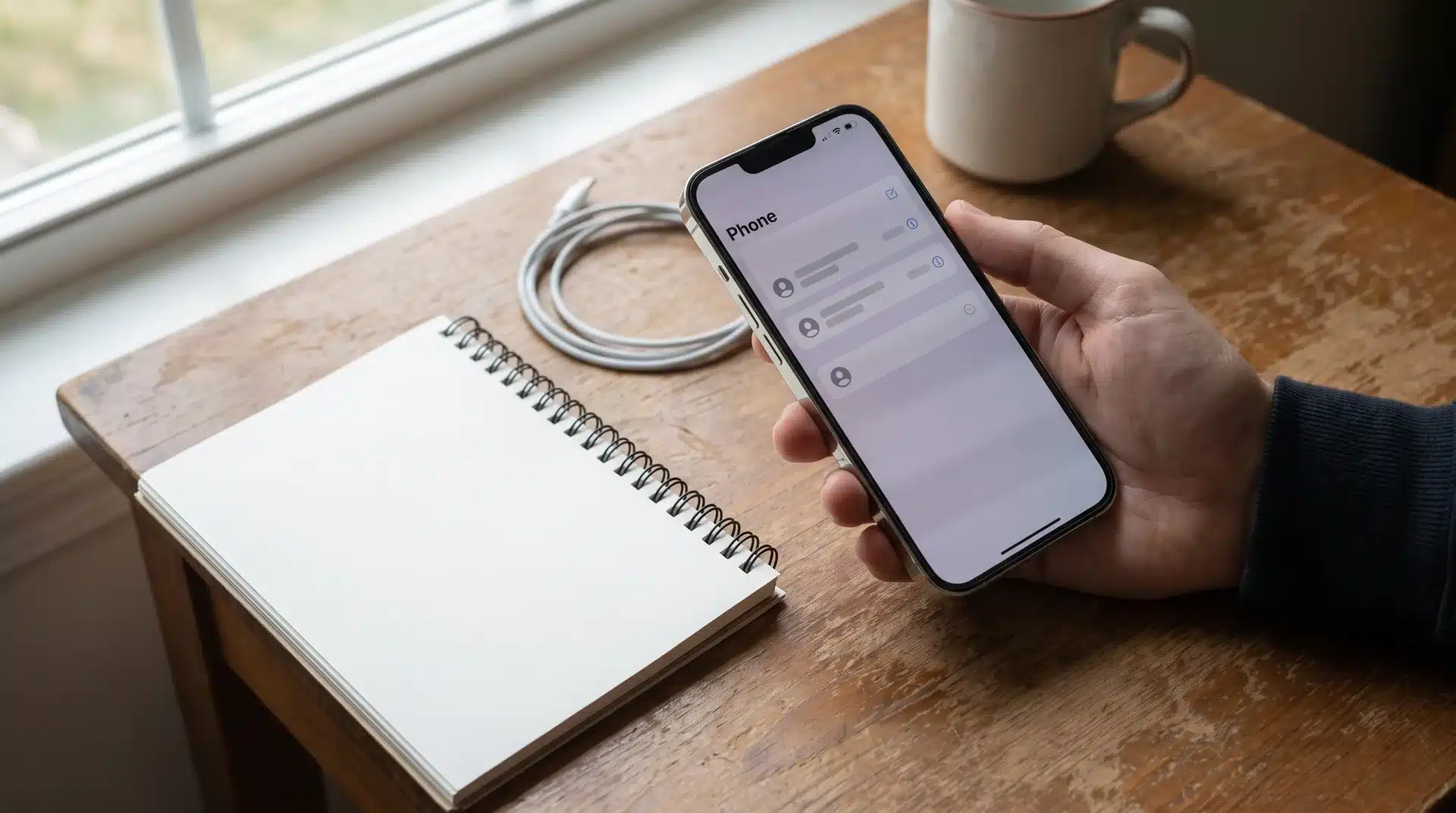
Ever missed a call, glanced at your phone, and had no clue if your voicemail was even set up right? I’ve been there, staring at the Voicemail tab, unsure whether to record a greeting, test it, or just hope for the best.
Turns out most of us never actually walk through the setup on purpose; we just let the default settings sit there for years.
Today, I’ll show you exactly how to set up voicemail on your iPhone, record a custom greeting, confirm it’s working, and troubleshoot it if something’s not showing up the way it should.
What You Need Before Setting Up Voicemail on iPhone
Before you start setting up voicemail on your iPhone, check a few things first. Doing this ahead of time can save you from getting stuck halfway through the setup.
- Check carrier support: Make sure your carrier offers visual voicemail. AT&T, Verizon, and T-Mobile all support it, but smaller carriers and prepaid plans may not include the feature.
- Set up a voicemail PIN: Most carriers require a PIN with a few digits. Choose one that is easy for you to remember but difficult for others to guess, since forgetting it can feel as frustrating as recovering access to a locked phone.
- Check your iOS version: The location of voicemail settings can vary between iOS versions because Apple has changed the Phone app layout over time.
How to Set up Voicemail on iPhone Step by Step
Setting up voicemail on an iPhone only takes a few minutes. You can create a custom greeting using the built-in Phone app, so callers hear your personal message instead of the default automated response when you miss a call.
Step 1: Open The Phone App
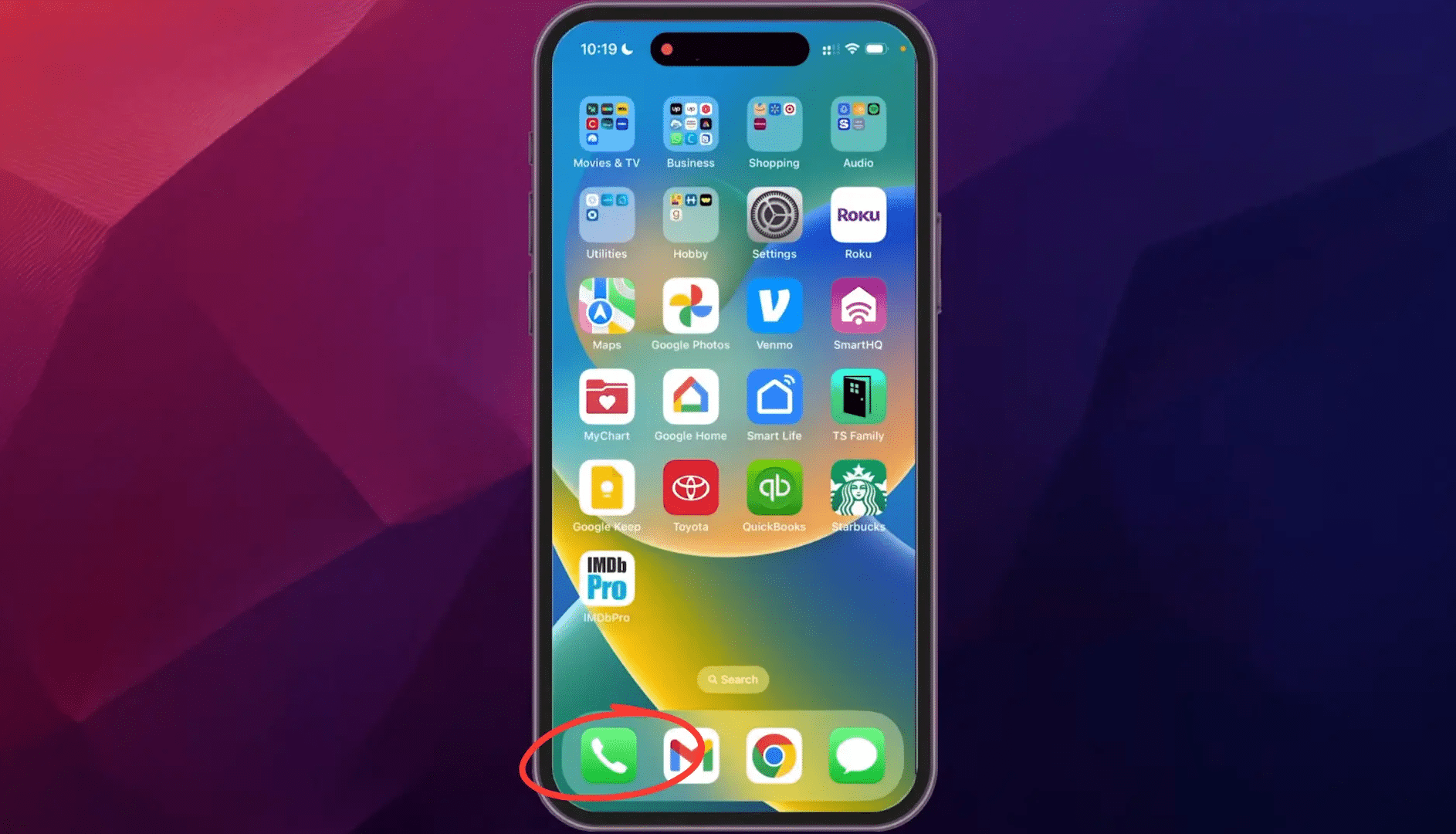
Start by opening the Phone app on your iPhone. This is where you will find the voicemail settings and options needed to create your greeting.
Once the app is open, you can access the voicemail section directly from the bottom menu. No extra apps or downloads are needed for this process.
Step 2: Open The Voicemail Section
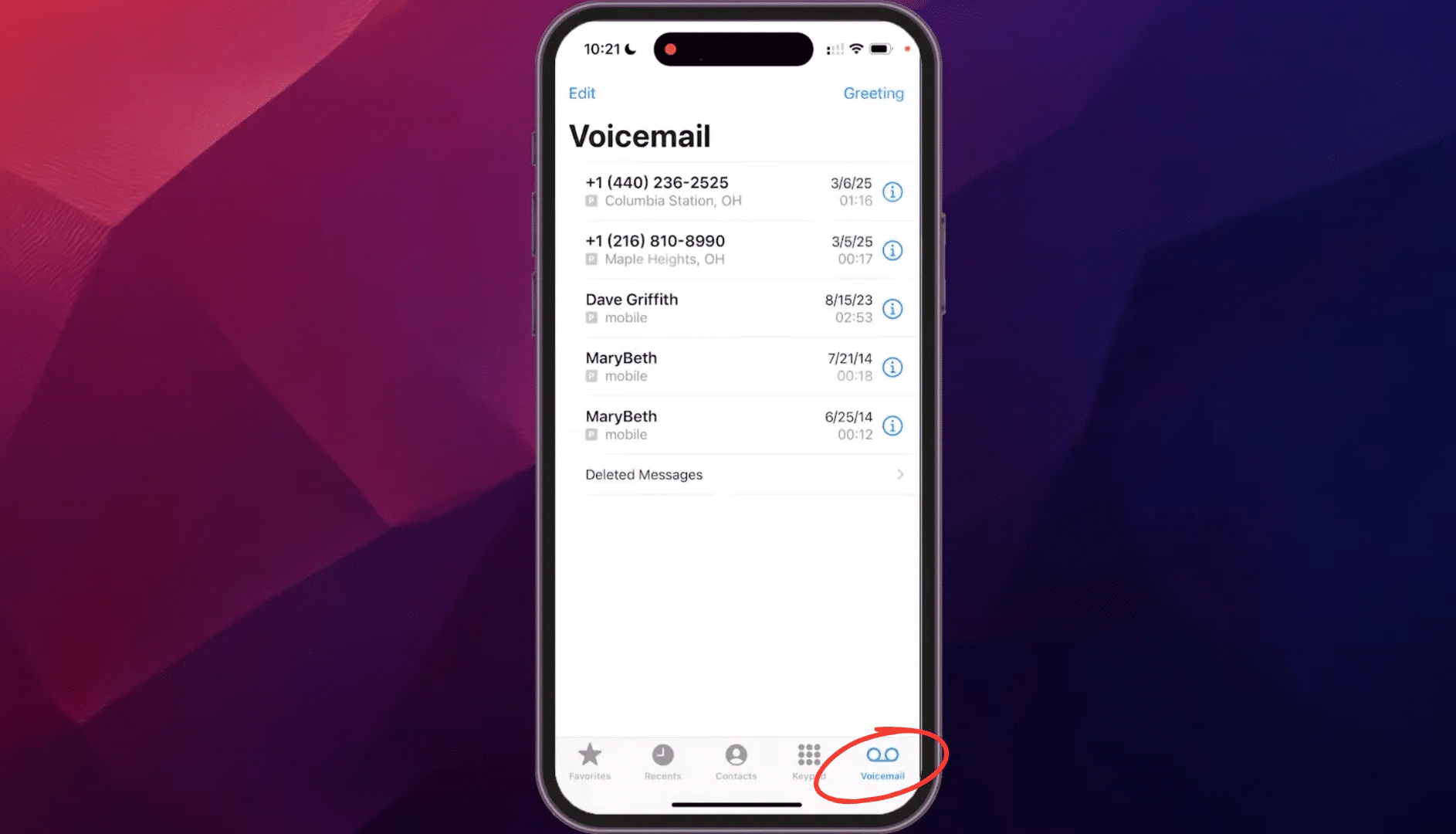
Tap the Voicemail option at the bottom-right corner of the Phone app. This will take you to the screen where you can manage your voicemail settings.
If you have multiple phone lines, choose the line you want to update. For a single line, you can move to the next step without making a selection.
Step 3: Tap Set Up Now
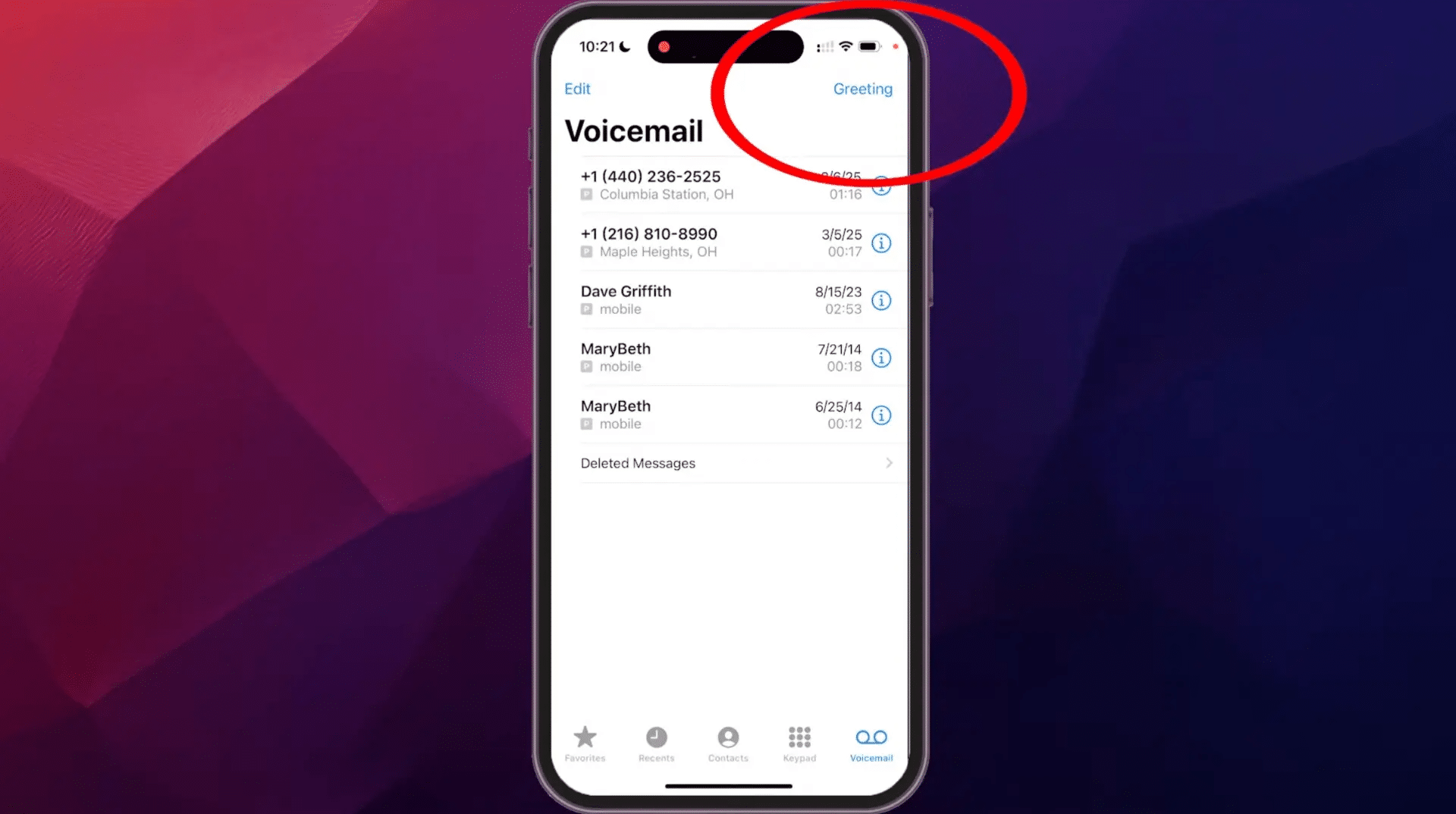
If voicemail has not been set up yet, tap Set Up Now on the Voicemail screen. Here, you can choose between the default message and a custom recording.
The default option uses an automated voice message, while the custom option allows you to record a greeting using your own voice.
Once voicemail is set up, the Greeting option appears at the top of the Voicemail screen, where you can change your greeting later
Step 4: Record Your Custom Greeting
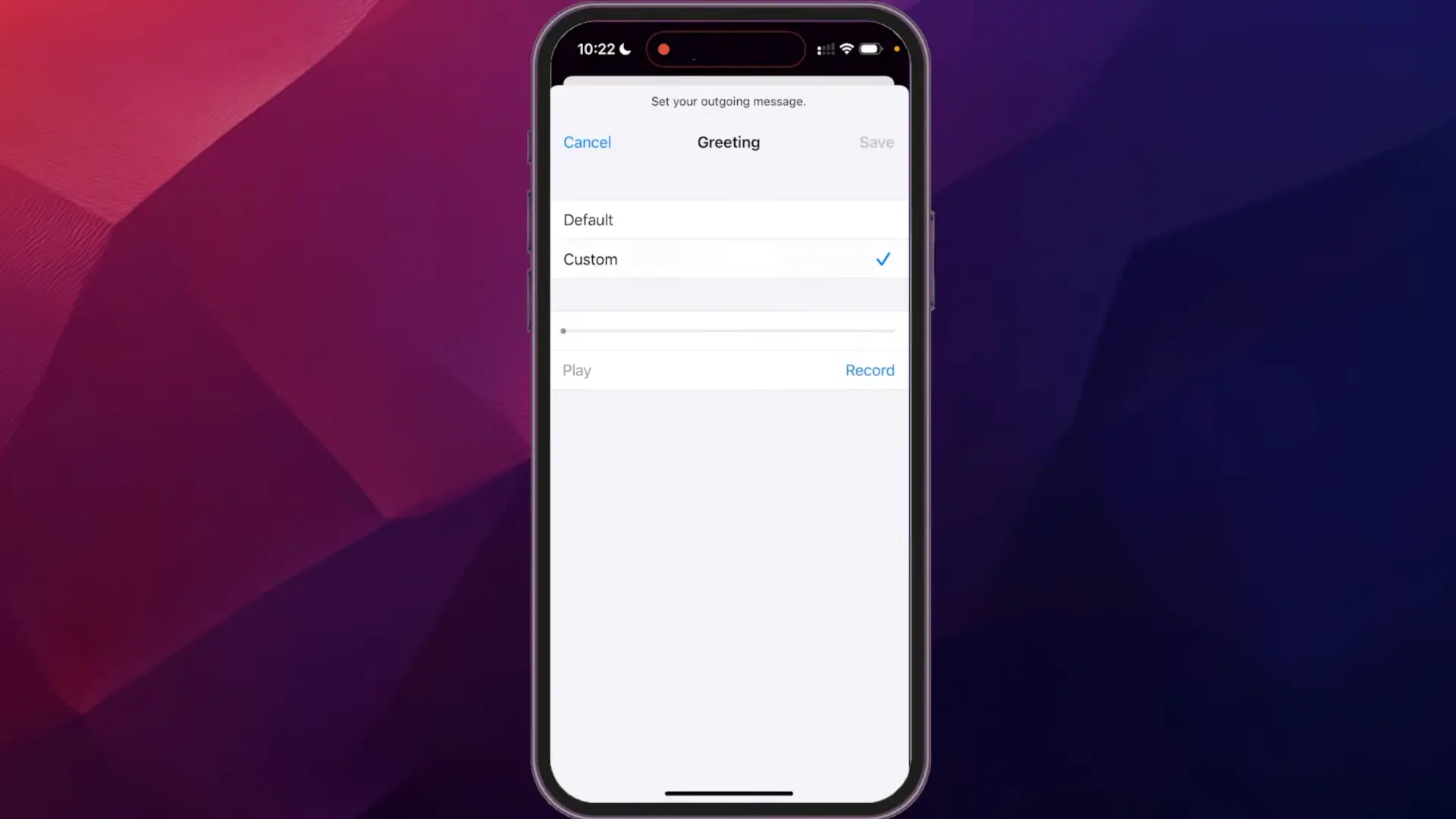
Choose Custom and tap Record to start creating your voicemail message. Speak clearly and keep the greeting short so callers know what to do next.
When you finish, tap Stop and play the recording back. If it does not sound right, you can record it again before saving.
Step 5: Save Your Voicemail Greeting
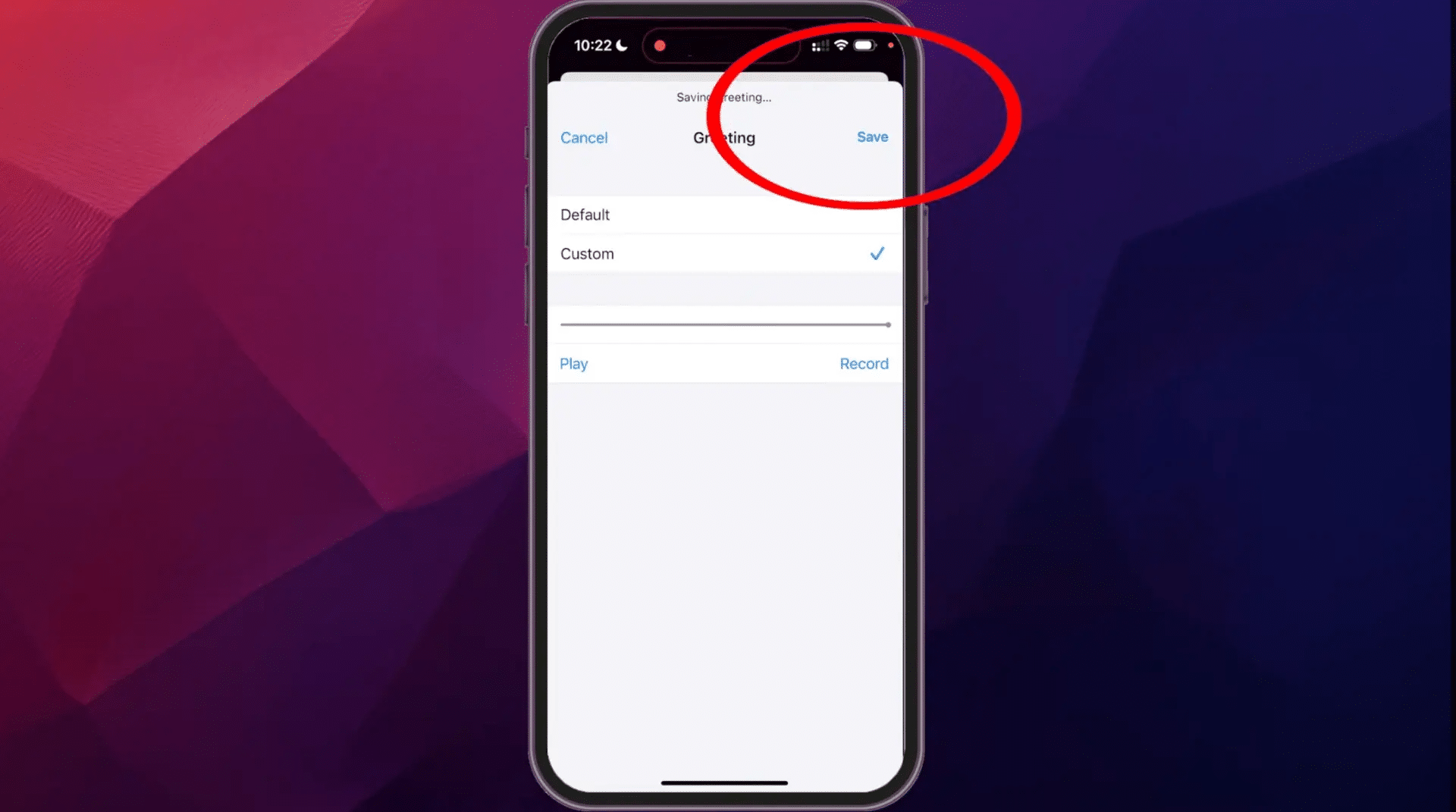
Once you are happy with the recording, tap Save to apply your new voicemail greeting. Your iPhone will now play this message whenever you miss a call.
You can return to the same settings anytime to update the greeting, record a new message, or switch back to the default option.
For a complete walkthrough of the process, check out the video tutorial below:
How to Confirm Voicemail Is Working
The easiest way to check your voicemail is to test it with another phone. Call your iPhone, let it go to voicemail, and leave yourself a short message.
Once you have left the message, open the Voicemail tab on your iPhone. If the message appears there, your voicemail is set up and working correctly.
If you need to make changes later, you can manage your voicemail settings from the same tab. The exact option name may vary depending on your carrier and iOS version.
If you have Live Voicemail turned on, you will also see a live transcription appear while someone is leaving a message. This feature works alongside regular voicemail and gives you a preview of the message before you decide whether to answer.
What If the “Set Up Now” Screen Doesn’t Appear?
If the Set Up Now option is missing, your carrier may use a different voicemail setup method. That usually changes how you access voicemail, not whether your iPhone supports it.
- Set Up Now is missing or unresponsive: Some carriers do not use Apple’s in-app setup flow. Voicemail and Visual Voicemail availability can depend on your carrier, plan, and region.
- Visual Voicemail works differently by carrier: Some carriers let you create a password, greeting, and manage messages inside the Phone app. Others rely on a traditional automated voicemail system.
- Tapping Voicemail starts a call: Follow the spoken prompts. This usually means your carrier manages voicemail through its network instead of the visual setup screen.
- The Voicemail screen is blank: Open the Phone app keypad and press and hold 1. Some carriers use this shortcut to connect you directly to voicemail.
- Nothing works: Contact your carrier and ask whether voicemail or Visual Voicemail is properly activated on your line.
Once you know whether your line uses Visual Voicemail or carrier-based voicemail, the setup process becomes much clearer and you can avoid changing unrelated iPhone settings.
Voicemail Setup by Major US Carrier
AT&T, Verizon, and T-Mobile all support Visual Voicemail directly in the Phone app, so most iPhones on these networks won’t need any extra steps.
If Visual Voicemail isn’t showing up on one of these carriers, you can usually reach your traditional voicemail by dialing into your carrier’s voicemail line from the keypad; the option is listed on your carrier’s support site under “voicemail access number.”
Smaller carriers and prepaid plans (like Cricket, Mint Mobile, or Visible) are more likely to skip Visual Voicemail altogether, which is why the setup screen in the Phone app may never appear no matter what you try
What Is Live Voicemail and How Do You Turn It On?
Live Voicemail is an optional iPhone feature that works alongside regular voicemail. You do not need to turn it on to set up or receive normal voicemail messages.
When Live Voicemail is on, your iPhone shows a real-time transcription while someone is leaving a voicemail. This feature requires iOS 17 or later, so if you don’t see it under Settings, check whether your iPhone needs a software update first.
This lets you see what the caller is saying without answering right away, which can be useful if you are unsure whether the call is worth picking up.
You can also answer the call while the person is still leaving the message. If you do not answer, the voicemail is saved as usual so you can listen to it later.
To turn it on, go to Settings > Apps > Phone > Live Voicemail, then switch Live Voicemail on. The feature may not be available in every country, region, language, or with every carrier.
Conclusion
Voicemail is one of those iPhone features you usually ignore until you actually need it. Taking a few minutes to set it up properly makes missed calls much easier to handle.
I’ve found the biggest thing is knowing where the iPhone ends and the carrier takes over. Once that distinction is clear, setup problems are much easier to sort out without changing random settings.
If you haven’t checked yours in a while, it’s worth testing it once so you know everything is ready when an important call comes through.
Frequently Asked Questions
Why won’t my iPhone let me set up voicemail?
Your carrier may not have Visual Voicemail enabled on your line, or there may be a temporary network issue. If restarting your iPhone does not help, contact your carrier and ask them to confirm voicemail provisioning. Visual Voicemail availability depends on the carrier and region.
How do I turn my voicemail back on after disabling it?
Open the Phone app and check the Voicemail area. If setup options do not appear, press and hold 1 to reach your carrier voicemail system. Some carriers also provide their own short dialing code, so contact your carrier if the usual options are missing.
How do I change my voicemail password on iPhone?
Go to Settings > Apps > Phone > Change Voicemail Password, then enter your new password. Apple notes that voicemail features depend on carrier support, so contact your carrier if this option is unavailable.
Does every iPhone carrier support visual voicemail setup?
No. Visual Voicemail is only available through supported carriers in certain countries and regions. Without it, you may need to call your carrier’s voicemail system and manage your password, greeting, and messages through automated voice prompts instead.





