
You’ve probably grabbed whichever cable was closest and hoped it would work. Most people do, especially when HDMI and DisplayPort look almost interchangeable at first.
The difference becomes obvious when your monitor misses its expected refresh rate, or your audio setup behaves strangely for no clear reason at all suddenly.
Neither connector automatically wins. The version, the device, and what you’re doing with it matter more than the name on the cable.
This comparison explains where HDMI and DisplayPort came from, how they differ, and which fits your setup. Start with what each connector was built for.
What HDMI and DisplayPort Are Each Built For
HDMI was built for your TV, your game console, your soundbar. DisplayPort was built for your PC, your graphics card, your monitor.
That’s the split at the root of all of this. HDMI grew up in connected living rooms. It handles audio return for soundbars and receivers without needing a separate cable for sound.
DisplayPort grew up next to a graphics card. It’s the connector PC monitors default to, and it’s the one that lets you chain several monitors off a single port.
The lines aren’t as clean as they used to be. Plenty of gaming monitors now carry both ports side by side. Some newer TVs do too.
So the old shorthand still holds as a starting point. HDMI for the living room, DisplayPort for the desk. Just don’t expect it to sort every device you own.
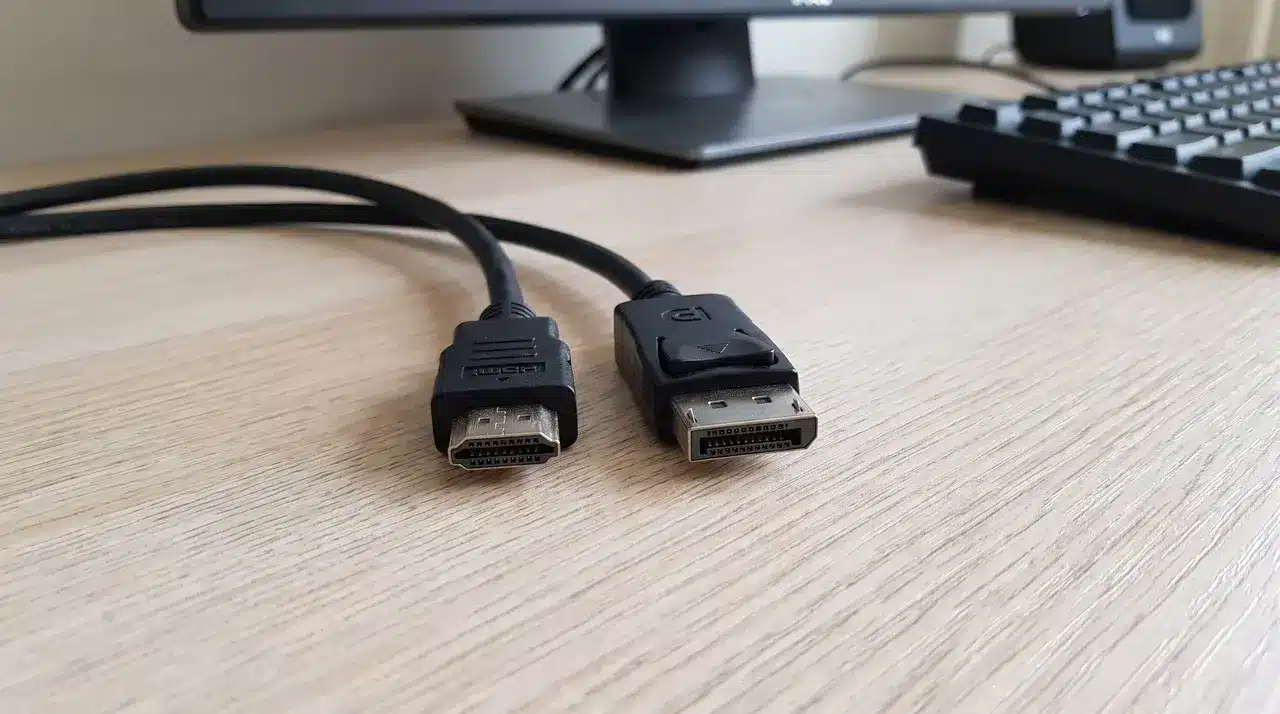
One quick way to tell them apart before anything is plugged in:
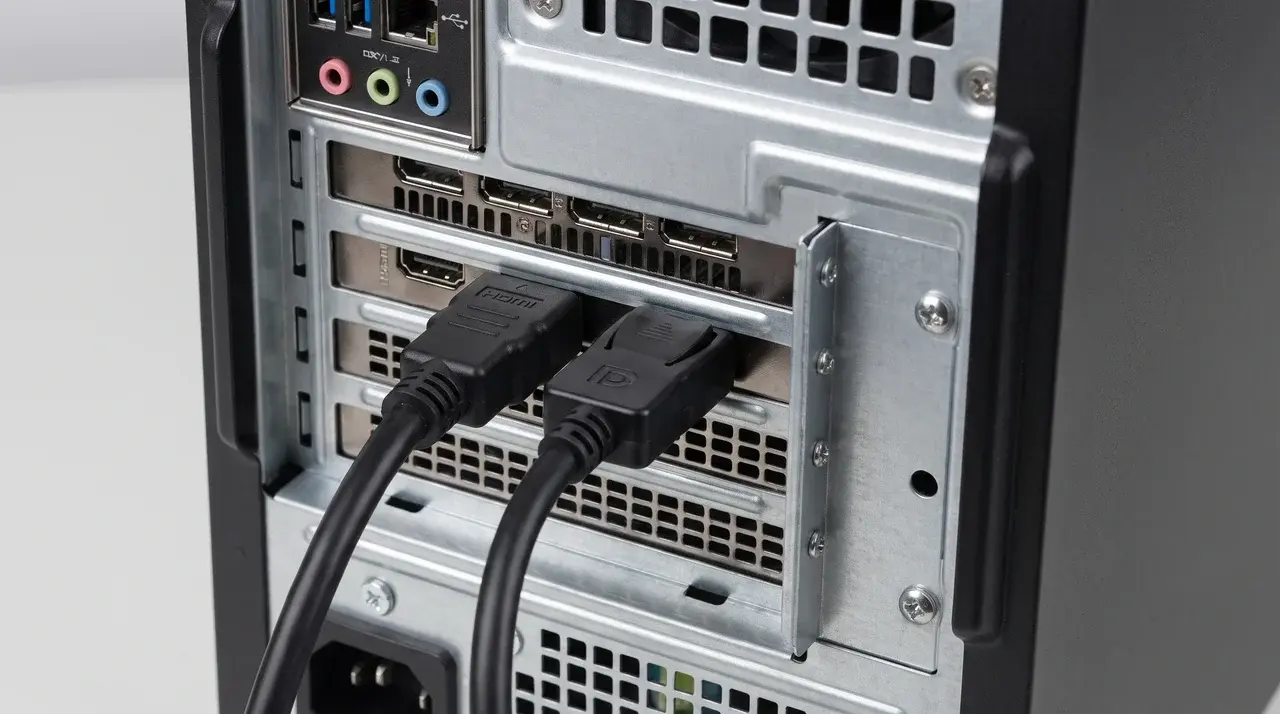
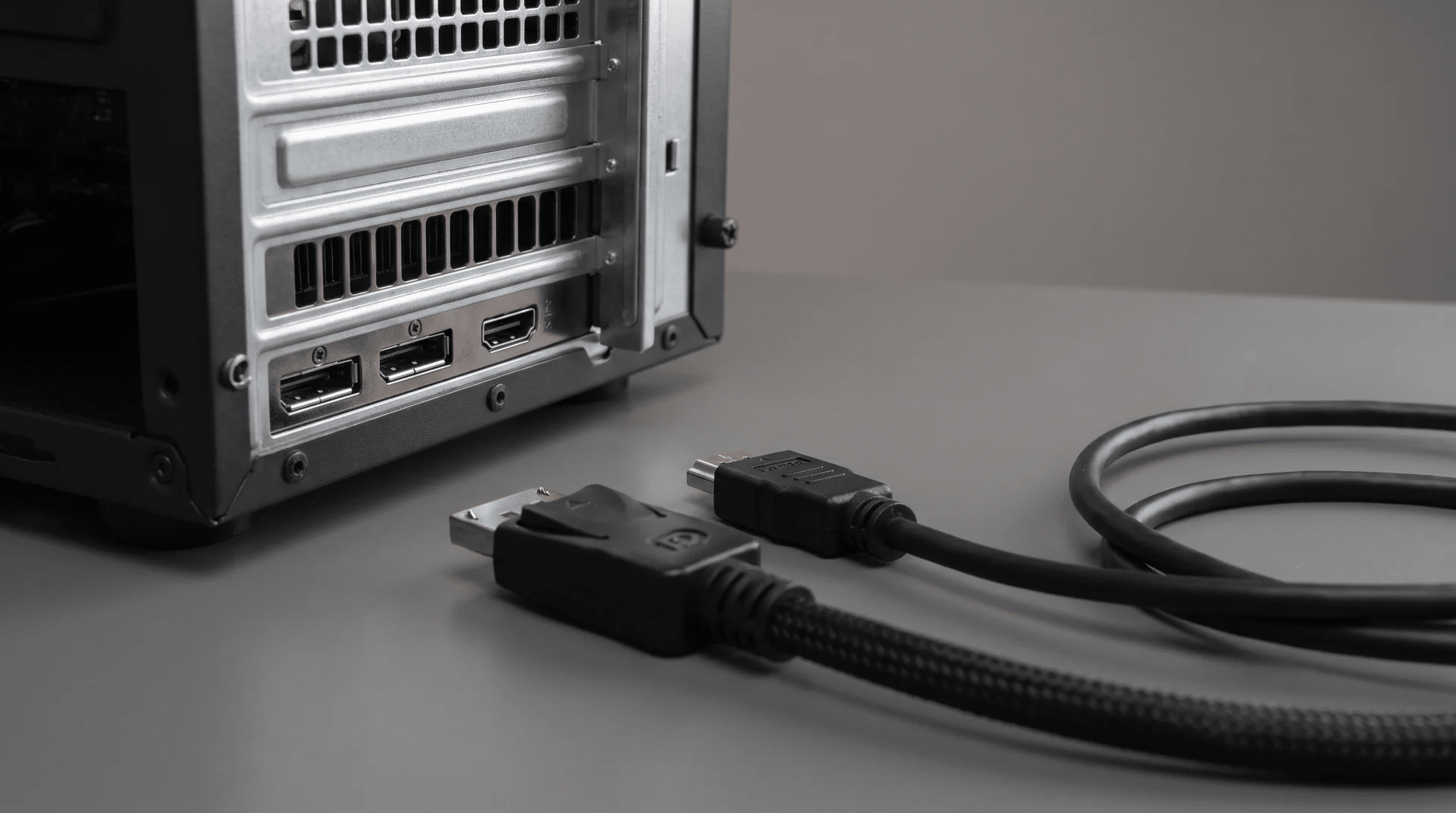
- HDMI connectors are trapezoidal with a smooth profile and no locking mechanism; the cable pulls straight out.
- DisplayPort connectors are rectangular, with a small notch cut into one corner and a latch that clicks into place to prevent accidental disconnection. If the cable snaps in and holds, it’s DisplayPort.
DisplayPort vs HDMI: Where the Real Differences Show Up
The real gap between these two isn’t HDMI versus DisplayPort. It’s which version of each one you’re actually using.
Bandwidth and Refresh Rate
Every HDMI and DisplayPort cable has a version number. That number, not the brand name, sets the ceiling on what it can carry.
HDMI 2.1 handles far more data than HDMI 2.0. DisplayPort 2.1 handles far more than DisplayPort 1.4.
The gap is real:
| Version | Bandwidth | Practical ceiling |
|---|---|---|
| HDMI 2.0 | 18 Gbps | 4K @ 60Hz |
| HDMI 2.1 | 48 Gbps | 4K @ 120Hz, 8K @ 60Hz |
| DisplayPort 1.4 | 32.4 Gbps | 4K @ 120Hz (DSC), 8K @ 60Hz (DSC) |
| DisplayPort 2.1 | 80 Gbps | 4K @ 240Hz uncompressed |
These are the numbers behind every version mismatch problem. A newer HDMI port can easily outrun an older DisplayPort port, and the reverse is just as true.
Here’s where it gets confusing: Both standards lean on compression called DSC to hit numbers like 4K at 120Hz.
That compression trims some color data before it reaches your screen. So “supports 4K 120Hz” doesn’t always mean you’re getting the full, uncompressed picture.
Plug a newer cable into an older port and nothing warns you. The picture still shows up. It just quietly caps at a lower resolution or refresh rate than the cable is capable of.
Most people blame the connector type when this happens. The actual problem is almost always a version mismatch.
Audio Support (ARC/eARC)
HDMI carries ARC and eARC, which send audio from your TV back to a soundbar or receiver over the same cable. DisplayPort generally doesn’t do this.
It only matters once a soundbar or receiver enters the chain. If you’re just running a monitor, this difference never comes into play.
Daisy Chaining and Multiple Displays
DisplayPort lets you connect several monitors from a single GPU output, one feeding into the next. HDMI typically can’t do this.
This only becomes relevant once you’re running more than two displays off one graphics card port.
What Changes the Right Answer for Your Setup
The version gap only matters once you map it to what you’re actually connecting.
PC Gaming
DisplayPort is usually the safer pick for high refresh rates. Most graphics cards have offered strong DisplayPort bandwidth longer than they’ve offered it on HDMI, so it tends to be the more dependable route to 144Hz and beyond.
It also supports Adaptive Sync natively, the underlying technology behind both G-Sync and FreeSync. That syncs your monitor’s refresh rate to your GPU’s output in real time, eliminating screen tear without adding input lag.
HDMI 2.1 added Variable Refresh Rate (VRR), but monitor and GPU compatibility varies by manufacturer. If your monitor runs G-Sync or FreeSync, DisplayPort is the lower-risk connection.
Home Theater
HDMI is the practical choice, mostly because DisplayPort rarely shows up on TVs, soundbars, or AV receivers. You won’t find the option even if you wanted it.
Multiple Monitors
DisplayPort’s daisy-chaining lets you link several screens from a single GPU port, one after another. HDMI doesn’t do this, so once you cross the two-monitor line, DisplayPort becomes the more practical setup.
So the honest answer shifts with the setup in front of you:
- Gaming rig, high refresh rate: DisplayPort, when your GPU offers it
- TV, soundbar, home theater: HDMI, since DisplayPort rarely appears there
- Three or more monitors on one GPU: DisplayPort, for the daisy-chaining
Match the port to the setup, not to a rule you read once and kept following.
Which One to Choose
- Check the port version on both ends first. That matters more than which standard you’re leaning toward.
- A lot of the time, the choice is already made for you. A console with only an HDMI port, or a monitor with only DisplayPort, doesn’t leave you a decision to make.
- If you need an adapter, make sure it’s active, not passive.
Active adapters contain a chip that handles the signal conversion between the two standards. Passive ones assume pin-level compatibility that doesn’t fully exist between HDMI and DisplayPort, so they drop features silently instead of throwing an error.
You won’t get a warning; the feature just won’t work, and you’ll be left guessing why
Wrapping Up
The HDMI vs DisplayPort debate isn’t really a debate once you know what to check. It comes down to the version in your hardware, not the name printed on the port.
A newer HDMI port can beat an older DisplayPort port, and the other way around. Your use case decides the rest: gaming leans DisplayPort, home theater leans HDMI, extra monitors lean DisplayPort again.
The one habit worth keeping: check both ends of the cable before you blame the connector. That single step saves most of the frustration people run into.
Look at your own setup today, and match the port to what it’s actually built for.
Frequently Asked Questions
Is HDMI better quality than DisplayPort?
Neither is inherently higher quality, image quality depends on each port’s version and the cable’s certification, not the connector type. A recent HDMI port often outperforms an older DisplayPort, and the reverse is also true. Compare specific version numbers on your devices instead of assuming one standard wins by default.
Why would you use DisplayPort over HDMI?
DisplayPort is usually preferred on PCs because it supports daisy-chaining multiple monitors from one graphics card output and has historically offered more headroom for high refresh rates in common GPU implementations. It’s the standard choice when your setup centers on a desktop graphics card rather than a TV or console.
Is DisplayPort better than HDMI for 144Hz?
For most desktop gaming setups, DisplayPort makes hitting 144Hz slightly easier because common GPU DisplayPort outputs have supported the needed bandwidth for longer. However, HDMI 2.1 also comfortably handles 144Hz at high resolutions, so the practical difference mainly matters if your graphics card’s HDMI port is an older, lower-bandwidth version.
Which is better, HDMI or DisplayPort?
Neither is universally better; HDMI fits TVs, consoles, and home theater audio gear, while DisplayPort fits PC monitors and multi-display setups. The right choice depends on matching your device’s port version and intended use case rather than picking one standard as an across-the-board winner.