People think setting up a smart home starts at the store. It doesn’t.
The decisions you make before a single device arrives determine everything. Your network, your platform, your device choices, get those right and the system runs smoothly. Get them wrong and you spend months troubleshooting lights that randomly stop responding.
Today, I’ll cover all of those in order. Network first. Ecosystem second. Devices third. Then automations, and what to do when things break.
What You Need Before You Buy a Single Device
Your network is the foundation of your smart home, and it’s the part most people skip. I’ve seen setups with excellent devices fail completely because the router couldn’t handle the load. Or because band-steering silently blocked every pairing attempt.
Here’s what actually matters before you buy anything:
Router Requirements and Mesh Wi-Fi
A single router works fine for a small setup. Once you pass 20 to 25 devices, most people start hitting problems.
At that point, a mesh Wi-Fi system is the more reliable choice. Mesh uses multiple nodes spread around your home. Unlike a range extender, which repeats a weaker signal, mesh nodes give full-strength coverage throughout the space.
If your home has thick walls, concrete floors, or outbuildings you want to include, mesh isn’t optional. It’s just the right tool.
One more thing worth doing: SSID separation.
Put your smart devices on their own network name, separate from your laptops and phones. It reduces congestion and keeps smart device traffic from competing with everything else on the same radio.
Wi-Fi Bands and Why 2.4 GHz Matters
Here’s what trips up more first-time setups than almost anything else: most smart home devices only work on the 2.4 GHz Wi-Fi band. Not 5 GHz.
The reason is range. 2.4 GHz travels further and passes through walls better. A smart plug doesn’t need fast speeds. It needs a stable connection from across the house.
The problem is band-steering. Many modern routers have this on by default. Band-steering automatically pushes devices to 5 GHz to keep 2.4 GHz clear. The router redirects it to 5 GHz. The device either fails to connect or pairs briefly and then falls off.
The fix: log into your router’s admin panel. Either disable band-steering or create a separate 2.4 GHz network name just for smart devices.
That one change fixes more pairing failures than any amount of resetting devices.
When to Consider Zigbee or Z-Wave Instead
Wi-Fi isn’t the only way smart home devices talk to each other. For larger or denser setups, it’s often not the best way either.
Zigbee and Z-Wave are low-power mesh protocols built specifically for smart home use. The key difference from Wi-Fi: each device acts as a repeater for the others. The more devices you add, the stronger the network gets. Compare that to Wi-Fi, where every device connects back to the router individually — adding devices adds congestion.
The trade-off is that Zigbee and Z-Wave devices need a hub or controller to bridge them to your home network. Home Assistant with a compatible USB stick handles this well.
If you’re starting with 5 to 10 devices in a small space, standard Wi-Fi devices are simpler. Planning a whole-home setup? Build Zigbee or Z-Wave into your plan from the start. It’s worth the added setup step.
How to Choose Your Ecosystem and Why the Choice Is Sticky
Your ecosystem is the control layer for every device in your smart home. Switching later doesn’t mean reinstalling an app. It means replacing most of your hardware.
This is the decision the marketing materials quietly understate. Choosing an ecosystem isn’t like choosing a streaming service. It’s closer to choosing your home’s electrical wiring.
Once your devices are paired and automations are running, changing platforms means replacement hardware. It means rebuilt automations. And weeks where nothing works reliably while you transition.
People often present this as a preference. I’d push back on that. It’s a structural commitment.
Here’s what’s actually happening under the hood and how to pick the right one:
How Ecosystems Actually Control Devices
When you tap a button in the Google Home app, the command goes up to Google’s servers. It gets processed, then comes back down to your device. Fast enough to feel instant most of the time.
Apple HomeKit works differently. Many commands are processed locally, right on your home network. The device responds even if the internet is down.
This gap matters more than people expect.
Mix two ecosystems — Alexa for the thermostat, Google Home for the lights — and the two platforms can’t share device states. An Alexa routine can’t trigger based on something that happened in Google Home. The platforms run side by side. Not together.
Matter addresses part of this. It’s a shared communication standard backed by Apple, Google, Amazon, and Samsung.
A Matter-certified device can be added to more than one ecosystem at the same time. One smart lock can show up in both your Apple Home and Google Home apps without a bridge device.
But Matter doesn’t merge the automation engines. Your Alexa routines still can’t react to Google Home events. It’s a device compatibility layer, not a platform unifier.
Match your ecosystem to what you already own. Here’s the shortcut:
- iOS household (everyone uses iPhone): Apple HomeKit
- Android household: Google Home
- Mixed devices or no preference: Amazon Alexa
- Want local control and don’t mind a steeper setup: Home Assistant
Amazon Alexa
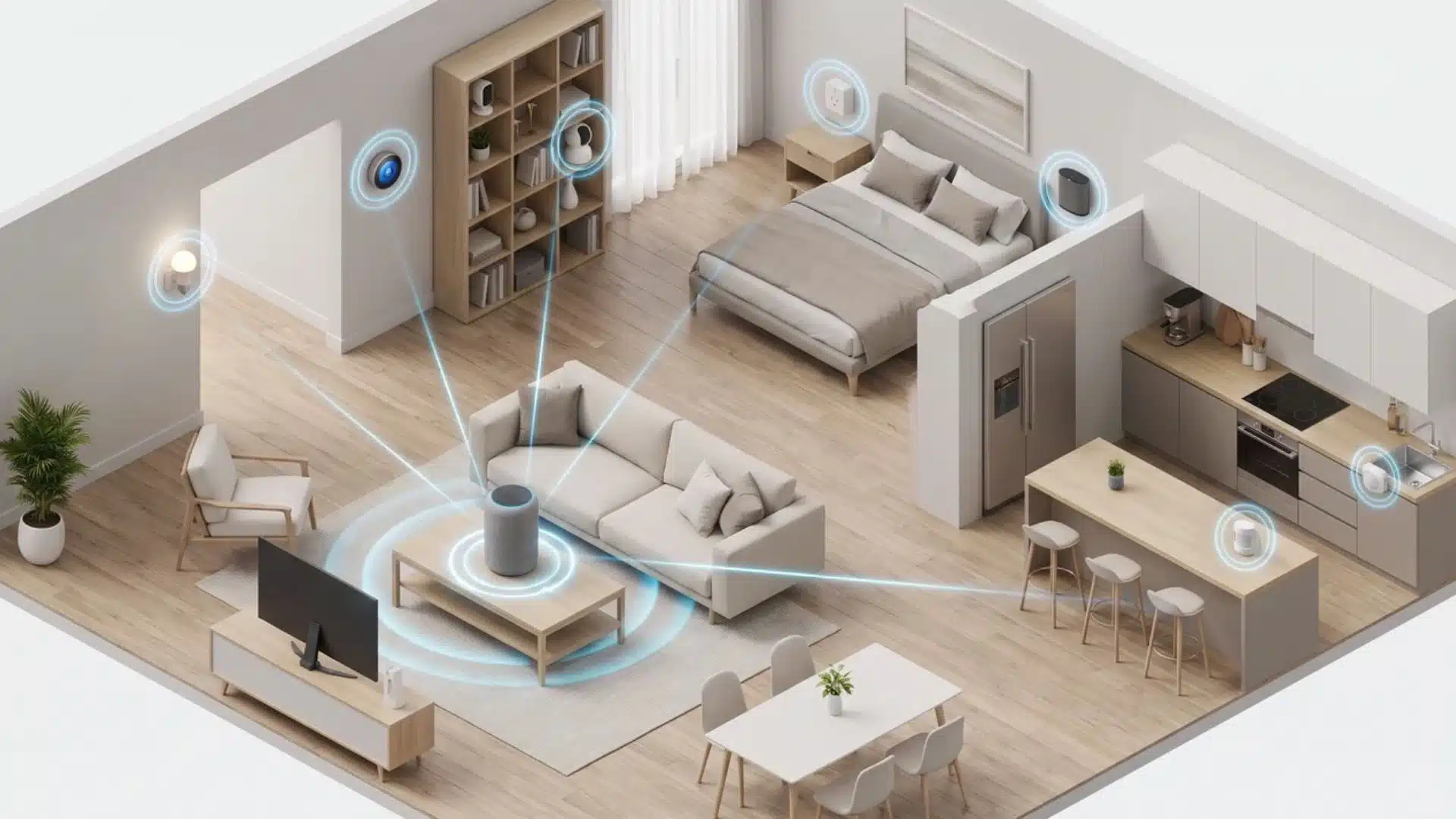
Alexa has the widest range of compatible third-party devices of any major platform. If you want to buy from multiple brands without checking compatibility charts, Alexa is the lowest-friction starting point.
Automations run through the Routines interface. Triggers can be time-based, voice-activated, or sensor-driven.
The limitation: everything runs through Amazon’s servers. If Amazon has an outage or your internet goes down, control goes with it. Check current Alexa+ and AI feature availability before publishing. Amazon’s rollout is active.
Google Home
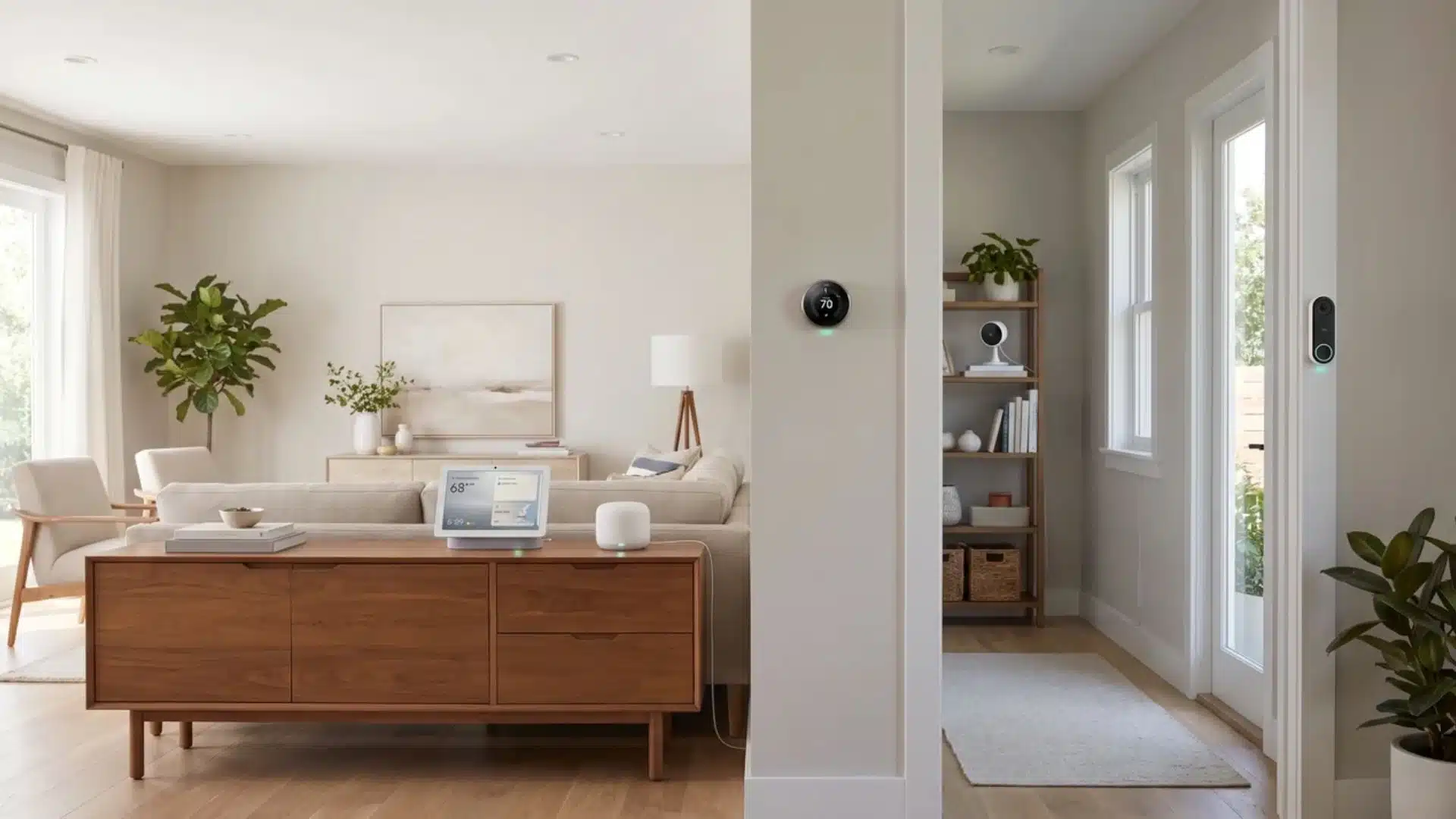
Google Home is the natural fit for Android households, especially those already using Nest devices. Nest thermostats, cameras, and doorbells connect without friction.
The platform offers context-aware automations that respond to patterns rather than just fixed schedules. It uses a mix of local and cloud processing depending on the command type.
Gemini integration is deepening quickly. Verify current feature depth before publishing. Documentation often lags the actual product state.
Apple HomeKit
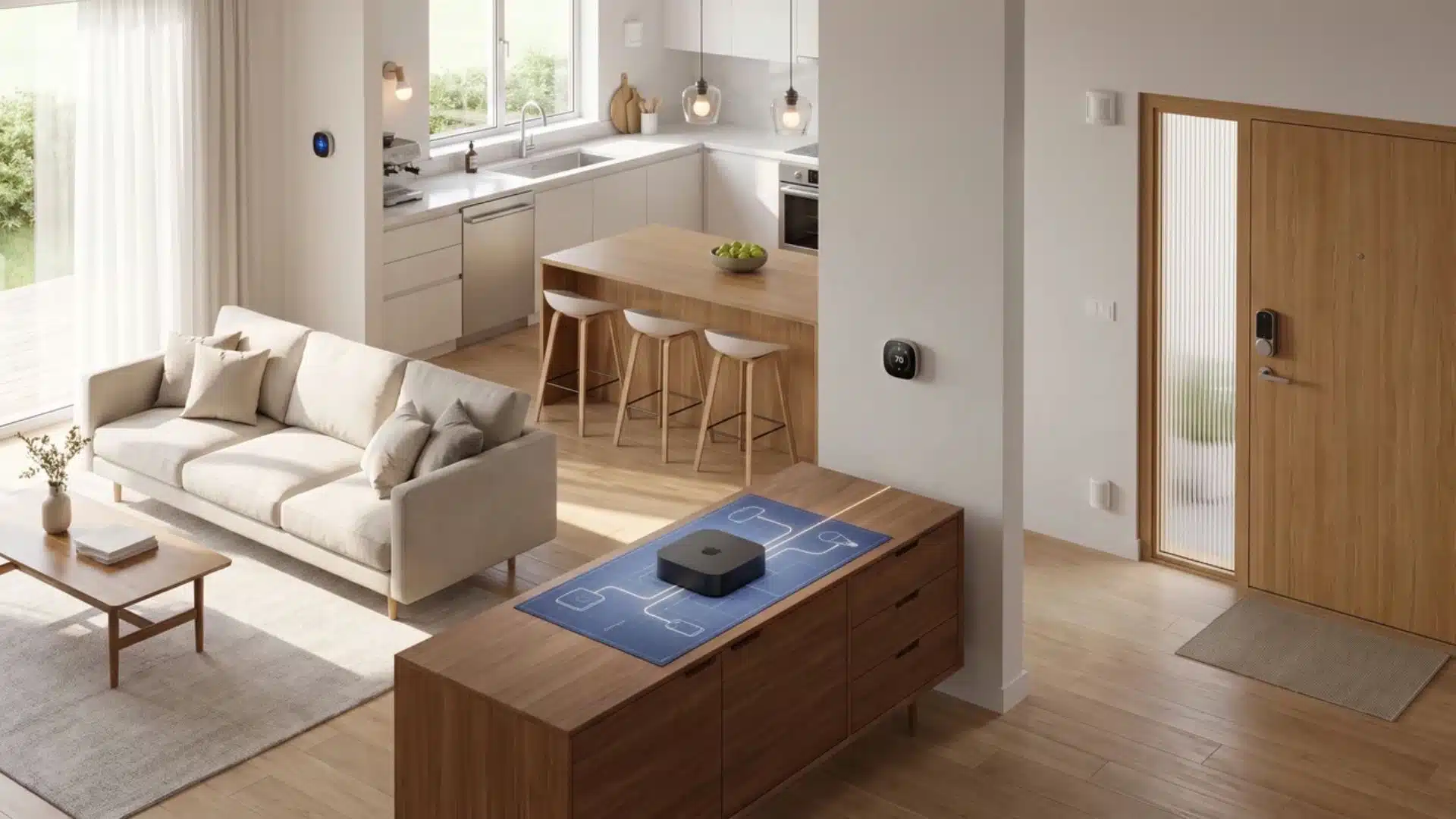
HomeKit is the most privacy-focused of the three. Commands processed locally mean your lights respond even when your internet is down. Your device usage data doesn’t leave your network.
You’ll need an Apple device like an iPad, HomePod, or Apple TV to act as the home hub. There’s no Android client.
Device compatibility is narrower than Alexa’s. Apple requires hardware-level certification, which fewer budget manufacturers carry. You trade device variety for reliability and privacy. Verify current architecture details before publishing, especially around Matter and Thread changes.
Home Assistant (Advanced Option)
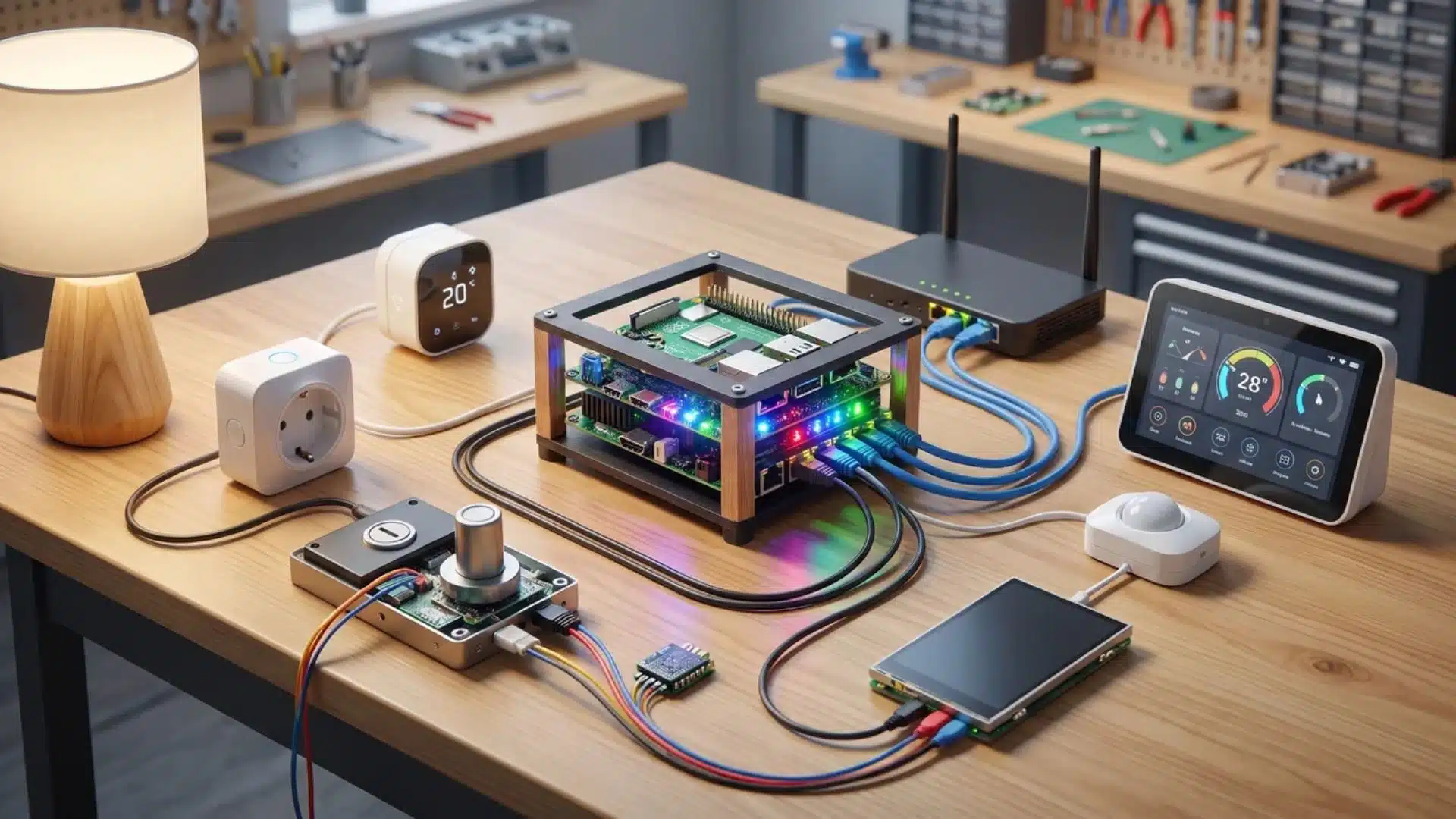
Home Assistant is an open-source platform. It runs on hardware you own; a Raspberry Pi, a mini-PC, or a dedicated device like the Home Assistant Green.
It supports Zigbee, Z-Wave, Wi-Fi, and Matter devices natively, often without extra bridge hardware.
The setup curve is steeper than any major platform. There’s no guided onboarding. Complex automations require learning YAML scripting or the platform’s visual editor.
The payoff is total flexibility: no subscription, no cloud dependency, no risk of a platform changing its pricing and breaking your setup. When people hit the ceiling of a major platform, Home Assistant is almost always where the conversation ends up.
Which Devices to Start With and in What Order
Start with a smart plug or smart speaker. Not a smart switch. Not a smart lock. Not a thermostat.
The reason is simple: plug-in devices require no wiring, no wall modification, and no permanent commitment.
I’ve seen too many people jump straight to switches and locks, get something wrong, and have to undo everything they installed. Start small. Learn the system first. Then expand.
Here’s how the device rollout typically works:
Starter Devices: Smart Plugs, Bulbs, and Speakers
Smart plugs are the lowest-barrier entry point. They turn any standard outlet into a controllable one — no device replacement needed. A lamp on a smart plug becomes schedulable. A coffee maker can be set to start before your alarm.
Smart bulbs add dimming and color control at the fixture level. Great for rooms where you want lighting scenes without touching the wiring.
One important caveat: don’t use smart bulbs with smart switches on the same circuit. More on that below.
Smart speakers like the Amazon Echo, Google Nest Audio, and Apple HomePod are the voice command hubs for your ecosystem. They’re also the fastest way to find out what your platform’s voice recognition can and can’t handle before you’ve built automations that depend on it.
All three device types pair directly to your ecosystem app over Wi-Fi, with no extra hardware needed.
Second-Wave Devices: Thermostats, Locks, and Switches
Once you’re comfortable with how your ecosystem handles devices, these are the next tier.
Smart thermostats like Nest, Ecobee, or similar replace your existing thermostat and learn your schedule. They adjust automatically when you’re away and respond to your presence when you’re home.
Smart locks add keyless entry, remote locking, and temporary access codes for guests or contractors.
Smart lighting switches replace the wall switch rather than the bulb. They control whole circuits, which means they work with standard (dumb) bulbs, a meaningful advantage over smart bulbs for rooms with multiple fixtures.
Thermostats and smart locks involve low-voltage wiring. If you’re not comfortable with basic electrical work, get them professionally installed. A wiring error in a smart lock can leave you locked out.
How to Read the Matter Label
The Matter logo on product packaging means the device uses a shared communication standard. Apple, Google, Amazon, and Samsung have all agreed to support it.
In practice, this means two things. First, you can add the device to more than one ecosystem at the same time. Second, it responds to basic commands locally, even when your internet is down.
What Matter doesn’t guarantee: equal features across platforms.
A Matter-certified smart lock might handle basic lock and unlock through the standard. But access code management and activity logs may only show up in the manufacturer’s own app or in specific ecosystems.
Matter covers discovery and basic commands. It doesn’t guarantee the full feature set works everywhere.
Matter also doesn’t cover devices built before the standard existed, or devices that work exclusively through cloud APIs. When the Matter logo is absent, check the product page for explicit ecosystem compatibility listings.
How Automations Work: What Makes a Smart Home Actually Smart
An automation is a conditional rule that runs a device command on its own. No tapping, no asking, no manual input.
That’s the gap between a remote-controlled home and a genuinely smart one. Controlling a light from your phone isn’t automation; it’s remote control with extra steps.
Automation is the porch light coming on at sunset. The thermostat dropping when the last person leaves. Every light off and the door locked at midnight, triggered by an hour of no motion. You set the rule once. The system handles it from then on.
1. Triggers, Conditions, and Actions Explained
Every automation on every platform is built from the same three-part structure. This is the thing I wish more folks knew about upfront. Once you understand it, you can build almost any automation from scratch, instead of hunting for an example that’s close enough.
The three parts:
- Trigger: the event that starts the automation: a time of day, a sensor detecting motion, a door opening, a phone arriving home via geofencing
- Condition: an optional qualifier that must be true when the trigger fires — “only if it’s after sunset,” “only if someone is home,” “only if the temperature is above 72°F”
- Action: what happens when the trigger fires and the condition passes — turn on a light, lock a door, send a notification, adjust the thermostat
When an automation misfires, the question is always the same: did the trigger fire? Did the condition pass? Did the action execute? Each can fail on its own. Each has a different fix.
2. Scenes vs. Automations
A scene is a saved multi-device state, not an automation.
Pressing a “Movie Night” scene sets your living room lights to 20% warm white, turns off the overhead lights, and dims the floor lamp. All at once. But you still pressed the button.
An automation can run a scene: “when I say ‘movie night,’ run the Movie Night scene.” But the scene does nothing until something activates it.
Platforms often put scenes and automations in the same interface, which causes confusion.
Here’s the simple rule: scenes are for states you want to call on demand. Automations are for states you want the system to run on its own.
3. What Each Platform Can Automate
The platforms differ significantly in how complex an automation they can run. This matters more than most beginners expect.
- Alexa Routines are the most accessible and the most limited. Triggers can be time-based, voice-based, or sensor-driven. But branching logic (if this, do A; otherwise do B) isn’t natively supported.
- Google Home Automations add basic condition support and tighter AI-driven context awareness. Good for time-of-day patterns and presence detection.
- Apple Home Automations, combined with Apple Shortcuts, support multi-step conditional logic and can interact with non-HomeKit apps. More powerful than Routines, though the interface takes getting used to.
- Home Assistant has no practical ceiling. Complex conditionals, multi-step sequences, and custom scripts are all supported. Advanced use requires editing YAML directly.
For most beginners, any major platform handles the automations that matter in the first year. The ceiling becomes relevant once you want the system to make decisions, not just follow a schedule. Platform automation features change often; verify current capabilities before publishing.
Where Smart Home Setups Go Wrong and How to Fix Them
Most smart home problems fall into three categories: network issues, fragmented ecosystems, and control-layer conflicts. If you’re troubleshooting right now, one of these three is almost certainly what you’re dealing with.
I say that because the same three categories come up over and over in forums, Reddit threads, and support queues. The fixes are specific. Here’s how to identify and resolve each one:
Network and Pairing Failures
The most common pairing failure, by a wide margin, is the 2.4 GHz band conflict. If a device won’t pair after multiple attempts, check your router’s band-steering settings before anything else. Not the device. Not the app. Not your account.
Log into your router’s admin panel. Confirm a 2.4 GHz network exists and is reachable from where the device is sitting.
If a device paired fine but keeps dropping off the network, the cause is usually one of two things:
| Issue | Cause | Fix |
|---|---|---|
| Router congestion | Too many devices on the same radio | Spread devices across SSIDs, or move high-density rooms to Zigbee or Z-Wave |
| Dead zone | Building materials blocking signal | Add a mesh node or a Zigbee/Z-Wave repeater in the gap |
Devices that Won’t Join the Ecosystem
When a device connects to its manufacturer’s app but won’t join your ecosystem, there are three likely causes:
- The device uses a protocol the ecosystem doesn’t support natively. For example, a Zigbee device trying to join Alexa without an Alexa-compatible Zigbee hub.
- The device predates Matter and uses cloud-only integration that the ecosystem’s local pairing flow can’t reach.
- The device still has an account association from a previous setup and needs a factory reset before it accepts a new pairing.
Work through them in that order. Check the stated compatibility first. Then confirm whether the device uses Wi-Fi or a different protocol and whether your setup can bridge it.
If compatibility should work but doesn’t, do a full factory reset, not just re-adding it in the app, and try again.
For legacy devices with no native ecosystem support, Home Assistant with the right integration plugin is often the only real fix. That’s not the “advanced user” pitch; it’s a practical solution for a problem the major platforms genuinely can’t solve.
Automations That Don’t Trigger Reliably
Unreliable automations break down into three causes.
Cloud latency: if your automation depends on a round trip to a server, a slow connection or brief outage can delay or drop the trigger entirely. Local-processing platforms like Apple HomeKit and Home Assistant are far more reliable for time-sensitive automations. The command never leaves your network.
Condition logic errors: an automation set to fire “when motion is detected after sunset” will silently fail if the platform’s internal clock is miscalibrated against your actual location’s sunset time. To isolate this: disable the condition temporarily and trigger manually. If the action runs, the condition is the problem.
Platform capability limits: if your automation requires branching logic and your platform doesn’t support it, the automation won’t behave as designed, no matter how it’s configured.
Either simplify the automation to fit what the platform can do. Or run that specific automation through Home Assistant while keeping the rest of your setup on the major platform.
Where to Go From Here
The order in this guide isn’t arbitrary. Network, then ecosystem, then devices, then automations; each decision shapes the ones that follow.
A network that can’t support your device count will limit how far you can expand. An ecosystem picked for the wrong reasons will limit which devices you can use.
Devices bought before locking in an ecosystem create compatibility gaps. All of it is fixable. None of it is easy to fix after the fact.
The next step is concrete: check your router’s 2.4 GHz configuration. Pick your ecosystem based on what’s already in your household. Buy one smart plug, build one simple automation, and confirm the full loop fires.
Once you know the system works end to end, adding more devices is straightforward.
Frequently Asked Questions
Do all smart home devices work with every ecosystem?
No. Most devices list their compatible ecosystems on the packaging. Products carrying the Matter logo work across Alexa, Google Home, Apple HomeKit, and SmartThings. Devices without Matter are usually limited to one or two platforms. Always check compatibility before buying, and check whether the device requires a paid subscription tier for full features.
Can I mix smart bulbs and smart switches in the same room?
Not on the same circuit. A smart switch cuts power to the bulb at the wall, which kills the bulb’s Wi-Fi or Zigbee connection. Use smart bulbs with standard (dumb) switches, or install a smart switch and use standard bulbs. Pick one approach per circuit and stick with it, mixing the two is what causes bulbs to randomly go offline.
What is the difference between a smart home hub and an ecosystem?
An ecosystem is the app and voice assistant platform like Alexa, Google Home, or Apple Home that you use to control everything. A hub is a physical device that bridges protocols. A Zigbee hub, for example, connects Zigbee devices to your Wi-Fi network so your ecosystem can reach them. Some ecosystems include a hub. Others require one separately for non-Wi-Fi devices.
Is Home Assistant free to use?
The core Home Assistant software is free and open-source. It runs on hardware you own like a Raspberry Pi or a small dedicated device with no ongoing subscription. There’s an optional paid cloud service called Nabu Casa. It adds remote access and voice assistant integration for people who don’t want to set up their own VPN.