Using two apps on your iPad shouldn’t feel like solving a puzzle. Yet after iPadOS 26, the Split View controls may look different or seem to disappear.
I checked the multitasking options so you can find the right way to put two apps side by side. The process now uses Windowed Apps on supported iPads, while older iPadOS versions use the classic Split View setup.
From checking your settings to resizing app windows, the steps are easy once you know which system your iPad uses.
If you need to know how to split screen on iPad, start with your iPadOS version and follow the method that matches it.
Which Split-Screen System Does Your iPad Use?
The way you use split screen depends on your iPadOS version and multitasking setting. On iPadOS 26, Apple uses Windowed Apps for working with multiple app windows, including placing two apps side by side.
Older iPadOS versions use the classic Split View system with the three-dot multitasking button. To check your software, open Settings > General > About and look for Software Version.
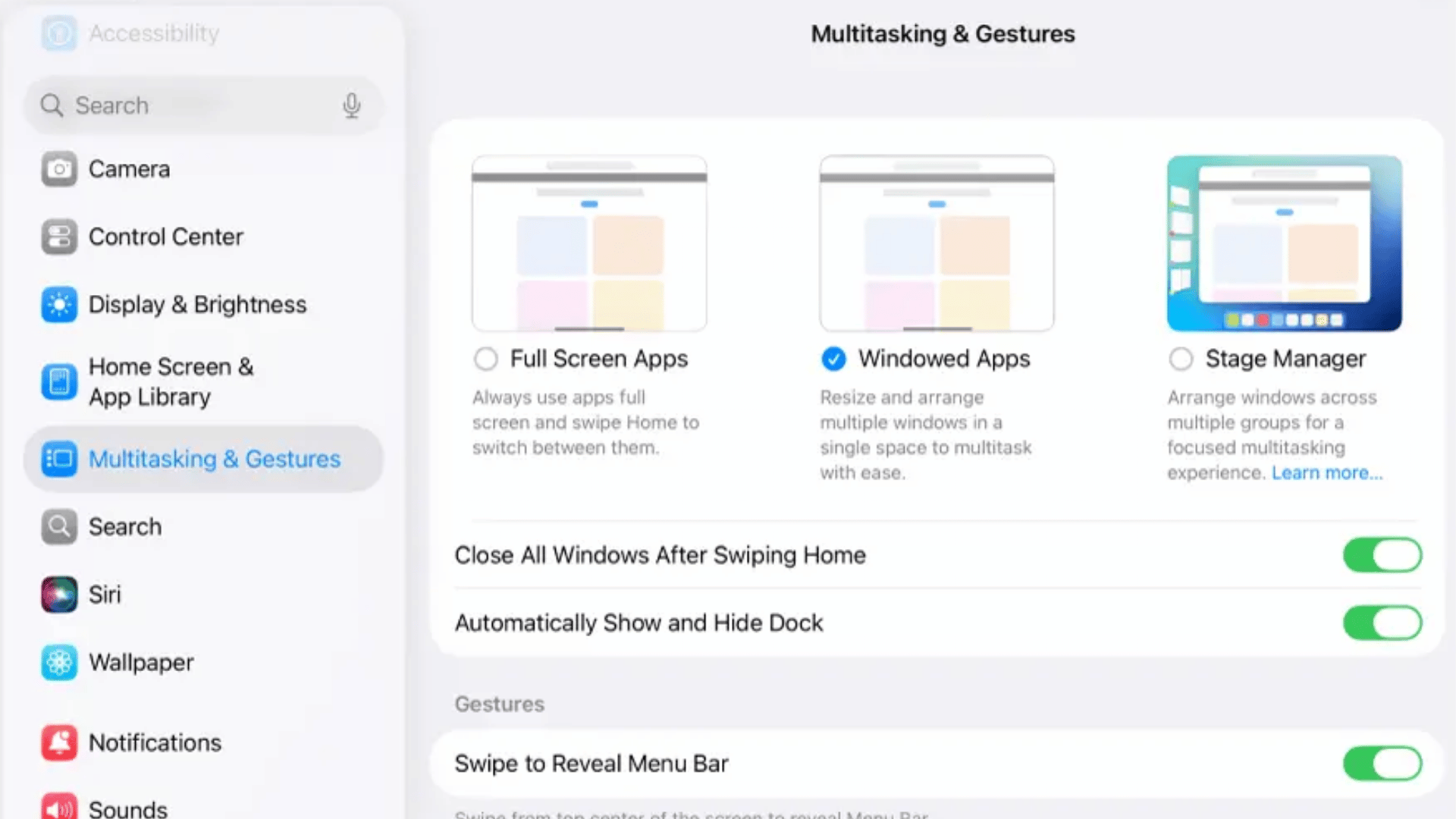
If you use iPadOS 26, also check Settings > Multitasking & Gestures to see which multitasking mode is selected. Windowed Apps is the current option for working with multiple windows, while Full Screen Apps turns that feature off.
How to Split Screen on iPad?
If you’re using iPadOS 26, you can still put two apps side by side.
The main difference is that Apple now uses Windowed Apps instead of the older Split View interface, though running two apps at once can sometimes surface iCloud syncing issues if your connection drops mid-task.
Once you select the right setting, you can open, resize, and arrange your apps on the same screen.
How to Do Split Screen on iPad with Windowed Apps
iPadOS 26 lets you place two app windows side by side without using the old Split View controls. You can start with one app in full screen and bring another app in from the Dock, App Library, or Spotlight.
- Open the First App: Launch the app you want to use first.
- Open Another App: Bring up the Dock, App Library, or Spotlight and find your second app.
- Drag the App: Touch and hold the second app, then drag it toward the left or right edge.
- Place It Beside the First: Release the app when it snaps into position beside the first window.
- Adjust the Size: Drag the bar between the two windows to give either app more or less space.
Both apps can now stay visible at the same time. You can also move or resize the windows later if you need a different layout.
Turn On Windowed Apps for iPad Split Screen
Before using two apps side by side, make sure your iPad is set to use Windowed Apps. Apple also lets you change this setting from Control Center on supported iPad models.
- Open Settings: Launch the Settings app on your iPad.
- Tap Multitasking & Gestures: Scroll through Settings and select this option.
- Choose Windowed Apps: Tap Windowed Apps to turn on the current multitasking mode.
- Check the Setting: Make sure Windowed Apps is selected instead of Full Screen Apps.
- Try Split Screen: Open an app, then bring in another from the Dock, App Library, or Spotlight.
You can also open Control Center by swiping down from the top-right corner and use the Windowed Apps button to change the multitasking mode, the same panel you’d use for sharing your location or adjusting connectivity settings.
Classic Split View on Older iPadOS Versions
If your iPad uses an older iPadOS version, the classic Split View method is different from the current iPadOS 26 window system. The three-dot multitasking button is the familiar way to place two supported apps side by side.
- Open Your First app: Launch the app you want to use.
- Tap the Three Dots: Tap the multitasking button at the top of the screen.
- Choose Split View: Select the Split View option from the menu.
- Choose Another App: Select the second app from your Home Screen or Dock.
- Adjust the Divider: Drag the divider between the apps to change their sizes.
This method applies to older iPadOS versions that use the classic Split View interface. If your iPad runs iPadOS 26, use Windowed Apps instead.
Resizing, Switching or Closing Split Screen
Once two apps are side by side, you can change their size or rearrange them. iPadOS 26 also gives you more control over individual windows than the older Split View system.
- Resize a Window: Drag the bar between two side-by-side windows to change their sizes.
- Move a Window: Drag the top edge of a window to move it somewhere else.
- Make It Full Screen: Tap the window controls and choose the Full Screen option.
- Minimize a Window: Tap the window controls, then choose Minimize.
- Close a Window: Tap the window controls and choose Close when you’re finished.
You can also touch and hold the window controls to see additional layout options. This makes it easier to change how multiple apps appear without closing them.
Why Split Screen Isn’t Working
If split screen isn’t working, first check whether your iPad is using Windowed Apps. Go to Settings > Multitasking & Gestures and make sure Windowed Apps is selected instead of Full Screen Apps.
Your iPad model also matters because Windowed Apps is supported only on certain models, including iPad 8th generation and later, iPad Air 3rd generation and later, iPad mini 5th generation and later, and supported iPad Pro models.
Some apps may also limit how they work with multiple windows. If you’re still having trouble, update your iPadOS to the latest available version and try another app.
These checks can help identify whether the problem comes from settings, the device, software, or an app.
The Ending Note
Learning how to split screen on iPad is much easier once you know which multitasking system your device uses. iPadOS 26 relies on Windowed Apps, while older versions use the classic Split View controls.
I recommend checking your settings first, especially if the familiar three-dot button is missing. You can then open two supported apps side by side, resize their windows, or change the layout as needed.
If split screen still does not work, check your iPad model, app support, and software updates. Have you tried the newer Windowed Apps system yet?
Share your iPad model or your experience in the comments, especially if the steps worked differently for you.
Frequently Asked Questions
How Many Apps Can You Have Open at Once on iPad?
iPadOS 26 lets you work with multiple app windows at once. Windowed Apps support side-by-side, third, and quarter-screen layouts on supported iPads.
Can I Split Screen with Two Windows from the Same App?
Yes. Apps such as Safari and Notes support multiple windows, so you can open two windows from the same app and place them side by side.
How Do I Put Two Apps Side by Side on iPad?
With Windowed Apps enabled, open one app and drag another from the Dock, App Library, or Spotlight to the left or right edge of the screen.
Can I Resize Two Apps on a Split iPad Screen?
Yes. When two windows are side by side, drag the bar between them to change how much screen space each app uses.
Can I Use Split Screen with Safari and Another App?
Yes. Open Safari and drag another supported app from the Dock, App Library, or Spotlight to an edge of the screen to place the windows side by side.