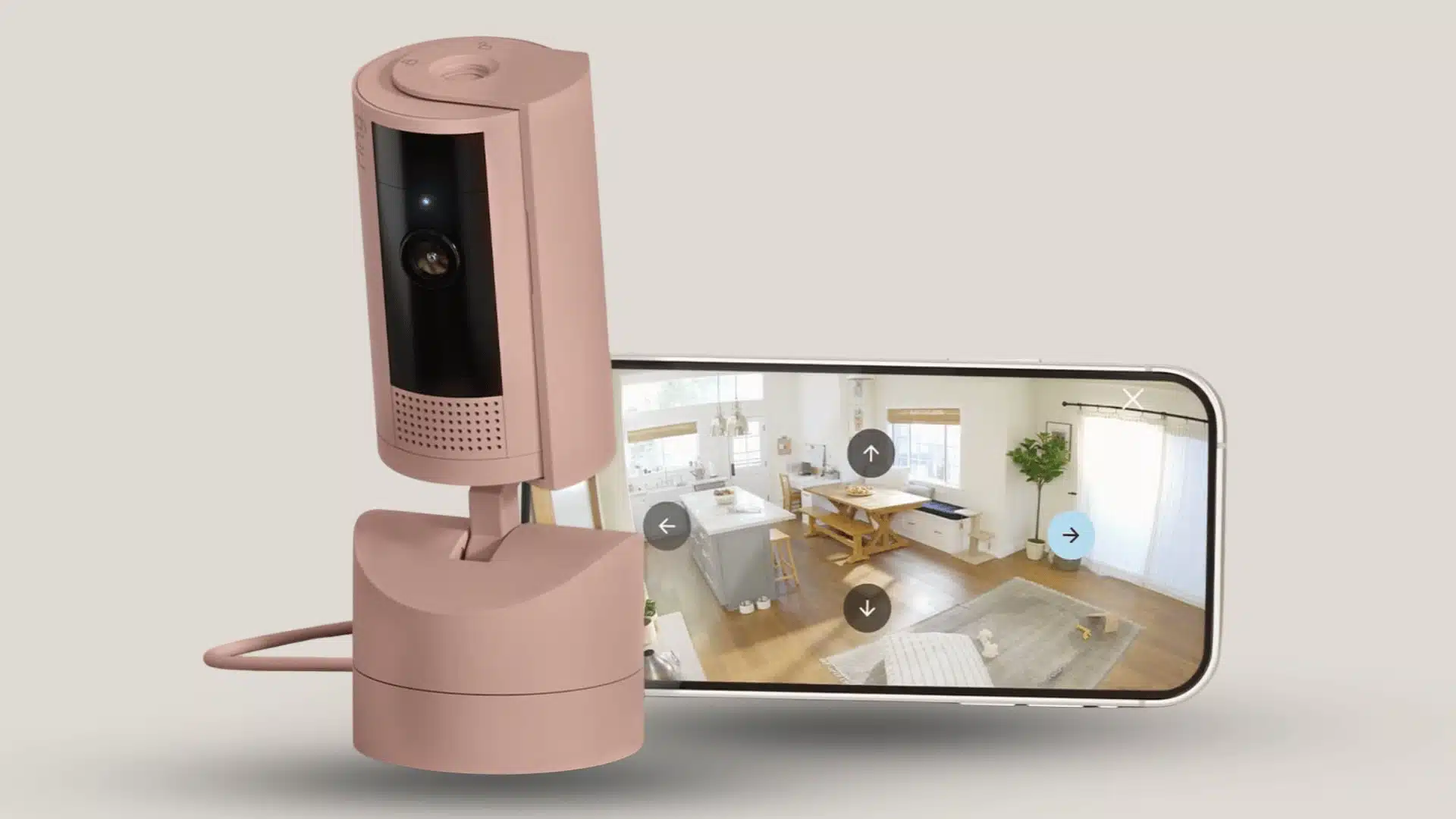
Have you ever wanted a little privacy at home but could not figure out how to stop your Ring camera? I found that the Ring app can make this more confusing than it needs to be.
Turning off alerts, Motion Detection, recording, or Live View are different things, and removing power is another option altogether.
Knowing which setting to change can save you from switching off something you still need. If you are looking for how to turn off a Ring camera, the right method depends on what you want to stop.
From quick app settings to a complete power shutdown, you can choose the option that fits your situation.
Can You Fully Turn Off a Ring Camera?
A Ring camera does not have a single app button that completely powers it off. Instead, you can control features such as Motion Detection, recording, Live View, and alerts separately.
Since a Ring camera is only one piece of a larger setup, understanding how a smart home works helps explain why no single switch controls every function at once.
On compatible devices, Ring Modes can also change several camera functions at once, including when the camera records. If you need the camera completely powered down, you must disconnect its power source.
For a model with a removable battery, you can remove the battery. For a plug-in or wired model, you can safely disconnect its power. Changing an app setting alone does not physically turn off the camera.
What Happens When You Turn Off a Ring Camera?
Turning off a Ring camera can mean different things depending on the setting you change. Each option affects a different part of the device, so check the setting that matches what you want to stop.
- Motion Detection: Turning off Motion Detection stops the camera from detecting motion events. On devices using motion-based recording, this also stops motion-event recordings.
- Motion Alerts: Turning off Motion Alerts stops motion notifications, but it does not physically turn off the camera or necessarily stop other recording features.
- Live View: Live View is a separate camera function. Turning off Motion Detection or Motion Alerts does not by itself mean the camera is completely unavailable through Live View.
- Lights and Siren: Compatible Ring devices can have separate controls for features such as lights and sirens, so changing Motion Detection or alerts does not automatically switch these features off.
- Videos and Shared Users: Changing these settings does not automatically delete existing Event History or remove Shared User access. Shared Users may still have access to features such as Live View when they have permission.
If you need to completely power down the camera rather than disable specific functions, disconnect it from its power source.
Note that eligible Ring cameras with 24/7 Recording can continuously record audio and video, so Motion Detection should not be treated as a universal recording switch on those devices.
How to Turn Off Ring Camera from the App?
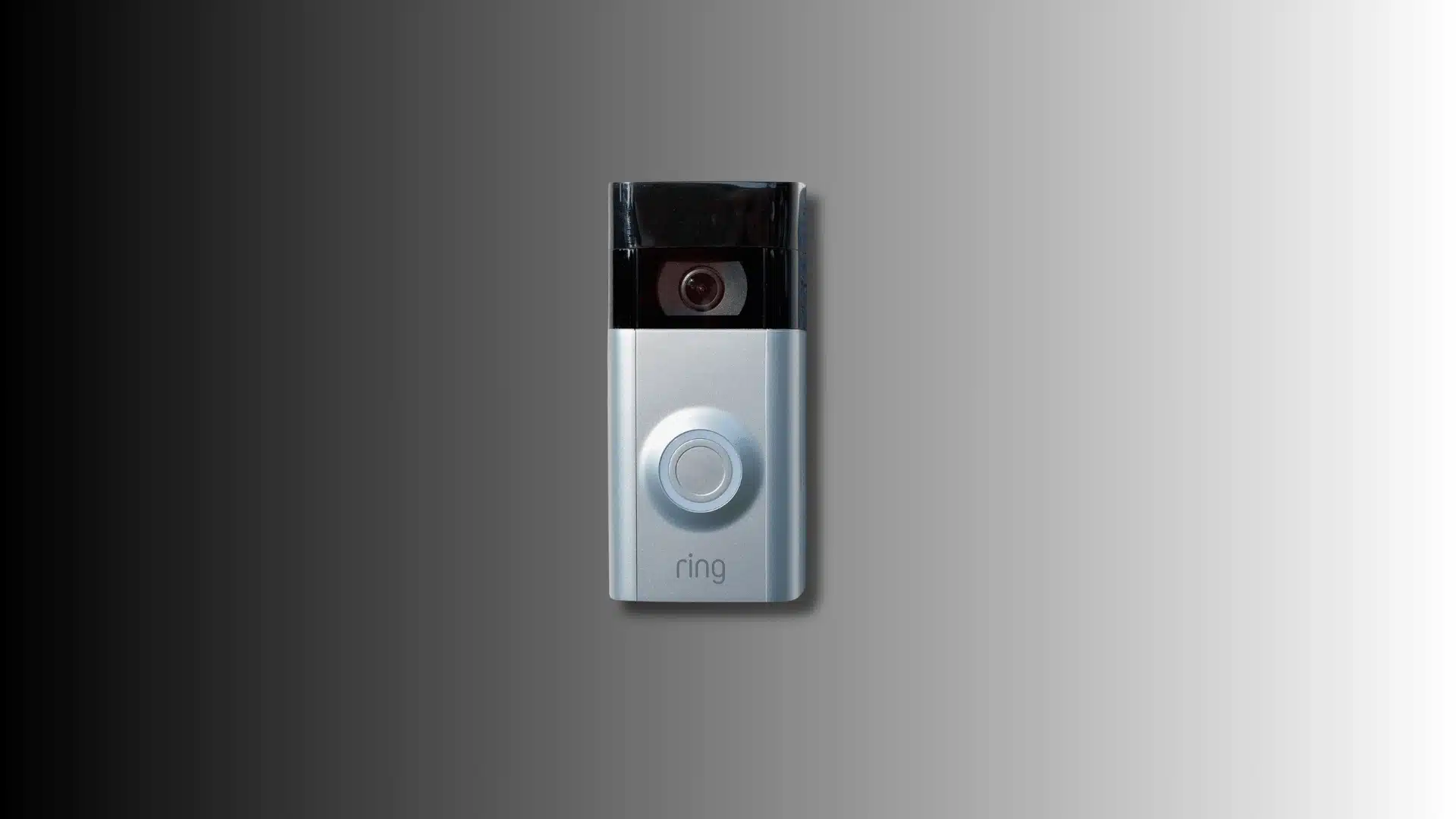
You can use the Ring app to stop specific camera functions without physically disconnecting the device. The setting you need depends on what you want to turn off.
Motion Detection controls motion events, recording has separate controls on eligible devices, and Motion Alerts only control notifications. Device Modes can also control several camera functions together.
1. Turn Off Motion Detection
Turning off Motion Detection is the simplest option when you want your Ring camera to stop detecting motion events. Ring says Motion Detection must be enabled for the device to detect and record motion events.
- Open the Ring app and go to the main dashboard.
- Tap the Menu (☰) icon.
- Tap Devices.
- Select the Ring camera you want to change.
- Find Motion Detection on the device screen.
- Toggle Motion Detection off.
Once Motion Detection is off, the camera will no longer detect or record motion events. This does not physically power down the camera, and other features can still be available depending on your device and settings.
2. Turn Off Ring Camera Recording
This option needs a little clarification because Ring’s recording controls depend on the device. 24/7 Recording is available only on eligible devices and requires a compatible Ring subscription.
If your camera has this feature, you can turn off continuous recording from the app.
- Open the Ring app and go to the main dashboard.
- Find the camera with 24/7 Recording enabled.
- Tap the More (•••) button on the camera preview.
- Find the camera/Recording icon in the controls.
- Tap the icon to turn Recording off.
- Check the camera preview to confirm that continuous recording is no longer active.
When 24/7 Recording is turned off, the camera stops continuous recording. However, this does not necessarily stop every type of video recording. Depending on your settings, the camera can still record when you use Live View or when Linked Events are configured.
3. Use Disarmed Mode
Device Modes can be useful when you want to change several camera functions at once.
For compatible Ring cameras, you can customize Recording, Motion Warning, and Live View for Disarmed, Home, and Away modes. A compatible Ring subscription is required for certain in-app Mode features.
- Open the Ring app and go to the main dashboard.
- Tap the Menu (☰) icon.
- Tap Devices and select your camera.
- Tap Device Settings, then Mode Settings.
- Select Disarmed and choose the actions you want the camera to take.
- Tap Save to apply the settings.
You can set the camera not to record or use Live View in Disarmed Mode, depending on the available controls for your device.
Working through settings early, the same way you would when planning a smart home setup, keeps you from mixing up recording, alerts, and Live View later.
Remember that Disarmed Mode does not physically turn off the camera.
4. Turn Off Live View
Ring does not provide a universal standalone power switch that makes every camera completely inaccessible through Live View. On compatible cameras, however, Live View can be controlled through Device Modes.
- Open the Ring app and go to the main dashboard.
- Tap the Menu (☰) icon.
- Tap Devices and select your camera.
- Tap Device Settings, then Mode Settings.
- Select the mode you want to change, such as Disarmed.
- Set Live View to off and tap Save.
This changes Live View behavior for the selected Mode. It does not physically power off the camera.
Also, do not confuse this with Tap Camera Preview for Live View, which only controls what happens when you tap the camera preview on the Ring app dashboard.
5. Turn Off Ring Camera Notifications
If you only want to stop notifications on your phone, you can turn off Motion Alerts without shutting down the camera. Ring treats Motion Detection and Motion Alerts as separate settings.
- Open the Ring app and go to the main dashboard.
- Tap the Menu (☰) icon.
- Tap Devices.
- Select the camera you want to change.
- Find Motion Alerts in the device settings.
- Toggle Motion Alerts off.
Turning off Motion Alerts stops motion notifications from that device, but it does not physically turn off the camera. Depending on your settings and Ring plan, the device may continue detecting or recording motion.
How to Turn Off Ring Camera Without the App?
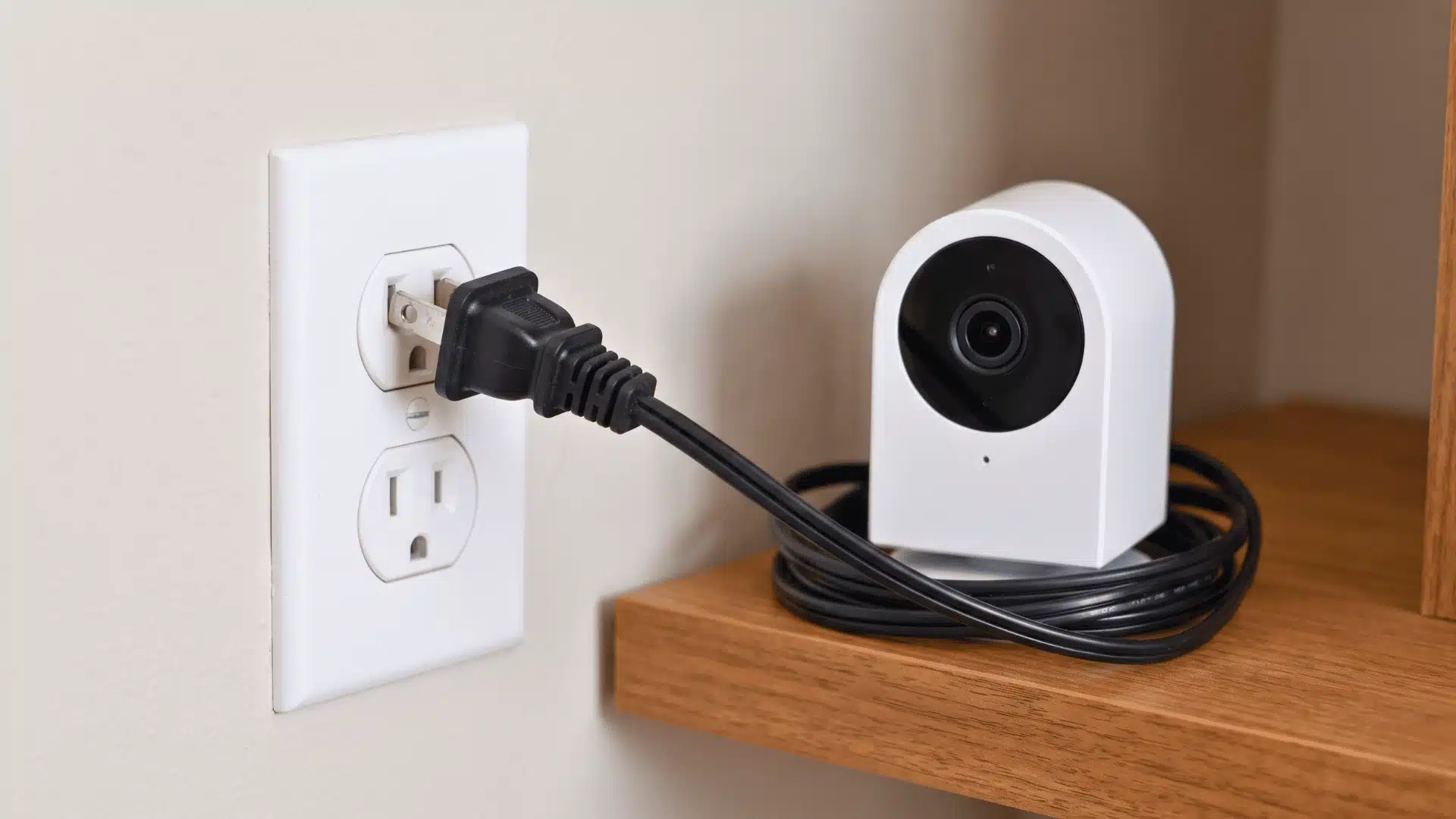
If you cannot use the Ring app, you can still completely power down your Ring camera by disconnecting its power source. The exact steps depend on whether your device uses a removable battery, plugs into an outlet, or is hardwired.
Ring recommends removing the battery from battery-operated devices, unplugging plug-in devices, or switching off the power source for wired devices.
Turn Off a Battery-Powered Ring Camera
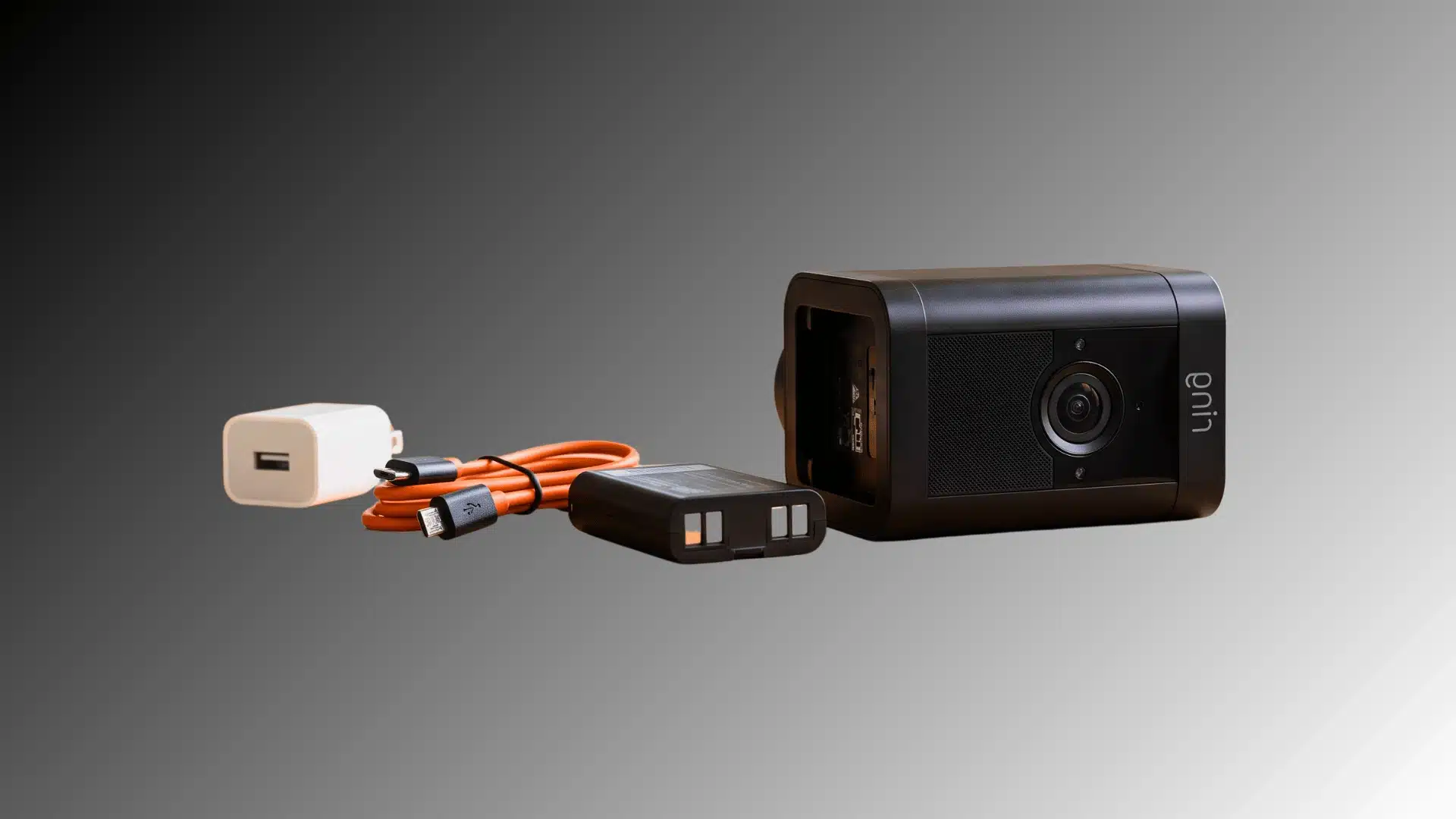
For a Ring camera with a removable battery, taking out the battery disconnects the camera from its power source. The exact battery compartment steps vary by model.
- Locate the battery compartment on your Ring camera.
- Open the battery compartment using the cover or security screw required by your model.
- Press the battery release tab to unlock the battery.
- Slide the battery out of the camera.
- Store the battery safely in a dry place away from heat and moisture.
- Leave the battery out until you want to power the camera back on.
Ring battery-powered devices with removable batteries can be turned off by removing the battery pack. Some models have built-in batteries, so check your model before trying to remove one, and never force the battery out.
Turn Off a Plug-In or Wired Ring Camera
Plug-in Ring cameras can be turned off by disconnecting them from the outlet. For hardwired cameras or doorbells, Ring recommends turning off the appropriate power source, such as a light switch or circuit breaker.
- Identify how your Ring device gets power. Check whether it uses a power cord or is connected to household wiring.
- For a plug-in camera, unplug the power cord from the wall outlet.
- For a wired device, locate the correct power switch or circuit breaker.
- Switch off the power supplying the Ring device.
- Wait a few moments and check that the device has powered down.
- Do not handle exposed wiring. If you cannot safely identify or access the correct power source, contact a qualified electrician.
For hardwired Ring doorbells, Ring specifically warns users to disconnect power at the circuit breaker or fuse box before working with the wiring.
Important: Do not confuse powering off with power cycling. Ring’s power-cycle instructions tell you to remove the battery or disconnect power temporarily and then restore it. If your goal is to keep the camera off, leave the battery removed or the power disconnected.
Turning Off a Ring Camera vs. Removing It
Turning off a Ring camera is usually a temporary change, such as pausing motion detection or powering down the device. Deactivating or deleting it is different and is mainly useful when removing the camera from your account or transferring ownership.
| Choice | Best For | Existing Videos | Easy to Undo? |
|---|---|---|---|
| Turn off Motion Detection | Temporary break from motion detection | Remain available | Yes |
| Use Disarmed Mode | Temporarily changing camera functions | Remain available | Yes |
| Remove Power | Completely powering down the camera | Not deleted by powering off | Yes |
| Deactivate Device | Transferring ownership | Remain available until they expire | Yes |
| Delete Device | Removing it from your Ring account | No longer accessible in Event History | No |
Deactivating or deleting a device is not necessary for a short privacy break. Use a camera setting or disconnect its power instead.
Deactivation is useful when transferring ownership, while deletion removes the device from your account and ends your access to its Event History. Only the account owner can deactivate or delete a Ring device.
How to Check That the Ring Camera Is Off?
After changing your Ring camera settings, check the app to make sure you made the change you intended. Open the Ring app and look at the camera on the main dashboard.
Since Live View and alerts depend on connectivity, knowing how your home network handles connectivity can explain why a camera sometimes reappears online after power is restored.
Check that Motion Detection is off if you wanted to stop motion detection and recording of motion events. You can also check the camera’s settings for recording or Live View if you changed those features separately.
If you physically removed the battery or disconnected power, the camera should no longer be available for Live View or event recording. You can also check Device Health to see the device’s current status.
How to Turn the Ring Camera Back On?
Turning a Ring camera back on depends on how you turned it off. If you disabled Motion Detection, open the Ring app, select the camera, and turn Motion Detection back on.
If you changed recording, Live View, or Mode settings, restore those settings as needed. For a battery-powered camera with a removable battery, put the battery back in securely.
For a plug-in camera, reconnect the power cord. For a wired device, restore power at the appropriate switch or circuit breaker. Give the camera a moment to reconnect, then check its status in the Ring app.
Ring recommends checking Device Health if the camera does not come back online.
Why Won’t My Ring Camera Turn Off?
If your Ring camera still seems active, first check which feature you actually turned off.
Turning off Motion Alerts only stops notifications, while turning off Motion Detection stops the device from detecting and recording motion events.
If the camera remains available in the app, that does not necessarily mean your setting failed.
If you physically disconnected the power but the device still appears active, check that the correct power source was disconnected and give the camera some time to go offline. You can also check Device Health for its current status.
Avoid changing or disconnecting wiring if you are unsure which power source controls the device.
Closing Thoughts
Turning off a Ring camera can mean several different things, from stopping motion alerts to cutting power completely. I recommend choosing the smallest change that solves your problem, especially if you only need a short privacy break.
Motion Detection, recording, Live View, and alerts have separate controls, while removing the battery or power source fully shuts down the device.
Once you know what each option does, how to turn off Ring camera becomes much easier to handle. Before you leave, check the camera settings and make sure everything works as expected.
Have you found another useful way to manage your Ring camera? Share your tips in the comments!
Frequently Asked Questions
Will I lose saved videos when I turn the camera off?
No. Turning off your Ring camera does not delete existing videos. They remain available according to your Ring storage and retention settings.
Does deleting a Ring camera cancel the Ring plan?
No, deleting or removing a camera does not end your Ring plan. You will need to cancel the plan separately if you want to stop it.
Can Shared Users turn the Ring camera back on?
Shared Users cannot change a Ring camera’s Motion settings or delete the device. They can use features such as Live View and control alerts for their own devices, depending on their permissions.
Does turning off Wi-Fi stop a Ring camera?
No. Turning off Wi-Fi disconnects the camera from the internet, but it does not physically power off the device.