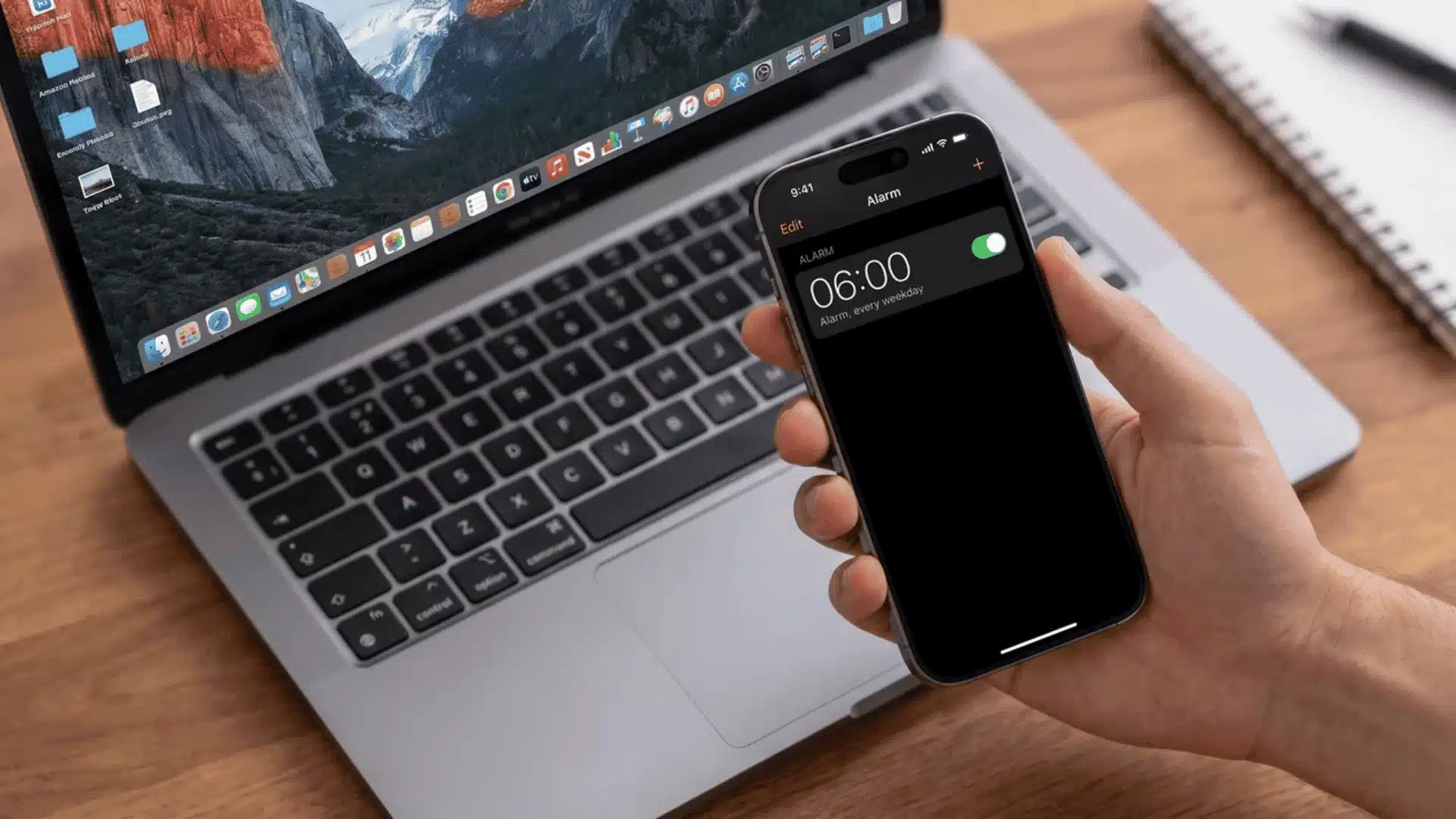
Waking up to the same alarm every day can make mornings feel even harder.
I like changing my alarm sound from time to time because a fresh tone makes waking up feel less repetitive. The first time I looked for the setting, I expected to find it in the iPhone Settings app, but it was actually inside the Clock app.
Once I found it, changing the sound only took a few taps.
If you’re looking for how to change alarm sound on iPhone, you’ll find everything you need, from choosing built-in tones to using songs from your Music library and adjusting alarm volume when it seems too quiet.
What Alarm Sound Options Does iPhone Actually Give You?
Your iPhone doesn’t just give you one way to change your alarm sound. It gives you four. Knowing which path fits your situation saves you from a mid-setup surprise.
The default sound every new alarm starts with is called Radar. From there, dozens of other built-in tones are waiting inside the Clock app, completely free, no subscription needed.
If you want to wake up to a song, you can choose one from your Music library. If you’re using an Apple Music song, it should be available in your library, and downloading it to your device is recommended so it remains available even without an internet connection.
Prefer something more cinematic? The Tone Store sells movie themes and character sounds as one-time purchases. Buy it once, and it lives in your sound list permanently.
One thing worth flagging upfront: Spotify won’t work here natively. The Clock app only plays local library tracks or built-in tones. No third-party streaming apps plug in directly.
How to Change Alarm Sound on iPhone: Step-by-Step
Changing your iPhone alarm sound takes about 30 seconds once you know where to look, similar to clearing built-up app cache when your phone feels sluggish.
It lives inside the Clock app, not Settings, which is where most people waste their time hunting first.
Step 1: Open the Clock App and Select Your Alarm
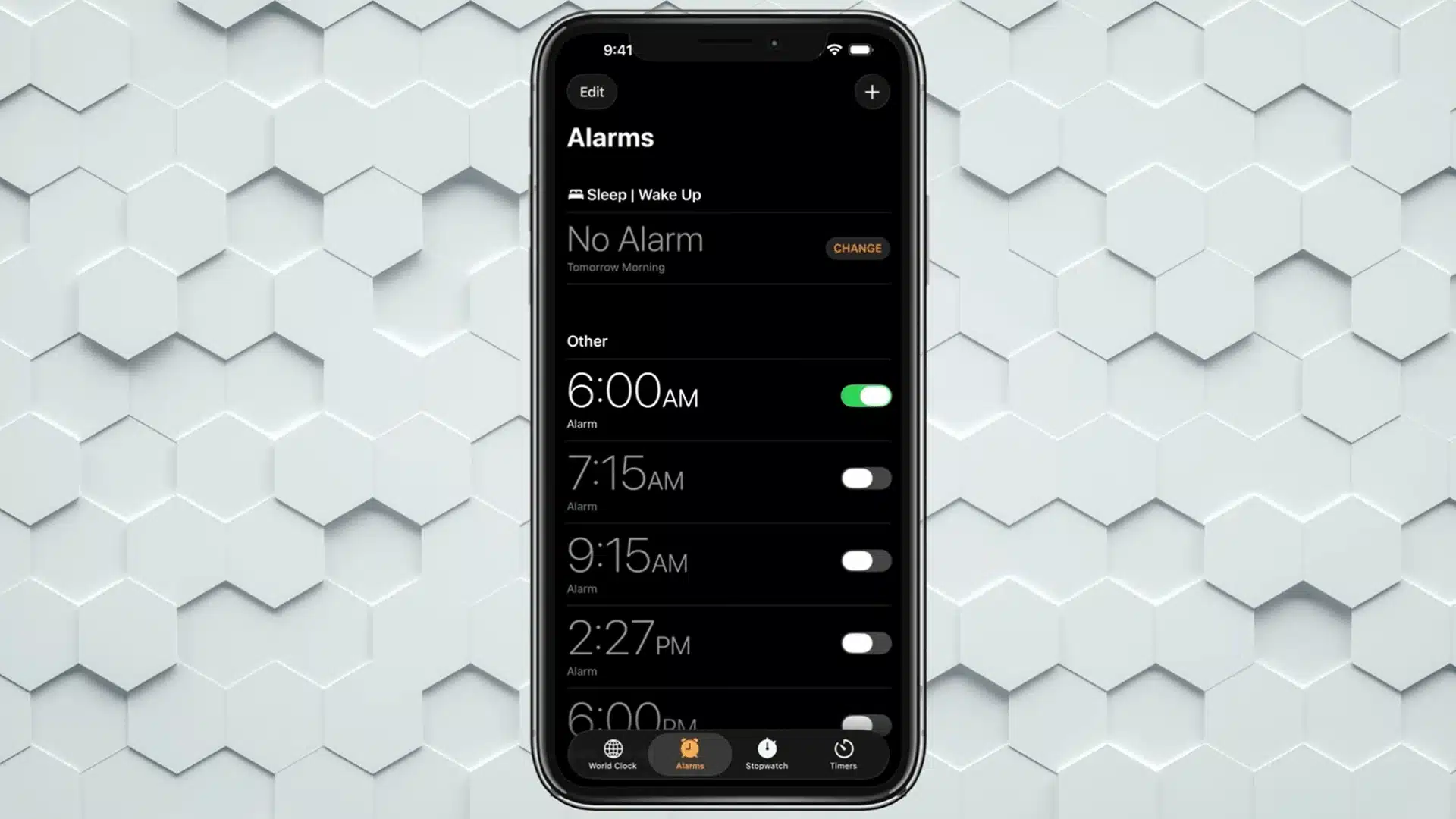
Open your Clock app and tap Alarms at the bottom of the screen. You will see all your existing alarms listed. Tap the one you want to update.
If you haven’t set one yet, tap the + button in the top right to create a new alarm. Once inside, find the Sound row. That is your destination.
Step 2: Choose a Default Tone
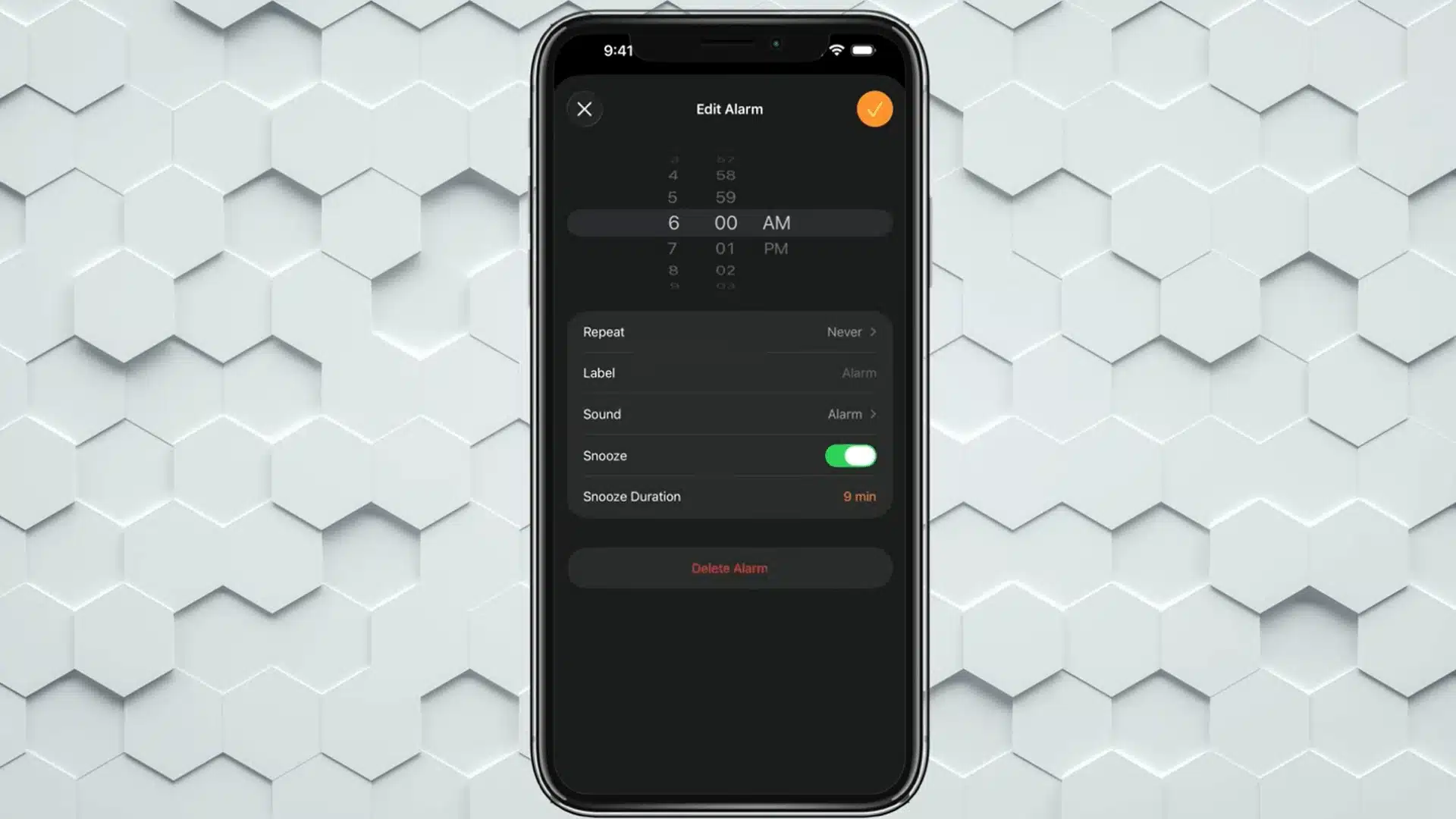
Tap Sound, and you will land on a list of built-in tones that come with every iPhone. Scroll through and tap any one to preview it instantly without committing.
The checkmark moves to whatever you tap, so take your time browsing. The default library is bigger than it looks and worth a proper scroll before going anywhere else.
Step 3: Set a Song as Your Alarm
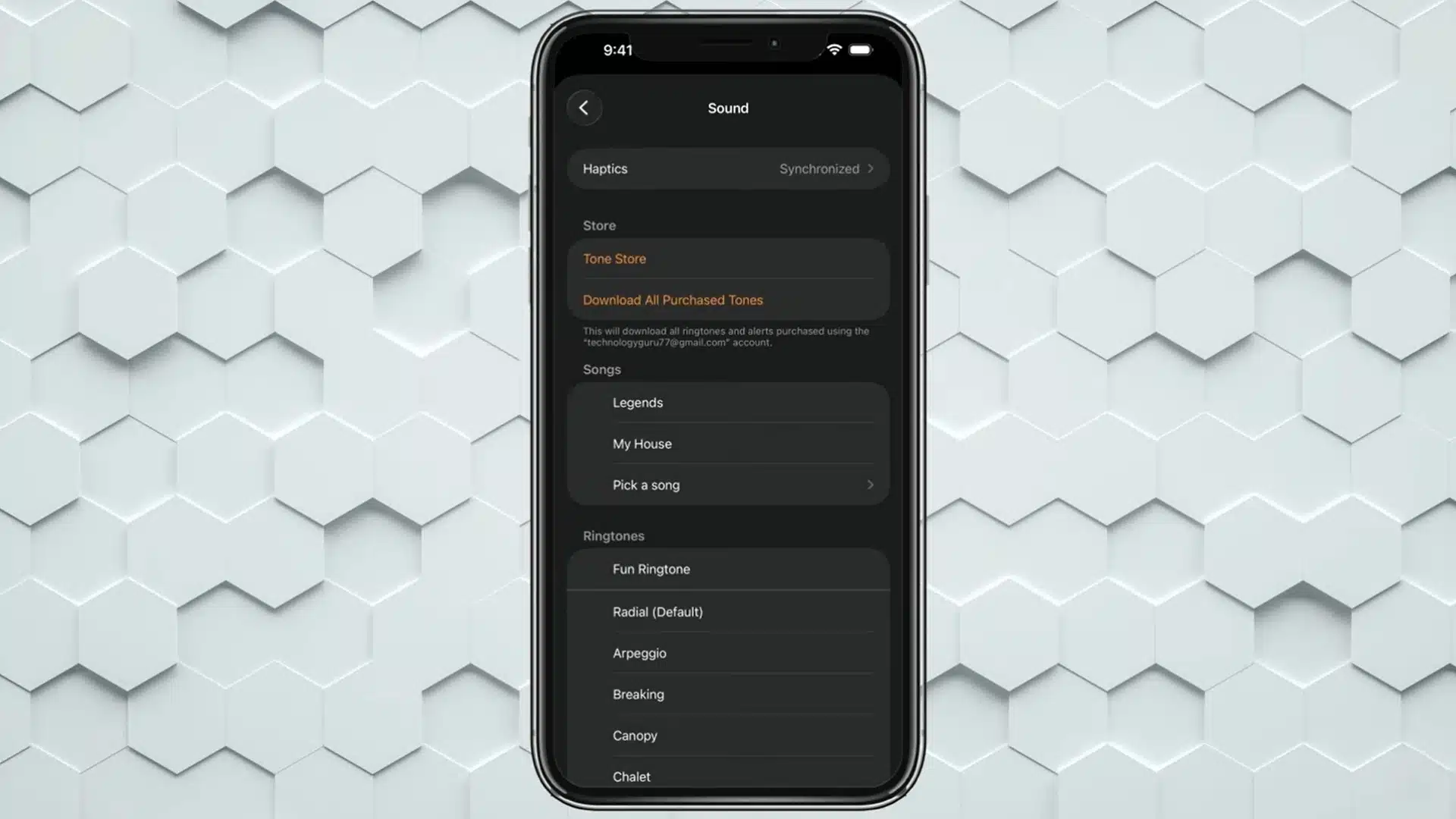
Scroll past the default tones until you see Songs, then tap Pick a Song. Browse by playlist, artist, or search for a specific track and tap the + symbol to assign it.
You can choose any song that’s available in your Music library, including purchased music, imported tracks, or songs you’ve added through Apple Music. For the best reliability, make sure the song is available on your device.
Step 4: Buy a Custom Tone from the Tone Store
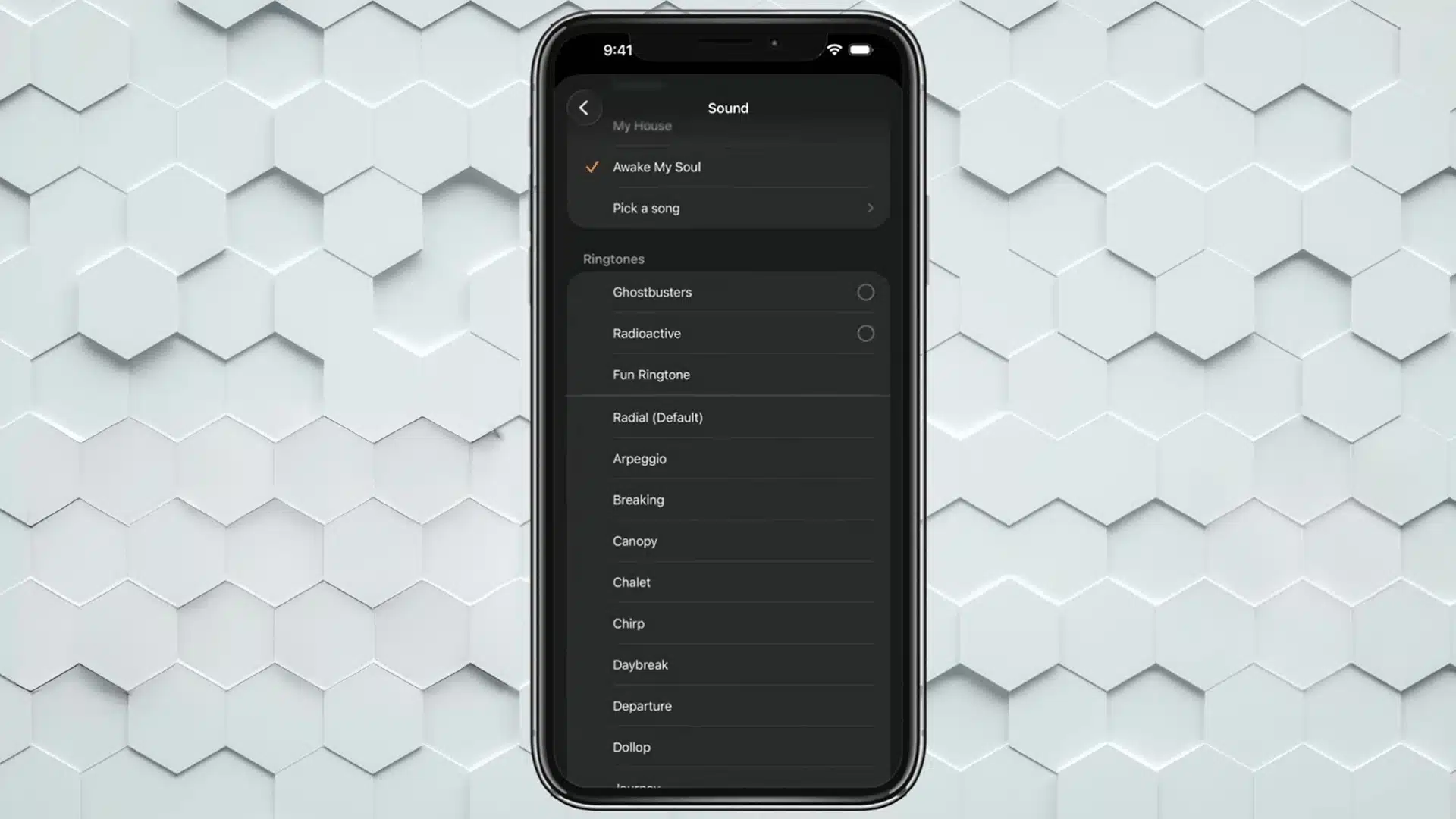
Tap Tone Store from the Sound screen to open Apple’s dedicated tone library. Search by category, mood, or pop culture reference and find something that actually makes getting up feel worth it.
Tones are priced between $0.99 and a couple of dollars each. After purchasing, tap Download All Purchased Tones, and it will appear in your sound list ready to select like any default tone.
Whichever path you took, tap Back and then Save before you exit. Skip that last step and none of your changes will stick, no matter which sound you picked.
Prefer watching over reading? The complete video is linked here.
How to Change Alarm Volume on iPhone?
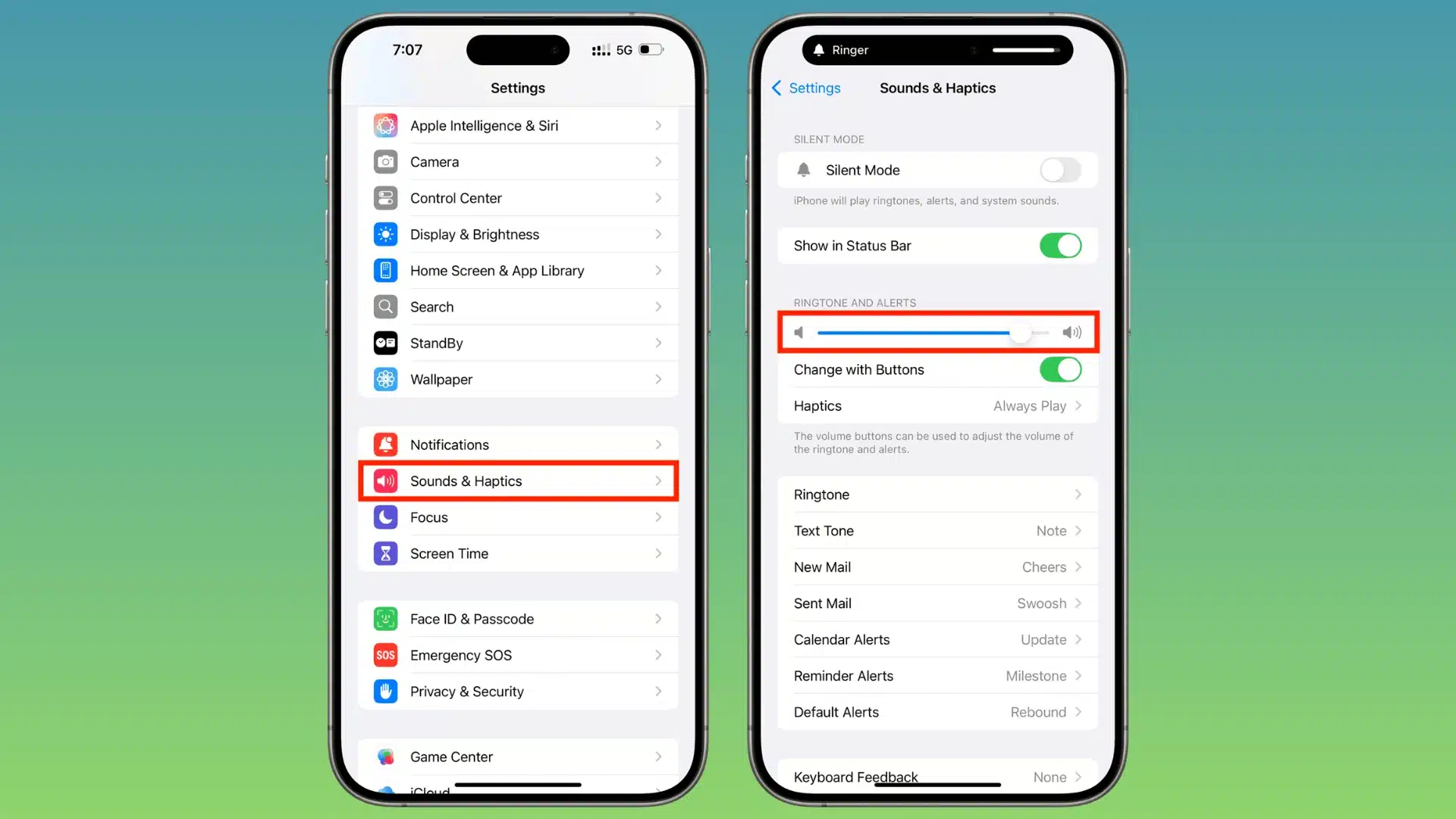
iPhone alarm volume is controlled by the Ringtone & Alerts slider in Settings > Sounds & Haptics. Not by the physical volume buttons, not by the mute switch. Here is exactly how it works
- The Ringtone and Alerts Slider: Head to Settings > tap Sounds & Haptics > drag the slider under Ringtone > Alerts left or right. A preview tone plays in real time as you drag so you hear exactly what your alarm will sound like before committing.
- The Ring/Silent Switch and Do Not Disturb: Neither of these touches your alarm volume. Calls and notifications get silenced, but your Clock app alarm fires at whatever the slider is set to, every single time, no exceptions.
- The Change with Buttons Toggle: This is the one setting that actually links your side buttons to alarm volume. Find it in Settings > Sounds & Haptics, switch it on, but know it only works when your phone is unlocked and you are actively pressing the buttons.
Your Ring/Silent switch does not silence your alarms. Ever. A lot of people flip to silent at night assuming their alarm will be quieter. It will not. It rings at full volume regardless of that switch.
iOS 27: How to Set a Separate Volume for Alarms Vs. Ringtones?
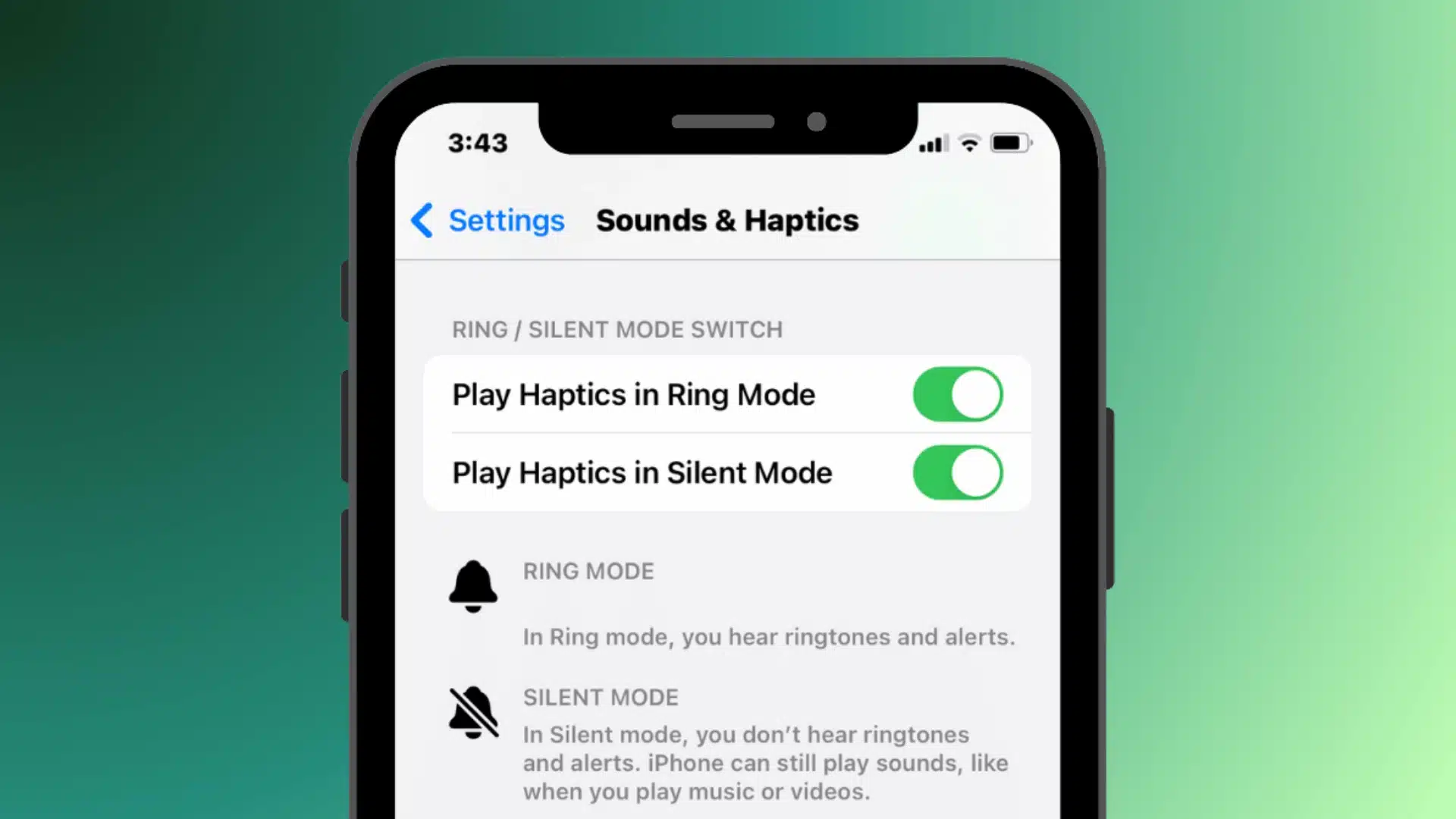
iOS 27, currently rolling out in public beta ahead of a full release this September, finally separates your alarm volume and ringtone volume. You no longer have to choose between a loud alarm and quieter notifications during the day.
Before this update, both settings were tied to the same slider. Increasing your alarm volume also meant increasing your ringer volume, which was inconvenient for many users.
Now, you can adjust them independently: go to Settings > Sounds & Haptics, open Alarms and Timers, then toggle off Match Ringtone Volume to reveal a separate alarm volume slider.
The difference between the old and new system is clear:
| Feature | iOS 26 and Earlier | iOS 27 |
|---|---|---|
| Alarm Volume Control | Shared with Ringtone | Optional separate slider (after toggling off Match Ringtone Volume) |
| Ringtone Volume Control | Shared with alarms | Dedicated separate slider |
| Loud Alarm + Quiet Ringer | Not possible natively | Fully supported |
| Quiet Alarm + Loud Ringer | Not possible natively | Fully supported |
| Sleep Schedule Alarm Volume | Health app setting | Still uses its own setting |
| Third-party Workaround Needed | Yes | No |
One thing to check: Sleep Schedule alarms from the Health app still use their own volume setting. Go to Health > Sleep > your alarm and confirm the level you want.
Clock app alarms and Sleep Schedule alarms remain separate, so changing one does not always affect the other. iOS 27 removes one of the biggest alarm frustrations.
You can now keep your mornings loud without making every notification during the day just as loud.
Sleep Schedule Alarms Have Their Own Volume Setting
If you use the Sleep Schedule feature in the Health app, your wake alarm volume is set separately from standard Clock alarms and will not respond to the Sounds & Haptics slider the same way.
Most people never realize this. The Health app and the Clock app are two completely separate systems on your iPhone. Changing volume in one does absolutely nothing to the other.
To fix your Sleep Schedule alarm volume, open the Health app, tap Browse, go to Sleep, then tap Edit under Your Schedule (or Full Schedule & Options), and adjust the volume in the Alarm settings.
If your alarm volume feels inconsistent day to day, check whether you have both a Sleep Schedule alarm and a Clock alarm set for the same time. That conflict is almost always the reason.
Two alarms, two volume systems, one confused morning. Pick one, set it properly, and your wake-up volume will finally stay exactly where you left it.
Alarm Volume Too Low, How to Fix It?
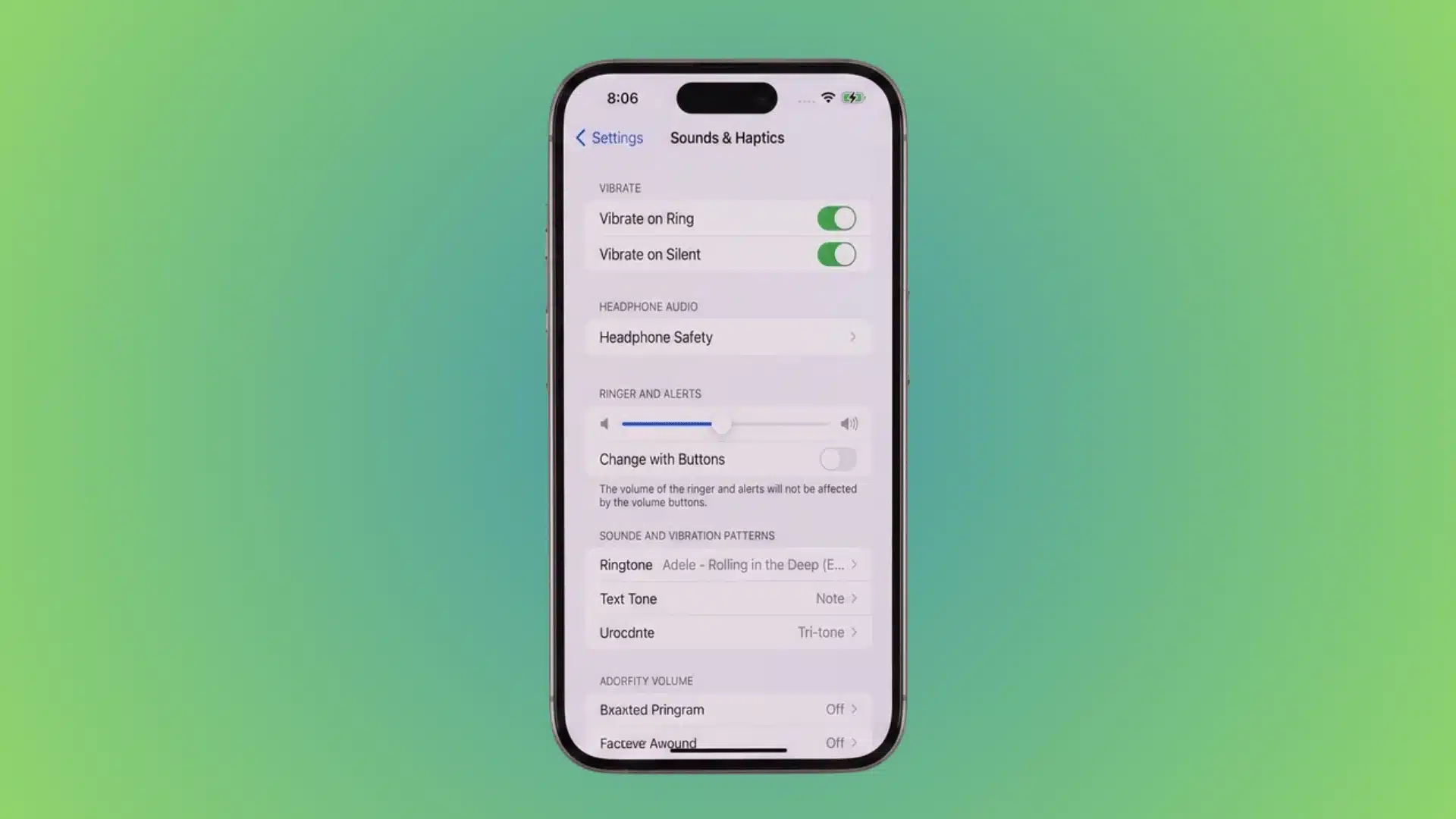
If your iPhone alarm suddenly becomes quieter than expected, the most common causes are a lowered Ringtone & Alerts volume, the Change with Buttons setting, or Attention Aware Features on Face ID models.
These settings can affect how loud your alarm sounds.
This is more common than you think. A single accidental button press or a background iOS update is genuinely all it takes to throw your alarm volume completely off; the same kind of quiet glitch that can leave iCloud syncing paused without warning.
- Check Your Ringtone and Alerts Slider: Head to Settings > Sounds & Haptics and confirm the slider is not sitting near zero. If Change with Buttons is on, a recent accidental side button press may have silently dropped your alarm volume without you realizing.
- Check Attention Aware Features: If your iPhone uses Face ID, go to Settings > Face ID & Passcode and review Attention Aware Features. This setting can affect how some alerts behave, and some users have reported it influencing how loud alarms seem. If your alarm still sounds too quiet, also make sure your Ringtone & Alerts volume is set high enough in Settings > Sounds & Haptics.
- Test With a Fresh Alarm: Set a new alarm one or two minutes ahead and let it ring for several seconds before stopping it. This helps you hear its full volume and confirms whether the issue is with the alarm settings rather than the sound you’ve selected.
Nine times out of ten it is one of these three things. Work through them in order, and your alarm will be back to waking you up properly before tonight.
Conclusion
Knowing how to change alarm sound on iPhone makes it easy to personalize the way you wake up each day.
A different tone, the right volume, or a favorite song can make mornings feel a little better without taking more than a minute to set up.
I also recommend checking your alarm settings once in a while, especially after a major iOS update, to make sure everything still works the way you expect.
If this helped you, leave a comment below and share your favorite iPhone alarm sound or any tips that have worked well for you. I’d love to hear what you use.
Frequently Asked Questions
Does the Ring/Silent Switch Turn Off iPhone Alarms?
No. Flipping iPhone to silent mode silences calls, notifications, and system sounds, but alarms in the Clock app will still ring at whatever volume you have set in Settings > Sounds & Haptics. The switch does not affect alarm audio whatsoever.
Can I Make One Alarm Louder Than Another on the Same iPhone?
On iOS 26 and earlier, no. All Clock alarms share the same Ringtone & Alerts volume level. On iOS 27, the new Alarm Volume slider applies to all alarms globally, not per alarm. Individual per-alarm volume control is not currently a native feature.
Why Does My Alarm Volume Change on Its Own?
If Change with Buttons is enabled in Settings > Sounds & Haptics, pressing the side volume buttons while the phone is unlocked adjusts ringer and alarm volume simultaneously. Accidentally lowering media during a video or call can reduce alarm volume without you noticing at all.
Can I Use Spotify as My iPhone Alarm Sound?
Not natively. The Clock app has no direct integration with Spotify and can only use sounds from your phone’s local music library or built-in tones. The workaround is to use a third-party alarm app from the App Store that supports Spotify playback directly.