

Ever squinted at an SS lightning bolt USB icon and wondered what your port truly supports? You’re not alone in that confusion.
USB symbols look like a random mix of letters and shapes, but each one carries a specific, deliberate meaning worth understanding.
Some icons reveal data speed, others reveal power behavior, and mixing the two up leads to real mistakes.
Once you notice how these small marks actually work, reading any port becomes far less of a guessing game.
What Do the Symbols Next to a USB Port Actually Mean?
USB port icons split into two separate families: speed symbols and power or feature symbols. Neither one alone tells you everything a port can do, so it helps to know which is which before you start guessing.
Speed symbols, like SS, show you how fast data can move through that port. Power and feature symbols, like the lightning bolt, tell you something completely different: charging behavior or extra capabilities such as video output.
Here’s the part that trips people up: A single port can wear more than one symbol at the same time, and each one is describing its own separate capability, not contributing to some combined score.
That’s why you can’t assume a fast-charging port automatically means fast data transfer, or the other way around. You’ll want to read each symbol on its own terms, which the next sections will walk through.
What Does the “SS” Symbol Mean?
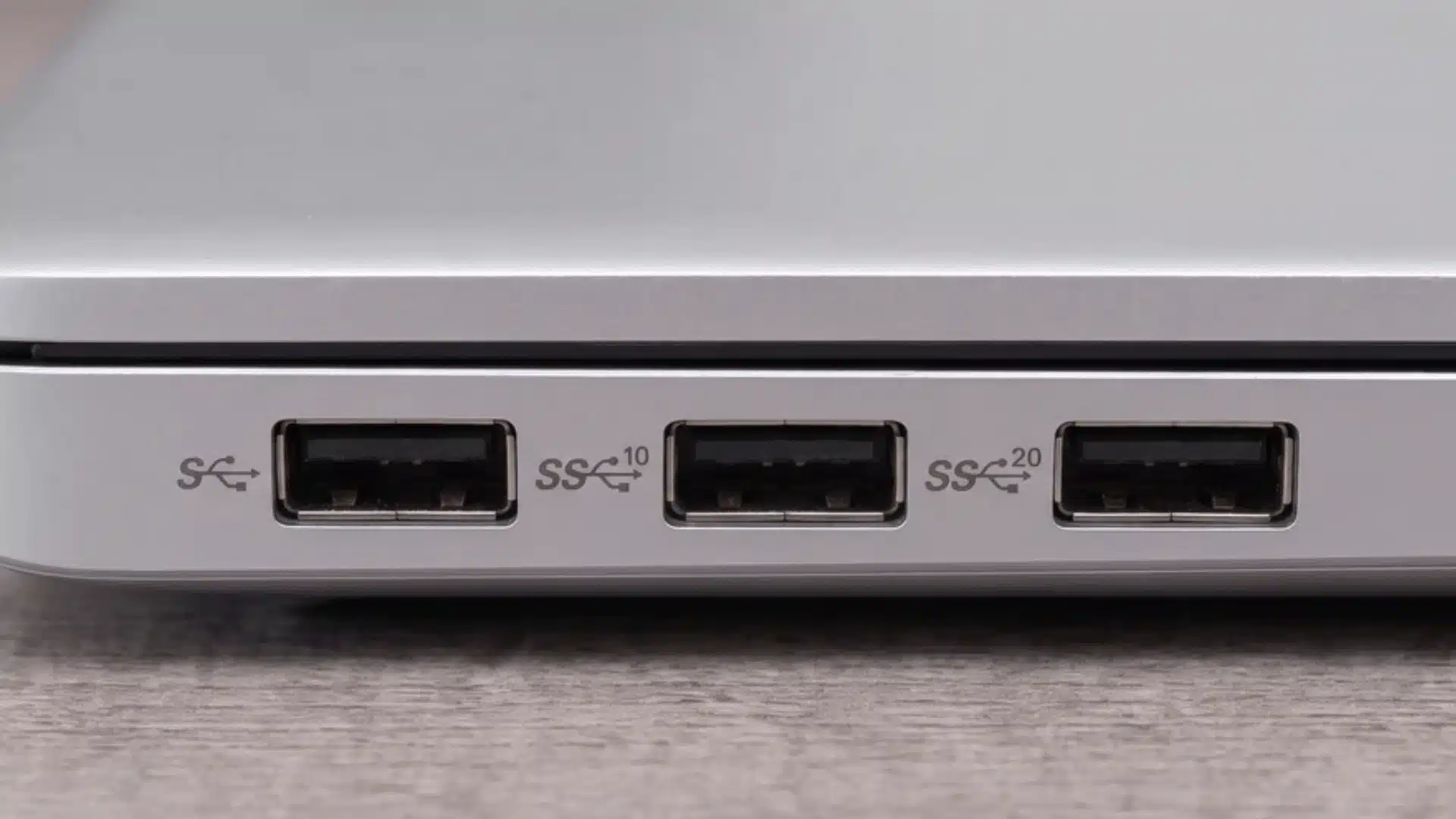
SS stands for SuperSpeed, and it’s one of the most common icons you’ll spot near a USB port. It marks a minimum data-transfer tier, meaning the port can move data at least this fast.
If you see SS alone, without any number attached, that port supports USB 3.0 or 3.2 Gen 1. It’s capable of transferring data at speeds up to 5 Gbps.
SS
SS by itself is the baseline SuperSpeed mark you’ll come across most often. It tells you the port belongs to the USB 3.0 or 3.2 Gen 1 generation.
That translates to a maximum transfer speed of 5 Gbps. It’s a solid jump over older ports, though it’s now the entry point rather than the fastest option.
SS 10
Add a “10” next to the SS mark and you’re looking at a noticeably quicker port. This one belongs to the USB 3.1 or 3.2 Gen 2 generation.
Here, top speed doubles to 10 Gbps. It’s a good match for larger file transfers where waiting around isn’t ideal.
SS 20
SS 20 sits at the top of this naming pattern, representing USB 3.2 Gen 2×2. It’s built for the heaviest everyday transfer demands.
This tier reaches up to 20 Gbps, the fastest of the three. If you spot this icon, you’re looking at a genuinely high-throughput port.
So the pattern is simple once you know it. No SS means standard speed, SS alone means SuperSpeed, and any number after SS means an even quicker tier. Matching the icon to these tiers takes the guesswork out of reading your port.
What Does the Lightning Bolt Symbol Mean on a USB Port?
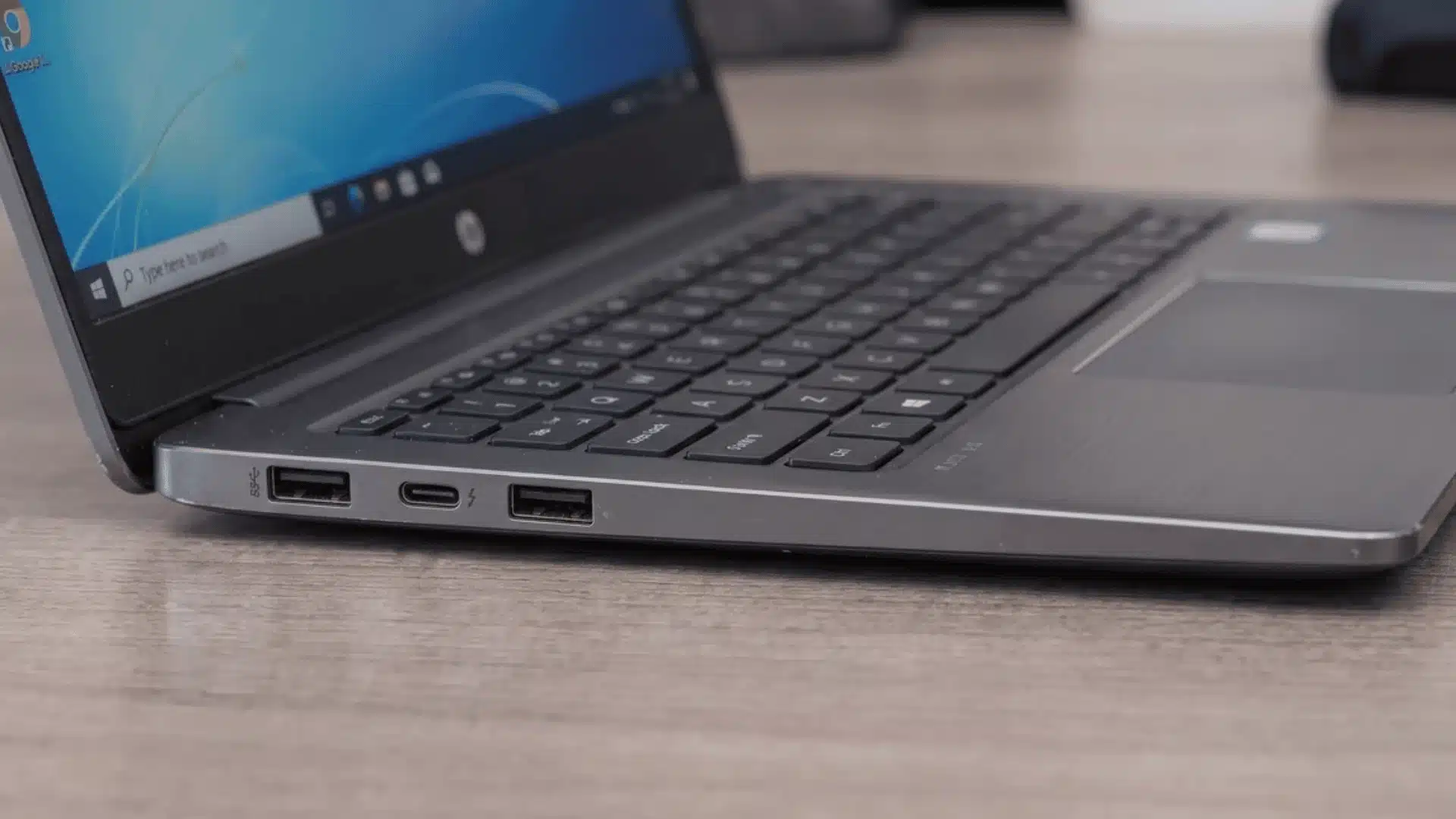
The lightning bolt doesn’t have one fixed meaning, and that’s exactly what makes it confusing. What it tells you depends heavily on the connector shape and where you spot it.
This is the symbol most people misread, because the same icon covers two very different capabilities. Getting this wrong means expecting speeds or features your port simply doesn’t offer.
- On a USB-C port, a lightning bolt usually points to a Thunderbolt connection, which combines high-speed data, power delivery, and video output in one.
- On many laptops and older USB-A ports, that same lightning icon often just marks an always-on or fast-charge port, with no Thunderbolt data benefit at all.
- This distinction matters because assuming Thunderbolt speeds from a charging-only port will leave you wondering why transfers feel painfully slow.
- The fastest way to tell them apart is the connector shape itself, since USB-C leans Thunderbolt while USB-A leans toward charging-only.
So before you assume anything about a lightning bolt icon, glance at the connector shape first. That single detail usually tells you which of the two meanings you’re actually dealing with.
What These Symbols Don’t Tell You?
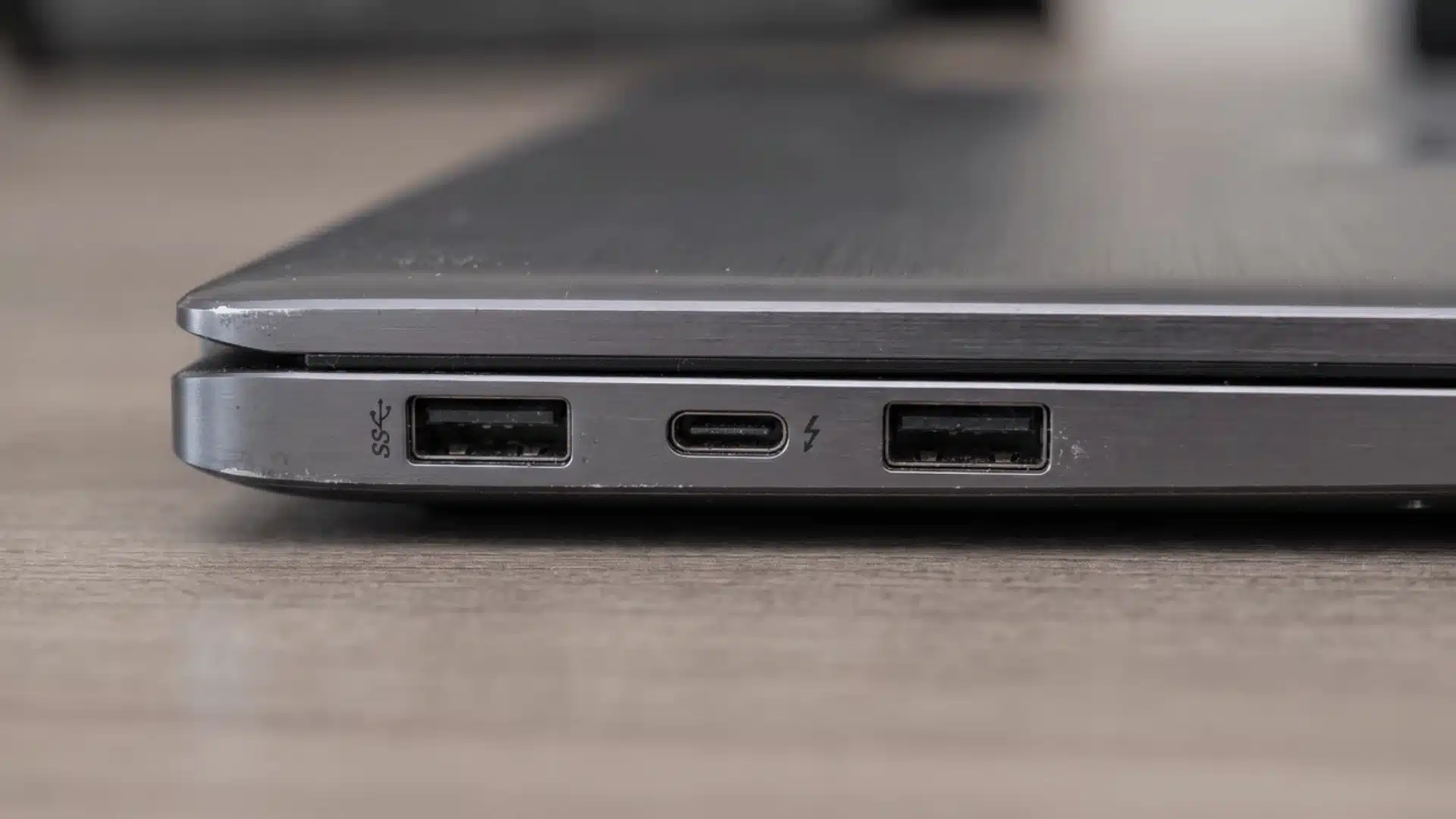
USB symbols indicate minimums, not a complete guarantee of everything a port can do. It’s easy to read one icon and assume it covers every capability, but that’s rarely the full picture.
A speed symbol only promises speed, nothing about power delivery. Similarly, a power symbol like the lightning bolt says nothing about how fast data will actually move.
| Symbol seen | What it guarantees | What it doesn’t guarantee |
|---|---|---|
| SS / SS 10 / SS 20 | Minimum data speed | Charging power or video output |
| Lightning bolt | Power delivery or Thunderbolt features | Data transfer speed on its own |
| No symbol at all | Nothing definite | Could still be USB 2.0 or unlabeled higher tier |
A missing symbol doesn’t always mean you’re stuck with the slowest tier either. Manufacturers aren’t always consistent about labeling every port they ship.
Tip: when a port looks unmarked or the icon feels ambiguous, your device manual or official spec sheet is the only reliable way to confirm exact capability.
Conclusion
Reading an SS lightning bolt USB icon no longer has to feel like decoding a mystery symbol. Each mark has a clear job.
Speed symbols tell you transfer tiers, while power symbols like the lightning bolt describe charging or Thunderbolt behavior separately.
Looking back, the real skill is treating each icon as its own signal, not one combined rating. Next time you spot an unfamiliar port, check the icons yourself and confirm exactly what it delivers.
Frequently Asked Questions
What does the SS lightning bolt USB symbol mean?
SS and the lightning bolt are two separate symbols with different jobs. SS marks a SuperSpeed data transfer tier, while the lightning bolt indicates power delivery or a Thunderbolt connection. Seeing both together means the port offers fast data transfer and enhanced power or charging support at once.
Does a lightning bolt on USB always mean Thunderbolt?
No, it doesn’t always mean Thunderbolt. On USB-C ports, a lightning bolt usually signals Thunderbolt, combining data, power, and video output. On USB-A ports or many laptops, the same icon often just marks an always-on or fast-charging port with no Thunderbolt data benefit attached.
What’s the difference between SS, SS 10, and SS 20 symbols?
SS alone marks USB 3.0 or 3.2 Gen 1, reaching up to 5 Gbps. SS 10 marks USB 3.1 or 3.2 Gen 2, doubling that to 10 Gbps. SS 20 represents USB 3.2 Gen 2×2, the fastest tier, supporting speeds up to 20 Gbps.
Does a missing USB symbol mean the port is slow?
Not necessarily. While a missing symbol can indicate an older USB 2.0 level port, manufacturers don’t always label every port consistently. The only reliable way to confirm exact capability on an unmarked or ambiguous port is checking the device manual or official spec sheet.