
Canva works well until it doesn’t.
The free plan limits downloads and cuts off premium templates. The paid plan jumped significantly in price after recent AI feature additions.
And some tasks like advanced photo editing, detailed vector work, and data-heavy infographics simply aren’t what Canva is built for.
That’s when sites like Canva become worth a serious look
The tools below cover the same core use cases while filling the specific gaps where Canva leaves users wanting more.
Best Sites Like Canva for Graphic Design
Each tool below solves a different problem. Some match Canva feature-for-feature at a lower price. Others go deeper in one area where Canva falls short. Here’s what they actually offer, and where each one wins.
1. Adobe Express – Top Overall Alternative
Adobe Express is the closest thing to Canva that still feels distinctly like its own tool. The template library is strong, the editor is clean, and you can go from blank canvas to finished graphic in a few minutes.
It handles banners, social media posts, and ads without friction. Beginners pick it up quickly, and there’s no steep learning curve hiding behind the interface.
Teams can collaborate directly inside the platform. Premium unlocks brand kits, Adobe Stock access, and background removal, features that cover most of what a small marketing team needs daily.
Where it beats Canva: Adobe Express connects directly to Adobe Fonts and Adobe Stock, giving premium users a significantly larger asset library than Canva Pro. If you already use any Adobe product, one Creative Cloud subscription covers Express alongside the rest; no separate Canva plan needed.
2. VistaCreate – Best for Social Media Graphics
VistaCreate is built around social content. The drag-and-drop editor is fast, the template library skews heavily toward social formats, and the workflow will feel familiar if you’re coming from Canva.
Animations and prebuilt social templates mean you can produce polished, moving graphics without touching a timeline editor. It’s practical for small businesses and solo marketers who need volume without a designer on staff.
Where it beats Canva: VistaCreate’s free plan includes animated templates and direct social sharing at no cost; features Canva locks behind its paid tier. For teams primarily posting to social media, it delivers comparable output without the subscription.
3. Snappa – Quick Design for Non-Designers
Snappa is for people who need a finished graphic, not a design education. The interface strips away everything that slows you down; no complex layer panels, no overwhelming menus.
You pick a format, choose a template, swap the text and image, and export. Social media graphics, banners, and ads take minutes, not an afternoon.
The stock photo library, shapes, and font selection are solid enough that most projects never need an outside asset. It’s a reliable tool when speed matters more than customisation depth.
Where it beats Canva: Snappa’s paid plan charges a flat $10/month with unlimited downloads and full team access with no per-seat pricing. Canva charges per user on team plans, which adds up fast for even a small group.
4. Pixlr – Photo Editing and Custom Design
Pixlr sits closer to Photoshop than Canva. It’s a browser-based editor with real photo editing tools, layer-based editing, healing brushes, and adjustment curves, not just template swapping.
If photo retouching is part of your workflow, Pixlr handles it without switching apps. You adjust images, add effects, and build custom graphics all in the same session.
Where it beats Canva: Canva’s photo editing is surface-level. Pixlr’s editing tools go meaningfully deeper. Photographers and image-heavy designers get control that Canva’s editor simply doesn’t offer; all in a free, browser-based tool that requires no installation.
5. Visme – Data Visualization and Infographics
Visme is the tool to reach for when your project is built around data. Charts, infographics, and presentations are where it genuinely outperforms Canva, not as a general-purpose design tool, but as a specialist.
The template library leans toward reports, data visuals, and executive presentations. Collaboration tools are built in, and export options produce clean, professional output ready to share or publish.
Where it beats Canva: Canva’s charts are static images. Visme’s are interactive. Viewers can hover and engage with the data directly in the published output. For presentations and reports where the data needs to land, that’s a meaningful difference.
6. Kittl – Typography and Vector Art
Kittl is built for designers who treat type as a design element, not a text box. It handles text on a path, precise kerning, and direct vector node editing. Things Canva’s type tools simply don’t support.
The prebuilt font library, vector tools, and templates for logos, posters, and illustrations make it useful straight out of the box. The interface works for beginners and experienced designers without feeling dumbed down.
Where it beats Canva: For logos, poster lettering, or any project where typography is the focal point, Kittl is the more capable tool. Canva’s type controls are functional but limited. Kittl handles text and vector work at a level most browser-based design tools don’t match.
Free and AI-Powered Sites Like Canva
Not every project needs a full-featured editor. These platforms cover specific needs like collaborative design, AI-generated images, and stock assets without a paid subscription getting in the way.
7. Figma Free Tier
Figma is a collaborative, cloud-based design tool built primarily for UI/UX work, though it handles graphic projects well.
Multiple users can edit, comment, and share designs in real time, all on the free tier. It’s the strongest free option when collaboration is the priority.
If you’re working with a team and need everyone in the same file simultaneously, Figma does that better than anything else on this list.
8. MolyPix.AI
MolyPix.AI generates social media graphics from a text prompt or brand brief, skipping the template-browse-and-edit loop entirely. You describe what you need; it produces a usable visual.
It’s a practical choice when volume is the priority, producing batches of on-brand posts faster than any template-based editor.
Best used when you need quantity and consistency, not fine-tuned creative control.
9. DALL-E 3
DALL-E 3 generates images from plain-text descriptions. Type what you want and get a usable visual in seconds.
It’s not a layout or template tool; it works best when you need a custom illustration, background, or concept image that stock libraries don’t carry.
Access it through ChatGPT Plus or the OpenAI API. The output quality is high enough for blog graphics, social visuals, and mood boards without any design skill required.
10. Freepik Free Tier
Freepik provides thousands of vectors, photos, and templates covering a wide range of design projects. The free tier gives you access to a large portion of that library without a subscription.
It works best as a resource layer. Pull assets from Freepik, then build in whatever editor fits your workflow. Less of an all-in-one tool, more of a well-stocked asset library.
Comparison of Top Graphic Design Tools
The tools above solve different problems, and the right choice depends on your actual workflow; not just the feature list. This table lays out the key decision points side by side.
| Tool | Pricing (US) | Templates | AI Tools | Animation | Usability |
|---|---|---|---|---|---|
| Adobe Express | Free / ~$9.99/mo Premium | Strong library | Basic AI credits | Yes | Easy, pro‑oriented |
| VistaCreate | Free / ~$10–$13/mo Pro | Extensive | No | Yes | Intuitive, social |
| Snappa | Free / ~$10/mo Pro / ~$20 Team | Good | No | No | Simple & fast |
| Pixlr | Free / ~$9.99/mo Premium | Limited | AI for edits | No | Photo‑focused |
| Visme | Free / ~$12.25‑$24.75/mo per user | Strong data templates | Limited | Yes | Infographics & charts |
| Kittl | Free / Paid plans vary | Good text & vector | Yes (token‑based) | Limited | Great for typography |
| Figma | Free / ~$15‑$16/mo per editor | Moderate | Some AI credits | No | Collaborative & UI focused |
| Freepik | Free / ~$5.75‑$24.50/mo (annual) | Massive stock assets | Some AI credits | No | Stock + design resources |
Use this as a starting filter, not a final answer. The pricing and feature columns tell you what’s available; your actual workflow tells you what you’ll use.
How to Choose the Right Platform for Your Needs
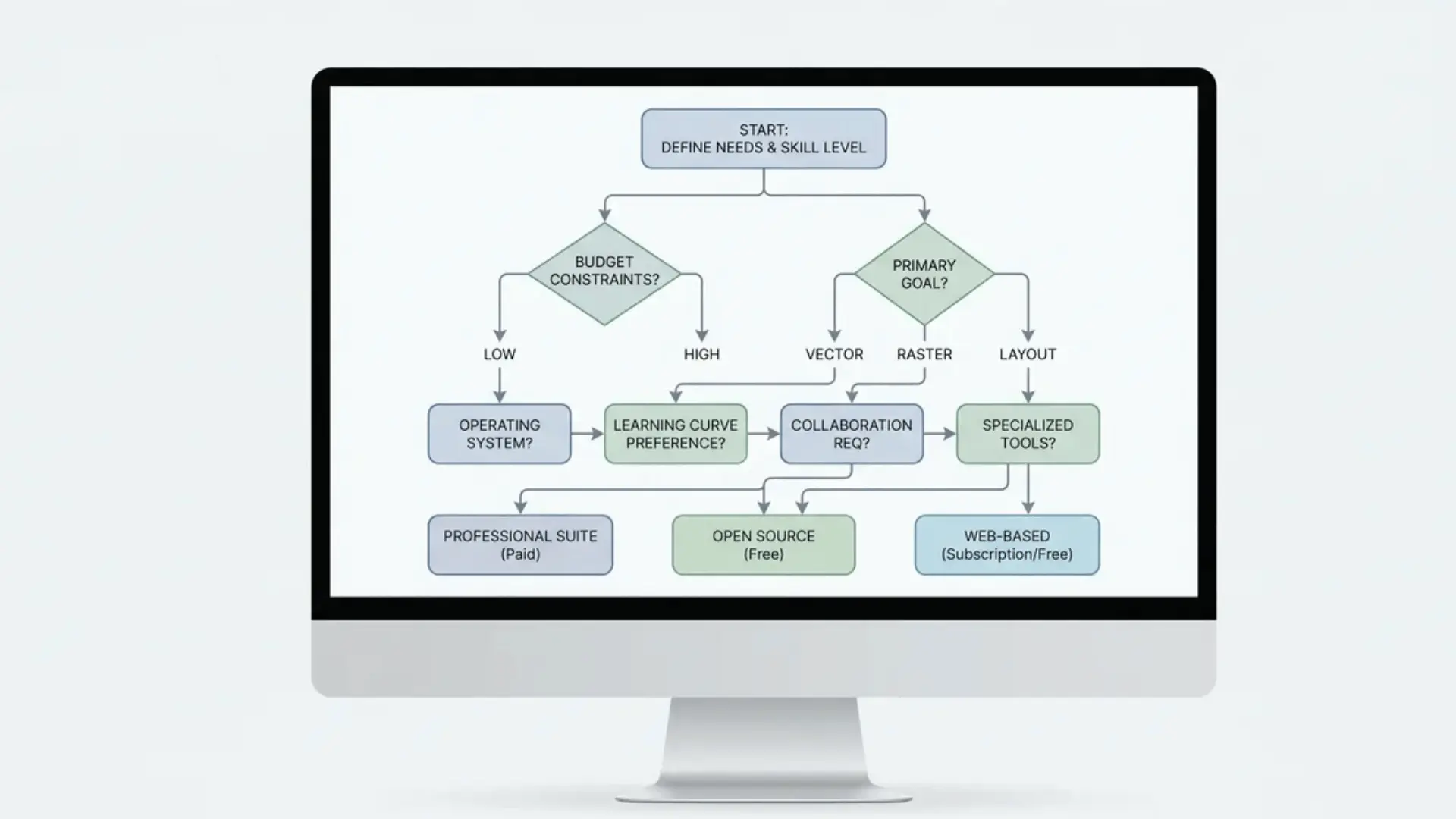
The right tool is the one that fits how you actually work, not the one with the longest feature list. These four steps will get you there faster:
Identify Your Design Needs
Start by listing the types of graphics you create most often. Social posts, data reports, and logo work each pull toward different tools, and the best general-purpose tool might be the wrong specialist tool for your main use case.
Also consider what features you genuinely need versus what sounds useful. Animation, vector editing, and AI generation are worth paying for only if your workflow actually uses them.
Compare Pricing and Free Tiers
Most of these platforms offer a free tier, but the limits vary significantly. Some cap downloads. Others restrict templates, remove branding tools, or cut off export formats on the free plan.
Run each shortlisted tool on the free tier before upgrading. If the free version covers your workload, you don’t need the paid plan. If it doesn’t, check what the paid plan actually unlocks, not just what it lists.
Test Workflow and Ease of Use
A tool that looks good can feel completely different in real use. Test the editor with an actual project, instead of a tutorial template.
Pay attention to how quickly you can find what you need, how the export flow works, and whether collaboration features match how your team operates. Friction in the workflow compounds across every project you run through it.
Avoid Common Pitfalls
Watch for hidden costs that don’t show up in the headline pricing.
Stock image packs, premium template access, additional brand kit slots, and per-seat team pricing can push the real cost well above the advertised rate.
Check recent reviews and community forums before committing to a paid plan. Users surface workflow frustrations that feature lists never mention, and those are usually the issues that matter most day to day.
Final Take
The best sites like Canva don’t try to do everything. They do one thing better than Canva does, and if that one thing matches your main use case, the switch is usually worth it.
Start with the tool that fits your primary output. Test it on the free tier. Most of these platforms cost nothing to try, and a real project will tell you more than anything else.
Frequently Asked Questions
What are the best free sites like Canva for beginners?
Figma, Freepik, and Pixlr all offer usable free tiers. Figma is strongest for collaborative projects, Pixlr for photo editing, and Freepik if you primarily need stock assets with design work layered on top.
Which sites like Canva are best for social media graphics?
VistaCreate, Snappa, and Adobe Express are the strongest choices. VistaCreate includes animated templates on its free plan. Snappa is fastest for volume. Adobe Express adds the Adobe asset library for premium users.
Are there AI-powered sites like Canva?
Yes. MolyPix.AI generates on-brand social graphics from a brief. DALL-E 3 produces custom images from text prompts; useful when stock libraries don’t have what you need. Both skip the template workflow entirely.
How do I choose the right site like Canva for my needs?
Match the tool to your most common output type first. Then check whether the free tier covers your workload before upgrading. Test on real projects; most of these platforms cost nothing to try.