Imagine sitting down to watch your favorite show, only for your LG TV to lose WiFi mid-scene. Frustrating, right? Many users face random disconnects that make streaming impossible and apps unreliable.
The problem isn’t always the router, and quick fixes often fail because the root causes vary. From hidden software glitches inside the TV to settings that clash with your network, these disconnects have several triggers.
Knowing where each issue starts makes all the difference, so you can apply the right solution and enjoy uninterrupted streaming without guessing or repeated trial and error.
Why Do LG TVs Keep Disconnecting from WiFi?
LG TVs can lose WiFi for several reasons: problems inside the TV, router issues, or software bugs.
The TV may connect at first but drop later, which can make it seem like the WiFi or router is the problem. Fixing the wrong cause only helps temporarily.
When Quick Start+ is on and DNS is set incorrectly, the TV reconnects to an old session each time it powers on. Restarting the TV can fix it briefly, but the error often returns, making the disconnects seem random.
Causes of LG TV WiFi Disconnects
- Network Software Issues: Quick Start+ can leave the TV’s network in a bad state. The TV reconnects using old session data, causing repeated drops.
- Wrong Network Settings: If the DNS is wrong or the TV is locked to the wrong WiFi band, it can’t connect properly or match the router frequency.
- Router Problems: Band steering, short DHCP leases, or being far from the router can cause the TV to switch to unstable channels. LG TVs handle these changes poorly compared to other devices.
- Firmware Bugs: Older webOS versions may have WiFi errors. These usually appear when the TV sends many network requests or restarts Quick Start+ sessions.
This shows why just restarting the TV or changing DNS often doesn’t fix the problem. The real issue may be inside the TV or its software.
How to Fix LG TV WiFi Disconnects: Step by Step
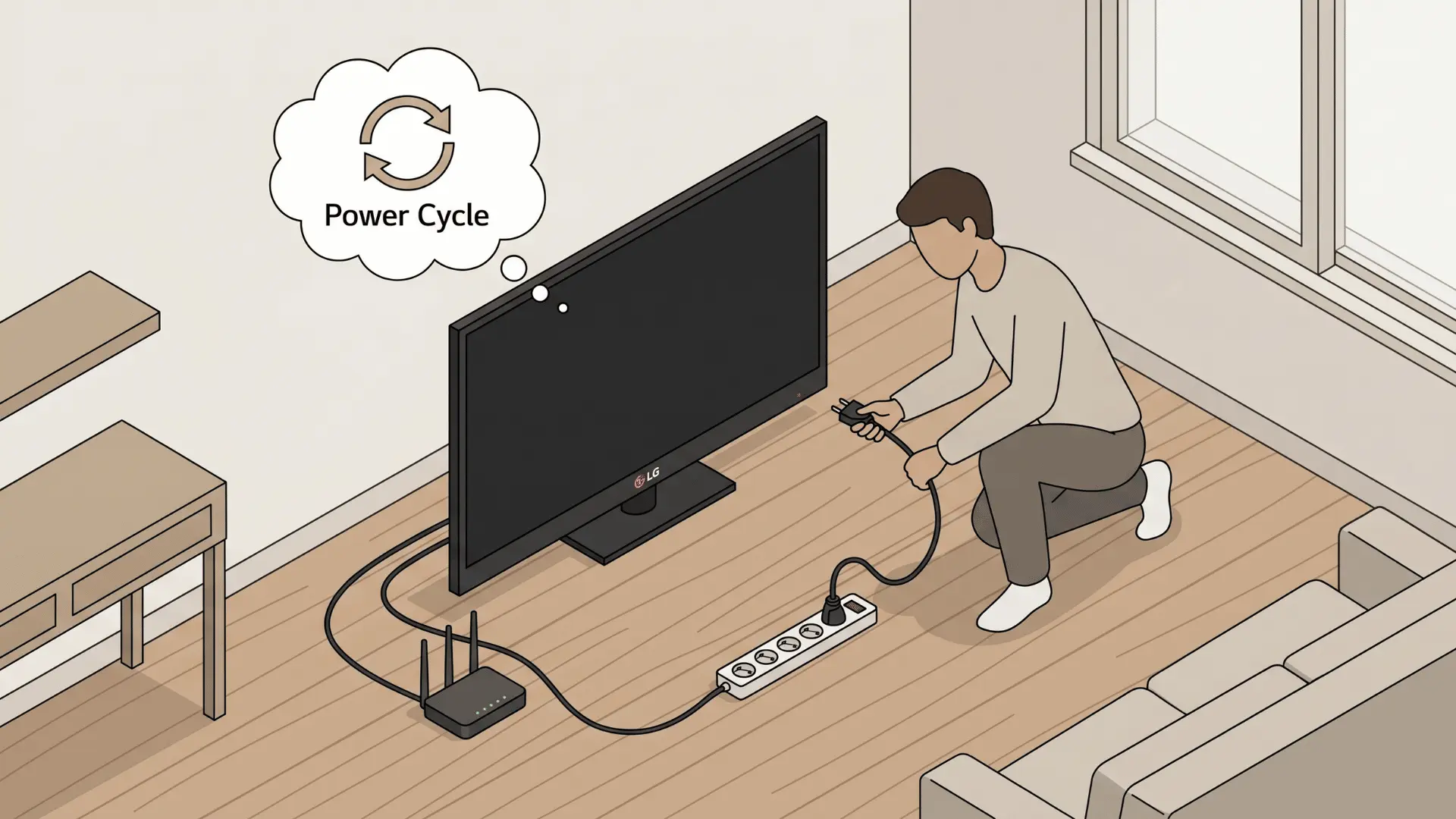
Follow these steps in order. Each step targets a specific cause. Stop once the connection is stable. If a step doesn’t work, move to the next. Test after each step before continuing.
Tier 1: Reset the TV’s Network State
- Power cycle the TV and router: unplug both for 30 seconds.
- Turn off Quick Start+ to force the TV to fully reset its network.
- Forget your WiFi network on the TV, then reconnect.
Check: Ensure the WiFi stays stable for at least one day. If it drops again, move to Tier 2.
Tier 2: Fix Network Settings
- Set the DNS to 8.8.8.8 for proper address resolution.
- Flush the LG Services Country cache to remove old network preferences.
Check: Monitor WiFi for several days. If disconnects continue, the issue may be with the router or firmware.
Tier 3: Resolve Router-Side Conflicts
- Separate the 2.4 GHz and 5 GHz bands, especially on mesh networks.
- Keep the TV close to the router or a strong mesh node.
- Consider assigning a DHCP reservation for the TV.
Check: Test stability during daily use and after moving between rooms. If problems persist, move to Tier 4.
Tier 4: Update Firmware and Factory Reset
- Install the latest webOS update.
- If issues continue, perform a factory reset to restore default settings.
Check: Verify the TV keeps WiFi and password after multiple restarts. Use this step only if all earlier steps fail.
Following these steps ensures your LG TV stays connected and minimizes WiFi drops.
When the Problem Comes Back After You’ve Fixed It
If your LG TV disconnects from WiFi again, it is usually due to Quick Start+, a firmware update, or the router’s DHCP lease expiring.
Immediately After Restart
If the TV drops WiFi right after turning on, Quick Start+ may not have been fully disabled. The TV resumes a corrupted session, causing instant disconnects. Reapplying the Tier 1 fix usually resolves this.
After Days or Weeks
If the TV works for a few days before dropping, the DHCP lease from your router may have expired. Assigning a static DHCP reservation for the TV ensures it keeps the same IP and avoids mid-session drops.
After a Firmware Update
If disconnects return after an update, the new firmware may have reset settings or introduced a bug. A factory reset can temporarily fix it, while monitoring LG communities helps track update-specific issues until a patch is released.
With careful steps and proper settings, your LG TV can maintain a stable WiFi connection, letting you enjoy uninterrupted streaming.
Wrapping Up
Frequent WiFi drops on an LG TV often hide behind multiple layers, from lingering session errors to subtle network conflicts or firmware quirks.
Tackling the problem step by step helps pinpoint the exact cause rather than guessing blindly.
Keep your TV’s software updated and monitor router settings to prevent future issues before they start. Small adjustments, like assigning a static IP or separating WiFi bands, often make a big difference in stability.
Take action today by checking your Quick Start+ settings, network configuration, and router setup to enjoy seamless streaming without interruptions.
Frequently Asked Questions
How do I keep my LG TV connected to WiFi?
Disable Quick Start+, set the DNS to 8.8.8.8, and connect to the 2.4 GHz band. This fixes session errors, DNS issues, and band-switching drops.
Why does my LG TV keep forgetting my WiFi password?
Quick Start+ can corrupt the network session, causing the TV to lose saved credentials. Disable it, forget the network, and reconnect to fix the problem.
Should I connect my LG TV to the 2.4 GHz or 5 GHz WiFi network?
2.4 GHz is more reliable for stationary TVs because it offers a longer range and better wall penetration. Avoid band-steering by connecting the TV exclusively to the 2.4 GHz band.
Can I fix my LG TV WiFi issue with Ethernet instead?
A wired Ethernet connection bypasses all WiFi problems. Plug a cable from the router to the TV for a stable, long-term connection.