


Wondering how to turn off ringer on iPad? Whether you’re in a meeting, at the movies, or just want some quiet time, knowing how to mute your iPad is a game-changer.
While it may seem simple, there are multiple ways to manage your device’s ringer based on your needs.
From quick access via Control Center to deeper customizations through settings, you have plenty of options to stop interruptions.
Today, I’ll take you through several methods to silence your iPad and give you the flexibility to choose the one that works best for you.
Turn Off Ringer on Your iPad Fast and Easy
Silencing your iPad is simple once you know where to look. Below are three quick methods you can try right now. Each one works in different scenarios, so pick the one that feels easiest for you.
Use Control Center
Control Center is the fastest way to mute your iPad. Here’s how to access it:
- Swipe down from the top-right corner of your screen
- Look for the bell icon
- Tap it once to turn on Silent Mode
A small bell with a line through it confirms the ringer is off. Tap the icon again to turn the ringer back on.
Use the Physical Volume Buttons
Your iPad’s side buttons can also silence the ringer. Press and hold the Volume Down button until the volume drops to zero.
You’ll see a bell icon with a slash on the screen. This means alerts and calls are now muted.
Use the Settings App
The Settings app gives you more control over the ringer. Follow these steps:
- Open the Settings app
- Tap Sounds
- Drag the Ringer and Alerts slider all the way to the left
This mutes the ringer completely. You can also toggle Silent Mode from this menu.
Use AssistiveTouch
AssistiveTouch is a good option if your volume buttons aren’t working or you want a one-tap shortcut.
Here’s how to set it up:
- Go to Settings > Accessibility > Touch
- Tap AssistiveTouch and turn it on
- A small floating button appears on your screen
- Tap it, then tap Device > Mute
This mutes your iPad instantly without pressing any physical buttons. The floating button stays on screen at all times, so it’s always within reach.
Using Silent Mode to Disable the Ringer
Silent Mode is the feature most iPad users rely on. But many people don’t fully understand how it works.
Knowing what it actually does helps you avoid surprises. Let’s break it down.
What Silent Mode Does
Silent Mode mutes incoming call alerts and notification sounds. Your iPad won’t make a noise when you get a message, email, or FaceTime call.
It’s perfect for meetings, classes, or quiet places. Your device stays out of the way without being fully powered down.
What Silent Mode Doesn’t Do
Here’s where many users get confused. Silent Mode does not mute media sounds.
This means the following will still play sound:
- Videos on YouTube or Netflix
- Music from Apple Music or Spotify
- Game audio and sound effects
- Voice memos and podcasts
Silent Mode only controls alert volume; the system channel for calls and notifications. Media plays through a separate volume channel, which is why the two don’t affect each other. Lowering one has no impact on the other.
To silence these, you’ll need to lower your media volume separately. Use the volume buttons while a video or song is playing.
So if you want total silence, Silent Mode alone isn’t enough. You’ll need to handle media volume on its own.
Customizing the Ringer Settings on iPad
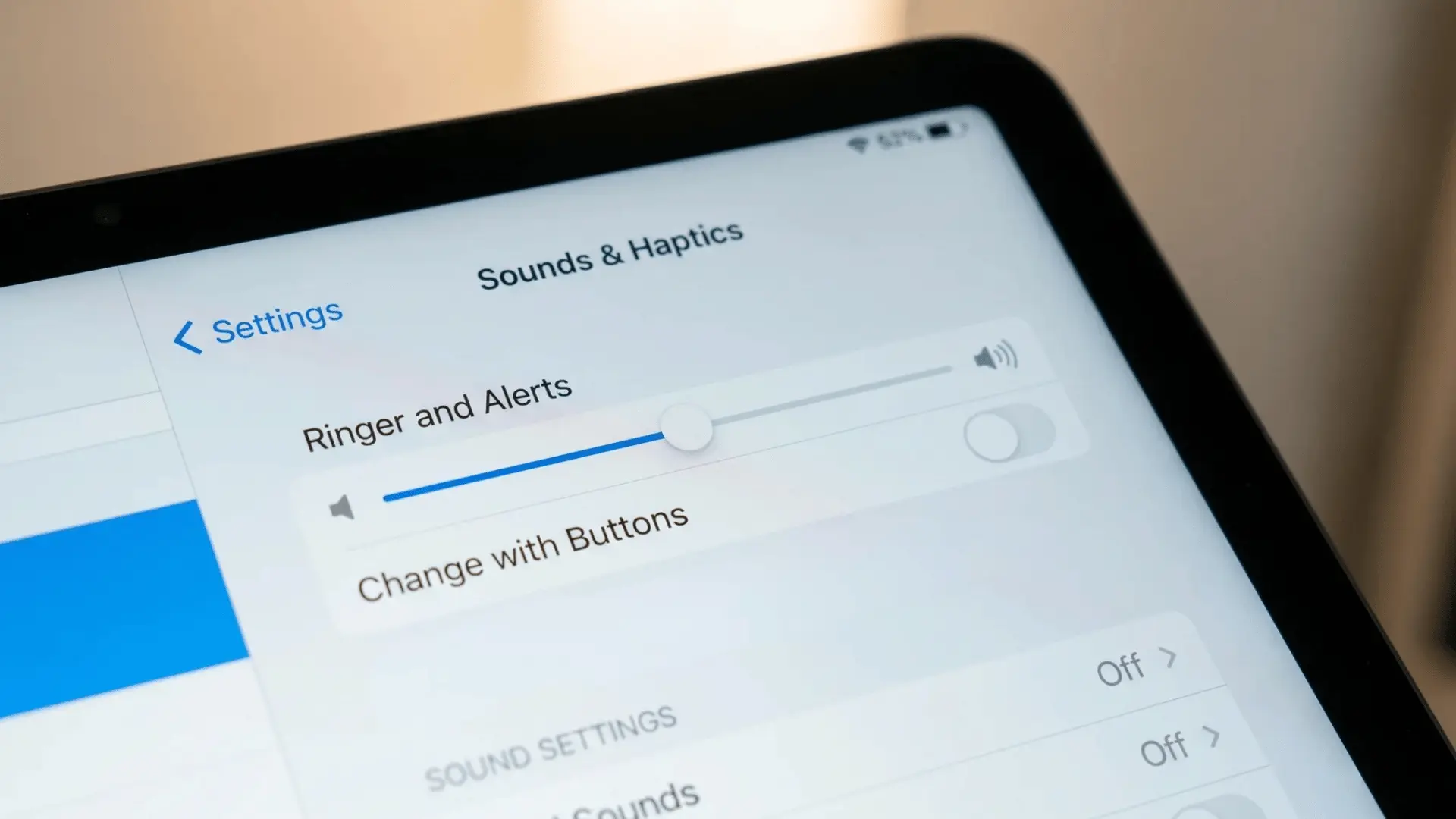
Sometimes you don’t want to mute the ringer completely. You just want it lower or controlled in a specific way.
Your iPad lets you fine-tune the ringer to match your needs.
Adjust the Ringer Volume Slider
Open Settings > Sounds, then drag the Ringer and Alerts slider. Move it left for softer sounds and right for louder ones.
This sets a fixed volume that won’t change accidentally.
Change Volume with Physical Buttons
By default, the side buttons only control media volume. You can change this so they also adjust the ringer.
- Go to Settings > Sounds
- Turn on Change with Buttons
Now your physical buttons will adjust both ringer and media volume.
Use Focus or Do Not Disturb
Focus modes give you another way to silence calls and alerts. They work great for sleep, work, or personal time.
To turn one on:
- Open Control Center
- Tap the Focus icon (looks like a moon or a custom icon)
- Pick a mode like Do Not Disturb or Sleep
Focus modes can be scheduled, so your iPad goes quiet automatically. This is helpful if you want hands-free control over notifications.
To schedule one, go to Settings > Focus, pick a mode, tap Add Schedule, and set your start and end times. Do Not Disturb, for example, can switch on automatically at 10 PM every night.
Stop Your iPad from Ringing When Your iPhone Rings
Does your iPad ring every time someone calls your iPhone? This happens because Apple devices share calls through your Apple ID.
It’s useful sometimes, but annoying other times. Here’s how to stop it.
Why Your iPad Rings for iPhone Calls
Apple has a feature called Calls from iPhone. When both devices use the same Apple ID and Wi-Fi, calls ring on every device.
It’s meant for convenience. But it can disturb you if your iPad is in another room.
How to Turn It Off
You can disable this on either your iPad or iPhone. Try this on your iPad first:
- Open Settings
- Tap FaceTime
- Turn off Calls from iPhone
Your iPad will stop ringing for iPhone calls right away. You can turn it back on anytime if you change your mind.
When This Setting Helps
Disabling Calls from an iPhone is useful in many cases:
- You use your iPad for work and don’t want personal calls there
- Your iPad stays at home while you’re out with your iPhone
- You share your iPad with family members
- You want fewer distractions during focused tasks
This small change can make your iPad feel much quieter without affecting other features.
Key Things to Remember About Muting the Ringer
Before you go, here are a few important points to keep in mind. These will help you avoid common mistakes.
- Silent Mode mutes alerts, videos and music still play at full volume
- Need total silence? Adjust media volume separately from the ringer slider
- Focus and Do Not Disturb go further than Silent Mode for planned quiet time
- Turn off Calls from iPhone in FaceTime settings to stop cross-device ringing
- Enable “Change with Buttons” so your side buttons control the ringer directly
Keep these tips in mind, and you’ll always have the right setup for any situation.
Final Thoughts
Now that you know how to turn off ringer on iPad, you can easily stop unwanted interruptions.
Whether you use Control Center, the physical buttons, or customize the settings to your liking, you have the tools to create a peaceful environment.
If you’re after total silence, remember to adjust both the ringer and media volumes separately.
With these methods, you can take full control over your device’s sound and avoid any surprise rings. Try them out and take charge of your iPad’s notifications today!
Frequently Asked Questions
Why does my iPad still ring even after turning on silent mode?
FaceTime calls or certain app alerts can bypass Silent Mode. Restart your iPad, check FaceTime settings, and update to the latest iPadOS to fix this.
Does turning off the ringer also turn off alarms on my iPad?
No, alarms still ring even when your iPad is in Silent Mode. Apple keeps them separate so you never miss important wake-up calls or reminders.
Can I silence my iPad without touching the screen?
Yes, turn on AssistiveTouch from Settings > Accessibility > Touch. A floating button will appear, letting you mute your iPad with just one quick tap.
Why is there no mute switch on my newer iPad?
Apple removed the side switch on newer models. Muting now happens through Control Center or Settings. You can set up AssistiveTouch as a quick alternative. These quick fixes should clear up the most common ringer-related doubts. If something still feels off, checking for software updates is always a smart first step.





