


If you’ve been trying to figure out how to turn off AI mode on Google, you’ve probably noticed something frustrating: there isn’t one clear switch.
Some fixes work instantly. Others only hide parts of it. And sometimes, it just comes back. That’s where most people get stuck.
In this guide, I’ll walk you through what actually works right now. Not just quick tricks, but also why they work and when they don’t. That way, you won’t keep repeating the same steps, hoping for a different result.
Let’s start with the fastest fixes first.
Quickest Ways to Hide Google AI (Start Here)
These methods work immediately. No digging through menus or changing settings.
But here’s the key thing to understand: you’re not really turning AI off. You’re changing how the results page is displayed. That’s why they work fast, and also why they don’t always stick.
1. Click the “Web” Filter to Remove AI Overviews
After you run a search, you’ll see tabs like All, Images, Videos, and sometimes Web.
Click “Web.”
When you do that, Google switches from its mixed results layout to a simpler list of links. That layout doesn’t include AI summaries, so the AI block disappears from view.
This works well because it removes the AI section from the page layout, doesn’t depend on your account settings, and it works instantly.
Still, it’s not permanent. Each new search usually resets back to the default view unless you switch again.
2. Add “-AI” to Your Search
Type your query and add “-AI” at the end.
Example: best phones 2026 -AI
This works because you’re telling Google to exclude content related to “AI.” In some cases, that reduces the chance of AI summaries appearing at the top.
It isn’t consistent, though. Sometimes it removes the AI block. Other times it doesn’t. That’s because Google doesn’t always treat AI summaries as regular indexed content.
So think of this as a workaround, not a guaranteed fix.
When These Quick Fixes Are Enough
| Quick Fixes Work Well If… | Quick Fixes Are Not Enough If… |
|---|---|
| You just want cleaner results for a few searches | You want AI gone permanently |
| You don’t want to change account settings | You prefer a one-time setup |
| You’re okay repeating the step when needed | You’re trying to remove it across multiple devices |
If you need something more permanent or device-wide, you’ll have to move beyond quick filters and adjust deeper settings.
Turn off AI Overviews in Google Search (If Available)
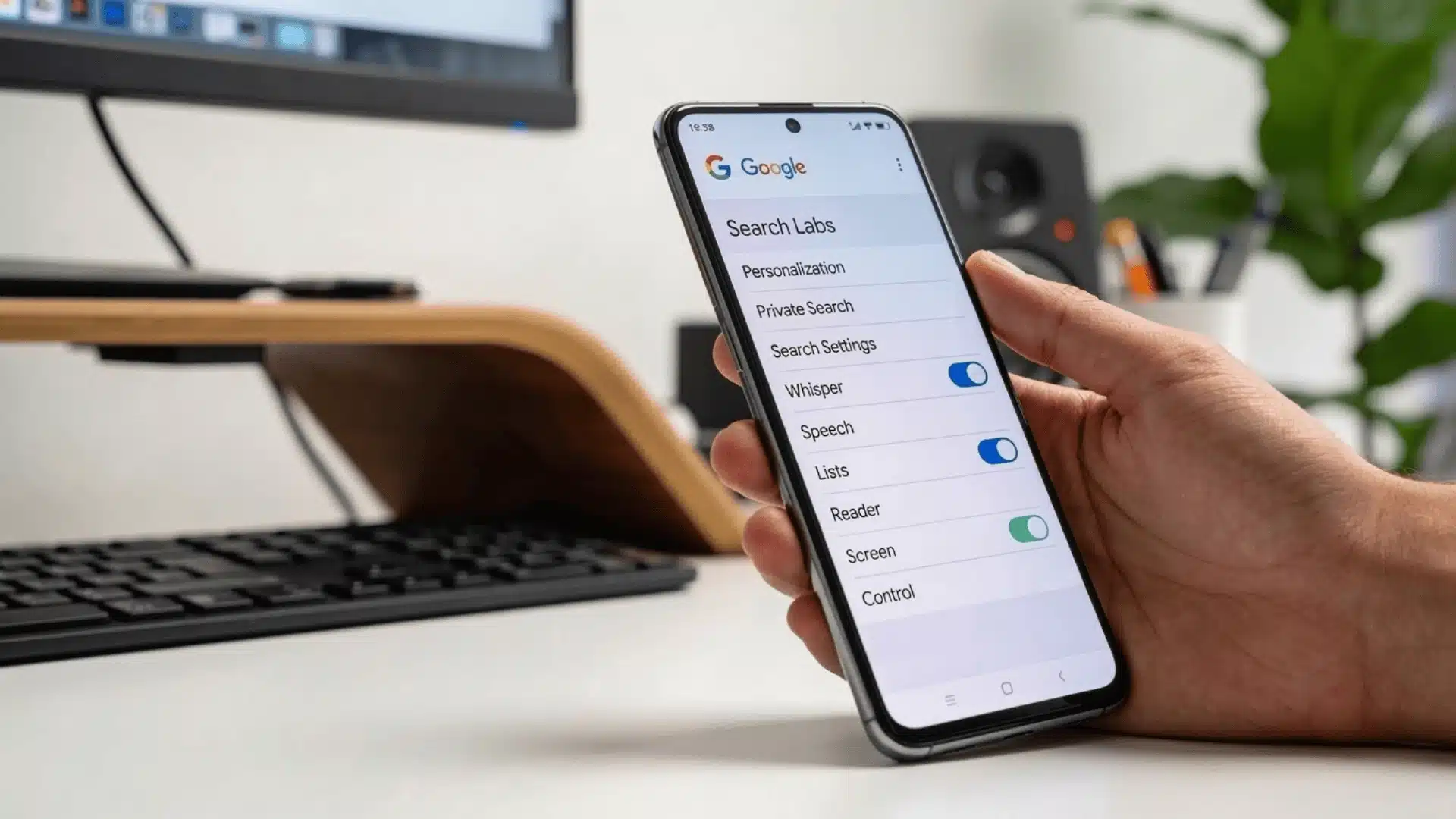
This is the closest thing to an official option. Even so, it’s not available to everyone.
Google rolls this out through Search Labs, which is still experimental. That means access can vary by account, region, or update cycle.
Disable AI Overviews in The Google App (Android)
Steps:
- Open the Google app
- Tap your profile picture
- Go to “Search Labs”
- Find “AI Overviews”
- Turn it off
If you see this option, it’s the most direct way to stop AI summaries from appearing in your search results.
The limitation is scope.
This only affects your account and only where Labs is supported. If you switch devices, use another account, or Google changes the feature, AI may still appear.
Turn off AI in Chrome Search Labs (Desktop)
On Chrome, especially desktop:
- Open Chrome
- Click your profile icon
- Go to Search Labs
- Turn off AI-related features
Again, this depends on availability.
Sometimes the toggle disappears after updates. Sometimes it’s not there at all. So this method is more stable than quick filters, but it still isn’t guaranteed long-term.
Disable AI Mode in Google Chrome (Address Bar & New Tab)
This is a different kind of AI. It affects how Chrome suggests results in the address bar and new tab page. Turning this off won’t remove AI Overviews from Google Search, but it will clean up parts of the browser interface.
Turn off AI Mode using chrome://flags
Steps:
- Type chrome://flags in the address bar
- Search for “AI Mode”
- Find the related flag
- Set it to “Disabled”
- Restart Chrome
This removes AI features from Chrome’s interface entry points.
But remember, this is an experimental setting. That means:
- It can change or disappear at any time
- Updates may reset it
- It doesn’t control Google Search AI
So it’s useful for browser cleanup, but it has limits.
What Happens After Chrome Updates
After a Chrome update, you might notice AI features return.
That happens because flags aren’t permanent settings. They’re testing controls. When Chrome updates, experimental features often reset to the default.
If that happens, you’ll need to repeat the process. It doesn’t mean you did anything wrong.
Turn off Gemini or Google Assistant
This step matters if you’re seeing AI responses through voice or assistant features. But it does not affect search results.
Disable Google Assistant on Android
Steps:
- Open the Google app
- Tap your profile picture
- Go to Settings
- Tap “Google Assistant”
- Turn it off
This stops voice-based AI responses on your device. It won’t remove AI summaries from your search pages.
Remove or Disable the Gemini App
If you installed Gemini separately, you can uninstall it from your phone or disable it in app settings.
That removes Gemini as your active assistant.
Again, this only affects assistant behavior. It does not control AI Overviews in search.
Turn off AI Features in Gmail and Workspace
Google also uses AI inside Gmail and Docs. These features are separate from Search and Chrome AI.
To turn them off:
- Open your Google Account
- Go to “Data & Privacy”
- Find “Smart Features and Personalization”
- Turn it off
This disables AI writing suggestions and smart personalization inside Workspace tools. It applies only to those apps. It doesn’t affect Search, Chrome, or Assistant features.
If Google AI Still Shows Up (Troubleshooting)
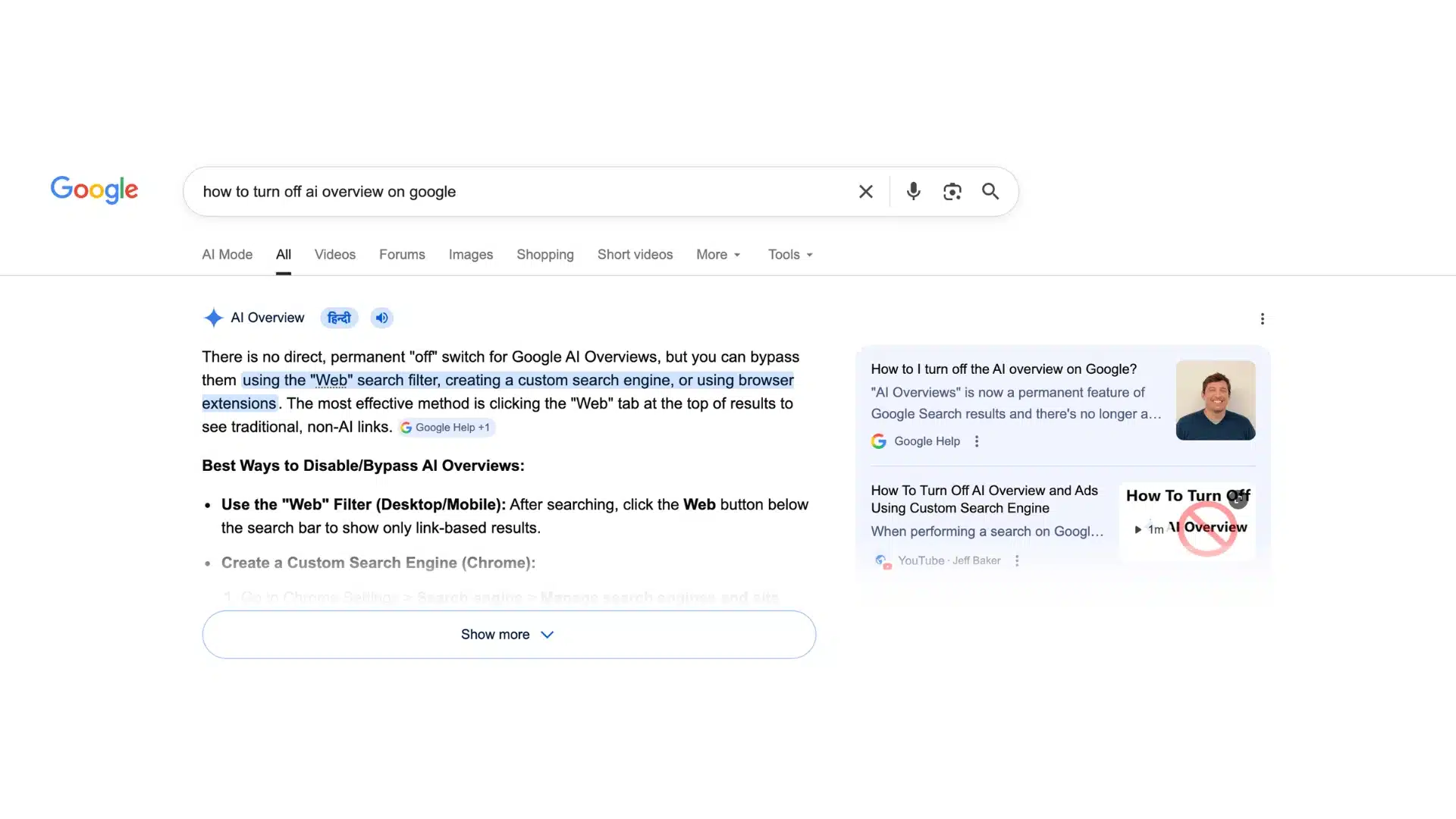
If you’ve tried the steps above and AI is still there, here’s what’s usually happening.
1. You Hid It, but Didn’t Disable It
Most quick methods only hide AI visually. The system itself remains active in the background.
That’s why it can come back on new searches, appear on different devices, or show up under another account. You changed how the page looks, not how Google’s system operates. Hiding adjusts the layout. It doesn’t shut down the engine behind it.
2. Google Re-Enabled It After an Update
Google updates frequently. When that happens, experimental flags can reset, Labs features can change, and default layouts often return.
So AI can reappear even after you turned it off. That’s normal behavior, not a failed setting. In most cases, you just need to reapply the same toggle or flag.
3. Feature Rollout or Account Testing
Google tests features across different users and regions.
One account may have a toggle. Another may not. Some users see AI more often than others, even on the same device.
This explains why your settings may look different from someone else’s, even when you follow the exact same steps.
Conclusion
Figuring out how to turn off AI mode on Google becomes much simpler once you understand that you’re dealing with separate systems, not one master setting.
Some options hide AI visually, others limit experimental features, and a few adjust assistant or workspace tools.
The key is matching the method to where AI is showing up for you. Once you do that, the process will feel controlled instead of random. Take a moment to apply the fix that fits your situation, and test it across your devices.
Small adjustments can make your search and browsing experience feel much cleaner and more predictable.
Frequently Asked Questions
Can you completely disable Google AI?
No. There isn’t a full system-wide switch. You can only hide or limit specific features depending on where they appear.
Why does AI overview keep coming back?
Because most methods don’t disable it at the system level. Updates, testing, and layout resets can bring it back.
Does turning off Gemini affect search?
No. Gemini controls assistant features. It doesn’t remove AI from Google Search results.
How do I remove AI from the Chrome search bar?
Use chrome://flags and disable AI-related features there. Just keep in mind that updates may reset this setting.





