Sometimes your Chromebook screen suddenly flips sideways or upside down. It often happens by accident, usually when a key combination is pressed without noticing. Maybe someone was cleaning the keyboard. Maybe a pet stepped across the keys.
When it happens, many people assume something is broken. The display looks wrong, the cursor moves strangely, and the whole device feels confusing to use.
The good news is that nothing is damaged. In most situations, it takes only a few seconds to fix it. Once you understand how to rotate a Chromebook screen, you can correct the orientation quickly and even control it intentionally when needed.
Let’s start with the fastest fix.
Quick Answer: Rotate Your Chromebook Screen in Seconds
The quickest way to rotate your Chromebook screen is a simple keyboard shortcut.
Press Ctrl + Shift + Refresh to Rotate the Screen
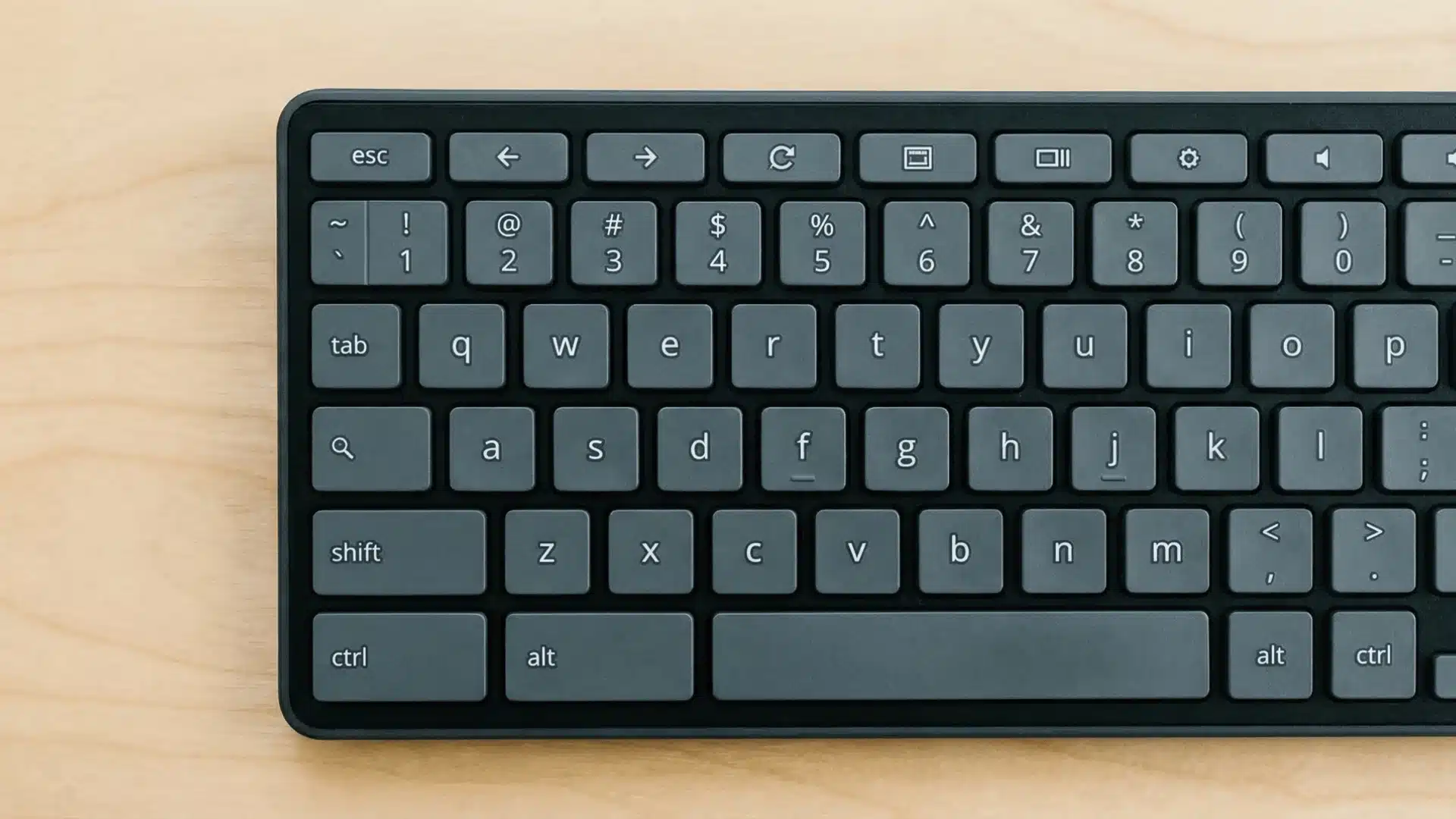
The Refresh key is the circular arrow icon on the top row of the keyboard. On most Chromebooks, it appears where the F3 key would normally sit on a standard laptop.
When you press this combination, a prompt may appear asking if you want to rotate the screen. Confirm the action, and the display rotates immediately.
This shortcut is built into ChromeOS itself. Because screen orientation is controlled by the operating system, it works on nearly every Chromebook model.
Most accidental rotations happen when someone presses these keys without realizing it.
Repeat the Shortcut Until the Screen is Back to Normal
Each press moves the display to the next orientation.
If the screen still looks wrong after the first press, press the shortcut again. Continue repeating it until the display returns to the normal upright position.
This cycling behavior is what often causes confusion. Many people expect a single press to fix everything, but the shortcut simply advances to the next orientation each time.
Step-by-Step: Rotate the Screen Using the Chromebook Keyboard Shortcut
Sometimes the shortcut does not work on the first try. In most cases, that happens when someone presses the wrong key or is unsure where the Refresh key sits on the keyboard.
Follow this, and the screen will rotate correctly.
Step 1: Locate the Refresh Key on Your Chromebook Keyboard
Chromebooks use a keyboard layout that looks slightly different from traditional laptops.
The Refresh key sits in the top row and shows a circular arrow icon. It usually appears above the number keys.
On many keyboards, this key replaces the traditional F3 key.
If you scan the top row, you will see icons for back, forward, refresh, brightness, and volume. The circular arrow is the one you need.
Recognizing this key helps because it controls several ChromeOS functions beyond screen rotation.
Step 2: Press Ctrl + Shift + Refresh Together
Once you know where the Refresh key is, press all three keys at the same time.
Ctrl + Shift + Refresh
A small confirmation window may appear asking whether you want to rotate the display. Select Continue if prompted. The screen will rotate instantly.
If nothing happens, check that the keys are being pressed together and held for a brief moment.
Step 3: Continue Pressing to Cycle Through Screen Orientations
The rotation passes through four angles:
- 0° – Normal upright position
- 90° – Rotated sideways clockwise
- 180° – Upside down
- 270° – Rotated sideways counterclockwise
So if the screen appears sideways or upside down, simply repeat the shortcut until the display returns to the correct position.
This rotation cycle is intentional. It lets users switch between orientations quickly without opening the settings menu.
How Chromebook Screen Rotation Actually Works
Many guides stop after showing the shortcut. Understanding what happens behind the scenes, though, makes the behavior much easier to predict.
The 0°, 90°, 180°, and 270° Rotation Cycle
Your Chromebook display can show content in four different orientations. Each orientation changes how the operating system maps the screen layout to the physical display panel.
When the system rotates the screen, the hardware does not move. Instead, the interface is redrawn according to the selected orientation angle.
That is why everything rotates together. Text, windows, the cursor, and touch input all adjust at the same time.
Why Each Shortcut Press Rotates the Screen Again
The keyboard shortcut does not detect whether the screen is correct or incorrect.
It simply advances the display to the next orientation in the cycle.
Think of it like turning a dial.
- Press once and the screen rotates 90°.
- Press again and it moves to 180°.
- A third press rotates it to 270°, and the fourth returns it to 0°.
Because of this sequence, many people accidentally rotate the screen further when trying to fix it.
They press the shortcut expecting a reset, but the system simply advances to the next position.
Rotate the Screen from Chromebook Display Settings

If the keyboard shortcut does not work, you can change the screen orientation directly through the settings menu. This method also lets you choose the exact rotation angle manually.
Open the Chromebook Settings Menu
Click the time in the bottom-right corner of the screen. This opens the system tray panel.
From there, select the gear icon to open Settings.
The settings menu manages hardware features such as displays, keyboard behavior, and device preferences.
Go to Device and Select Displays
Inside the Settings window, choose Device from the sidebar. Then select Displays.
This section manages all screen-related options, including external monitors, display resolution, and orientation.
If multiple displays are connected, they will appear in this menu.
Choose the Orientation Angle
Look for the Orientation option.
Open the dropdown menu and select the angle you want:
- 0°
- 90°
- 180°
- 270°
Once selected, the screen immediately rotates to the chosen orientation.
This approach works well if you prefer a visual menu rather than relying on keyboard shortcuts.
Fix a Chromebook Screen that is Upside Down or Sideways
Accidental screen rotation is one of the most common Chromebook issues. It can happen while typing, while cleaning the keyboard, or when several keys are pressed together. The fix, fortunately, is quick.
Use the Keyboard Shortcut to Restore the Screen
Start with the shortcut. Press it once and observe how the screen changes. If the display rotates further instead of correcting itself, press the shortcut again.
Within a few presses, the screen should return to the normal upright orientation.
Reset the Orientation to 0° in Settings
If the shortcut feels confusing, open the display settings instead.
Go to: Settings → Device → Displays
Then set the orientation to 0°.
This forces the screen to return to the standard upright layout regardless of its current position.
Screen Rotation on 2-in-1 and Tablet Mode Chromebooks
Some Chromebooks are convertible devices with screens that fold all the way around. These models behave slightly differently from standard laptops.
How Auto-Rotate Works in Tablet Mode
Convertible Chromebooks include internal motion sensors. These sensors detect how the device is being held.
When the screen is folded into tablet mode, the system automatically rotates the display to match the device orientation.
Turn the Chromebook sideways, and the screen rotates to match. Flip it the other direction, and the display adjusts again.
This automatic behavior allows tablet-style Chromebooks to feel natural when held in different positions.
How to Turn Rotation Lock On or Off
Some Chromebooks include a rotation lock option. When the rotation lock is enabled, the screen will not rotate even if the device is turned.
You can usually find this setting in the quick settings panel.
Open the system tray and look for the rotation lock icon. Toggle it on or off depending on whether you want automatic rotation enabled.
If your screen refuses to rotate in tablet mode, the lock setting is often the reason.
Wrapping Up
Screen rotation can look alarming the first time it happens. Once you understand how to rotate a Chromebook screen, though, the solution becomes straightforward.
The keyboard shortcut fixes most situations in seconds. Pressing Ctrl + Shift + Refresh rotates the display until it returns to normal. If the shortcut feels unclear, the display settings menu lets you choose the correct angle directly.
Understanding how the rotation cycle works removes most of the confusion. Instead of guessing, you know exactly what each shortcut press is doing.
If the screen ever flips again, repeat the steps calmly and restore the orientation.
Frequently Asked Questions
What buttons rotate the screen on a Chromebook?
Press Ctrl + Shift + Refresh together. The Refresh key is the circular arrow in the top keyboard row. Each press rotates the display by 90 degrees.
How do I rotate my Chromebook screen back to normal?
Use the Ctrl + Shift + Refresh shortcut repeatedly until the screen returns to the normal upright orientation. You can also set the orientation to 0° in display settings.
Why is my Chromebook screen sideways?
This usually happens when the Ctrl + Shift + Refresh shortcut is pressed accidentally. The shortcut rotates the screen by 90 degrees each time it is used.
Can a Chromebook screen rotate automatically?
Yes. Convertible Chromebooks with tablet mode use motion sensors to rotate the display automatically when the device is turned or folded.