

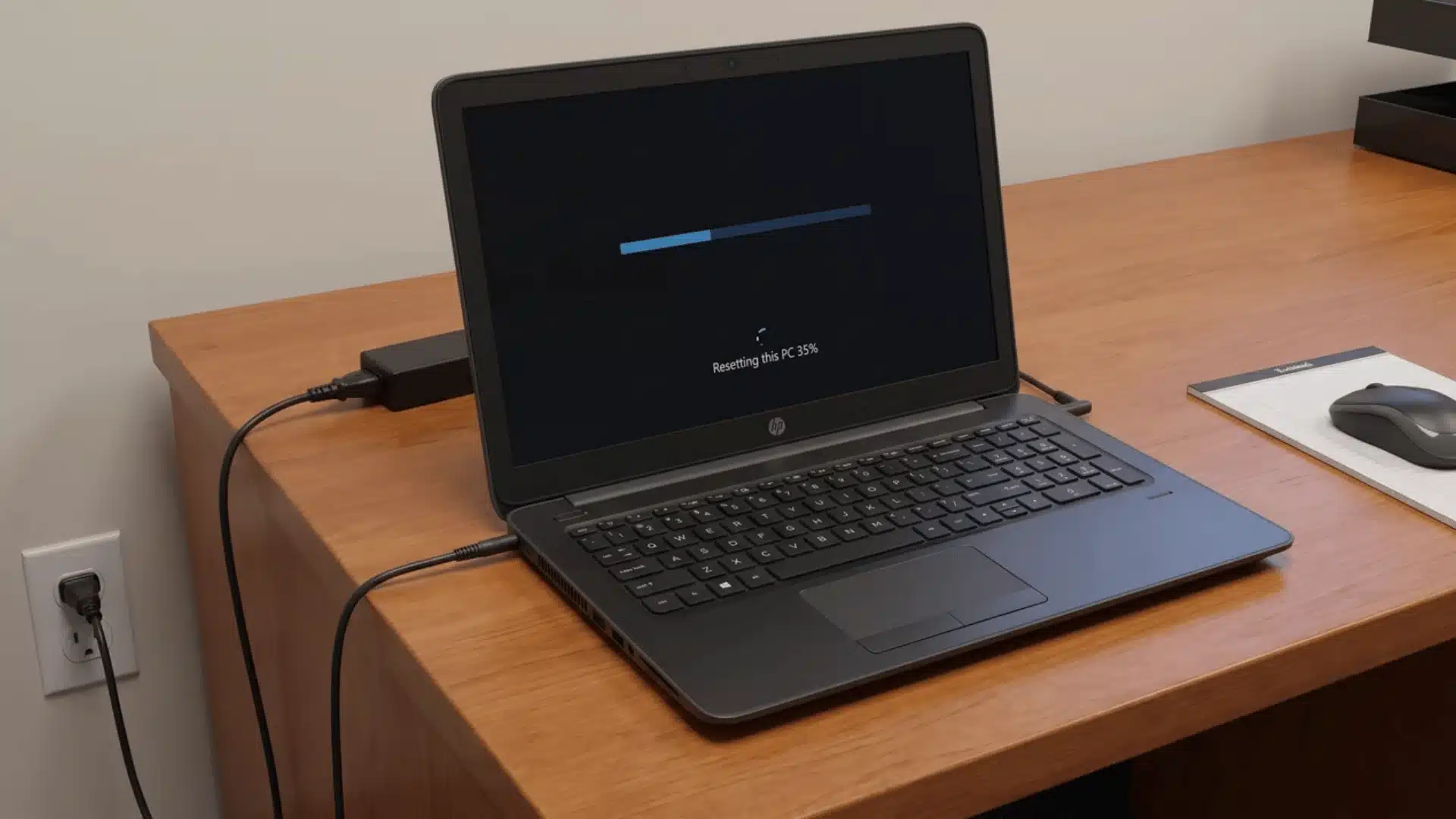
If your HP laptop has slowed down, glitches often, or you’repreparing to sell it, learning how to reset your HP laptop restores it to a like new state.
A factory reset clears every file, app, and setting stored on your device, giving Windows a genuinely fresh start without any leftover clutter or slowdowns.
Whether your screen boots normally or refuses to load at all, there’s a reliable path forward, and you’ll find both complete methods explained clearly just ahead.
From backup essentials to common failure points along the way, everything you need sits ahead, so your laptop reset goes smoothly the very first time.
Reset vs. Hard Reset: Which One Do You Need?
Before you dive into how to reset your HP laptop, it helps to know that “reset” actually means two different things, depending on what’s wrong with your device.
A full reset wipes Windows completely and reinstalls the operating system through Settings or the recovery menu. It removes your apps, files, and settings, giving you a truly clean slate.
A hard reset is something else entirely. It’s just a power-button hold that fixes a frozen or unresponsive laptop, and it doesn’t delete anything you’ve saved.
Here’s what people dont know: your laptop doesn’t need a full reset just because it froze once. Save that option for when you’re selling it, giving it away, or fixing deeper software issues.
I’ll tell you how to reset your HP laptop the full way, not the quick freeze-fix. If you just need to unfreeze your device, a hard reset is faster and safer.
What to Check Before You Start?
Once you’ve confirmed a full reset is what you need, a little prep now saves you real headaches later. These two checks matter most before touching anything.
- Back Up Your Files: Back up anything you care about before starting. Once you begin resetting your HP laptop, the process can’t be undone, so save photos and documents elsewhere first.
- Stay Plugged In: Keep your laptop plugged into a wall outlet the entire time. If power cuts out mid-reset, you risk an incomplete install that leaves your laptop stuck or unusable.
With backups done and your charger connected, you’re genuinely ready to begin. These two steps alone prevent most of the frustration people run into during a reset.
How to Reset Your HP Laptop, Step by Step?
Now for the actual process. How you reset your HP laptop depends on one simple thing: whether Windows currently loads normally or refuses to boot at all.
If Your Laptop Boots Normally (Settings Method)
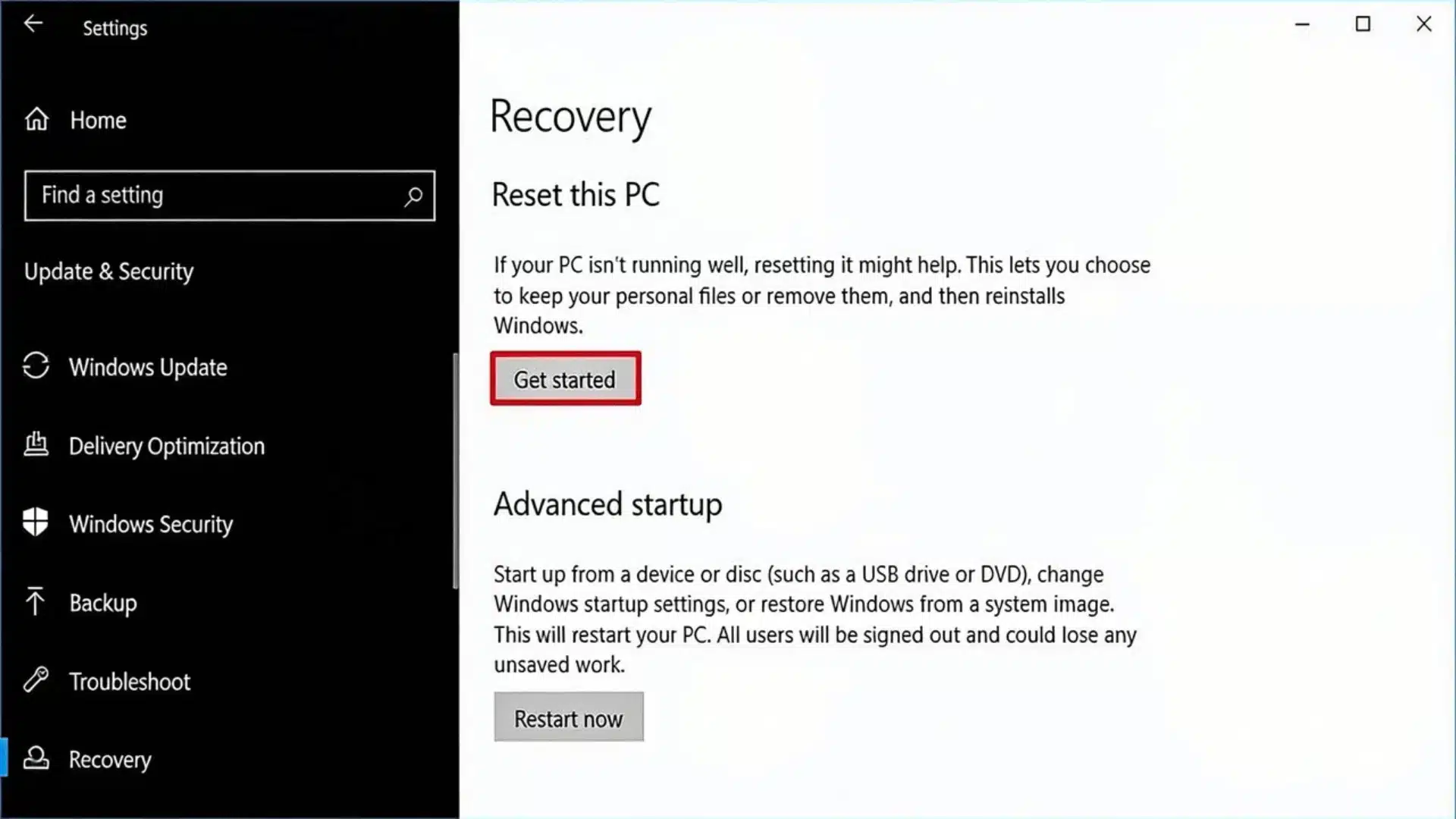
If your screen loads fine and you can reach the desktop, this is the easier path for how to reset your HP laptop. Here’s exactly where to click:
1. Open the Settings Menu
Click the Start menu, then select Settings, or simply press Windows Key plus I on your keyboard. This shortcut takes you straight into the system menu you need.
Once Settings opens, you’re inside the same control panel used for every other system change on your HP laptop, so nothing here should feel unfamiliar.
2. Head to the Recovery Screen
Navigate to System, then click Recovery from the left-hand menu. On Windows 10, go through Update & Security first before reaching the same Recovery section.
This is where every reset option lives, so take a second to confirm you’ve landed on the right screen before continuing to the next step.
3. Select Your Reset Type
Click Reset PC, then choose whether to keep your files or remove everything. Keeping files removes apps and settings while leaving your personal documents untouched.
Choose Remove Everything if you’re selling, donating, or fully starting over, since this option wipes your HP laptop completely clean before reinstalling Windows fresh for you.
4. Pick Your Reinstall Method
Next, select Cloud download or Local reinstall. Local reinstall uses files already stored on your device, generally making it the faster option for most people.
Choose Cloud download instead if your local files seem corrupted or missing, since it pulls a fresh copy of Windows directly from Microsoft’s servers online.
5. Confirm and Start the Reset
Review your choices one last time, then click Reset to begin. Your HP laptop will restart on its own and start working through the process.
From here, no further input is needed from you. Just let it run until it reaches the Windows setup screen, confirming the reset finished successfully.
That’s really all it takes for how to reset your HP laptop when Windows is running. Sit back while it works, since everything from here happens automatically.
If Windows Won’t Boot (Recovery Menu Method)
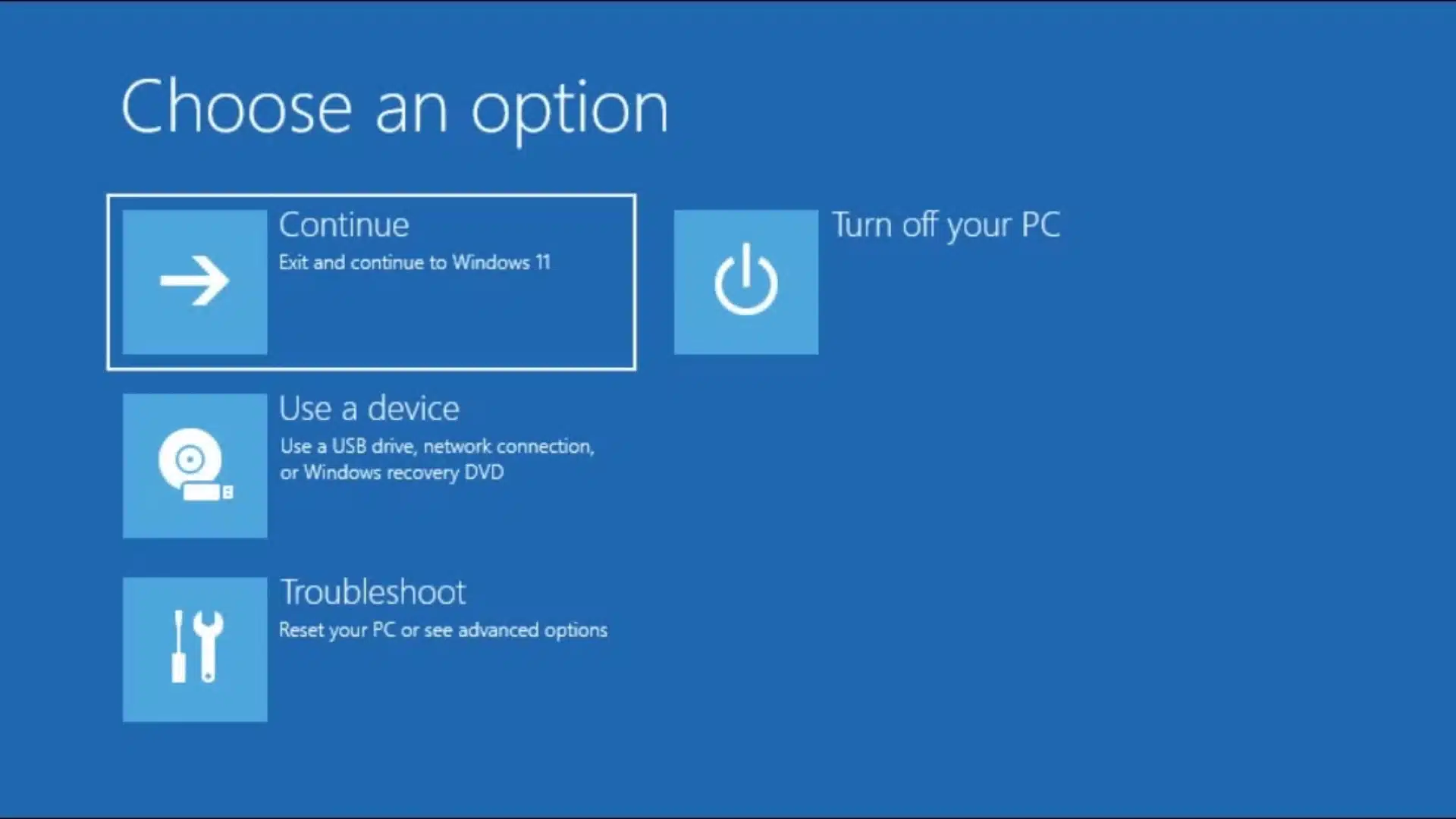
If your laptop won’t load Windows at all, you can still reset it using the recovery menu instead, no working desktop required for this method to work.
1. Power On and Hold F11
Turn the laptop off completely, then press and hold the F11 key while pressing the power button. Keep tapping F11 repeatedly right after power turns on.
Keep holding until the HP logo or a recovery screen appears on your display. This confirms you’ve successfully entered the recovery environment on your laptop.
2. Select Troubleshoot, Then Reset This PC
Once the blue Choose an option screen appears, click Troubleshoot to continue. This menu holds every recovery and repair option available for your HP laptop.
Select Reset this PC next, then follow the on-screen prompts. Windows will guide you through reinstalling itself completely, step by step, without further extra guesswork.
3. Use Shift + Restart as a Backup Entry
Can’t reach the F11 screen at all? Head to the Windows sign-in screen instead and hold Shift while clicking Restart to open recovery a different way.
This shortcut opens the exact same recovery environment as F11, so you can continue with Troubleshoot and Reset this PC from that same familiar screen.
Once recovery begins, resetting your HP laptop follows the same on-screen steps as before. Just follow each prompt patiently until Windows finishes reinstalling itself completely.
Where the Reset Can Go Wrong?
Even with careful prep, resetting your HP laptop doesn’t always go smoothly on the first try. Here are the three issues people run into most often.
- F11 Not Responding: This is usually about timing, not a broken key. The window between powering on and Windows loading is short, so keep tapping F11 repeatedly right after pressing power.
- BitLocker Recovery Prompt: If BitLocker encryption was enabled, Windows may pause and ask for a recovery key mid-reset. You’ll find this by signing into your Microsoft account on another device.
- Stalled HP Logo Screen: Sometimes the screen stalls at the HP logo for a while. This usually means power was interrupted at some point, not that the reset itself has actually failed.
Tip: If a reset fails twice in a row, try unplugging all external devices like USB drives, printers, or docks before attempting the reset one more time.
Knowing these three failure points ahead of time means you won’t panic if your laptop reset stalls, asks for unfamiliar codes, or seems to freeze mid-process.
Conclusion
Resetting your HP laptop doesn’t have to feel intimidating once you know exactly which method fits your situation and what each screen truly means for you.
From backing up files to confirming a completed reinstall, you now have a clear, dependable process instead of scattered guesses or half finished troubleshooting later on.
Looking back, the real difference between a smooth reset and a frustrating one usually comes down to preparation, patience, and simply knowing where to click first.
Ready to give your HP laptop a true fresh start? Back up your files, plug in your charger, and begin the reset process right now.
Frequently Asked Questions
How do I force a hard reset on my laptop?
Turn the laptop off, unplug all peripherals and the AC adapter, then press and hold the power button for about 15 seconds. This discharges residual power and can resolve freezes or unresponsive behavior without affecting any files, apps, or settings stored on the device.
Is F11 or F12 factory reset?
F11 is the key that opens HP’s recovery menu on most models, pressed repeatedly right after powering on. F12 typically opens the boot device menu instead, not recovery. If F11 doesn’t respond on your model, check HP’s support page for your specific laptop’s recovery key.
How do I factory reset my HP laptop without logging in?
Restart from the sign in screen while holding Shift, which boots into Recovery Mode instead of Windows. From there, selecting Troubleshoot, then Reset this PC, lets you wipe the device without ever needing to enter a password.
How to factory reset Windows laptop without password?
The same Shift plus Restart trick from the sign in screen works here too, opening Recovery Mode directly. Once inside, choose Troubleshoot, then Reset this PC, and follow the prompts to complete the wipe.





