
Your iPhone ringtone is one of the sounds you hear every day, but many people keep the default option without customizing it.
A unique ringtone helps you identify your calls faster, especially when several people nearby have the same Apple tone playing.
Knowing how to change ringtone on iPhone gives you more control over built-in sounds, custom audio clips, and contact-specific tones.
You can choose a default ringtone, create a custom sound with GarageBand, or assign different tones to specific people.
How to Change Your Ringtone to a Built-In Sound
If you just want a quick change without recording anything, your iPhone already has a full list of ready-to-use ringtones.
- Open Settings and tap Sounds & Haptics.
- Tap Ringtone.
- Tap any tone in the list to preview it.
- Tap the one you want. It’s set automatically, no extra confirmation needed.
If nothing in the list fits, the Tone Store has more options, covered below.
How to Create a Custom Ringtone on iPhone Step by Step
Before learning how to change the ringtone on iPhone, prepare the right tools and audio file so the process doesn’t stop halfway through.
Prepare these before starting:
- GarageBand app: Download Apple’s free app from the App Store if needed.
- Audio file: Choose the song or sound clip you want to use.
- Files app: Save the audio file here before importing it.
- Supported formats: GarageBand works with MP3, AAC, WAV, AIFF, CAF, and Apple Loops.
Step 1: Install and Open GarageBand
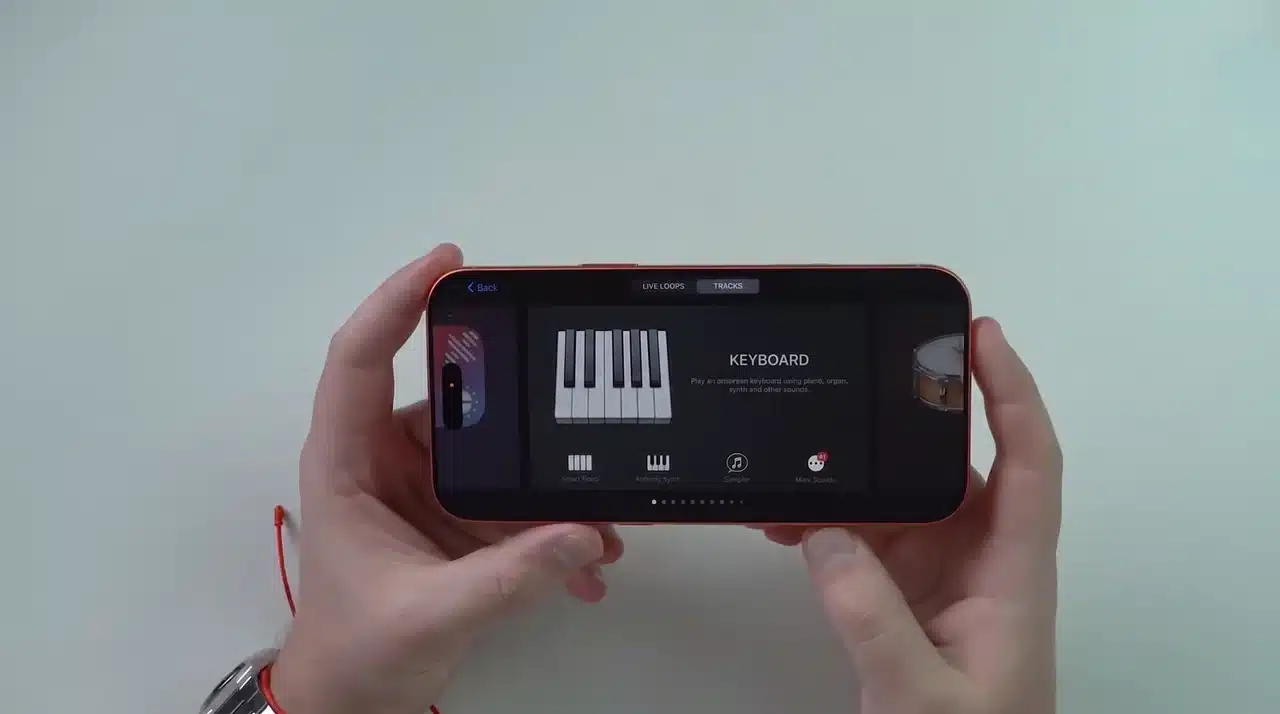
Open the App Store and search for GarageBand. Download the app if needed, then launch it after installation.
GarageBand opens in landscape mode. Swipe through the instruments until you find Audio Recorder, then tap it.
Step 2: Set Up the GarageBand Timeline
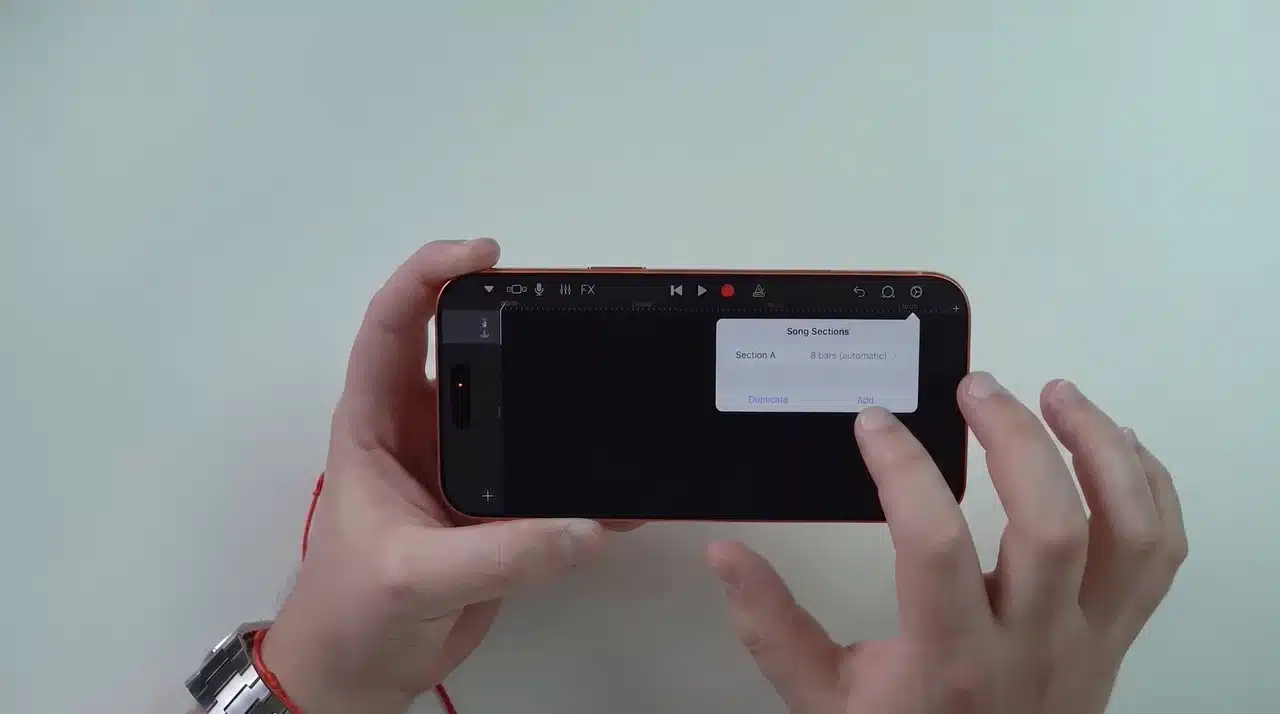
Inside Audio Recorder, check the metronome icon at the top. Make sure it appears white instead of blue before continuing.
Tap the timeline icon, select the plus (+) button, disable automatic settings, and increase the length from eight bars to 30 bars.
Step 3: Add Your Audio File to GarageBand
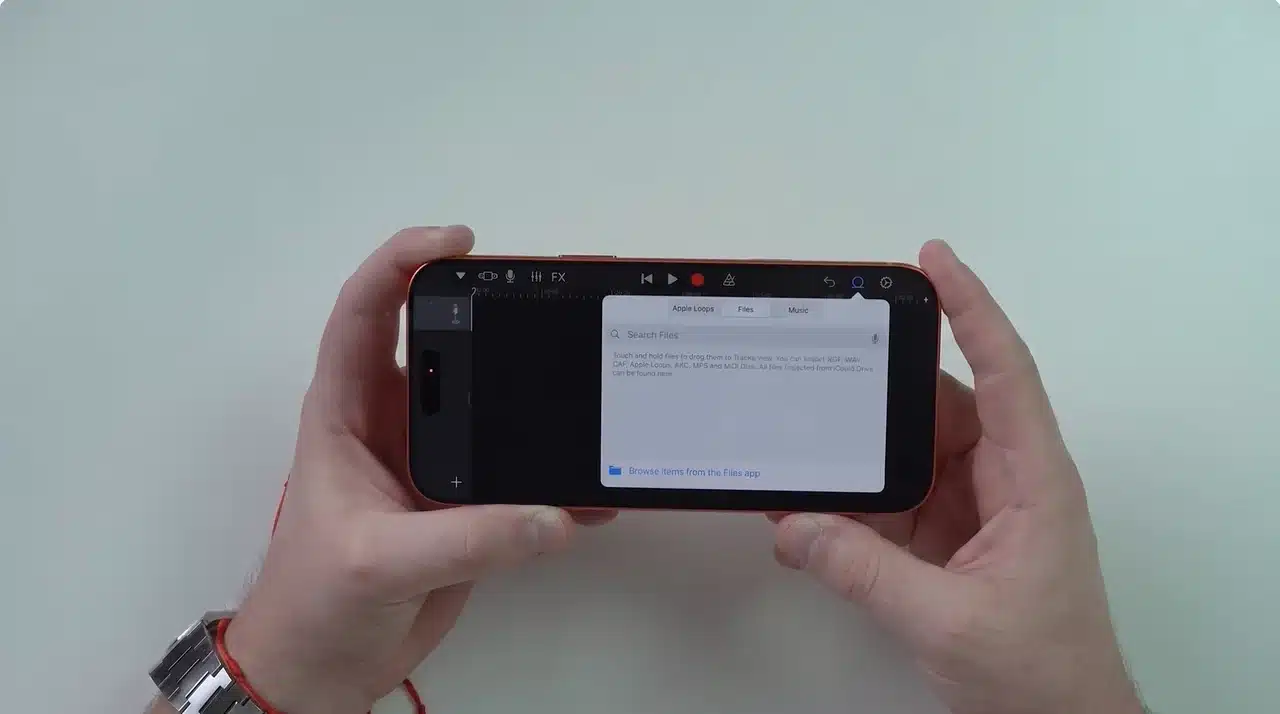
Tap the loop icon in GarageBand and select the Files option to access saved audio clips.
Choose the song or sound file you want to use. The audio must already be stored in the Files app.
You can save compatible audio from downloads, messages, WhatsApp, or other apps that support file sharing.
Step 4: Edit the Audio and Choose the Ringtone Section
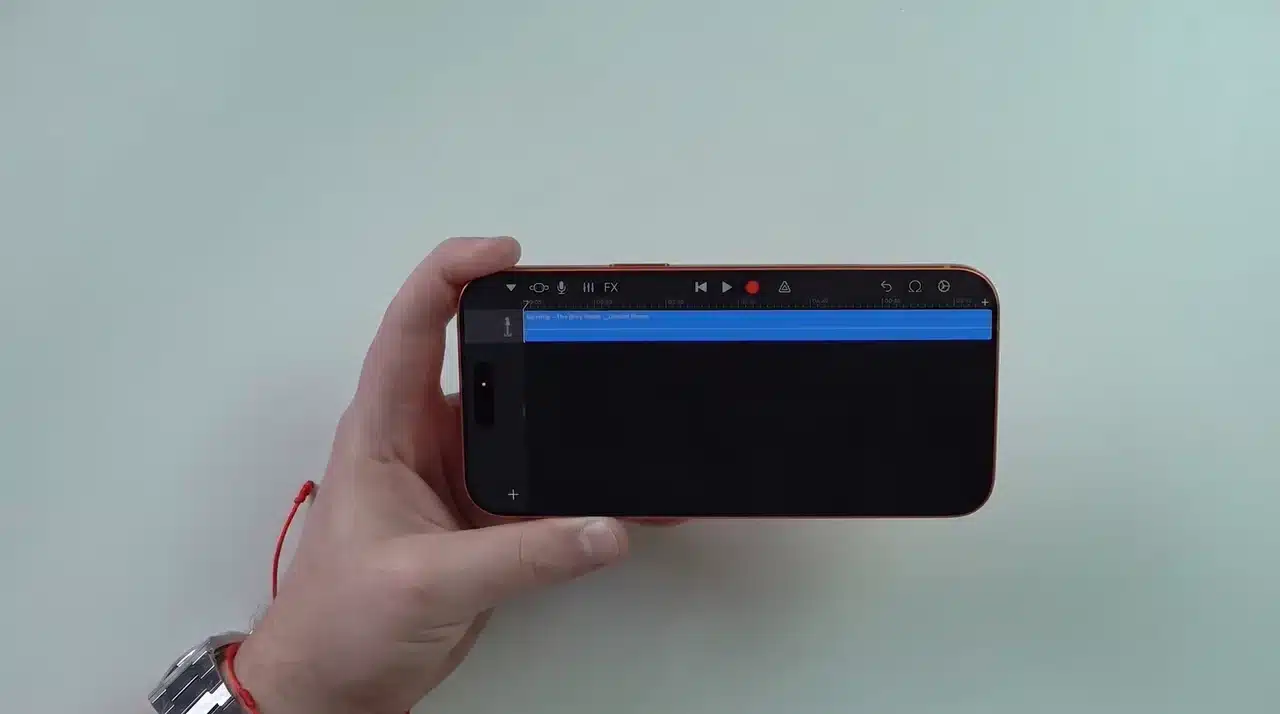
Press and hold the imported track, then move it to the beginning of the GarageBand timeline.
Play the audio and select the section you want to use. Trim unwanted parts by adjusting the track edges.
Keep the clip to 30 seconds or under. GarageBand will shorten anything longer for you automatically, but that can cut your trim in the wrong spot, so it’s better to size it yourself.
Step 5: Export the Audio as a Ringtone
Tap the downward arrow at the top and select My Songs to save your GarageBand project.
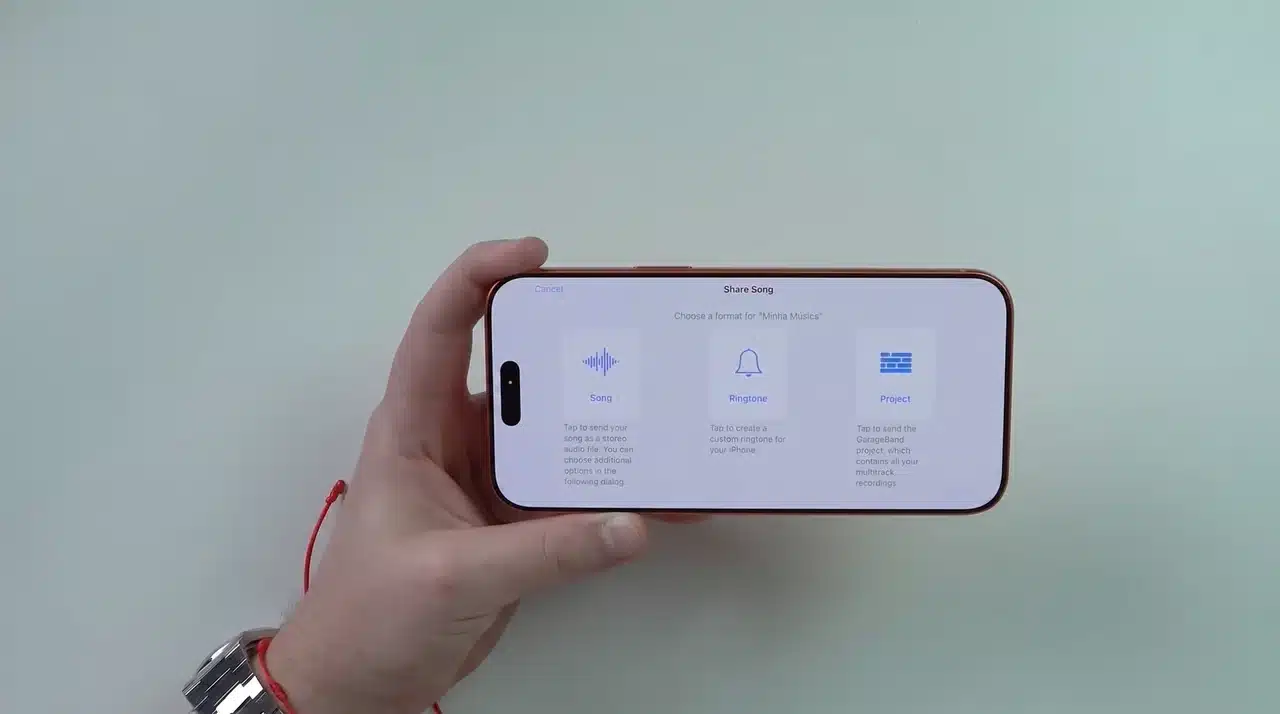
Press and hold the saved project, choose Share, then select Ringtone from the available options.
Add a name for your ringtone and tap Export to save it on your iPhone.
Step 6: Add and Select Your New Ringtone
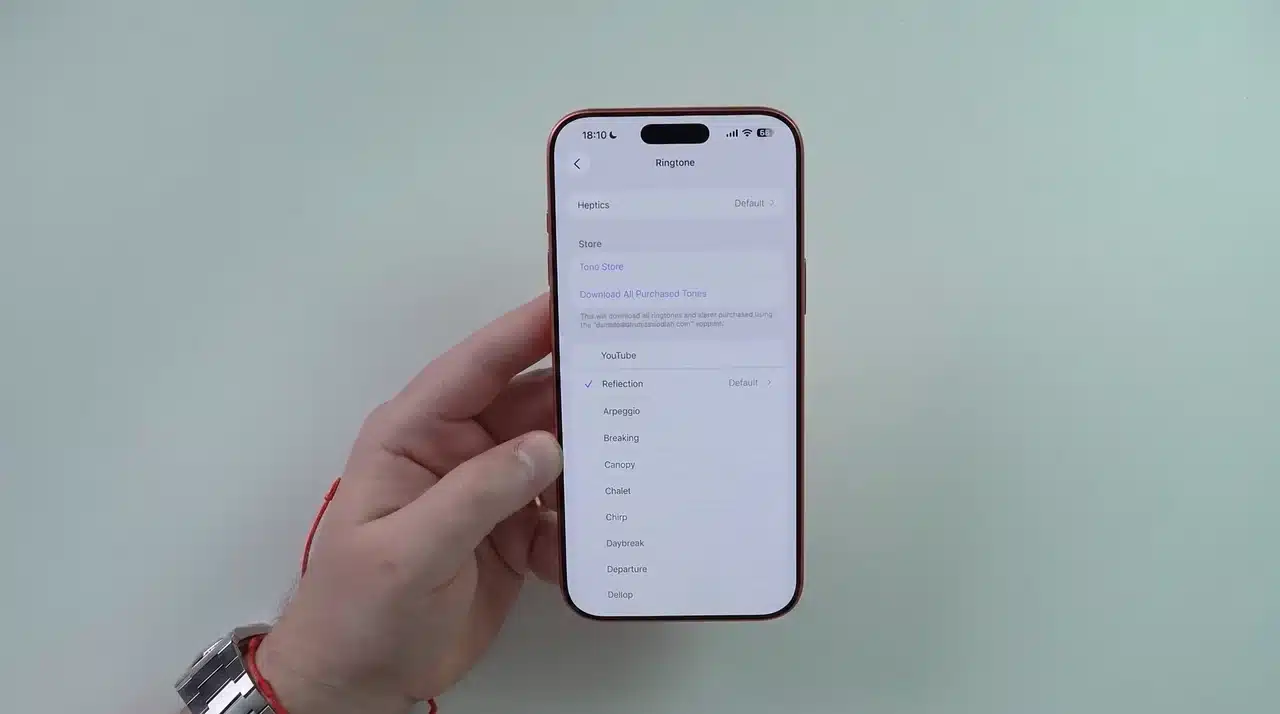
Open Settings, choose Sounds & Haptics, and tap Ringtone to view available tones.
Select the custom ringtone you created from the list. It will now play for incoming calls.
You can repeat the same process anytime to create another custom sound or learn how to add ringtones to iPhone with the tutorial below.
How to Set a Ringtone for One Contact
- Open Contacts and tap the person’s name.
- Tap Edit in the top corner.
- Select Ringtone from the list.
- Choose any tone, built-in or one you made yourself.
- Tap Done to save it.
That contact now rings with their own sound, while everyone else keeps your default tone.
How to Get More Ringtones from the Tone Store
If none of the built-in tones or your own GarageBand creation fit, you can buy new ones without leaving the Ringtone menu.
- Go to Settings, tap Sounds & Haptics, then Ringtone.
- Tap Tone Store at the top of the list.
- Browse by genre or search for a specific song.
- Tap the price next to a tone to buy it.
- Choose Set as Default Ringtone, or assign it to a contact instead.
Purchased tones are tied to your Apple Account, so they’ll show back up in your Ringtone menu on any device signed into that same account.
Why Your Ringtone Might Not Be Working
A ringtone can be selected correctly but still fail to play because another setting may be blocking incoming calls.
Check these common causes:
- Focus modes: Focus or Do Not Disturb can silence calls even with a selected ringtone.
- Ring/Silent switch: The side switch may have been moved accidentally.
- Ringtone volume: The volume slider may be too low in Settings.
- Unsupported file: Custom tones may not appear if the format or length is incorrect.
Most ringtone problems come from settings rather than the ringtone itself.
Wrapping Up
Now you know how to change ringtone on iPhone without sticking with the default sound. You can pick a built-in tone or build a custom one in GarageBand.
You can also set a unique tone for a single contact. If a call ever goes silent, check Focus mode, the Ring/Silent switch, and your volume before assuming something broke.
Try setting one custom tone today and notice how different it feels the next time your phone rings.
Frequently Asked Questions
Can I use any song as my iPhone ringtone?
Yes, as long as it’s trimmed to 30 seconds or less and exported through GarageBand in the correct format. Once exported, it appears automatically in your ringtone list under Settings, with no separate installation needed. Songs from streaming apps can’t be used directly and must first be added to your phone as a file.
Why isn’t my custom ringtone showing up?
This usually happens because the audio file is too long or wasn’t exported correctly. GarageBand needs the clip to be 30 seconds or under and saved in the right format before it will appear in your list. Trimming and exporting it again through GarageBand’s ringtone option usually solves it.
How do I set a ringtone for just one person?
Open Contacts, tap the person’s name, then tap Edit. Select Ringtone and choose any tone already on your phone, then tap Done. This changes the tone only for that contact, so every other caller still hears your default ringtone.
Why isn’t my phone ringing even though a ringtone is set?
Check whether Focus or Do Not Disturb is turned on, since either one can silence calls without warning. Also confirm the Ring/Silent switch on the side of your phone isn’t flipped to silent. If both look fine, check the ringtone volume slider in Settings, since it may just be turned down.