

You plug in your keyboard, mouse, headset, controller, and external drive, only to find there is one USB port left. That can be a frustrating surprise.
I’ve run into this problem myself, and it can make a simple PC setup feel surprisingly frustrating. The number of USB connections on a motherboard can vary a lot between models.
Counting the ports on the back does not always tell the full story, since internal headers can also connect to USB ports on your case.
Chipset, CPU platform, board size, and motherboard design all play a part. Knowing how these connections work can help you choose a motherboard that fits your setup without leaving useful ports behind.
How Many USB Ports Does a Motherboard Have?
Most modern consumer motherboards provide roughly 6 to 14 USB connections, but the exact number varies by model.
That count can include physical USB ports on the rear I/O panel and front-panel USB connections supported through internal headers.
A motherboard may have fewer rear ports while still offering several internal headers for case ports. The CPU platform, chipset, motherboard design, and extra USB controllers also affect the final count.
For example, current AMD platforms list different USB capabilities across chipsets, showing why there is no fixed number for every motherboard.
How USB Headers Affect Motherboard Port Count
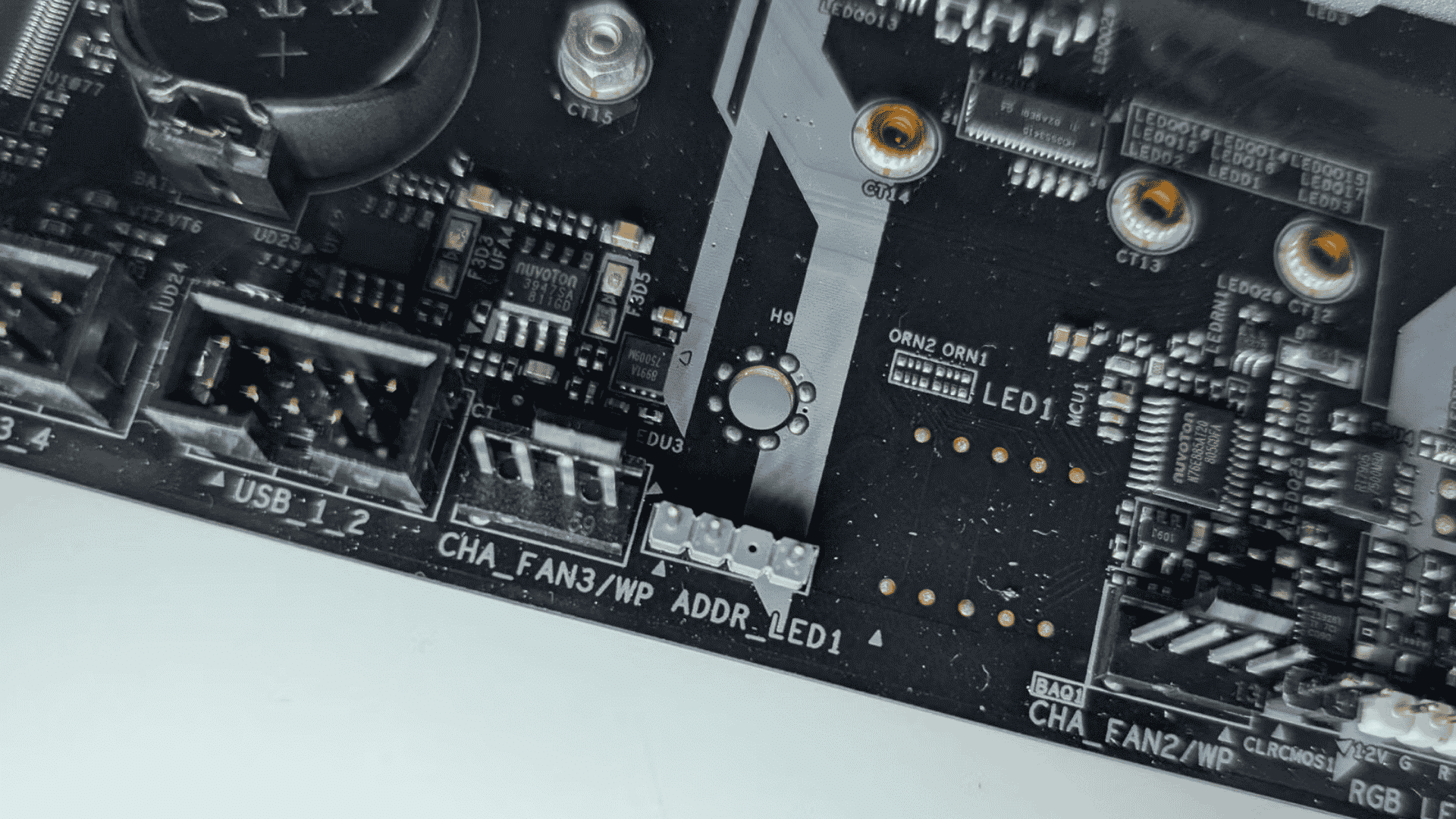
USB headers let the motherboard connect to USB ports mounted on the front or top of a PC case. They are different from the USB ports you see on the rear I/O panel.
The number and type of headers matter when choosing a case, since each header supports specific connections. Checking the motherboard manual before buying a case helps prevent unused front-panel USB ports.
1. Rear USB Ports
Rear USB ports are the physical connectors built into the motherboard’s rear I/O panel. These ports are ready to use once the motherboard is installed and connected. Their number can vary widely between models, even when two boards use the same form factor.
A manufacturer may provide several USB-A ports, one or more USB-C ports, or a mix of different USB speeds. Always check the motherboard’s official specifications for the exact rear-port count.
2. Internal USB Headers
Internal USB headers connect the motherboard to USB ports on the PC case. Common USB 2.0 and USB 3.x headers can support two front-panel ports through a compatible cable, but the exact setup depends on the header type.
A USB 2.0 header, for example, should not be treated as a high-speed USB 3.x connection. Check the motherboard manual and case connectors to make sure they match before building the PC.
3. Front-Panel USB-C Headers
Some motherboards include an internal header for a front-panel USB-C port on a compatible case. This header differs from older USB-A connector types and internal USB headers, and is designed for the case’s front USB-C connection.
The speed depends on the motherboard’s implementation and the supported USB standard, so USB-C alone does not tell you how fast the port will be. Check the motherboard specifications for the supported data rate.
What Actually Sets Your Motherboard’s USB Port Count?
Several parts of a motherboard’s design determine how many USB connections it can provide. The CPU platform and chipset supply USB connectivity, while the manufacturer decides how those resources are divided between rear ports and internal headers.
Some boards also use additional USB controllers for more connections. Form factor matters too because board size affects the space available for connectors and supporting hardware.
1. Motherboard Form Factor
Motherboard size can affect USB port count because larger boards generally have more physical room for rear I/O connectors, internal headers, and additional controllers.
Mini-ITX boards usually have less space, while Micro-ATX and ATX boards can offer more room for connections.
Still, form factor does not guarantee a specific USB count. Two ATX motherboards can have very different USB layouts because manufacturers make different choices about available space and platform features.
2. CPU and Chipset Connectivity
The CPU platform and chipset provide much of the USB connectivity available to a motherboard. Their capabilities differ between platforms and chipset models, so two motherboards can support different numbers and speeds of USB connections.
For example, AMD lists different USB capabilities across current AM5 chipsets, while Intel’s chipset specifications also show varying USB limits.
The motherboard manufacturer then assigns those available resources to specific ports and headers.
3. Additional USB Controllers
Some motherboards use extra USB controller chips to provide more ports or additional high-speed connections. This gives manufacturers more options than relying only on the CPU and chipset’s built-in USB resources.
As a result, two boards using the same chipset can still have different USB port layouts.
If a motherboard advertises an unusually large number of fast USB connections, check its specifications to see which are provided by the platform and which use additional controllers.
4. Motherboard Design and Rear I/O Space
The manufacturer decides how the available USB resources are placed on the finished motherboard.
Rear I/O space is limited, so designers must balance USB ports with Ethernet, audio, video outputs, Wi-Fi connections, and other features. Internal headers also take space and platform resources.
This is why two motherboards with the same chipset can have different USB counts. The manufacturer’s specifications show the final port layout rather than just the maximum capabilities of the chipset.
Types of USB Ports You’ll Find on a Motherboard
Most motherboards ship with several kinds of USB ports, and each one looks different and moves data at a different speed. Naming has gotten confusing over the years because the USB Implementers Forum (USB-IF) has renamed the same speeds more than once.
| USB Port Type | Max Speed | Common Color | Typical Use |
|---|---|---|---|
| USB 2.0 | 480 Mbps | Black | Keyboards, mice, printers |
| USB 3.2 Gen 1 (formerly USB 3.0) | 5 Gbps | Blue | Flash drives, external hard drives |
| USB 3.2 Gen 2 (formerly USB 3.1) | 10 Gbps | Teal or red | External SSDs, fast storage |
| USB 3.2 Gen 2×2 | 20 Gbps | Usually USB-C only | High-speed external drives, docks |
| USB-C | 480 Mbps to 80 Gbps, depending on the standard behind it | Black, no fixed color | Laptops, phones, monitors, docks |
USB port types can look similar, but their speeds and features can vary widely. The USB version and supported speed matter more than the port color or connector shape.
Before connecting a high-speed device, check your motherboard’s specifications to see what each port supports.
How to Check How Many USB Ports Your Motherboard Has
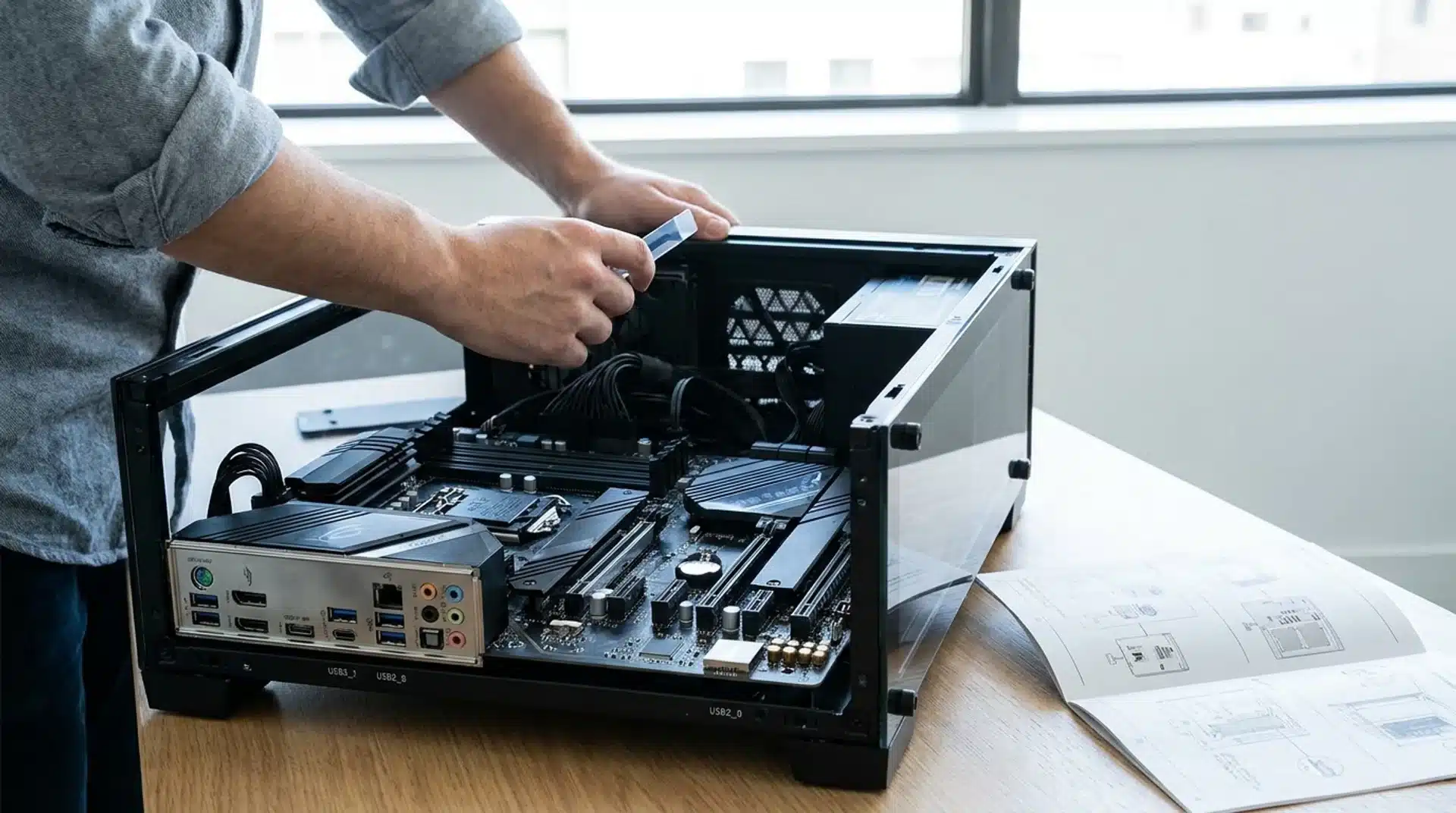
Not every PC comes with a spec sheet handy, but figuring out your USB port count only takes a few minutes. These checks work together to give you an accurate count of both the ports you can see and the ones hidden inside the case.
- Check the Official Specifications: Look up your exact motherboard model on the manufacturer’s website. The spec page lists every USB port and header, including each the’s type and speed.
- Check the Internal Headers: Open the case and look at the motherboard for small pin blocks near the edges. A USB 2.0 header has 9 pins and usually powers two rear ports, while a USB 3.2 header has 19 pins and also feeds two ports.
- Inspect the Motherboard: Look at the rear I/O panel and count each port by eye. Color gives a rough clue to speed, but it isn’t always reliable across brands.
- Check Device Manager or BIOS: On Windows, open Device Manager and expand “Universal Serial Bus controllers” to see what’s active. The BIOS also shows onboard USB settings, usually listed under an advanced or peripherals menu.
Combining the manual with a physical inspection covers both sides of the picture. This way, you won’t miss anything, whether it’s a port on the back panel or a header waiting to be used.
How Many USB Ports Do You Need for a PC?
Casual and office PCs do fine with four to six USB ports. That covers a keyboard, mouse, printer, and a flash drive, with room to spare.
Gaming PCs need more, since players plug in headsets, controllers, webcams, and lighting controllers at once. Six to eight ports, including a few fast USB 3.2 or USB-C options, keep things running smoothly.
Content creation PCs push the limit further. Editors and photographers connect external drives, card readers, capture cards, and tablets at the same time.
Eight or more ports, with several high-speed USB 3.2 or USB4 options, prevent slowdowns and swapping. Match your port count to your daily workload, not just your budget.
Conclusion
Running out of USB ports can be frustrating, especially when your keyboard, mouse, headset, controller, storage drive, and other devices all need connections.
The total available on a motherboard depends on its rear I/O ports, internal headers, CPU platform, chipset, form factor, and additional USB controllers.
I recommend checking the manufacturer’s specifications before buying a motherboard, then comparing those connections with the ports on your PC case.
This simple check can prevent unused front-panel ports and the need for extra hubs later. How many USB connections does your PC have, and do you have enough for everything you use?
Share your setup in the comments below!
Frequently Asked Questions
Can I Add More USB Ports to My PC?
Yes. You can add USB connectivity with an external USB hub or a PCIe USB expansion card. The best option depends on your speed, power, and bandwidth needs.
Do USB Ports on a Motherboard Have Different Speeds?
Yes. Motherboards can include USB ports with different speeds, such as 480 Mbps, 5 Gbps, 10 Gbps, or higher. Check the specifications instead of relying on port color.
Can I Use a USB 3.0 Device in a USB 2.0 Port?
Yes, USB devices are generally backward compatible, but the connection runs at the slower USB 2.0 speed when plugged into a USB 2.0 port.
Does USB-C Mean Faster Data Transfer?
No. USB-C describes the connector shape, not its speed. A USB-C port can support different USB standards, so check the motherboard specifications for its actual transfer rate.