
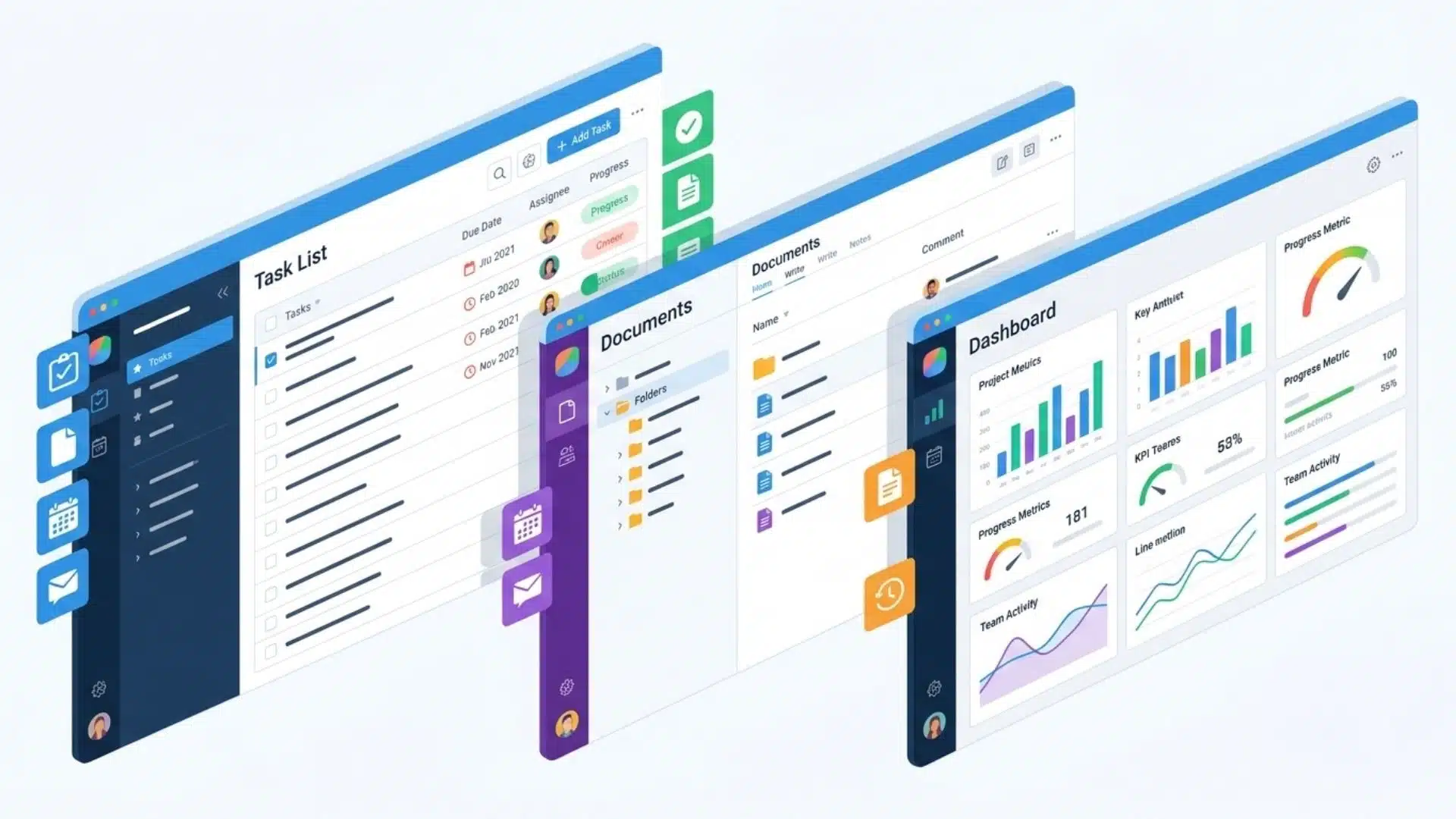
ClickUp gets very different reactions depending on who you ask. Some teams say it replaces multiple tools and simplifies their entire workflow. Others feel it becomes too complex to manage day to day.
That split is the reason ClickUp reviews are so inconsistent. The platform does not behave like a single fixed tool. It changes based on how it is set up, which directly shapes the experience people have with it.
Because of that, looking at ClickUp through only ratings or surface-level feedback can be misleading. The real picture comes from understanding what it does well, where it struggles, and what type of user it actually fits.
This breakdown focuses on exactly that, the real pros and cons of ClickUp, based on how it performs in actual workflows.
What is ClickUp?
ClickUp is a work management platform that brings tasks, documents, goals, dashboards, and collaboration tools into a single workspace.
Instead of switching between separate apps for planning, tracking, and reporting, everything is stored and managed inside one system. Tasks connect with docs, updates, and workflows in the same environment.
The platform is built to replace multiple tools with one centralized setup. This includes task management, team communication, and project tracking in a shared space.
The actual experience depends heavily on how the workspace is structured. ClickUp does not enforce one fixed workflow, so teams shape it based on their own processes.
Why ClickUp Reviews Differ So Much
ClickUp reviews often conflict because users are not experiencing the same setup. The platform is flexible enough that each team builds its own structure, which leads to very different day-to-day experiences.
Some teams set it up cleanly with clear workflows, defined spaces, and consistent usage rules. In those cases, ClickUp feels powerful and efficient because everything is organized around a single system.
Other teams adopt it without a clear structure. When that happens, features pile up without consistency, and the workspace starts to feel cluttered and difficult to manage.
The result is simple: positive reviews usually come from well-designed setups, while negative reviews often come from rushed or unstructured implementations.
Pros and Cons of ClickUp
ClickUp is a flexible work management tool, but that flexibility creates both advantages and trade-offs depending on how it is set up and used in real workflows.
| Pros | Cons |
|---|---|
| High customization through multiple views and workflow design flexibility for teams | Requires upfront setup decisions before effective usage begins |
| Free plan supports real project management with tasks, docs, and collaboration tools included | Workspaces can become disorganized without clear structure and ownership |
| All-in-one workspace reduces need for multiple separate productivity applications | Feature-heavy interface may overwhelm users with simple task needs |
| Scales well with growing teams and increasing operational complexity over time | Larger workspaces may experience slower performance and responsiveness issues |
Overall, ClickUp performs best when there is a clear setup, ownership, and structured workflow design. Without that, its flexibility can turn into complexity rather than efficiency.
Pricing Tiers: What Each Plan Actually Unlocks
ClickUp runs on a tiered model, and each step up unlocks a specific ceiling. Annual billing knocks the price down, so the monthly figures below are the higher end. Always check the current rates before you commit, since they shift over time.
Here’s what you’re paying for at each level.
| Plan | Price (per user/month) | Best for | What it unlocks |
|---|---|---|---|
| Free Forever | $0 | Personal use or a tiny team | Unlimited tasks, collaborative docs, basic integrations. Real work fits here. |
| Unlimited | ~$7–$10 | Small teams hitting the free plan’s limits | Unlimited storage and more advanced views |
| Business | ~$12–$19 | Scaling teams | Advanced automations, time tracking, dashboard widgets |
| Enterprise | Custom pricing | Large organizations | Advanced security, granular permissions, dedicated support |
The pattern is clear. The free and Unlimited tiers cover the basics, but the features people praise most are typically behind the Business plan. Map your must-haves to a tier before you assume the cheaper plan is enough.
ClickUp Learning Curve and Pricing Explained
Almost every review mentions the same issue. ClickUp has a learning curve, and most teams take two to four weeks to get fully comfortable using it.
The reason is not the number of features, but the amount of setup decisions required before work feels structured.
1. The Real Reason the Learning Curve Exists
ClickUp does not force a fixed workflow. It gives tools and expects teams to design their own system.
Instead of guiding users into one way of working, it leaves structure, hierarchy, and workflow design completely open. That flexibility is powerful, but it also means nothing is pre-decided.
Before work begins, teams must define how everything fits together. Without that clarity, usage becomes inconsistent and harder to manage across users.
- Nested structure setup, like Workspace, Space, Folder, List, must be planned manually
- Multiple ways to complete the same action require team-wide standardization
2. How It Scales With Team Size
The learning effort changes depending on how many people are involved and how shared the setup becomes.
Solo users usually adapt faster because they control both structure and execution. Teams, however, need alignment across multiple users, which increases setup time and coordination effort.
As more people join, small differences in usage start compounding. What feels organized for one person can feel inconsistent at team level without clear rules.
3. Where ClickUp Feels Heavy
As workspaces grow, the system can start to feel less lightweight and more layered.
Large volumes of tasks and projects can slow navigation and reduce responsiveness in some cases. The mobile experience also feels more limited compared to desktop usage, especially for complex workflows.
Over time, heavily built-out systems may feel harder to manage simply because of their own depth and density.
4. Common User Complaints
Certain issues appear repeatedly in long-term user feedback and review discussions.
Users report occasional sync delays between devices, minor bugs that interrupt workflows, and inconsistencies in how some features behave depending on setup structure.
When everything is configured well, ClickUp feels powerful and efficient. When it is not, the same flexibility can create friction instead of clarity.
5. Is ClickUp Worth Paying For
ClickUp delivers value when setup is treated as part of the process, not something to skip.
Teams that invest in defining structure early usually gain long-term efficiency and flexibility. The system starts working with them instead of against them.
It is less effective for teams that expect immediate simplicity without setup decisions. In those cases, the flexibility becomes unnecessary complexity rather than an advantage.
Who ClickUp Is Right For, and Who Should Skip It
ClickUp works best when structure is intentional and someone manages setup. Without that, flexibility can turn into complexity.
| Right For | Should Skip |
|---|---|
| Teams replacing multiple tools into one system | Teams needing a simple task list only |
| Workflows that vary across projects or departments | Users wanting instant plug-and-play setup |
| Teams with a dedicated setup owner | Small teams without time for configuration |
| Users who want deep customization and control | Workflows that require strict simplicity |
ClickUp delivers value when it is actively structured and maintained. If not, simpler tools often feel faster and easier to use.
Conclusion
ClickUp is not a simple tool, and that is the core reason opinions about it are split. It is built to be flexible, which means the final experience depends heavily on how it is set up and used.
For some teams, that flexibility turns into efficiency. It replaces multiple tools and creates a single system for managing work. For others, it adds setup effort and complexity that outweighs the benefits.
The takeaway is straightforward. ClickUp works best when there is clear structure and ownership from the start. Without that, it can feel heavier than necessary, even if the features are strong.
Choosing it is less about features and more about readiness to build and maintain your own workflow system.
Frequently Asked Questions
Is ClickUp’s free plan good enough to use long-term?
For individuals and very small teams, yes. The free plan includes unlimited tasks, collaborative docs, and core views, so it covers real ongoing work. Teams that need advanced automations, deeper time tracking, or dashboards will eventually hit its limits and have to move to a paid tier.
How long does it take to learn ClickUp?
Solo users can be productive within a day. But teams commonly report two to four weeks to onboard fully. Most of that time goes into setup decisions, structuring spaces, views, and automations rather than learning the interface. Having one person own the configuration shortens it considerably.
What’s the best alternative to ClickUp?
It depends on the gap you feel. Teams wanting simplicity often prefer Trello or Asana. Documentation-first teams lean toward Notion, and visual planners favor Monday. ClickUp’s edge is its breadth, so an alternative tends to win when you need less than it offers, not more.
Is ClickUp safe and legitimate to use?
Yes. ClickUp is an established platform used by many teams. Its business and enterprise tiers include standard security, with permissions and access controls. As with any cloud tool, check its data-handling terms against your own compliance needs before storing sensitive information.