Choosing the best photo editing software for beginners can sound straightforward until you’re staring at 12 browser tabs and still not sure.
The problem isn’t a lack of options; it’s knowing which ones are actually worth your time given your budget, your device, and where you want to end up.
Price matters. So does what you’re shooting, what device you’re on, and where you want to go with editing. Get those wrong and even the best software becomes the wrong software.
Here’s what you actually need to know to make a decision you won’t regret six months in.
What Actually Makes Photo Editing Software “Good for Beginners”?
Beginner-friendly software does one specific thing: it shows you a better photo before you understand why it looks better.
That’s a design choice, not a low bar. The best tools hide controls you don’t need, and fewer decisions mean faster progress.
- When you open Lightroom for the first time, you see Basic, Detail, and Color panels. You make one decision at a time.
- When you open Photoshop, you see Layers, Channels, Paths, and Adjustments all at once. You freeze before you’ve touched anything.
The result is the same: a photo, but only one of those paths teaches you what you did.
Most people assume more features equal better software. In practice, a professional tool hands you a cockpit when you just need to drive. Layer panels, tone curves, channel mixing… all powerful features, but paralyzing if you’re still learning what “exposure” means.
Three things actually matter: how fast it shows a visible improvement, how much the interface stays out of your way, and whether the learning curve matches your ambition.
AI is worth clarifying, too. In photo editing, it doesn’t mean creative generation. It means the software decides for you: exposure, subject selection, and sky replacement, which is useful early on. Just know what you’re signing up for.
Which Software Is Best Depends on Four Conditions
There’s no single best photo editing software for beginners. The right answer depends on your situation.
Four conditions determine which tool actually fits you. Work through these before you look at a single feature list.
- Budget: Free, monthly subscription, or one-time purchase? This alone eliminates most options before you’ve compared anything else.
- Device: Mac, PC, or phone? Some tools are engineered for one platform and only tolerated on another. This catches people off guard more often than it should.
- File type: JPEGs or RAW files? Not every beginner-friendly tool can even open a RAW file.
- Editing ambition: Cleaner colors and better exposure, or full object removal and compositing? These aren’t points on the same scale. They’re different jobs, and the tools that do them well are different tools.
The RAW file condition catches most beginners off guard. You upgrade your camera, open your software, and nothing works. Knowing your answer upfront prevents that.
Here’s the conditions-to-software mapping:
| Category | Tools | What to know |
|---|---|---|
| Free | GIMP, Polarr, Affinity by Canva | Nothing to pay before you try. GIMP for layer-based editing, Polarr for preset-driven results, Affinity if you want professional-level tools at no cost. |
| Subscription | Adobe Lightroom, Adobe Photoshop | The most actively updated RAW processing engine on the market. A preset library that doubles as a learning tool. Workflow that transfers directly to professional use. |
| One-time purchase | — | This lane has shrunk. Affinity moved to free. Luminar Neo moved to subscription. Verify current pricing on any tool before committing. |
| Mobile | Snapseed, Lightroom Mobile | If your primary device is a phone, start here before looking at anything else. |
Pick your conditions first. The software recommendation follows naturally.
The Best Free Options: GIMP, Polarr, and Affinity by Canva
Free photo editing software has a reputation problem. Most people assume free means stripped-down; something to tolerate until you can afford the real thing.
That’s not quite right. Free tools make different trade-offs. They don’t necessarily make fewer.
GIMP
GIMP is the closest thing to Photoshop you’ll find without paying a cent.
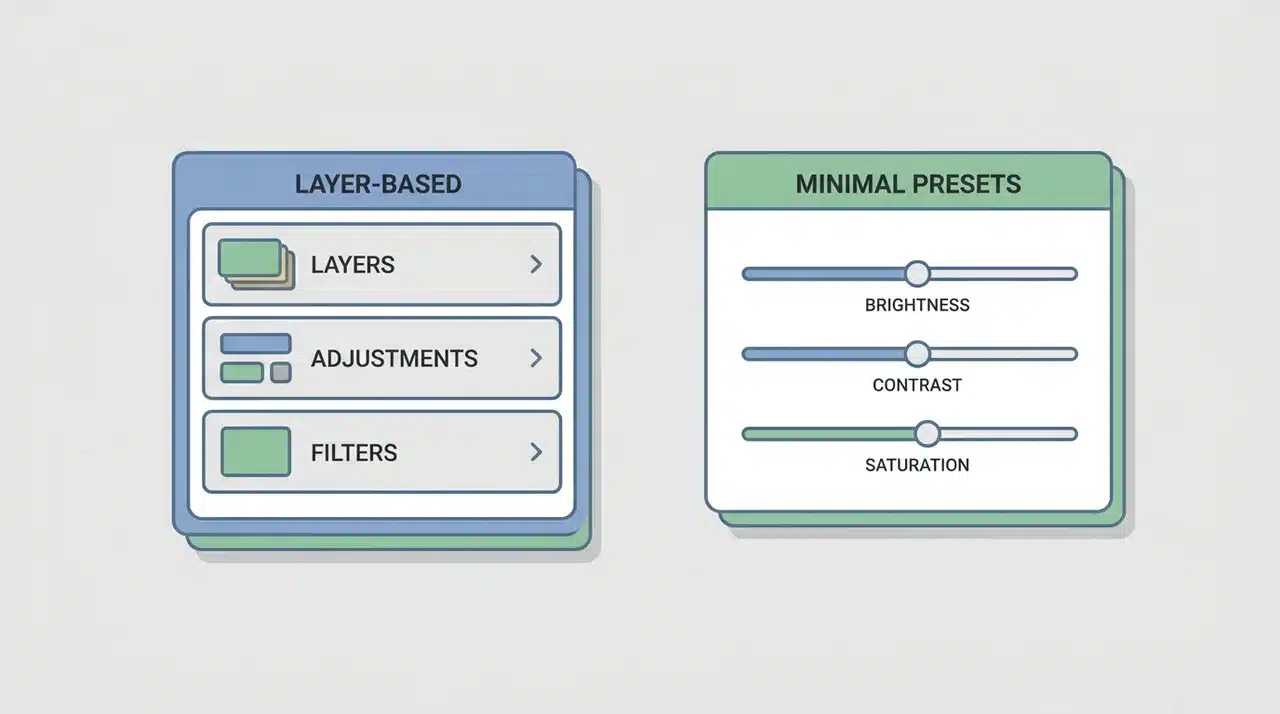
It’s layer-based; adjustments sit above your original image without touching it. That’s the same logic Photoshop runs on, which means the thinking transfers directly if you move to Photoshop later.
The learning curve is real, though. GIMP wasn’t designed to hold your hand. Some common tasks take more steps than they would in other tools.
If you’re willing to invest time, the ceiling is high. If you want quick results, you’ll be frustrated.
One limit to know upfront: RAW file support is limited without additional plugins. If you’re shooting RAW, check compatibility before committing.
Polarr
Polarr is the opposite experience: fast, visual, and built around presets.
Pick a starting look, adjust a few sliders, and you’re done. No layer logic to learn, no complex menus to navigate.
For someone who wants to develop an eye for color and light without getting buried in tools, it works well. The ceiling is lower than GIMP’s, and native RAW support in the free version is limited.
Affinity by Canva
This one is worth knowing about because it changed significantly in late 2025.
Affinity, long sold as a $70 one-time purchase, became free after Canva acquired it. What you get is a full layer-based editor with native RAW support and a non-destructive workflow. The feature set sits closer to Photoshop than GIMP does, at no cost.
The learning curve is real. It’s not designed to hand-hold. But if capability is your concern, the free tier now covers serious editing work.
The one catch: AI features like generative fill and background removal require a paid Canva subscription. The core editing tools don’t.
If GIMP’s interface frustrates you but paying for Lightroom feels premature, Affinity is now the strongest free option worth trying.
Adobe Lightroom: The Most Recommended Starting Point, and Why
Lightroom dominates beginner recommendations for a reason that goes deeper than brand recognition. It was built around a workflow that protects you from your own mistakes.
Every edit you make in Lightroom is non-destructive. Your original photo is never touched. You can undo anything: not just the last step, but every step, months later.
For someone still learning what good editing looks like, that’s not a small thing. It means you can experiment without consequence.
The other reason it works for beginners is the preset library. Presets are one-click looks, applied instantly, fully reversible. Most beginners use them to get a result they like, then work backward.
You ask: “What did this preset actually do to get here?” Then you start understanding the sliders.
In practice, it looks like this: you apply a preset, notice the photo feels warmer and punchier, then look at the sliders and see that Temp moved to +15, Vibrance to +20, and Shadows were lifted. You’ve just learned what those three controls do without reading a tutorial.
That’s a faster learning path than starting with a blank histogram. There’s one distinction worth knowing before you buy: the choice below.
Lightroom vs. Lightroom Classic
These are two different products with the same name, and Adobe doesn’t make the difference obvious.
| Lightroom (CC) | Lightroom Classic | |
|---|---|---|
| Storage | Cloud-based | Local hard drive |
| Sync | All devices | Desktop only |
| Interface | Simpler, cleaner | More advanced |
| Best for | Casual shooters, multi-device editing | Large RAW libraries, desktop-heavy workflows |
| Who uses it | Beginners, mobile shooters | Professionals, serious enthusiasts |
For most beginners, Lightroom CC is the right starting point. It’s less overwhelming, and the cross-device sync is genuinely useful.
If you know you’ll be managing thousands of RAW files from a dedicated camera, Classic is worth the extra learning curve.
Note: Verify the current subscription pricing before you commit; Adobe regularly adjusts its plans.
Lightroom vs. Photoshop: Which One Should a Beginner Actually Start With?
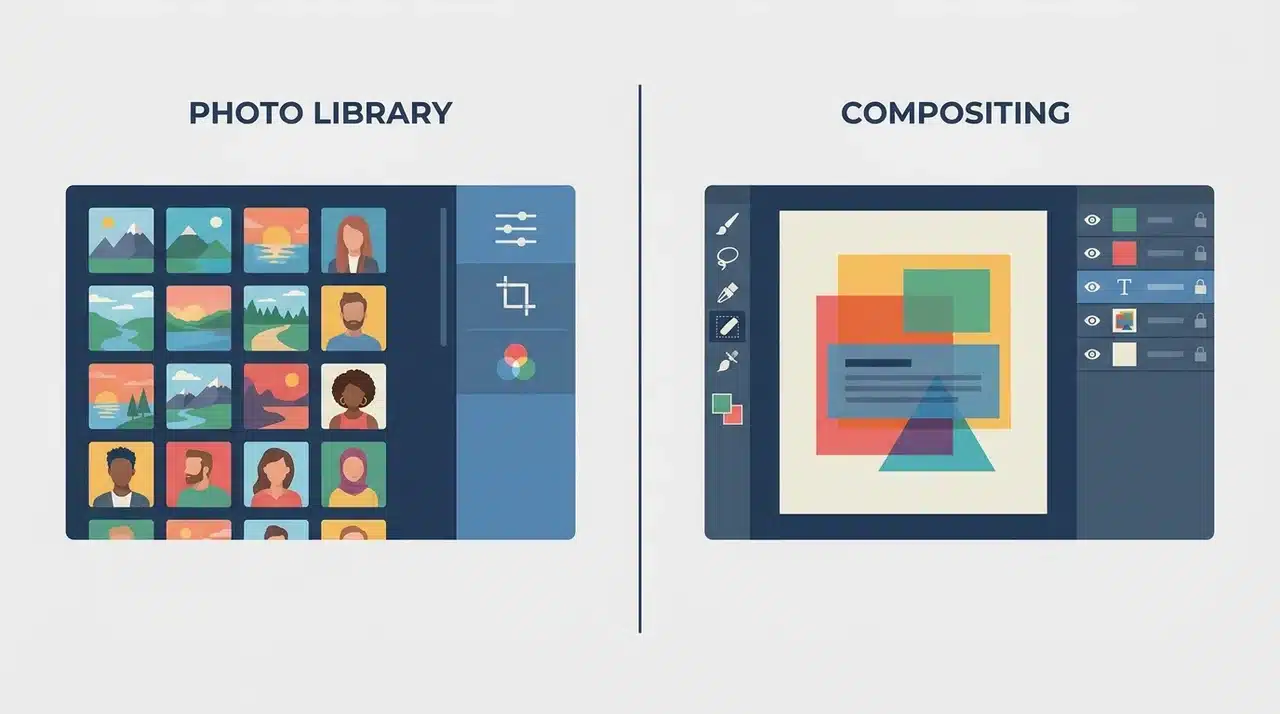
Lightroom is the right starting point for most beginners. That’s not a hedge; it’s a direct answer to a question the internet tends to complicate.
The confusion comes from how Photoshop is positioned. It’s the more famous name, synonymous with image editing for decades. A lot of beginners assume it’s the more serious choice, the one you graduate to when you’re ready to stop playing around.
That framing gets it backward. Lightroom and Photoshop don’t compete. They solve different problems.
| Lightroom | Photoshop | |
|---|---|---|
| Primary use | Photography processing | Design and compositing |
| Best for | Exposure, color, and library management | Object removal, layering, graphics |
| RAW processing | Industry-leading | Basic |
| Batch editing | Yes | No |
| Learning curve | Gentler | Steep |
| Who needs it | Most beginners | Designers, retouchers |
If your goal is better photos, Lightroom gets you there faster. Photoshop won’t improve your photos unless you already know exactly what you’re doing with it.
The one condition that changes this: if your goal is graphic design, overlays, compositing, and creative manipulation, Photoshop becomes relevant earlier. But that’s a different starting point entirely, not a more advanced version of the same one.
Photoshop is genuinely more powerful for design work. But “more powerful” gets misread as “better for serious photographers.” It isn’t. Start with Lightroom. Add Photoshop later if your work grows into it.
Editing on a Phone? Start Here
If your device is a phone, the desktop options above aren’t the right starting point. Mobile editing has its own tier of tools, and the best free one is genuinely good.
Snapseed is the strongest free starting point on mobile. It has 29 editing tools, RAW support, a full non-destructive workflow, no ads, and no watermarks. It’s completely free.
If you’re already thinking about Lightroom for desktop and want everything to stay in sync, Lightroom Mobile is the cleaner choice. Most of the desktop features are there, like RAW editing, selective adjustments, presets, and your edits carry across devices automatically.
Both are free to start. Snapseed, if you want to stay fully free. Lightroom Mobile, if you’re planning to grow into the desktop version.
Luminar Neo: Fast, AI-Driven Results
Luminar Neo isn’t trying to teach you how to edit. It’s trying to get you to a great-looking photo as quickly as possible.
The AI features are what set it apart. Sky replacement, portrait enhancement, automatic subject masking — tasks that would take a Lightroom beginner significant time to learn — are done in a few clicks.
That speed comes at a cost. When the software makes the call, which sky, which skin tone, which mask edge, you don’t always know what it decided or why. Some beginners are fine with that. Others hit a point where they want to push further and realize they haven’t built the foundation to do it.
One thing worth knowing before you commit: Luminar Neo’s pricing has moved to a subscription model. Verify current plans directly on Skylum’s site before buying; costs here shift, and what you read elsewhere may already be out of date.
Library management is also weaker than Lightroom Classic’s. It won’t matter early on, but as your photo library grows, it will.
If fast results are the priority and you’re comfortable with a subscription, Luminar Neo is the strongest option in that lane.
Wrapping Up
The best photo editing software for beginners isn’t the most famous one or the most feature-rich. It’s the one that matches where you are right now: your budget, your device, your files, and how seriously you want to take this.
Free tools like GIMP, Polarr, and Affinity by Canva are solid starting points. Lightroom remains the strongest all-around choice for most people.
Luminar Neo earns its place if results matter more than learning the craft. Start with one tool. Learn it properly.
The instinct to jump between options early is what slows most beginners down more than the software ever does.
Frequently Asked Questions
What photo editing software do most photographers use?
Adobe Lightroom is the default for most working photographers. It’s where RAW files are processed, color is corrected, and libraries are organized. Photoshop sits alongside it for anything requiring layers: retouching, compositing, and design work. Most professionals use both, but Lightroom handles the bulk of the actual photography workflow.
Is Lightroom or Photoshop better for a beginner?
Lightroom is better for most beginners. It’s built around photography, and every edit is reversible. Photoshop becomes useful once you need compositing or graphic design work. Start with Lightroom and add Photoshop later.
Which photo editor is completely free?
GIMP and Affinity by Canva are the strongest fully free options. GIMP is layer-based with a steep learning curve. Affinity offers professional-grade tools, including full RAW support and non-destructive editing at no cost since Canva made it free in late 2025. Polarr is simpler and preset-driven. All three have no upfront cost.
Do I need a subscription, or can I buy the software once?
Both models exist. Adobe requires a monthly subscription. GIMP, Polarr, and Affinity by Canva are free. Luminar Neo has moved to a subscription model; verify current pricing directly. The right choice depends on how committed you are to editing in the long term.
What is the best photo editing app for mobile?
Snapseed is the strongest free mobile option with 29 tools, RAW support, fully non-destructive, and no watermarks. If you want desktop-to-phone sync within Adobe’s ecosystem, Lightroom Mobile covers nearly everything the desktop version does and is free to start.