
Switching to Linux feels bigger than it is. The hardest part isn’t learning a new system; it’s picking one to start with, because the options are endless and most recommendations just hand you a list without context.
The best Linux distro for beginners isn’t the same for everyone. It depends on your hardware, your habits, and what you actually want from the switch.
Some distros hold your hand through every step. Others expect more from you than a beginner should have to give.
Before jumping into specific picks, it helps to understand what separates a distro that works quietly from one that puts you to work on day one.
What Makes a Linux Distro Actually Beginner-Friendly
A beginner-friendly Linux distro does three things well: it installs without manual configuration, it recognizes your hardware automatically, and it handles updates without asking anything of you.
Driver support is where most people hit a wall. It’s where new users either sail through setup or spend two hours on a forum trying to get Wi-Fi to work. Getting that handled at install time removes the biggest friction point in switching.
The update model matters too. Some distros push new software as it ships, rolling release, so you always have the latest version, but updates can occasionally break things. Others batch updates into stable releases.
For a new user, that stability is worth more than cutting-edge software.
The Best Linux Distros for Beginners and Who Each One Is For
Not every distro here is right for every person. Each one fits a different starting point: switching from Windows, learning Linux properly, gaming, or development.
If two distros sound similar, there’s a note to pick from. You shouldn’t have to read all five and still feel unsure.
1. Linux Mint: Best for Windows Switchers
If you’ve spent years on Windows, Mint will feel immediately familiar. The taskbar sits at the bottom, the start menu opens in the bottom-left, and the file manager behaves the way you’d expect. You don’t have to relearn how to use a computer. You just switched the operating system.
Mint’s Cinnamon desktop is stable, polished, and built around not surprising you. That matters more than it sounds when you’re new to Linux.
2. Ubuntu: Best for Documentation and Community Support
Ubuntu won’t wow you with its interface, but it has something more valuable for a beginner: an answer to almost every question you’ll ever have. Decades of forum posts, official guides, and community threads mean you’re rarely stuck for long.
If your plan is to learn Linux properly over time, Ubuntu’s ecosystem makes that easier than any other distro on this list.
3. Pop!_OS: Best for Modern Hardware and Gaming
Pop!_OS is built by System76, a hardware company, which shows in how well it handles modern components. NVIDIA drivers install cleanly during setup, and Steam comes ready to go.
If you have a machine bought in the last two or three years and want to game on Linux, this is the most frictionless starting point.
The interface takes a little getting used to, but the hardware handling makes that trade-off worth it for most people.
4. Zorin OS: Best for Users Who Need Familiarity Fast
Zorin is designed from the ground up to look like Windows. Where Mint achieves familiarity through a similar layout, Zorin commits to it more deliberately. The desktop, icons, and menu are all built to minimize the visual gap between what you’re leaving and what you’re moving to.
If the interface change feels like the biggest barrier to switching, Zorin removes it faster than anything else here.
5. Fedora: Best for Developers or Those Who Want Current Software
Fedora ships newer software than most beginner distros. That makes it a natural fit for developers who want current tools without having to chase them down manually. It’s stable enough for daily use, but it expects slightly more from you than Mint or Ubuntu does.
If you’re comfortable poking around settings and want a system that stays current, Fedora earns its place on this list.
If You Have Old Hardware or Specific Needs, Start Here
The distros in the previous section work well for most beginners. But two situations change the answer: running Linux on an older machine and gaming.
Old Hardware
If your computer is older or low on RAM, these two are built for it:
- Linux Mint XFCE uses significantly less memory than the Cinnamon version while keeping the same familiar layout and solid hardware support.
- Linux Lite: Lighter than XFCE Mint, with a guided setup that walks you through installation step by step.
Either one can give an old laptop a real second life without the sluggishness a fuller desktop would bring.
Gaming
If gaming is your main reason for switching, these three handle it best:
- Pop!_OS: Ships with NVIDIA drivers and Steam ready to go. The easiest starting point for most gamers.
- Nobara: Built on Fedora and pre-configured with updated Mesa drivers, Proton support, and performance-focused kernel patches.
- Manjaro: A rolling release means you get the latest GPU driver updates faster than stable distros. Better for newer graphics cards, but it needs slightly more attention when updates break something.
If you want to install Linux and play games without thinking about any of this, Pop!_OS or Nobara are the two picks to shortlist.
How to Try Any Distro Before Installing It
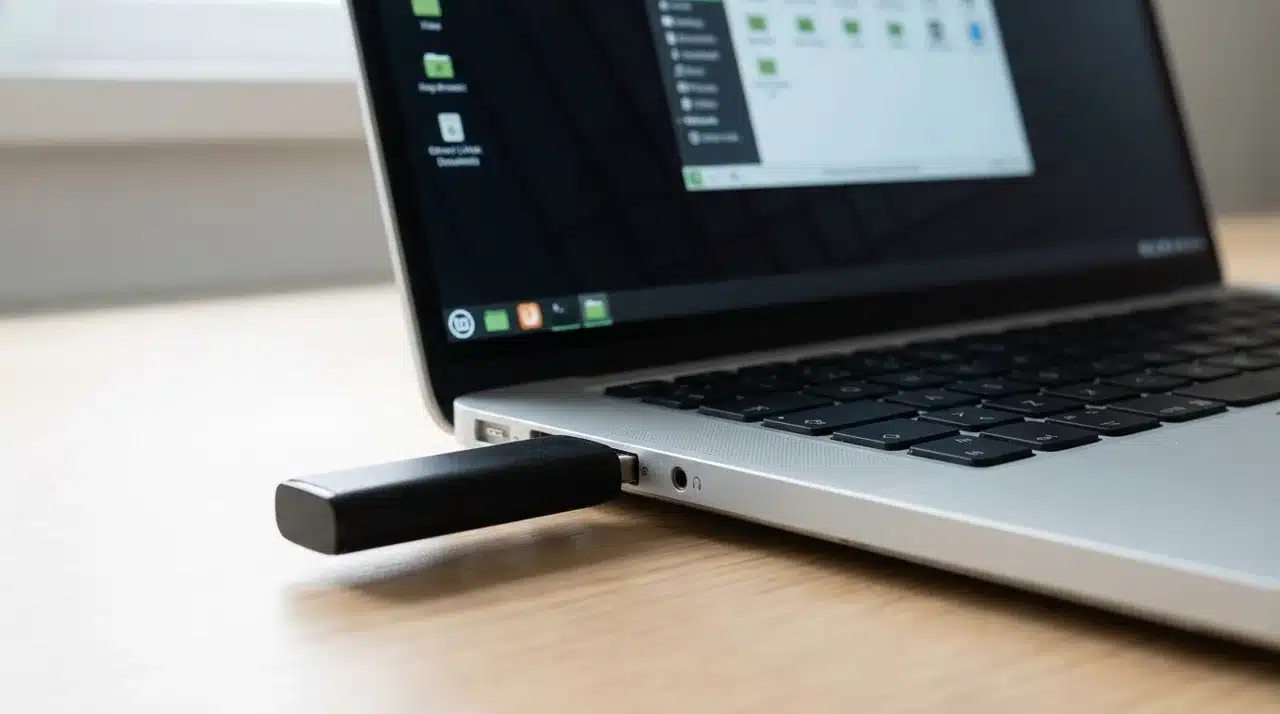
You don’t have to commit to anything before testing a distro. Every option on this list can be run from a USB drive without touching your existing operating system.
This is called a live USB. Linux loads entirely from the drive, your hard disk stays untouched, and you get a real feel for the system before installing anything.
During the live session, check three things:
- Wi-Fi: Does it connect without extra steps?
- Display: Is the resolution correct?
- Audio: Does sound work straight away?
If all three work, installation will almost certainly go smoothly.
To set it up, download the ISO from the distro’s official website and use Balena Etcher or Ventoy to write it to a USB drive. Both are free and take under ten minutes. Restart your machine, press F12 or F2 at startup to select the USB as your boot device, and you’re in.
Wrapping Up
Most people overthink the switch. The best Linux distro for beginners is the one that removes friction, not the one with the longest feature list.
If you’re coming from Windows, Mint gets you there fastest. If gaming matters, Pop!_OS or Nobara handles the heavy lifting.
If you want to learn Linux properly, Ubuntu’s community will carry you further than any interface will. Pick one, try it on a live USB first, and see how it feels on your actual hardware.
The right distro isn’t a permanent decision; it’s just a starting point. Now you know enough to make a good one. Go ahead and take the first step.
Frequently Asked Questions
Is Linux Mint still the best Linux distro for beginners in 2026?
Yes. Mint remains the top pick for most beginners, especially Windows switchers. Its installer handles hardware automatically, and its stable releases mean you rarely need to reinstall anything.
Can a complete beginner install Linux without using the terminal?
Yes. Mint, Ubuntu, Zorin, and Pop!_OS all use graphical installers with no command-line steps required. Most hardware, including Wi-Fi and audio, is detected automatically during setup.
What is the difference between Ubuntu and Linux Mint for a new user?
Both share the same base system, but Mint feels more like Windows straight out of the box. Ubuntu’s main advantage is its much larger community and documentation library.
Is Linux good for gaming as a beginner?
Yes, especially with Pop!_OS or Nobara. Both ship with GPU drivers and Steam pre-configured, and most popular titles run reliably through Proton without extra setup.