

Most people searching for a free Kanban board end up with the same result: a tool that feels free until it isn’t. The moment your workflow gets serious- more tasks, more people, more moving parts, the limits appear.
What looked like a no-cost solution quietly becomes a pricing decision. This guide cuts through that pattern.
You’ll find out which tools are genuinely free for your situation, how to build one in Google Sheets without signing up for anything, and the one factor most comparisons skip that determines whether a free plan holds up over the long term.
The answer isn’t always the tool with the best reviews. Start with what “free” actually means before picking anything.
What Makes a Free Kanban Board Actually Free?
Not all free Kanban boards are free in the same way. Most are freemium tools with hard limits on boards, users, or automation that only surface after you’ve already built your workflow inside them.
There are three distinct models. A perpetual free tier gives you a limited feature set indefinitely, with no expiry and no credit card required.
A free trial gives you full access for 14 to 30 days, then locks you out or downgrades you. A feature-limited freemium plan sits in between: free forever, but with the useful parts removed.
That last category is where most “free” Kanban tools live. The board itself is free. The drag-and-drop is free. But automations, integrations, reporting, and guest access- the features that make a Kanban board worth using beyond week two- almost always sit behind a paywall.
The limits show up most consistently in four areas: board count, user seats, automation runs per month, and file storage. Any one of these can make a free plan unworkable before you realize it’s happened.
The Best Free Kanban Boards and Which One Suits
The tool that works best depends on what you’re actually managing, not which app has the longest feature list on its free tier.
1. Trello
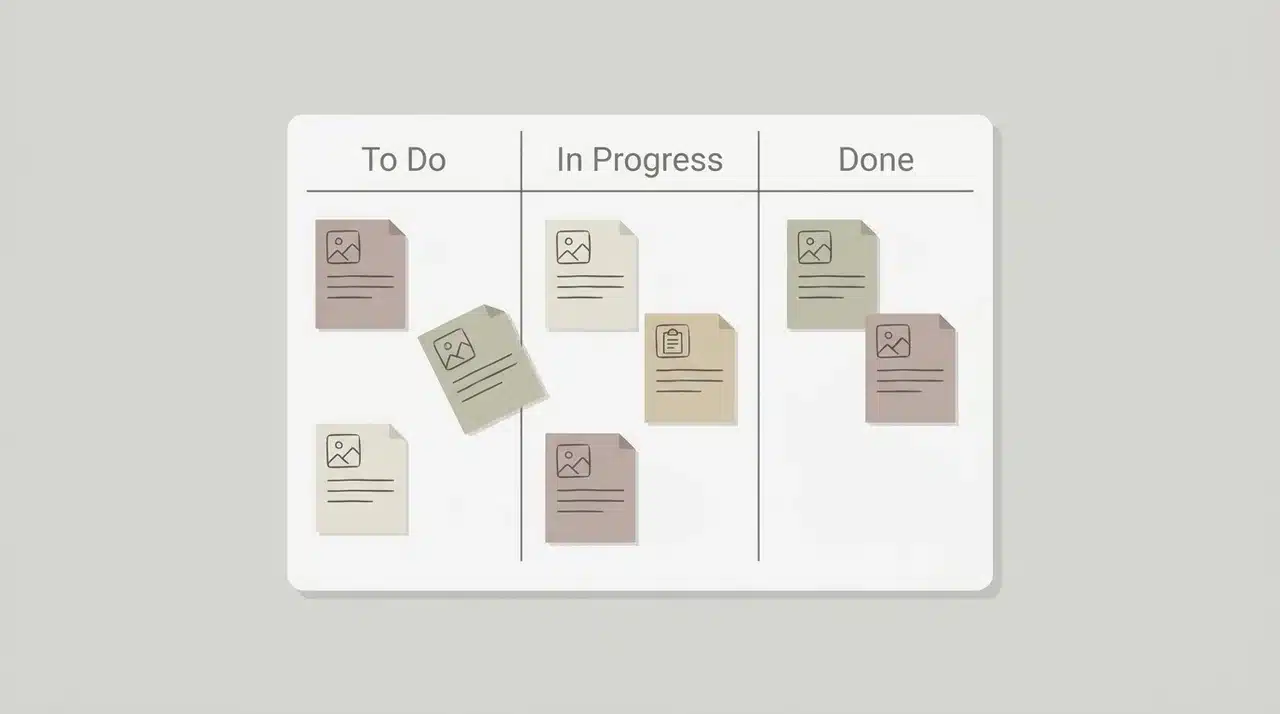
Trello’s free plan gives you unlimited cards, up to 10 boards per workspace, and 10 collaborators. For a solo user or a small team tracking straightforward projects, that’s enough. The drag-and-drop interface takes minutes to learn.
Where it breaks down is automation. The free plan caps you at 250 Butler automation runs per month and one active Power-Up per board.
If your workflow depends on automatically moving cards or connecting to other tools, you’ll hit that ceiling fast.
2. ClickUp
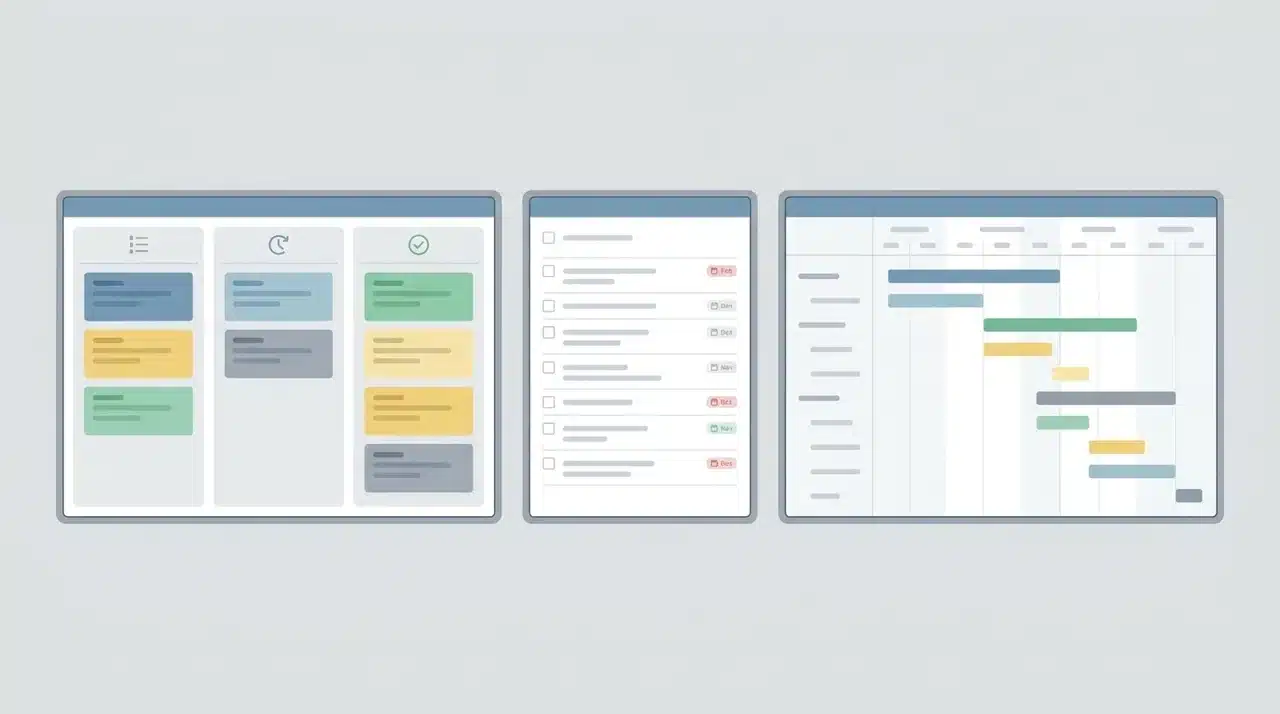
ClickUp’s free tier is unusually generous. Unlimited tasks, unlimited members, and the ability to switch between Kanban, List, and Gantt views without paying.
For small teams that want flexibility in how they view their work, no other free plan comes close in terms of the variety of views.
The catch is storage, 100MB total on the free plan, and the interface itself. ClickUp has more features than most teams will ever use, and the learning curve reflects that. It rewards teams willing to spend time configuring it.
3. Miro
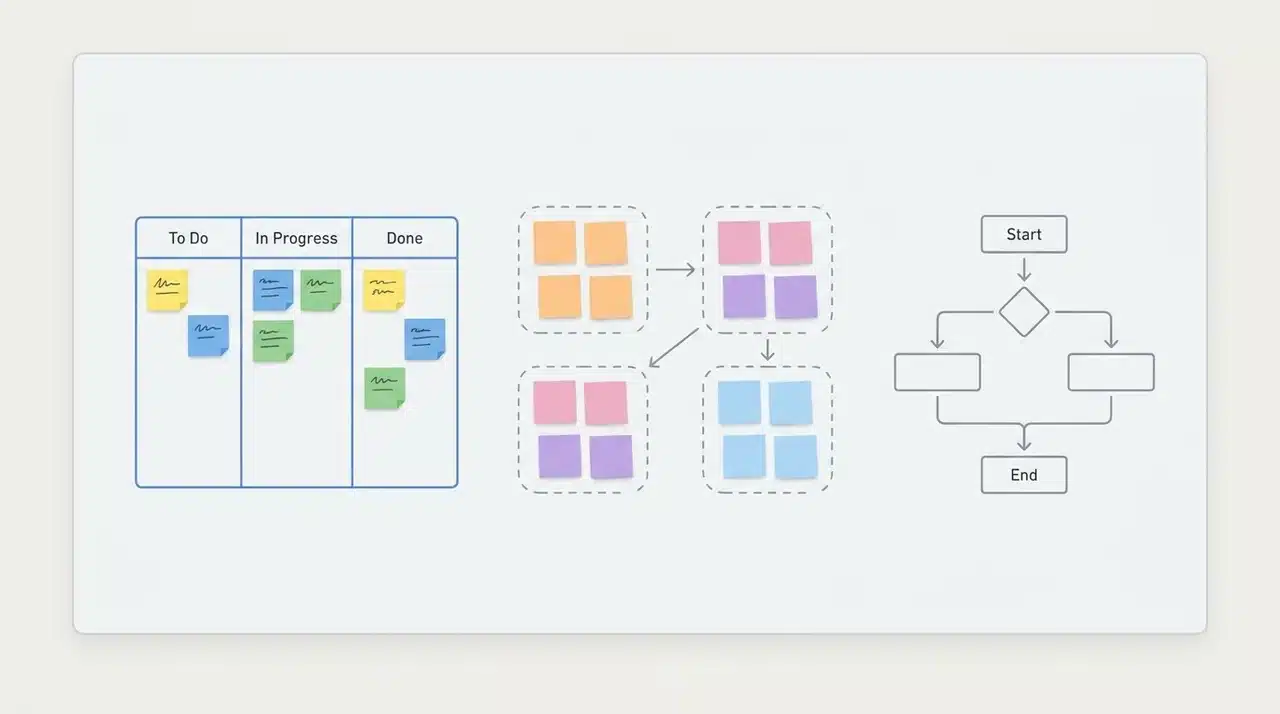
Miro approaches Kanban differently. The board lives on an infinite whiteboard, so Kanban cards sit alongside sticky notes, diagrams, and flowcharts in the same workspace. For creative or product teams that think visually, that context matters.
The free plan allows three editable boards. That’s a hard limit. Once you hit it, you either archive an existing board or upgrade. It works well for teams using Kanban as one tool among several, not as the primary system.
4. KanbanFlow
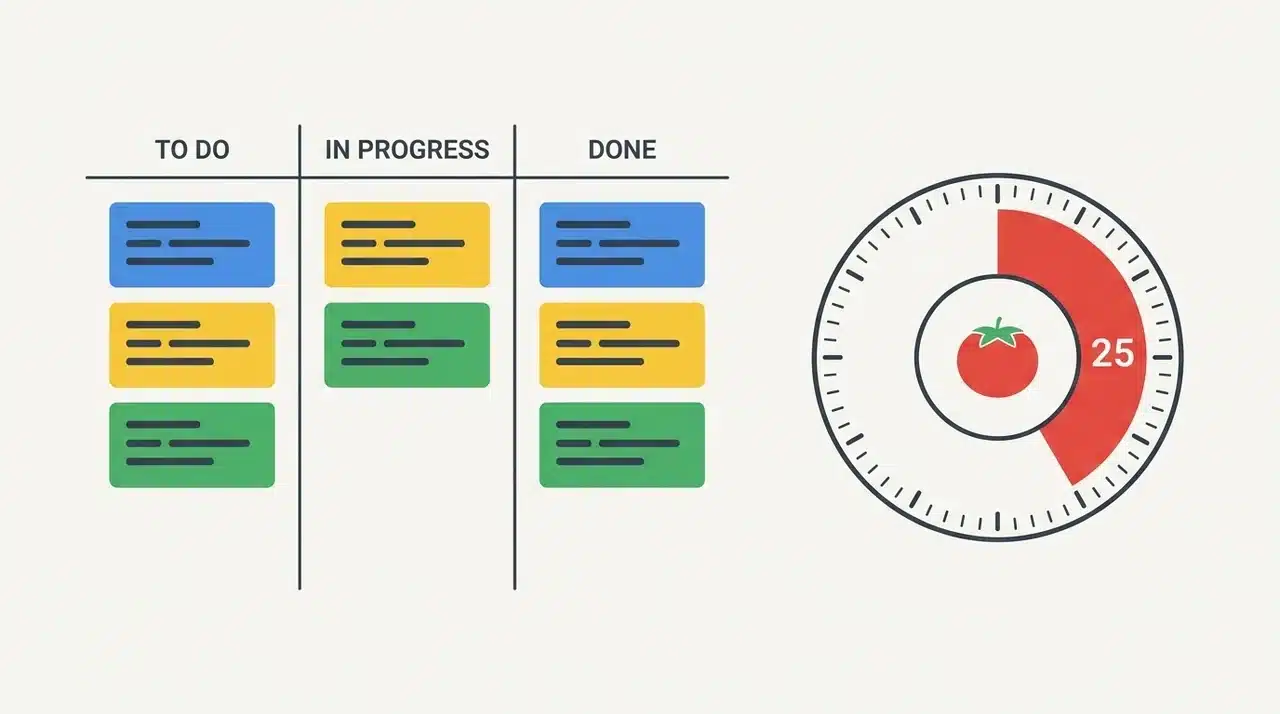
KanbanFlow is the most underrated option on this list. The free plan is genuinely unlimited on boards and tasks, and it includes a built-in Pomodoro timer, a feature no other free Kanban tool offers natively.
For solo users who want time tracking baked directly into their task flow, nothing else matches it at no cost.
The interface is dated, and customization is minimal. If visual polish matters in your workflow, it’ll quickly feel limiting.
5. Jira
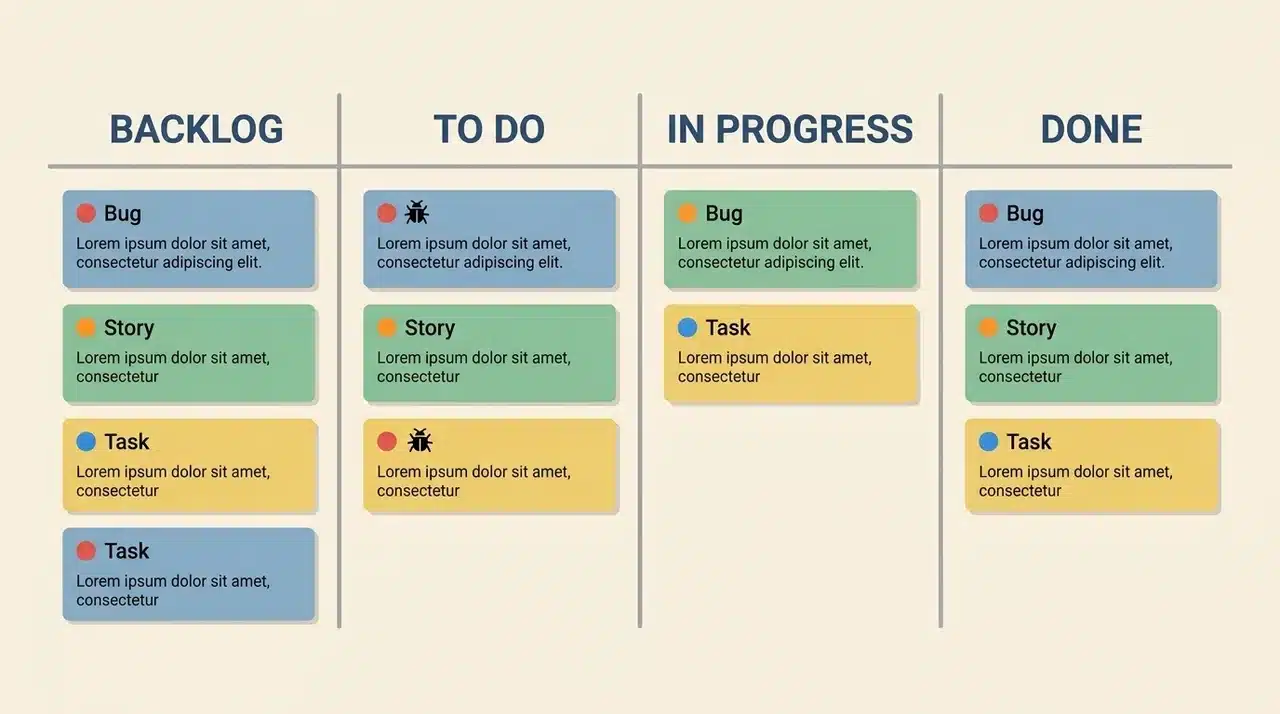
Jira’s free plan supports up to 10 users with unlimited projects and Kanban boards. For a small software team already thinking in sprints, backlog grooming, and bug tracking, that’s a strong offer.
The Kanban view integrates directly with development workflows in a way that general-purpose tools don’t.
The complexity is real, though. Jira is built for software teams, and it shows. Non-technical users or teams without an existing agile process will find the setup friction high relative to what they need.
6. Kanboard
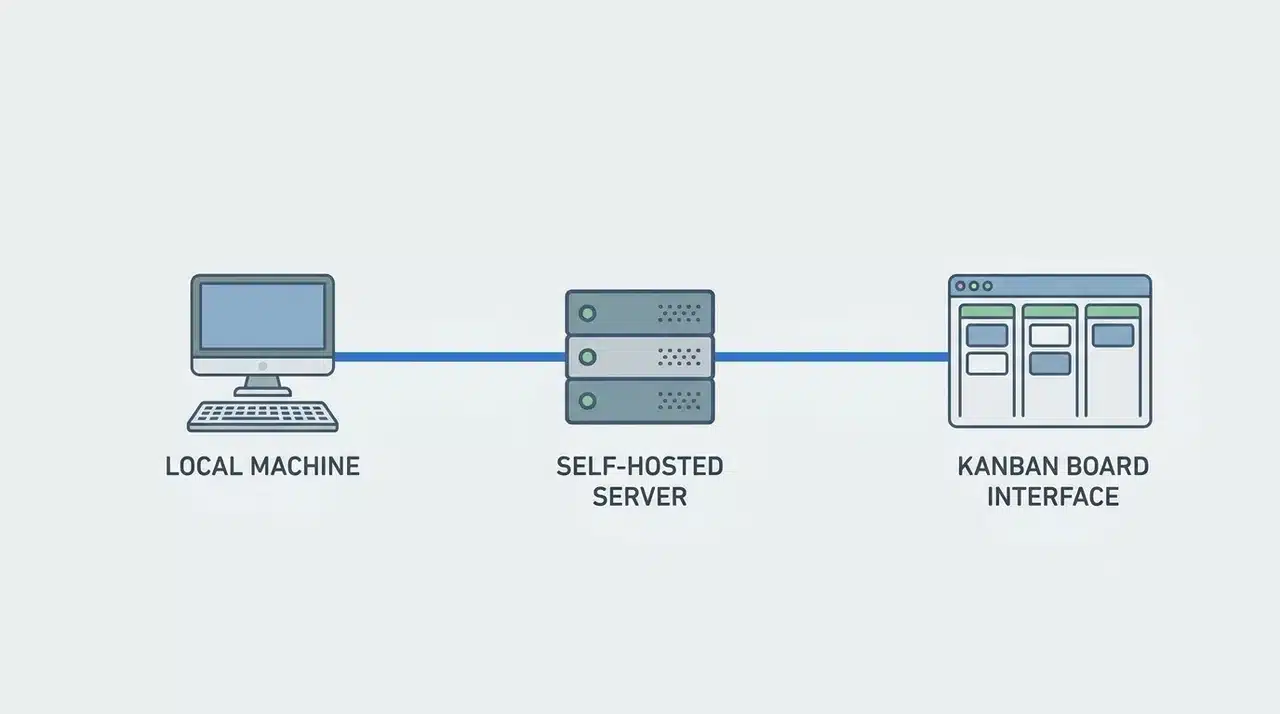
Kanboard is open-source and self-hosted, which means the software is free with no tier restrictions, but you’re responsible for installation, hosting, and maintenance.
For a technical team or developer who wants full data control and zero recurring cost, it’s the correct answer. For anyone without the ability to manage a server, it isn’t a practical option.
How to Set Up a Free Kanban Board in Google Sheets
You can build a working Kanban board in Google Sheets in under ten minutes. Here’s how to set it up.
Step 1: Create your columns. Open a new spreadsheet and label your first four columns: Backlog, In Progress, Review, and Done. Each column is a workflow stage. Each row beneath it is a task.
Step 2: Add task details. In the rows below each header, add your task name, assignee, and due date. Keep one row per task. This gives you a scannable structure without overcomplicating the layout.
Step 3: Add a status dropdown. Insert a Status column. Select the cells beneath it, go to Data → Data Validation, and set the allowed values to your four stage names. When a task moves forward, you update the dropdown.
Step 4: Use conditional formatting to color-code stages. Go to Format → Conditional Formatting. Assign a different background color to each status value. This makes it easy to scan progress without reading every cell.
Where this breaks down: there are no WIP limits, no notifications, and no automatic way to flag blockers. It works well for solo use or a two-person project. For anything larger, a dedicated free tool will save you time on maintenance.
How to Choose Based on Team Size and Workflow Type
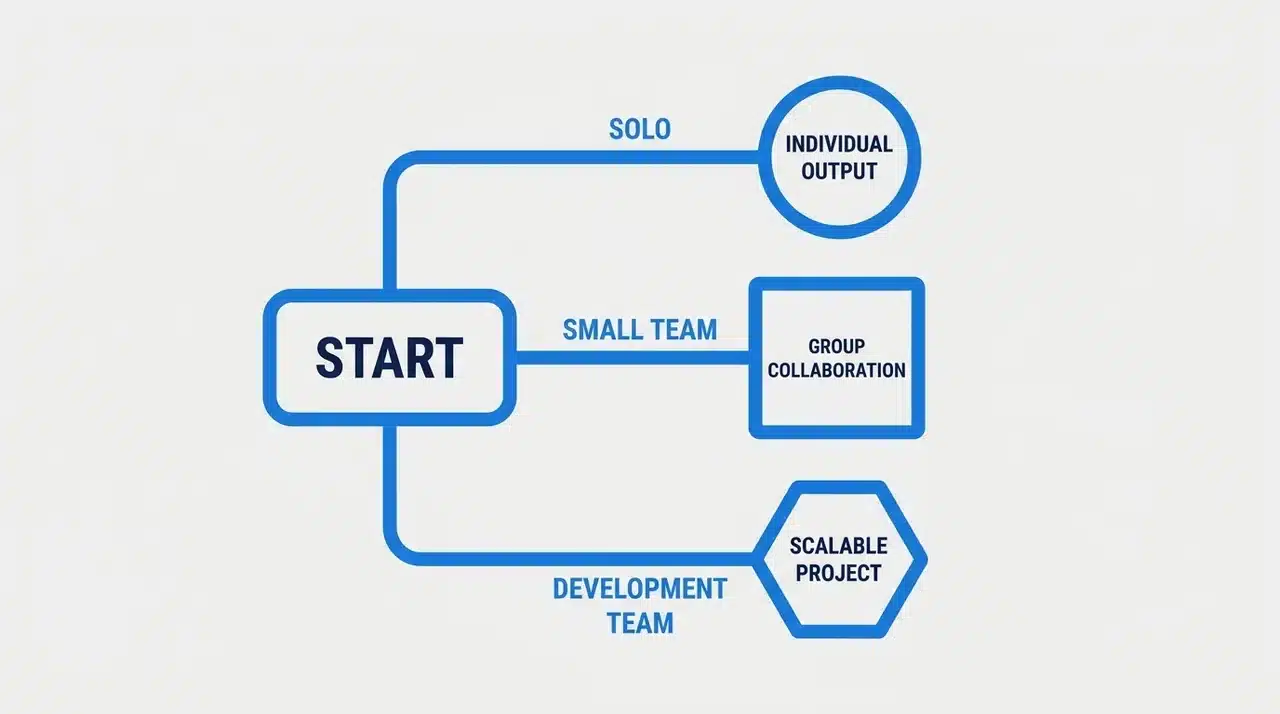
Team size and whether you need automations are the two variables that separate the right free Kanban board from one that works today but breaks your workflow in a month.
Solo users have the most options. Trello, KanbanFlow, and Google Sheets all hold up without hitting meaningful limits. The decision comes down to whether you want time tracking (KanbanFlow), simplicity (Trello), or no signup at all (Sheets).
Small teams under 10 should start with ClickUp or Trello. ClickUp wins if your team wants multiple views or needs to work across departments. Trello wins if the priority is getting everyone on the same page fast with zero training overhead.
Teams with a development or agile workflow should look at Jira first. The free plan supports up to 10 users, and the board integrates directly with how software teams already think about work. ClickUp is the fallback if Jira feels like too much structure.
Teams that need full data control, due to compliance requirements, security policies, or a preference for zero recurring cost, should consider Kanboard. The self-hosting requirement is real, but so is the payoff: no seat limits, no feature gates, no vendor dependency.
If automations are part of your workflow now, factor that in before committing to any free plan. Every tool on this list either limits automation runs or removes them entirely on the free tier. The tool that fits today may not fit in three months.
Wrapping Up
Choosing the right free Kanban board comes down to honesty about what your workflow actually needs today, not the feature list you might use someday.
Trello and KanbanFlow hold up for solo users without hitting meaningful limits. ClickUp and Jira serve small teams without charging for the basics.
Google Sheets works when you want structure without signup friction. And if data control matters more than convenience, Kanboard is the only option worth considering.
Match the tool to the workflow, check where the free tier actually cuts off, and you won’t need to migrate in three months. Start narrow; you can always scale up.
Frequently Asked Questions
Does Excel have a Kanban board?
Excel has no native Kanban view, but you can build one manually using columns for stages and conditional formatting to track status. It works for solo use only.
Does Google have a Kanban tool?
Google doesn’t offer a dedicated Kanban tool. You can build a basic board in Google Sheets or use Kanbanize as a Google Workspace add-on.
What are the 4 rules of Kanban?
Visualize your workflow, limit work in progress, manage flow, and continuously improve. The WIP limit rule is what most free tools either enforce or ignore entirely.
Does Microsoft Office have a Kanban board?
Microsoft Planner offers a Kanban-style board and is included in Microsoft 365. It isn’t available as a standalone free product outside that subscription.