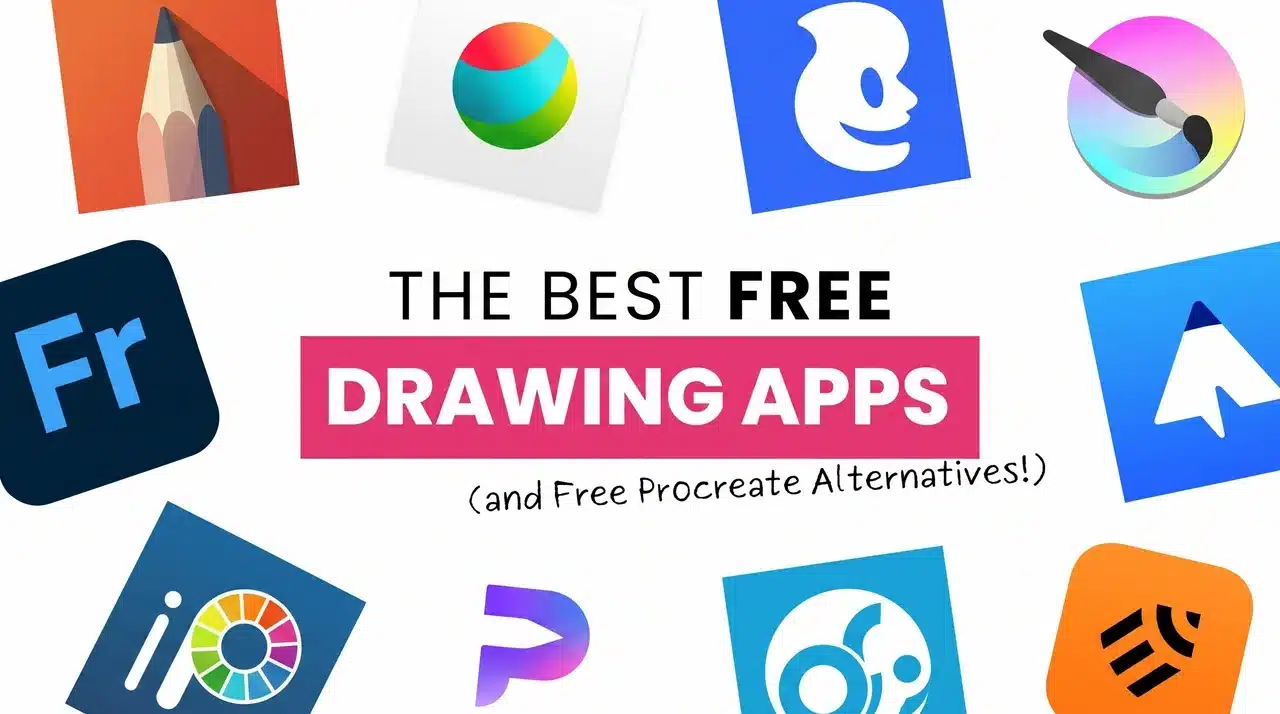
Think you need a pricey subscription to make pro-level digital art? You don’t. This year, the biggest surprise in the creative world isn’t a flashy new gadget. It’s how powerful free drawing apps have become.
Krita, Inkscape, and Sketchbook are now in active use on professional commercial projects. The technical gap between free and paid tools has closed to the point where most independent artists never need a paid suite.
Whether you’re sketching your first webcomic or designing scalable logos for paying clients, there’s a zero-dollar tool built for your workflow. But downloading the wrong one will leave you frustrated.
Here’s a breakdown of the strongest options available, matched to workflow, so you can find the right fit and get straight to creating.
The Best Free Drawing Software for Your PC
The right tool depends on what you’re making. Here are genuinely free picks, each built for a different workflow.
1. Krita: The Best Overall
Krita is professional-quality, free drawing software made by artists. It covers everything from illustration to animation, with particular strengths in comics and manga.
Its brush engine is the real differentiator. Where other free tools slap “realistic” on a brush preset, Krita simulates physical media behavior; how wet paint spreads, how a dry brush drags across the canvas. It supports pressure sensitivity and tilt recognition.
The highly customizable interface and PSD file support make it easy to slot into an existing workflow. The right-click color wheel keeps color selection next to your brush at all times. That one detail makes a real difference across a full day of painting.
Best for: Digital painting, illustration, concept art, comics
Platforms: Windows, Mac, Linux | Free & open-source
Heads up: Feature depth can feel overwhelming for first-timers. If you’ve never used digital drawing software, start with FireAlpaca. Graduate to Krita once you know what you need.
2. Inkscape: Best for Vector Art
Inkscape works with vectors; scalable shapes defined by mathematics, not pixels. If you need something that scales to any size without quality loss, this is your free option. It’s the closest thing to a free Adobe Illustrator, and for most tasks, it’s genuinely good enough.
Beyond standard drawing tools, it includes mesh gradients, advanced path effects, clone pattern tools, and improved SVG 2 and CSS 3 support in recent versions.
The trade-off is real. The interface is dense, with menus that haven’t changed much in a decade. First-time users often spend the first hour figuring out the difference between nodes and paths before drawing anything useful. Complex files, particularly those with many overlapping path effects, will also cause noticeable lag on mid-range machines. But for free vector software, nothing else competes.
Best for: Logos, icons, typography, web, and print graphics
Platforms: Windows, Mac, Linux | Free & open-source
3. FireAlpaca: Best for Beginners
FireAlpaca earns its spot through simplicity. The interface is stripped back to brushes, layers, and canvas — exactly right for someone picking up a stylus for the first time. It’s lightweight, fast, and well-suited for line art, sketching, and manga-style comics.
The built-in comic panel layout tools let you divide canvases into panels and work within each independently. That’s a genuine time-saver for webcomic creators. The line stabilizer smooths shaky strokes, which is where most beginners struggle.
It won’t handle complex multi-layer illustrations or animations. That’s Krita’s job. FireAlpaca is where you learn what you need before going looking for it.
Best for: First-time digital artists, webcomics, clean line art
Platforms: Windows, Mac | Free
4. Autodesk Sketchbook: Best Clean Interface
Where Krita gives you every option imaginable, Sketchbook strips things to the essentials. Your canvas takes up most of the screen, with a slim toolbar on the side. The pencil and pen brushes feel surprisingly natural, they just feel right from the first stroke.
Its perspective tools outperform every other free option on this list. Sketchbook originated as a tool for industrial designers and architects who needed precise spatial accuracy, and that legacy shows.
The vanishing-point and perspective guides still work better here than in Krita. The canvas extends to 64 MPX; large enough for billboard-resolution work.
Layer support is limited, and there’s no plugin system, so complex finished illustrations aren’t its strength. But for sketching, storyboarding, and concept work, the focused interface beats every other option on this list.
Best for: Concept artists, designers, fast ideation
Platforms: Windows, Mac, iOS, Android | Free
5. MediBang Paint: Best for Comics and Manga
MediBang is built specifically for panel-based comic creation. It simplifies panels, speech bubbles, and screen tones with ready-made templates. It includes over 50 brushes, hundreds of manga backgrounds, and 20 font styles.
The standout feature no other tool on this list offers: built-in cloud storage for saving and syncing work across devices. That makes it particularly useful for collaboration or switching between desktop and tablet mid-project.
For general illustration, Krita is stronger. For a comic-specific workflow, MediBang wins.
Best for: Manga artists, comic panel workflows, collaborative projects
Platforms: Windows, Mac, Android, iOS | Free (some premium content available)
6. MyPaint: Best for Gesture Drawing
MyPaint features an unlimited canvas, a wide range of natural-media brushes, and a clean interface designed for tablet use. There are no artboard edges. You can sketch outward in any direction, which removes a persistent friction point for gesture and life drawing sessions.
It is not a finishing tool. No print pipeline, no advanced layers, no vector tools. Use it as a digital sketchbook and handle production work elsewhere.
Best for: Life drawing, gesture practice, expressive sketching
Platforms: Windows, Mac, Linux | Free & open-source
7. Adobe Fresco (Free Tier): Best for Touchscreen PCs
Adobe Fresco’s free tier includes pixel and vector brushes, but the real draw is its live brushes. These simulate how wet media behaves on a virtual canvas surface; paint spreading, mixing, and drying in real time. It’s optimized for touch and stylus input, so it works best on Surface-style devices.
On a mouse-only desktop, much of the experience is lost. Free tier limitations apply to cloud storage, and full live brush access requires an Adobe subscription.
Best for: Touchscreen and stylus-equipped PCs, real media emulation
Platforms: Windows, iPad | Free tier available
8. GIMP: Best for Photo-Editing Crossover
GIMP is not a drawing app at its core; it’s a free, open-source image editor. But it belongs on this list because it fills a gap none of the other tools cover: photo editing combined with digital painting in a single program.
It supports pressure sensitivity, layers, blend modes, and PSD import. Its brush engine is competent rather than exceptional, and the interface has a steeper learning curve than Krita’s.
But if your workflow involves editing photos alongside creating digital art like retouching reference images, compositing, or producing graphics for web use, GIMP handles both without requiring a second application.
For pure drawing and illustration, Krita is the stronger choice. Use GIMP when your work lives at the intersection of photography and digital art.
Best for: Photo editing, compositing, graphic design with mixed media
Platforms: Windows, Mac, Linux | Free & open-source
Will It Run on Your Machine?
Before downloading, it’s worth knowing what each tool actually demands from your hardware. There’s a big range across these apps.
Lightweight (4GB RAM, integrated graphics fine): FireAlpaca, MyPaint, Sketchbook. These run without hesitation on older or budget machines. FireAlpaca installs in under 100MB and launches in seconds.
Moderate (8GB RAM recommended): Krita and GIMP. Both work on less, but large canvases, many layers, or animation timelines will slow down on underpowered hardware. Krita’s install is larger and takes longer to start.
All tools here are significantly lighter than Adobe Photoshop or Illustrator. If you’re coming from a paid suite, almost anything on this list will feel faster on startup.
Do You Need a Drawing Tablet?
You don’t need one to start, but you’ll almost certainly want one. Drawing with a mouse is possible; it’s just like signing your name with a hockey puck. Technically doable, deeply unpleasant.
Every tool on this list supports pressure sensitivity with a tablet and stylus. A basic Wacom Intuos Small runs around $70. An XP-Pen Deco starts at closer to $35. Either one upgrades the experience. Krita and MediBang get the most out of pressure sensitivity, with tilt recognition and brush dynamics that respond to how hard you press.
Adobe Fresco’s live brushes are nearly pointless without a stylus; the mouse experience is flat by comparison. For every other tool on this list, a mouse will get you started. A tablet will get you there faster.
Krita vs. Inkscape: Which Should You Start With?
Both are free, open-source, and genuinely powerful, but they solve completely different problems. Picking the wrong one wastes hours of setup time.
Where people go wrong:
- Downloading Krita to make a logo; raster files blur when scaled up for print
- Forcing character illustration into Inkscape, where vector paths feel rigid and fight expressive linework
- Treating them as competitors rather than complements, most professional workflows use both
| Question | Krita | Inkscape |
|---|---|---|
| What does it create? | Pixel-based paintings & illustrations | Scalable vector graphics |
| Best output formats | PSD, PNG, TIFF | SVG, PDF, EPS |
| Feels like using… | A digital paintbrush | A precision drawing pen |
| Tablet/stylus feel | Excellent — built for it | Functional but not the focus |
| Print-ready at any size? | No — resolution dependent | Yes, scales without quality loss |
| Animation support? | Yes (basic) | No |
| Learning curve | Moderate | Steeper |
| Ideal for beginners? | Yes, with tutorials | Not as a first tool |
| Use for logos? | Not recommended | Yes — purpose-built |
| Use for illustration? | Yes — primary strength | Limited |
| Free & open-source? | Yes | Yes |
Bottom line:
- Making art → Krita
- Making graphics → Inkscape
- Not sure yet → Start with Krita.
Painting is more forgiving for exploration. Switch to Inkscape when you have a specific logo or print project that demands it.
How to Choose the Right Free Drawing Software for Your Skill Level
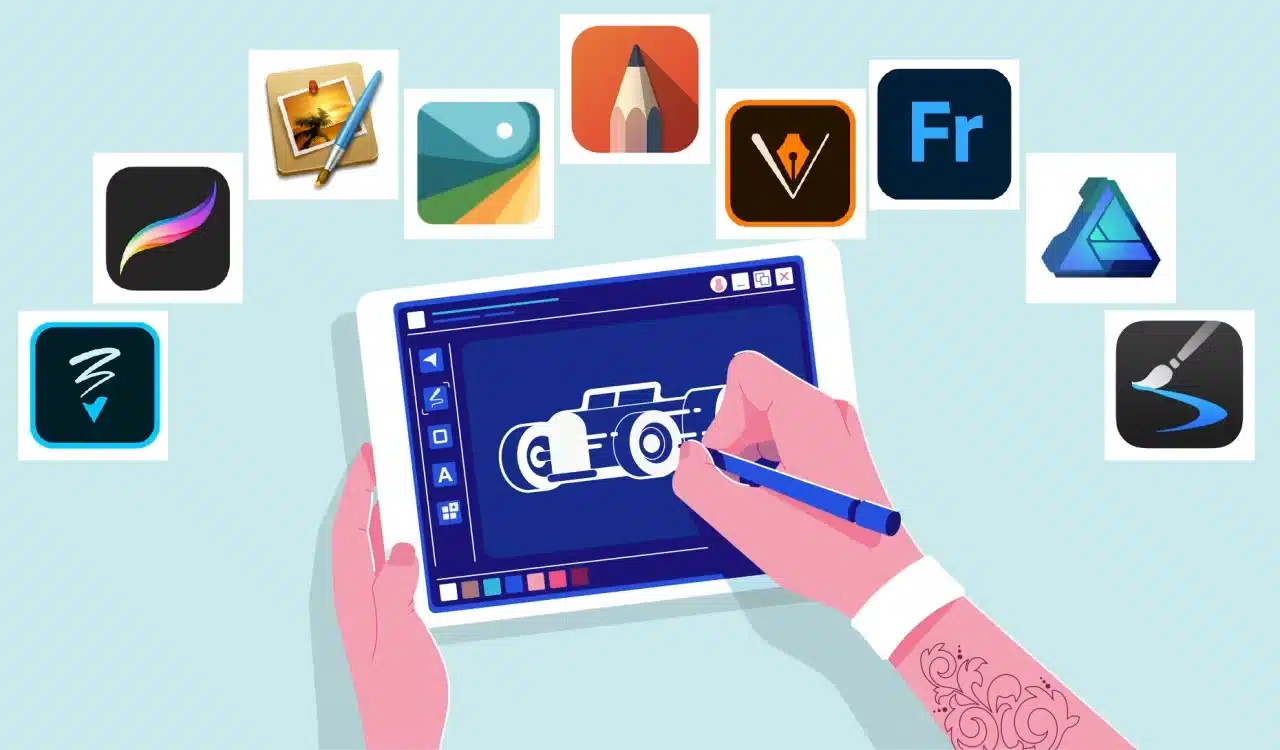
Downloading Krita on day one and staring at nine brush engines is how people quit before they’ve started. Match the tool to your current skill level, not the level you’re aiming for.
Beginner: Never used digital drawing software before
Start with FireAlpaca or Sketchbook. Both have minimal interfaces that get you drawing in minutes with no configuration required.
- FireAlpaca if you’re drawn to manga or comics, the panel tools are built in from day one
- Sketchbook if you want a clean blank canvas with nothing in the way
- Move on when the tool starts feeling limiting, not before
Intermediate: Comfortable with layers, brushes, and basic tools
Move to Krita. You now know what you need, and Krita has it.
- Brush customization, blend modes, stabilizers, and PSD support all become relevant at this stage
- The learning curve is real, but it pays off quickly once you have context for what each feature does
Advanced / Professional: Working on client projects or complex illustrations
Krita + Inkscape covers nearly every professional workflow at zero cost.
- Krita handles all painting and illustration
- Inkscape handles anything print or web-scalable
- Together, they replace Photoshop + Illustrator for most independent artists and designers
| Your Situation | Recommended Tool | Why |
|---|---|---|
| Complete beginner, any style | FireAlpaca | Simplest interface, low overwhelm |
| Beginner who prefers a clean UI | Sketchbook | Distraction-free, natural brush feel |
| Beginner focused on manga/comics | FireAlpaca or MediBang | Comic tools built in from day one |
| Intermediate illustrator | Krita | Full brush engine, layers, PSD support |
| Intermediate comic artist | MediBang Paint | Panel workflow, cloud sync |
| Needs vector/logo work | Inkscape | Only free tool purpose-built for this |
| Professional illustration | Krita | Industry-adjacent feature set, free |
| Professional design + illustration | Krita + Inkscape | Replaces the paid Adobe suite for most tasks |
| Touchscreen PC user | Adobe Fresco (free tier) | Live brushes, touch-optimized |
| Gesture/life drawing practice | MyPaint | Unlimited canvas, no distractions |
Final Thoughts
Free drawing software is genuinely good enough for professional work. The gap between free and paid has never been smaller.
The real decision is matching the right tool to the right workflow. Krita remains the strongest all-round free drawing software for PC. Inkscape handles everything vector. FireAlpaca or Sketchbook get beginners moving without friction.
Don’t download all eight and stall on setup. Pick one based on the tables above, spend a focused month with it, and move to a second tool only when your work demands it.
The software won’t hold you back; the right pick from this list puts everything you need on screen at no cost.
Frequently Asked Questions
Is Krita completely free with no hidden costs?
Yes. Krita is fully free and open-source with no premium tiers, paywalled brushes, or subscription fees. The entire software with features like brushes, animation tools, vector features, and all is available at no cost.
Can I use free drawing software for professional work?
Absolutely. Krita, Inkscape, and Sketchbook are actively used by professional illustrators, comic artists, and graphic designers on commercial projects. They support industry-standard export formats including PSD, SVG, PNG, and TIFF.
What is the best free drawing software for Windows 11?
Krita is the strongest choice. It receives regular updates, handles high-DPI displays well, and integrates cleanly with drawing tablets via Windows Ink. Inkscape and FireAlpaca also run without compatibility issues on Windows 11.