

Photos accumulate faster than most people expect. A few years of smartphone pictures, travel photos, and family memories can quickly turn into tens of thousands of files.
Many people begin by storing images on their phone or computer, assuming space will always be available. Eventually, storage fills up, devices slow down, or files end up scattered across multiple locations.
That is where cloud storage becomes important.
The best cloud storage for photos allows you to store large photo collections safely while keeping them accessible from different devices.
But not all storage platforms handle photos the same way. Some focus on automatic backups, others on file storage, and a few are built for professional photography workflows.
Understanding these differences makes it far easier to choose the right platform.
Best Cloud Storage for Photos (Quick Comparison)
Different cloud storage platforms are designed for different types of users. Comparing them side by side quickly reveals the strengths and limitations of each service.
| Service | Best For | Free Storage | Key Strength | Major Limitation |
|---|---|---|---|---|
| Google Photos | Android users | 15GB | Powerful AI photo search | Shared storage with Gmail and Drive |
| Apple iCloud Photos | iPhone users | 5GB | Seamless Apple integration | Limited free storage |
| Amazon Photos | Prime members | Unlimited photos | Included with Prime subscription | Limited video storage |
| Microsoft OneDrive | Windows users | 5GB | Integration with Microsoft 365 | Photo tools less advanced |
| Adobe Lightroom | Professional photographers | Paid plans | Editing + storage workflow | Expensive for casual users |
| Dropbox | Cross-platform users | 2GB | Reliable file syncing | Small free plan |
| Sync.com | Privacy-focused users | 5GB | End-to-end encryption | Slower sharing features |
The table gives a quick snapshot, but the right choice usually depends on how you manage your photos and which devices you use every day.
Which Cloud Storage Platform is Best for Different Users
Different users tend to benefit from different services because their workflows vary.
- Android users: Google Photos works well because it connects directly to Android devices and automatically backs up images as they are taken.
- iPhone users: iCloud Photos integrates deeply with Apple devices, allowing photos to appear automatically across iPhones, iPads, and Macs without additional setup.
- Amazon Prime members: Amazon Photos is often preferred because it includes unlimited photo storage as part of the Prime subscription.
- Professional photographers: Adobe Lightroom combines photo editing tools with cloud storage, allowing images to move smoothly from editing to long-term archiving.
- Privacy-focused users: Services such as Sync.com offer strong encryption that keeps files private and protected.
- Cross-platform users: Dropbox and OneDrive work well across multiple operating systems, making them useful for people who switch between different devices.
Why Cloud Storage is Essential for Managing Photo Libraries

Storing photos is different from storing regular documents. Photo collections grow faster, take more space, and require better organization. Cloud storage solves several problems that appear as photo libraries expand.
How Cloud Storage Helps Organize and Access Photos
Cloud storage keeps photos accessible from multiple devices. A picture taken on a phone can appear on a laptop or tablet within seconds, which removes the need to manually transfer files between devices.
Many platforms also organize photos automatically. Images may be grouped by location, date, or even by the people appearing in the photo. These features allow users to search large libraries quickly.
Instead of scrolling through thousands of files, users can search for words like “beach,” “dog,” or “birthday.”
Why Large Photo Libraries Quickly Outgrow Local Storage
Photo files are large, especially when modern phones capture high-resolution images. A single photo may take several megabytes of space, while RAW photography files can be far larger.
Over time the growth becomes significant.
A few thousand photos may consume several gigabytes of storage. Photographers or serious hobbyists can accumulate hundreds of gigabytes without noticing.
Local storage devices also fail occasionally. Hard drives break, phones get lost, and computers crash. When photos exist only on one device, they can disappear permanently.
Cloud storage reduces that risk by keeping files stored on remote servers.
How Cloud Storage Tools Support Productivity and Collaboration
Cloud storage also fits naturally into modern productivity workflows. Many teams use cloud platforms to manage documents, media files, and shared resources.
Cloud storage tools are also commonly considered part of productivity software because they help organize files, support collaboration, and make information accessible across devices. Many teams rely on these platforms to manage documents, media assets, and shared project files.
If you want to understand how these tools fit into broader work systems, you can explore common productivity software examples and see how file storage, task management, and collaboration tools work together.
Design teams often store visual assets in shared folders. Marketing teams may keep image libraries organized in cloud storage for campaigns or presentations.
If you want to see how cloud storage fits into everyday work systems, you can explore examples of productivity software that help teams manage files, tasks, and communication together.
Best Cloud Storage Services for Photos
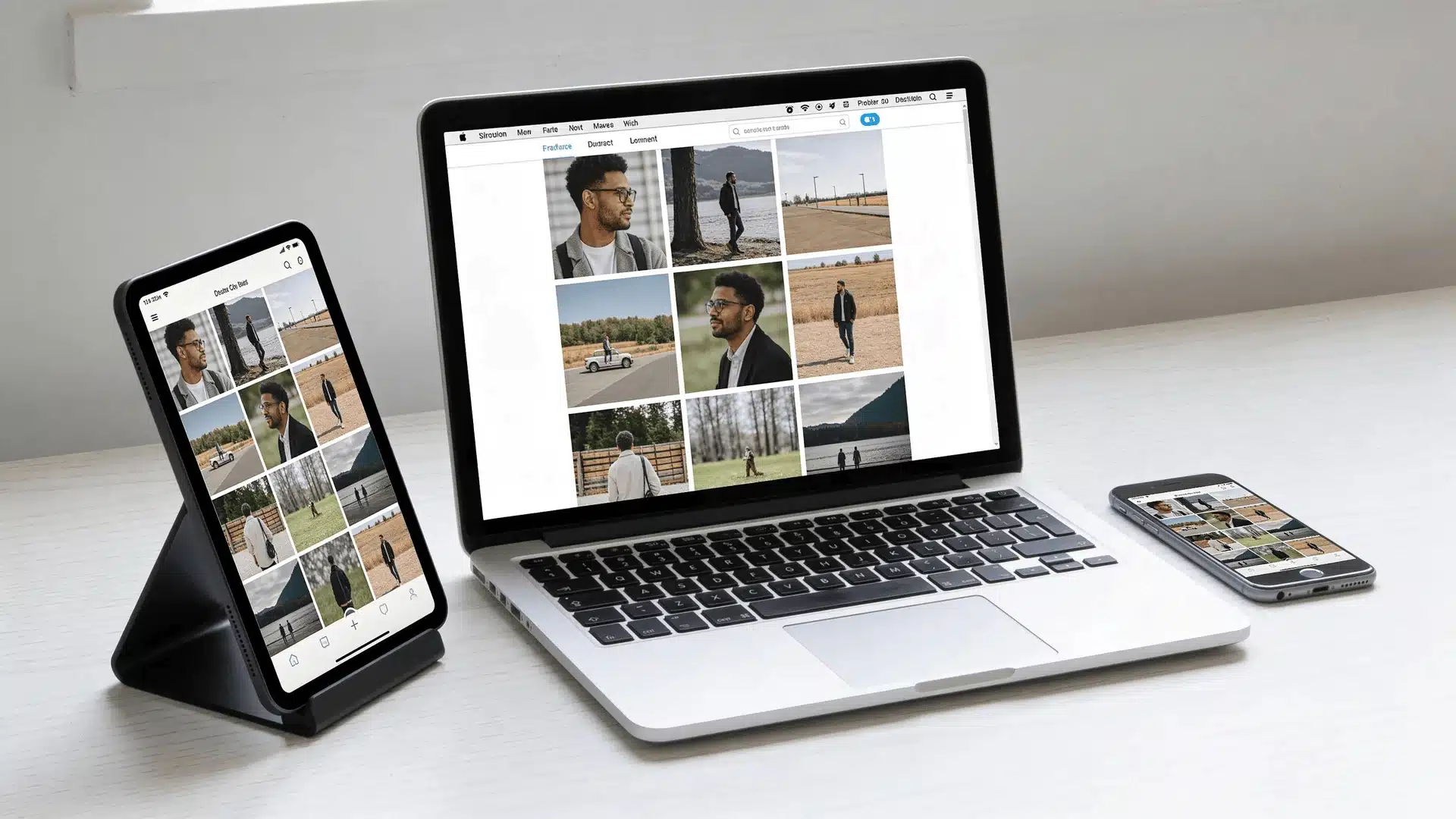
The best cloud storage for photos depends on how you take, manage, and share images. Each service approaches photo storage a little differently.
1. Google Photos — Best for Android Users and Automatic Photo Backups
Google Photos focuses heavily on automation and search.
Photos taken on an Android phone can be uploaded automatically to the cloud without manual steps. The platform also uses artificial intelligence to organize images by objects, locations, and people.
Searching for photos becomes surprisingly simple. Users can type words like “mountain,” “sunset,” or “dog” and quickly find related images.
Google Photos does compress some images when using certain storage settings. Photographers who want original files must store them in full resolution and use their Google storage quota.
2. Apple iCloud Photos — Best for iPhone and Apple Ecosystem Users
iCloud Photos is tightly integrated into Apple’s ecosystem.
When a photo is taken on an iPhone, it automatically appears on other Apple devices connected to the same account. This includes iPads and Mac computers.
Apple also offers shared photo libraries where families can store images together.
The main limitation is storage space. Apple’s free tier provides only a small amount of storage, so many users eventually upgrade to larger plans.
3. Amazon Photos — Best for Amazon Prime Members
Amazon Photos offers an appealing benefit for Prime members: unlimited storage for full-resolution photos.
This can be useful for families or users who take many photos but do not need advanced editing tools. However, video storage is limited, so large video libraries still require additional storage plans.
Amazon Photos also provides automatic mobile backups similar to Google Photos.
4. Microsoft OneDrive — Best for Windows and Microsoft 365 Users
OneDrive works well for people who already use Microsoft services.
Photos stored in OneDrive can appear inside Windows devices automatically, and users who subscribe to Microsoft 365 receive larger storage plans.
The service provides solid photo organization features, although its search and management tools are not as advanced as those in Google Photos.
5. Adobe Creative Cloud — Best for Professional Photographers
Adobe Creative Cloud, particularly Lightroom, is designed for professional photography workflows.
Photos can move directly from camera imports into editing tools, where photographers adjust exposure, color, and detail.
Once editing is complete, images are stored in Adobe’s cloud environment where they remain organized and accessible.
The main limitation is cost. Lightroom plans are typically more expensive than standard storage services.
6. Dropbox — Best for Cross-Platform File Storage
Dropbox focuses on file storage and syncing rather than photo-specific tools.
Its strength is reliability. Files sync quickly across different devices, and shared folders make collaboration easy.
While Dropbox allows image previews and basic organization, it lacks the advanced photo search and album features found in dedicated photo platforms.
7. Privacy-Focused Cloud Storage Services (Sync.com and Similar)
Some users place privacy above everything else.
Services like Sync.com provide end-to-end encryption. Files are encrypted before leaving the user’s device and remain encrypted while stored on the server.
This level of privacy protects files from unauthorized access, but it also introduces trade-offs. Features like automatic photo organization or instant sharing may work less smoothly compared with other services.
Why Some Cloud Storage Services Work Better for Photos Than Others
Cloud storage services may look similar at first, but they are built for different purposes. Understanding these differences helps explain why some platforms manage photo libraries better than others.
- Mobile-first photo platforms: Services like Google Photos and iCloud Photos focus on smartphones with automatic backups and AI-based photo organization.
- Automatic photo organization: Many mobile platforms group photos by faces, locations, or events, reducing the need to manually sort large libraries.
- General file storage platforms: Services like Dropbox and OneDrive focus on folders and syncing rather than built-in photo management tools.
- File syncing across devices: These platforms prioritize reliable syncing between computers, phones, and tablets for general file access.
- Photography-focused platforms: Tools like Adobe Lightroom combine cloud storage with editing workflows and support formats such as RAW photos.
- Professional photo management: Photography platforms include tagging, editing, and asset management features designed for large photo libraries.
Because each platform is designed differently, the best option depends on how you take photos, organize them, and use them in your daily workflow.
Free vs. Paid Cloud Storage for Photos

Many people start with a free cloud storage plan, especially when their photo collection is still small. Over time, however, photo libraries tend to grow quickly. Once storage fills up, deciding when to upgrade becomes an important step.
What Free Cloud Storage Plans Typically Include
Most cloud storage platforms offer a free storage tier so users can try the service before committing to a paid plan.
For example, Google Photos provides storage that is shared with other Google services such as Gmail and Drive. Apple iCloud and Microsoft OneDrive also include small starter plans for new users.
These free plans work well for testing features like automatic backups, photo organization, and device syncing before deciding whether the platform fits your needs.
How Many Photos Can Common Free Storage Tiers Hold
The number of photos a free plan can hold depends mainly on image resolution and file format.
Compressed smartphone photos may allow a few thousand images to fit within a free storage limit. High-resolution camera photos use more space and fill storage faster.
Files in RAW format, which photographers often use for editing, are much larger than standard photos and can quickly consume available storage.
If you regularly take photos on modern smartphones or cameras, storage usage can increase faster than expected.
When Upgrading to Paid Storage Becomes Necessary
Most users eventually reach the limits of a free plan. When storage warnings start appearing or uploads stop syncing, it is usually time to upgrade.
A paid storage plan becomes useful when you want to:
- Store large photo libraries without deleting older images
- Keep automatic backups running across all devices
- Share storage with family members or team members
- Maintain long-term photo archives safely
Upgrading provides more space and often unlocks features such as family sharing, expanded storage limits, and longer file history. For anyone managing a growing photo library, paid storage eventually becomes the more reliable long-term option.
How to Choose the Best Cloud Storage for Your Photo Library
Choosing the best cloud storage for photos becomes easier when you focus on a few practical factors.
| What to Check | Quick Guidance | Good Options |
|---|---|---|
| Your device ecosystem | Pick a service that works best with the devices you use daily. | Android → Google PhotosApple devices → iCloud PhotosWindows → OneDrive |
| Size of your photo library | Free plans work for small collections. Large libraries need bigger storage plans. | Free tiers for casual usersPaid multi-TB plans for large libraries |
| Privacy and security | If privacy matters most, choose platforms with strong encryption. | Sync.com and similar privacy-focused services |
| Your photo workflow | Casual users need backups. Creators and photographers often need editing and RAW support. | Google Photos for everyday useAdobe Lightroom for professional workflows |
The right cloud storage platform depends on how you take, store, and manage your photos. When the service matches your devices, library size, and workflow, photo storage becomes much easier to manage.
Wrapping up
Choosing the best cloud storage for photos becomes easier once you understand how different platforms handle photo libraries. Some services prioritize mobile backups, others emphasize file syncing, and a few focus on professional photography workflows.
Each approach solves a different problem. Mobile platforms simplify automatic backups, file storage services make sharing across devices easier, and photography tools combine editing with long-term storage.
Instead of searching for a single perfect service, focus on how you take photos, how large your library is, and which devices you use daily. When the platform matches your workflow, managing photos becomes simpler and much more reliable.
Frequently Asked Questions
Which is the best cloud storage for photos?
The best option depends on your devices and workflow. Google Photos works well for Android users, iCloud suits Apple devices, and Lightroom often fits professional photographers.
What is the best way to store photos permanently?
Long-term photo storage usually combines cloud storage with backups. Keeping copies in the cloud and on external drives protects photos if devices fail or accounts are lost.
Do Amazon Prime members get free photo storage?
Amazon Prime members receive unlimited full-resolution photo storage through Amazon Photos. Video storage is limited, but photos can be uploaded without limits as part of the Prime subscription.