

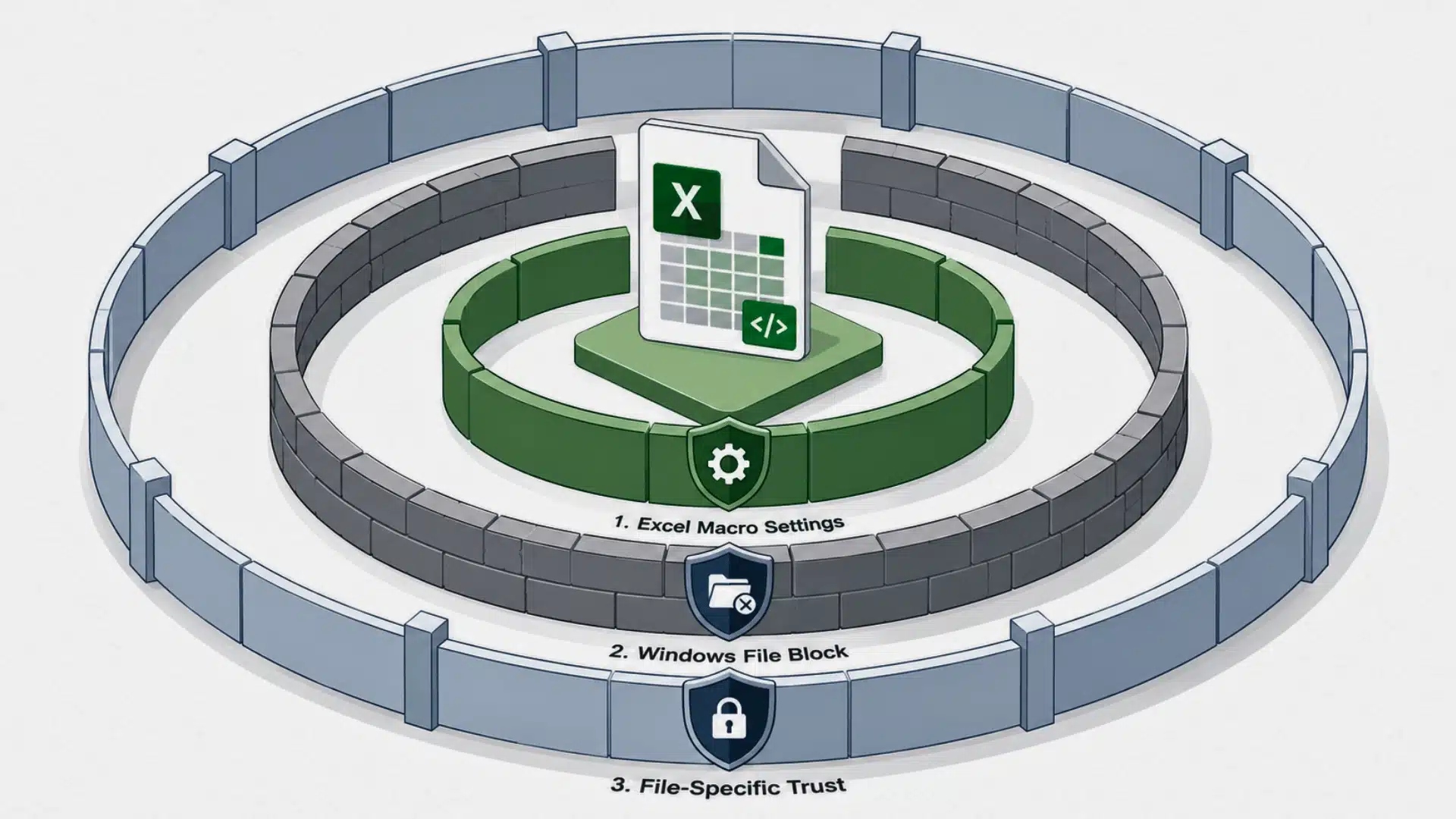
Excel macros can save you a lot of time, but one security warning can stop everything. If your workbook opens and the macro refuses to run, the fix is often simpler than it seems.
Learning how to enable macros in Excel helps you approve trusted files without changing every security setting on your computer. Macros sit alongside spreadsheets as one of the more common productivity software tools people rely on daily, so knowing how the security layer behaves matters.
I like to start with the safest option first, then check file properties and Trust Center settings only when needed.
You can also see what to do when downloaded files stay blocked, why macro settings matter, and how Excel handles VBA on Windows, Mac, and online versions.
What Are Macros in Excel and Why Are They Disabled?
A macro is a set of instructions that automates tasks inside an Excel workbook. Many macros use Visual Basic for Applications, commonly called VBA. They can format data, perform calculations, create reports, move information between sheets, and handle other repetitive work.
Excel itself falls under the broader umbrella of types of application software, which is exactly why it carries built-in protections against code it can’t verify.
Macros are useful, but VBA can also run harmful commands when it comes from an unsafe file. For that reason, Excel may stop macro code until the workbook is trusted.
A warning does not necessarily mean the file contains malware. It often means Excel cannot confirm that the code is safe. Files downloaded from websites, received through email, or stored in certain locations can receive stricter security checks.
For a workbook from a known source, start with the file-specific option before changing Excel’s wider security settings.
How to Enable Macros in Excel for a Single File
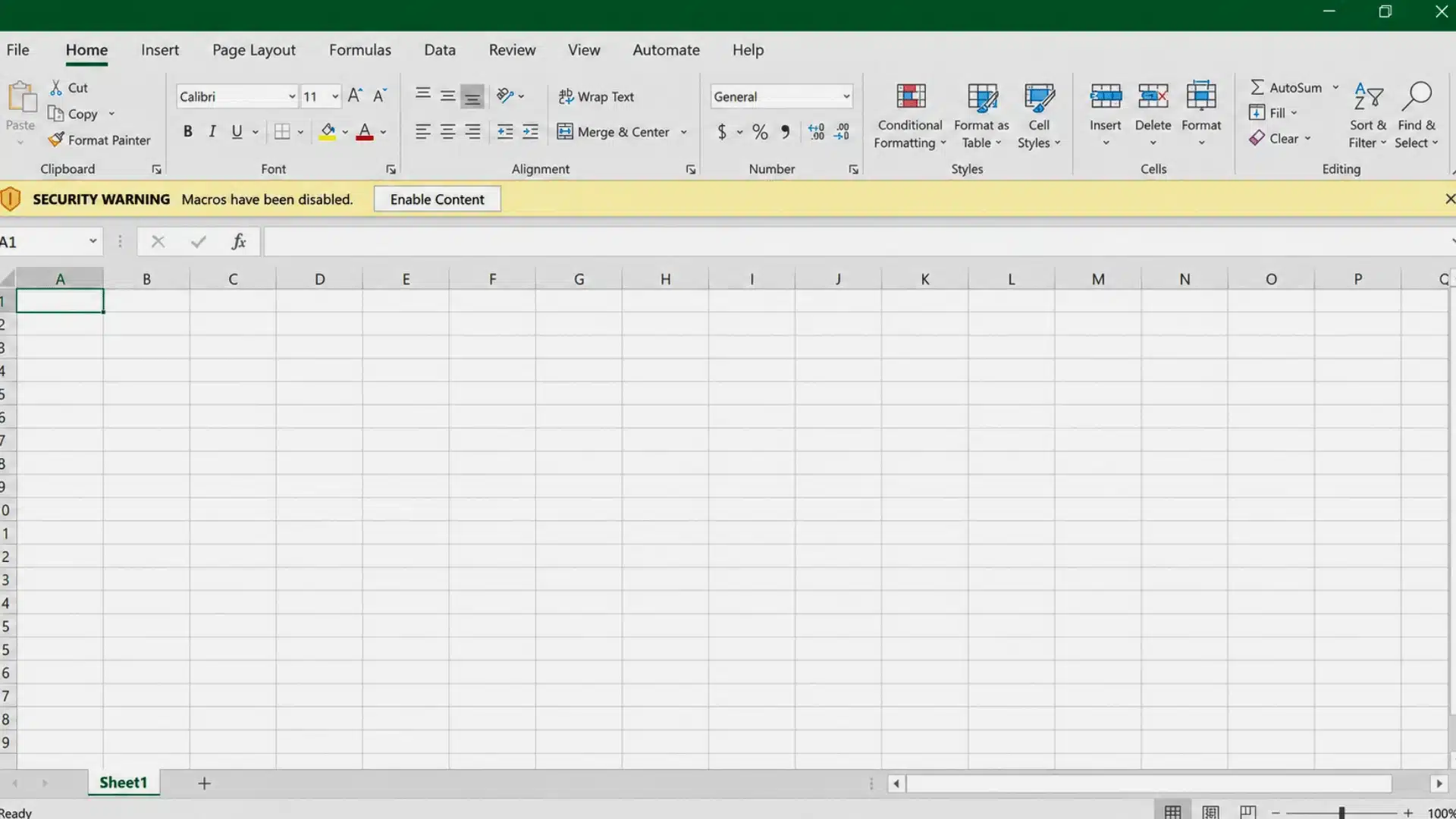
The quickest method is usually the security warning that appears after opening a macro-enabled workbook.
Follow these steps:
- Open the Excel workbook.
- Look near the top of the workbook for a yellow security warning.
- Find the Enable Content button.
- Click Enable Content.
- Allow the workbook to reopen or refresh if Excel requests it.
- Run the macro again.
Once the file is marked as trusted, Excel may stop showing the same warning for that workbook.
Only approve macro code when the workbook comes from a source you recognize. An unexpected invoice, email attachment, or downloaded spreadsheet should be checked before any VBA code is allowed to run.
If Enable Content does not appear, the file may be blocked by Windows or controlled by a stricter macro policy. The next sections cover both cases.
How to Enable Macros Through Excel Trust Center
Excel’s Trust Center controls how the desktop application handles VBA macros. Changing these options can help when the security warning does not appear or macros remain disabled.
To open the macro settings:
- Open Excel.
- Click File.
- Select Options.
- Choose Trust Center.
- Click Trust Center Settings.
- Select Macro Settings.
- Choose the setting that fits the workbook.
- Click OK to save the change.
Several macro options may appear.
Disable VBA macros without notification blocks macros and does not display an approval message.
Disable VBA macros with notification keeps macros blocked initially but allows Excel to display a warning when a workbook contains VBA code.
Disable VBA macros except digitally signed macros permits certain signed macros while blocking unsigned VBA code.
Enable VBA macros allows macro code to run more freely. This setting creates more security risk because unsafe files may also receive permission to execute code.
For everyday use, I prefer the notification option because it keeps VBA blocked until a specific workbook needs approval. I would avoid enabling every macro globally unless the computer is managed for a controlled business process.
How to Unblock Macros in a Downloaded Excel File
A downloaded workbook can remain blocked even when the Trust Center settings seem correct.
Windows can mark files from the internet as potentially unsafe. In that situation, Excel may block VBA before the normal Enable Content option becomes available.
Try these steps:
- Close the workbook and Excel.
- Open File Explorer.
- Locate the Excel file.
- Right-click the file.
- Select Properties.
- Stay on the General tab.
- Look for an Unblock checkbox or security message near the bottom.
- Check Unblock.
- Click Apply.
- Click OK.
- Open the workbook again.
The Unblock option does not appear on every file. It is mainly relevant when Windows has marked the workbook as coming from another computer, email, or an internet source.
If the checkbox is missing, move on to the Trust Center, file format, and administrator checks instead.
How to Enable Macros in Excel 365
Microsoft 365 desktop versions of Excel use the same basic security controls for VBA workbooks.
Start by opening the trusted workbook and checking for Enable Content. If that option appears, it is normally better to approve the individual file instead of changing settings for every workbook.
If no warning appears, open:
File > Options > Trust Center > Trust Center Settings > Macro Settings
A file downloaded from the internet can still remain blocked after changing the macro preference. In that case, close Excel and check the file’s Windows Properties for the Unblock option.
Also confirm that the workbook uses a macro-compatible file format. A standard .xlsx workbook cannot store VBA macro code in the same way as a macro-enabled .xlsm workbook.
How to Enable Macros in Excel on Windows 11 and Windows 10
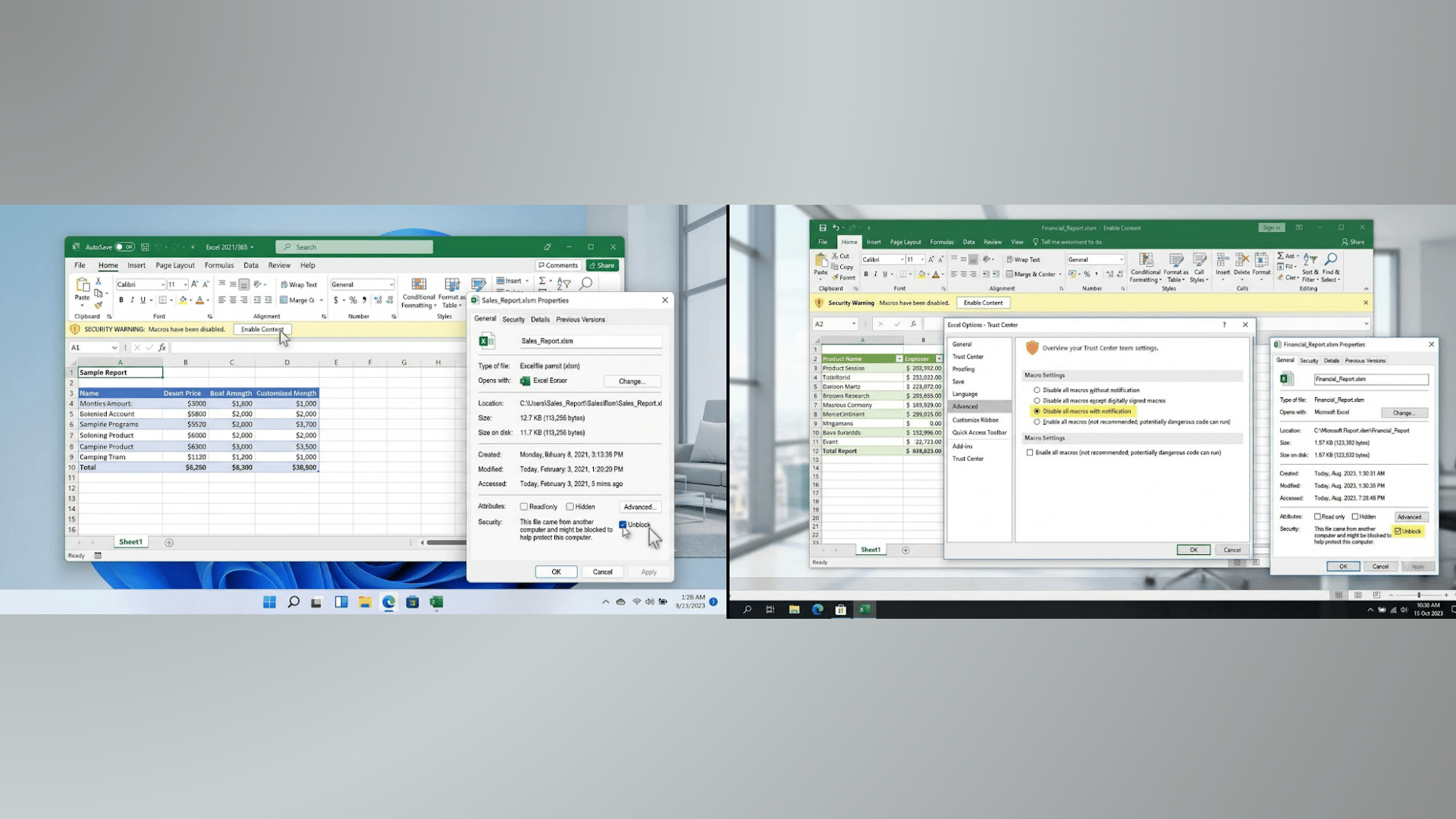
The main Excel macro controls work similarly on Windows 11 and Windows 10. Most differences involve the appearance of File Explorer rather than the Excel settings themselves.
Excel Macros on Windows 11
Open the workbook and first check for the yellow security warning. If the macro remains blocked, inspect the file through Properties and look for the Unblock option.
For broader settings, use Excel’s Trust Center.
Excel Macros on Windows 10
The same basic process applies. Start with Enable Content, check the file’s Properties when it was downloaded, then review Trust Center settings if the issue continues.
Changing Windows versions normally does not require a completely different macro setup because Excel controls most VBA permissions inside the application.
How to Enable Macros in Excel on Mac
Excel for Mac also includes macro security controls, although the menu names differ from the Windows Trust Center.
Open Excel and look under Excel > Preferences or Excel > Settings, depending on the installed version. Find the security or macro security options and review how VBA macros are handled.
A notification-based setting is usually the safer choice because Excel can warn about macro code before it runs.
The Windows Properties > Unblock method does not apply in the same way on macOS. If a workbook still refuses to run VBA, check the workbook format, Excel security preferences, and any restrictions applied by an organization.
Menu wording can vary between Microsoft 365 builds, so look for options related to Security, Macro Security, or VBA macros.
Can You Enable Macros in Excel Online?
Excel for the web does not run traditional VBA macros in the same way as the desktop Excel application.
A macro-enabled workbook may still open in the browser, and its worksheet data can often be viewed or edited. However, VBA procedures generally require the desktop version of Excel to run.
If a workbook contains a button tied to VBA code and nothing happens in the browser, open the file in the Excel desktop app instead.
This difference matters for teams that share .xlsm files through cloud storage. The workbook can still be stored online, but the VBA portion normally needs desktop Excel.
Why Are Macros Still Not Working in Excel?
Enabling macros does not fix every VBA problem. A workbook can remain inactive for several reasons.
- Wrong File Type: A workbook saved as
.xlsxdoes not preserve VBA macro code. Use a macro-enabled format such as.xlsmwhen the workbook needs VBA. - Downloaded File: Windows may block a workbook that came from email, cloud storage, or a website. Check the file’s Properties for an Unblock option.
- Macro Settings: Excel may be configured to block VBA without showing a notification.
- Protected View: Files opened under stronger protection may require approval before editing or running code.
- Company Policy: A workplace computer can have security rules set by an administrator. Those policies can override personal Excel settings.
- Broken VBA Code: A macro can be enabled and still fail because of a coding error, missing reference, incorrect worksheet name, or unavailable file path.
- Missing Workbook Content: Buttons, add-ins, external files, or referenced worksheets required by the VBA procedure may be missing.
Testing these causes one at a time makes it easier to separate a security restriction from a problem inside the macro itself.
How to Check If Macros Are Enabled in Excel
A simple test can confirm whether Excel is allowing VBA code to run.
Open a workbook that contains a known macro and check whether a security warning remains visible. If the workbook is trusted and no blocking message appears, open the macro list from the Developer tab or the relevant macro command.
Select a known macro and run it.
If it works as expected, VBA execution is active for that workbook.
If Excel displays another security message, review the warning text before changing more settings. An error from the VBA editor is different from a macro-security warning and often means the code itself needs attention.
Is It Safe to Enable All Macros in Excel?
Allowing every VBA macro is convenient, but it also removes an important security barrier.
A malicious workbook can contain code that changes files, accesses stored information, or performs actions outside the visible worksheet. That is why Excel blocks or warns about macros from untrusted sources.
A safer setup is to keep macros disabled with notifications and approve individual workbooks when their source is known.
Trusted Locations can also be useful in controlled environments where approved macro files are stored in a specific folder. Digitally signed VBA projects provide another way for organizations to identify approved code.
The main rule is simple: trust the source before trusting the macro.
Final Thoughts
Enabling Excel macros is easier when you know which setting is causing the block. Start with the security warning, then check file properties, Trust Center settings, and the workbook format if the macro still does not run.
I also recommend keeping notifications active instead of allowing every macro by default. That gives you more control over which files can run VBA code.
Knowing how to enable macros in Excel helps you use trusted automation without removing useful security checks. If a workbook comes from an unknown source, check it before giving it permission.
Try these steps on your file, share which fix worked for you, and read more practical Excel tips.
Frequently Asked Questions
What is the shortcut to enable macros in Excel?
Excel does not have one universal keyboard shortcut that bypasses macro security. If a security warning appears, use the Enable Content option. Macro execution can also be managed through Trust Center settings.
Why is the Enable Content button missing in Excel?
The button may be missing because macros are blocked without notification, the workbook does not contain VBA, Windows has blocked the downloaded file, or an administrator has applied security rules.
Why does Excel say Microsoft has blocked macros from running?
Excel can apply stronger protection to macro-enabled files obtained from internet-based sources. Check the file’s source and Windows Properties before changing any security controls.
Do Excel macros work after saving the file as XLSX?
No. The .xlsx format does not preserve VBA macro code. Save a workbook that contains VBA as a macro-enabled format, such as .xlsm, when the macros need to remain available.
Can an administrator prevent me from enabling Excel macros?
Yes. Company devices can use security policies that override Excel’s local macro preferences. If options are unavailable or keep reverting, an IT administrator may control them.
Do I need the Developer tab to run macros?
Not always. Some macros run from workbook buttons, keyboard shortcuts, or automatic VBA events. The Developer tab is mainly useful for viewing, creating, editing, and manually running macros.





