I remember the first time someone asked me, “What is haptics on iPhone?” I knew exactly what they meant, but explaining it without saying “it’s just vibration” took a little thought.
That tiny tap when you type, switch a setting, or interact with your phone is easy to ignore, yet it plays a bigger role than you might think.
Haptics give your iPhone a physical way to respond to your actions, making certain interactions feel more natural. But what exactly causes those taps, and how are they different from regular vibration?
Let’s take a closer look at what iPhone haptics do, where you’ll feel them, and how to control them.
What Is Haptics on iPhone?
Haptics are touch-based feedback you can feel when using your iPhone. They can feel like small taps or vibrations and are produced by the phone’s haptic hardware.
The word “haptic” relates to the sense of touch, so haptics means simply feedback you can feel rather than hear or see. On iPhone, haptics can respond to actions such as using system controls or typing when keyboard haptics are enabled.
Apple’s system can also combine haptics with sounds and visual feedback, much like cloud storage options for photos work quietly in the background, to make an action feel more responsive.
The exact haptic experience can vary by iPhone model, feature, and the type of interaction.
Haptics in Action: Where You’ll Feel Them
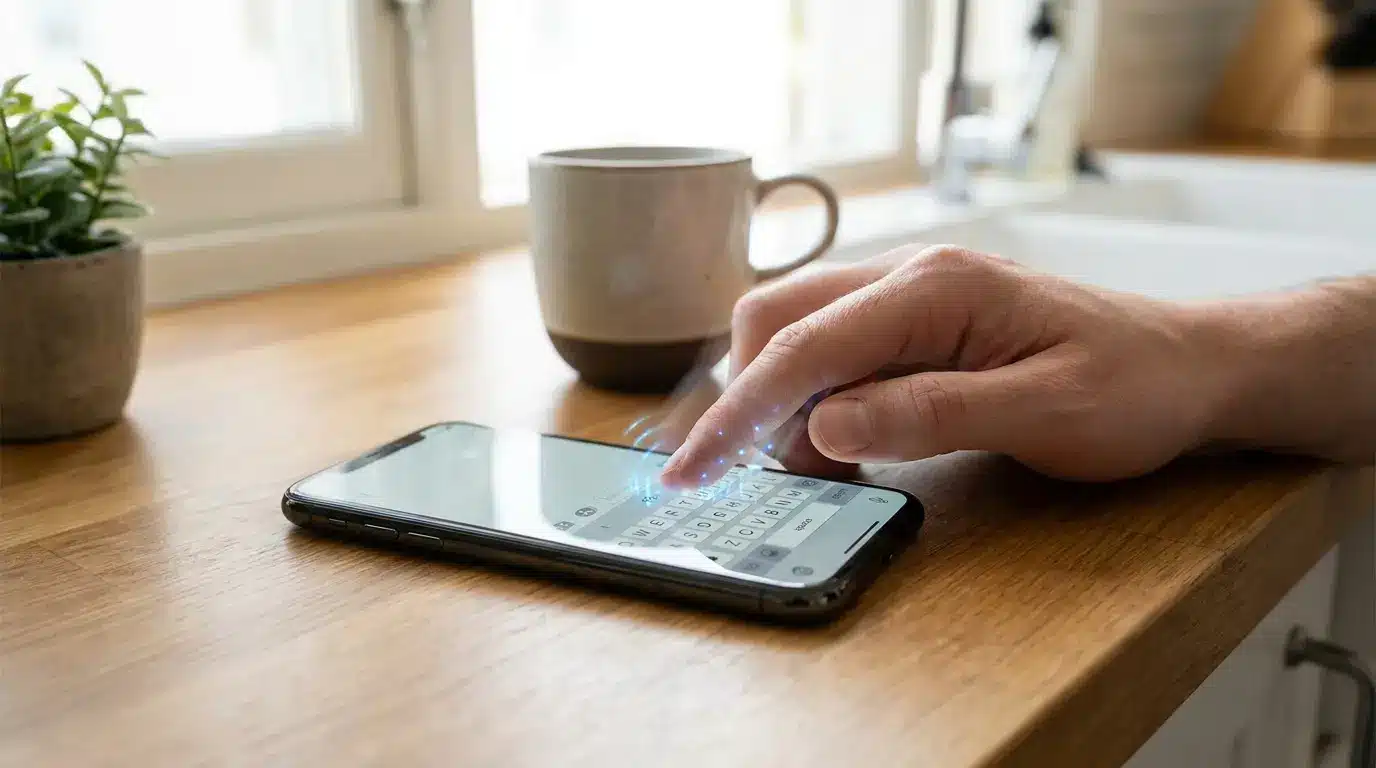
Haptics can appear during many everyday iPhone actions. Some are controlled by iOS, while others depend on the feature or app you are using. Here are some common examples:
- Keyboard Haptics : Your iPhone can provide a small tactile response each time you tap a keyboard key when Haptics is enabled under Keyboard Feedback.
- System Controls : Supported controls such as switches, sliders, and pickers can provide haptic feedback when you interact with them.
- Calls and Alerts : Haptics can accompany incoming calls and alerts, with options to control how they behave in Ring and Silent modes.
- Apps and Games : Some apps and games use haptics to provide feedback for actions, events, or interactions.
- Touch Interactions : Actions such as touching and holding certain Home Screen icons can produce haptic feedback, helping you notice that the action was recognized.
These small responses can make digital actions feel more physical and help connect what you do with what the phone does next. Haptics can also work alongside sounds and visual changes rather than replacing them.
Haptics vs. Vibration: What’s the Difference on iPhone?
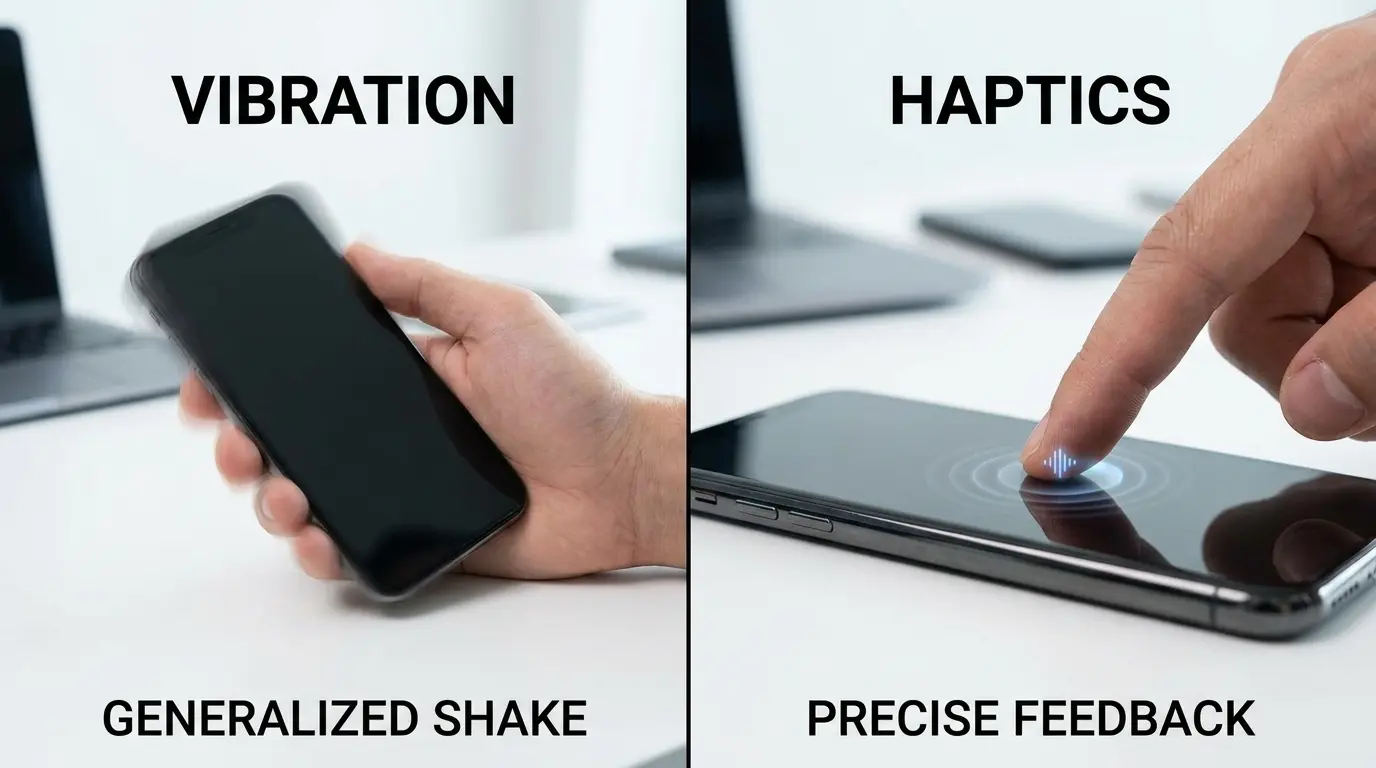
Haptics and vibration are closely related because both create physical feedback you can feel. On iPhone, Apple uses haptics as the broader term for touch-based feedback, while different settings control specific types of it.
| Aspect | Haptics | Vibration |
|---|---|---|
| Meaning | Touch-based feedback you feel | Physical movement you feel |
| Examples | System controls, keyboard feedback, calls, and alerts | Vibrations used for calls, alerts, and other feedback |
| Settings | Controlled through options such as Haptics, Keyboard Feedback, and System Haptics | Accessibility settings can control vibration across the device |
| How they relate | Haptics are a type of tactile feedback | Vibration is the physical sensation used to create that feedback |
So, haptics and vibration are not completely separate features. Apple uses the term Haptics for several types of tactile feedback, with different settings controlling different behaviors.
Should You Turn Haptics On or Off?
There is no single setting that turns off every type of haptic feedback. Under Settings > Sounds & Haptics > Haptics, you can choose how haptics work for ringtones and alerts.
The available options are Always Play, Play in Silent Mode, Don’t Play in Silent Mode, and Never Play. Keyboard haptics have a separate switch under Keyboard Feedback, while System Haptics controls supported system interactions.
If you like tactile feedback, keeping these features on can make interactions easier to notice. If the repeated taps feel distracting, you can turn off the specific type you do not want.
Keyboard haptics may also affect battery life, according to Apple, joining the storage habits behind a slower iPhone as small settings that add up over time.
What If Your iPhone Haptics Aren’t Working?
If haptics suddenly stop working, a few settings are worth checking first. Apple separates some haptic controls, so the right setting depends on where the feedback is missing.
- Check Haptics : Go to Settings > Sounds & Haptics > Haptics and make sure the option you want is selected for calls and alerts.
- Check Keyboard Haptics : For typing feedback, go to Settings > Sounds & Haptics > Keyboard Feedback and turn on Haptic.
- Check Vibration : If keyboard haptics are enabled but you still feel nothing, go to Settings > Accessibility > Touch and make sure Vibration is turned on.
- Check Silent Mode : If alerts do not vibrate in Silent Mode, go to Settings > Sounds & Haptics > Haptics and select Play in Silent Mode.
- Check Focus : If calls or alerts are not giving feedback as expected, check Control Center > Focus and make sure Do Not Disturb is not active.
If the correct settings are enabled and haptics still do not work, the issue may need further troubleshooting or service. Restarting your iPhone can also be worth trying before seeking further help.
Closing Thoughts
Now you know what haptics on iPhone are and why those tiny taps can make everyday interactions feel more responsive.
Haptics can provide feedback when you type, use system controls, receive calls, or interact with supported apps.
You can also control different types of haptic feedback through your iPhone’s settings, so you don’t have to keep every option turned on.
I prefer keeping some haptics enabled because the small physical response helps me notice certain actions without relying only on sound or visuals. What about you?
Do you prefer haptics on or off? Share your preference in the comments and tell me why.
Frequently Asked Questions
Does haptic feedback drain iPhone battery?
Keyboard haptics use some power, and Apple says turning them on might affect your iPhone’s battery life. The actual impact depends on how often you type and how you use your iPhone. If battery life is a priority, you can turn off keyboard haptics under Settings > Sounds & Haptics > Keyboard Feedback.
Are haptics the same as vibrate on iPhone?
Haptics and vibration are closely related because both involve physical feedback you can feel. On iPhone, Apple uses Haptics for several types of tactile feedback, including calls, alerts, and system interactions. Keyboard haptics and System Haptics also have their own settings, so changing one option does not necessarily turn off every type of feedback.
What happens if I turn off System Haptics?
Turning off System Haptics disables haptic feedback for supported system interactions. It does not control keyboard haptics, which have a separate setting under Settings > Sounds & Haptics > Keyboard Feedback. Haptics for calls and alerts are also controlled separately under Settings > Sounds & Haptics > Haptics.
Why did Apple add haptics to iPhone?
Haptics give you physical feedback when you interact with your iPhone, helping digital actions feel more responsive. Apple uses haptics alongside visual and audio feedback to communicate information through the sense of touch. They can also provide feedback when your iPhone is silent, depending on your settings.