

Deleting an app or clearing a history looks like a clean break. With Google AI, it isn’t. Your data doesn’t live in one place.
It’s spread across Gemini, Google Assistant, AI Studio, and Chrome, each with its own storage rules and its own deletion path. And what “deleted” actually means isn’t always what you’d expect.
Some data disappears from your account immediately. Some lingers longer than the confirmation screen suggests. Google AI data deletion requires more than a single button press, and knowing the difference between what’s removed and what isn’t can save you from a false sense of privacy. Let’s get into it.
How to Delete Your Google AI Data
Deleting Google AI data is not a single action. It requires separate steps across Gemini, Google AI Studio, Google Assistant, and Chrome’s on-device AI, each managed from a different location.
There’s no master delete button that clears everything at once. Where your data lives depends on which Google AI product you used.
It’s also worth knowing upfront: deleting your activity history and removing data from Google’s AI training are two different things. The first is straightforward. The second is more involved, and we’ll get to it.
This guide walks through each surface in turn. Find the one that applies to you and follow the steps there.
How to Delete Gemini Chat History
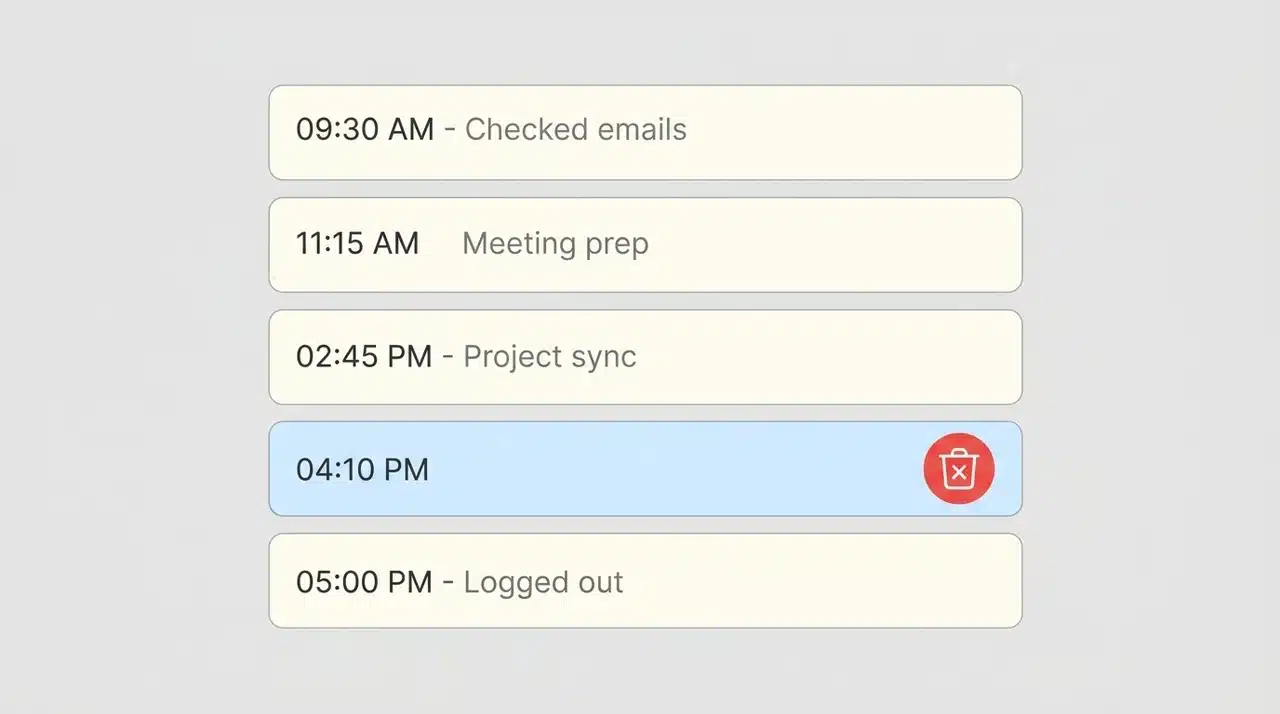
Gemini stores every prompt and response you send unless you’ve turned saving off. Deleting that history or preventing it from building up in the first place takes just a few steps. The options vary depending on what you’re trying to do.
Deleting Past Gemini Activity
Go to myactivity.google.com and select Gemini Apps Activity from the left panel.
From there, you have three options. You can hover over any individual entry and delete it on its own. You can click the Delete button next to the search bar and choose a date range. Or you can select “All time” to wipe everything at once.
The activity disappears from your account immediately after you confirm.
Pausing or Auto-Deleting Future Activity
Deleting past history doesn’t stop new history from being saved. For that, you need to either pause activity saving or set up auto-delete.
To pause, go to Gemini Apps Activity and turn off the toggle labeled Keep Activity. Google will stop saving your future interactions from that point forward.
One thing worth knowing: even with Keep Activity off, Google retains your conversations for up to 72 hours.
This is for service delivery and abuse processing, not for training. After that window, they’re deleted. If you send something sensitive and immediately turn off activity, that 72-hour window is still in play.
Auto-delete works differently. Instead of pausing, it lets history accumulate and then removes it on a rolling schedule. You can set it to delete interactions older than 3, 18, or 36 months. Google applies this automatically; you don’t have to come back and do it manually.
If you want a clean break, pause saving. If you’re fine with a short history window and don’t want to think about it again, auto-delete is the lower-maintenance option.
How to Stop Google From Using Your Data for AI Training
Deleting your history and opting out of AI training are not the same action. Deleting removes what’s stored in your account. Opting out determines whether future interactions get used to improve Google’s models.
The control for this is the same Keep Activity toggle. When Keep Activity is on, Google can use your Gemini conversations to train and improve its AI. When it’s off, they can’t; conversations are kept for up to 72 hours for service purposes only, then deleted without being used for training.
To opt out, go to myactivity.google.com and open Gemini Apps Activity. Turn off the Keep Activity toggle.
This doesn’t reach data that was already collected and processed before you made the change. But it stops the accumulation going forward, which is the only lever currently available to consumers.
How to Delete Data from Google AI Studio
AI Studio doesn’t have a single delete button. It stores conversation history and uploaded files in separate places, and each requires its own deletion path. Most people only deal with one, but it’s worth knowing which applies to you before you start.
Deleting Conversation History
AI Studio conversation history is tied to your Google Drive. To delete it, open Google Drive and look for the folder named “AI Studio.” Inside, you’ll find saved chat files.
Delete them the way you’d delete any file in Drive; right-click and remove, or select and move to trash. Empty the trash to remove them fully.
Deleting Uploaded Files and Data Stores
If you’ve uploaded files or built data stores inside AI Studio, those live in a different place entirely.
Go to the Google Cloud console, navigate to AI Applications, then to Data Stores. Find the data store you want to remove, click the three-dot icon next to it, and select Delete.
This removes the data store and the files attached to it. It won’t affect anything stored in your Drive or your conversation history.
What “Deleted” Actually Means in AI Studio
When you delete a chat in AI Studio, the UI confirms it’s gone. But deletion from the interface doesn’t always mean immediate removal from Google’s systems.
What Google’s own documentation confirms is that the process isn’t always instant. In consumer Gemini, conversations are held for up to 72 hours even after you disable activity saving.
In AI Studio, Google’s terms for unpaid access state that submitted content and responses may be used to improve its products and machine-learning models.
That means deletion from the UI doesn’t necessarily mean immediate removal from all internal processes. If you’re using AI Studio for anything sensitive, the paid Gemini API route carries different terms; prompts and responses on paid tiers are not used for model improvement.
Practically, your activity disappears from view, but it isn’t gone the moment you hit delete. If you’re deleting for privacy reasons, know there’s a difference between when you act and when the data is fully removed.
How to Delete Google Assistant Voice History
Google Assistant stores voice data separately from your other Google AI activity. Clearing Gemini or AI Studio won’t touch it, this one needs its own step.
Here’s how to clear it from your account. The steps below cover both individual entries and full history removal.
- Go to myactivity.google.com and filter by Google Assistant
- You’ll see a log of voice commands and audio clips tied to your account
- To delete individual entries, click the three-dot icon next to each one
- To remove everything, select Delete and choose “All time”
- Audio clips and transcriptions are stored separately but deleted together; no need to handle them one by one
- Auto-delete is available here too, with 3-, 18-, and 36-month intervals
If you use Assistant regularly, setting auto-delete once saves you from coming back to do this manually every time.
How to Remove On-Device AI in Google Chrome
Chrome’s on-device AI runs locally on your device and doesn’t send data to Google’s servers. The privacy concern here isn’t what Google holds; it’s what’s sitting on your machine.
Follow these steps to remove the local models from your device entirely:
- Open Chrome Settings and go to the System menu
- Find the On-Device AI toggle and turn it off
- This removes the local models from your device entirely
There’s no account-level data to delete because none was sent to Google in the first place.
The local models power features like writing suggestions, tab summaries, and smart autocomplete within Chrome. Turning them off disables those features, but it doesn’t affect your browsing data, synced history, or anything in your Google account.
This toggle has no effect on your Gemini history, Assistant clips, or AI Studio files. Those live in your account and are managed separately. Turning off on-device AI only affects what’s stored locally.
What Google Actually Deletes, and What It Keeps
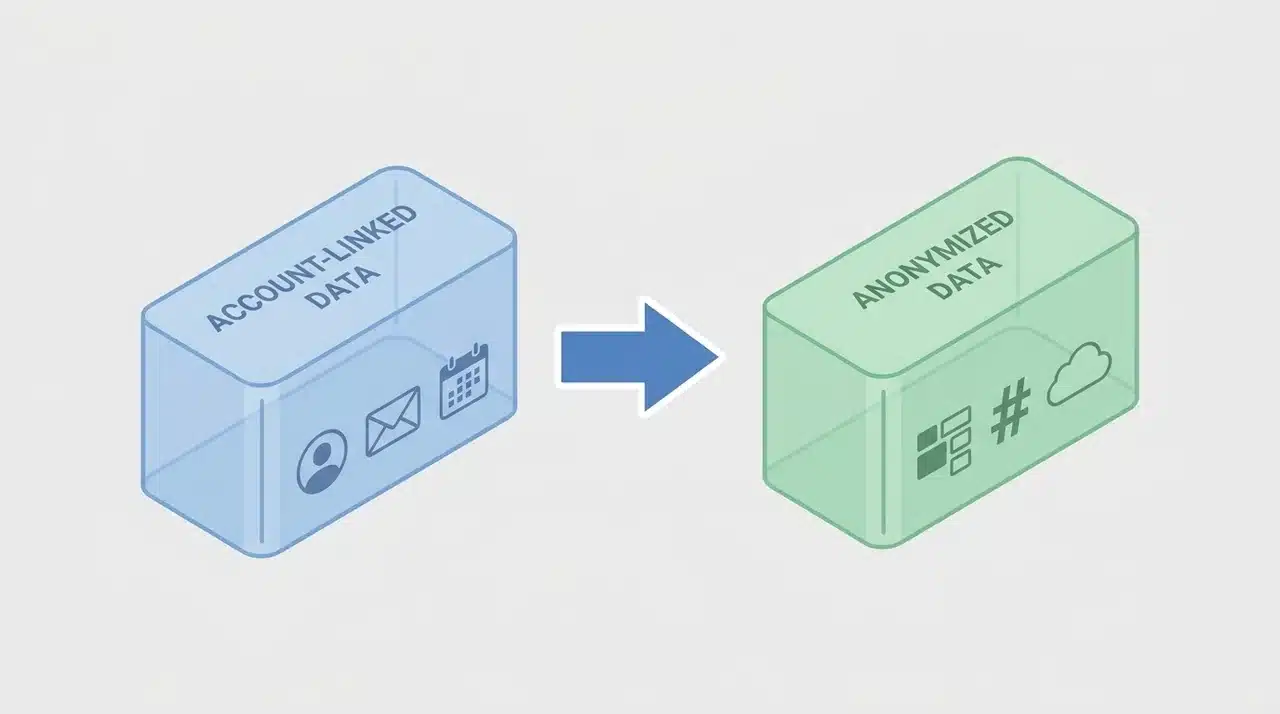
Deleting your Google AI activity removes the data linked to your account. What it doesn’t do is reach back into Google’s AI models and remove what they’ve already learned.
They work differently.
When you use Gemini, the conversations saved to your account shape how future responses are personalized to your tone, context, and follow-up handling. That’s the account-linked layer, and it’s what disappears when you clear your history.
But some data gets anonymized and folded into Google’s model training. Once anonymized, it’s no longer connected to you. Deleting your history doesn’t reach it, because there’s nothing account-specific left to delete.
The delete button does what it says; it just doesn’t erase all evidence that you ever used the product. That’s where most people feel misled.
GDPR and CCPA give you rights over identifiable personal data.
Google must honor deletion requests for data tied to you. But neither law requires Google to retrain models that processed your data after it was anonymized. That line is drawn by law, not by Google’s choice.
What you can actually control: delete your account history, pause activity saving, or set auto-delete so nothing accumulates. What you can’t reach is the anonymized layer, and no current privacy framework requires that you can.
Wrapping Up
Deleting your Google AI data gives you real control, just not total control. You can clear your history across Gemini, Assistant, AI Studio, and Chrome. You can pause saving, set auto-delete, and stop new data from accumulating.
What you can’t do is reach data that’s already been anonymized and folded into Google’s models. No current privacy law requires that you can.
That distinction matters, and most people only discover it after assuming deletion meant something more complete.
If privacy is an ongoing concern, turning off Keep Activity and setting auto-delete is worth doing once so you don’t have to come back to this manually.
Frequently Asked Questions
Can I stop Google from using my data to train its AI models?
Yes. Turn off the Keep Activity toggle in Gemini Apps Activity. When it’s off, Google won’t use your future conversations for model training. Data that’s already been anonymized and processed can’t be removed, but you stop new data from going in.
How long does Google keep my data after I delete it?
For consumer Gemini, conversations are retained for up to 72 hours after you disable activity saving for service and abuse-processing purposes, not training. For AI Studio on unpaid access, submitted content may be used to improve Google’s models, and deletion from the UI doesn’t guarantee immediate removal from all internal processes. Paid Gemini API tiers operate under different terms.
Does deleting my Google account delete all my AI data?
It removes all account-linked data across Google’s services. Data that was already anonymized and used in model training isn’t affected; it’s no longer tied to your account in any recoverable form.
Can I stop AI Overviews from appearing in Google Search?
You can turn them off in Search Settings. That changes what you see, but it has no effect on what data Google holds about you.