

AI assistants in Outlook promise faster email work, but their roles differ widely. Many tools feel similar on the surface, yet they behave very differently once installed.
Some only help you write, others organize your inbox, and a few run actions across apps. This difference usually comes down to how the tool connects to Outlook and what access it has.
That is why two products with similar features can deliver completely different real-world results.
When you understand these layers, choosing the right setup becomes much clearer and more practical. The difference matters most when email volume and workflows start to scale.
What Does an AI Assistant for Outlook Actually Do?
An AI assistant for Outlook acts on your emails, but not all tools do the same job. There are three tiers worth understanding, and where a tool lives in Outlook often signals which one it belongs to.
- Composition aids:It helps you write and reply faster. These sit in the toolbar or drafting panel, focused purely on getting words onto the screen.
- Inbox managers: They sort, prioritize, and surface what needs attention. These appear in the sidebar, working to control clutter rather than write for you.
- Workflow agents: They read email and act elsewhere across connected apps, running in the background through SaaS integration platforms that handle cross-app connections rather than sitting inside Outlook.
Most tools do one of these well, and few do more than one reliably. Yet every vendor calls their product an “AI email assistant,” which is why users often expect automation but only get drafting help.
Native AI vs. Add-In vs. Agent: How They Get Into Outlook
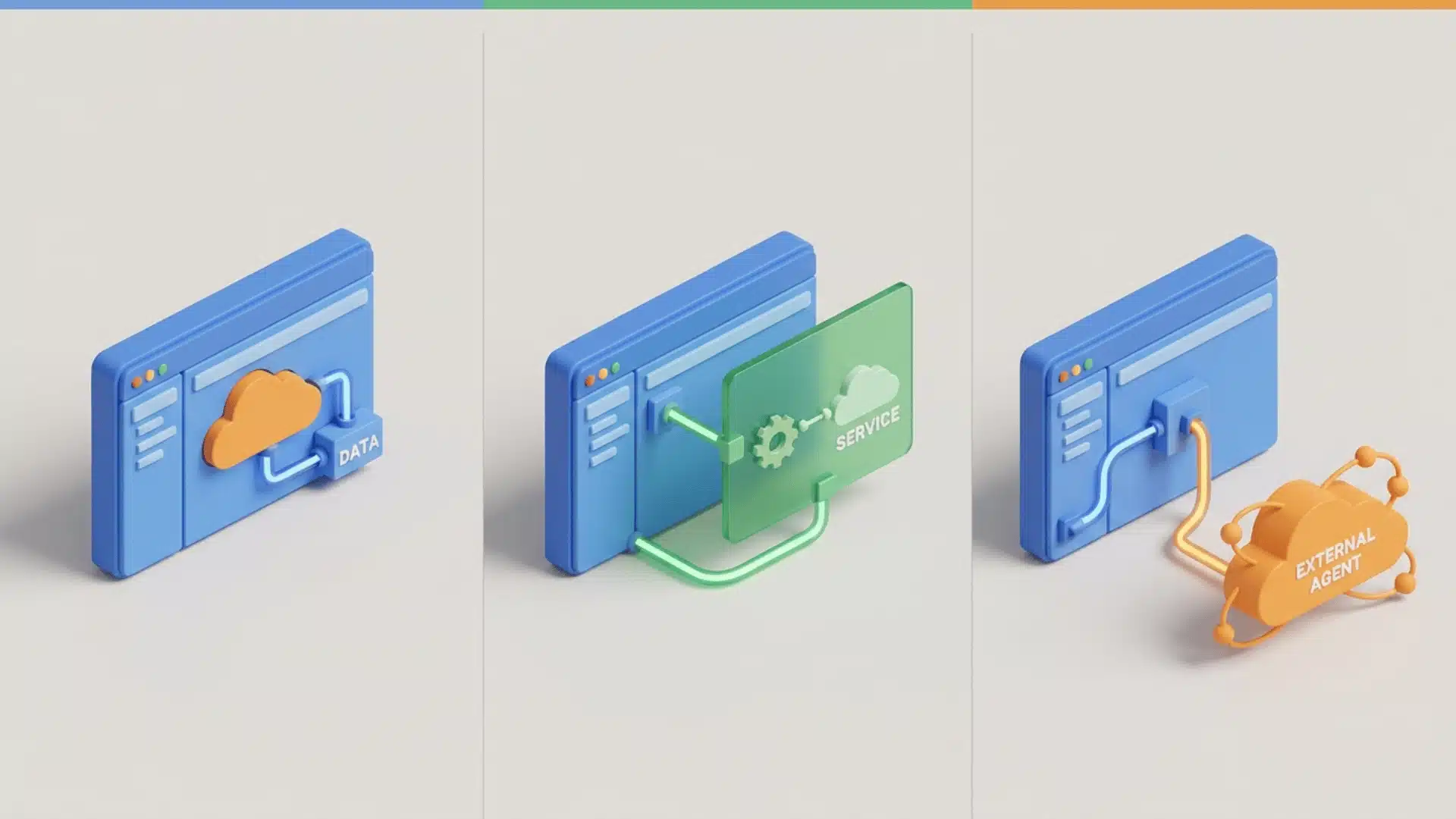
How a tool connects to Outlook determines what it can access, what it can do, and whether your IT team will let it run at all. The three integration models are meaningfully different.
| Native (Copilot) | Add-In (MailMaestro, Fyxer) | Agent (Lindy) | |
|---|---|---|---|
| Where it lives | Built into the Outlook toolbar | Sidebar panel inside Outlook | Outside Outlook entirely |
| How it connects | Platform-level via Microsoft 365 | Installed through Microsoft AppSource | OAuth or API connection |
| Permission scope | Microsoft already holds mailbox access | Separate read/compose permissions | Broad, ongoing mailbox read access |
| Acts autonomously? | No, responds to prompts only | No, responds to prompts only | Yes, monitors and triggers actions |
| IT-managed environments | No approval is needed if M365 is active | May require AppSource to be enabled | Requires explicit data access approval |
| Best for | Drafting and summarizing on demand | Composition help without switching clients | Automation across Outlook and other apps |
The integration model is the decision most guides skip. Two tools can have identical feature lists and work completely differently depending on your environment.
The Five Tools that Consistently Appear in Results
The tools below are listed by fit, not rank. Each one has earned consistent visibility across independent reviews, user forums, and comparisons, and each stands out for a different reason.
1. Microsoft Copilot
Copilot is the right starting point if you’re already on Microsoft 365. It’s built into the toolbar and requires no separate installation.
This handles summarization and prompt-based drafting with minimal friction. What it doesn’t do is manage your inbox autonomously; it waits for you to ask.
Lean on it for summarizing long threads and drafting first-pass replies you can quickly edit. Build a few prompt habits and treat its output as a strong draft, not a finished send.
2. MailMaestro
MailMaestro sits in the Outlook sidebar and focuses almost entirely on email composition. Its clearest advantage is model flexibility; you can switch between GPT-4, Claude, and Gemini depending on the task.
That makes it genuinely useful for people who write a high volume of emails and want more control over tone and output quality.
Make the model choice deliberate: one for quick factual replies, another when tone matters most. Save common message types as templates and apply them most heavily to repetitive outreach.
3. Superhuman
Superhuman comes with an important caveat: it replaces your Outlook client entirely rather than sitting alongside it.
If you’re willing to make that switch, the experience is noticeably faster, keyboard-driven, minimal, and designed to reduce time spent in your inbox.
Commit to the keyboard shortcuts early, since the speed payoff only arrives once you drop the mouse. Set up split inboxes to separate priority senders from noise.
4. Lindy
Lindy is an automation agent rather than an email assistant in the traditional sense. It monitors your inbox, detects patterns, and triggers actions across connected apps without waiting for a prompt each time.
That puts it in a genuinely different category from the other tools here, one that the SERP doesn’t always make clear.
Start small by automating one clear, repetitive workflow before handing it more. Define trigger conditions tightly and keep a human review step on anything high-stakes.
5. Fyxer and Boomerang
These two sit in the lighter-weight tier, narrower in scope, lower in price, and less demanding in terms of permissions.
Fyxer handles passive inbox organization and prioritization without much configuration. Boomerang adds scheduling and follow-up reminders to its AI writing features.
Pick Fyxer if you want hands-off sorting, or Boomerang if scheduling and reminders are the gap. Start one as a low-commitment trial before weighing the heavier tools.
How to Choose Based on What You Actually Need?
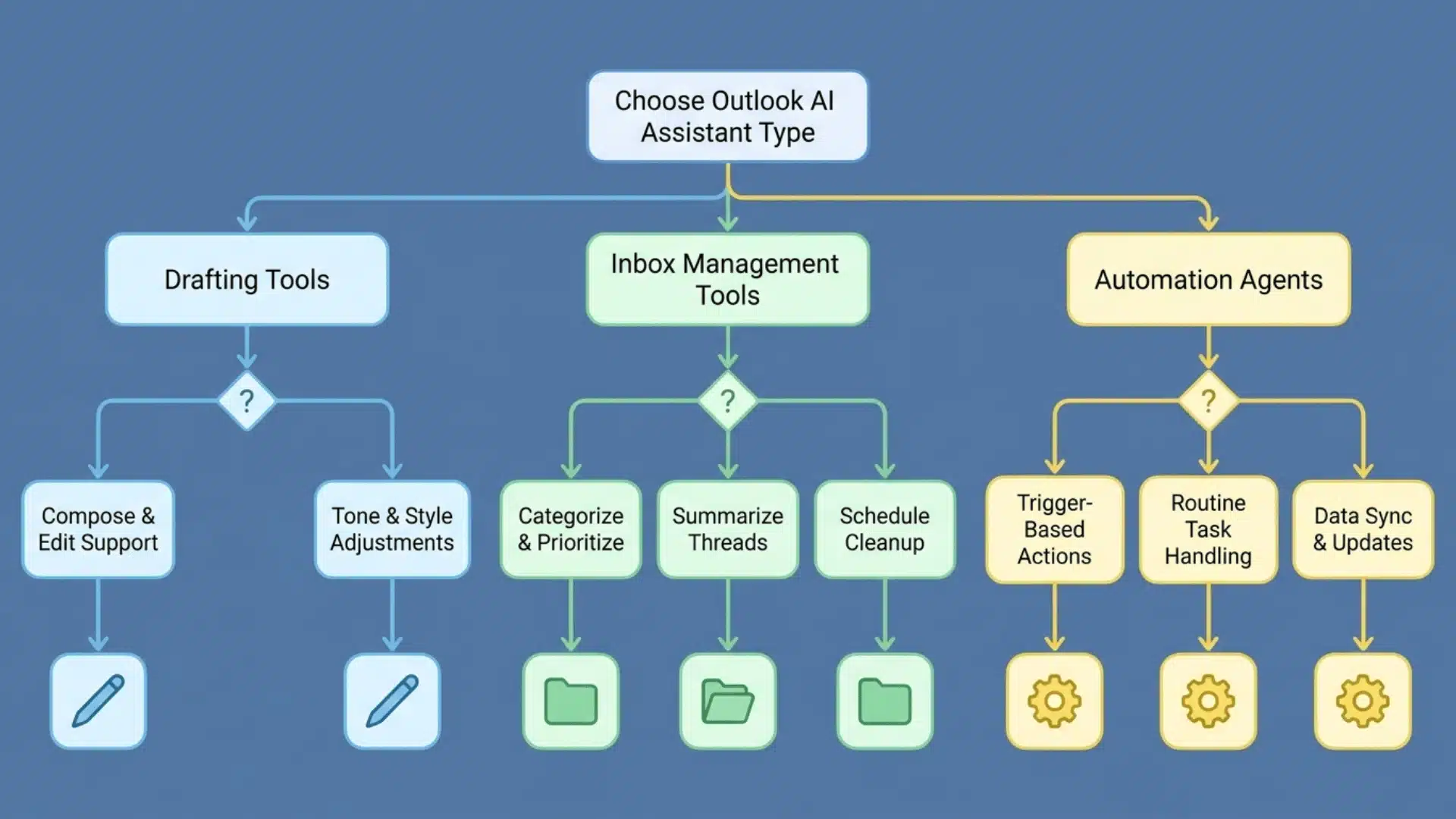
Choosing an Outlook AI assistant depends on what slows down email work the most. Tools solve different problems, so matching the tool to the task matters more than features.
- Copilot works best for Microsoft 365 users who mainly need drafting and summarizing, since it is already built in. Inbox triage needs are better handled with lightweight add-ins, since Copilot does not organize or prioritize emails well.
- MailMaestro or Fyxer offers better value for individuals or small teams who want practical email help without high licensing costs.
- Lindy or similar agent tools are better suited for full automation across apps than for just writing or sorting emails.
Outlook AI tools only work well when matched to the real problem, not when picked just for features alone or hype.
Wrapping Up
Choosing an Outlook AI assistant is less about feature count and more about clarity on what needs fixing inside the email workflow.
Writing support, inbox organization, and cross-app automation fall into different categories, and mixing them up leads to poor results.
Some users only need faster replies, while others need structure or full task handling beyond email. Understanding these differences helps avoid tools that overpromise but underdeliver in real use.
The best tool is the one that fits the actual workload, not the one with the longest feature list. Start by identifying your main email bottleneck and pick a tool built specifically for that need.
Frequently Asked Questions
Can I use AI in Outlook without a Copilot license?
Yes. Third-party add-ins like MailMaestro and Fyxer install through Microsoft AppSource and work independently of any Microsoft 365 Copilot subscription. They use their own AI models and billing. If your organization restricts AppSource installs, you may need IT approval, but no Microsoft AI license is required.
Is Copilot for Outlook free?
Microsoft Copilot is included in Microsoft 365 Personal and Family plans at no additional cost for basic features. The full Copilot experience, including email drafting, thread summarization, and inbox coaching, requires a separate Microsoft 365 Copilot license. Check current Microsoft pricing before assuming your existing plan includes it.
Can I use ChatGPT directly in Outlook?
Not natively. ChatGPT does not integrate with Outlook as a built-in tool. However, MailMaestro is an Outlook add-in that runs on GPT-4 (among other models), which gives you GPT-class composition inside Outlook without switching applications or copying text into a separate browser window.
What’s the difference between an AI email assistant and an AI email agent?
An assistant responds to your prompts; you ask it to draft or summarize, and it does. An agent acts proactively: it monitors your inbox, detects patterns, and triggers actions without needing to be asked each time. Lindy is an example of the agent category; most Outlook add-ins are assistants.