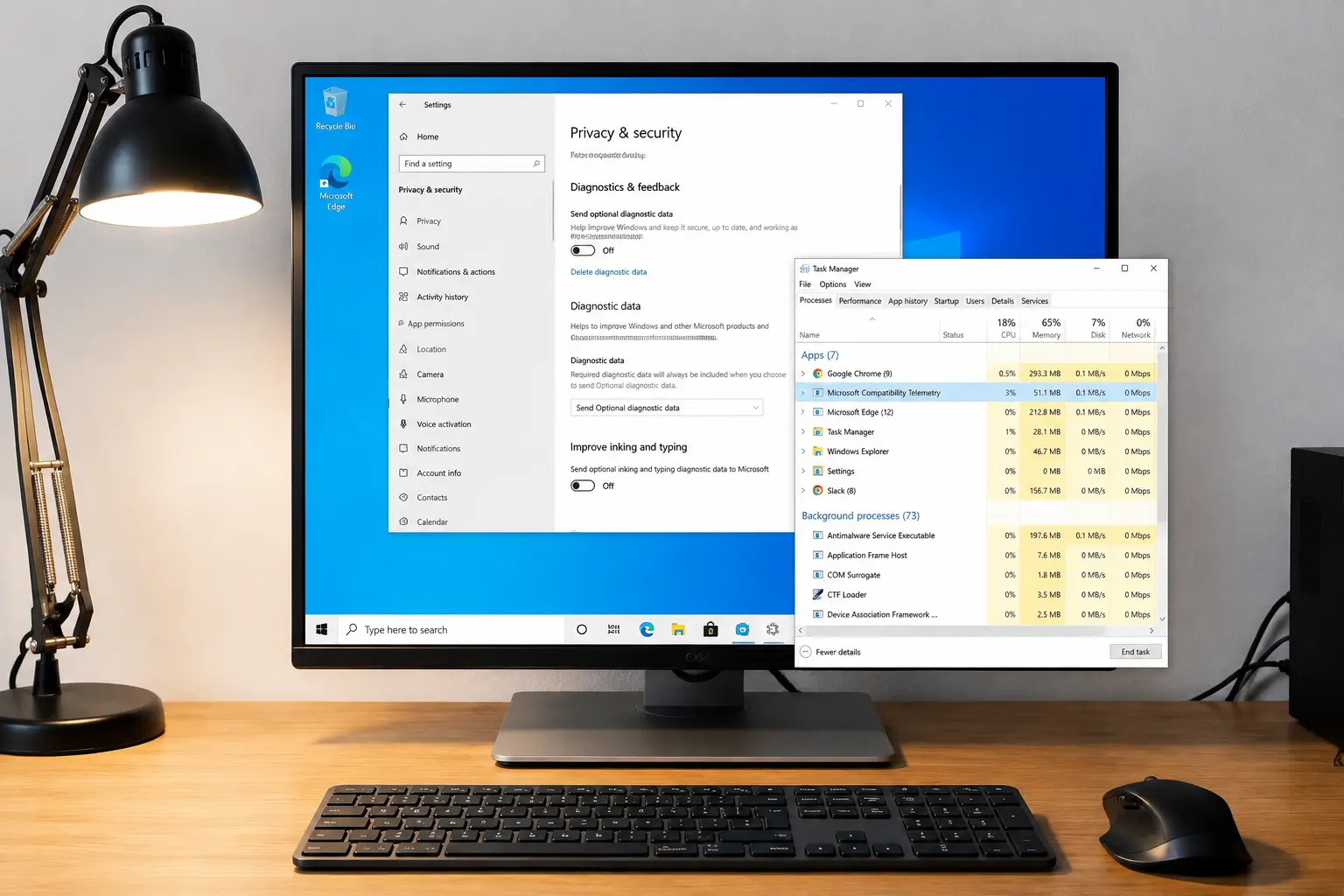
Your fan spins up, the disk light won’t stop blinking, and Task Manager points straight at something called Microsoft Compatibility Telemetry.
I get why that name looks alarming the first time you see it eating your CPU. It sounds technical, maybe even sketchy, but it’s actually a built-in Windows process that checks your apps and drivers before updates roll out.
I’ve dug into what it does, why it sometimes runs longer than it should, and whether shutting it down causes any real problems.
By the end, you’ll know exactly how Microsoft Compatibility Telemetry works, when it’s worth turning off, and how to do it safely without breaking anything on your PC.
What is Microsoft Compatibility Telemetry, and Is It Safe to Disable?
Microsoft Compatibility Telemetry is a Windows process called CompatTelRunner.exe, and it is safe to disable for most users.
It runs through the Application Experience feature, similar to other programs running in the background, checking installed apps and drivers for compatibility with updates.
The collected results are sent to Microsoft to help identify apps that may break after Windows updates. High CPU or disk use can make it look suspicious, but it is not malware or third-party spyware.
Turning it off will not damage Windows, but you may miss early warnings about update-related app problems.
How to Disable Microsoft Compatibility Telemetry
Microsoft Compatibility Telemetry runs in the background and uses CPU and disk resources over time. You can disable it through Task Scheduler, Group Policy Editor, or Windows Services. Here’s how:
Tools and Materials You Need
- Windows 10 PC: You need administrator access to change these settings.
- Group Policy Editor: Used to disable Microsoft Compatibility Telemetry.
- Computer Management: Used to manage Windows services.
Step 1: Open Group Policy Editor
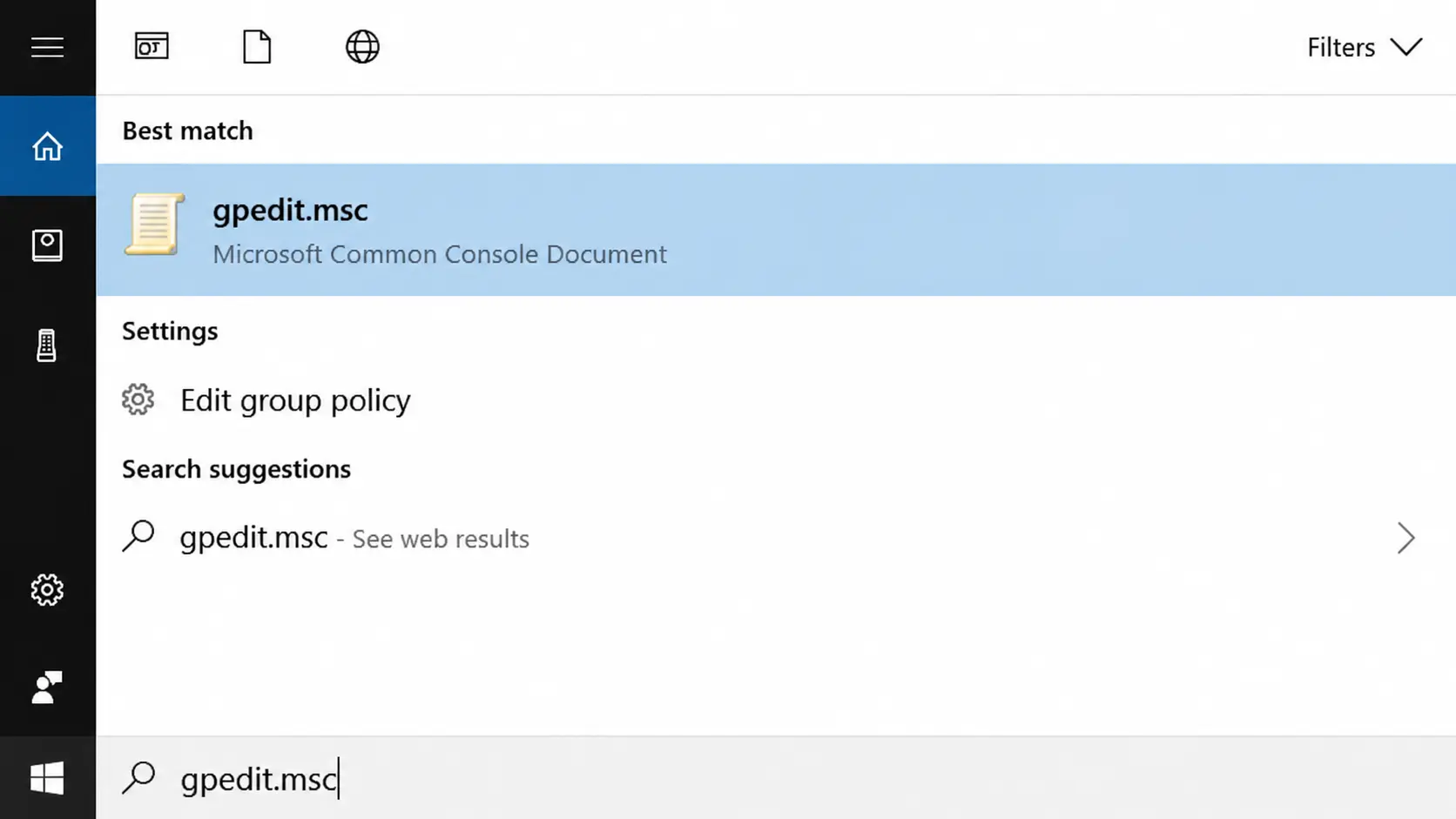
Press Windows + R to open the Run dialog box. Type gpedit.msc and press Enter to launch Group Policy Editor.
If the tool opens successfully, you are ready to change the telemetry settings. If nothing happens, your Windows edition may not include Group Policy Editor.
Step 2: Find the Telemetry Setting
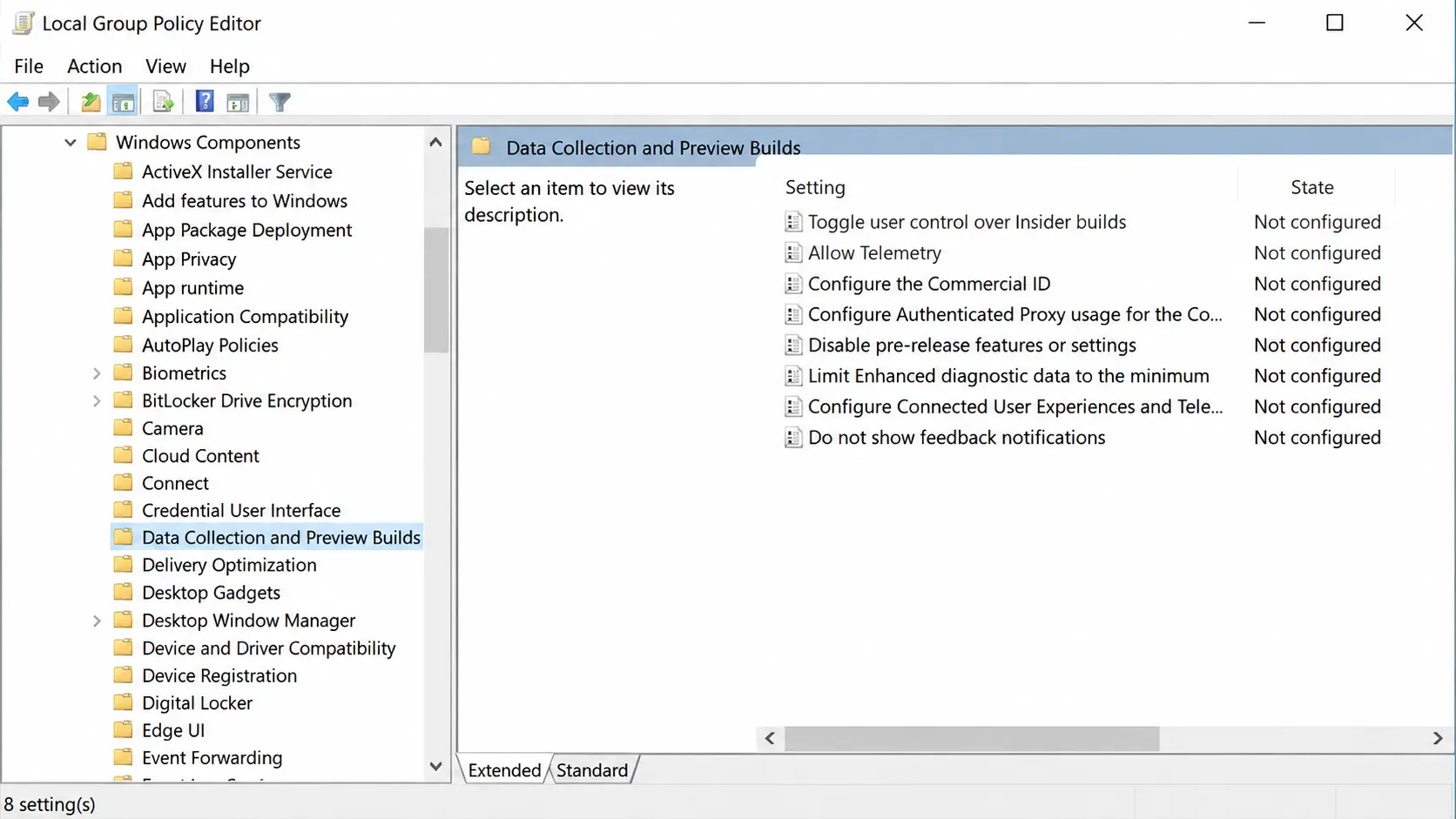
In Group Policy Editor, open this path:
Computer Configuration → Administrative Templates → Windows Components → Data Collection and Preview Builds
Inside this folder, find and open the Allow Telemetry setting. This controls whether Windows can collect compatibility data.
Step 3: Disable Microsoft Compatibility Telemetry
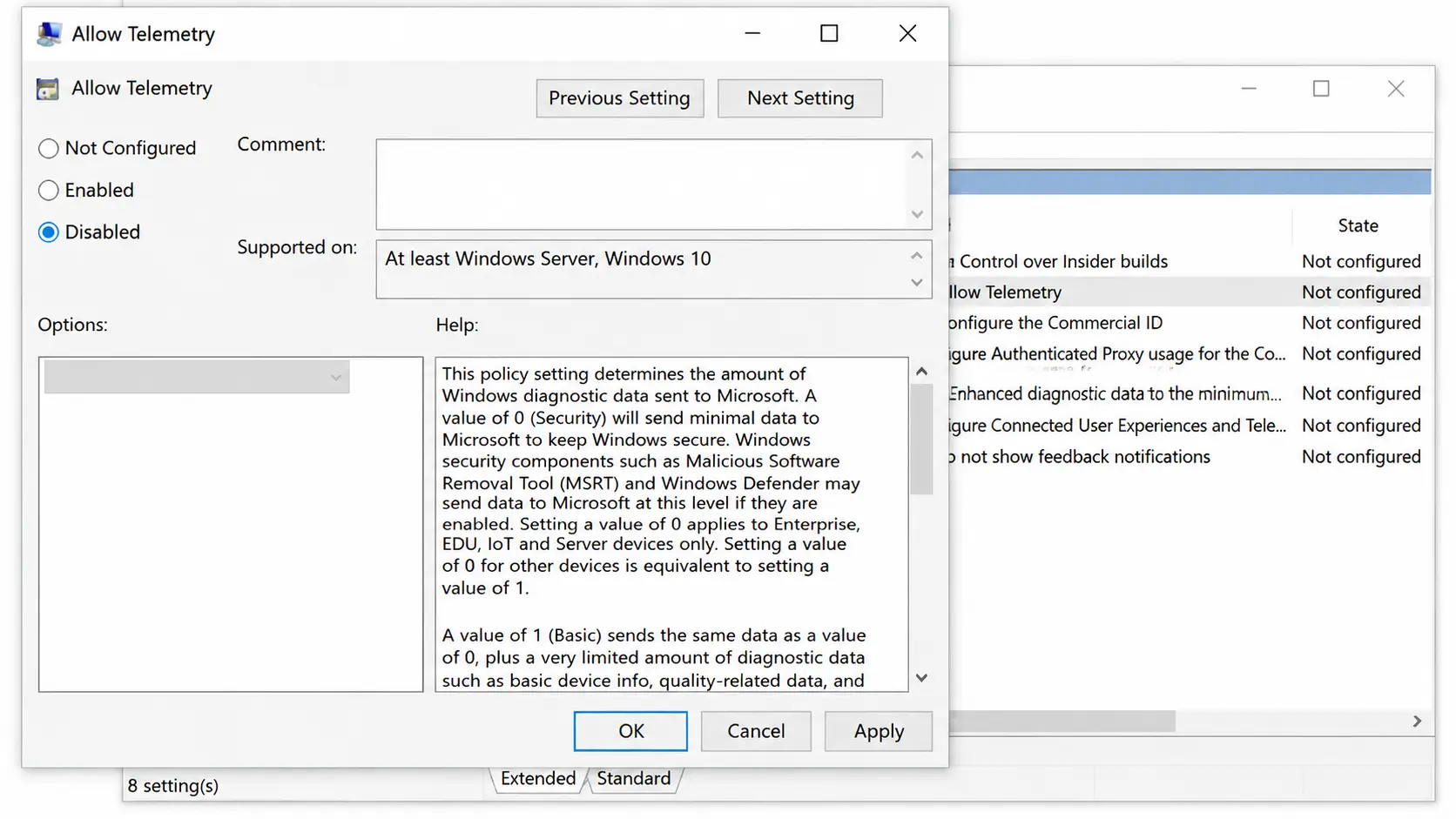
Open the Allow Telemetry option and select Disabled from the available settings. This prevents the telemetry policy from running through Group Policy.
Click Apply, then click OK to save the change. Close Group Policy Editor after confirming the setting has been updated.
Step 4: Open Windows Services
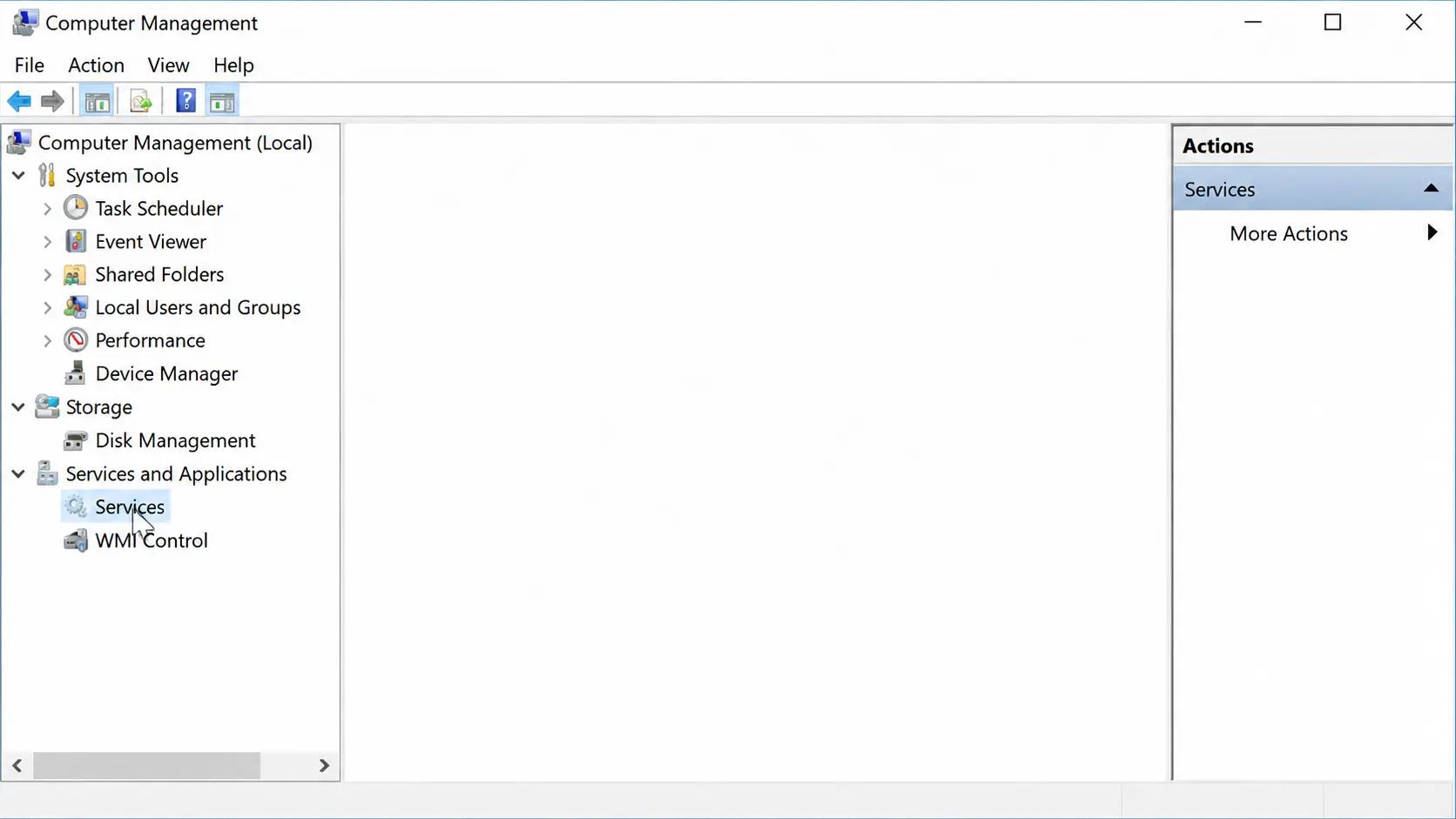
Right-click the Start button in the bottom-left corner of your screen and select Computer Management.
In the Computer Management window, open Services and Applications, then select Services. This section contains the background services running on your PC.
Step 5: Disable Connected User Experiences and Telemetry
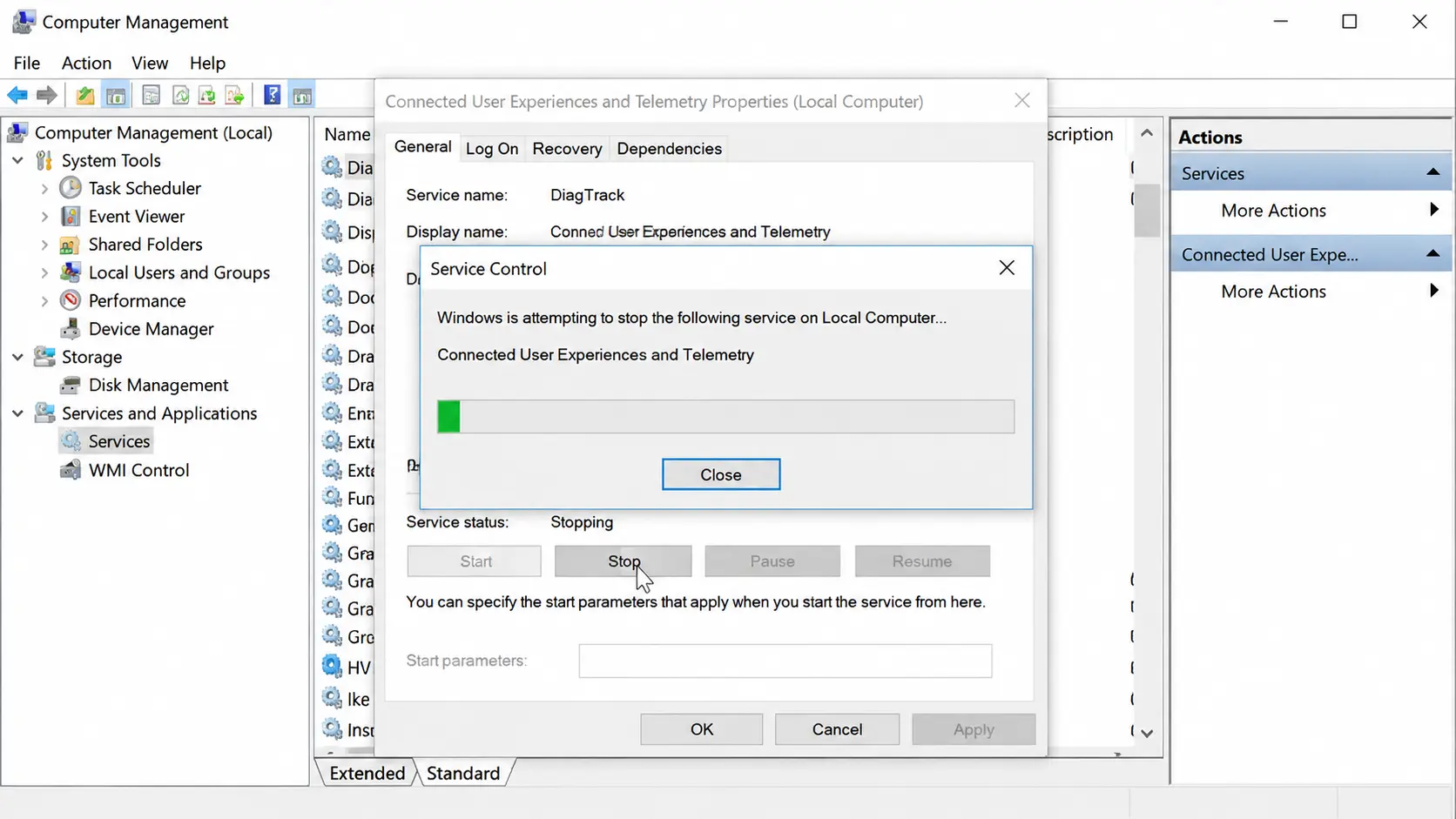
Scroll through the services list and find Connected User Experiences and Telemetry. Double-click it to open the service settings window.
Change the Startup type to Disabled, then click Apply. Under Service Status, click Stop to end the service immediately, then select OK.
Step 6: Restart and Check the Changes
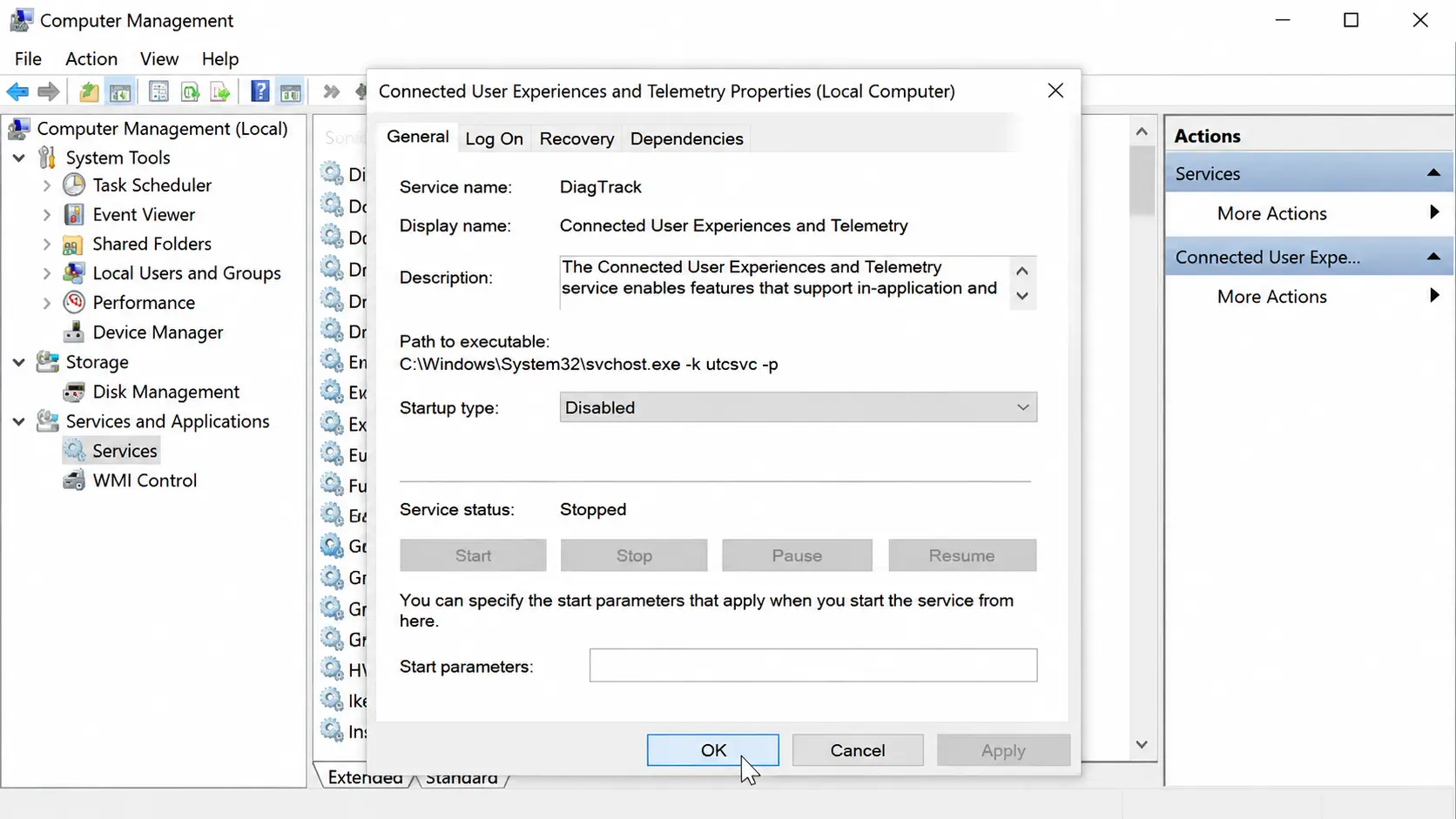
Restart your PC after making both changes. This allows Windows to apply the updated Group Policy and service settings properly.
After restarting, check that the settings remain disabled. If you notice the services returning after a major Windows update, you may need to review these settings again.
For a complete walkthrough of the process, check out the video tutorial below:
Disable Microsoft Compatibility Telemetry Using Task Scheduler
Task Scheduler controls the background task that runs Microsoft Compatibility Telemetry. Disabling it here stops the scan from starting on its own, and many users find this the most effective fix. Follow these steps:
- Open Task Scheduler: Press the Windows key, type Task Scheduler, and open it from the search results.
- Go to the right folder: Open Task Scheduler Library, then Microsoft, then Windows, then Application Experience.
- Find the task: Look for Microsoft Compatibility Appraiser in the list on the right.
- Disable it: Right-click the task and select Disable from the menu.
- Check for duplicates: If more than one task has the same name, disable each one you find.
Once disabled, CompatTelRunner.exe should stop running on its own. Close Task Scheduler when you’re finished. If it starts running again after a major Windows update, simply repeat these steps to turn it off.
How to Confirm It’s DisabledAfter making these changes, take a minute to check that everything actually stuck.
If all three checks come back clean, Microsoft Compatibility Telemetry is fully disabled on your PC for now. |
Why It Can Turn Back On
Microsoft Compatibility Telemetry can turn back on even after you disable it, and that’s normal.
Major Windows updates often restore default scheduled tasks and services, including this one, since Windows resets certain settings during big feature updates.
This doesn’t mean your fix failed. It usually means Windows reapplied its default configuration during the update process. Group Policy changes tend to last longer than disabling the Task Scheduler task alone, but even those can get reset in some cases.
If you notice CompatTelRunner.exe running again weeks or months later, repeat the steps above. Checking after major Windows updates is a good habit, since these settings can reset without warning.
Does Microsoft Compatibility Telemetry Collect Personal Data?
Microsoft Compatibility Telemetry does not collect your personal files, documents, or private content.
It mainly gathers technical information, such as installed apps, drivers, device specs, and system performance data, then sends it to Microsoft to help spot compatibility issues before major updates roll out.
I’ve seen many people assume telemetry means Windows is reading through personal files, but that’s not what this feature does.
The data collected depends on your diagnostic data setting under Settings > Privacy & Security > Diagnostics & Feedback, which controls how much gets shared overall.
If privacy is your main concern, disabling Microsoft Compatibility Telemetry can reduce this data sharing, though it isn’t required for normal Windows use.
Closing Thoughts
Microsoft Compatibility Telemetry isn’t something to fear once you understand what it actually does behind the scenes.
It’s a normal part of how Windows checks app and driver compatibility, not a hidden spy tool or virus. If high CPU or disk usage is slowing you down, disabling it through Task Scheduler, Group Policy, or Services is safe and easy to reverse.
I’d recommend checking again after major Windows updates, since some settings can reset without warning. Got questions about a specific step, or noticed something odd after disabling it?
Drop a comment below, and I’ll help you sort it out.
Frequently Asked Questions
Why Does Microsoft Compatibility Telemetry Keep Reappearing After I Disable It?
Major Windows feature updates often reset default scheduled tasks and services, including the telemetry appraiser. This is normal behavior, so you may need to repeat the disabling steps after a significant system update.
Is CompatTelRunner.exe a Virus or Malware?
No, it is a legitimate Windows process. Its purpose is to gather technical data about your system’s hardware and software to help Microsoft identify compatibility issues before releasing updates. It is not malicious.
Can I Just Delete the CompatTelRunner.exe File to Stop It?
While technically possible, deleting the file is not recommended and can cause system issues. It is safer and more effective to disable the associated scheduled task in Task Scheduler or the service in Windows Services.
Does Disabling Telemetry Prevent Me from Receiving Windows Updates?
No, disabling this telemetry feature does not affect the delivery of critical Windows or security updates. It stops the collection and sending of diagnostic data, but your system will still receive updates.