Switching to Android does not mean you need to give up your AirPods. I know the pairing can seem awkward because Apple builds AirPods mainly for its own devices.
So, do AirPods work with Android? Yes, and the core experience is better than you might expect. You can listen to music, take calls, use the microphone, control playback, and access supported noise modes through Bluetooth.
The main differences appear in Apple-only software features, not basic audio. I’ll help you understand what still works, what you lose, how to pair AirPods correctly, and which models make the most sense if Android is your main phone.
Do AirPods Work With Android?
Yes, AirPods work with Android phones, tablets, and other devices that support standard Bluetooth audio. Apple officially supports using AirPods as Bluetooth headphones with non-Apple devices.
That means a Samsung Galaxy, a recent Pixel phone, OnePlus, Motorola, or another Android phone can send music, videos, calls, and other audio directly to AirPods without special hardware.
The important distinction is compatibility versus integration. Android can communicate with the earbuds for normal Bluetooth functions, but it does not provide Apple’s complete AirPods settings environment. Features such as Siri and automatic switching across Apple devices therefore remain unavailable.
For someone who already owns AirPods, Android compatibility is generally strong enough for daily listening. Buying a new pair specifically for Android requires a little more consideration because competing earbuds may offer deeper phone integration.
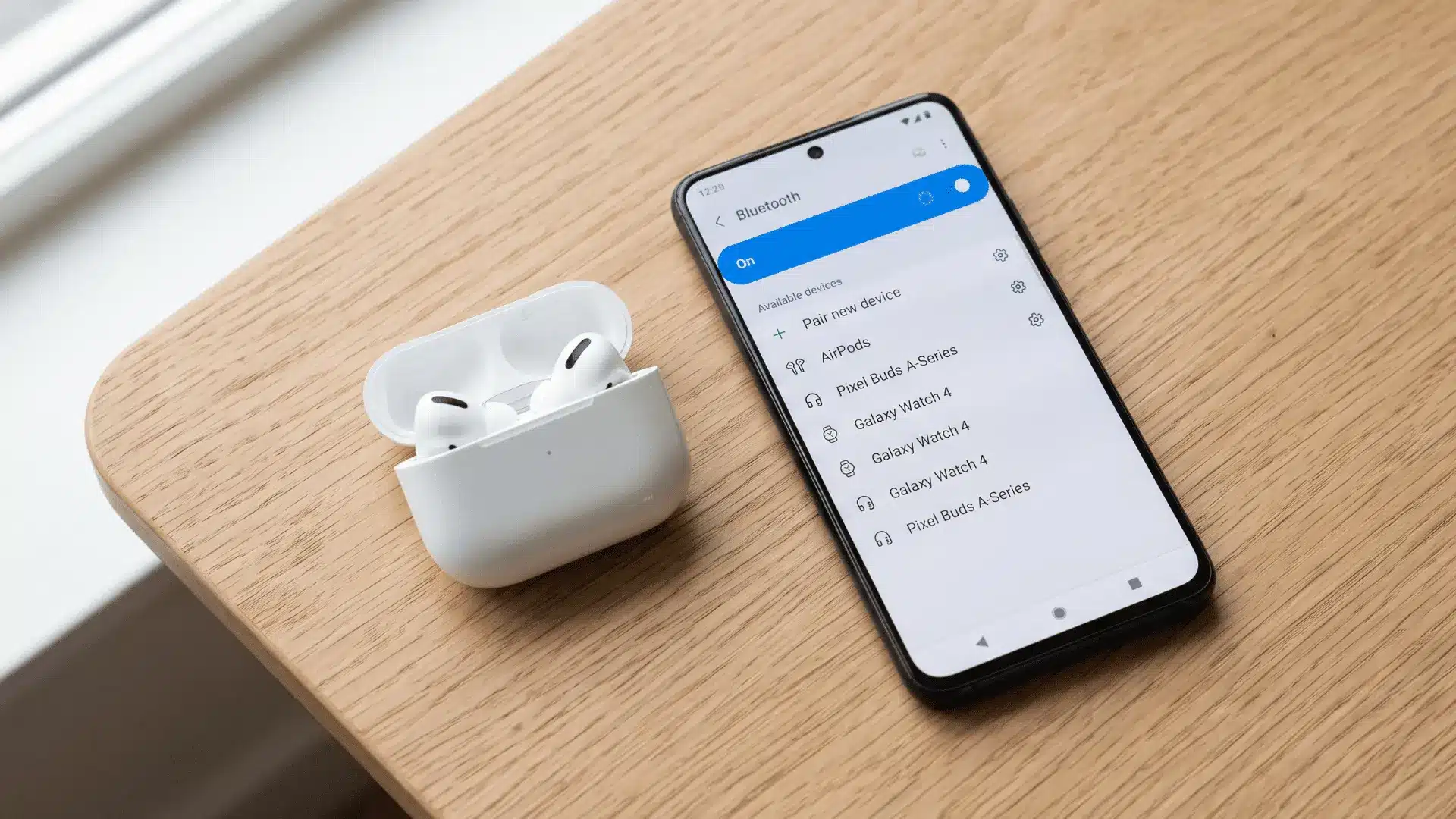
How to Pair AirPods With an Android Phone
Pairing takes only a few steps, although the method for activating pairing mode depends on the AirPods generation.
- Open Bluetooth settings: Go to Settings on your Android phone and open Bluetooth, Connections, or Connected Devices. Make sure Bluetooth is enabled.
- Prepare the AirPods: Place both earbuds inside their charging case and open the lid.
- Enter pairing mode: For AirPods 1, 2, or 3 and AirPods Pro 1 or 2, press and hold the button on the back of the case until the light flashes white. For AirPods 4 and AirPods Pro 3, double-tap the front of the open case until the light flashes white.
- Choose the AirPods: Wait for their name to appear under available Bluetooth devices, then tap it.
- Confirm pairing: Accept the connection request if your phone displays one.
Once connected, your Android phone treats the AirPods as a Bluetooth audio device.
Which AirPods Features Work on Android?
The easiest way to understand the Android experience is to separate hardware-controlled functions from features that depend heavily on Apple’s software.
| Feature | Android Support | What to Expect |
|---|---|---|
| Music and video audio | Yes | Audio streams normally through Bluetooth. |
| Calls and microphone | Yes | AirPods can handle calls and supported communication apps. |
| Play, pause, and skip | Yes | Onboard controls continue to function. |
| Active Noise Cancellation | Yes | Available on supported models through AirPods controls. |
| Transparency mode | Yes | Supported models can switch listening modes from the earbuds. |
| Battery information | Limited | Android lacks Apple’s detailed native battery interface. |
| Siri | No | Siri is unavailable when AirPods are used as non-Apple Bluetooth headphones. |
| Automatic Apple device switching | No | Requires compatible Apple devices using the same Apple Account. |
| AirPods settings | Limited | Android has no equivalent to Apple’s full settings panel. |
| Firmware updates | No direct Android support | Updates require a compatible iPhone, iPad, or Mac. |
| Personalized Spatial Audio | Limited | Several Spatial Audio functions require compatible Apple hardware and software. |
| Hearing health features | No native Android support | Supported hearing features rely on compatible Apple devices. |
The practical result is straightforward: Android keeps most listening functions while losing many convenience and ecosystem features. Common Bluetooth codecs also fall short of formats that preserve every original detail, so expect solid everyday sound rather than studio-grade fidelity.
How to Get More From AirPods on Android
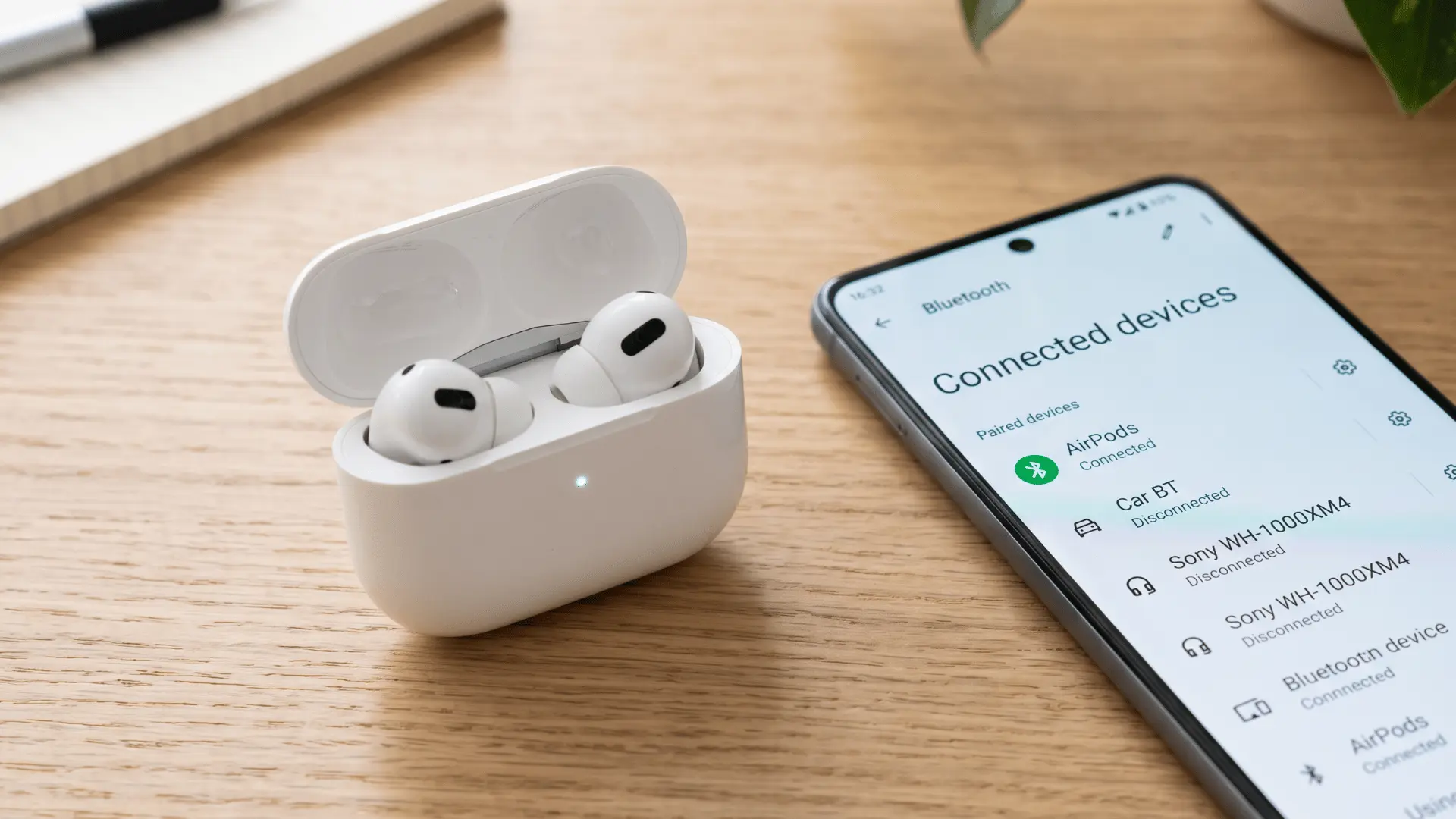
You cannot reproduce every Apple feature, but a few adjustments make AirPods much easier to live with on Android.
1. Add Battery Information
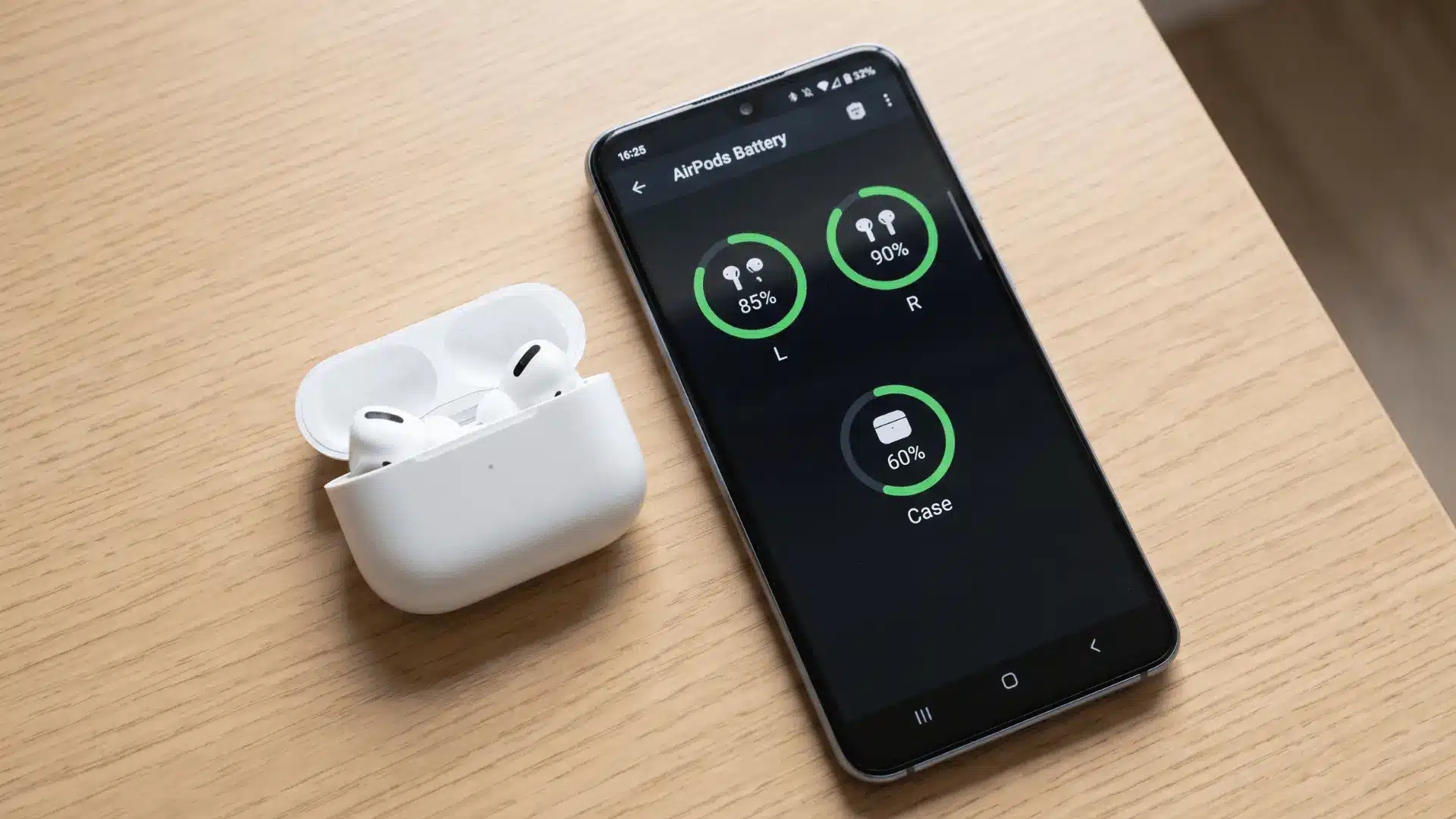
One noticeable difference is battery monitoring. An iPhone can display detailed AirPods charging information through Apple’s interface, while Android support is less consistent.
Some Android phones provide a basic Bluetooth battery indicator. Third-party apps can add more detailed estimates for individual earbuds and the charging case.
Apps such as MaterialPods and CAPod are designed for this purpose, but results can vary by Android version, phone manufacturer, and AirPods generation. Check permissions and recent user reviews before installing any third-party utility.
2. Configure Important Controls on an Apple Device
Android does not provide the same native AirPods customization menu available through Apple devices.
If you have temporary access to a compatible iPhone or iPad, configure the controls you care about before returning to Android.
For example, you can set how supported AirPods respond when switching between available listening modes. This matters most for users who want to customize how their earbuds behave rather than relying on default controls.
3. Keep AirPods Firmware Current
AirPods firmware cannot be manually installed from an Android phone. Apple states that updates are delivered while compatible AirPods are charging and within Bluetooth range of an updated iPhone, iPad, or Mac connected to Wi-Fi.
If you use AirPods exclusively with Android, occasionally connecting them to a compatible Apple device is the easiest way to keep their firmware current.
Apple also says users without an Apple device can seek firmware assistance through an Apple Store or authorized service provider.
Which AirPods Are Best for Android?
Not every AirPods model makes equal sense when Android is your primary phone. The better choice depends on fit, noise control, price, and whether you already own the earbuds.
1. AirPods 4 for Open-Fit Comfort
Standard AirPods 4 suit users who dislike silicone ear tips and mainly want music, podcasts, calls, and lightweight everyday listening.
They are less compelling if noise cancellation is a priority because the standard version does not provide the same noise-control package as higher-end options.
2. AirPods 4 With ANC for an Open Design
AirPods 4 with Active Noise Cancellation are more interesting for Android users who want an open-fit design without completely giving up noise control.
ANC and Transparency mode remain useful, although an open design cannot create the same passive seal as silicone-tipped earbuds.
3. AirPods Pro 3 for the Strongest AirPods Experience
AirPods Pro 3 are the better fit for Android users who specifically want Apple’s in-ear Pro design, stronger isolation, ANC, Transparency mode, and physical controls.
However, their value becomes harder to justify if you cannot use the Apple-specific software and hearing features included with the Pro line. Apple’s Hearing Test and Hearing Aid features require compatible Apple devices and vary by region.
4. Older AirPods for Existing Owners
AirPods 2, AirPods 3, and AirPods Pro 2 remain perfectly usable if you already own them.
Buying an older generation purely for Android can make sense at a substantial discount, but there is little reason to replace a functioning pair simply because you changed phone platforms.
Are AirPods Worth Using With Android?
AirPods make the most sense on Android when you already own them. Their main listening functions survive the platform switch, so replacing a perfectly good pair is rarely necessary.
The buying decision changes if you are starting from scratch.
Samsung Galaxy Buds can offer tighter integration with Galaxy phones, while Google’s Pixel Buds are designed around Google’s Android ecosystem. Brands such as Sony, Bose, and Soundcore also provide Android companion apps with settings, updates, EQ controls, and battery information.
AirPods are therefore not a poor Android choice. They are simply a less complete one.
Choose them because you prefer their fit, controls, sound, or noise cancellation, not because Android gives you the same experience as an iPhone.
AirPods Not Connecting to Android
If your AirPods do not appear in Bluetooth settings, first confirm that the case and earbuds have enough charge and that the status light is flashing white.
Next, turn Bluetooth off and back on, then place the AirPods into pairing mode again.
If the phone remembers an old AirPods connection, remove or forget that Bluetooth entry before pairing again. Also check whether the earbuds are automatically connecting to another nearby device.
For persistent problems, resetting the AirPods can clear stored connection information. The reset procedure differs between older AirPods and newer models such as AirPods 4 and AirPods Pro 3, so follow the instructions for your specific generation.
Final Words
AirPods can still be a practical choice after you move to Android, especially if you already own a pair. You keep the features that matter most for daily use, including music, calls, playback controls, and supported noise cancellation.
The biggest compromises involve Apple-only extras such as Siri, automatic device switching, detailed settings, and direct firmware management. So, do AirPods work with Android? Yes, but the experience is simpler than it is on an iPhone.
I’d keep a working pair rather than replace it just because you changed phones.
If you are buying new earbuds, compare Android-focused alternatives too. Try the pairing steps above and share which AirPods model works best for you.
Frequently Asked Questions
Can You Use One AirPod at a Time on Android?
Yes. A single AirPod can be used for audio or calls after the pair has been connected to your Android device. This can be useful when you want to keep one ear free or extend listening time by alternating earbuds.
Do AirPods Automatically Reconnect to Android?
They generally reconnect to a previously paired Android device when Bluetooth is enabled and the AirPods are available. Problems can occur if the earbuds connect first to another nearby device that they have previously remembered.
Do AirPods Work With Android Tablets?
Yes. Android tablets with Bluetooth audio support can connect to AirPods in the same way as Android phones. They are suitable for streaming, video calls, games, online classes, and other everyday audio tasks.
Can AirPods Be Used as Hearing Aids With Android?
Not through Apple’s native Hearing Aid feature. Apple states that supported hearing-health functions on AirPods Pro 2 and later require compatible Apple hardware and software, with availability also depending on the country or region.