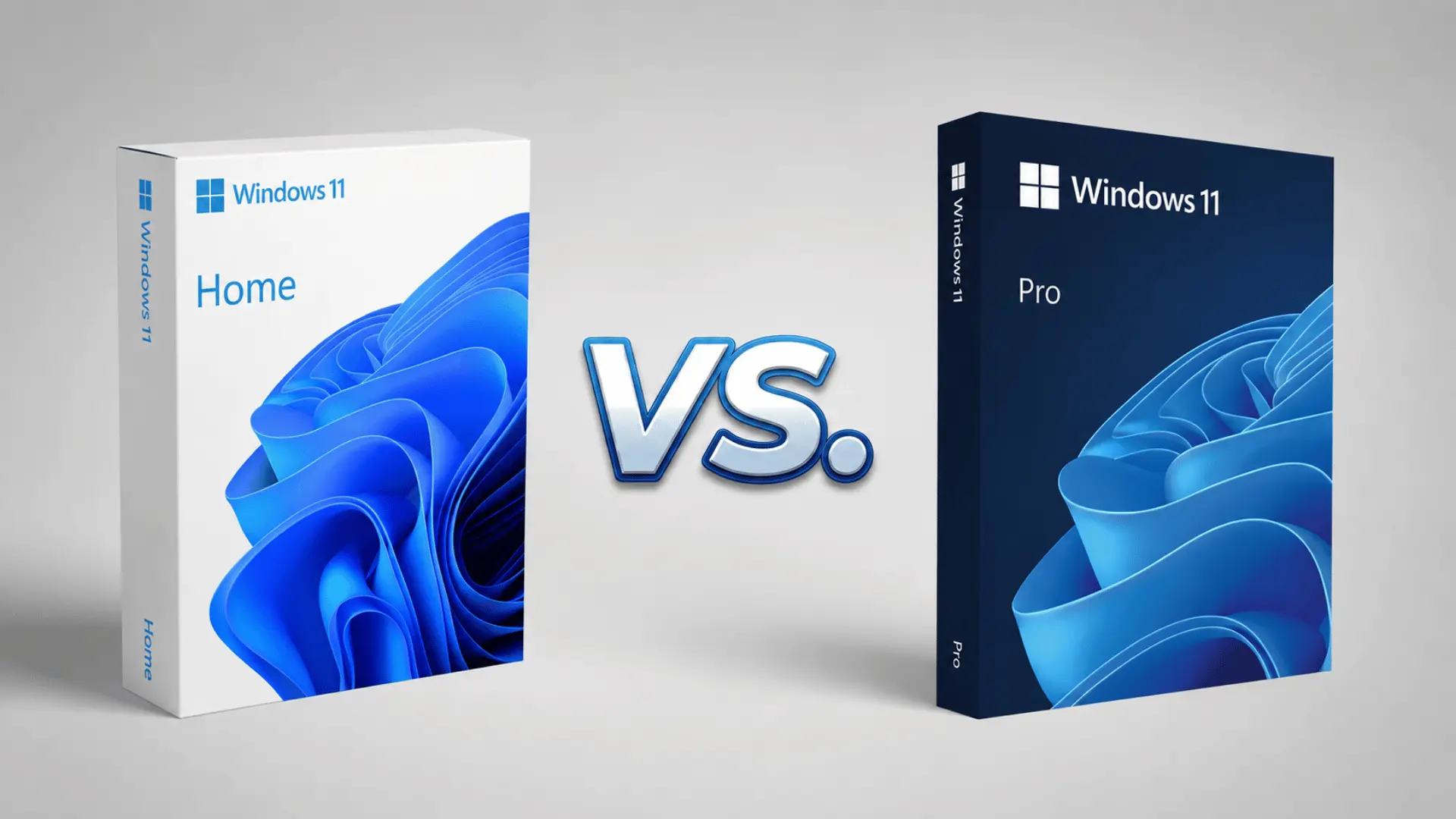
Choosing between Windows 11 Home and Pro can feel like picking between two versions that look almost the same.
Both give you the familiar Windows 11 interface, support modern apps, and handle everyday tasks with ease. So, why does Pro cost more?
I’ve seen plenty of people choose Pro simply because it sounds like the better option, only to leave its extra features unused. Others start with Home and later need tools that are only available in Pro.
That makes the choice less about which edition is better and more about what you actually need from your PC. A few differences can make your decision much easier.
About Windows 11 Home and Pro
Microsoft released Windows 11 on October 5, 2021, as the successor to Windows 10. Home and Pro launched together for personal and business users worldwide.
Windows 11 Home is designed for everyday personal use and includes the redesigned Start menu, Microsoft Store, Snap layouts, virtual desktops, gaming features, built-in security, common productivity apps, and support for pinning website shortcuts on your desktop.
Windows 11 Pro includes everything in Home while adding features for business, development, and IT work, such as BitLocker, Hyper-V, Windows Sandbox, Group Policy, and Remote Desktop hosting.
Pro can also join a Windows domain or Microsoft Entra ID, which is useful in managed workplaces. These controls help administrators apply policies, secure devices, manage access, and maintain systems.
Both editions provide the same core Windows 11 interface, app support, gaming experience, and overall performance. Pro mainly adds advanced security, virtualization, remote access, and device-management tools.
What is the Same Between Windows 11 Home and Pro?
Windows 11 Home and Pro share most of the features people use every day. The differences only become noticeable when you need advanced business, security, or management tools. Both editions include the same core experience:
- Interface: Start menu, taskbar, File Explorer, Settings, Windows Search, Widgets, Snap Layouts, virtual desktops, and Microsoft Store work the same.
- Gaming: Xbox app, Game Mode, Auto HDR, and DirectStorage support are available on both editions with compatible hardware, though pairing them with the right gaming monitor makes the biggest visible difference.
- Performance: Home does not reduce frame rates or game compatibility. Performance depends more on your processor, GPU, RAM, storage, and drivers.
- Security: Both editions include Microsoft Defender Antivirus, Windows Firewall, Secure Boot, Windows Hello, and regular security updates.
For most personal users, Home therefore feels almost identical to Pro during normal use. Pro mainly adds tools for business administration, advanced encryption, remote access, and managed devices.
Windows 11 Home vs Pro: What’s the Difference?
Windows 11 Home and Pro share the same core Windows experience, including the main interface, apps, gaming features, and everyday tools. The biggest differences are the advanced features included with Pro.
Microsoft lists features such as BitLocker, Hyper-V, Windows Sandbox, and business management tools as key Pro benefits. Pro also supports much more RAM.
| FEATURE | WINDOWS 11 HOME | Windows 11 Pro |
|---|---|---|
| Everyday use | Yes | Yes |
| Gaming features | Yes | Yes |
| Device encryption | On compatible devices | Yes, plus BitLocker |
| BitLocker | No full BitLocker controls | Yes |
| Remote Desktop hosting | No | Yes |
| Hyper-V | No | Yes |
| Windows Sandbox | No | Yes |
| Group Policy | Limited | Yes |
| Domain / Microsoft Entra ID join | No | Yes |
| Maximum RAM | 128GB | 2TB |
Microsoft’s current Windows documentation confirms the Pro edition includes Hyper-V and advanced business features, while its memory limits documentation lists 128GB for Home and 2TB for Pro.
Windows 11 Pro Features You Get with the Upgrade
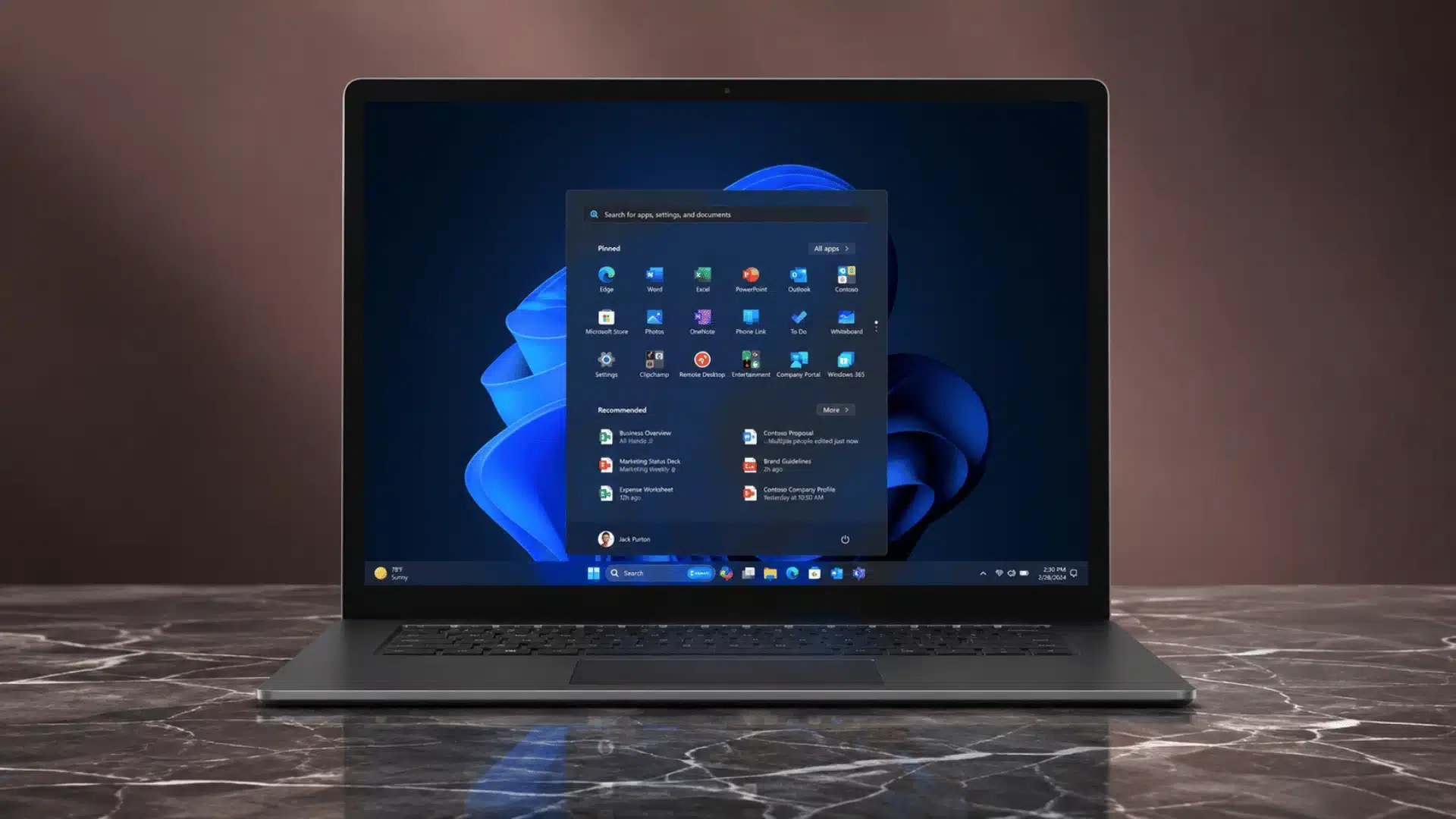
Windows 11 Pro costs more because it includes advanced tools Home leaves out. Their value depends on whether you actually need stronger security, remote access, virtualization, or business management.
1. BitLocker Encryption
BitLocker protects an entire drive by encrypting its contents, helping keep stored files unreadable if a laptop or drive is stolen and someone tries to access the data without proper authorization.
Windows 11 Home can offer device encryption on compatible hardware, but Pro provides fuller BitLocker controls. That extra flexibility matters most when protecting business files, confidential documents, or sensitive customer information.
2. Remote Desktop Host
Windows 11 Home can connect to another computer using Remote Desktop, but it cannot normally act as the host. Pro lets another supported device remotely access and control your PC.
That capability is useful when your main computer stays at home or work while you travel. You can reach installed software, stored files, and other resources without carrying that computer.
3. Hyper-V Virtualization
Hyper-V lets Windows 11 Pro create and run virtual machines inside your existing computer. Each virtual machine can operate separately with its own operating system, applications, settings, and allocated hardware resources.
This makes Hyper-V valuable for developers, IT professionals, and testers who need isolated environments.
You can test software, experiment with configurations, or run another operating system without buying another physical computer.
4. Windows Sandbox
Windows Sandbox creates a temporary Windows environment separated from your main installation. You can open unfamiliar files or install questionable applications there without making permanent changes to your primary operating system.
Everything inside the Sandbox is deleted when you close it, giving you a clean environment next time. It is especially useful for testing software when you do not want leftovers affecting Windows.
5. Group Policy and Business Management
Group Policy gives administrators detailed control over Windows settings, security rules, user permissions, updates, and device behavior.
These controls become valuable when several workplace computers need consistent configurations and restrictions. For a single personal computer, Group Policy usually offers little practical benefit.
Businesses and IT teams gain more value because they can enforce standardized settings and reduce manual configuration across managed devices.
Windows 11 Home vs Pro for Different Users
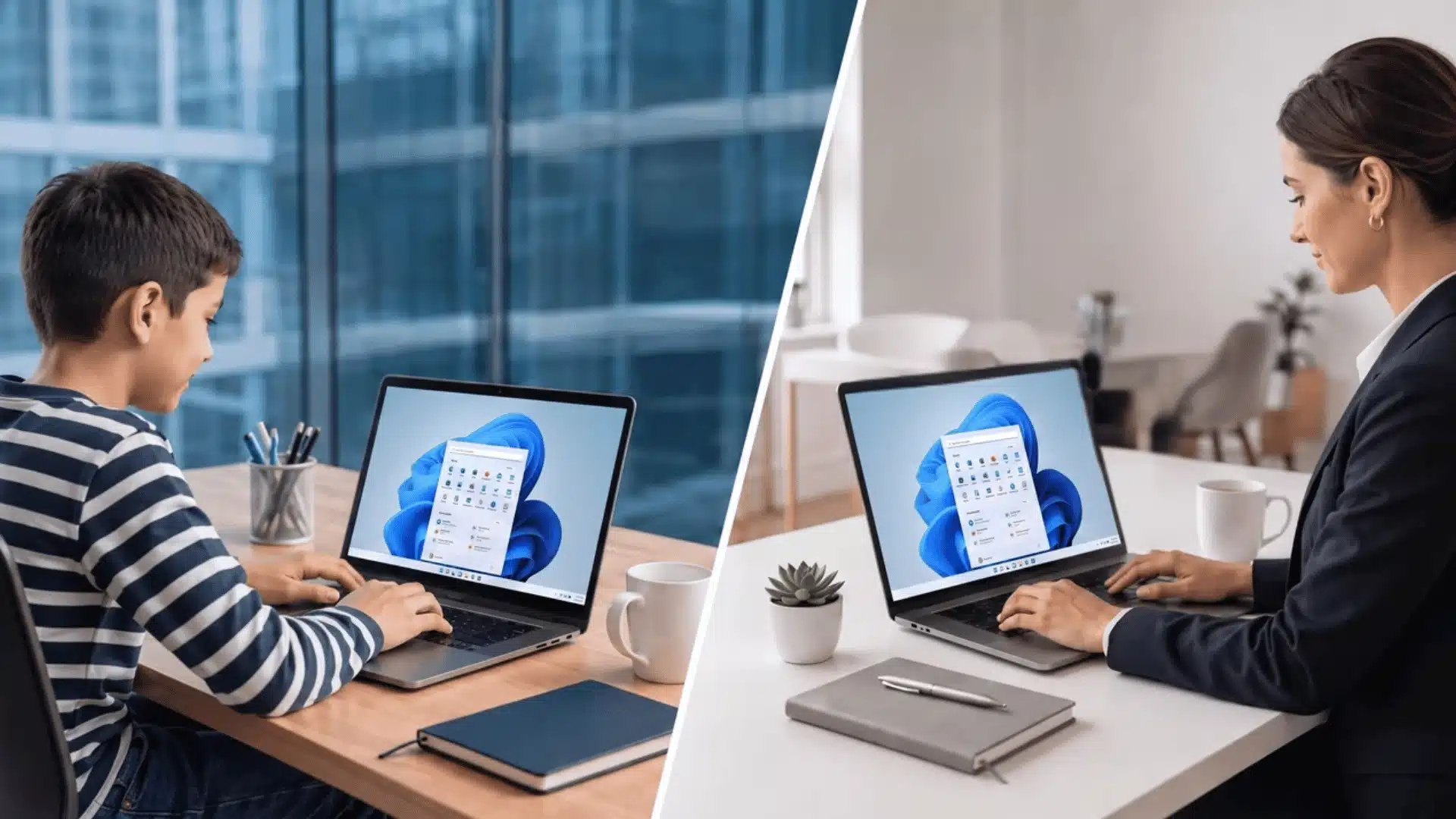
The better Windows 11 edition depends on the features you actually need. Home is enough for most personal tasks, while Pro is more useful when you need advanced security, virtualization, remote access, or business controls.
- Gamer: Windows 11 Home is enough for gaming. Pro does not provide a separate gaming performance boost, so most gamers have little reason to pay more.
- Student: Home works well for schoolwork, research, video calls, and everyday apps. Pro is mainly useful for students who need virtual machines or other advanced technical tools.
- Remote Worker: Either edition can work. Pro is useful if you need to host Remote Desktop or use business management features on your PC.
- Developer: Pro can be a better choice if you need Hyper-V or Windows Sandbox for testing software and running isolated environments.
- Business User: Pro is better suited to managed work PCs that need features such as BitLocker, domain joining, and other business controls.
For casual browsing, streaming, office work, and gaming, Windows 11 Home is usually the better value. Pro makes more sense when you use one of its advanced features regularly.
Is Windows 11 Pro Worth the Upgrade Cost?
Windows 11 Pro costs more than Home, but the extra cost only makes sense if you need its added features. For most people who browse, stream, game, study, or use everyday apps, Home is enough.
Microsoft currently lists $139.99 for Windows 11 Home and $199.99 for Windows 11 Pro for standalone licenses, making Pro about $60 more.
| FEATURE | WINDOWS 11 HOME | WINDOWS 11 PRO |
|---|---|---|
| Typical U.S. license price | $139.99 | $199.99 |
| Maximum RAM | 128GB | 2TB |
| BitLocker Drive Encryption | No | Yes |
| Windows Sandbox | No | Yes |
| Hyper-V | No | Yes |
| Remote Desktop hosting | No | Yes |
| Domain / Microsoft Entra ID join | No | Yes |
| Group Policy | No | Yes |
Microsoft confirms the 128GB vs. 2TB memory limits, while its Windows upgrade documentation lists BitLocker, Remote Desktop, and domain/Microsoft Entra ID joining among Pro’s added features.
Can You Upgrade from Home to Pro Later?
You can upgrade from Windows 11 Home to Pro later, so you do not have to choose Pro when you first buy your PC. You must activate your Home installation before upgrading.
You can purchase the Pro upgrade through the Microsoft Store or use a valid Windows 11 Pro product key through Settings > System > Activation.
Microsoft says the upgrade doesn’t require a clean installation, so your files and apps can stay in place. After the upgrade, Windows may restart to complete the process.
This makes Home a practical choice if you do not need Pro features right away.
Final Thoughts
Windows 11 Home vs Pro is not really about choosing the more powerful version. It is about paying for features that match the way you use your PC.
Home is a solid choice for gaming, browsing, streaming, schoolwork, and everyday tasks. Pro makes more sense when you need features such as BitLocker, Remote Desktop hosting, Hyper-V, Windows Sandbox, or business management tools.
I would stick with Home if those features are not part of your routine, since you can upgrade to Pro later if your needs change. Which Windows 11 edition do you use, and what made you choose it?
Share your experience in the comments below.
Frequently Asked Questions
Does Windows 11 Home Have BitLocker?
Windows 11 Home does not include the full BitLocker Drive Encryption feature, but compatible Home devices can support Device Encryption to protect stored data.
How Much RAM Can Windows 11 Home Use?
Windows 11 Home supports up to 128GB of RAM, while Windows 11 Pro supports up to 2TB, making Pro better for memory-heavy workloads.
Can Windows 11 Home Join A Domain?
Windows 11 Home cannot join a traditional Active Directory domain. Windows 11 Pro supports domain and Microsoft Entra ID joining for managed work devices.
Does Windows 11 Pro Include Hyper-V?
Yes. Windows 11 Pro includes Hyper-V, which lets users create and run virtual machines for testing software, running other operating systems, or isolated work environments.