


BitLocker helps protect personal and business data even if a device is lost. However, encryption also creates new challenges. You may suddenly see a BitLocker recovery screen after a system update, lose access to an encrypted drive, or struggle to find the right management options. These situations are especially common for users who are unfamiliar with BitLocker settings or use Windows editions with limited encryption management features.
Understanding how BitLocker works and knowing the available recovery options can make these problems much easier to handle.
Overview of BitLocker
What Is BitLocker
BitLocker is Microsoft’s built-in drive encryption feature for Windows. It encrypts an entire drive using industry-standard algorithms, helping prevent unauthorized access to files if a device is stolen, lost, or accessed outside the operating system.
Depending on the hardware configuration, BitLocker can work with the Trusted Platform Module to unlock the system automatically during startup. When Windows detects an unexpected hardware or security change, it requests a BitLocker Recovery Key, a unique 48-digit code generated during encryption setup.
BitLocker is commonly used to protect:
- Windows system drives
- Internal data partitions
- External hard drives
- USB flash drives through BitLocker To Go
Although encryption itself is largely automatic, users still need to manage recovery keys, encryption status, and access permissions while the drive remains encrypted.
Common BitLocker Challenges
- Lost BitLocker Recovery Key
Without the recovery key, Windows may refuse to unlock an encrypted drive after certain hardware or security changes. Many users are unsure where the key was originally saved or whether it still exists. - Unexpected BitLocker Recovery Screen
BIOS updates, TPM resets, motherboard replacements, or secure boot configuration changes can all trigger BitLocker recovery mode, even when the drive itself is functioning normally. - Limited Management Options
While Windows includes BitLocker management tools, they are spread across Control Panel, Settings, Command Prompt, and PowerShell. Switching between multiple interfaces can make routine operations unnecessarily complicated. - BitLocker Boot Issues
In some cases, Windows can’t boot because the encrypted system drive remains locked. Recovery often requires booting into a separate environment before the drive can be accessed again. - Windows Home Limitations
Depending on the Windows version and edition, some users have limited access to BitLocker management features, making it difficult to perform tasks such as disabling encryption or managing protected drives.
All-in-One BitLocker Manager: A Simpler Way to Manage BitLocker Encrypted Drives
Managing BitLocker often involves more than simply turning encryption on or off. Users may also need to unlock protected drives, locate recovery keys, recover access after startup failures, or create bootable media for troubleshooting.
Instead of treating these as separate tasks, an all-in-one BitLocker manager brings them together in a single workflow. EaseUS Partition Master combines BitLocker management, recovery assistance, and WinPE-based recovery tools within one interface, making it easier to handle common encryption scenarios without switching between multiple utilities.
Available functions include:
- Turn on BitLocker
- Turn off BitLocker
- Lock an encrypted partition
- Unlock a BitLocker-protected drive
- Find available BitLocker recovery keys
- Unlock BitLocker-encrypted drives from a WinPE environment
By centralizing these features, users can manage encrypted drives more efficiently while reducing the need to navigate different Windows components.
EaseUS Partition Master vs. Windows Built-in BitLocker Management Tools
Windows includes all the essential tools needed to manage BitLocker, but they are designed for different purposes. Basic operations are available through Control Panel and Settings, while more advanced tasks rely on Command Prompt (manage-bde) or PowerShell. Although these built-in tools are powerful, switching between multiple interfaces can slow down routine administration, especially for less experienced users. By comparison, a dedicated BitLocker Manager consolidates common operations, such as enabling or disabling encryption, unlocking protected drives, locating recovery keys, and functioning as a practical BitLocker Remover when decryption is needed, into a single graphical interface.
The table below compares Windows’ native BitLocker utilities with EaseUS Partition Master across several common management scenarios.
| Feature | Windows Built-in Tools | EaseUS Partition Master |
|---|---|---|
| Enable BitLocker | ✔ | ✔ |
| Disable BitLocker | ✔ | ✔ |
| Lock/Unlock Drives | Partial (multiple interfaces) | ✔ Unified GUI |
| Recovery Key Finder | Manual search required | ✔ Assisted recovery key search |
| Bootable WinPE Recovery | Requires manual preparation | ✔ Integrated bootable media creation |
| GUI-based Management | Limited | ✔ Centralized interface |
| Suitable for Everyday Users | Moderate | High |
Windows’ native tools remain the best choice for users who are comfortable working with system utilities or command-line environments. They are reliable, free, and fully integrated into the operating system.
EaseUS Partition Master takes a different approach. Rather than replacing BitLocker itself, it simplifies the management process by bringing encryption, recovery, and troubleshooting tools together in one interface. For users who manage encrypted drives regularly, or simply want a more intuitive workflow, that can save both time and effort.
Managing BitLocker with EaseUS Partition Master: Four Practical Scenarios
BitLocker problems don’t all look the same. Some users are locked out before Windows even starts, while others only need to recover a missing key or disable encryption on an existing drive.
The following examples demonstrate four common scenarios where EaseUS Partition Master can help simplify BitLocker management.
1. Recover Access from BitLocker Recovery Blue Screen
Best for
- BitLocker recovery loop
- BitLocker BSOD
- Windows won’t boot because of BitLocker
If Windows can’t start because the system drive remains encrypted, EaseUS Partition Master provides a WinPE-based recovery environment. Users can boot from external media and perform recovery-related operations and bypass the BitLocker recovery screen without loading the installed operating system.
Preparation
- A second working Windows computer
- EaseUS Partition Master
- A USB flash drive
Step 1. Connect a USB flash drive to a working PC and launch EaseUS Partition Master. Under Bootable Media, click Create Bootable Media, then select Next.
Step 2. Choose the USB drive as the destination. Since the creation process formats the drive, back up any important files before clicking Create. 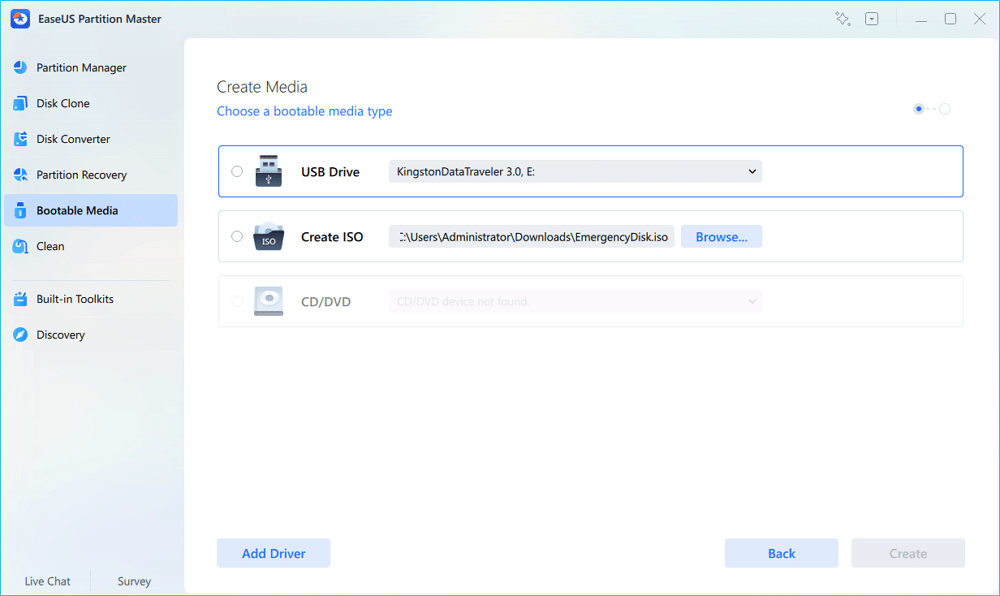
Step 3. After the WinPE environment loads, EaseUS Partition Master automatically detects the encrypted partition. From there, you can unlock the drive, turn off BitLocker, or perform other supported management tasks.
Step 4. EaseUS Partition Master will automatically unlock the BitLocker-encrypted drive. Hover the mouse over the BitLocker partition to see more info about it and manage the BitLocker partition, such as locking it or turning off BitLocker.
2. Find a Lost BitLocker Recovery Key
Best for
- Lost BitLocker recovery key
- Unable to unlock an encrypted drive
- BitLocker recovery screen
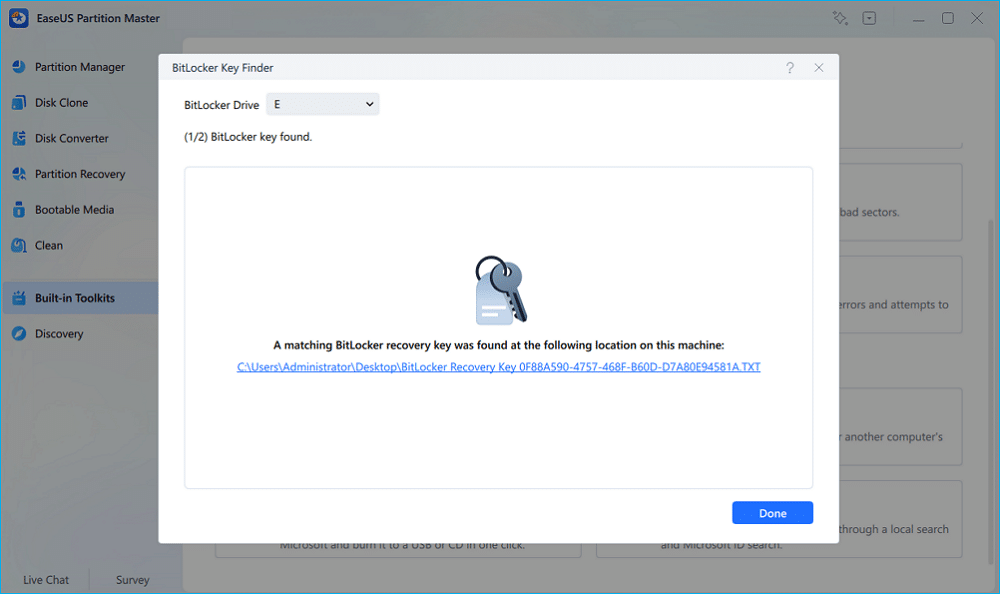
When the recovery key can’t be found manually, EaseUS Partition Master searches for available BitLocker recovery information stored on the local device. If applicable, it can also help users locate recovery information associated with their Microsoft account.
Step 1. Open EaseUS Partition Master. Under the Toolkit tab, select the “Retrieve BitLocker Password” option.
Step 2. It’ll detect your encrypted drive. Please click the “Find” button to search for the BitLocker recovery key on your encrypted drive. It will display the BitLocker recovery key automatically.
3. Manage BitLocker in One Place
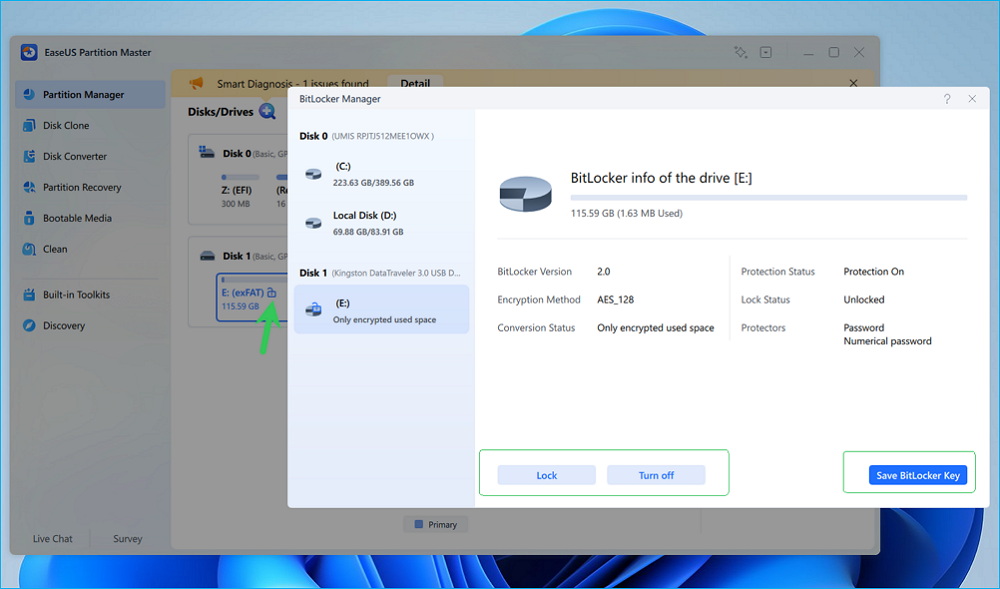
Managing BitLocker shouldn’t require jumping between Settings, Control Panel, and command-line utilities. EaseUS Partition Master provides a unified graphical interface where users can perform common BitLocker operations from a single window, including:
- Enable BitLocker
- Disable BitLocker
- Lock drives
- Unlock drives
- Save or back up BitLocker recovery keys
This centralized workflow reduces the learning curve and makes routine encryption management more intuitive.
4. Manage BitLocker on Supported Windows Home Systems
Windows Home users have historically had fewer BitLocker management options than users running Professional editions.
For supported Windows 11 Home systems (including newer 24H2 builds), EaseUS Partition Master provides BitLocker Manager capabilities that allow users to manage encrypted drives more conveniently. For example, users can decrypt protected drives and turn off BitLocker without relying on more complicated system tools.
Final Thoughts
BitLocker remains one of the most effective ways to protect sensitive data on Windows. Yet encryption is only part of the story. Managing recovery keys, unlocking protected drives, and recovering from startup problems are equally important if users want to avoid being locked out of their own data.
Windows already includes capable BitLocker tools, but they often assume a certain level of technical familiarity. A dedicated management solution can simplify those tasks without changing the underlying encryption technology.
For users who frequently work with encrypted drives, or simply prefer a graphical alternative to Windows’ built-in utilities, EaseUS Partition Master combines BitLocker management, recovery assistance, and WinPE-based access in a single application. Depending on the scenario, that can make encryption-related tasks considerably easier to manage.





