

I’ve learned that digital clutter is rarely just a file problem. It usually grows because there is nowhere safe to place items you are unsure about.
That is why learning how to declutter digital files should start with a temporary archive. Without one, deleting a needed file can quickly make you afraid to remove anything else.
No system keeps every phone, computer, and cloud account perfectly tidy. The goal is to reduce clutter without creating a maze of new folders.
Before deleting anything, build a simple safety net first.
Before You Delete Anything: Set Up a Safety Net
Before deleting anything, create a temporary archive folder and name it “Archive [today’s date]” so you can clearly track when your cleanup process began. This simple step gives structure and confidence.
Move all loose files from your desktop, Downloads folder, and other crowded locations into this archive without sorting them yet. The goal is only to gather everything safely in one place first.
This approach reduces the fear of accidentally deleting something important while also instantly clearing your main workspace. With fewer distractions, you can better see what truly needs attention next.
Keep the archive for a few weeks before permanently deleting anything, and review it only if needed. If files remain unopened, they are likely no longer necessary.
How to Declutter Digital Files: Step-By Step
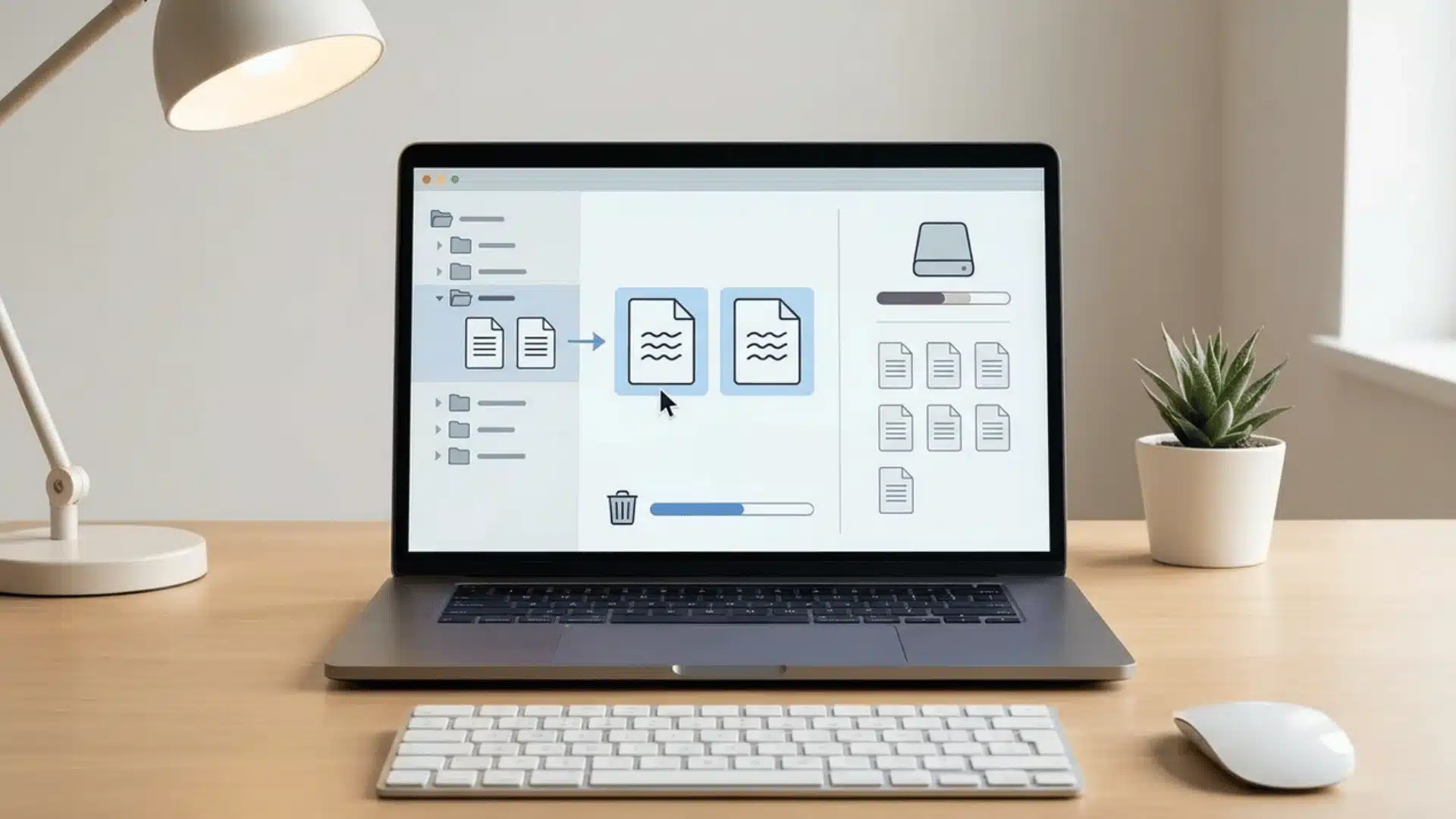
Digital decluttering works best when you follow a clear order. Start with files that are easy to remove, then clean duplicates and emails, and finally organize what remains.
Step 1: Clear out Temporary and Deleted Storage Locations First
Start by clearing your computer’s trash bin, phone’s recently deleted album, and old files from the downloads folder. Check the contents briefly before emptying them permanently.
These locations usually contain files you already chose to remove or downloaded for temporary use. Cleaning them first can free up storage quickly without much sorting.
Step 2: Eliminate Duplicate Files and Redundant Photos
Use your phone’s built-in duplicate finder or storage cleanup suggestions to locate repeated photos, screenshots, and videos. Review each group before choosing which copy to keep.
On a computer, sort files by name, date, or size to spot repeated downloads and renamed copies. Keep the clearest or newest version, then remove the extras.
Step 3: Reduce Email Clutter and Keep Only Important Messages
Unsubscribe from newsletters, store updates, and mailing lists you no longer read. Search by sender to delete promotional emails in larger batches.
Keep receipts, account details, contracts, and important conversations. Archive messages you may need later but do not want in your main inbox.
Step 4: Clear Out Apps, Cache, and Saved Passwords
Files aren’t the only thing cluttering your devices. A full digital declutter also covers:
- Unused apps: Delete anything you haven’t opened in the last three months. Unused apps quietly eat storage and often keep background processes running.
- Browser cache and bookmarks: Clear your browser’s cache to free up space, then go through saved bookmarks and delete dead links or pages you no longer visit.
- Saved passwords: Remove logins for accounts you’ve closed or no longer use, and update weak or reused passwords while you’re in there.
These take less time than sorting files, but they’re often the source of “why is my phone still full” even after a files cleanup
Step 5: Organize Essential Files Into Simple, Broad Categories
Move useful files into a few broad folders such as work, personal, finances, and photos. Use clear file names so you can find documents through search later.
If your storage is almost full, start by emptying the trash and removing duplicate files, then create a temporary archive folder once enough space becomes available.
Digital decluttering is not about a perfect filing system; it focuses on removing unnecessary clutter, organizing important files into simple categories, and keeping an order for faster future cleanups.
What to Do If You Have Years of Unorganized Files
If your backlog goes back years rather than weeks, the same steps still apply, you just need to break the process into sessions instead of trying to finish it in one sitting.
- Sort by year first, not by category. Move files into folders labeled by year (2022, 2023, 2024) before you try to sort by topic. This turns an overwhelming single pile into manageable, dated chunks.
- Tackle one year at a time. Pick the oldest year first. Files you haven’t touched in years are the easiest to make quick decisions about; you already know you don’t need most of them.
- Use file-type filters to speed up decisions. Sort each year’s folder by file type (images, documents, videos) so you’re making the same type of decision repeatedly instead of switching context file by file.
- Set a time limit per session. 20–30 minutes per sitting prevents decision fatigue. A backlog of years took years to build; it doesn’t need to be cleared in one day.
- Archive before you judge. As with the rest of this guide, move uncertain files into your dated archive folder rather than deleting them mid-sort. You can always delete later once you’re sure.
Why Broad Categories Beat Deep Folders for Digital Declutter
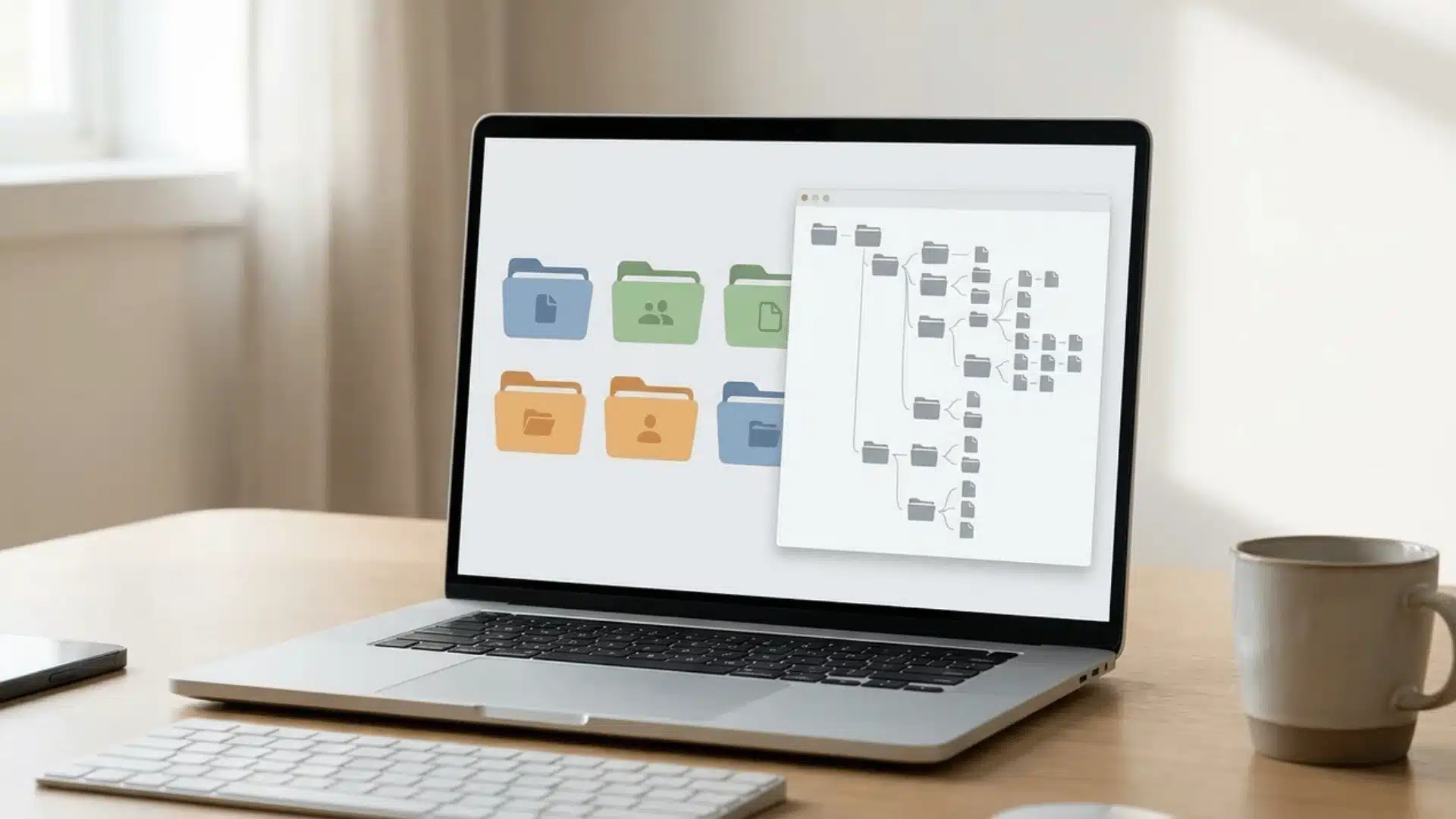
Deep folder structures can slow you down because they depend on memory. Finding one file may require remembering several folder levels instead of using a simple search.
Broad categories work better because they reduce decisions. A few folders like work, personal, and finances give enough structure while letting search handle the details.
Decluttering is not a one-time task. New files will keep appearing, so small cleanup habits prevent clutter from building up again over time.
Avoid deleting files before archiving them. Keeping a temporary backup removes the risk of losing something important and makes the cleanup process easier.
What Is the 3-3-3 Rule for Decluttering?
The 3-3-3 rule is a popular decluttering method: each day, you get rid of 3 items, donate 3 items, and return 3 items to their proper place.
Some versions apply it digitally: delete 3 files, unsubscribe from 3 emails, and archive 3 old documents every day.
It works well as a daily habit because it’s small enough to actually stick to. But it’s not built for backlog. If you have years of unsorted files, doing 3 a day would take forever to make a dent.
That’s where the archive-first method works: it’s designed for the initial deep clean, clearing hundreds or thousands of files in one sitting.
Once your system is clean, switching to a 3-3-3 style daily habit is a good way to keep it that way.
Quick Digital Declutter Checklist
Save or screenshot this list to work through at your own pace:
☐ Empty Trash / Recycle Bin and Recently Deleted photo album
☐ Clear the Downloads folder
☐ Create a dated Archive folder (e.g., “Archive 2026-08-11”)
☐ Move all loose desktop and folder files into the Archive
☐ Run duplicate finder for photos and files
☐ Unsubscribe from unused email newsletters
☐ Delete promotional emails in bulk by sender
☐ Delete unused apps (not opened in 3+ months)
☐ Clear browser cache and dead bookmarks
☐ Remove saved passwords for closed accounts
☐ Sort remaining files into broad folders (Work, Personal, Finances, Photos)
☐ Set a recurring weekly 5–10 minute cleanup reminder
Conclusion
Digital clutter becomes easier to manage when you stop treating every file as an immediate decision. Archiving first gives you room to clean without worrying about losing something important.
I recommend keeping your system simple with a few broad folders and regular short cleanups. Search can handle the details, so you do not need endless folder levels.
Start today by clearing one messy folder into a dated archive. Then remove duplicates, sort what matters, and repeat the process for another folder next week.
Frequently Asked Questions
What’s the hardest thing to get rid of when decluttering digital files?
Photos and screenshots are hardest; then old emails. Photos carry emotional weight, so deleting blurry or duplicate ones feels riskier than deleting a random document. The fix: use the archive-first approach. Move uncertain photos into a dated folder instead of deciding on the spot; it’s easier to delete later.
How often should I declutter my digital files?
A weekly 5–10 minute check keeps clutter from building up, plus a deeper pass every few months for archives, duplicates, and cloud storage. Most people only need a full reset once, if they follow a short weekly habit afterward to catch new clutter before it accumulates again.
Is it safe to delete files after decluttering?
Yes, once they’ve sat in your dated archive folder for a few weeks untouched. If you haven’t needed a file by then, it’s safe to delete. This archive-first buffer removes the risk of permanently losing something you forgot you needed.
Should I use the same method for my phone and cloud storage?
Yes, the same archive-first, broad-category approach works across devices. Create a temporary folder, clear loose files into it, remove duplicates, then sort what’s left into a few broad categories instead of deep folder trees.
Do I need a strict folder system to stay organized?
No. A few broad categories combined with your device’s search function work better than deep, nested folders, since search only requires a rough keyword rather than an exact remembered path.





