Tablets now handle video calls, digital note-taking, smart home dashboards, client presentations, point-of-sale transactions, recipe display, and second-screen productivity, rather than just streaming or casual browsing. Despite that expanded role, most tablets end up lying flat on a desk, balanced against a monitor stand, or buried under a stack of papers.
That positioning creates a downward viewing angle that strains the neck and shoulders during extended sessions, leaves the device unstable when tapped, and makes the overall setup feel improvised rather than intentional.
Research from occupational health organizations consistently links low screen height to increased neck and shoulder fatigue. Medical guidance suggests positioning displays 20 to 26 inches from the face with the center slightly below eye level, while workplace standards require that the monitor top provides enough upward adjustability to prevent downward neck bending.
Tablets resting flat sit far below these thresholds, but fixing this workspace requires targeted additions rather than expensive furniture replacements.
1. A Stable Tablet Stand
A device lying flat disappears under scattered papers while forcing the front-facing camera to point at the ceiling during meetings. Securing the hardware in VidaBox’s adjustable tablet stand lifts the screen to eye level and immediately frees up the physical surface underneath. Purpose-built mounts keep the display visible and lock the viewing angle into a consistent position for daily work.
On video calls, this elevation brings the lens to face height instead of capturing an unflattering upward angle from the table. For smart home panels, a raised screen remains readable from across the room without forcing a user to walk over. In retail environments, a heavy-duty base prevents the hardware from shifting when a customer taps the glass to sign a receipt.
Quality tablet accessories separate themselves by how well they handle direct physical interaction. A base that wobbles under light stylus pressure or requires manual repositioning throughout the afternoon breaks concentration and reduces daily efficiency.
2. A Defined Desk Surface
The physical area around the hardware affects typing comfort and organization in ways many remote workers underestimate. Defining the workspace spatially with Custom Envy’s custom neoprene desk mats creates a clear boundary for keyboards while adding personalized photo designs to the layout. A bare wooden desktop scatters visual attention and reads as disorganized clutter on camera during professional meetings.
Neoprene-backed materials improve optical mouse tracking while cushioning wrist movement during long digital drawing sessions. A unified base layer visually consolidates a clean desk setup into one flat plane, which looks significantly better on video broadcasts. Protecting the underlying wood from accidental scratches adds practical defense alongside the aesthetic upgrade.
Durable materials that resist slipping support fast-paced productivity without requiring constant manual readjustment. Fast domestic printing and heavy-duty backing materials separate functional workspace tools from generic decorative items that wear out quickly.
| Pro Tip: A desk mat defines your workspace, protects your desk, and unifies the setup for video calls. Choose neoprene-backed mats for better mouse tracking and wrist comfort, and personalize it without adding clutter. |
|---|
3. Cable Management Tools
Loose charging wires instantly undo the organization of a productivity desk setup. Leaving a single power cord draped across a mat creates immediate visual distraction, making the entire surface feel permanently cluttered. Routing these connections away from the primary work zone requires zero permanent hardware, and the entire process usually takes under thirty minutes to finish.
Cable clips route charging lines along the back edge of the table, keeping them entirely off the main work surface. To handle thicker cords, protective sleeves bundle a tablet charger, a laptop wire, and a monitor power line into a single managed tube that runs down the desk leg. Meanwhile, under-desk trays mount beneath the wood to hold heavy power bricks and excess cord length completely out of sight.
Most tablet setups only require one active charging wire available at hand at any given moment. Dropping that single line straight down through a built-in grommet or clipping it to the rear edge removes the physical obstacle from the mousing area. Reusable hook-and-loop ties adapt easily when switching between different device chargers throughout the week.
4. Better Desk Lighting
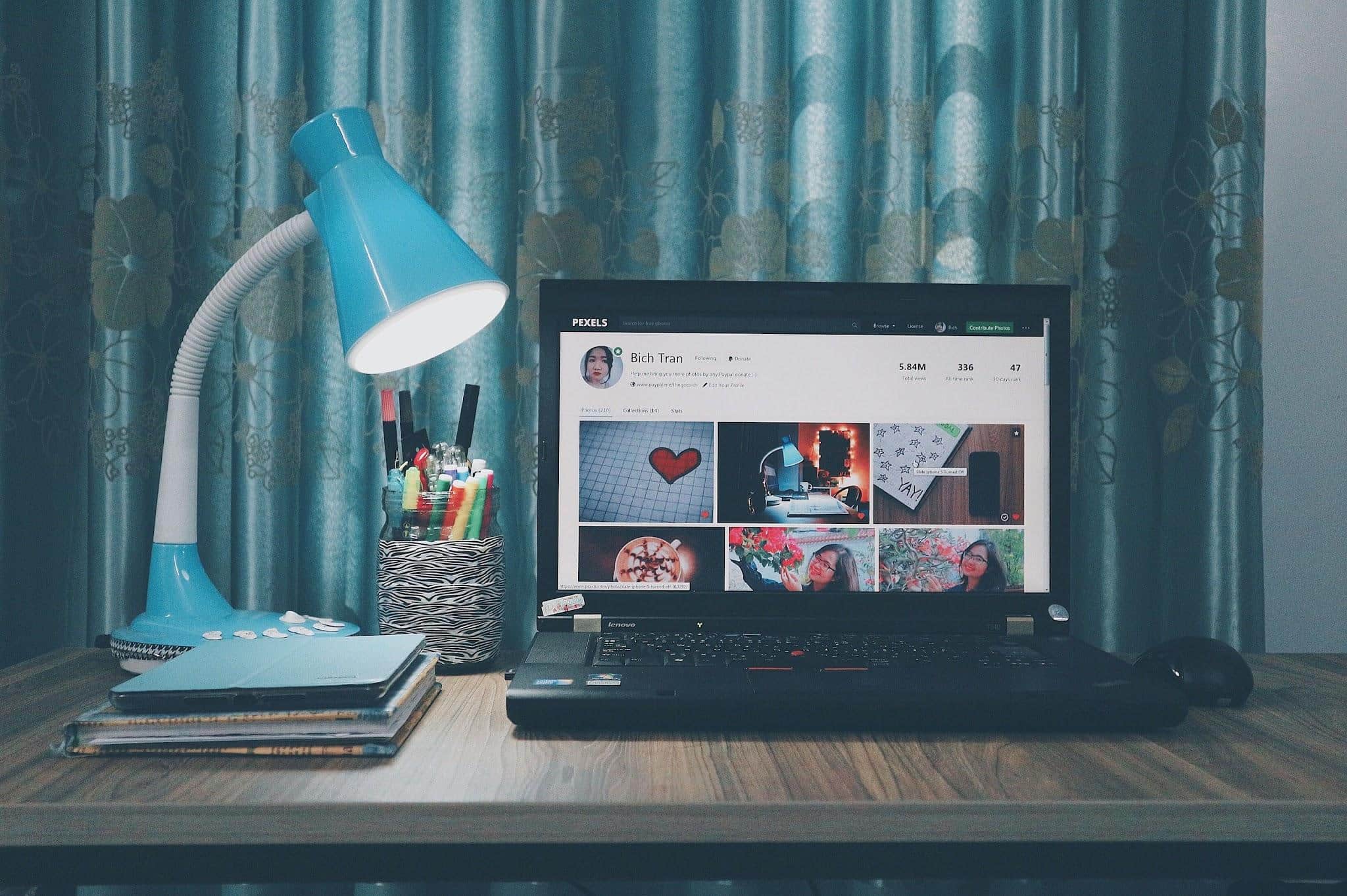
Poor lighting creates harsh eye strain during extended digital reading, especially as ambient room brightness drops in the evening. Standard office environments typically maintain 75 to 100 foot-candles of light, but federal health guidelines indicate computer workstations only require 18 to 46 foot-candles. A desk lamp with an adjustable color temperature easily meets this lower lighting threshold without washing out the tablet display.
Warm lighting in the 2700 to 3000K range supports comfortable evening reading and casual web browsing. Cooler daylight-balanced bulbs handle video calls where accurate color rendering and crisp contrast matter most to the audience. For frequent presenters, a small clip-on ring light positioned near the camera lens adds even, forward-facing illumination that standard overhead fixtures fail to provide.
Bias lighting reduces eye fatigue by placing an LED strip behind an external monitor to gently raise peripheral light levels. Users who operate a smart home tablet setup can pair connected bulbs directly to their device for instantaneous room adjustments. One tap modifies the environmental brightness to fit the current task without requiring a break in concentration.
| Key Insight: A desk lamp with adjustable color temperature serves dual purpose: warm light for evening reading, cool daylight for accurate color on video calls. This single upgrade reduces eye strain and improves your on-camera presence. |
|---|
Choosing the Right Tablet Desk Accessories
Evaluating new additions for a workspace requires focusing on daily utility rather than just visual appeal. Applying a few strict criteria ensures that new remote work desk accessories actively support heavy workloads.
- Stability: The base must hold the device firmly without shifting or bouncing during active screen taps.
- Viewing angle: The hardware should raise the display to a comfortable eye level to prevent downward neck strain.
- Durability: Construction materials need to withstand daily manipulation over months of active use.
- Cable access: Open port cutouts must allow clean wire routing without bending the connector.
- Desk space: The physical footprint must fit the available surface area without displacing keyboards or notebooks.
- Workflow improvement: The addition needs to speed up navigation or data entry rather than just serving as a decoration.
| Quote: Each upgrade also compounds the others. A stable stand makes cable routing cleaner because the tablet’s position never shifts. A defined desk surface makes the stand’s footprint intentional rather than arbitrary. |
|---|
Making It Happen
A secure, tamper-proof tablet enclosure or adjustable mount transforms a loose piece of glass into a stable workstation anchor, instantly fixing bad camera angles. Defining the physical typing area with a durable, non-slip desk mat protects the wood underneath while reducing visual clutter on daily video calls.
Managed cables eliminate the distraction of tangled wires running across the primary work zone. Adjustable desktop lighting reduces physical eye strain by providing the exact ambient illumination required for both screen reading and virtual meetings.